Add extensions to a license
Begin by logging into your Bicom Systems account by clicking on accessing login.bicomsystems.com
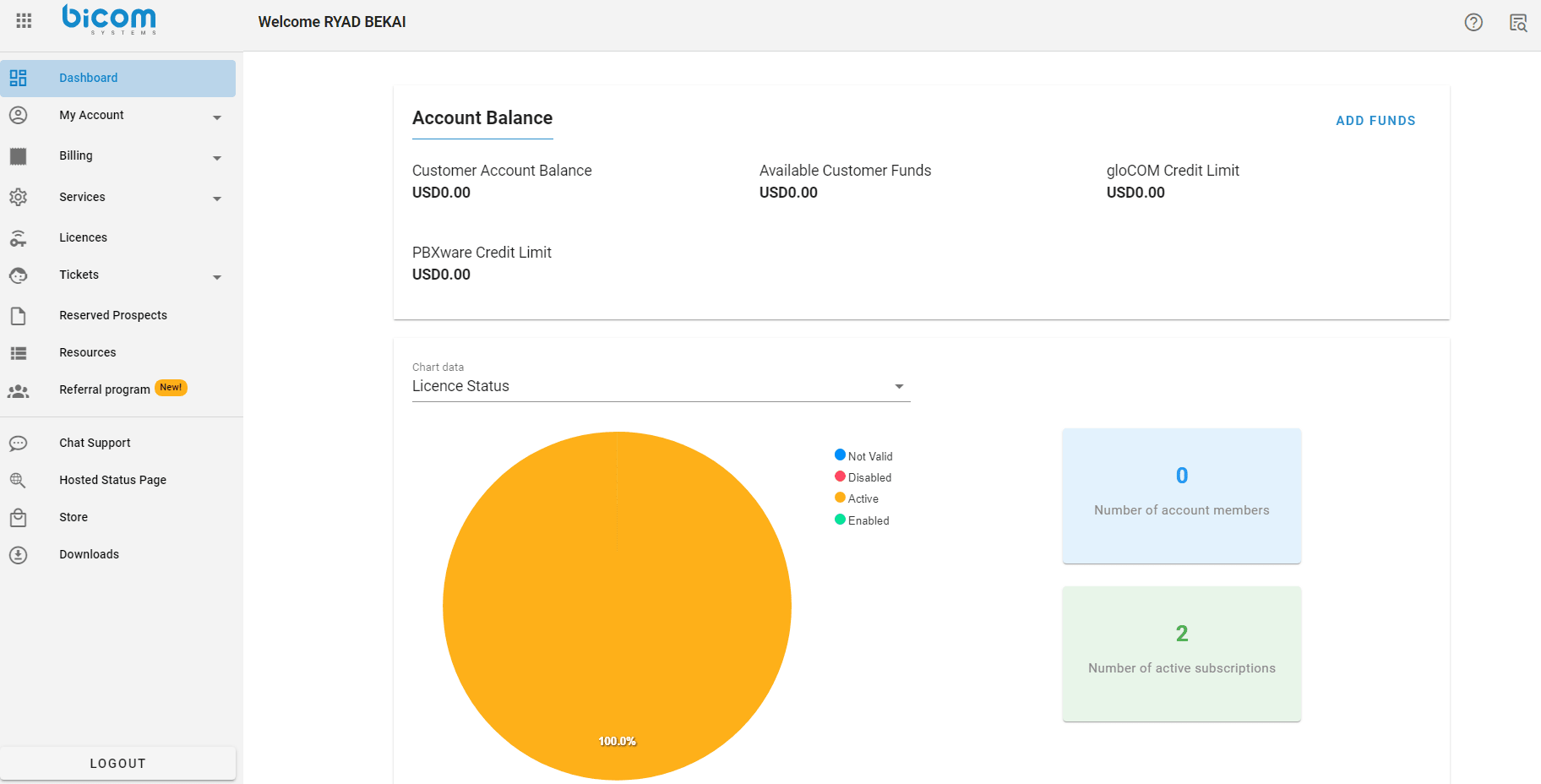
Once logged in, you will find yourself on the main dashboard of your account.
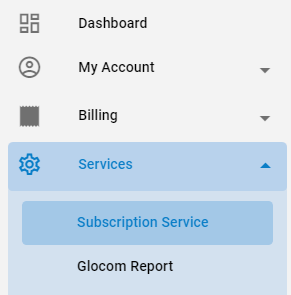
Once on the Subscription Services page, you will find a list of your active licenses along with the associated Subscription ID in the first column.
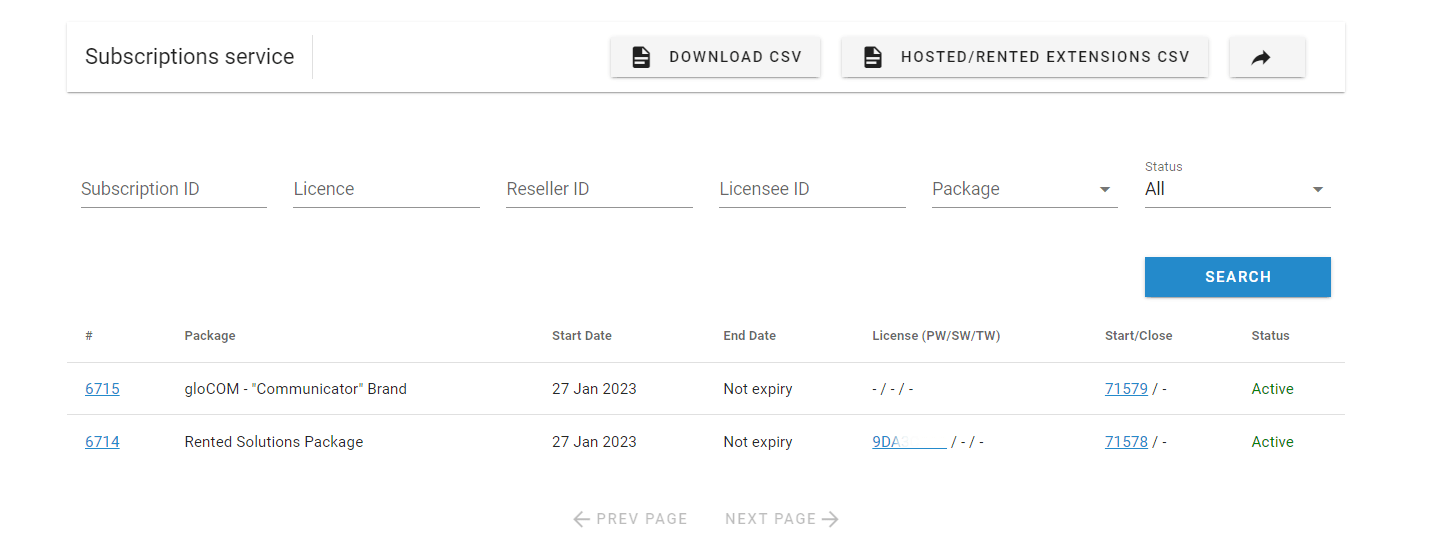
Once your license is identified (there is a field to search for the license), click the Subscription ID (#) corresponding to your license (e.g. 6715).
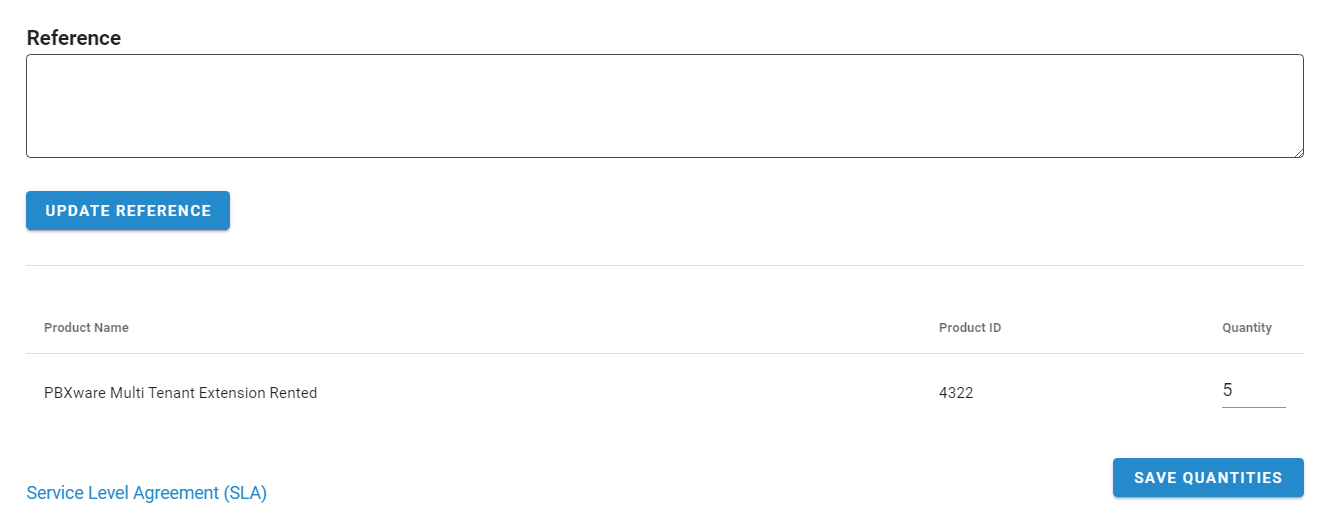
By clicking on the subscription ID of your license, you will find a page that lets you modify the quantities present on your license.
Note that there are several possible products such as:
– Archiving Storage
– Mirrored Redundancy of Two Servers
– PBXware Branding
– PBXware Business Extension Rented
– PBXware Call Center Extension Rented
– PBXware MT Support Monthly Contract
– PBXware Multi Tenant Extension Rented
– …
Once the quantities are modified, click the button Save quantities.
A confirmation dialog box will appear, click Confirm

A confirmation message will then appear at the bottom of the page, indicating that the quantities have been successfully modified.

The last step is to reload the license so that PBXware can take note of the changes by contacting the Bicom license server.
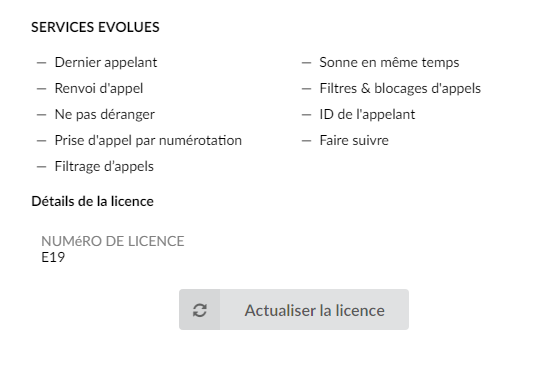
To do this, go to your PBX, click on the tab Settings > About.
Here, click on the button Refresh license.