



Communicator Web

Nowadays, as VoIP technology is developing more than ever to obtain the best possible quality of long-distance communication and reduce the costs of telecommunication services, it is necessary to create simpler and more user-friendly communication tools.
Communicator Web represents one of the solutions to these needs.
The idea of creating this type of communication tool is the result of the need to reduce memory usage and the performance of our devices such as computers and mobile phones. In addition, one of the main ideas behind creating Communicator Web is to increase mobility. This means that users can stay in touch with their colleagues at any time, wherever they are and whether or not their devices are within reach.
Even though Communicator Web cannot fully replace products such as Communicator Desktop or Communicator GO, it represents an interesting solution for the situations mentioned above.
Unlike the other two products, Communicator Web requires neither download nor installation.
Prerequisites
To use Communicator Web, all the user needs is a computer, a good Internet connection, and one of the browsers supported by Communicator Web.
The list of browsers supported by Communicator Web is as follows:
- Google Chrome
- Mozilla Firefox
- Edge
- Safari
- Brave
- Opera
Communicator Web allows users to make a call, start a conference, send messages, and much more.
Working with Communicator Web
Before you begin working with Communicator Web, you must point your browser to the appropriate IP address (for example, http://192.168.1.1/webapp).
The browser will be automatically redirected to the Communicator Web login screen, which will ask you to provide your account details.
Make sure you have received your account details from your system administrator or your account manager.
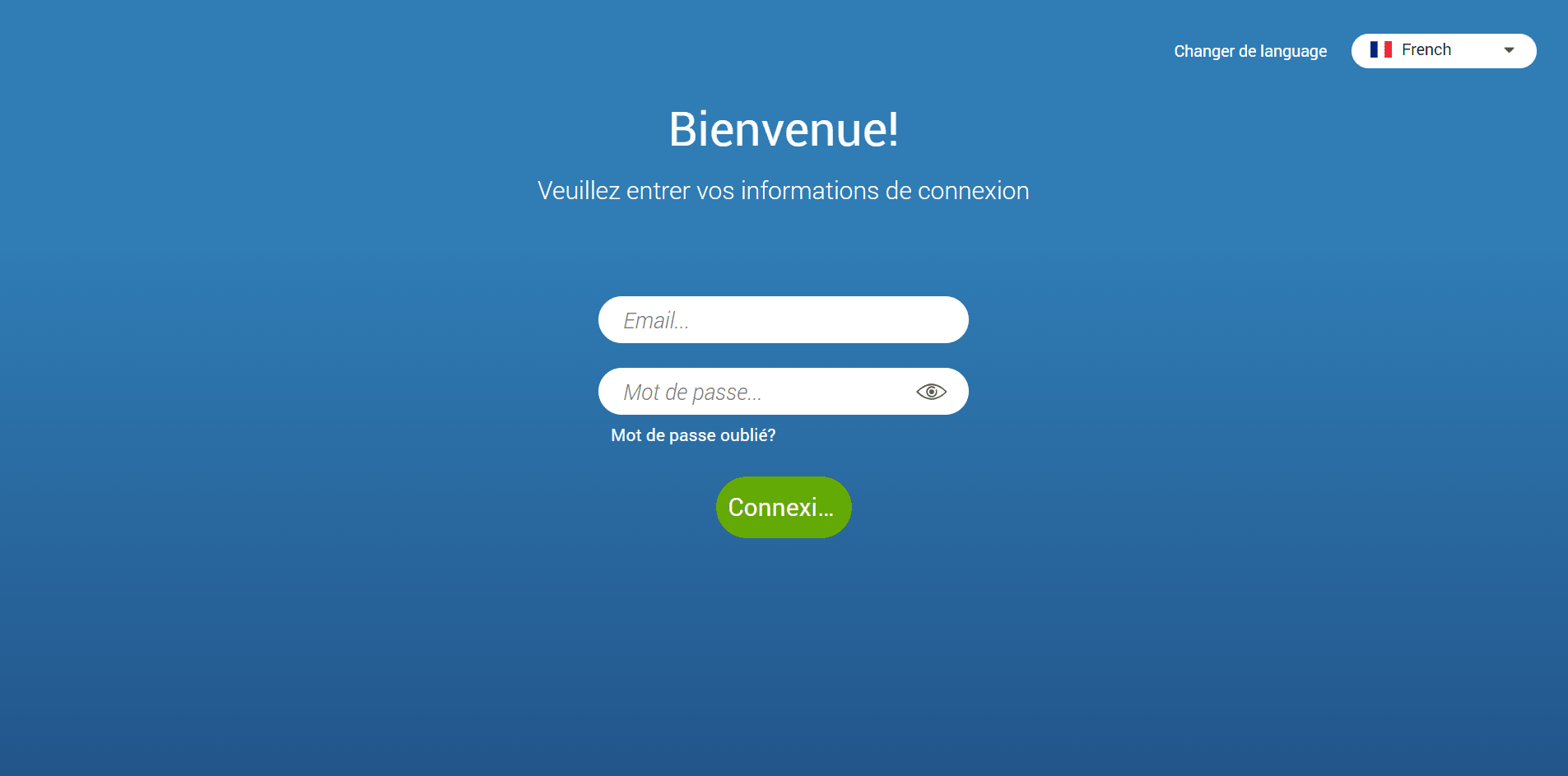
If your account details are incorrect, an orange warning will appear:
Connection failed: the username or password is incorrect.
Otherwise, the browser will be redirected to the first login screen, prompting you to change your password since you are using your Communicator account for the first time.
The password must contain at least eight characters. Users must change their password upon login, and once changed, it will be encrypted and will be invisible to administrators.
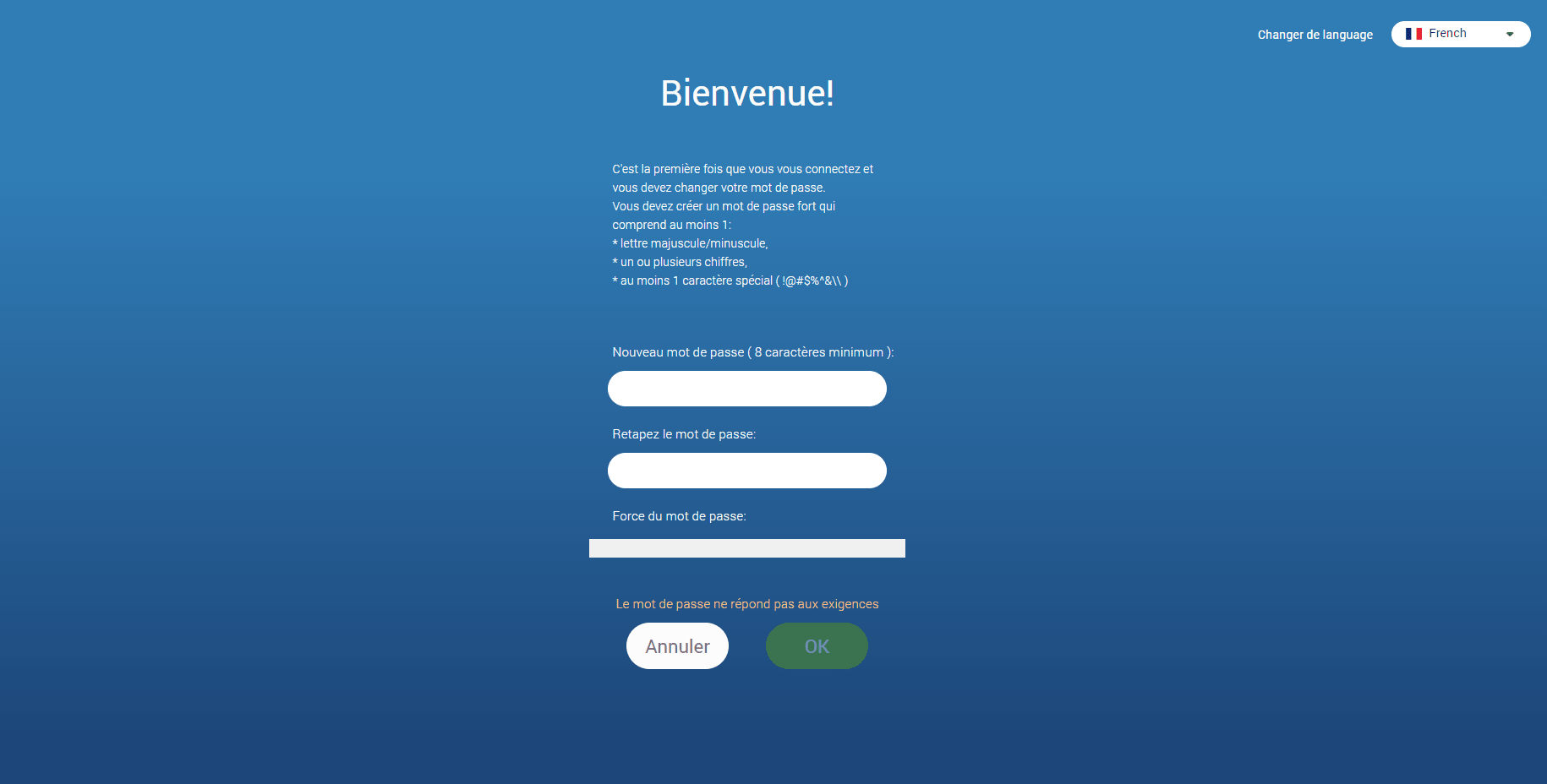
The list of allowed special characters that can be used when creating a password is !@#$%^&.
If you are already using one of the Communicator products, clicking the Login button will redirect the browser to the Communicator Web home screen.
Multiple Communicator accounts can have the same email address.
Log in
To start using Communicator Web, you must provide your account details.
Account details:
- Email : Indicate the email address assigned to your extension.
- Password: Enter the password created during the first login to Communicator Web.
Additional options:
- Forgotten password: If you forget your password, you can recover it by clicking the Forgot Password link. You will receive a password recovery link by email. In addition, if you have several Communicator accounts associated with your email, you will be asked to specify the desired extension number during the password recovery process.
- Change the language: allows you to change the language used in the application.

