Meeting
The meeting is part of Communicator Web, which gives you the ability to hold an instant meeting, schedule a meeting, or join an existing meeting. To access the meeting screen, click the Meeting icon in the navigation bar.
The meeting screen contains the following tabs: Instant meeting Join meeting, Schedule a meeting and Meeting list.
If the meeting is disabled on the license, all meeting tabs, except Join Meeting, will be disabled and the following message will be displayed: “No meeting license, please check with your administrator. You can still join a meeting with a meeting number, but you cannot start, schedule, or view meetings.
Instant meeting
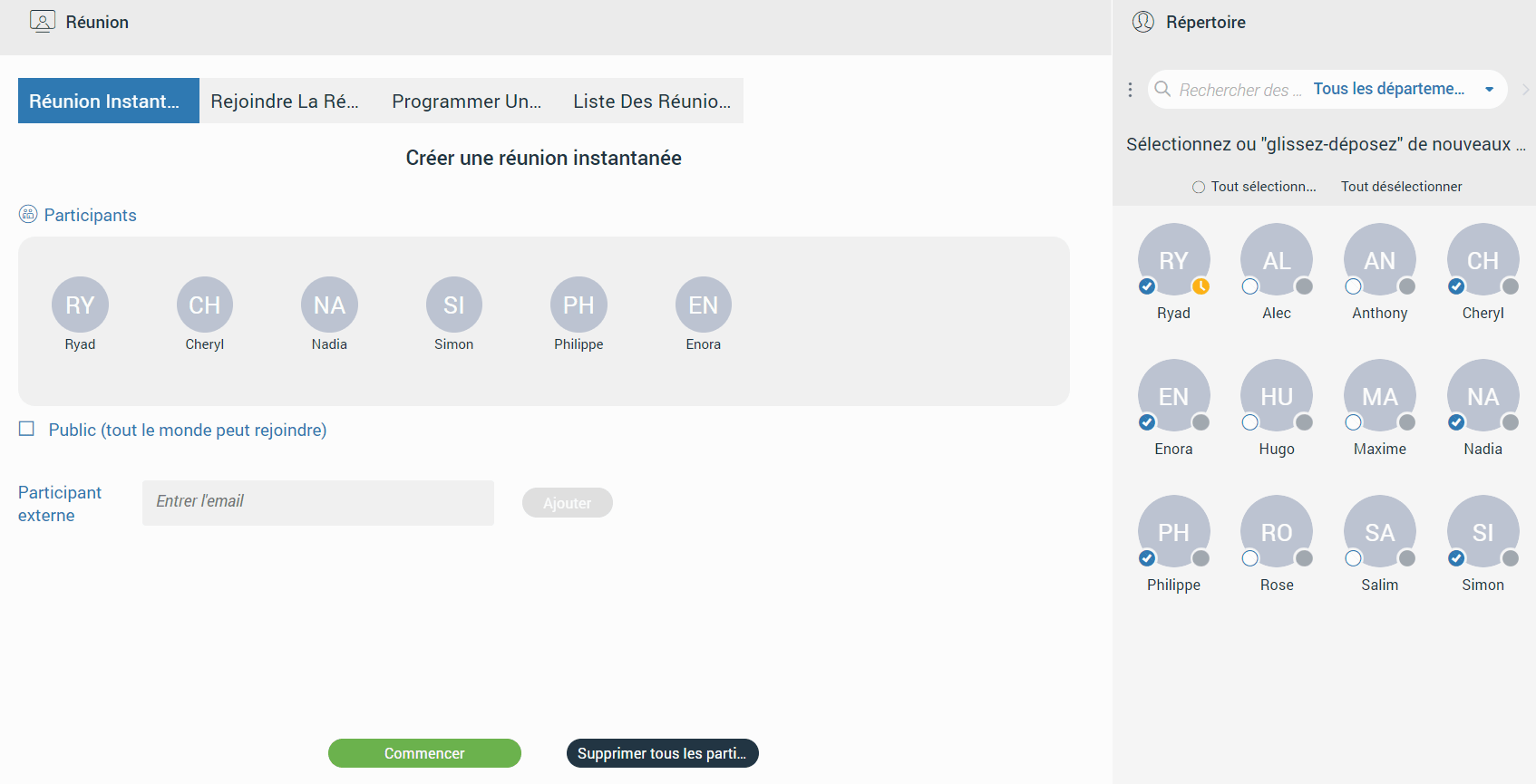
Instant meeting is the first screen presented to you after clicking the Meeting button in the navigation bar. It contains the participant list, in which you can add participants by clicking on them in the contact list, selecting them all by pressing the Select All radio button above the contact list, or dragging them into the participant list.
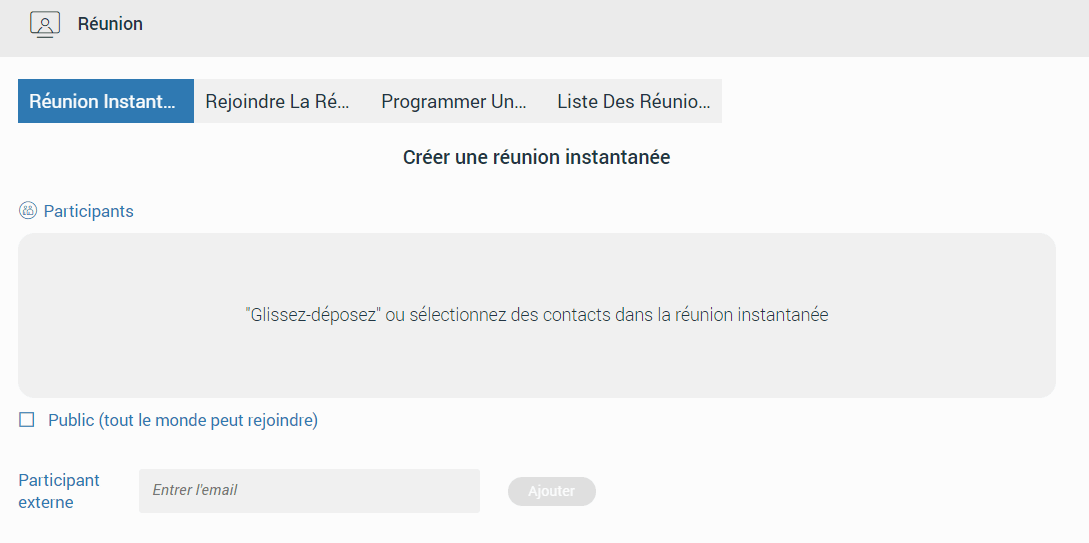
Furthermore, it is possible to add an external participant to the meeting by entering the participant’s email.
Removing participants from the participant list can be done by hovering over them in the participant list and clicking on them, or by clicking on them in the contact list. In addition, you can remove participants by pressing the Deselect all radio button above the contact list or by pressing the Remove all participants button to remove all participants from the participant list.
When creating an instant meeting, you can decide whether you want to host a private or public meeting. In the case of a private meeting, only the people called can join the meeting. Otherwise, anyone can join the meeting.
After selecting the participants and choosing whether the meeting will be private or public, press the Start button to start the meeting in the new window displaying the Communicator Meeting web application page.
If the user is using Communicator Desktop and Communicator Web simultaneously, while starting a meeting via the Web, the meeting will automatically be started in the Communicator Desktop application.
Schedule a meeting gives you the ability to schedule a meeting in advance.
– Subject : Provides information about the subject given for the meeting (it must be filled in.).
– Start (the date or time must be in the future):
– Date : Provides information about the day on which you will have the meeting.
– Time : Provides information about the time of day at which this will occur.
– Duration : Provides information about the duration of the meeting.
– Time zone : Provides information about the time zone in which your meeting will be scheduled.
– Recurring : Provides information indicating whether the meeting is recurring or not (whether it will repeat, for example every Thursday at 3 pm) and for how long it will repeat (for example it will stop after ten meetings).
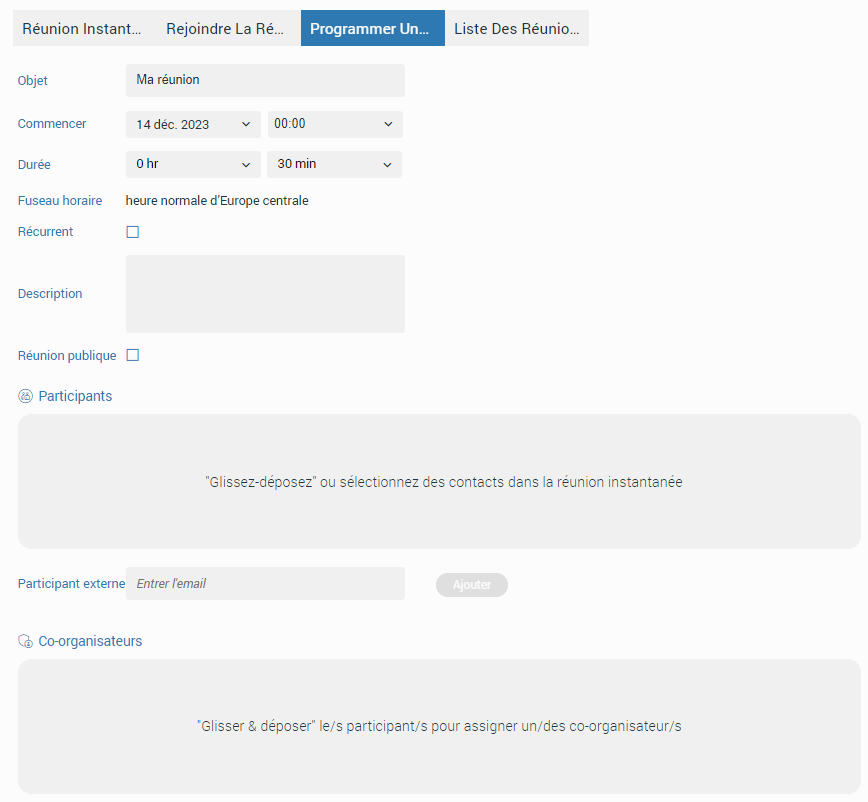
– Description : Allows you to describe a meeting in a few sentences.
– Public meeting : gives you the possibility to create a public meeting so that everyone can join the meeting. Otherwise, only the called people can join the meeting.
– List of participants : Provides information about the people expected to attend the meeting (you can add participants as described earlier in the Instant Meeting section.).
– List of co-hosts : Provides information about who is co-organizer of the meeting.
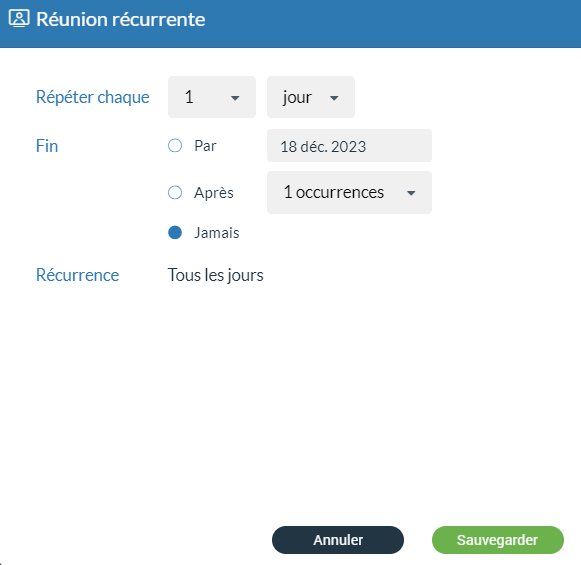
A recurring meeting is a meeting that will repeat at each defined time (each day, week, or month), for example every week on Tuesday you have a business meeting. You can modify recurring meetings according to your needs if you need to reschedule them.
At the bottom of the screen, there are three buttons as follows:
- Calendar : Clicking on it schedules a meeting if everything is correctly filled in.
- Remove all participants : Clicking on it removes all participants from the participant list.
- Reset : clicking on it resets all the meeting settings.
Scheduled meetings will be displayed in the meeting list under the Scheduled sub-tab.
You can modify scheduled meetings from the screen Meeting list by pressing the button Edit.
After pressing the Edit button, the Scheduled meeting screen will open, where the meeting can be edited. You can save the changes by pressing the Save button. By pressing the Cancel button, all changes are cancelled.
Co-organizers
As a co-organizer, the user has the ability to start and modify scheduled meetings, add/remove participants and assign new co-organizers.
External participants cannot be designated as co-hosts.
Assigning participants as co-hosts can be done by dragging and dropping them from the contact list to the co-hosts list, or by clicking the three-dot button next to the participant in the participant list and selecting the Assign co-host option.
Removing the co-host from the co-host list can be done by clicking on them in the Contacts/Participants/Co-hosts list or by clicking the three-dot button next to the participant in the participant list and selecting the Remove option.
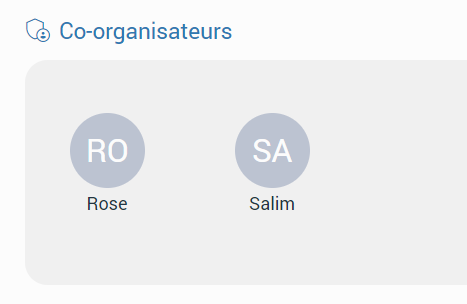
The co-host cannot remove other co-hosts, which can only be done by the meeting administrator.
Meeting list
The meeting list provides information about scheduled and previous meetings. Under the Scheduled next to the scheduled meetings, you will also find all ongoing meetings at the top of the list. All meetings in the scheduled list are grouped by date and sorted in ASC order. Next to the tab Scheduled there is a tab Previous which contains all previously finished meetings, grouped and sorted by date and in DESC order.
When you select the meeting from the list, the Meeting Information section is displayed on the right side of the screen, showing the meeting details.
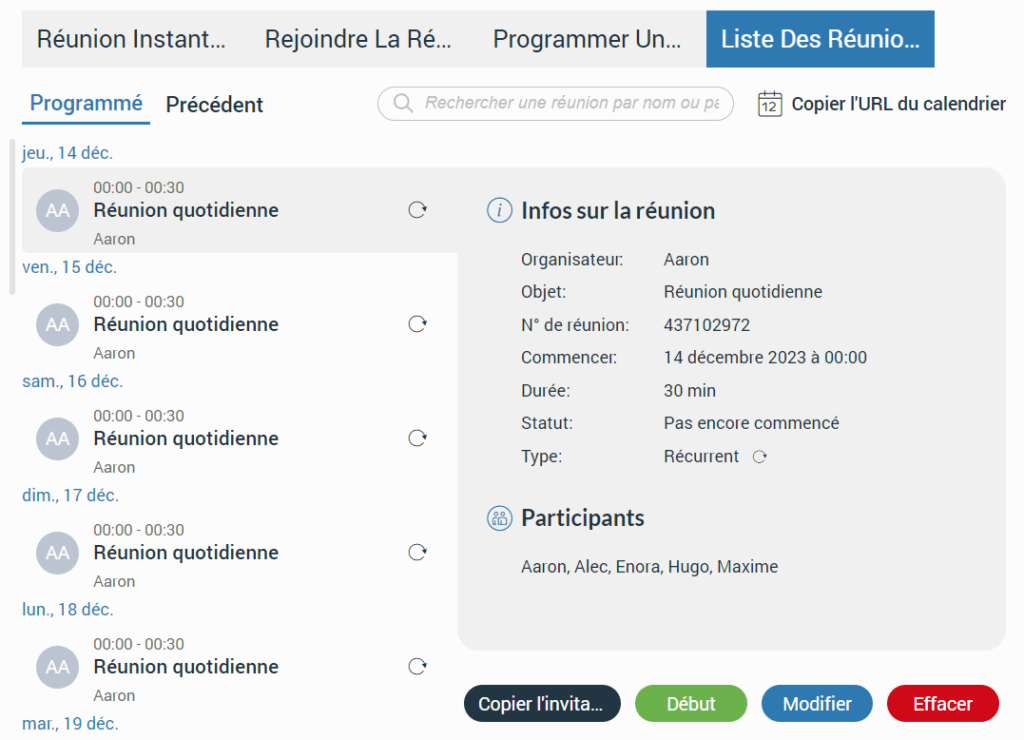
The following list shows these details:
- Organizer : Provides information about the meeting organizer.
- Subject : Provides information about the proposed subject for the meeting.
- Meeting number : The randomly assigned number used to distinguish meetings.
- Start : Start time and day on which the meeting will occur.
- Duration : Meeting duration.
- Status : meeting status (for example finished or upcoming).
- Description : Provides a brief description of the given subject.
- Co-organizers : Provides information about who is co-organizer of the meeting.
- Type : Provides information indicating whether the meeting is recurring or not.
- List of participants : Provides information about the people expected to attend the meeting.
Furthermore, you have the ability to search for the desired meeting using the search field located above the Meeting Information section. Meetings can be searched by number or by name.
The Copy calendar URL option is located next to the search field, allowing you to copy the meeting calendar into your calendar software.
Depending on the meeting type and the meeting state, different button options will be presented.
The following list shows the meaning of these buttons:
– Join : Allows you to join the ongoing meeting.
– Copy the invitation : Allows you to easily copy a meeting invitation.
– End : Allows you to end the meeting (Only the meeting organizer and co-organizers can end the meeting.).
– Start : Allows you to start a scheduled meeting (Only the meeting organizer and co-organizers can start the scheduled meeting.).
– Edit : Allows you to modify the scheduled meeting (Only the meeting organizer and co-organizers can modify the scheduled meeting.).
– Delete : Allows you to delete the meeting (Only the meeting organizer and co-organizers can delete the meeting.).
– Clone : Allows you to clone the finished meeting (only the meeting organizer and co-organizers can clone the meeting).
Meeting notification
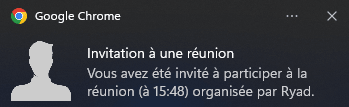
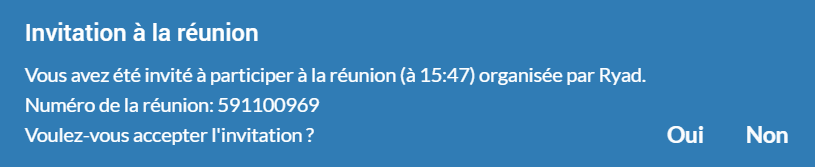
For each meeting invitation, you will receive a pop-up notification. In addition, you will receive a pop-up dialog box in the Communicator Web application for quick access to the meeting.
Furthermore, all meeting invitations are found in the notifications under your name.
Notifications for meeting invitations will only be received if the user is logged into the web application.