



Conversation list
On the left side of the window is a list of all user conversations divided into two types: chat conversations and SMS, sorted by their most recent activity.
These conversations are persistent, which means they will appear in the conversation list even after the app is restarted.
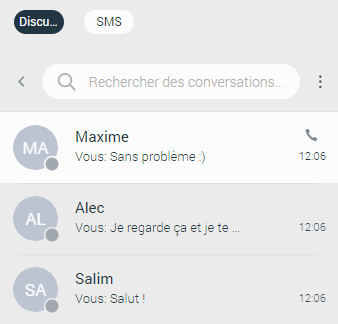
To close the conversation, you need to hover over it. Three dots will appear in the top left corner of the hovered conversation. Clicking on them gives you a drop-down menu with additional options. Select Close chat from the drop-down menu to close the conversation. This way, you can keep visible only the conversations you are currently interested in.
Above the conversation list are three dots. Clicking on them gives you a drop-down menu with two options: Show closed chats and Close all chats. Next to them is a search field that allows you to filter conversations by name.
Aisplay closed conversations : Allows you to have an overview of all closed conversations. Any closed conversation can be returned to the list of active conversations by clicking on it, clicking the Move to Active Chats button on the right side of the conversation, or selecting the Move to Active Chats option in the drop-down menu.
Close all conversations: Allows you to close all your conversations without having to close them one by one. Any activity within the closed conversation will bring the conversation back to the list of active conversations (new messages, new participants added, calls, etc.). This way, you never miss the latest messages and events. You can find any closed conversation by using the search field above the conversation list or by selecting the Show Closed Chats option in the three-dot menu next to the search field.
Next to the search field is an arrow that lets you collapse (expand) the conversation list to get more space for a section in the middle of the screen. In addition, you have the option to resize the conversation list instead of collapsing it. This way, you keep your conversations visible while benefiting from extra space in the middle of the screen.
Furthermore, a conversation with a user who has been deleted from PBXware will be marked with the prefix (Deleted). You can no longer send messages to this conversation, but it remains useful due to the chat history and all existing messages with this user before the deletion.
Hovering over the conversation displays additional options. On the left side, there is a three-dot menu that contains the Pin/Unpin chat, Mute/Unmute chat, Close chat, and Mark as read/unread options. On the right side, you can find the Call option.
Pin/Unpin the chat : Allows you to pin the most important conversations at the top of the conversation list. The last pinned conversation is always at the top of the conversation list. You can unpin conversations the same way you would pin them. In addition, they can be unpinned by clicking the pin icon 📌 that appears for pinned conversations. You can reorder pinned conversations as needed, by drag-and-drop. This way, you can set the priority of pinned conversations.
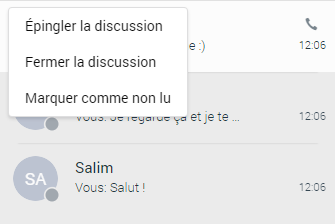
Disable/Re-enable sound (group chats only): Allows you to stop receiving notifications for a group chat. This could be useful if there are too many messages being exchanged that distract you. You can re-enable the group chat the same way you muted it, or by clicking the speaker icon that appears for muted conversations.
Close chat : Allows you to close the desired conversation.
Mark as read/unread : Allows you to explicitly mark the conversation as read/unread. If you mark the conversation as unread, the unread indicator will be displayed for that conversation. It informs you to review this conversation and take some action if necessary. Any action in the chat conversation with an unread status will remove the unread indicator. In addition, opening the conversation or explicitly marking it as read will remove the indicator.
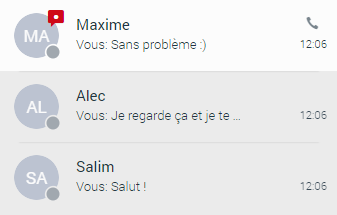
Click the phone icon to place a call to the user.
For each individual conversation in the conversation list, you will be able to see the following:
- Contact avatar with its status icon
- Contact name
- Last message of the conversation
- Time of the last message of the conversation
- Number of unread messages (if any)
For each group conversation in the conversation list, you will be able to see the following:
- Group chat icon
- Group name
- Last message of the conversation
- Time of the last message of the conversation
- Number of unread messages (if any)
In search mode, the conversation list will change its items based on the searched term
Unread messages indicator
At the bottom of the conversation list is an unread messages indicator. It informs you whether there are currently unread messages. This is useful in cases where you have scrolled down and do not see your most recent conversations or when you are in search mode.
If there are unread messages, the label and icon are underlined in orange to draw your attention.
Click the label to open a menu displaying a list of all conversations with unread messages, indicating the number of unread messages in parentheses. There is also an option to mark all messages as read.
Marking all messages as read will effectively send all these conversations, even if you have not yet read these messages. Click on any option other than Mark all as read to open the selected chat conversation. It can be used as a faster way to search for conversations containing unread messages instead of searching for them in the conversation list.
If there are no unread messages, the label is not underlined and serves only as an indicator, without any functionality.
Bottom bar

By default, the DND and Caller ID options are disabled because they are enhanced services to be activated on your extension.
To use these options, please contact your administrator.
