



FR EN

SMS/MMS

Estimated reading: 7 minutes

The SMS feature allows you to send/receive SMS/MMS messages.

The MMS message is an enhancement of the standard SMS message. The main difference between SMS and MMS messages is that you can send multimedia files and others in your messages. This includes media such as videos, images, audio clips, GIFs, etc. The maximum size of uploaded files is 500 KB or up to ten (10) files per message. MMS also allows up to 1,000 characters of text in a message.

SMS number

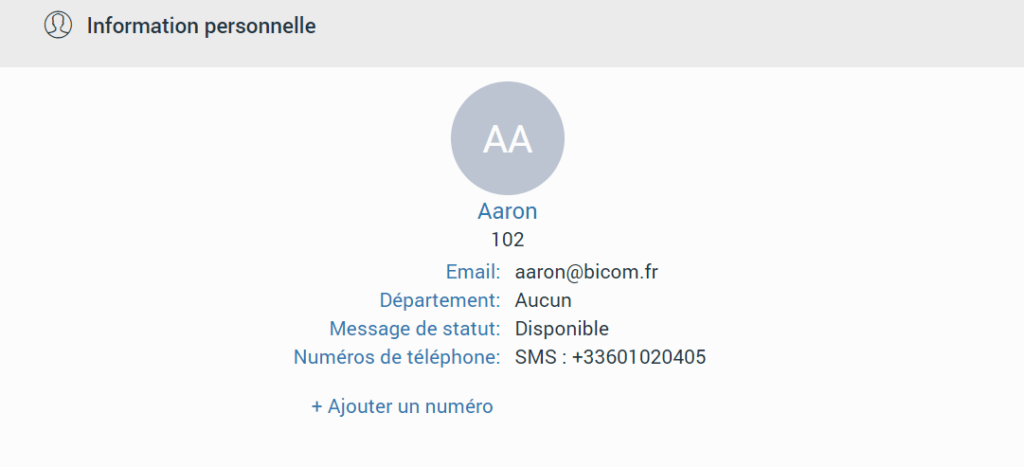
If you have an SMS number, you can see it by clicking on Personal information.

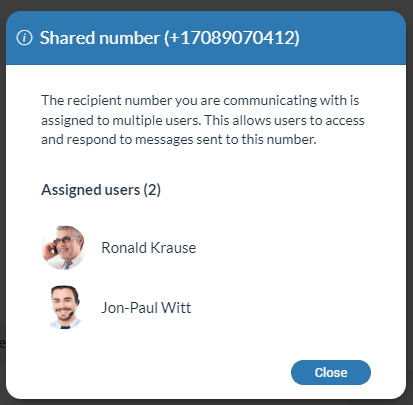
Furthermore, in the conversation, click the label located under the context bar to see who is using this SMS number.

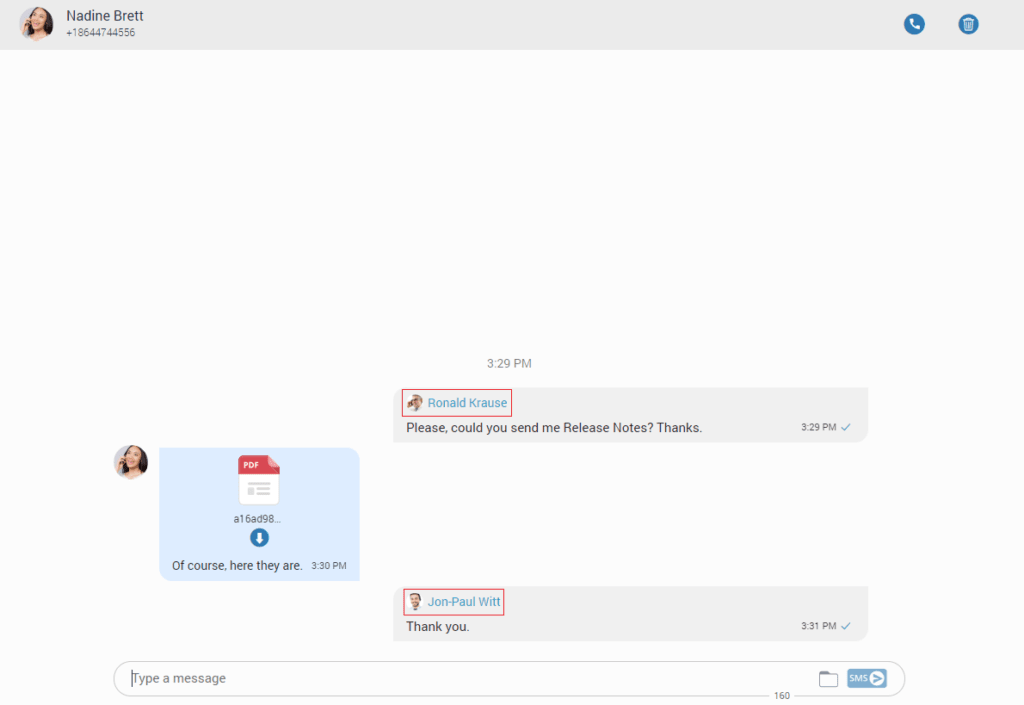
Your messages and those of the other users with whom you share the number will have a header with their name and their avatar as in the image.

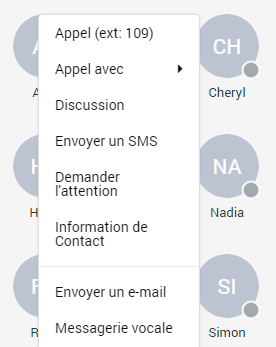
To start an SMS conversation, right-click on the contact in the contact list and select the Send SMS option from the drop-down menu.

The third way is to click on the SMS tab under the avatar image on the left side of the screen.

By clicking on the “Create a new SMS” button, a list of contacts to whom the SMS message can be sent will open.

The list only contains the extensions associated with the SMS number and the contacts from the local and central phonebook.

After selecting the desired contact, the SMS conversation will be created and displayed in the middle of the screen and in the conversation list.

However, if the contact has several phone numbers, a modal dialog box will appear, asking the user to choose the number to which they want to send an SMS message.

Furthermore, instead of selecting a contact from a list, users can enter the number to which they want to send an SMS message.

List of SMS conversations

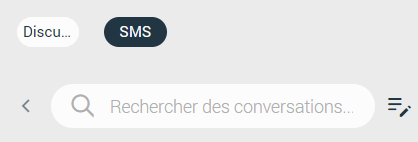
The SMS conversation list contains the search field, which can be used to filter existing conversations or start a new one in case the user enters the contact's number. 

To collapse the conversation list, click the arrow located to the left of the search field. As mentioned, the “Create a new SMS” button on the right side of the search field is used to create new SMS conversations.

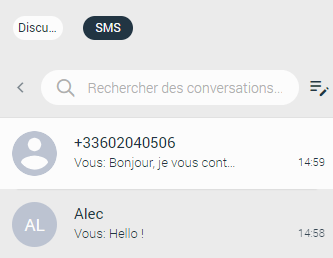
Below the search field is a list of all the users' conversations sorted by their most recent activity.

If you have associated an SMS number with your extension, the SMS number will be displayed. This means you can send/receive SMS/MMS messages.

Suppose the SMS number is not associated with your extension. In this case, the alert icon will be displayed with the message “No SMS number assigned”. SMS/MMS messages cannot be sent or received.

To delete an SMS conversation, hover over it and click the three-dot button in the top left corner of the hovered conversation.

Selecting the Delete option will open a modal dialog box with the following message: "Are you sure you want to delete this conversation?". 

Click the Delete button to delete the conversation or the Cancel button to cancel it.

SMS display

The SMS messages view is positioned in the middle of the screen.

At the top of the view is a context bar with two options:

  • Call the currently selected user.
  • Delete the current conversation.

All SMS/MMS messages exchanged will be displayed in the area located below the context bar.
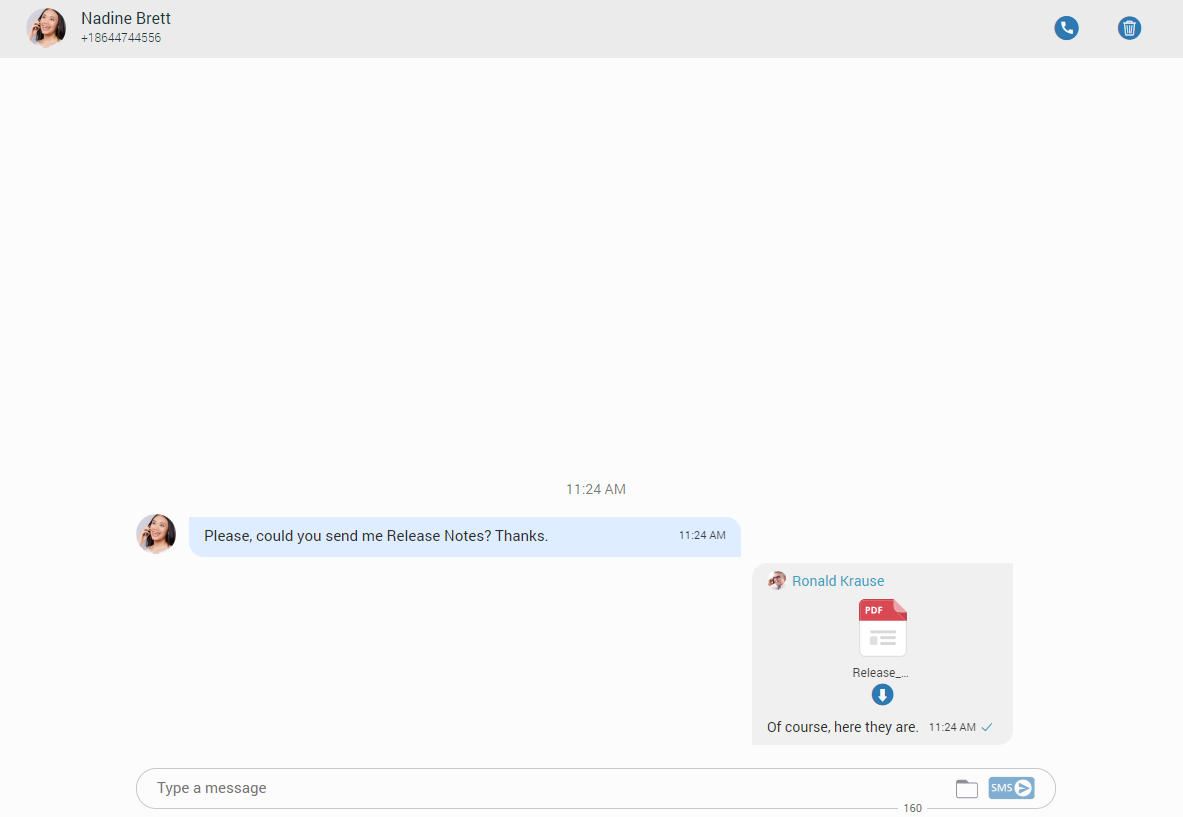
SMS message display

Right-clicking in the grey or blue rectangle displays the deletion options to delete the messages. Additionally, clicking the three dots to the right of the rectangle gives the same result.
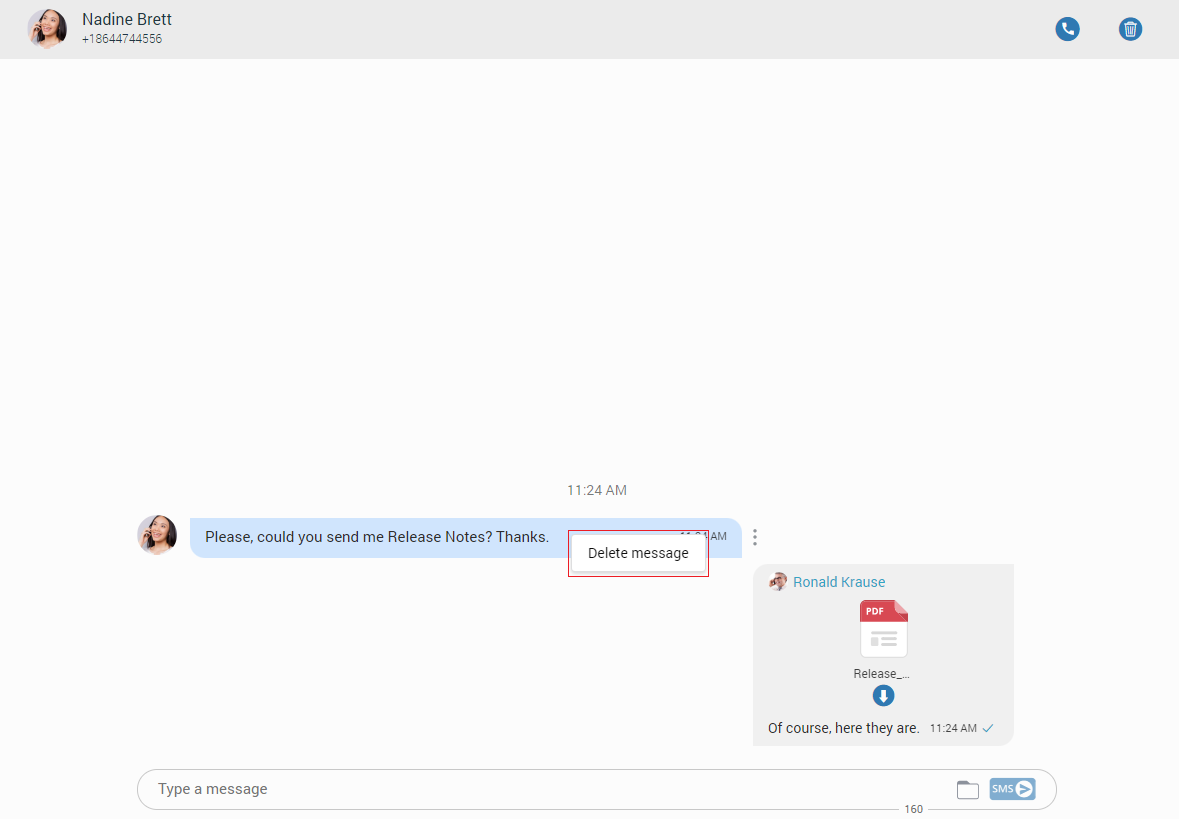
Delete an SMS/MMS message

SMS/MMS messages can be sent using the input field at the bottom of the SMS conversation. After entering the text message or uploading the media files to send a message, press the SMS/MMS button on the right side of the input field (pressing the Enter key on the keyboard represents a new line). When composing the SMS message, the counter at the bottom of the input indicates the remaining number of characters that can be entered.

SMS input field

It is not possible to send more than four (4) messages at a time.

A folder icon, used to send files, is located next to the Send SMS icon. Clicking the icon opens a dialog box in which you can select up to ten (10) files to send to the currently selected conversation.

Furthermore, you can upload files by dragging them from Windows Explorer (Finder on macOS) to the message area. If the amount of selected data is greater than 500 KB or if more than ten (10) files are selected, a pop-up message will appear displaying the following: “N file(s) were not added because they exceeded the maximum size. The maximum size for MMS attachments is 500 KB”.

Please note that the supported MMS files are as follows:

  • Image files : jpeg, png, gif
  • Audio files : MP3, OGG, AMR
  • Text files : jPDF, Vcard, txt
  • Video files : mp4

The application will compress images (jpeg and png) before sending, allowing the user to send images larger than 500 KB. The application will preserve quality as much as possible and adjust the resolution if necessary.

If a file is selected, an SMS message becomes an MMS message, and the counter of remaining kilobytes is displayed instead of the character counter.

MMS KB counter
MMS KB counter

After selecting the files, a thumbnail with the file name of each selected file will be displayed above the text area in the input field. It is possible to remove the chosen files from the MMS message by hovering over them and selecting the blue circle with a white dash in the upper right corner of the thumbnail.

SMS statuses

An SMS/MMS can only have three states:

–  Sending in progress
Sent (This does not mean that the message is delivered.)
Failure (When the SMS/MMS message is in this state, click the Retry option to send it again.)

Notifications

SMS/MMS notifications have the same behavior as chat notifications. When an SMS/MMS message is received, a notification from your browser will appear.

Share

SMS/MMS

Or copy the link below

CONTENT