FR EN

Presence

Estimated reading: 4 minutes

Communicator Web brings a unified presence synchronized across all user devices (desktop, mobile, and Web). For online contacts, you can see whether they are connected: via Desktop, via Mobile, via Web, or even all three. For offline contacts, you can see when their last activity was in order to better understand their availability.

For example, if you see that the contact was last seen a few minutes ago, you can assume they will probably be able to answer your calls/messages. Conversely, if a contact has not been seen for a few days, this may indicate that they have limited availability and are away from the office. Your presence and availability are represented by the icon visible at the bottom right of your avatar.

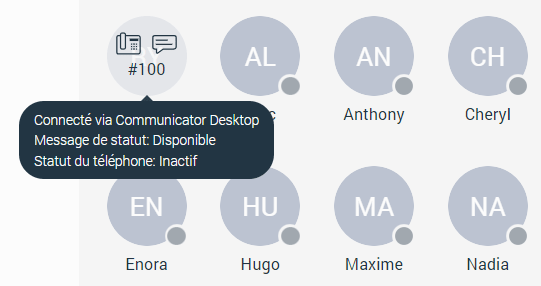
Details about a contact's presence are displayed in a tooltip when you hover over it in the Grid view and the List view. The tooltip contains information such as the device to which the contact is connected, their last activity, their status message, and the state of their phone (idle, on hold, do not disturb, etc.).

The status icon indicator can be one of the following:

The user is currently online and available.

The user is currently on a phone call.

The user is currently online and their status is set to Busy.

The user is currently online and has set their status to Do Not Disturb.

This icon has several meanings:

  1. The user is currently online and has set their status to Away.
  2. The user is currently connected via the desktop, but is away from their desk.
  3. The user is not currently connected, but their last activity was less than N hours ago, where N represents the value that depends on the settings defined on the server (for example, 8 hours, 15 minutes, etc.).

The user has not been active during the last N hours.
Status and status message

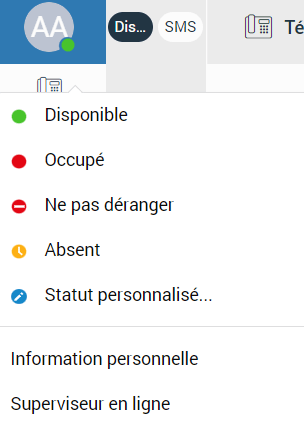
You can select your status by clicking the status icon at the bottom right of your avatar.

– Available

– Busy

– Do not disturb

– Away

– Any of the statuses defined by the PBXware administrator

– Custom status

The PBXware administrator can add statuses via the PBXware GUI, and these will appear as an option in the menu for all users. For example, an administrator could add the status "Lunch break". This way, you can let others know when you are on your lunch break and away from your desk. In addition, you can set your own custom status and write any message to describe your current availability.

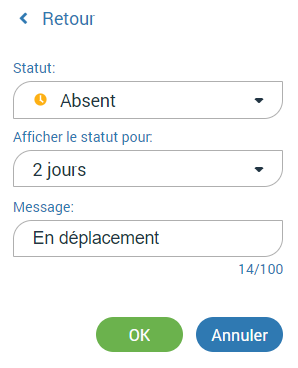
For example, if you need to attend a meeting and will not be available to answer calls or messages, you can choose “Custom status…” from the menu.

Select “Busy” from the drop-down list and type “In a meeting” as a message. This informs all other users that you are busy and are currently attending a meeting. 

This way, all users can better understand each other’s availability, since each user can enter a custom message to describe their current availability. After selecting one of the statuses, you must also specify the expiration of the status. 

This allows you to let the app reset your status to "Available" after a certain period of time.

Using the example mentioned above, you can set your status to "Lunch break" with a one-hour expiration. This way, when you return to the office, you do not need to remember to reset your status to "Available", as the application will do it automatically for you.

When setting the status expiration, you can choose between:

  • Today
  • 1 hour
  • 4 hours
  • 8 hours
  • 12 hours
  • 2 days
  • 5 days
  • This week
  • Always
Share

Presence

Or copy the link below

CONTENT