Communicator web: Permission denied/Incompatible SDP

When you make a call from Communicator Web without having configured PBXware for this purpose, an error pop-up will appear displaying the following error:

Resolution
Before making a call with Communicator Web, certain prerequisites must be met:
- Enable WebRTC on the extension
- Enable the Opus codec on the extension
- Enable TLS in the protocols
- Check authorized devices
Enable WebRTC
The extension must have enabled the WebRTC and the codec Opus on their system or on themselves.
To do this, simply navigate to the relevant extension Extension > Show advanced options > Enable WebRTC > Yes
Enable the Opus codec
The Opus codec must also be enabled on the extension that wishes to make calls(if it does not appear, check that it is present in Settings > Servers > Default codecs > Remote > Opus.
On a Multi-Tenant system, select the Tenant in question in Settings > Tenants > Default codecs > Remote > Opus).
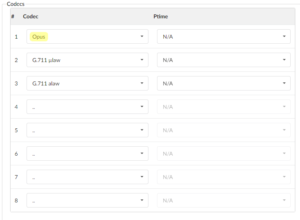
Then in the extension, Extension > Show advanced options > Codecs and place Opus in the list.
Enable TLS
Similarly, the settings TLS must be enabled on the system. To do this, simply go to Settings > Protocols > SIP > TLS settings > Enable TLS > Yes > Restart the PBXware service using the button in the top right corner.
An additional parameter is required for the meeting feature and Communicator WEB on a PBXware behind a NAT:
In Settings > Protocols > RTP > Additional configuration:
[ice_host_candidates]
adresse_locale => ip_publique For example:
[ice_host_candidates] 192.168.1.62 => 195.154.138.62 Save the settings.
If all the above settings have been applied, calls on Communicator web will work.
Check device permissions
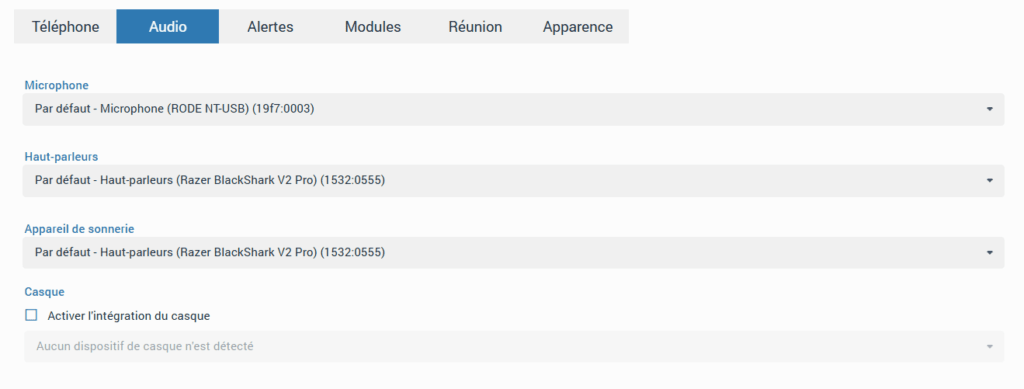
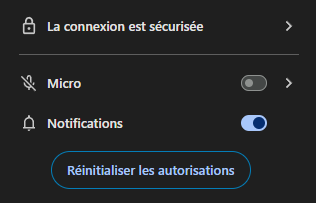
Finally, make sure the audio devices are properly authorized by the browser to be used by the Communicator Web application:

In Preferences > Audio, check that the selected devices appear correctly and are the right ones:

Save the settings.
If all the above settings have been applied, calls on Communicator web will work.