



Create a USB installation medium
Creating a bootable USB key on Windows
With this guide, you should be able to use Win32DiskImager to create a SERVERware 4 USB boot drive.
Download Win32DiskImager from http://sourceforge.net/projects/win32diskimager
Download the SERVERware 4 USB installation iso file from this link.
Get your USB key ready. Note that all data on the disk will be lost, and you will not need to format the disk because the .iso file flashing process will overwrite the disk.
1. Run Win32DiskImager
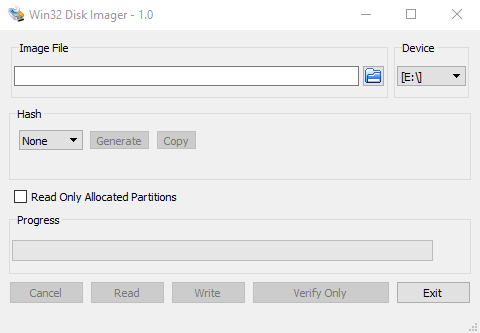
2. Select the image file on your drive
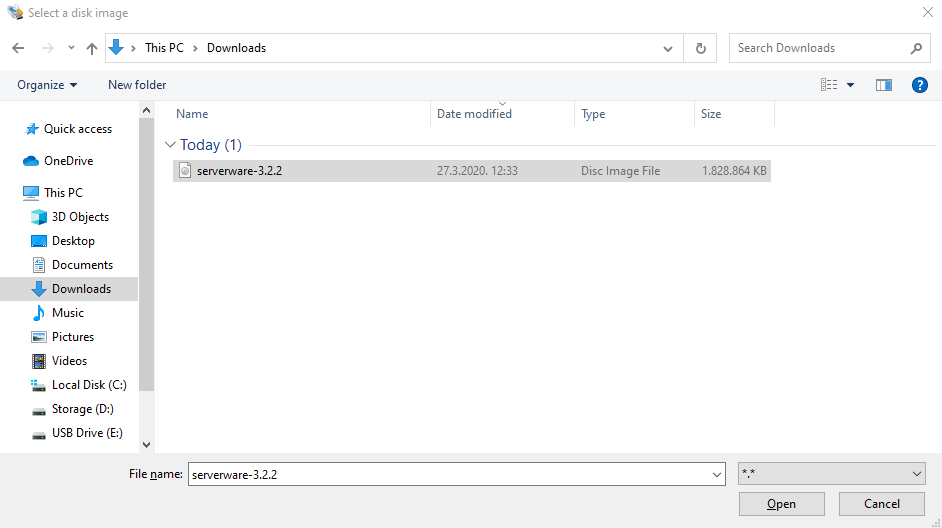
3. Select the .iso file you want to use in the Win32 Disk Imager window. Click the symbol and open the file selector (in the bottom right corner). The default setting will display image files. Leave it as is and select the image file we just downloaded and click Open.
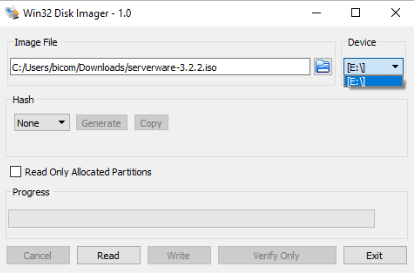
4. In the top right corner, select the destination, the letter of your USB storage, and click the button Read.
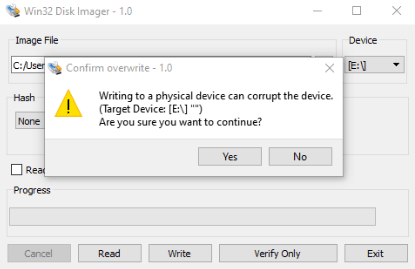
5. A pop-up window will appear asking you to confirm overwriting the USB drive, click on Yes and wait for the process to finish.
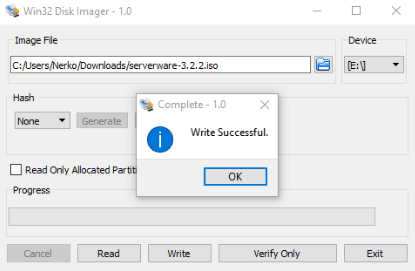
When the boot media is created, you will receive a message successful write.
- Download the SERVERware 4 USB installation iso file from this link.
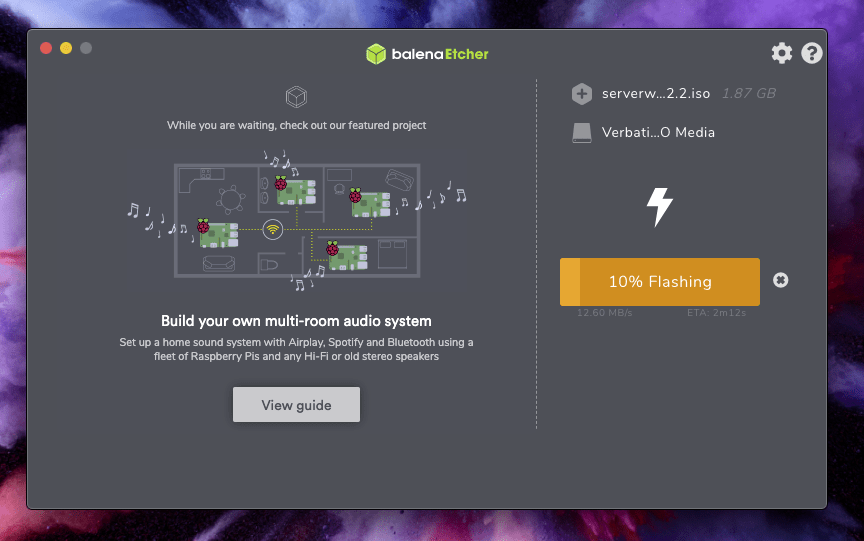
Download BalenaEtcher Bootable Media Creator (free) and install it on your system.
https://www.balena.io/etcher/Insert a USB medium into the USB port of your computer.
Open BalenaEtcher
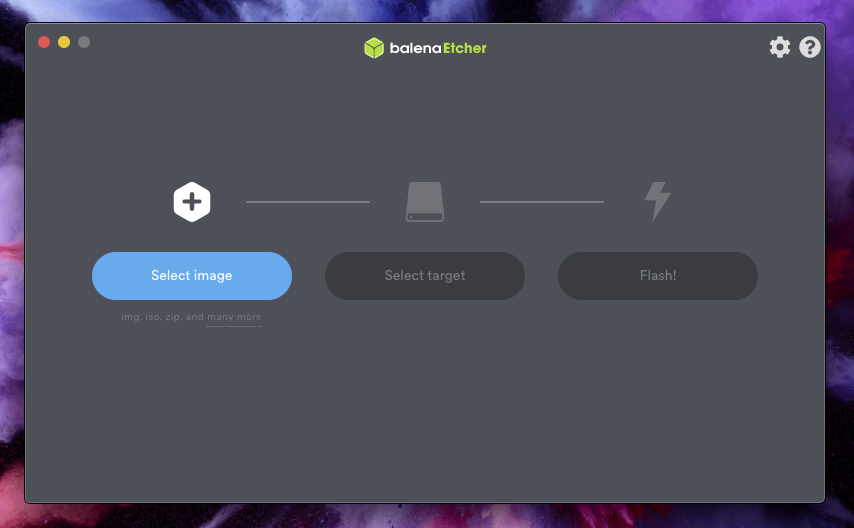
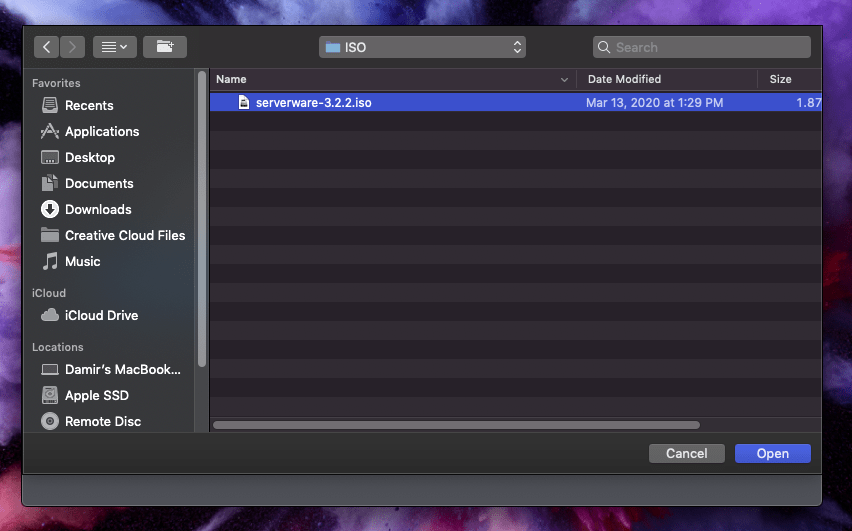
5. Select the .iso image you just downloaded.
6. Make sure the image target is your USB media, then press Flash.
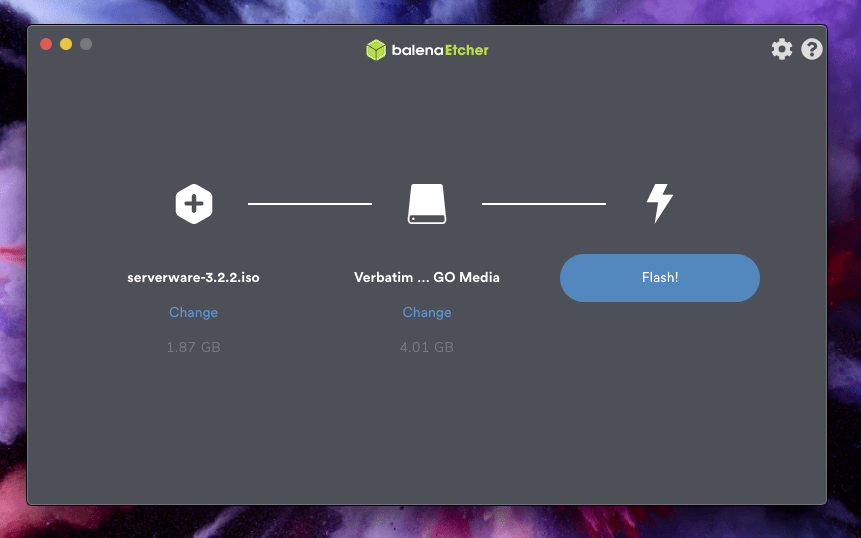
7. After about 2 to 5 minutes, your USB boot image will be created and ready to use.
You can now use it to install SERVERware 4.
