



FR EN

TUTORIAL: SSH access to PBXware

Estimated reading: 3 minutes

SSH, or Secure Shell, is a protocol used to securely connect to remote systems. It is the most common way to access remote Linux servers.

SSH access gives you direct access to the PBXware configuration and allows you, for example, to:

  • create users without going through the GUI (in case of a lost password),
  • purge log files,
  • capture packets with SNGREP,
  • install a voice pack,
  • etc.

SSH access is performed with a root account; it is advisable not to modify existing configuration files without confirmation from support.
This can have a direct impact on how your system works.

Access via SSH with an SSH client

It is also possible for you to access your machine via SSH using SSH clients such as: 

PuTTY

Termius

And many others.

All SSH clients work relatively the same way.

1. Open your SSH client.

2. Fill in the following fields:

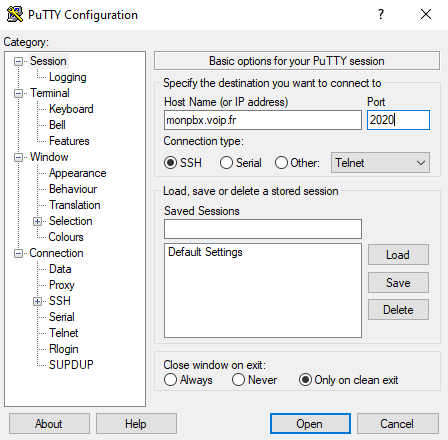
  • Host (domain or IP)

Enter the domain name (without HTTP or HTTPS prefix) pointing to your PBXware machine, or its IP address (local if you are on the same network, or public).

Example : 212.82.112.62 or mypbxware.voip.com

  • Port

Enter the port 2020

Some SSH clients ask you to enter your credentials before initiating the connection.

If so, populate the fields:

  • Username 

Enter ” root ” 

  • Password

Enter your root password (defined during installation)

Here is a configuration example on PuTTY:
3. Click the button 'Open' to initialize the connection.

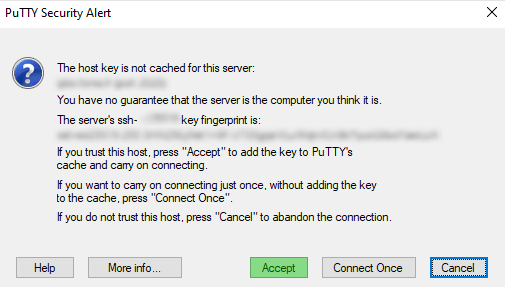
4. For security reasons, you will be asked to agree to trust the host.
Click on Accept.
If you did not have to enter a username/password in the interface (as on PuTTY for example), then it will be requested when you connect.

You will then have a console like this:

login as : root Keyboard-interactive authentication prompts from server:
| Password: 


Then enter your credentials as above.

Access via SSH with a command

You can access your machine via SSH directly from theWindows command prompt or from another Linux machine with the following command:

ssh root@192.168.1.1 -p 2020
Are you sure you want to continue connecting (yes/no/[fingerprint])? yes

Type yes to continue, then enter your root password when prompted:

Password :
Share

TUTORIAL: SSH access to PBXware

Or copy the link below

CONTENT