



TUTORIAL: Add a greeting message in an IVR, group or queue

A greeting allows the caller to hear a tone before being able to dial a destination in your switchboard.
When you want to use a greeting on an IVR, an extension group, a queue, business hours, etc., you must select the file from the drop-down list.
INFO:
A greeting file must be named with the prefix greeting-…
Example greeting-accueil.mp3
Import a file
To upload a greeting sound file, follow the steps below:
1. Go to System > Files its on the left side panel of PBXware
2. Click the Send button
3. Select a greeting message file on your desktop:
4. The file name must start with the prefix "greeting-…"
5. Click on “Open”
6. Select “greeting” in the search bar
7. Your uploaded audio file should be displayed in the list
Go to the destination on which you want to apply your newly added greeting file, then click the drop-down list:
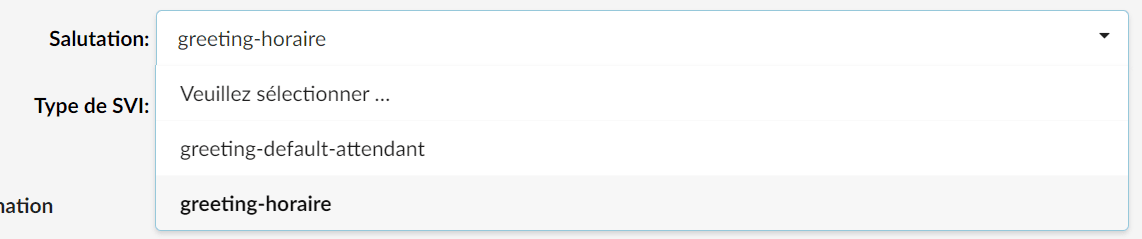
Select the corresponding file and then save the configuration.
Record a greeting message
There is also another way to import a greeting file, which consists of recording the greeting directly on a phone.
To record a greeting sound file:
- Go to Settings > Access codes and make sure that the code *301 is defined under Greetings.
- Dial *301 from your extension and speak into the microphone after the tone.
- Once you have finished recording your message, press # to end the recording, and the voice menu will then be played with three available options:
1. Accept the recorded message
2. Listen to your message
3. Re-record the message
Once you press 1, your greeting will be recorded.
- The recorded audio file must be saved under the name “greeting-$DATE.gsm”
- Edit your destination (IVR, group, queue…) and select your file greeting-$DATE.mp3 under the option Greeting.
- Click on Save
From now on, every incoming call to this destination will play your custom greeting.
Alternatively, you can edit or rewrite the IVR greeting using these two options:
- Edit the greeting using the greeting access code for specific destination types:
Dial *303xxx where xxx represents an IVR, an extension group, a queue, etc. Once the number is dialed, the user is prompted to record a new greeting. Once accepted, the greeting is set as the new greeting for the destination.
- Rewrite the greeting using the greeting access code for specific destination types:
Dial *304xxx where xxx represents an IVR, a ring group, a queue, etc. Once the number is dialed, the user is prompted to record a new greeting. Once accepted, the greeting is set as the new greeting for the destination and the old greeting, if it existed, will be deleted.
Retrieve/listen to/delete a greeting
In order to find all the greetings recorded on PBXware, navigate to System > Sound Files on the left side panel of PBXware.
Type “greeting” in the search bar then press enter to filter the results:
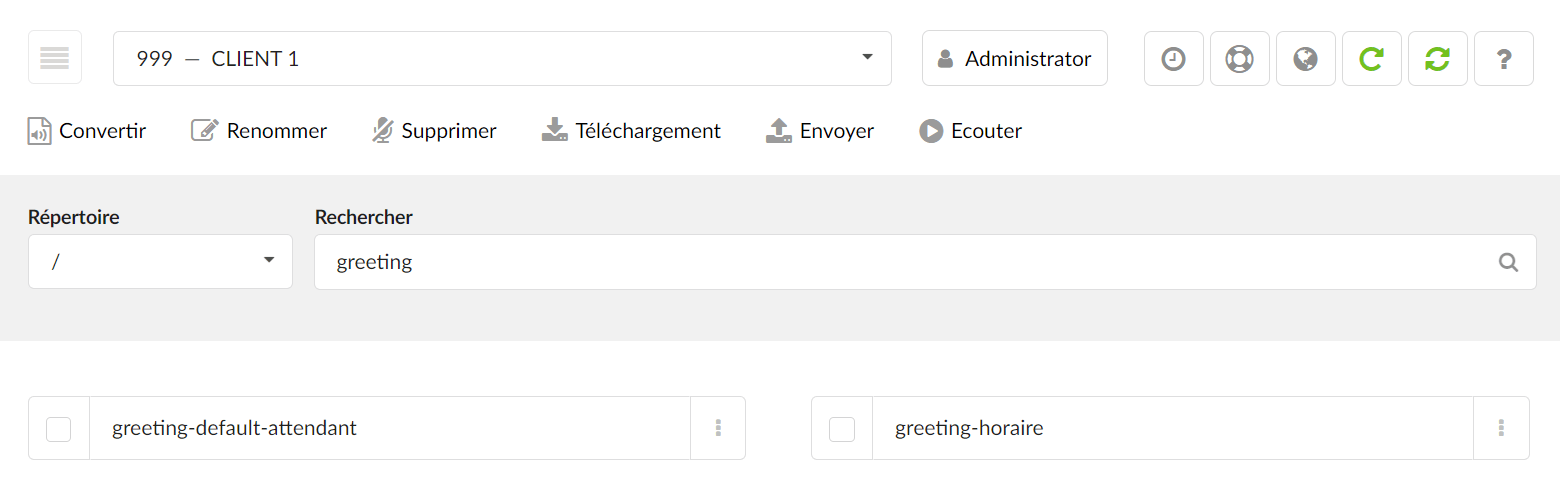
By selecting your file, you will be able to use the various options such as:
- Convert
- Rename
- Delete
- Download
- Listen
Naming conventions
For pre-recorded greeting message files to be usable with various PBXware features, they must follow the specific naming convention.
In the table below, you will find the list of features and the corresponding prefixes with which the greeting message file(s) must be named in order to be available for use with that feature.
| Feature | Prefix | ||
|---|---|---|---|
| 1. Dialer | dialer-announce- | ||
| 2. Dialer (Voicemail strategy) | dialer-vm-ivr- | ||
| 3. DID | greeting-did- | ||
| 4. IVR | greeting- | ||
| 5. File (Enhanced extension group) | queue-greeting- | ||
| 6. Queue agent announcement | agent-announce- | ||
| 7. Periodic queue announcement | periodic-announce- | ||
| 8. Caller announcement in the queue | qc-announce- | ||
| 9. Extension group | greeting- | ||
| 10. Ring group timeout message | announce- | ||
| 11. Ring group confirmation message | rg-announce- | ||
| 12. Ring group call answer message | rg-late-announce- | ||
| 13. Voicemail group greeting message | vm-greeting- |
