TUTORIAL: Make calls with Teams (Call2Teams)

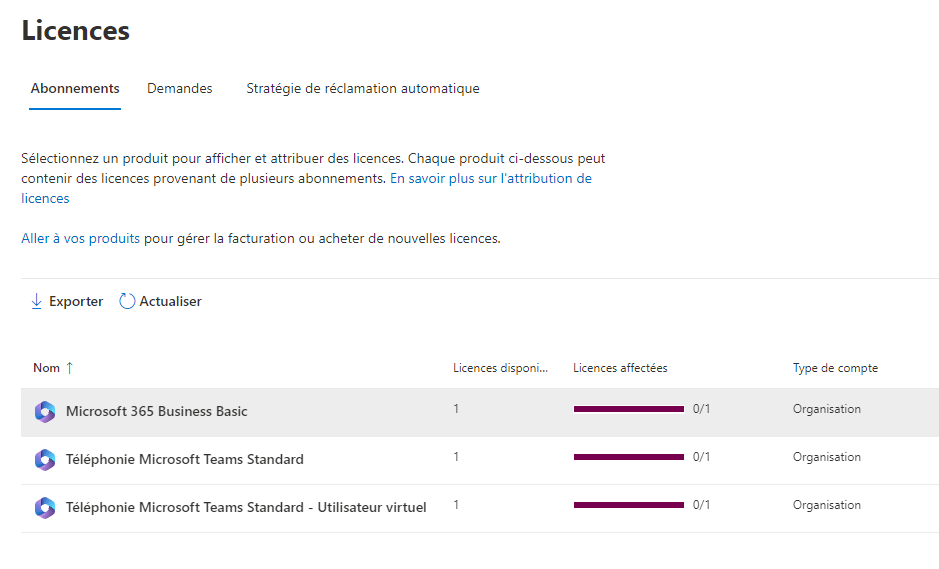
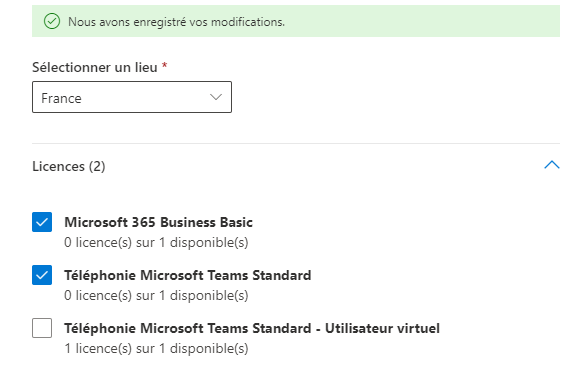


After obtaining a Call2Teams account from Dstny, you will receive a link inviting you to sign in with your Microsoft account, then use the Microsoft account to which you have assigned one of the licenses compatible with Call2Teams in the prerequisites list.
Please then follow the instructions below.
Go to the link https://admin.call2teams.com/ and log in with your Microsoft account (used for creating the admin portal).
Here is the Call2Teams configuration wizard:
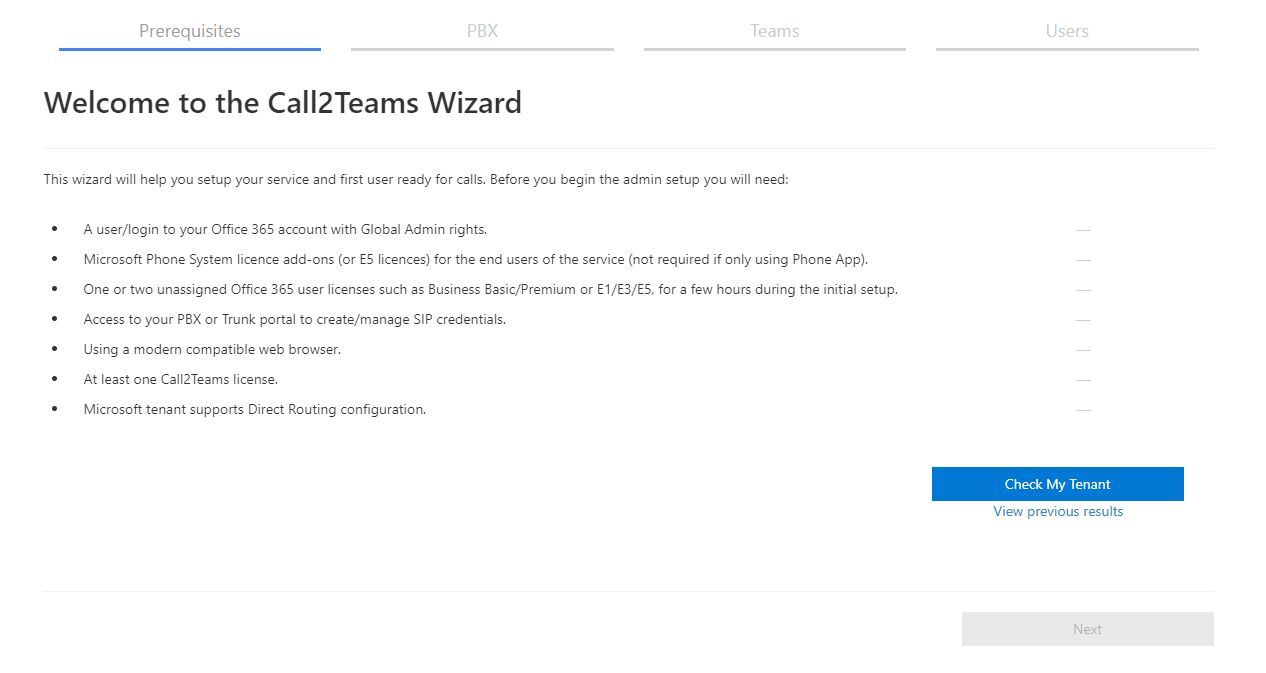
All prerequisites will need to be checked so that Call2Teams is ready to work with PBXware, namely the following prerequisites:
- A connection to O365 with admin rights
- One or two unassigned O365 Business Basic/Premium or E1, E3 or E5 licenses for a few hours during the synchronization
- Access to your IPBX in order to add your SIP credentials
- Using a modern browser
- A Call2Teams license
- The Microsoft tenant must support the Direct Routing configuration
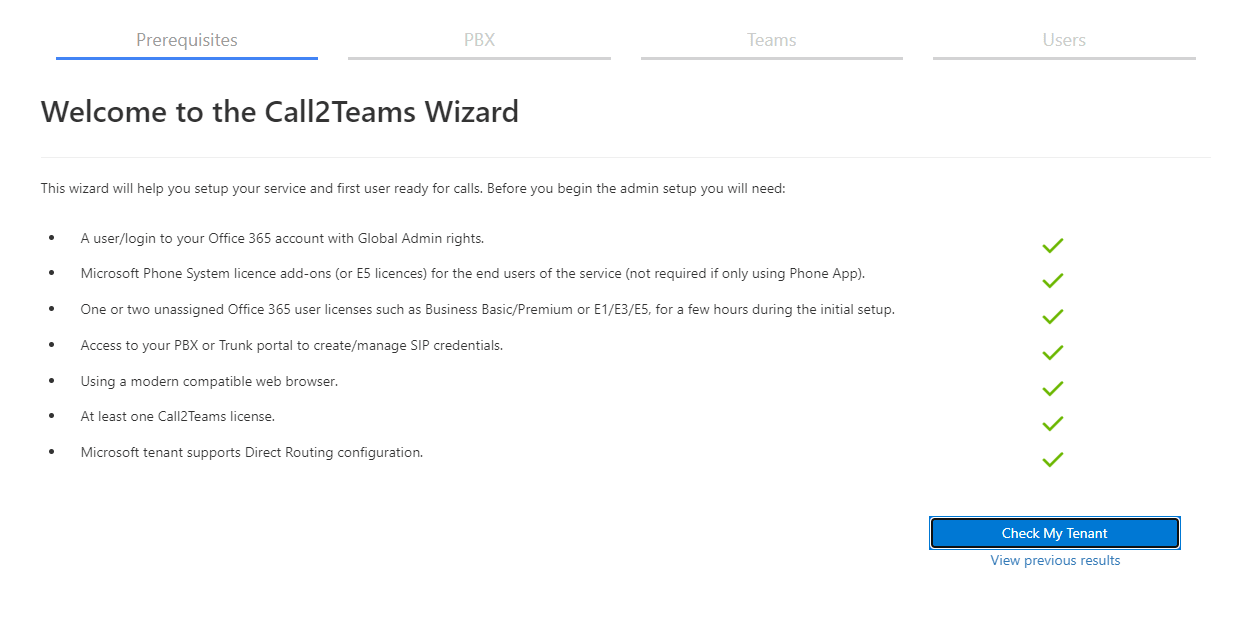
Once all prerequisites are met, you should be able to see green icons and you will be able to click “Check my tenant” to verify the tenant configuration.
If all prerequisites are validated, validation icons appear progressively.
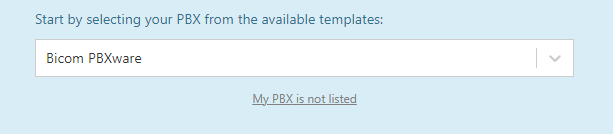
Once the verification is complete, you will be prompted to add an IPBX. Then choose Bicom PBXware from the drop-down list.
Then fill in the fields on the PBX page.
- Choose the appropriate country in the field Country.
- The field SIP Domain represents the access URL to your PBXware; this can be the public IP address of your machine.
- Then customize the music on hold or voicemail options.
- Leave the other settings (Protocol & Propagate Refer) at their defaults. Note that if you are on a TCP or TLS configuration, you will need to change the corresponding protocol.
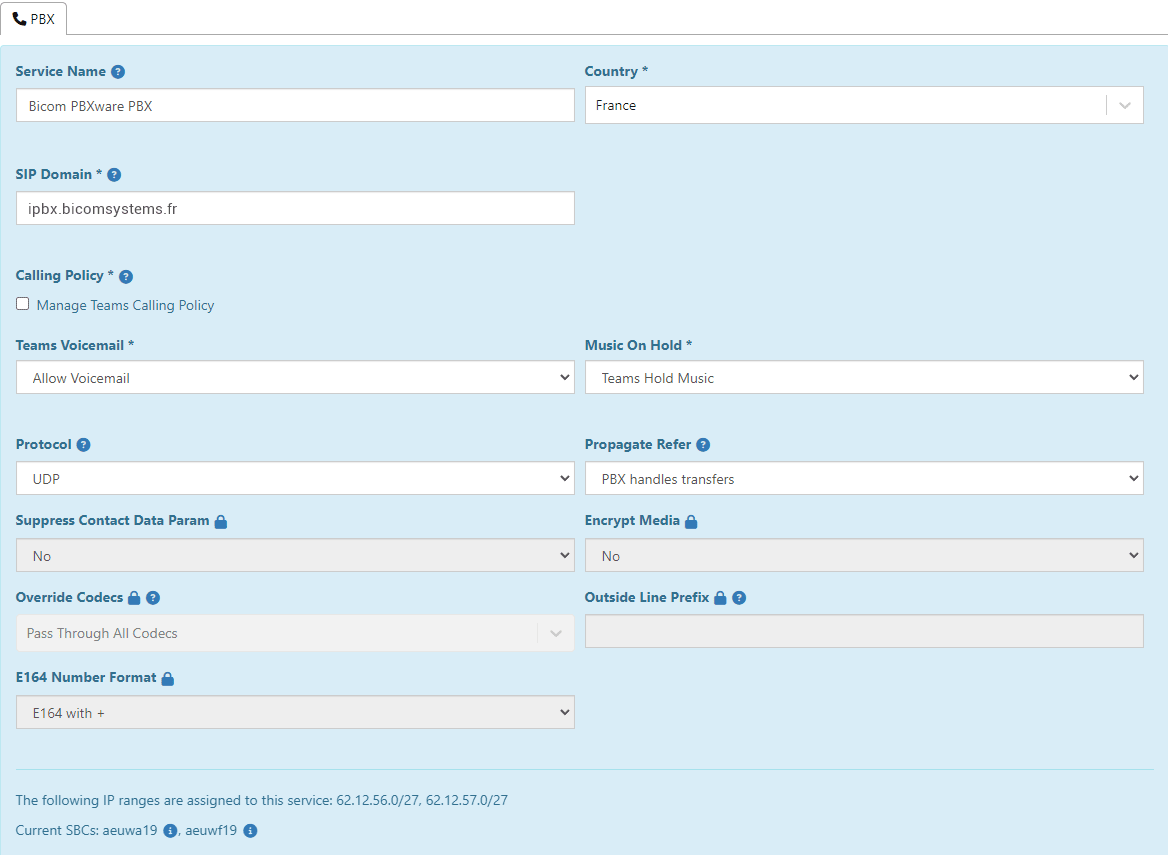
Once the settings are saved, start the synchronization:
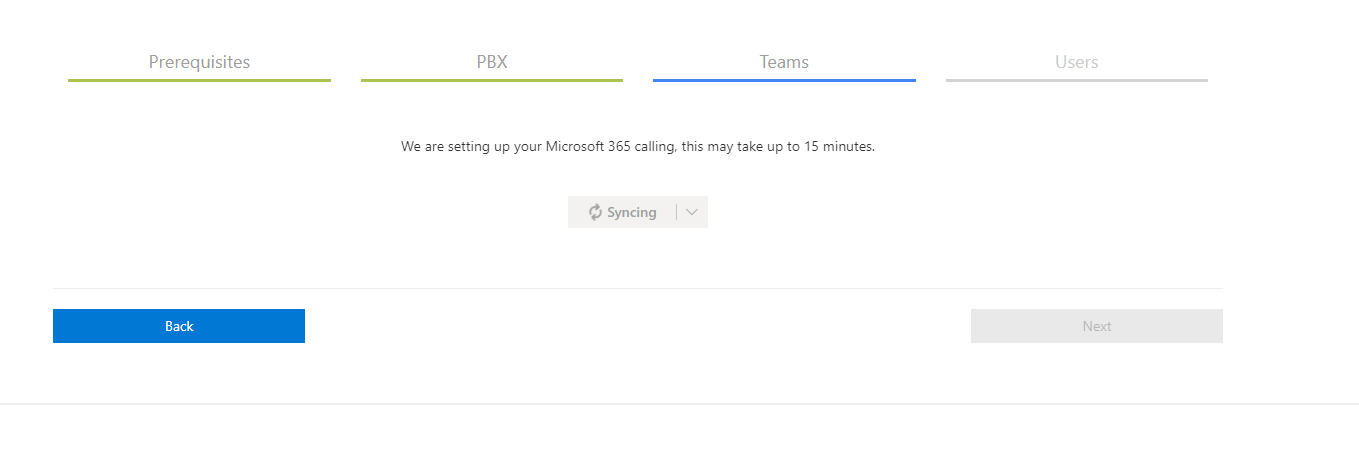
Once the IPBX is registered in the Call2Teams configuration, you will be able to add your extension in the section Users by clicking on Add User.
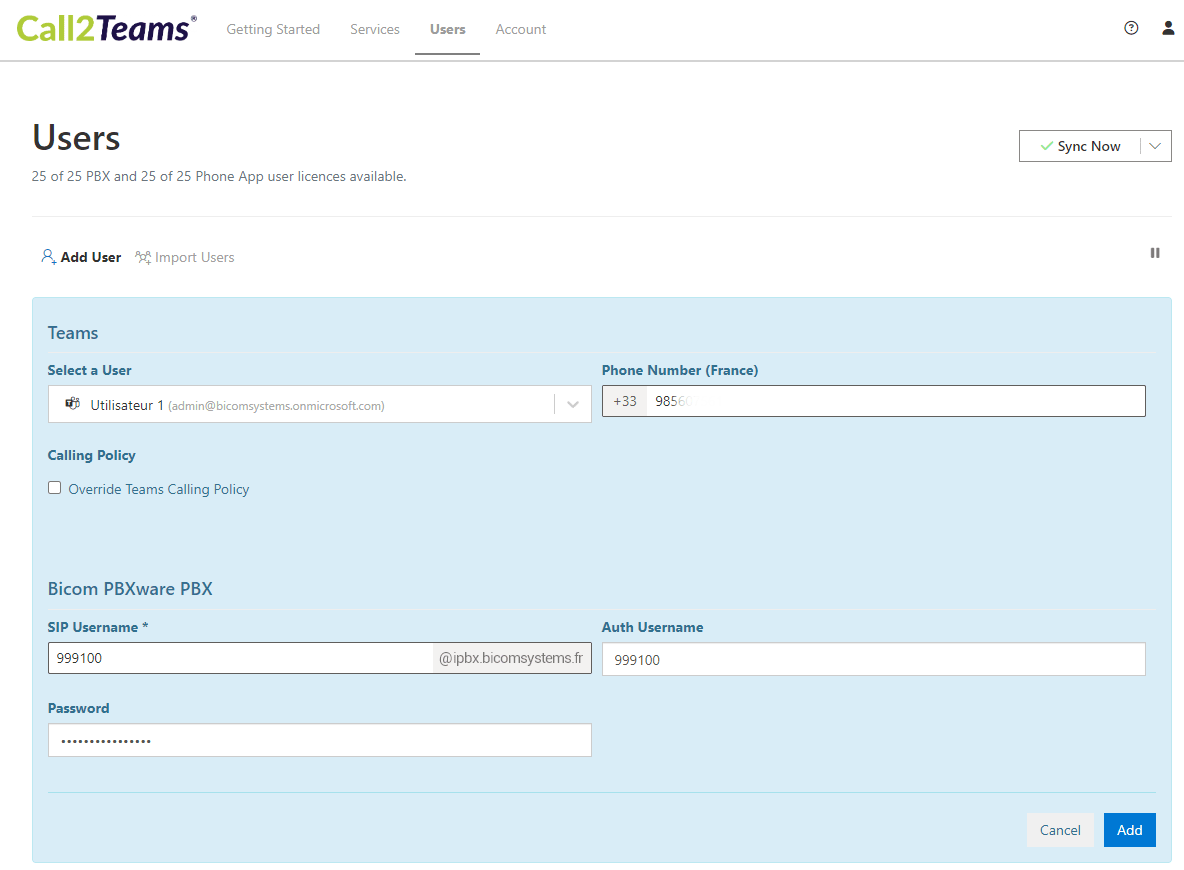
Select the user created in your O365 console; this user must have a license allowing calls to be made via Teams. Enter the phone number linked to the SIP Trunk.
In the underlying section, you will need to integrate the settings of your previously created extension under PBXware. Please create a new PBXware extension whose UAD is Generic SIP. You will then find the following fields:
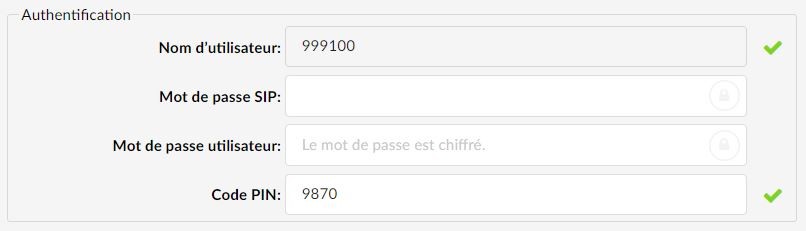
Back on the Call2Teams user configuration, the following fields will need to be filled in:
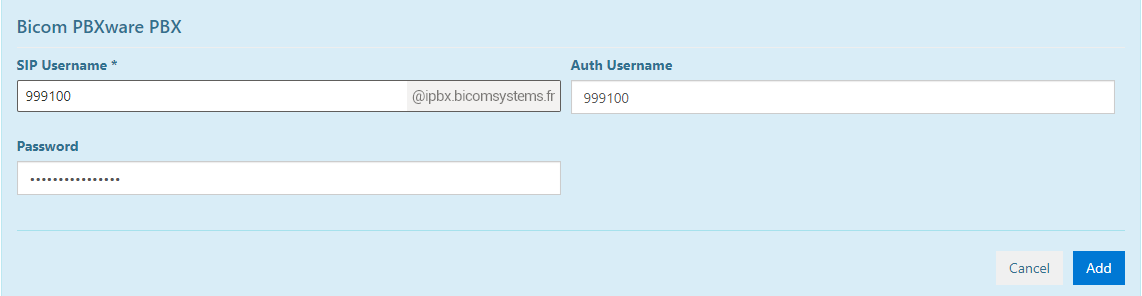
The SIP Username as well as the Auth Username represent the PBXware tenant number followed by the extension number.
The Password field represents the SIP Password found in the PBXware extension. Then click the Add. The user is now created and is ready to be paired, the registration status should show an Orange badge.
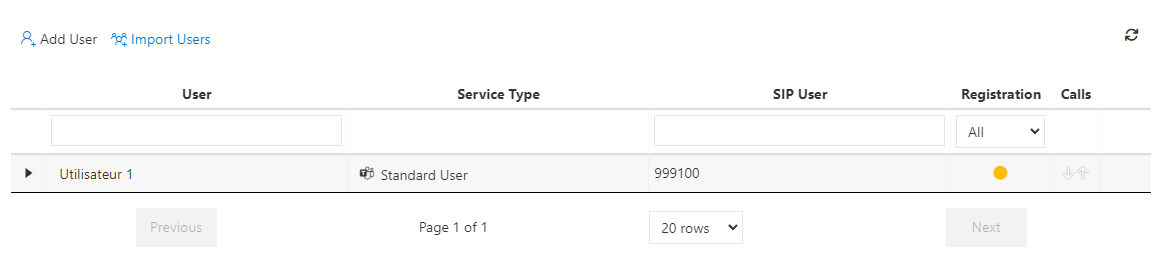
After a few seconds of refreshing and provided the credentials are correct, the user should now be logged in under Call2Teams and the registration status should display a Green badge.
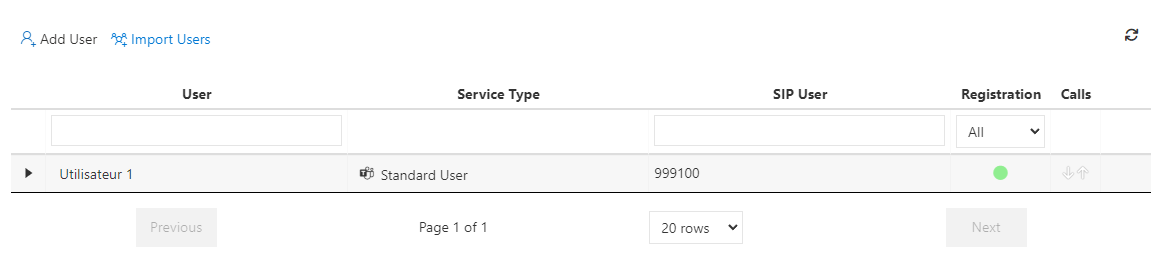
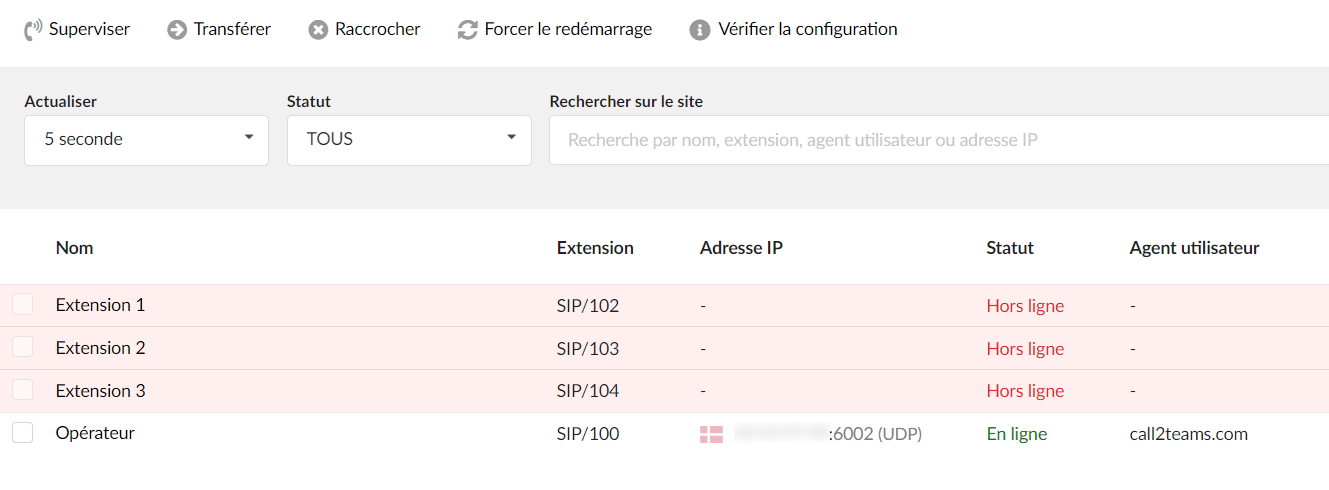
Once the extension is properly registered with the registration status "Registered", you will be able to check its status in the PBXware supervision panel in Home > Monitor.