



TUTORIAL: Set up an alert system
The PBXware alerting system monitors extensions and trunks. If any of them becomes unavailable, a notification is sent to the predefined email addresses.
- Navigate to Monitor > Settings.
- Select the peers that will be monitored (Trunks, extensions, IAX peers).
- Customize the email address from which the email should be sent by providing an email address in the field Send emails from (for example admin@pbxware.fr).
- To avoid cluttering your inbox, set the time interval in the field Message resend delay [min] over 15 minutes, for example. This means that the notification email will be sent every 15 minutes until the peer/trunk is available again.
- Under "email address", specify as many destinations as needed to receive the notification emails.
Configuration example: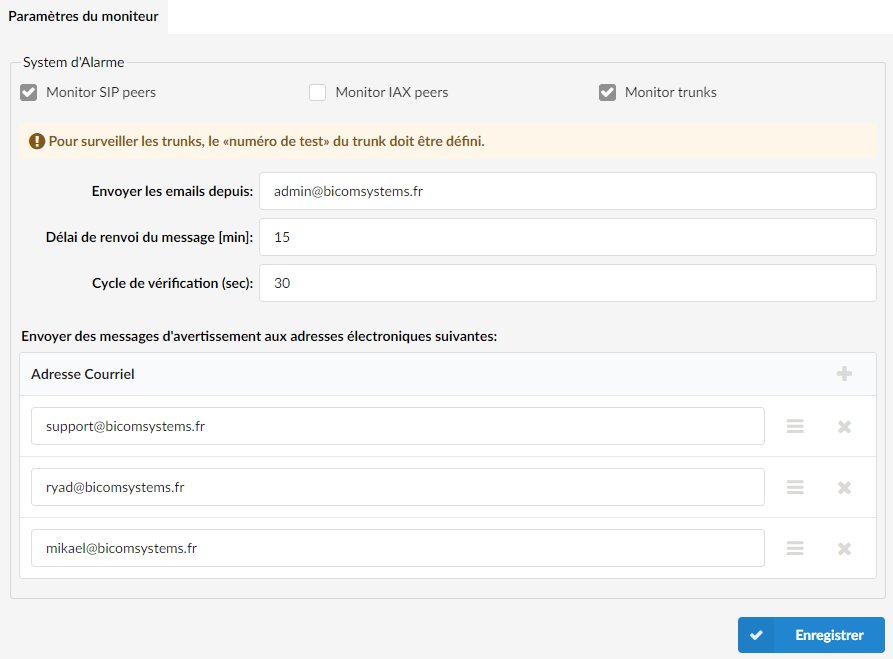
When you want to monitor a Trunk, you will need to modify a setting in it:
- Navigate to Trunks.
- Edit the trunk that is to be monitored
- Click on Advanced options.
- Under Test number, indicate a number that must be called on this Trunk (if this number is unreachable, an alert system will be triggered).
If you are monitoring a trunk for example, PBXware will try to call a predefined destination on a trunk. If this destination is not available, the alert system will be triggered and a notification email will be sent automatically.
