



TUTORIAL: Extension registration problems
It can happen that some remote SIP phones are correctly registered on PBXware, but still appear as offline.
This behavior is
typically related to intermediate network equipment applying overly restrictive filtering.
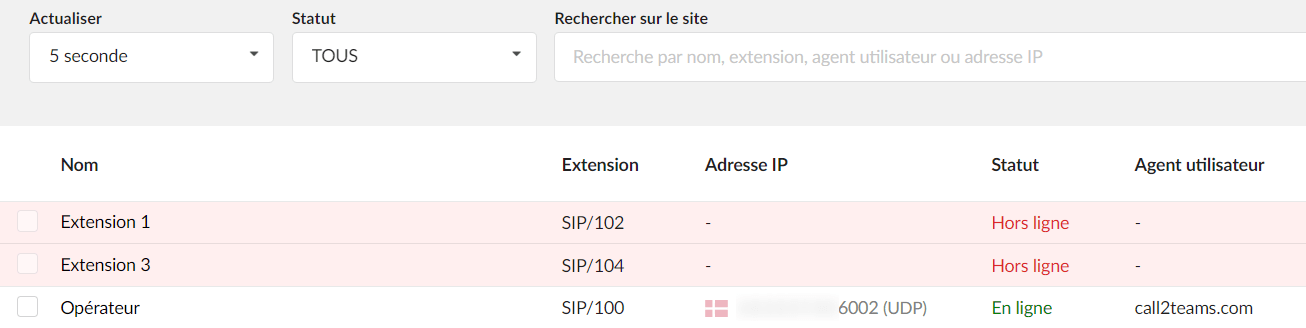
In this case, certain settings make it possible to ensure the registration of extensions on PBXware, even in the presence of specific router or firewall configurations.
PBXware settings
In the case of auto-provisioning of the extension, first check that the provisioning username and password are correct and have not been changed.
To check these settings, go to the Master-Tenant and then to Settings > Tenants > Select the tenant in question > Show advanced options

Then re-provision the phone with the correct username/password combination.
In the Advanced options of the extension, also check the following options :
- UAD location: Remote (if PBXware is on a different network than the phone)
- NAT: Yes (if the phone is behind a NAT)
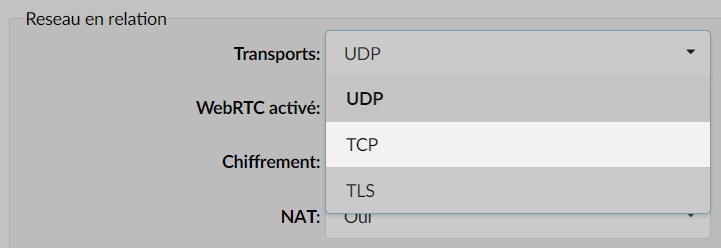
Some routers/firewalls filter and block UDP sessions. So, note that switching the mode of Transport of the extension of UDP to TCP can resolve registration issues.
In addition, make sure that all the ports required for PBXware to work are open on the router/firewall by referring to our knowledge base FAQ > List of ports to open
Phone settings
On the phones, here are two settings to set up:
- Pass the value “Registration Timer” to 120 seconds
- Enable Keep Alive with a reduced interval.
- Snom
In the web interface of the Snom:
Identity > NAT > Interval for Keepalive > Fill in 15 and set the option Offer ICE on OFF - Yealink
In the web interface of theYealink Accounts > Advanced, configure the following options:
- Snom
- Keep Alive Type: defaut
- Keep Alive Interval (Seconds): 15
- SIP Registration Retry Timer(0~1800s): 120
TIP:
You can inject these settings into the auto-provisioning of Yealink phones in the extensions using the following block:
account.1.nat.udp_update_time = 15
account.1.sip_server.1.expires = 120
Presence of a firewall
For extensions to register on a remote server and for communications to be handled correctly, it is necessary to open certain ports if a firewall is in place at the customer's site.
Please review below and make sure these are open:
| Traffic Type | Protocol | Ports | Usage |
|---|---|---|---|
| SIP traffic | TCP | 10001, 5060–5069 | SIP call signaling |
| UDP | 4000–4999, 5060–5069, 10000–20000 | Signaling + RTP stream (voice) | |
| IAX traffic | TCP | 5037, 5038 | Interconnection / control |
| UDP | 4569 | IAX calls | |
| PWProxy | TCP | 10005, 10007, 10009 | Internal proxy |
| Centralized directory | TCP | 11389, 11636 | LDAP directory |
Additional verification points:
Disable the SIP ALG on the firewall/router (a frequent cause of audio or recording problems).
Check that the firewall is not blocking the inactive UDP sessions too quickly.
Blacklist
It is possible that the public IP address of the phone or extension has been blocked by the sipPROT protection module built into PBXware or SERVERware.
This blocking usually occurs when a device sends too many connection attempts with incorrect credentials.
To resolve this issue, go to the sipPROT interface, then open the Denylist or Dynamic Denylist section and remove your public IP address if it appears there.

