TWILIO: Authentication tokens and how to change them
Where is my authentication token?
You can find your authentication token in the Info pane of the dashboard.
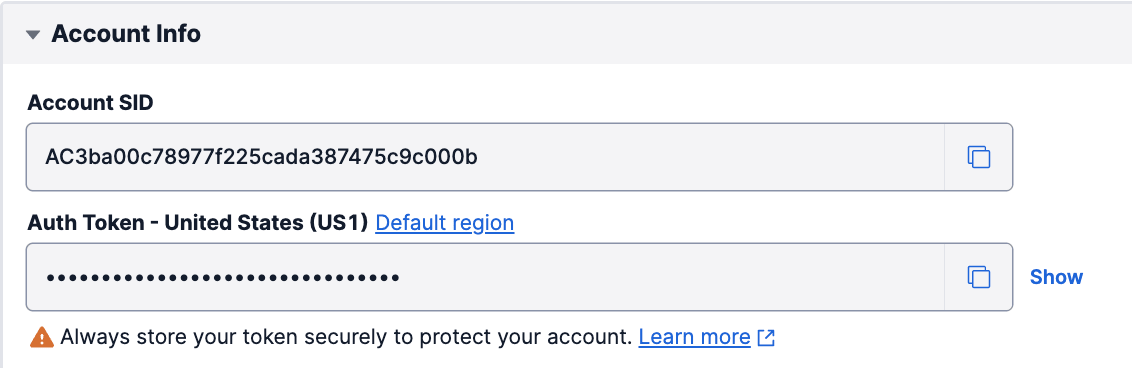
1. Go to the page Account > API keys and tokens in your console.
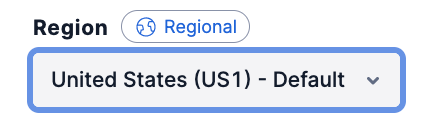
2. At the top right, select the region for which you want to modify the authentication token:
3. Scroll down the page to the section Auth Tokens, then click on
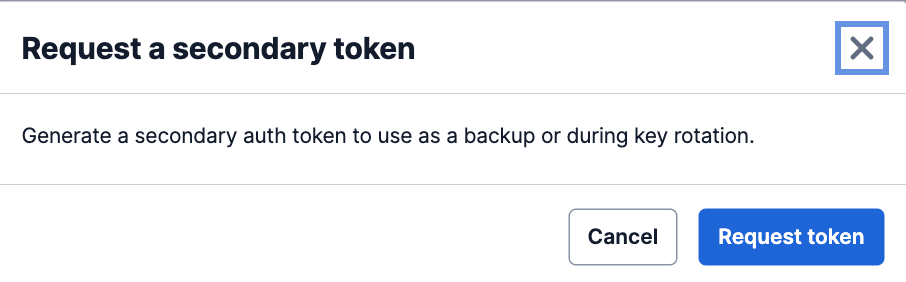
Request a secondary token
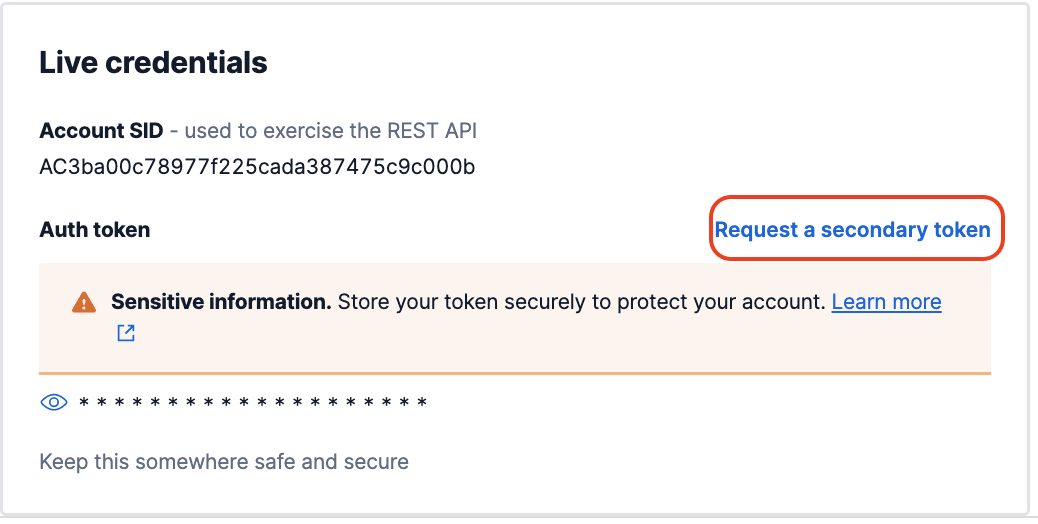
4. In the dialog box, click Request token.
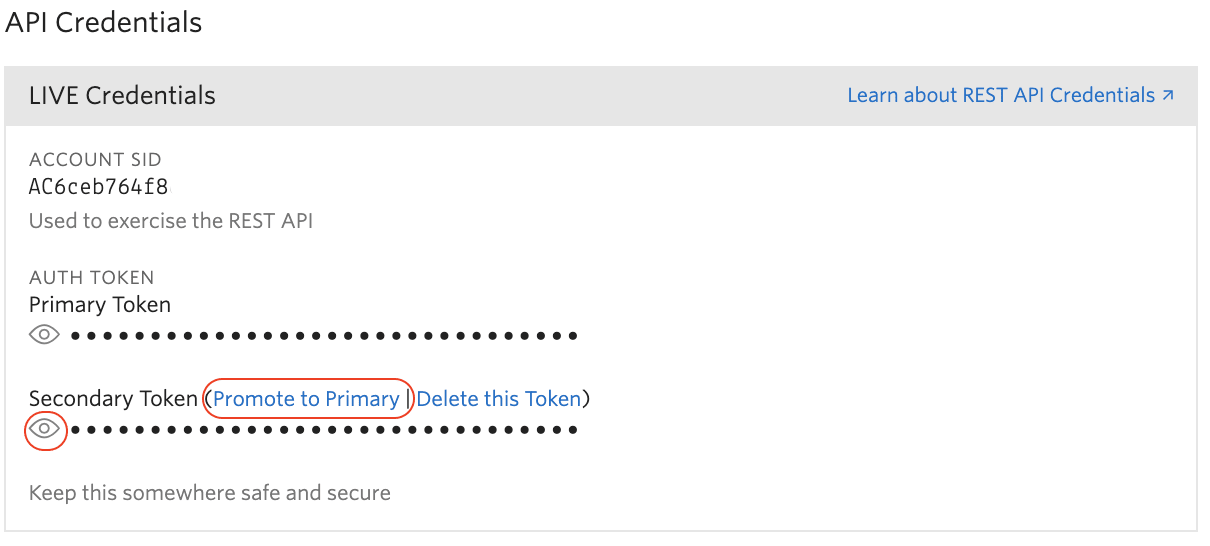
5. Click on the icon  to display your new secondary token, and use it to update your existing Twilio applications. Make sure your applications are updated with your new secondary token before promoting it.
6. Click on Promote to Primary to make your newly created authentication token the primary token of your account. A dialog box will appear asking you to confirm the consequences. Once confirmed, the old primary token will stop working.