



Communicator branding
Bicom Release Manager is a distribution service for desktop and mobile applications. It provides a single platform for distributing new application versions for testing purposes to our partners and version updates to partners’ end users.
Some of the main features of the BRM are:
- Brand image
- Automatic updates
BRM portal login
Log in to your BRM platform from the following link: https://portal.bicomsystems.com/
Important note
Full Communicator branding is an option to enable on your license.
Dashboard
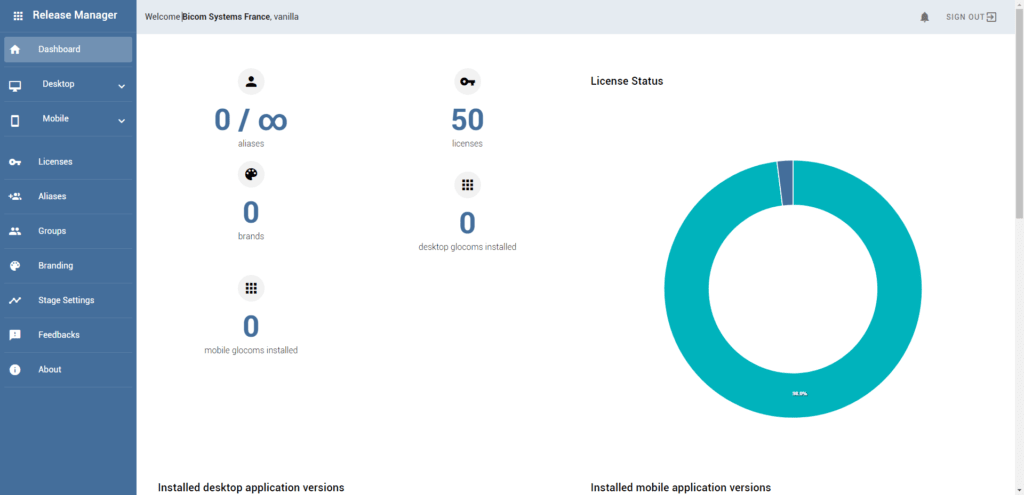
The Dashboard page displays the statistics of the applications currently installed on the systems.
The dashboard allows you to view the total number of your licenses and visually display their status on the pie chart. There is also a total number of installed gloCOMs separated by mobile and desktop applications. On the charts below, you can check the number of applications installed by version number.
In two tables at the end, you can check the latest changes made to your licenses and the highest number of Communicator installed.
App customization
Customization (branding) is an option for users who wish to have a personalized version of the Communicator application. This applies only to the Communicator brand. The following information is supported:
- Company name
- Company logo
- Application colors (mobile)
- Product page
- Help page
- Changelog page
If no branding is enabled, Communicator will default to empty branding information. Otherwise, Communicator will lazily load the branding information set at the first connection and keep the information up to date through regular checks.
1. Go to the section Branding of the license management console:
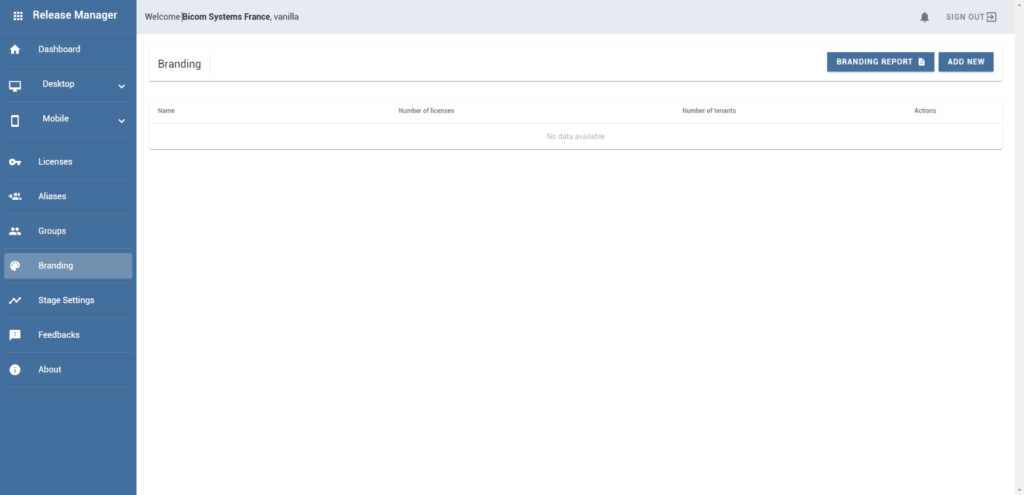
Click the button ADD NEW located at the top right of the page to add a new branding template.
Enter a name for your branding template:
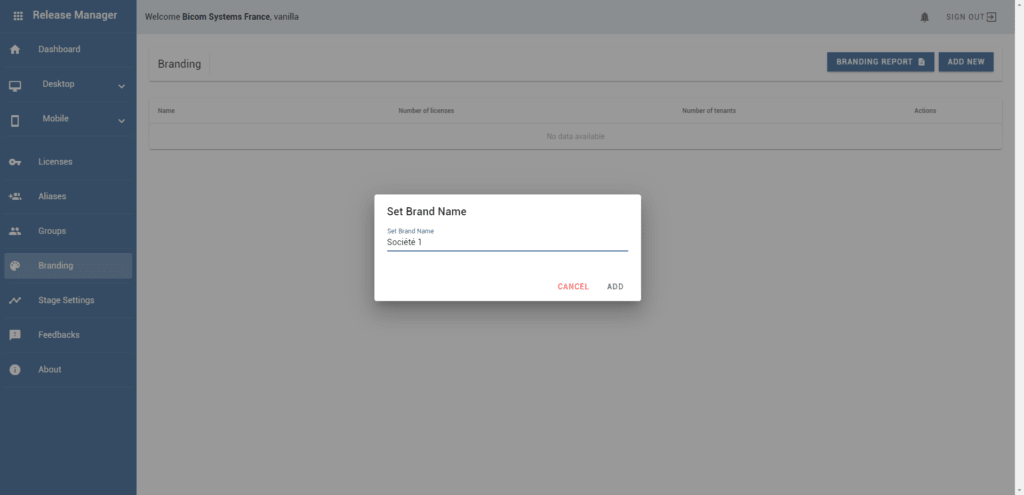
Your branding template is now created; click the button EDIT to edit your template:
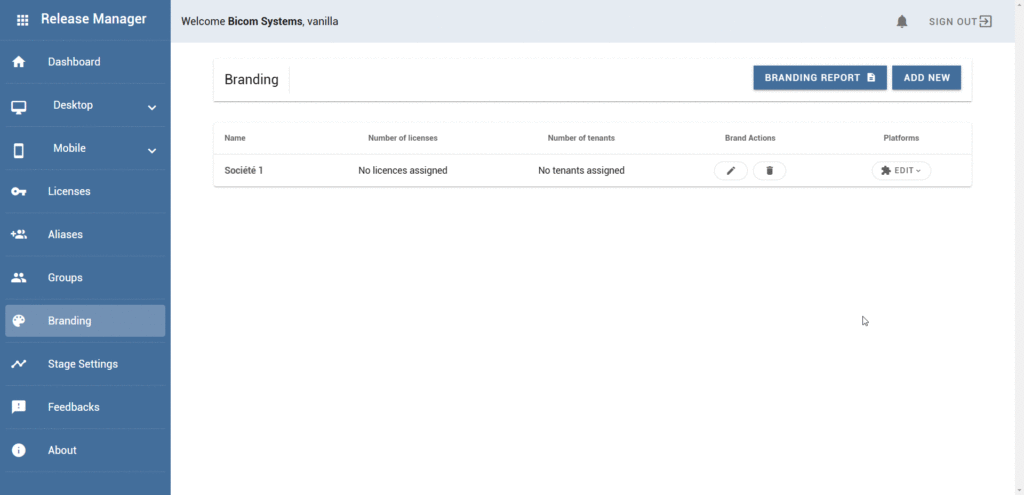
You can now switch between the different platforms ( Communicator : Desktop, iOS, Android, Web and Meeting : Mobile, Web).
Customization standards
- Color customization : all color-related parameters must be entered in HEX format, such as "#RRGGBB" or "#RGB".
- Image uploads : images must be in PNG, JPEG, or SVG format with a maximum file size of 1 MB.
(Note: not all images necessarily need to reach 1 MB, but the sizes vary depending on the specific image type and its use.)
Communicator Desktop
Click the Desktop option to open the Communicator Desktop customization settings.
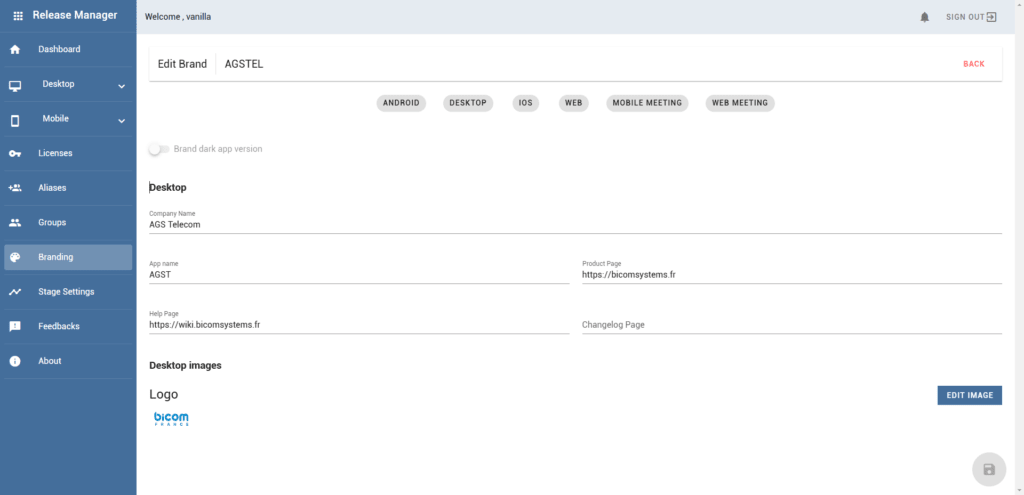
The following fields can be modified to customize your application:
General information
- Company name : specify the official name of your organization.
- Application name : customize the name of the application to suit your needs.
Related pages
- Product page (URL) : provide the URL leading to the main page of your product.
- Help page (URL) : indicate the link to the page where users can access support.
- Changelog page (URL) : add the link to the history of updates and changes.
Image settings
- Logo : upload the logo of your company or application.
Note: Some file format and size restrictions may apply.
Mobile customization
Communicator iOS
Click the iOS option to open the Communicator iOS customization settings.
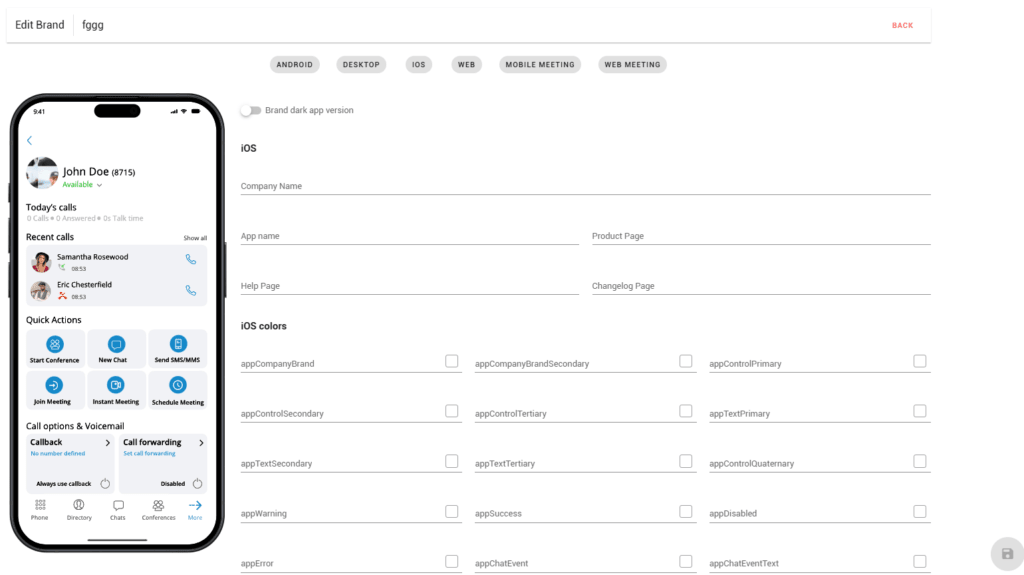
The following elements can be modified to customize your application:
Editable fields
- Company name : indicate the name of your organization.
- Application name : customize the name of the application displayed to users.
- Product page (URL) : add the URL of your product's main page.
- Help page (URL) : provide the link to the user support or help page.
- Changelog page (URL) : specify the URL containing the history of updates and changes.
Color customization
- Edit the colors used in the application, in particular:
- Text
- Buttons
- Backgrounds
- Highlights
- Shadows
Image settings
- Logo : upload the main logo of your company or application.
- Toolbar logo : add a specific logo for the toolbar.
Note: Make sure to comply with the file format and size requirements.
NOTE
You can also customize the dark version of the application by clicking the button Brand dark app version.
Communicator Android
Click the option Android to open the customization settings of Communicator Android.
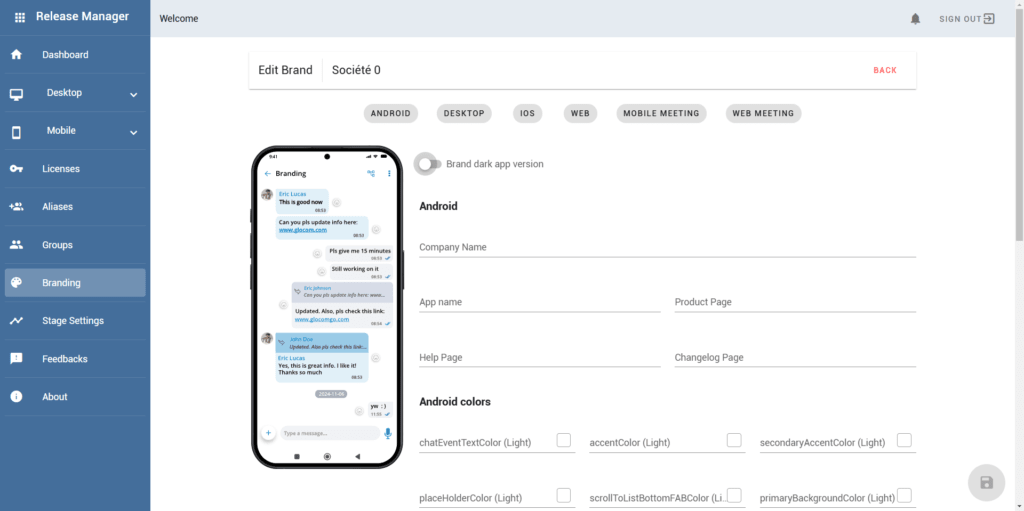
The following elements can be modified to customize your application:
Editable fields
- Company name : indicate the name of your organization.
- Application name : customize the name of the application displayed to users.
- Product page (URL) : add the URL of your product's main page.
- Help page (URL) : provide the link to the user support or help page.
- Changelog page (URL) : specify the URL containing the history of updates and changes.
Color customization
- Edit the colors used in the application, in particular:
- Text
- Buttons
- Backgrounds
- Highlights
- Shadows
Image settings
- Logo : upload the main logo of your company or application.
- Toolbar logo : add a specific logo for the toolbar.
Note: Make sure to comply with the file format and size requirements.
NOTE
You can also customize the dark version of the application by clicking the button Brand dark app version.
Communicator Web
Click the Web option to open the Communicator Web customization settings.
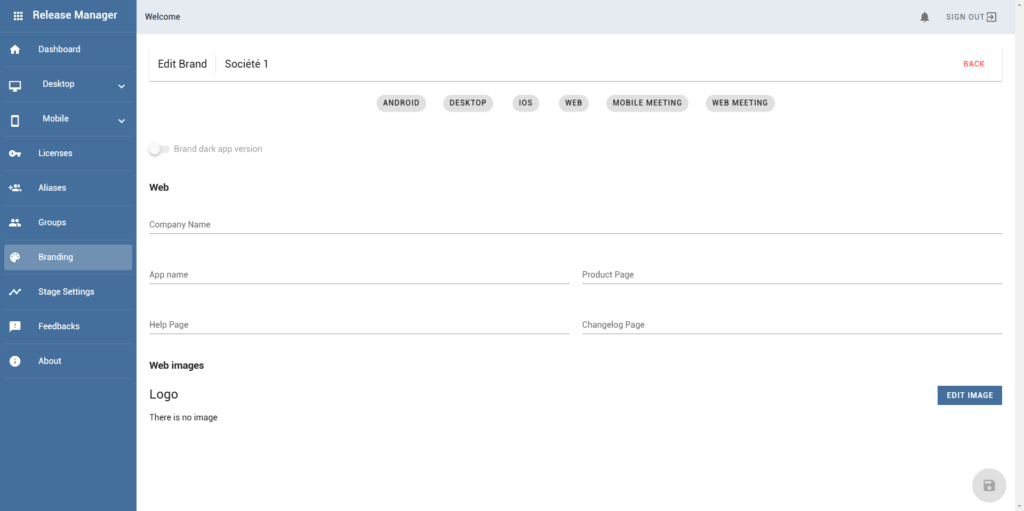
The following fields can be modified to customize your application:
General information
- Company name : specify the official name of your organization.
- Application name : customize the name of the application to suit your needs.
Related pages
- Product page (URL) : provide the URL leading to the main page of your product.
- Help page (URL) : indicate the link to the page where users can access support.
- Changelog page (URL) : add the link to the history of updates and changes.
Image settings
- Logo : upload the logo of your company or application.
Note: Some file format and size restrictions may apply.
Web meeting
Click on Web meeting to open the customization settings of the Web meeting application.
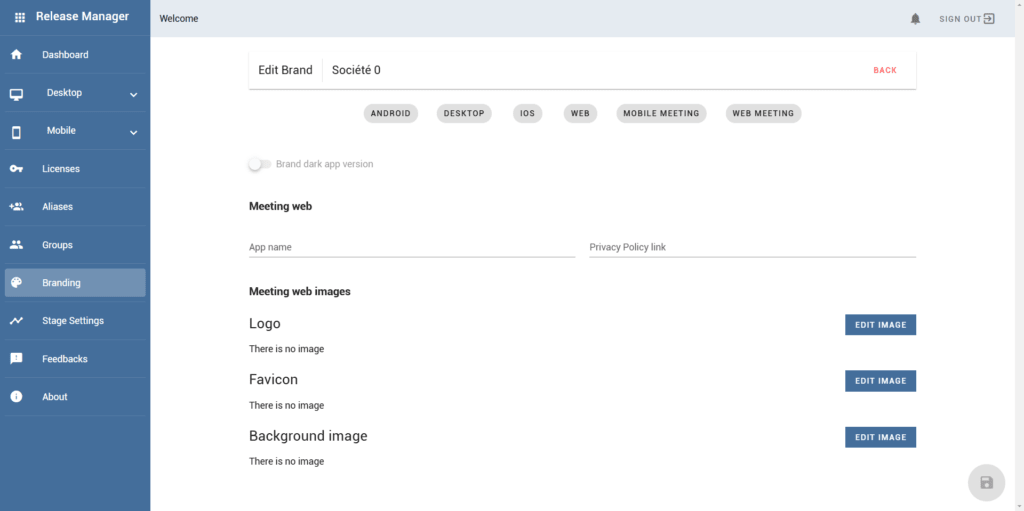
The following fields can be modified to customize your application:
General information
- Company name : specify the official name of your organization.
- Application name : customize the name of the application to suit your needs.
Related pages
- Product page (URL) : provide the URL leading to the main page of your product.
- Help page (URL) : indicate the link to the page where users can access support.
- Changelog page (URL) : add the link to the history of updates and changes.
Image settings
- Logo : upload the logo of your company or application.
Note: Some file format and size restrictions may apply.
Assign a brand to a tenant
In order to be able to assign branding to a tenant, click the tab Licenses.
Edit the desired license with the edit button located in the column Actions.
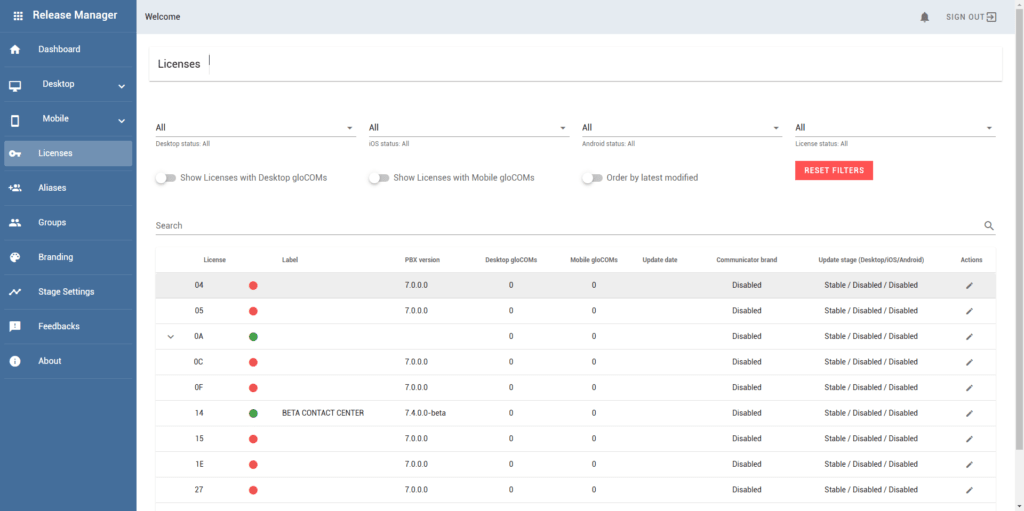
If you want to apply your branding at the license level, select your brand from the drop-down list Communicator brand.
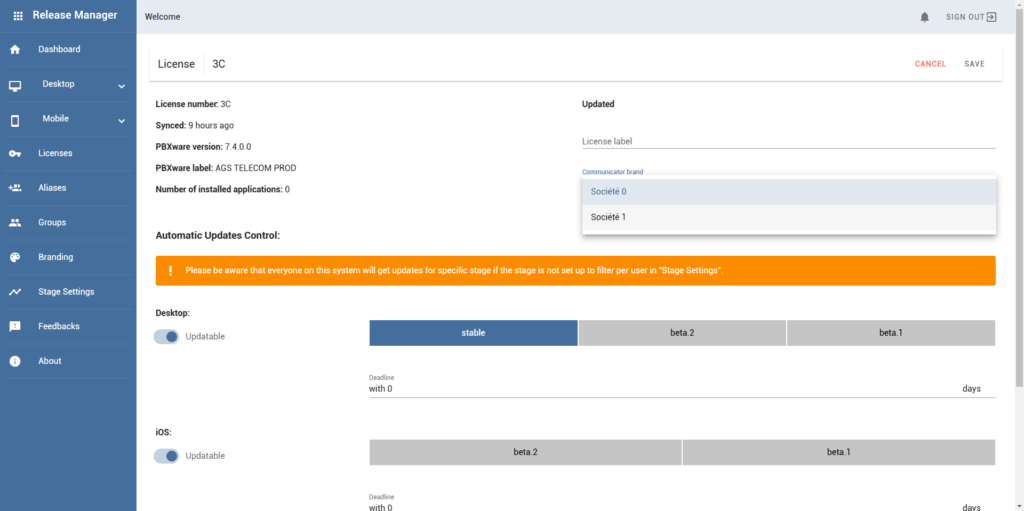
To assign a different brand to a specific tenant, scroll down to the bottom of the page to the section Tenants.
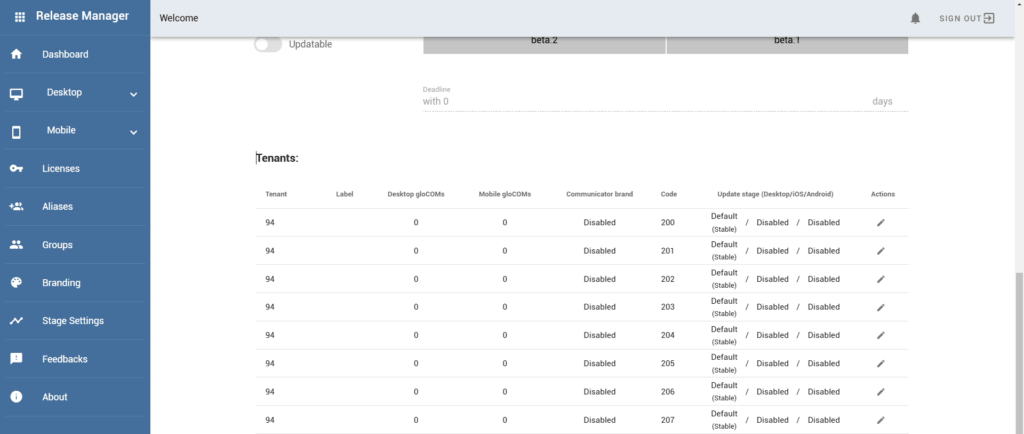
Locate your tenant's unique code in the column Code :
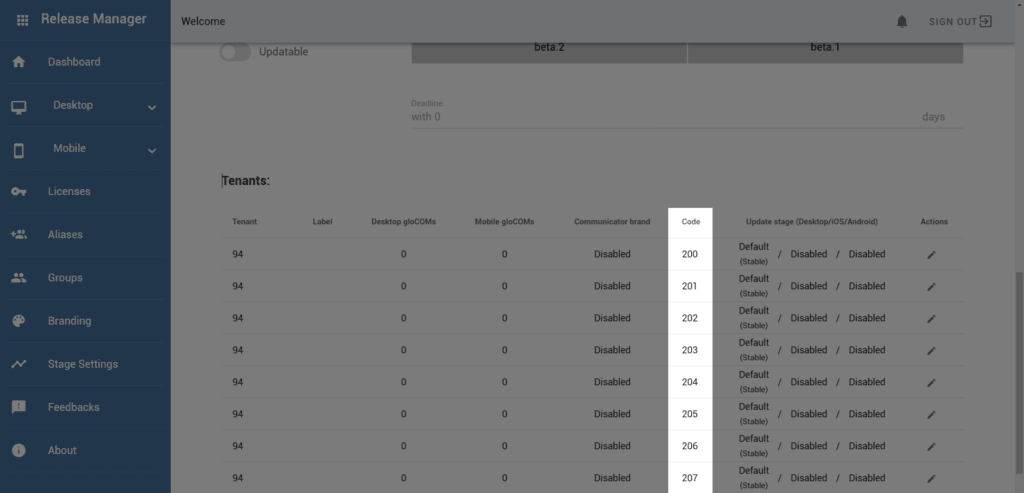
Click the edit button in the column Action to modify the branding of this tenant and choose the brand created for this tenant.
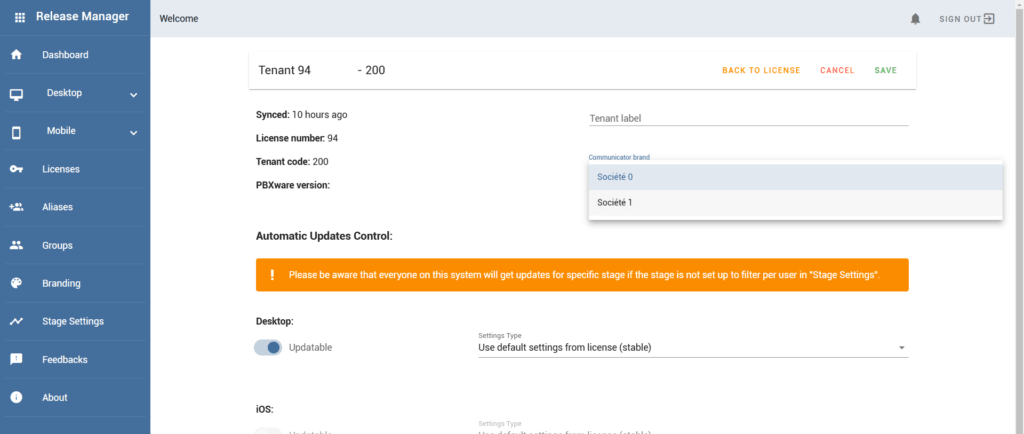
Your branding template is now assigned to your tenant; click the button SAVE to save your changes.
