TUTORIAL: Capture packets with SNGREP
SNGREP is a tool for viewing SIP flows. It supports live capture to display SIP packets in real time and can also be used as a file viewing tool .pcap
Prerequisites
1. Log in via SSH to your instance (see TUTORIAL: SSH access) using an SSH client.
2. Run the following command to access SNGREP:
/opt/pbxware/sh/sngrep WARNING:
Running sngrep for a long period can cause a system crash.
TIP:
By default, sngrep captures all packets, including phone registration packets and call flow packets. To capture only call frames, add the arguments:
- -c (to capture only the packets INVITE)
- -r (to capture only the frames RTP)
The command then looks like this:
/opt/pbxware/sh/sngrep -c -r
See: Glossary
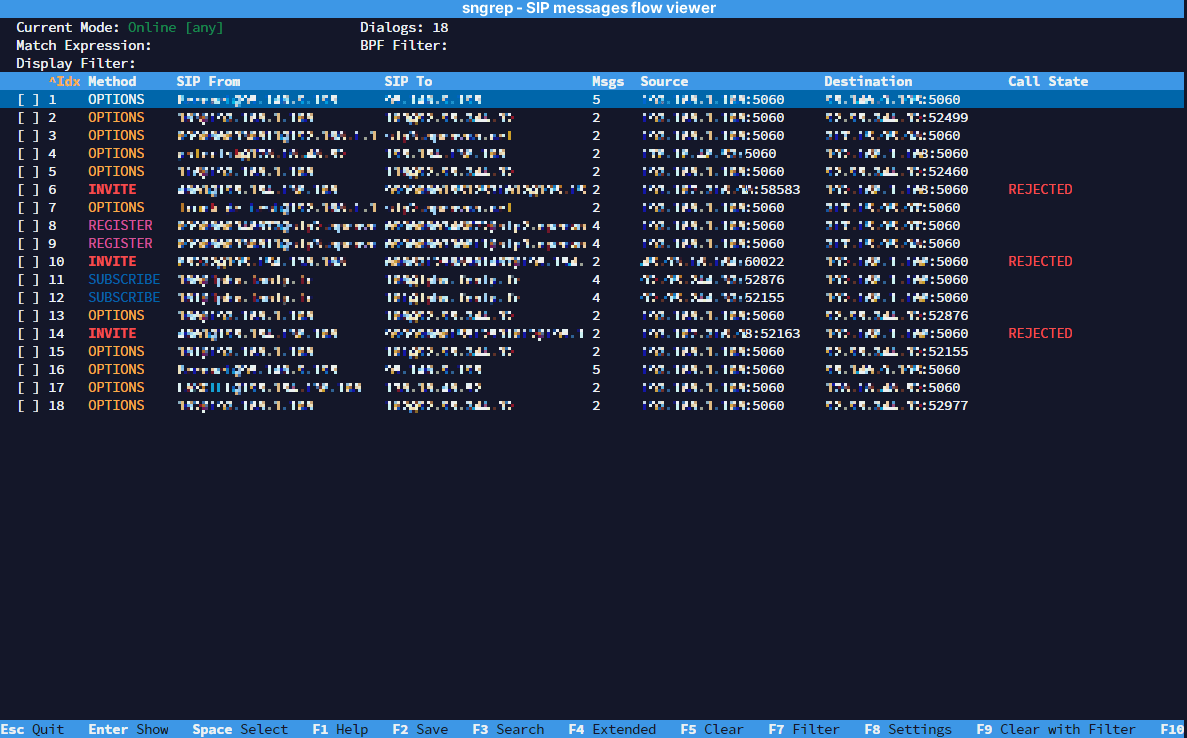
Display & shortcuts

- ESC Quit : Exit SNGREP.
- Enter Show : Display more information about the highlighted extension.
- Space Select : After pressing the space bar, the line is selected. This allows the user to select multiple lines and can be used with the F2 Save option.
- F1 Help : Provides access to the help menu.
- F2 Save : Option to save the dialogs of the current capture session to a .pcap or .txt file to a specific path and file name.
- F3 Search : Provides the option to search in a more specific and granular way.
- F4 Extended : Provides the expanded view.
- F5 Clear : Clears the screen.
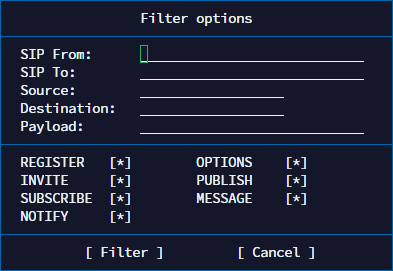
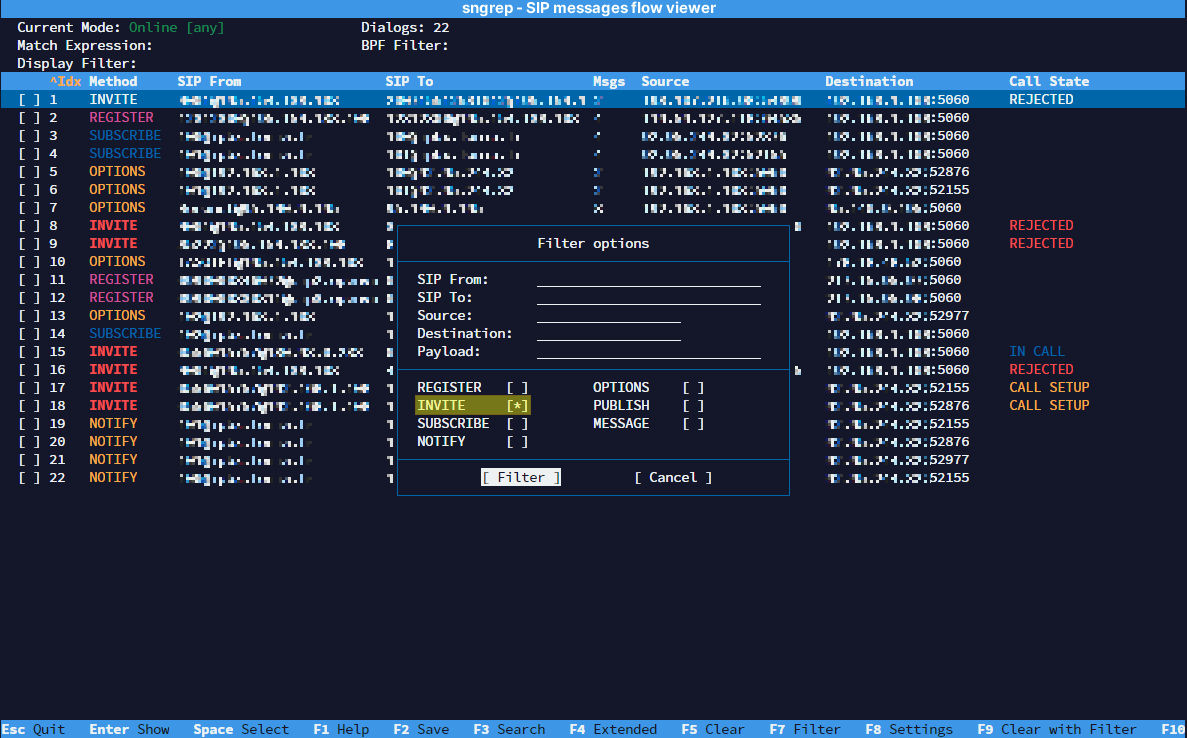
- F7 Filter : Same as the search, but with more options to filter the final result.
- F8 Settings : Adjusts the SNGREP settings interface, capture options, call flow options, and EEP/HEP Homer options.
- F9 Clear with filter : Clears the screen with the specified filter.
- F10 Columns : Adjusts the columns that are displayed in the open SNGREP window.
Packet filtering

In the table below you will find the list of requests that can be observed in SNGREP and their description.
| Request | Description |
| REGISTER | Used to register a client with the server. |
| INVITE | Initiated by a SIP client to invite a user to a communication session. |
| SUBSCRIBE | Requests a SIP server to monitor a specific event. |
| NOTIFY | Sends notifications to a SIP client in response to a monitoring request. |
| OPTIONS | Used to query the capabilities of the SIP server. |
| PUBLISH | Used to publish information about a user's presence. |
| MESSAGE | Allows sending text messages between SIP users. |

- Example after filtering INVITE packets only:
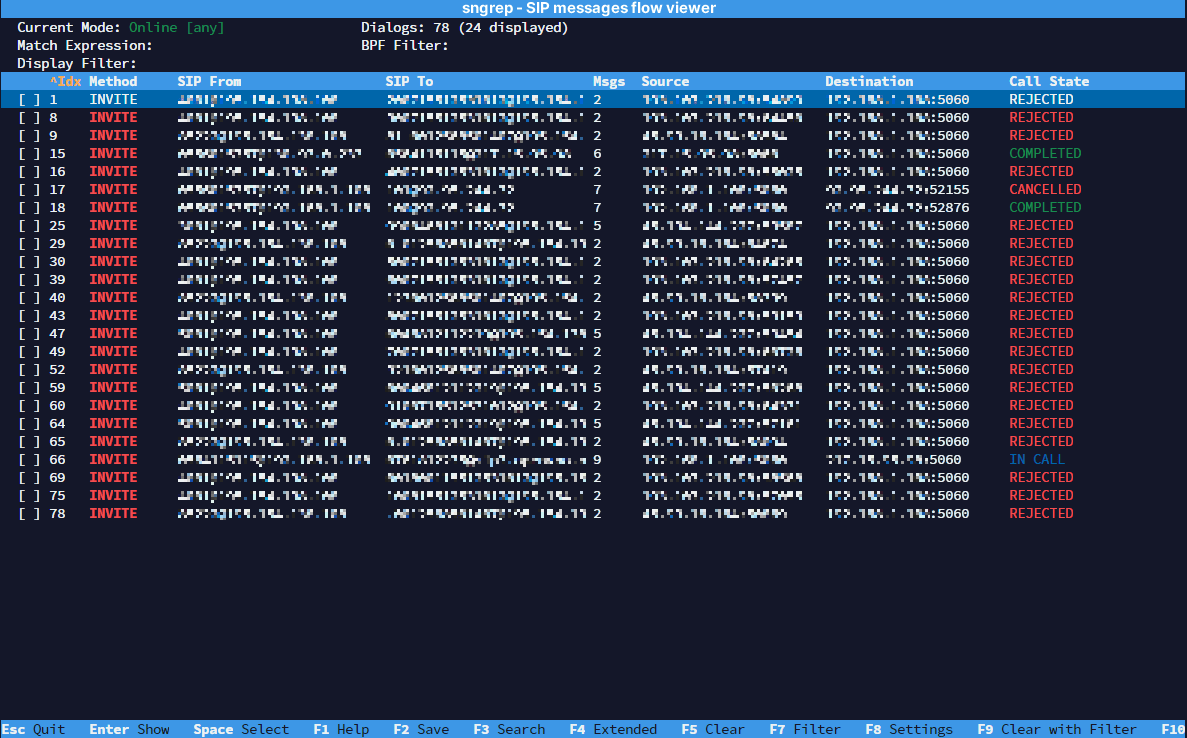
Then press the key Input to check the selected entry.
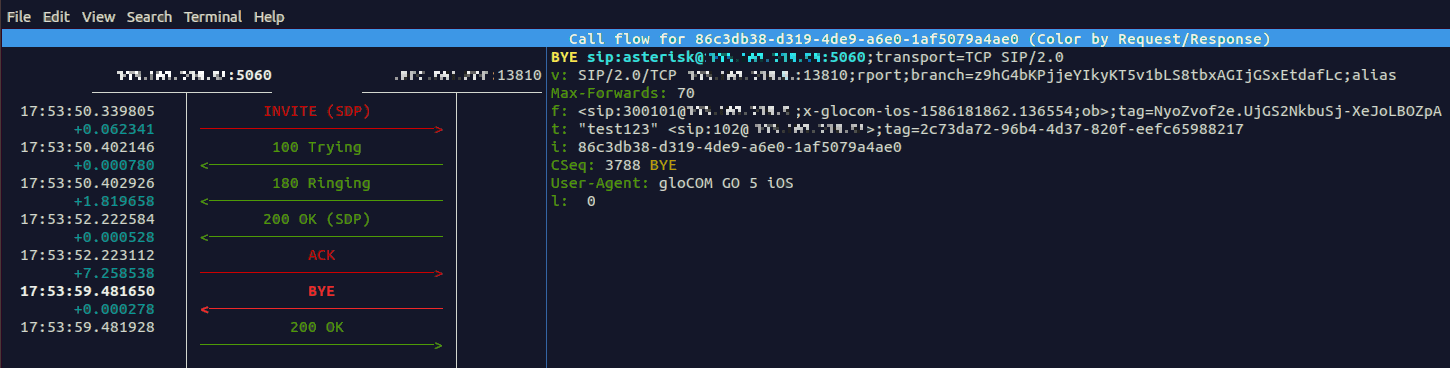
Stream visualization
If you want to view the RTP stream on an ongoing call, you must open the INVITE packet by pressing Enter and then press F3.
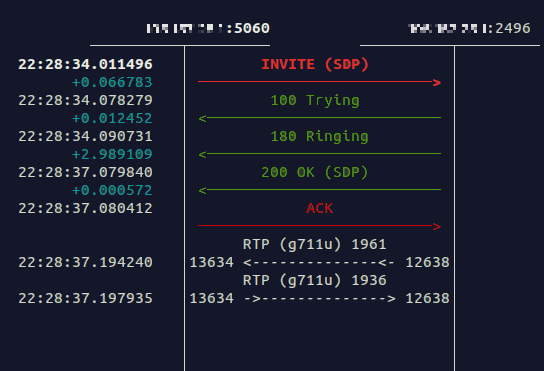
F2 allows the display of the flow SDP & F3 allows the display of the flow RTP.
Common SIP responses
Here are the most common SIP requests that can be obtained when analyzing the frames:
| Code | Meaning | Description | Tip |
| 100 | Trying | INVITE request received by the server. | The request has been received by the next-hop server and an unspecified action is being taken on behalf of this call. |
| 180 | Ringing | The client received the request and is being alerted. | This response code indicates that an invitation has been received by the user agent and that the alert is in progress. |
| 181 | Call Is Being Forwarded | The call is transferred. | The server may optionally send this response to indicate that a call is being transferred. |
| 183 | Session Progress | The progress status of the session. | This code is a provisional response indicating that the recipient of the call is preparing their answer. |
| 200 | OK | Indicates that the request succeeded. | This code indicates that the request was successful and everything is proceeding as expected. |
| 400 | Bad Request | Incorrect or malformed request. | Check the syntax of the SIP request and make sure it is correct. |
| 401 | Unauthorized | Authentication is required. | >Make sure to use valid credentials to access the SIP resources. |
| 403 | Forbidden | Access denied for security reasons. | Review the access permissions and security rules to resolve access denied issues. |
| 404 | Not Found | Resource not found. | Make sure that the requested SIP resource exists and is reachable. |
| 406 | Not Acceptable | Request not acceptable. | Check the request headers and make sure they are correctly formatted. |
| 408 | Timeout | The request timed out. | Check the network connectivity and make sure that SIP requests are processed quickly. |
| 480 | Temporarily Unavailable | Resource temporarily unavailable. | Check the server status and make sure it is available to process SIP requests. |
| 486 | Busy Here | Busy. | Wait a moment and try again when the line is free to establish the connection. |
| 500 | Server Internal Error | Internal server error. | Check the status of the PBXware server through which the requests pass. |
| 502 | Bad Gateway | Incorrect gateway. | Check the gateway configuration and make sure it is correctly set. |
| 503 | Service Unavailable | Service not available. | Monitor the server's performance and ensure that it can handle incoming SIP requests. |
| 600 | Busy Everywhere | Busy everywhere. | Try to contact the user later when the lines are less busy. |
Saving the capture file
SNGREP can save selected call segments to a .pcap file.
To do this, select the required call segments by pressing space.
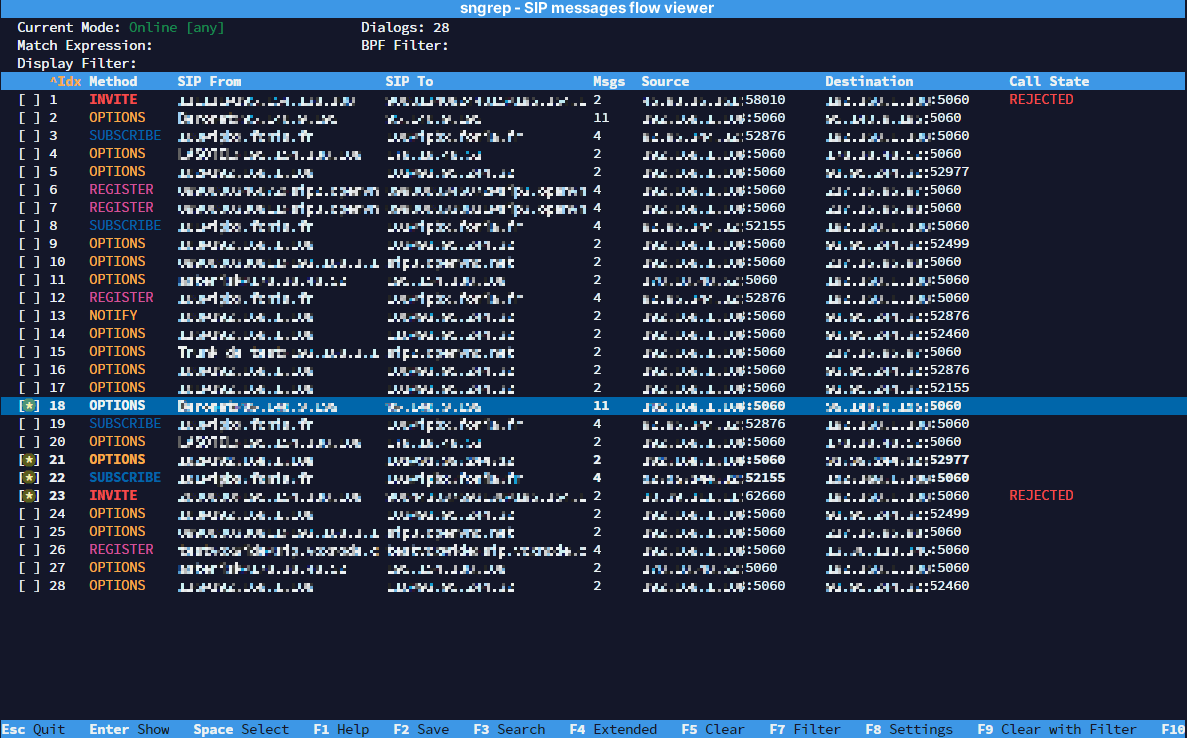
Once you have selected the required call segments, press F2 and then the “Save capture” will open:
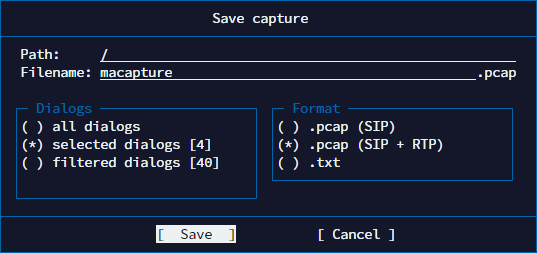
Enter your backup path. The .pcap file will be saved by default in the directory /opt/pbxware/pw
You can also extract the .pcap file using a FTP client (WinSCP, FileZilla), and also view it in a packet analysis software. (e.g. Wireshark)