



TUTORIAL: Company directory
PBXware allows its users to have access to a global, shared contact directory.
The enterprise directory is managed by the administrator. On the other hand, all users have a personal directory that they can populate from their supervisor online
These contacts will appear in the contact list on the Communicator softphone as well as on phones for which the LDAP directory has been configured.
For more information, see: TUTORIAL: Synchronize the company directory on phones
NOTE:
The enterprise directory exists in two forms:
- A directory shared to all users, to which the administrator adds contacts.
- A directory personal to each extension, which the user can modify from their Supervisor online.
However, whether it is the shared or personal directory, the way to add contacts is the same.
As a PBXware administrator, the global directory is accessible from:
PBXware > Settings > Company Directory.
You must position yourself in the tenant if it is a Multi-Tenant edition.
As an end user, the personal directory is accessible from your Supervisor online.
As an administrator, you can always modify a user's personal directory by going to the extension's advanced options and then clicking the button Company directory of the section General
You can either:
- Add contacts manually
- Import a csv file
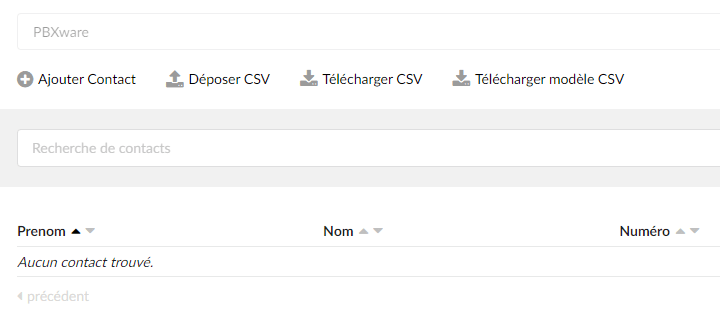
Import contacts manually
To import contacts manually, click the button Add Contact.
The add/edit contact page is divided into two sections:
- General
- Numbers
General
In the section General, you will be able to edit the contact's general information, namely:
- Name
- Middle name
- Name
- Company
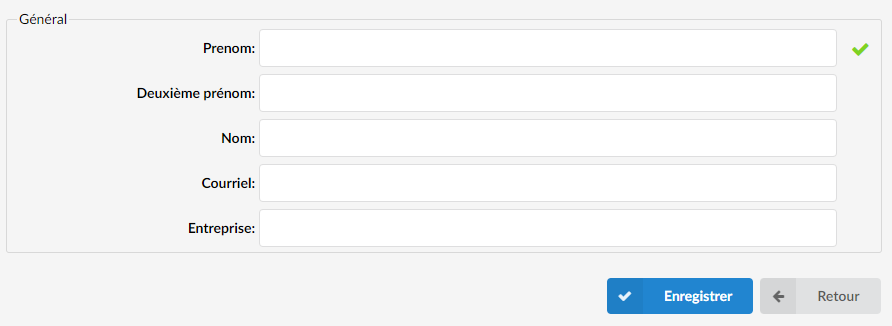
The only field required is the First Name field, the other fields are optional.
Numbers
The Numbers section allows you to add one or more numbers to a contact:

Numbers can be entered in national format (06...) or in E164 format (+336..)
It is possible to choose the number type from the following list:
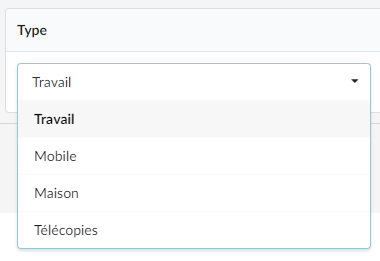
Click on Save to add the contact.
Import contacts as CSV

![]()
It is possible to import a contact list from a file in CSV format. Click the button Download CSV template will download a template of the format that is expected:
Please refer to the expected format template below:
prenom,2e_prenom,nom,email,entreprise,type1:numero1,type2:numero2,...
Here is an example of a CSV file with dummy values:
Marek,,Czajek,marekcjz@exemple.fr,Plexcom,mobile:50011,travail:600111
Alec,,Bourgeois,alecb@ex.fr,Vortex IT,mobile:50012,travail:600112
... NOTE:
If a value (first name, last name, etc.) contains a comma, it must be placed between quotes to enclose it (example of the second line)
It is possible to omit values by placing no value between commas (, ,).
Import your CSV file.
NOTE:
When importing a new CSV file, all existing contacts on the system will be deleted, which ensures that a user's contact list remains up to date.
However, to avoid any potential and unintended data loss, when uploading a new CSV file, a warning message will appear, stating "Uploading in CSV will delete the existing records. Do you want to continue?“
Access to contacts
Contacts can be found either:
- In the Communicator softphone application
- In the Communicator GO mobile application
- In the phonebook of a phone whose directory has been synchronized (see this tutorial)
Communicator Desktop
Contacts added in the company directory are found in the tab Contacts of the Communicator application.
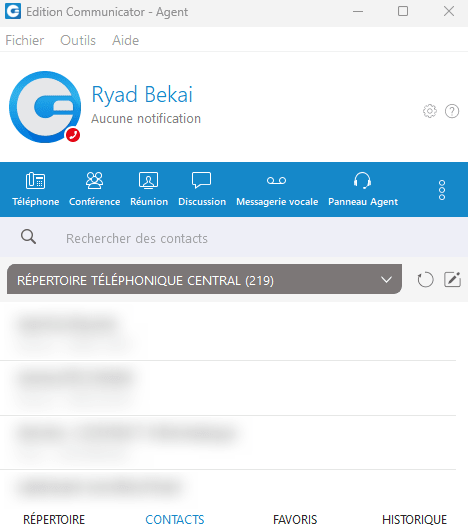
Contacts are thus found on this page; you can filter the display to show only the contacts from the company directory.
You have the ability to display contacts synchronized with Outlook, Google, or your CRM.
Communicator GO
- On the Communicator GO mobile application, go to the tab Directory.
- The "Directory" tab lists the local extensions using Communicator linked to the PBXware system.
- Type the tab Contacts
- The Contacts tab has two options:
- Local phone directory are the numbers internal to the phone.
- Central phone directory are the numbers added by the administrator to the company directory hosted on the PBXware.
- The local phone directory will be displayed first.
- Tapping the arrows offers the option to switch directories, moving from the local phone book to the company directory.
LDAP phone directory
The LDAP phone book is the directory used by physical phones (Fanvil X4U, Yealink T54W, etc.).
See: TUTORIAL: Synchronize the company directory on HTEK, Fanvil phones

