



TUTORIAL: Change the web password of a phone
When phone provisioning is performed by PBXware, the phones' password is not changed. Thus, the default password is always used.
This documentation will allow you to change the login and password of the phones you provision via PBXware in order to secure them.
Many settings are managed by PBXware and are easily modifiable by the administrator at the extension level. However, it is possible that some options such as changing the phone's password or changing the wallpaper are not present in the extension configuration on PBXware.
To work around this problem, a special field exists in all extensions and on UADs (User Agent Device) which allows the administrator to modify any phone setting by injecting a piece of code during autoprovisioning.
This field is named User Agent Auto-Provisioning Template and is located at the bottom of the extension configuration page in the field UAD auto provisioning template:
NOTE:
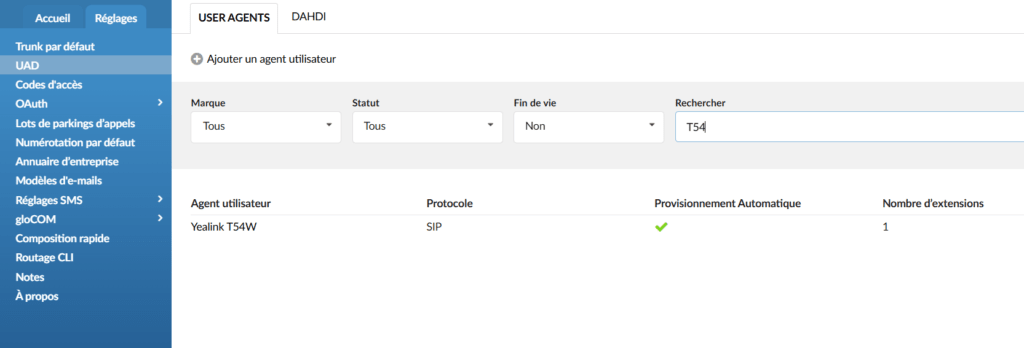
This field can also be found in Settings > UAD > Select the phone > General user agent auto-provisioning template so that all future extensions use this variable by default during provisioning.
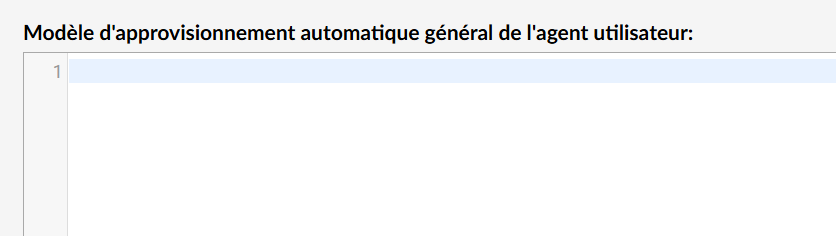
Each phone thus has a different configuration language. To change the phones' password, copy/paste the codes into the Auto Provisioning Template field of the UAD for each phone model.
Yealink
Copy and paste this code block into the appropriate section of the extension/UAD
static.security.user_name.admin = username static.security.user_password = username:motdepasse - On the first line, replace “username” with your login.
- On the second line, replace “username” and “password” with your password.
Provision the phone again to inject the password into the phone configuration.
Snom
Copy and paste this code block into the appropriate section of the extension.
webserver_admin_password$:votremotdepasse Provision the phone again to inject the password into the phone configuration.
Fanvil
Copy and paste this code block into the appropriate section of the extension.
<MMI CONFIG MODULE> Web Port :80 Web Server Type :0 Https Web Port :443 Enable MMI Filter :0 Web Authentication :0 Default WEB User :0 --MMI Account-- : Account1 Name :admin Account1 Password :motdepasse Account1 Level :10 Account2 Name :guest Account2 Password :guest Account2 Level :5 - Replace the “admin” value on the line Account1 Name by your login
- Replace the “password” value on the line Account1 Password by your password
Provision the phone again to inject the password into the phone configuration.
