



TUTORIAL: Configure the Twilio provider to send SMS
 is a cloud communication platform that allows software developers to program phone calls, send and receive messages and perform other communication functions using its web service APIs.
Getting started
Purchase numbers
To purchase numbers, please proceed as follows:
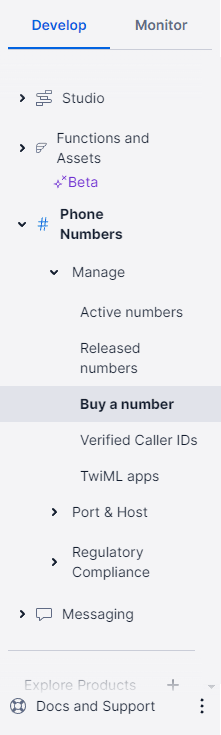
1. Navigate to ” Phone Numbers ” then in ” Manage ” (if the tab is present, otherwise, proceed to the next step) in the side menu of the Twilio portal.
1.1 If the tab is not present, navigate to “Explore products” in the side menu of the Twilio portal. Find the “Super network“.
In this section, find "Phone Numbers” and click the “Pin” so that it is visible in the side menu. Then repeat step 1.
2. Click the tab “Buy a number“.
3. Users will be directed to another window where they can configure the details regarding the numbers.
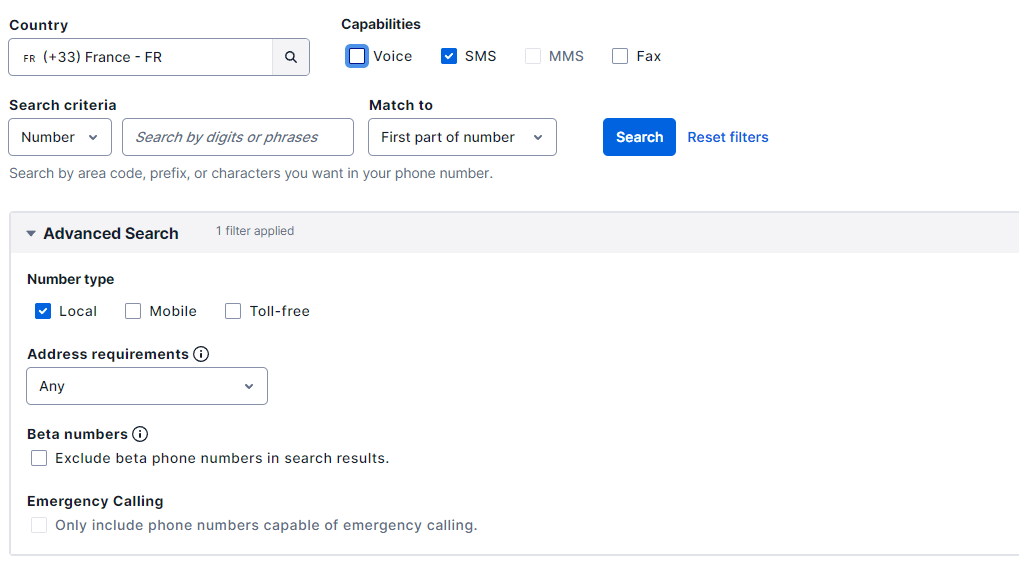
- Country
Fill in this field with the desired country (e.g.: France)
- Capabilities
Check the box “SMS”.
- Number type
Check the box “Local“
Once the configuration is complete, it should look like the screenshot below.
To search for numbers, click the “Search“.
After clicking the button, a list of available numbers will appear, along with all the other necessary data (type, capabilities, address requirement, monthly fees):
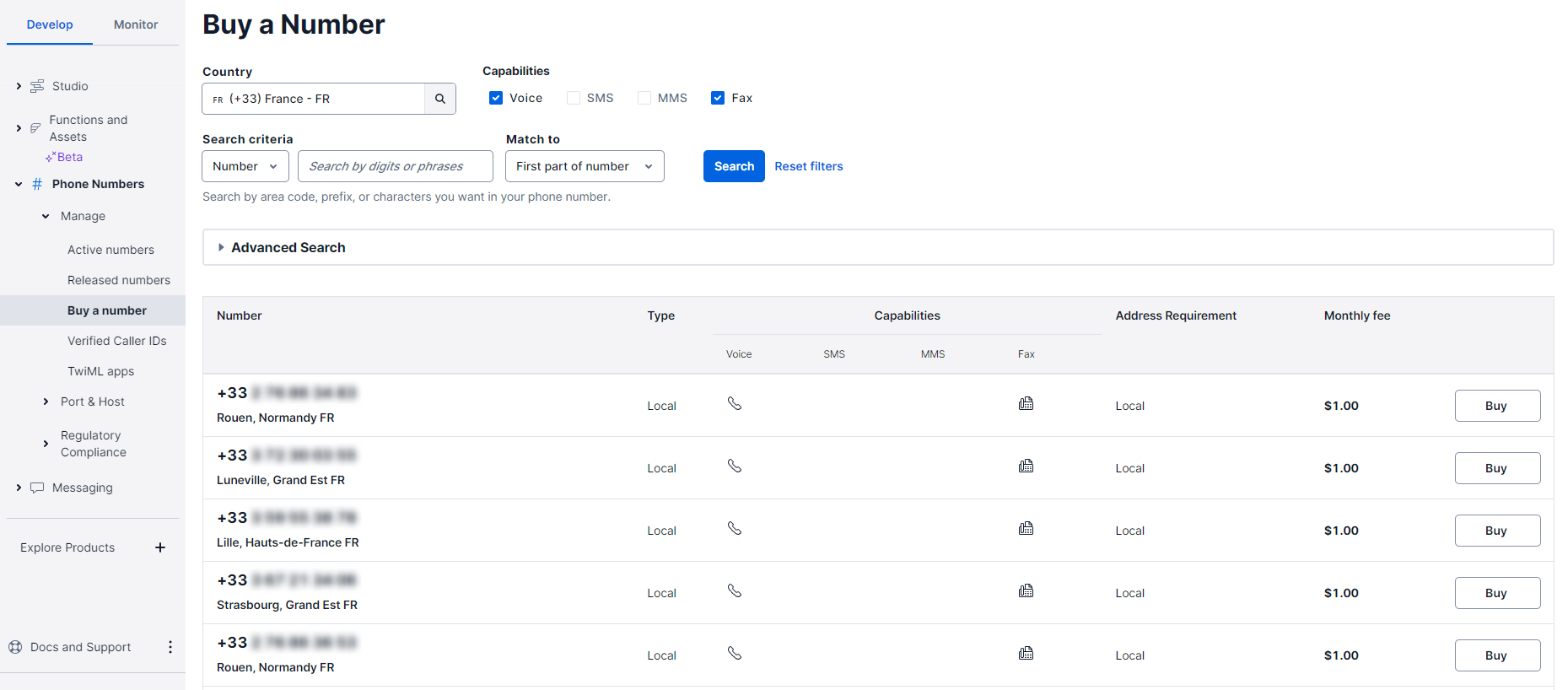
The next step is to purchase the desired number. To do this, click the "Buy” as shown in the screenshot.
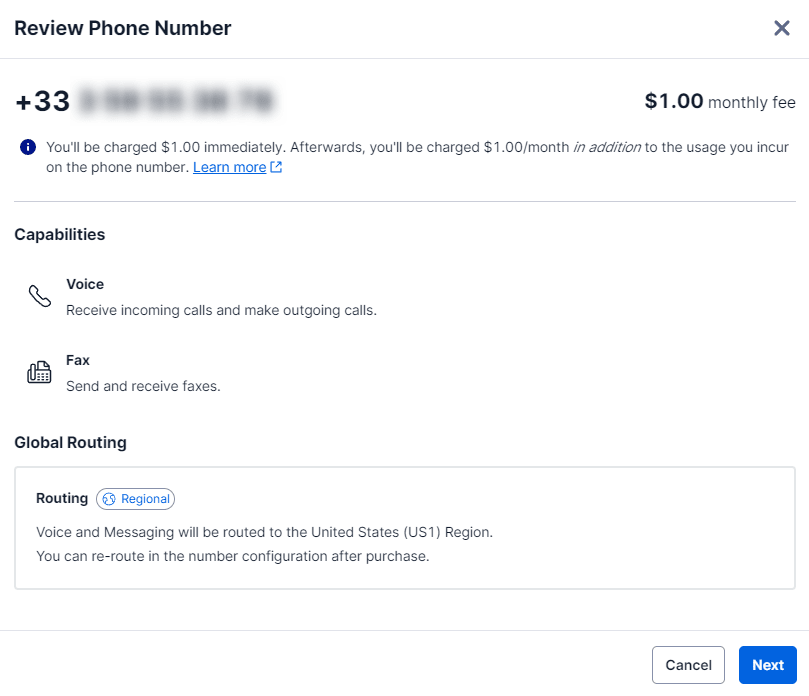
After clicking on “Buy“, a window will appear to verify the phone number you have selected.
Make sure to accept the emergency call conditions and click on “Buy“.
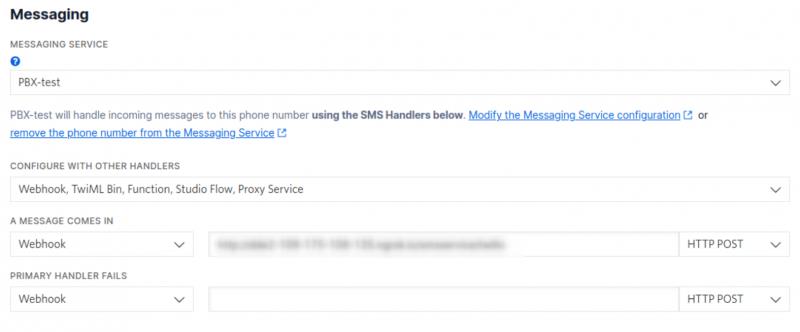
 HTTPS.
- Primary handler fails
If necessary, enter a secondary URL in case the primary URL fails.
(for example, https://pbx.secondtest1.com/smsservice/twilio)
Obtaining the SID and authentication token
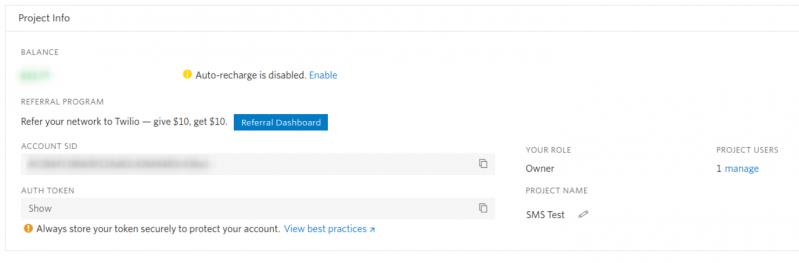
Users can find the authentication token and the account SID in the “Project Info” panel of the “Console Dashboard” page (Please note that the authentication token is hidden by default).
Users can display it by clicking the “Show” button. If it is necessary to modify the authentication token, please refer to this link
PBXware configuration
Adding the SID and the authentication token
To add an Account SID and an Auth Token to PBXware, please proceed as follows:
- For the Multi-Tenant edition:
1. Navigate to Master Tenant > SMS > Trunk > Add an SMS Trunk.
- For the Business & Contact-Center editions:
1. Navigate to Home > SMS > Trunks > Add an SMS Trunk.
2. Select Twilio as provider
3. Paste the account SID into the field Account SID.
4. Paste the authentication token into the field Authentication token.
5. Save the settings
Add an SMS Trunk
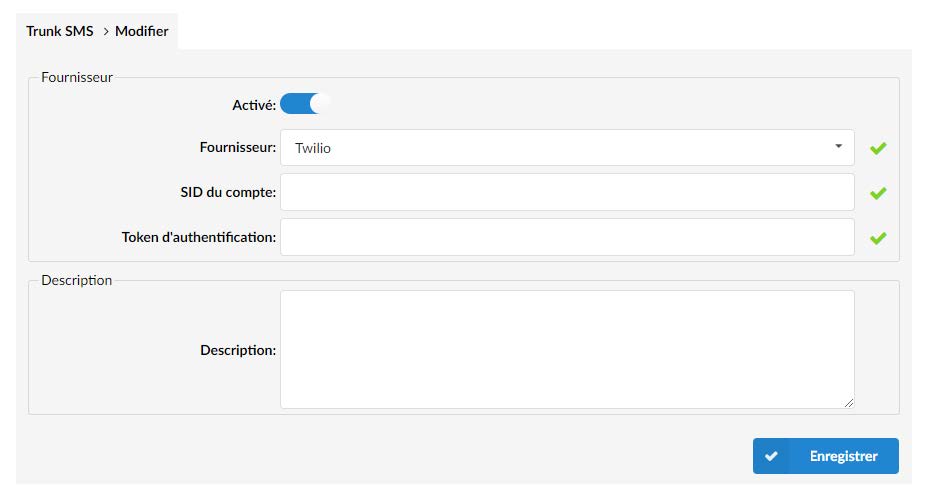
To add an SMS trunk to PBXware, please proceed as follows:
- For the Multi-Tenant edition:
1. Navigate to Master Tenant > SMS > Trunk > Add an SMS Trunk.
- For the Contact-Center edition:
1. Navigate to Home > SMS > Trunks > Add an SMS Trunk.
2. Enable the SMS Trunk
3. (For MT) Enter a provider name that is only relevant to facilitate the
navigation in the graphical interface.
4. Select 'Twilio' as the provider
5. Paste the account SID and the authentication token.
6. Enter an appropriate description for this trunk (optional).
7. Save the settings.
Trunk configuration on a Tenant
To assign a specific SMS Trunk to a Tenant that was created previously, please proceed as follows:
- For the Multi-Tenant edition:
1. Navigate to Master Tenant > SMS > Trunks and Tenants.
2. Click the name of the Tenant to modify the configuration or click the
button Edit.
3. Select a Trunk specific in the drop-down menu.
4. Save the settings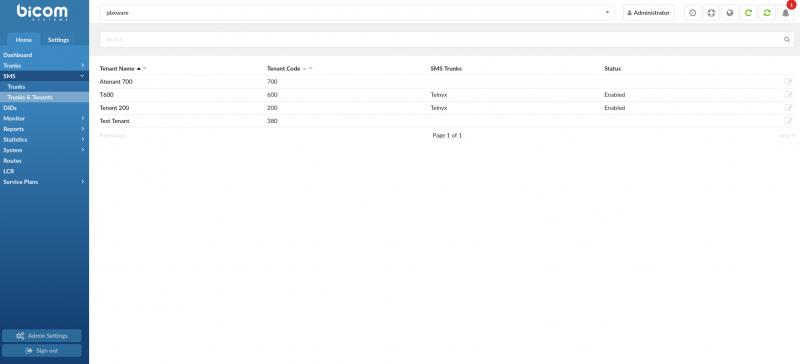
Adding SMS numbers in PBXware
To add numbers to PBXware, please proceed as follows:
- For the Multi-Tenant edition:
1. Navigate to your Tenant > SMS > Numbers.
- For the Contact-Center edition:
1. Navigate to Home > SMS > Numbers.
2. Click the button 'Add an SMS number’.
3. Add the numbers purchased from Twilio.
NOTE: please use phone numbers in +E.164 format, such as '+44xxxxxxxxxx' or '+33xxxxxxxxxx', etc… when you add them manually.
Numbers can also be added in bulk using a CSV file.
You will need to click on Download CSV in order to download the file fill-in template. Then you will need to click Drop CSV in order to upload the CSV.
SMS sending
In order to send SMS, the number must first have been assigned to an extension.
In order to assign a number to an extension, please go to:
Home > Numbers > Click on your number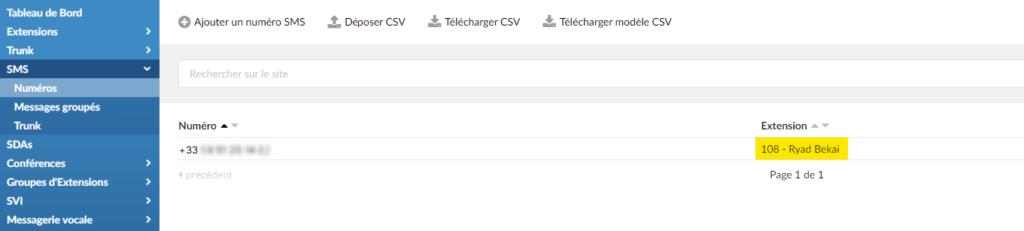
In the "Extension" field, select the extension that should be assigned to the SMS number and Save.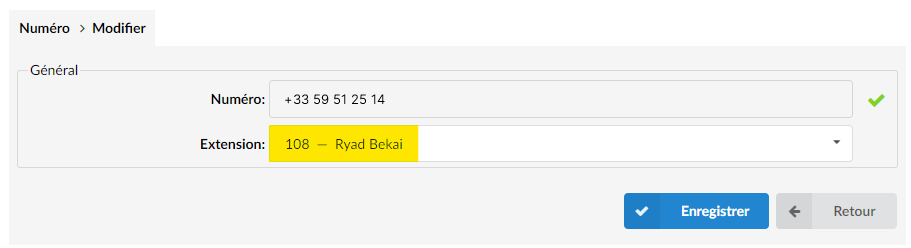
Send an SMS on Communicator Desktop
It is possible to send SMS from the Communicator Desktop application; to do this, click the " SMS ».
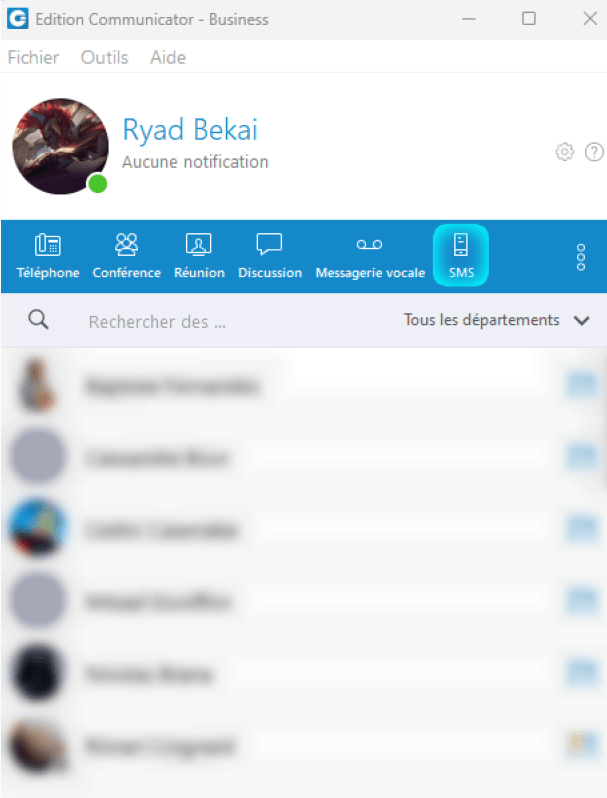
A new window “ SMS » must open.
If everything has been configured correctly, the SMS number should appear at the bottom left of
the window. To send an SMS to a number, simply type that number in the
search bar. A saved contact indexing will be performed in
parallel.
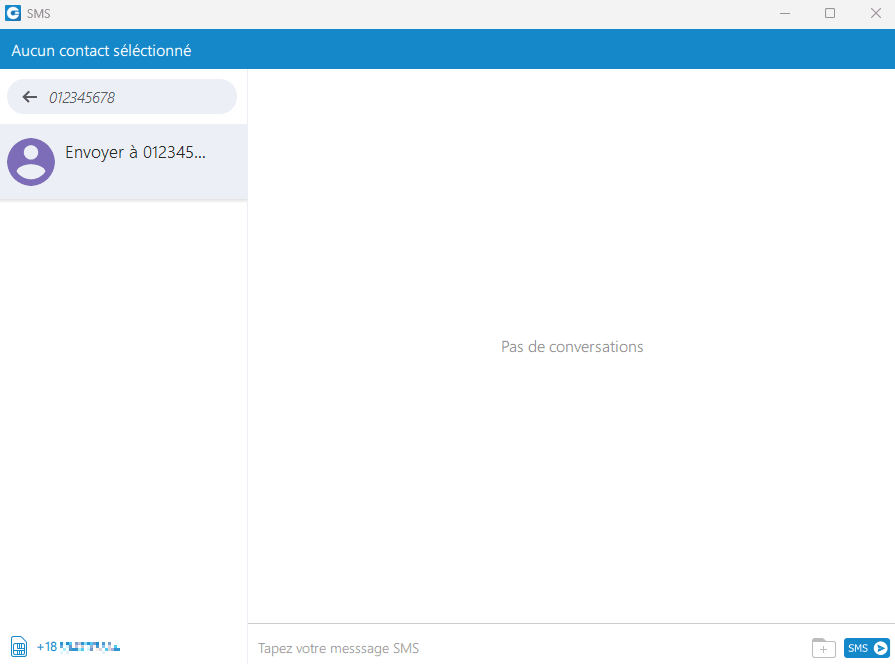
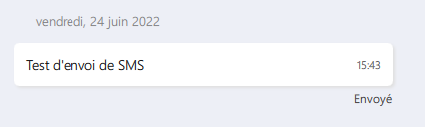
In order to send the SMS to the entered number, you will need to write the SMS in the text field and click the send button. An indicator below the sent SMS will tell you whether this SMS was successfully sent or failed.
Send an SMS on Communicator GO
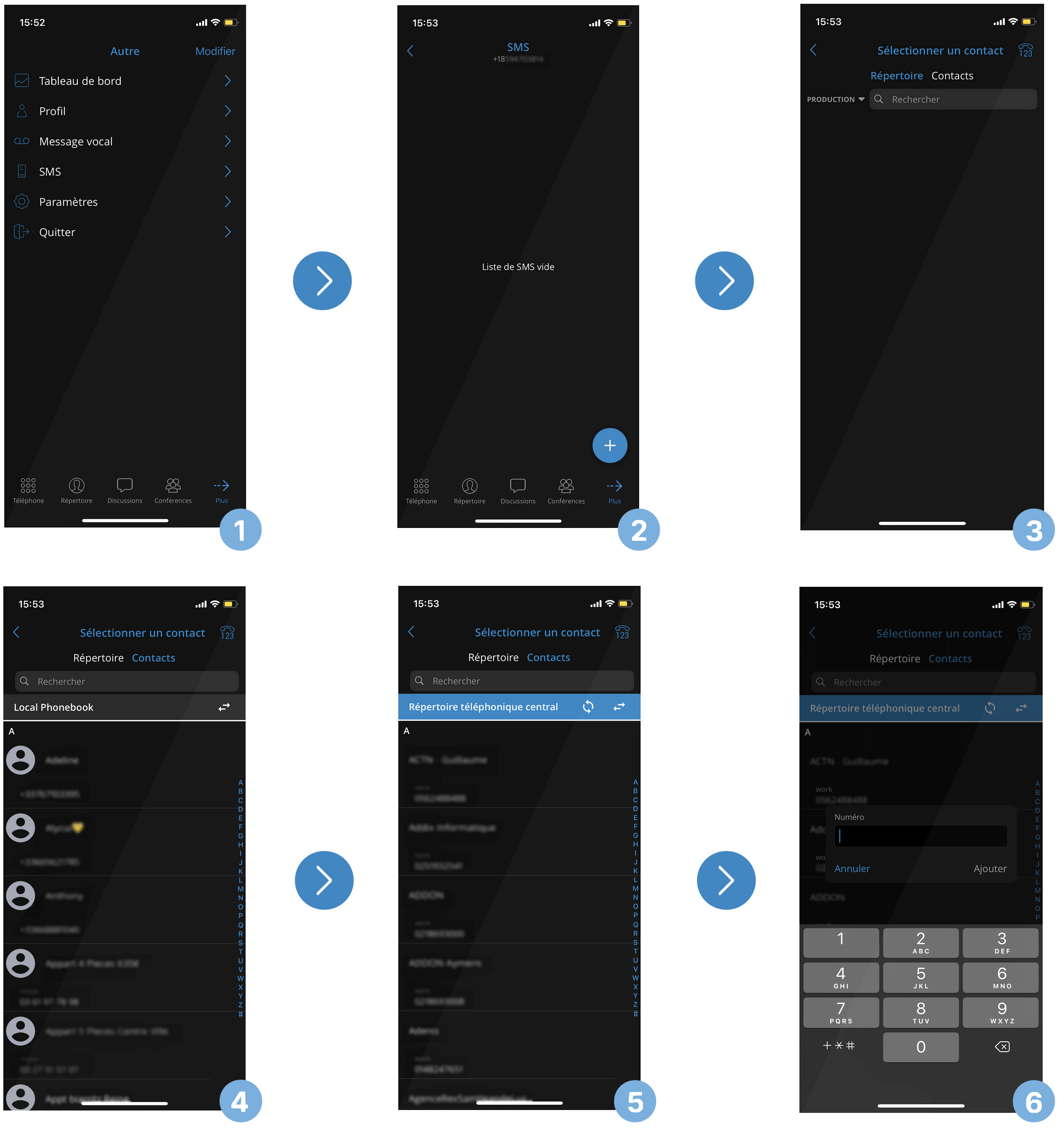
Here are the steps to follow to send an SMS from Communicator GO:
1 : Press the “More” button at the bottom right, and press “SMS”.
2 : Press the button + as shown in the figure.
3 : Select a contact.
- The "Directory" tab lists the local extensions using Communicator linked to the PBXware system.
- The Contacts tab has two options:
- Local phone directory are the numbers internal to the phone.
- Central phone directory are the numbers added by the administrator to the company directory hosted on the PBXware.
4 : The local phone book will be displayed first.
5 : Press the button  provides the ability to switch directories, moving from the local phone directory to the central phone directory.
6 : By pressing the button  located at the top right, you will be prompted to enter a phone number manually, as shown in figure 6.
