FR EN

TUTORIAL: Configure callback to mobile

Estimated reading: 4 minutes

Introduction

Phone callback is a PBXware feature that allows system users to make calls through its Communicator softphone applications (desktop & mobile) from their cellular network, if their softphone cannot register. This can be very useful if the user is in a location where the Internet network coverage (and 4G/5G mobile) is too weak and impacts call quality.

When the user has configured a mobile number on which to use phone callback and has enabled this feature, when they dial a number, PBXware will call the user's mobile number and ask for the destination to call.

For the callback function to work, users must select a number in the application's callback settings where they will receive GSM calls.

Configure callback on Communicator desktop

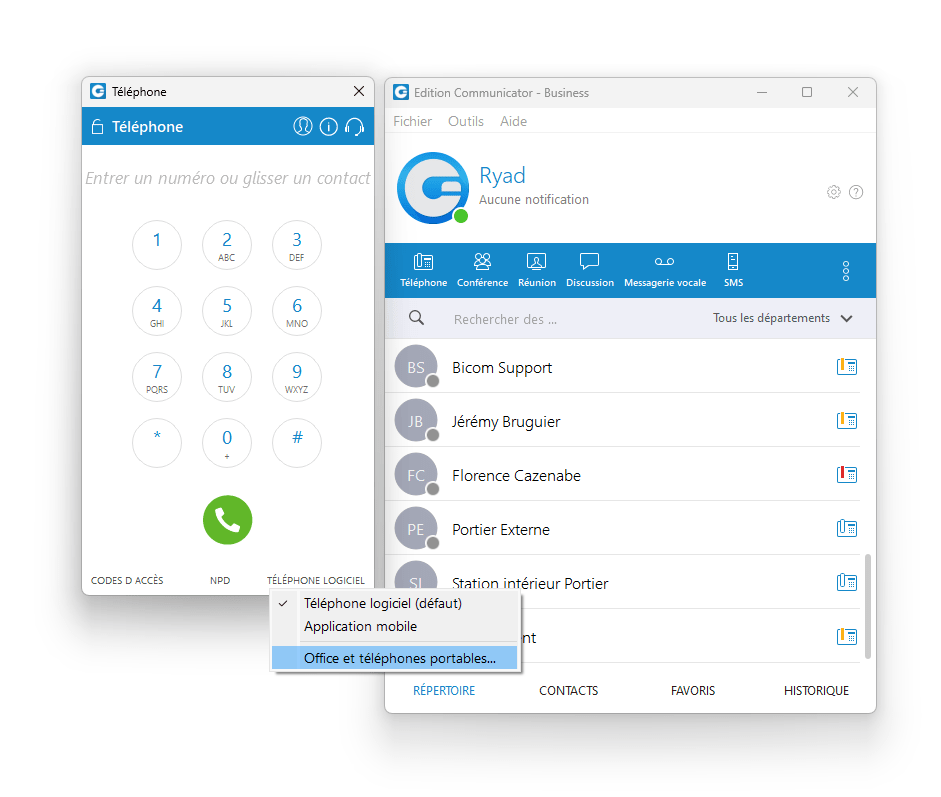
In order to configure the callback feature on your Communicator desktop application, go to the call window then click the button located at the bottom right of the call window (this may be Softphone or Deskphone depending on your calling device), then click the option Office and mobile phones
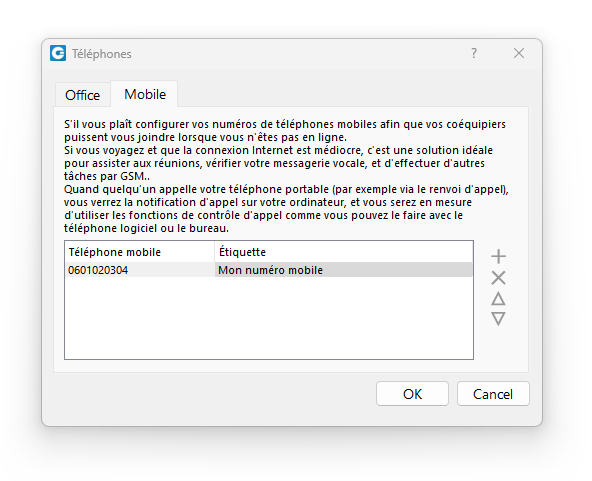
Go to the tab Mobile then add the number you want to be called on by clicking the + icon and click OK.
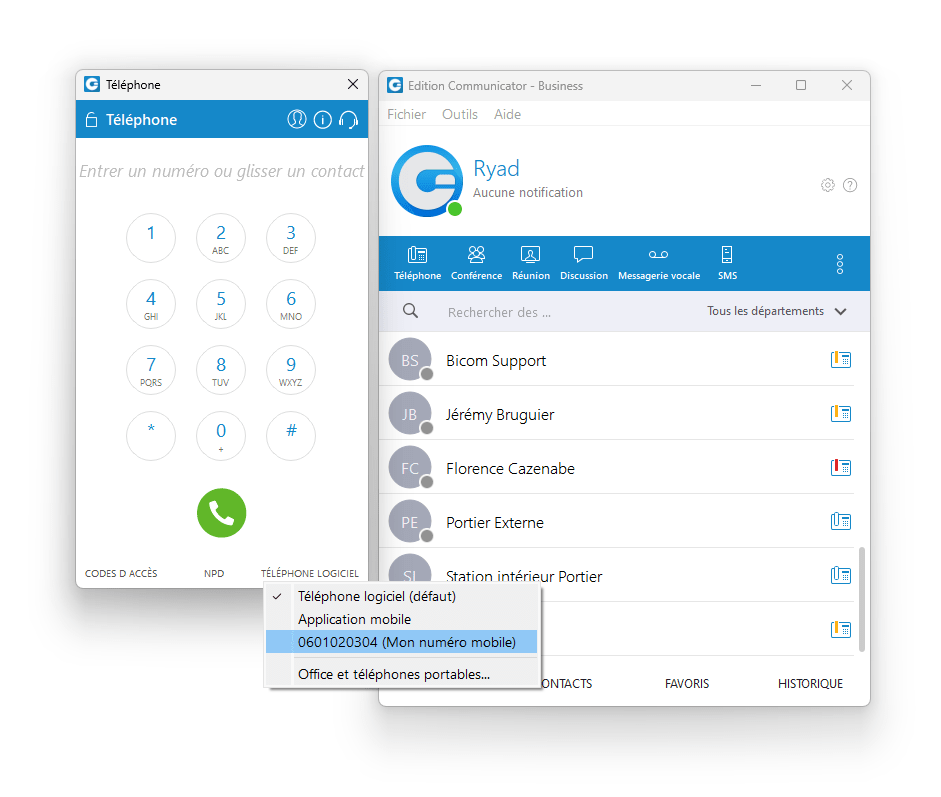
Now, when you click the button located at the bottom right of the call window, an additional option titled [your number] (My mobile number) should appear.
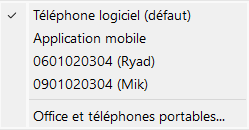
Note that if you have added several mobile numbers, they will be displayed in sequence:
Once a mobile number is chosen, the following pop-up informing you how the callback feature works is displayed:
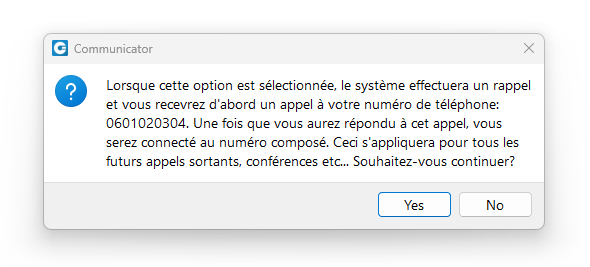
Once you have pressed Yes, your softphone will switch to callback mode as shown by the button at the bottom right of the call window: 
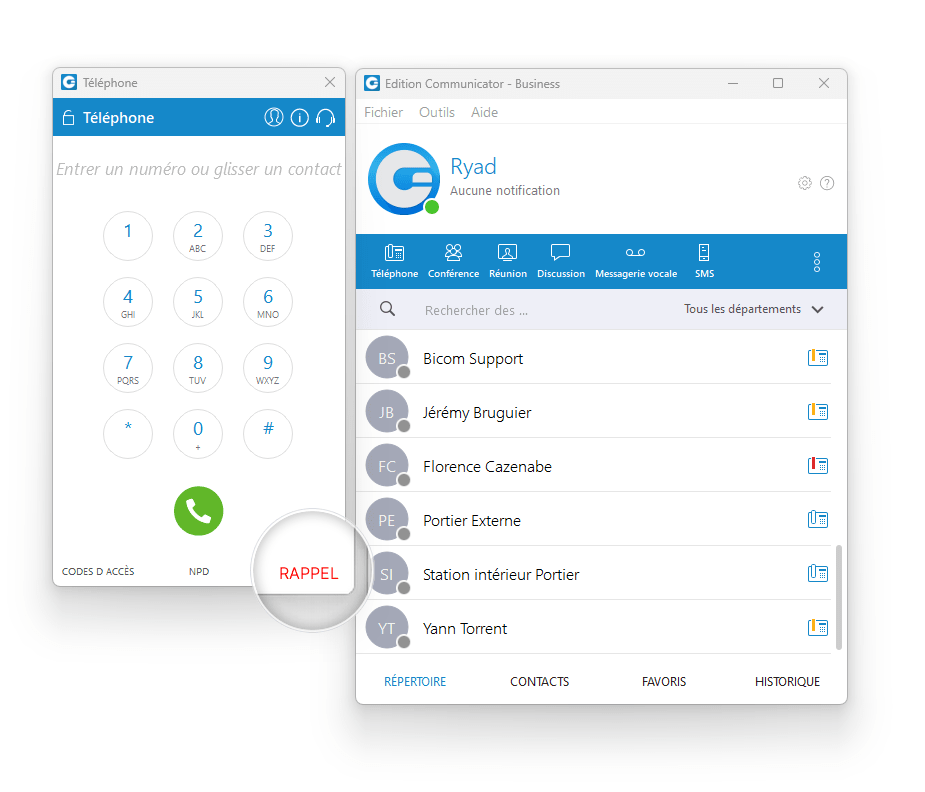
Now, if you want to make a call to a number, PBXware will first call your mobile, then you will be connected to the destination.

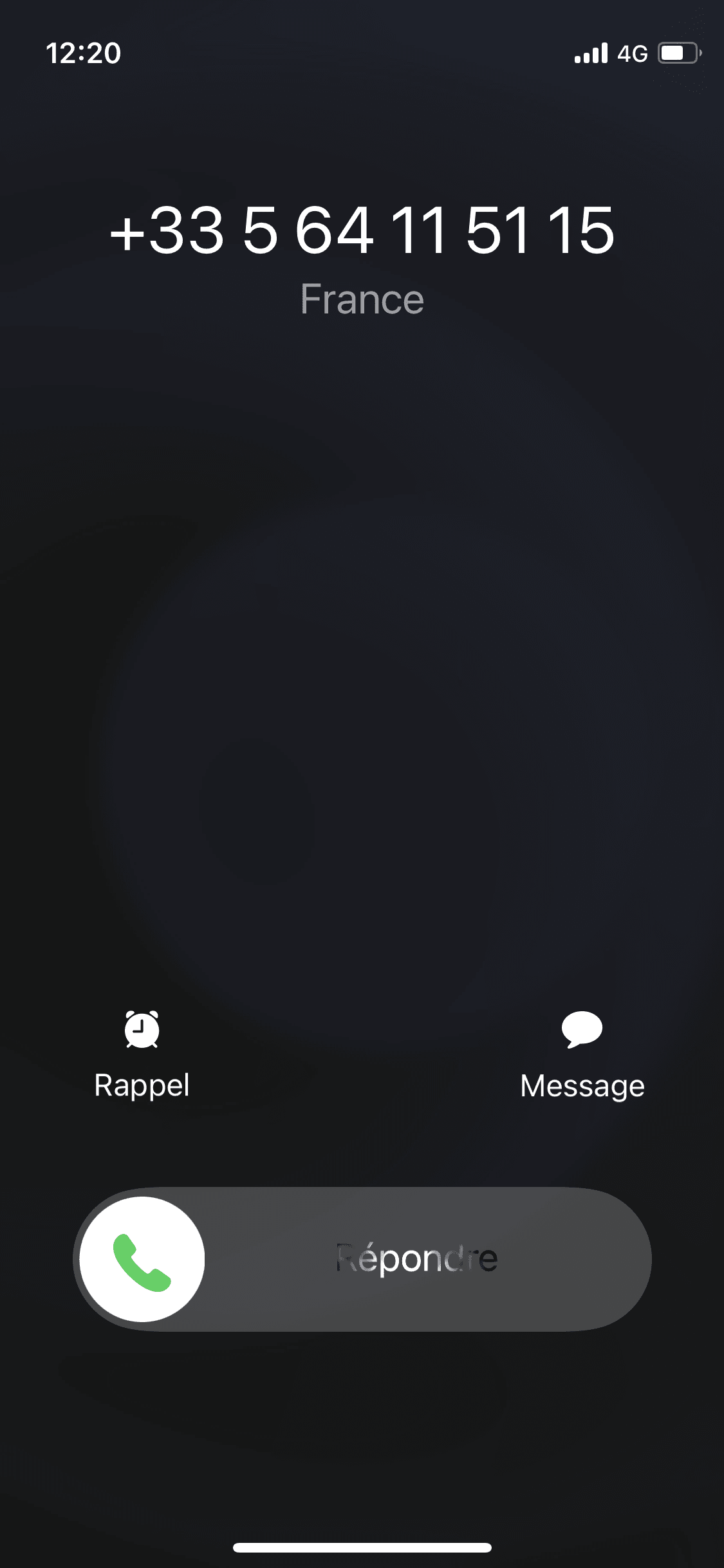
Here, having dialled a number that we want to call on Communicator, our PBXware calls us first. 05 64 11 51 15 is indeed the outgoing number of our PBXware, so we do receive the call:
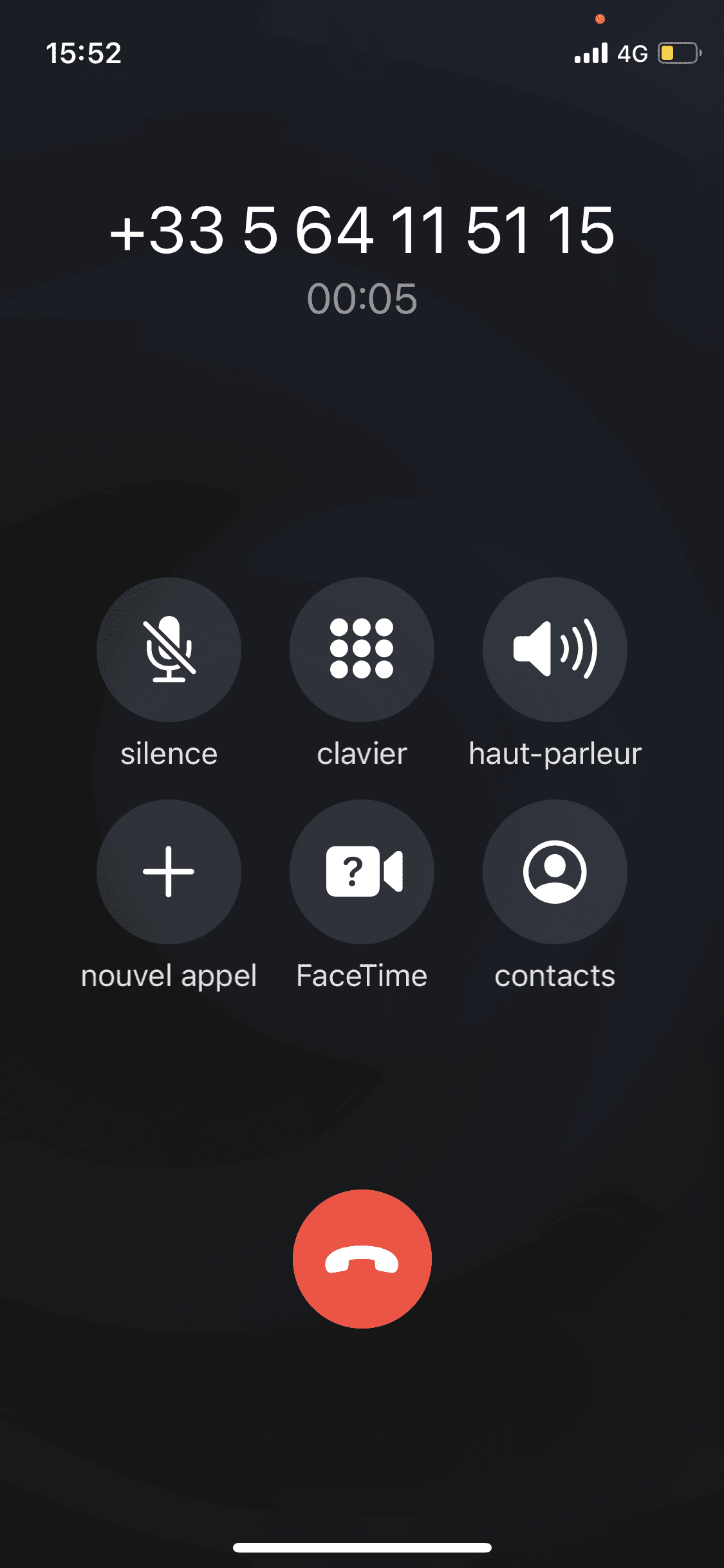
After a few seconds, the destination rings and you are properly connected to the call through PBXware:

Configure callback on Communicator GO

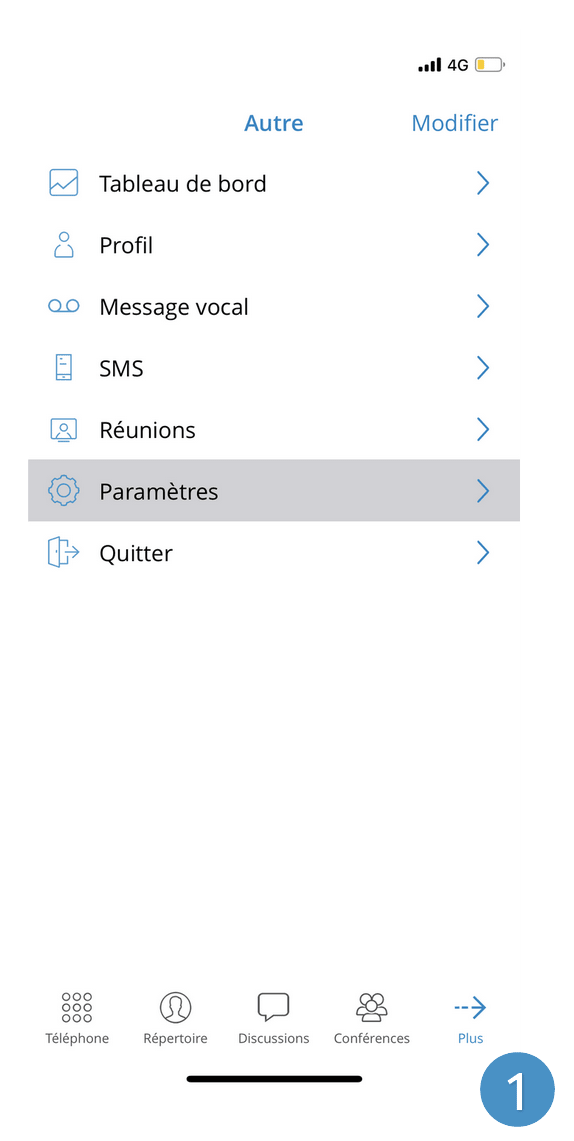
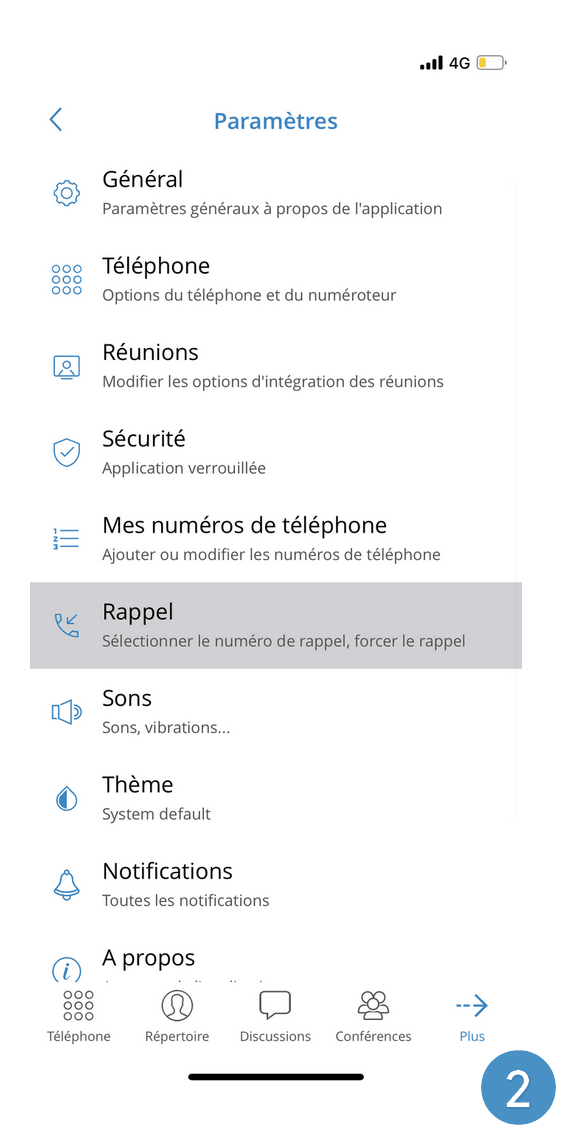
In order to configure the callback feature on your Communicator GO mobile application, please follow the steps below:

Tap Settings
Tap Callback
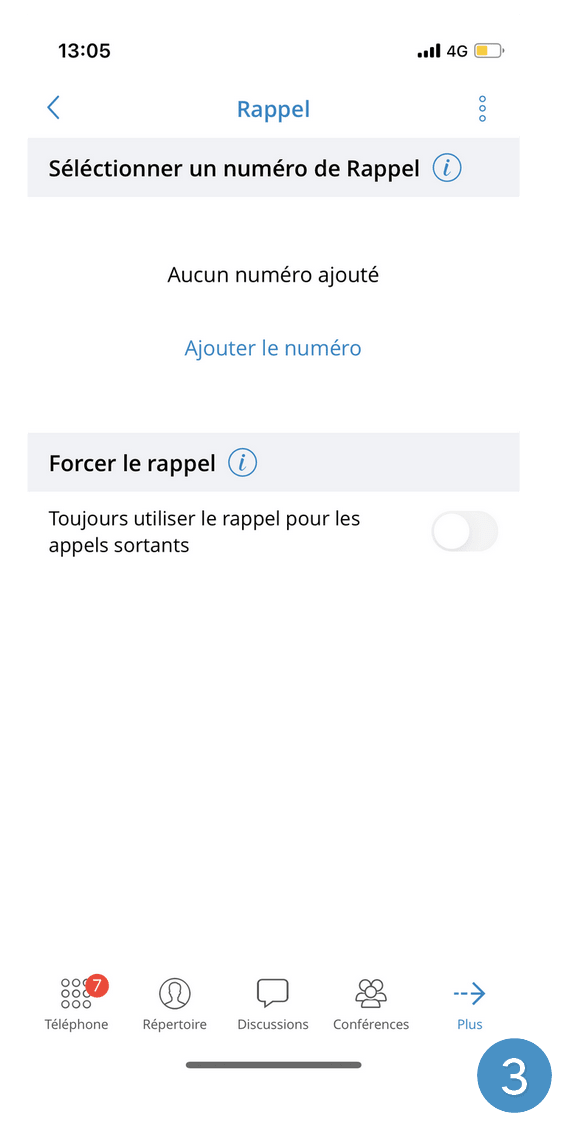
Tap Add the number
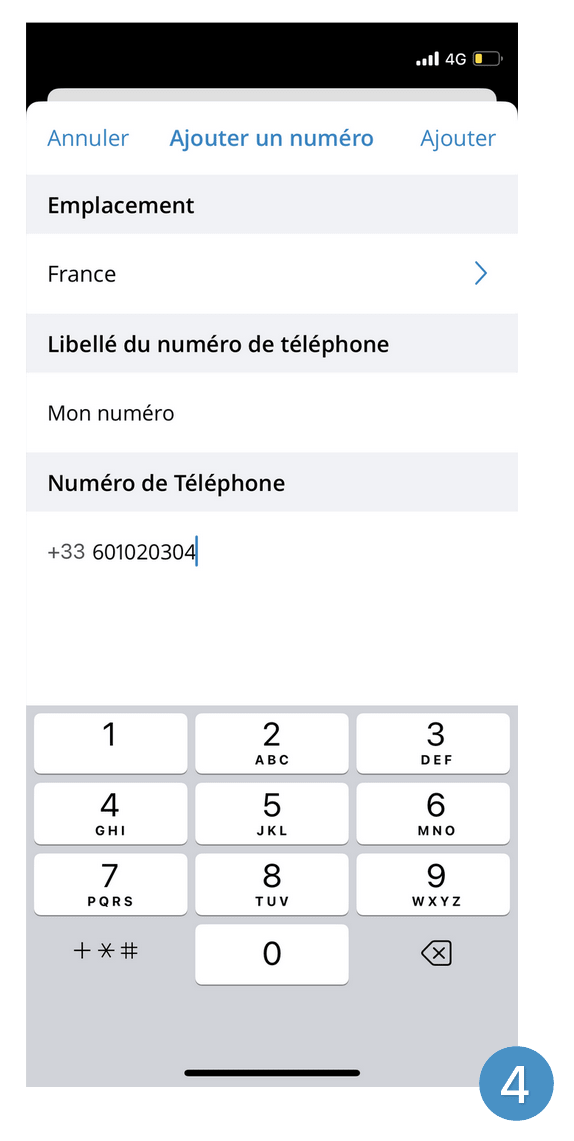
Enter your mobile number
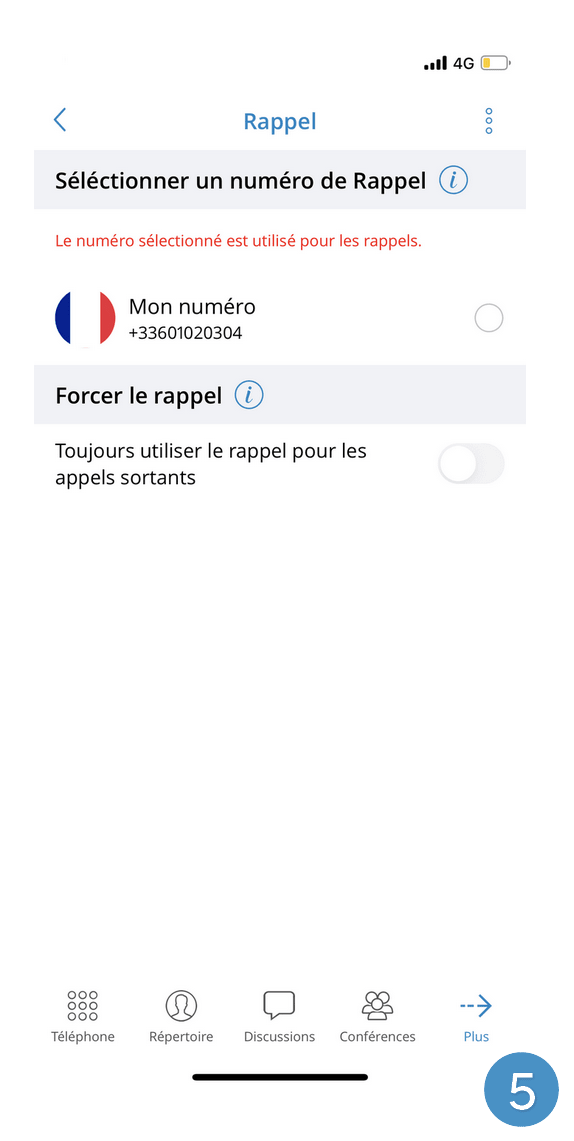
Your number should now appear
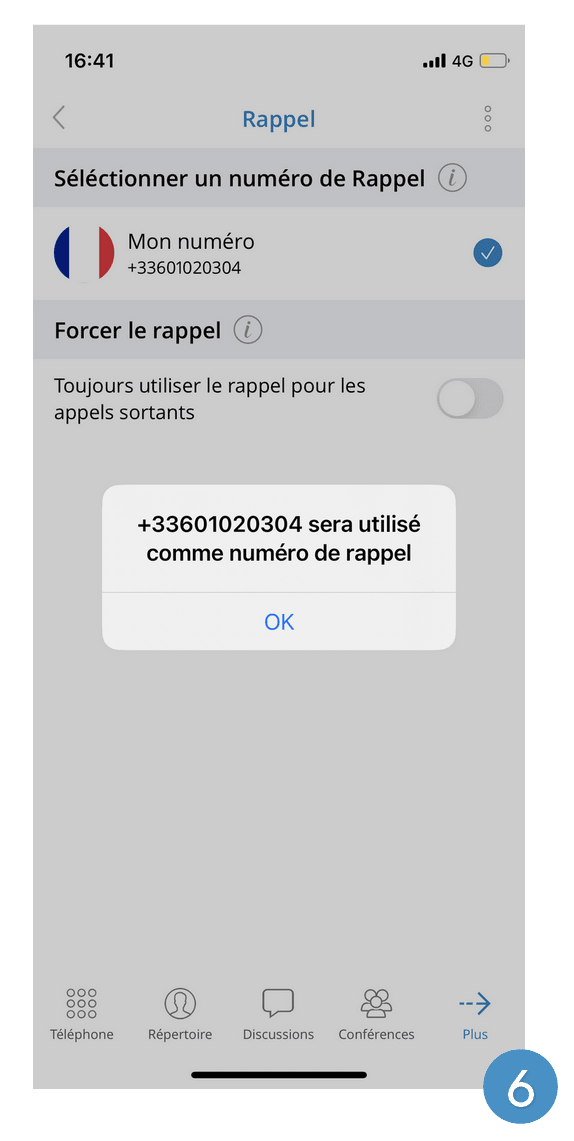
Press the corresponding number. You will be informed that this number will be used
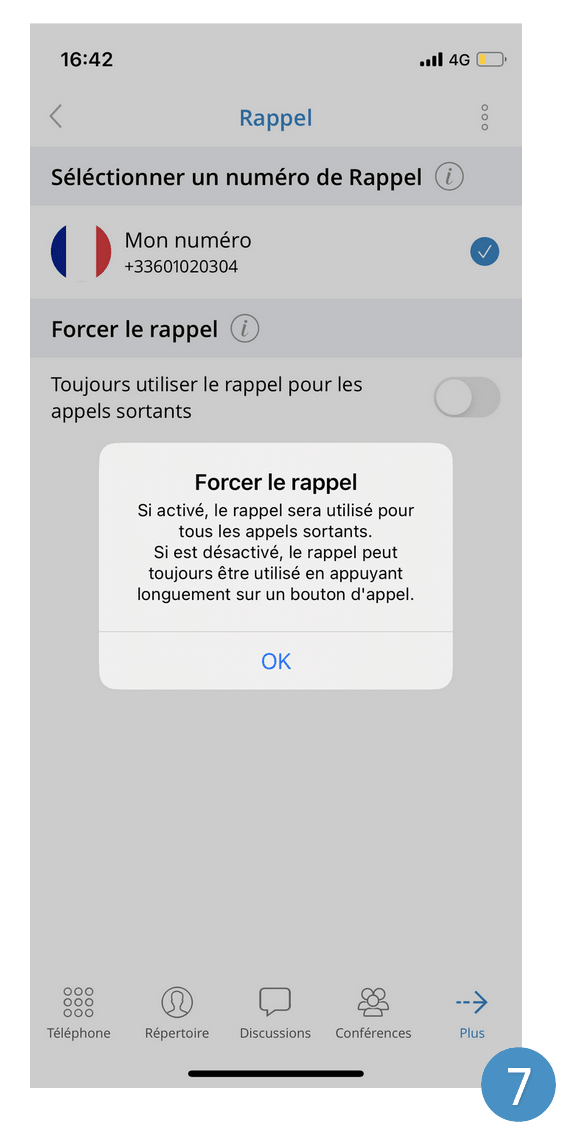
You can force the callback for outgoing calls by checking the option set
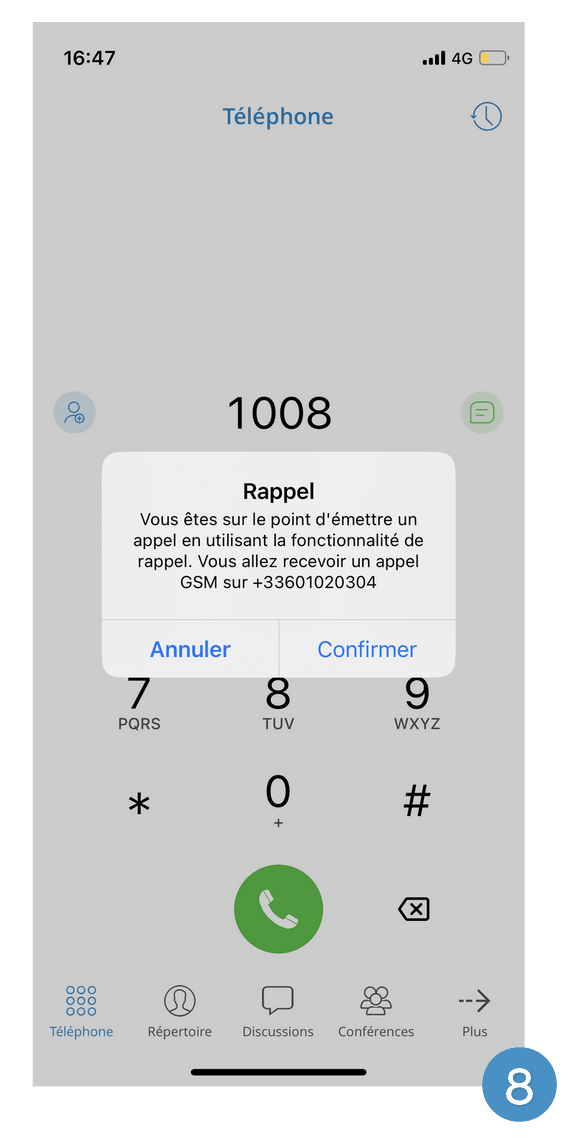
Dial your number and hold down the call icon
Share

TUTORIAL: Configure callback to mobile

Or copy the link below

CONTENT