FR EN

External

Estimated reading: 10 minutes

The external section is a new addition and is specific to the PBXware SP edition.

The external section allows us to inspect and modify PBXware elements located on external PBXware systems synchronized with our PBXware SP. These elements include systems, tenants, extensions, and DIDs. In addition, we can also inspect the logs related to the synchronization of these elements between PBXware SP and the external systems synchronized with it.

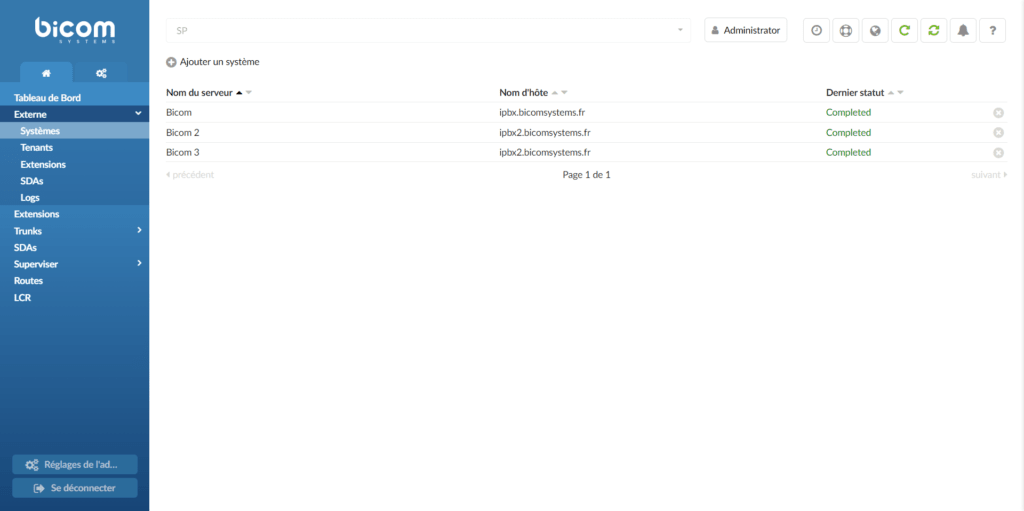
The section Systems allows you to add external systems to PBXware SP and to synchronize the aforementioned data. In addition, it also provides information on the initial synchronization status of each external system as well as an option to remove the system and all its data from PBXware SP.

  • Server name

Name of the external server synchronized with the PBXware SP platform.

Although the server name is arbitrary and is created when adding a new external system, it is advisable to use a recognizable name for the server you are adding, in order to avoid any confusion in the future.

  • Hostname

IP address/hostname of the external PBXware system synchronized with PBXware SP.

  • Last status

Current status of the initial synchronization with the external server.

When a new external server is added, assuming the connection with the server has been established successfully, the initial synchronization starts and the last status should be displayed as In Progress. Please note that the Systems is not refreshed automatically. Consequently, for the latest status to be updated after adding the new server, you will need to manually refresh the page.

Even on servers with a large number of extensions, synchronization should not take more than a few minutes, and if the status does not change to Completedduring this time, be sure to check the page Logs for possible synchronization issues.

Adding a new server

To add a new server, click the button Add a server in the top left corner of the page.

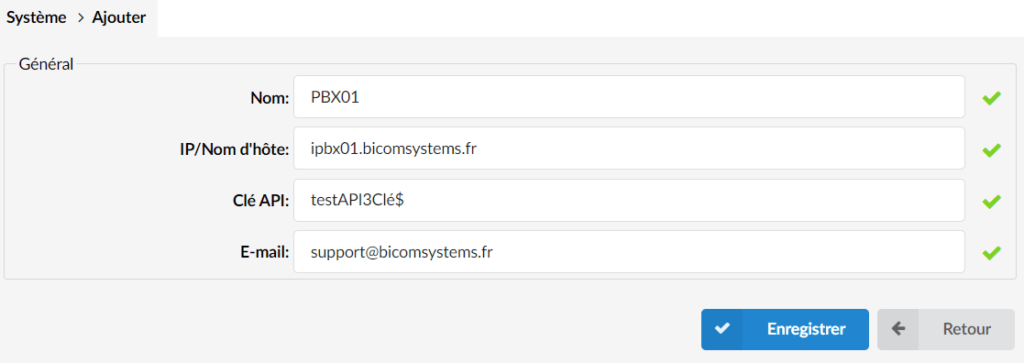
Once the Add window is open, you will need to fill in several fields in order to add a new PBXware to your SP platform:

  • Name

Common name of the external system you are adding

  • IP/Hostname

Server IP address/domain name

  • API

API key used to authenticate the remote connection to the system you are adding.

Please note that to complete the configuration, you will first need to create a new API key on the remote PBXware and paste it into this field. Although it is not necessary to create a dedicated API key for this purpose, we strongly advise you to do so.

  • Email

If you have previously enabled automatic configuration for call routing, this email address will be used for the creation of a multi-user extension on PBXware SP.

Tenants

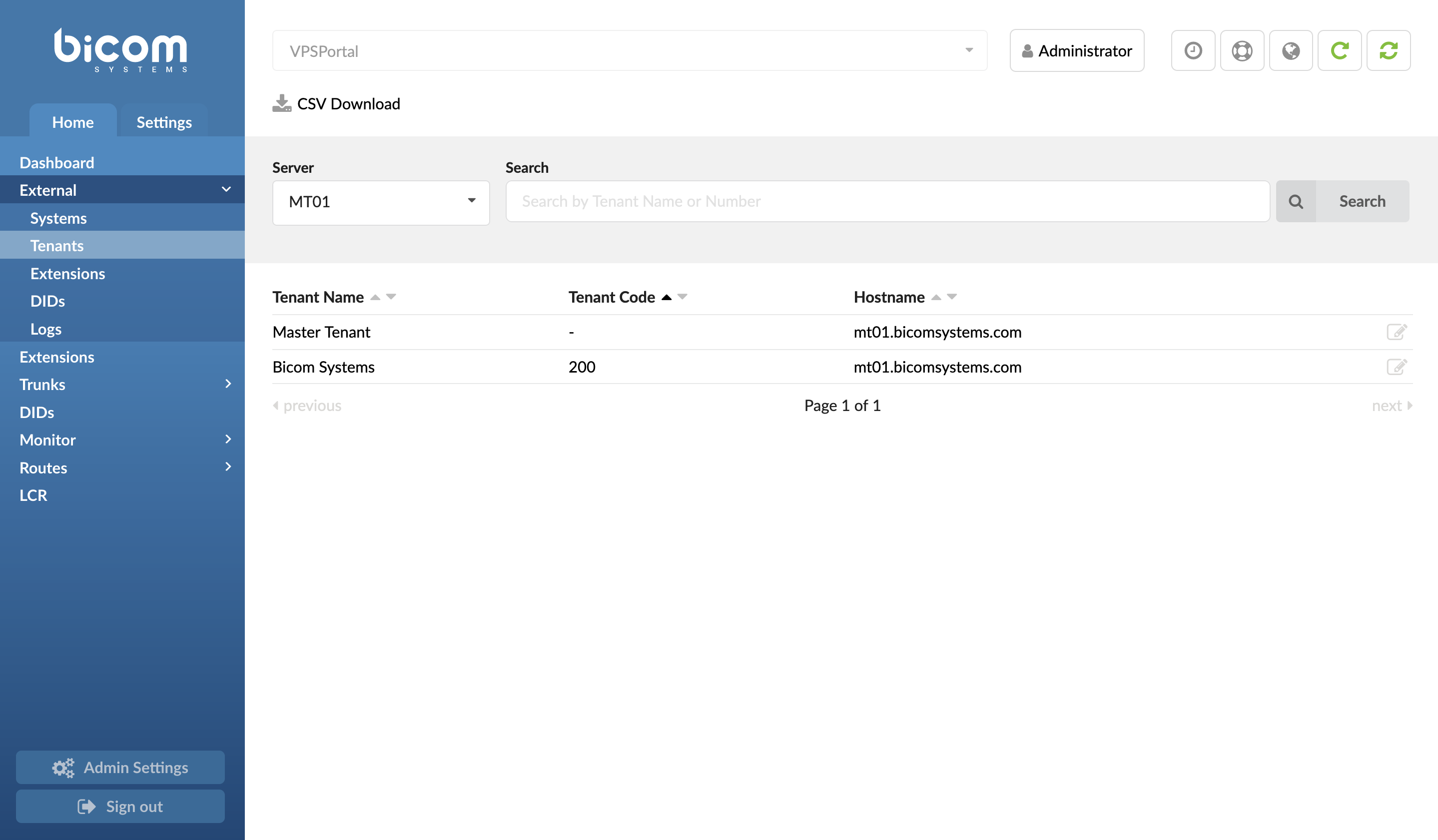
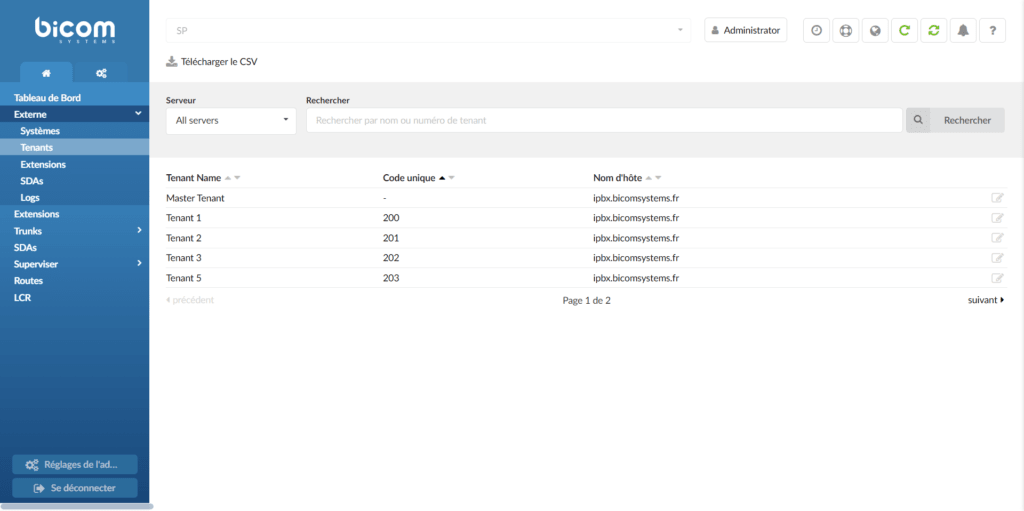
The page Tenants provides direct access to the System, Master Tenant and Tenant settings for all external systems synchronized with PBXware SP, as well as the ability to modify their settings if necessary, as if you were logged in directly to the external system.

  • Server

Select the server name from the drop-down list to filter the system settings of this external server or, in the case of an MT system, to display the settings of the main tenant as well as each individual tenant available on this external PBXware system.

  • Search
    12-filtre-locataires-externes.png

To further refine the search results, enter a text pattern in the search field and press Enter on your keyboard or the Search icon to perform the search. For example, enter the number 200 in the search field to display only tenants with tenant ID 200. Unless a specific server is selected in the drop-down list, the search results will include tenant 200 from all external systems, but will also include any system and hostname that may contain the number 200 in its name.

  • Tenant name

Name of the tenant as assigned on the external system when the tenant was created. This information is synchronized from the external system.

  • Tenant code

Tenant number assigned on an external system when the tenant was created. This information is synchronized from an external system.

  • Hostname

The IP address/hostname of the external PBXware system/the main tenant/the tenant settings are located on.

Clicking the edit icon will open the settings of the server, the main tenant or the tenant, in a new tab, allowing you a more thorough inspection or modification of the settings on an external system.
Extensions

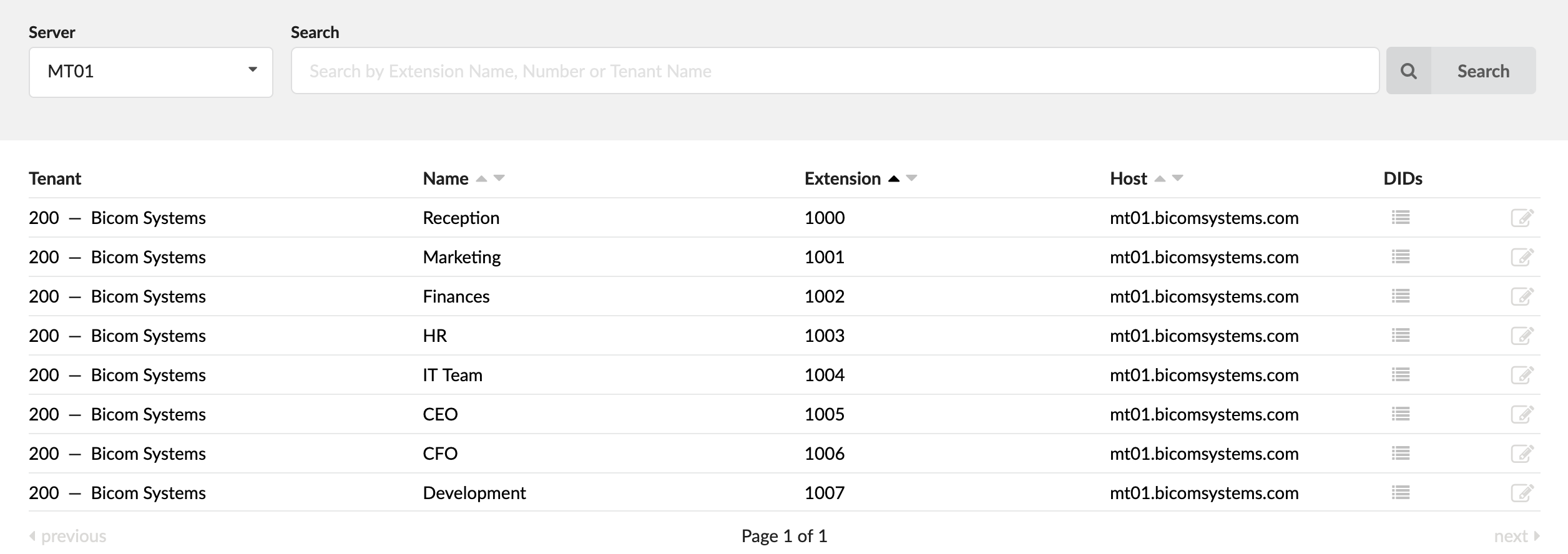
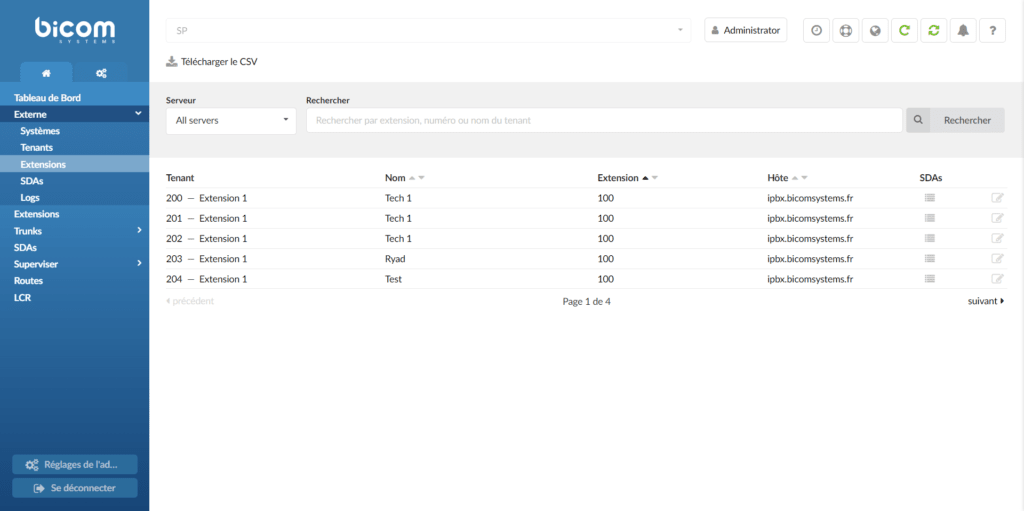
The Extensions page provides a list of all extensions created on external systems synchronized with PBXware SP, with the ability to filter the list of extensions and of course the ability to edit them.

The option to CSV download allows you to download a CSV file containing the list of extensions synchronized with PBXware SP from external systems. Although this file cannot be used to recreate these extensions, it is still useful for creating an internal list of extensions.

  • Server

Select the server name from the drop-down list to list the extensions of a specific external server.

  • Search
    24-extensions-externes-liste-filtre-pas-d'icones.png

To further refine the search results, enter a text pattern in the search field and press the Enter key on your keyboard or the Search icon to start the search. For example, enter the number 200 in the search field to display only extension numbers starting with 200 (i.e. 200, 2000, 2009, etc.). Unless a specific server is selected in the drop-down list, the search results will include extensions starting with 200 from all external systems.

  • Tenant

Name of the tenant or system.

  • Name

Name of the user or service position to which it is assigned.

  • Extension

User's internal number.

  • DID
The DID button, when hovered over, displays the DID phone numbers assigned to each user.
  • Edit button

Clicking the Edit icon will open the extension settings in a new tab and allow you to further inspect or modify the extension on an external system, without needing to log in.
DIDs

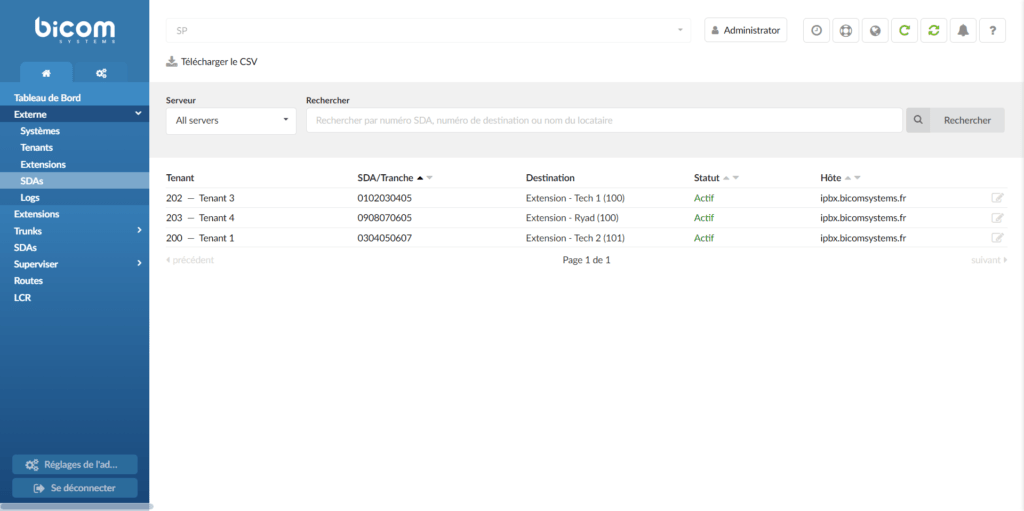
The DID page provides a list of all DIDs created on external systems synchronized with PBXware SP, with the ability to filter the list of extensions and of course the ability to edit them.

The CSV download option allows you to download a CSV file containing the list of DIDs synchronized with PBXware SP from external systems. Although this file cannot be used to recreate these DIDs, it is still useful for creating an internal list of DIDs.

  • Server

Select the server name from the drop-down list to list the extensions of a specific external server.

  • Search

To further refine the search results, enter a text pattern in the search field and press Enter on your keyboard or the Search icon to start the search. For example, enter the number 200 in the search field to display system names, tenant names, and DID destinations starting with 200 (i.e. 200, 2000, 2009, etc.). Unless a specific server is selected in the drop-down list, the search results will include matching results from all external systems.

  • Tenant

The name of the external system/tenant on which the DID is located.

Clicking the system/tenant name will open the system/tenant settings in a new tab.

  • DID

DDI number as created on an external PBXware system.

  • Destination

Local destination or external number, to which the DID points on the external PBXware system.

  • Status

Current status of the DID on the external PBXware system. The available statuses are Active and Unassigned.

  • Host

The domain name/IP address of the external system on which the DID is located.

Clicking the Edit icon will open the DID settings in a new tab and allow you to further inspect or modify the DID on an external system, without needing to log in.

Please note that if the DID you are editing is located on the MT system, the settings will open at the tenant level, because that is where the routing settings are configured. However, since this will connect you to the external system on which the DID is located, you can simply switch to the main tenant by selecting it from the drop-down menu at the top of the page.

Logs

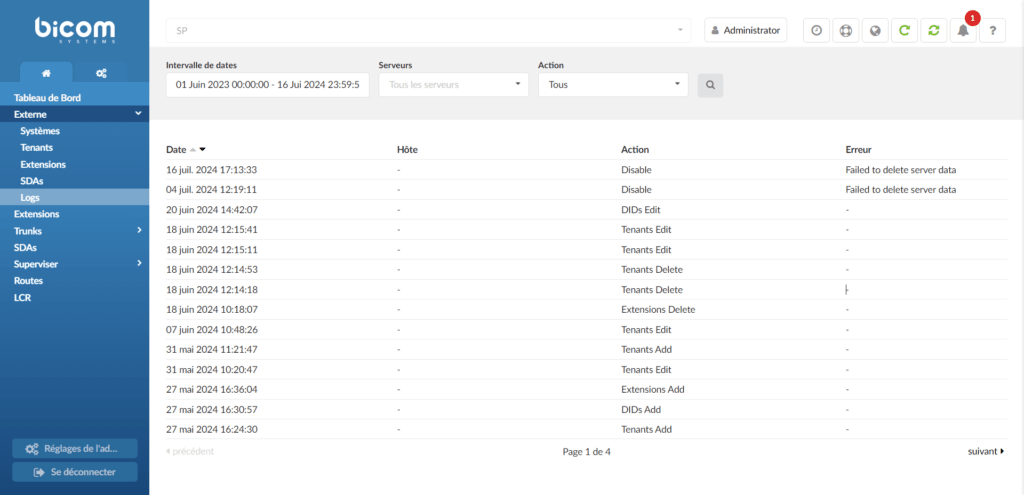
  • Date range

The Date Range field allows you to filter the logs related to synchronization based on the date and time range. The default selection will be the current date, from 00:00 to 23:59, but you can customize the period by clicking the Date Range field, which will open a date/time selection window.

In addition to the custom search, which allows you to select any period, by selecting the start and end date, as well as the start and end time. Furthermore, we have created some quick selections that will speed up the filtering process. The available quick selections are: Today, Yesterday, Last 7 days, Last 30 days, This month and Last month.

  • Servers

To focus the search on logs related to a specific server, you can select a specific external system in the Servers drop-down list to display only the synchronization logs related to that external server.

  • Action

By default, the search will display logs related to all types of actions, but if you want to filter your search results based on a specific action type, click the Action field and select the preferred action type from the drop-down list.

Once your search parameters are set, press the Search button to display the logs matching your selection.

  • Date

Date and time at which the log entry was made.

  • Host

The domain name/IP address the external system log entry is linked to.

  • Action

Type of action performed. For example, if you create a new extension on one of your external servers, this information will be synchronized with PBXware SP so that you can edit that extension from the PBXware SP interface. If the synchronization is successful, the action type in the synchronization log entry will be "Add extension".

  • Error

If the action is executed successfully, the log entry will have – in the Error column. However, if there is a problem, a message describing the specific issue will be displayed in the Error column.

Share

External

Or copy the link below

CONTENT