



22. Apps

The Apps section gives an overview of the usage of the Communicator editions by extension. It will allow users to use templates to apply predefined permissions to the Communicator editions by department or to use the “batch” mode to configure the permissions of the Communicator editions for a number of extensions.
Overview
Templates
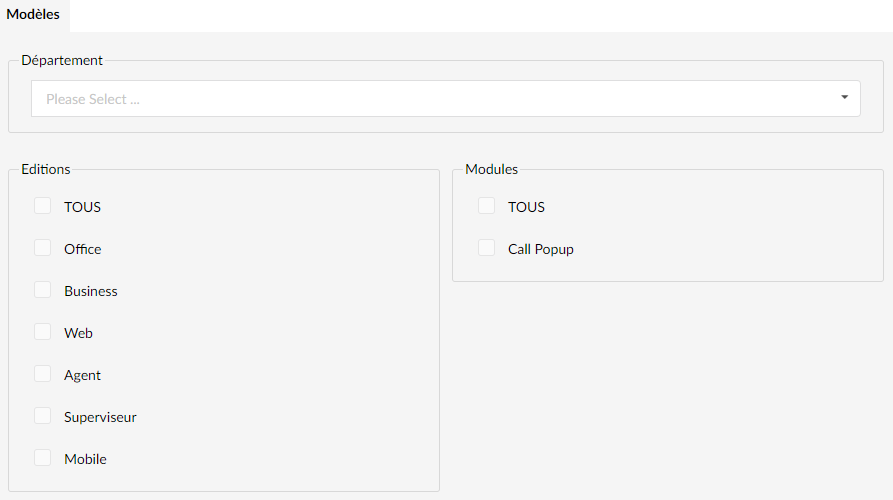
The page Templates gives you the ability to predefine Communicator editions by department, and to apply them to all the extensions that are members of the selected department.
Example: if you want to allow all extensions that are members of the "Sales" department to use the Business and Mobile editions of Communicator as well as the CRM module, select the "Sales" department in the drop-down list, uncheck all the boxes in the Editions and Modules sections, and check only the boxes for the Business and iOS editions, as well as the box for the CRM module.
- Department
In the drop-down list, select the department for which you want to apply new permissions.
- Editions
Check the boxes of the specific gloCOM editions to allow members of the selected department to use them, select ALL to apply no restriction on the use of the editions.
- Modules
Check the boxes of the specific gloCOM modules to allow members of the selected department to use them, select ALL to apply no restriction on the use of the modules.
Batch templates
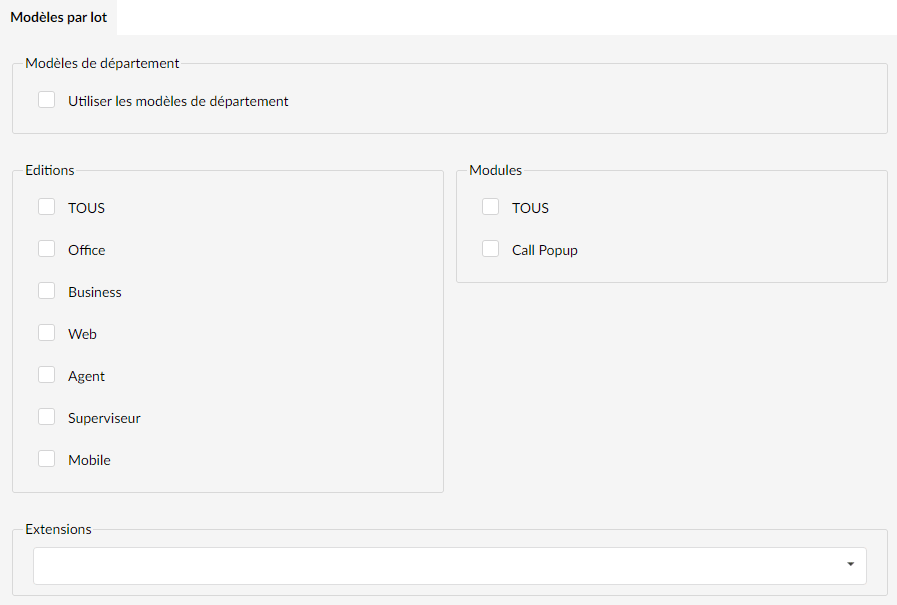
The page Batch templates allows you to add a set of selected permissions to specific extensions only, regardless of their membership in a department. This can, for example, be used in situations where certain department members need to use additional editions of Communicator.
There are two distinct scenarios in which you can use "batch" mode:
- To reapply service templates to one or more extensions whose permissions were manually modified after the department template was applied.
- To apply a specific set of permissions to multiple extensions, regardless of whether or not they belong to a department.
To apply specific department templates to one or more extensions that are members of several different departments, you can check the box Use department templates and add a list of extensions for which you want to define permissions in the Extensions field. When you click Save, the rules should be applied to all the extensions in your list.
If you do not want to use the department templates and you just want to add applications on several extensions at once, select the desired editions and modules, and simply add the extensions to the list and click Save.
Make sure that the Use department templates option is disabled, otherwise you will not be able to make a selection.
Devices
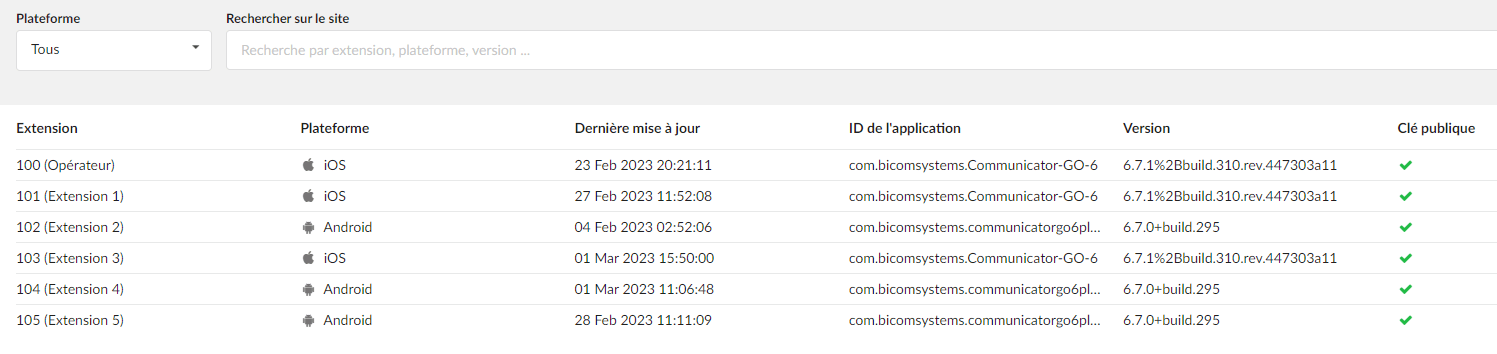
The devices page displays the complete list of all devices registered on your PBXware.
- Platform
Select this option to search for devices by platform
- Search
Search by extension, platform, version
- Extension
Name and number of the extension using the device
- Platform
Platform (operating system) used by the user
- Last updated
Date and time of the last registration of the device
- Application ID
Unique application ID
- Version
Registered application version
- Public key
If this section is checked, it means that a public key has been added.
Permissions
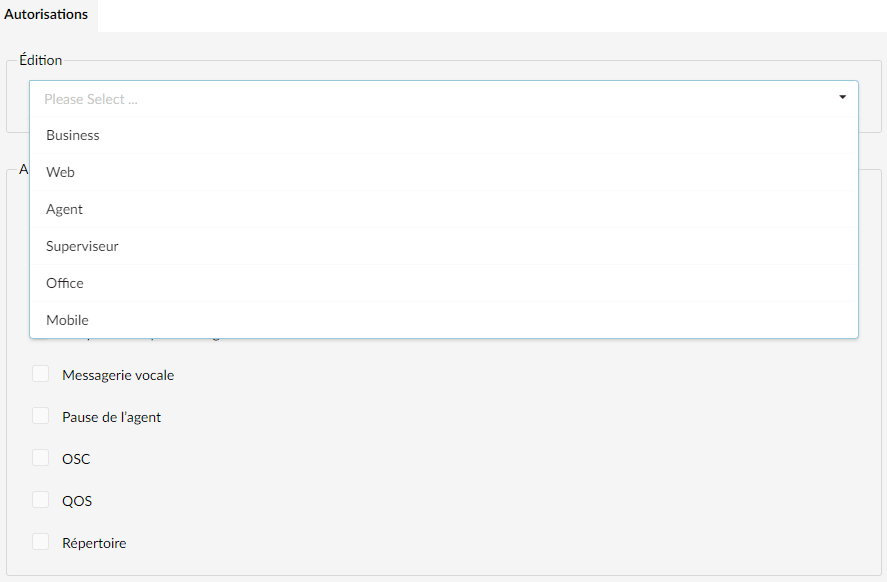
The section Permissions allows the administrator to control Communicator features by edition. Once a certain edition is selected, permissions can be set accordingly.
For example, for all Communicator Business users, it will be possible to prohibit them from accessing Instant Chat.
- Edition
Select the specific Communicator edition
- Permissions
You can enable or disable permissions for the selected edition.
- ALL (Deny all)
- Chat
- Access codes
- Phone do not disturb
- Voicemail
- Agent pause
- OSC (Online Supervisor)
- QOS
- Directory
Custom statuses

This function allows users to create custom statuses adapted to their needs. By enabling this function, users can select one of the status types and customize their messages to provide even more detail about the status type.
This status will be visible to other Communicator users.
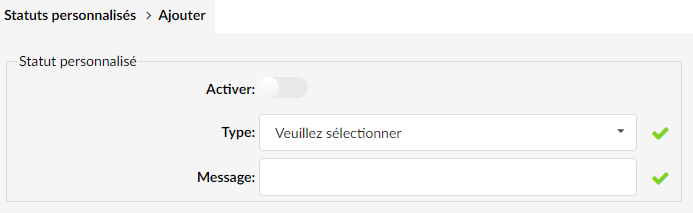
When creating custom statuses, users can select one of the following status types:
- Available
- Busy
- Do Not Disturb
- Away
