



7. Conferences
Conferences allow two or more participants to communicate with each other at the same time using voice, video, or both. The default limit for active conference members in PBXware is 256 users across all conferences, which means you can have one or more conferences, but their total number of active users cannot exceed 256.
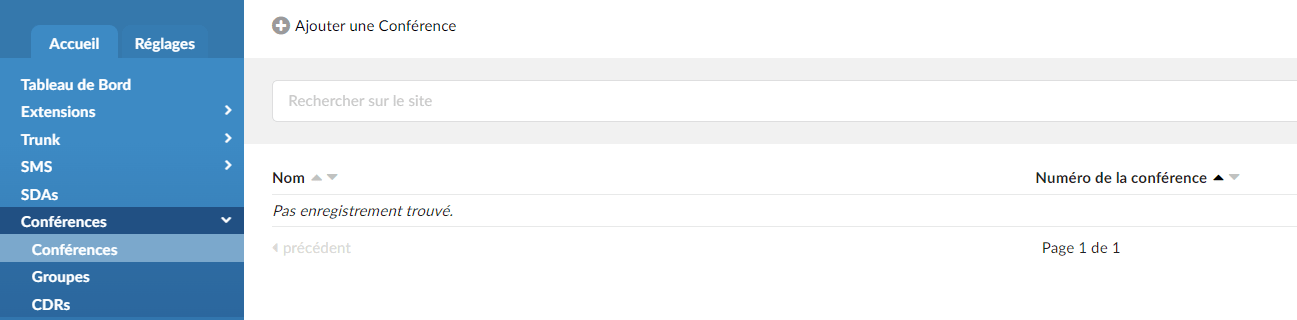
This screen lists all the system conferences with the following details:
Name
Conference name.
Conference number
Conference system or network number.
Search

By selecting the "Search" command, the search menu will be displayed. Searches can be performed by name and number.
Add a conference
Clicking the “Add Conference” button will allow you to add a new conference.
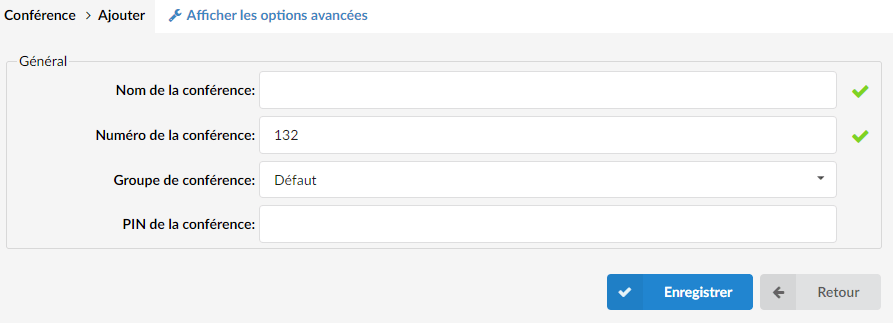
Conference name
Unique conference ID/name; this name will be displayed once the "Conferences" menu is selected.
Conference number
Unique PBXware conference number; this number must be dialed to access the conference.
Conference group
Here, you can select a conference group that you created previously. In this group, you can define the user permissions and conference options. Conference groups are added under Conferences -> Group -> Add conference group.
Advanced options
Click the “Advanced options” button to open more detailed conference options.
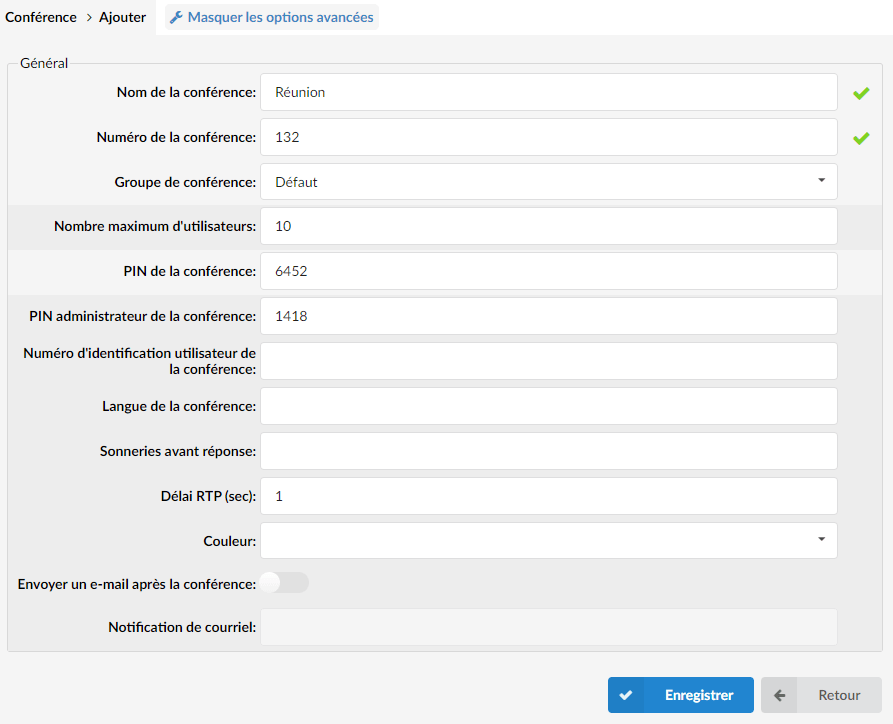
Maximum number of users
This is the maximum number of users allowed in the conference.
Conference PIN
Conference PIN number. If set, this PIN code must be provided by all callers before entering the conference.
(For example, John dials the sales conference number (1001), but this conference has this field set to 9576. John is asked to provide the conference PIN. If a valid PIN is provided, John will enter the conference, or his call will be rejected after 3 invalid PIN entries).
Conference administrator PIN
When users enter the administrator PIN code, they dynamically obtain administration rights for the conference they are connecting to.
(For example, John is the operator, but he must enter the conference as an administrator. Since he does not have administrator privileges defined, when he enters the conference, he will use an administrator PIN to dynamically obtain these privileges).
Groups
Conference groups are used to create groups of users with certain permissions for conferences.

General
Group name
Conference group name.
Users
Extension numbers of the users added to this group.
When you click the “Add conference group” button, you will be able to add a new conference group.
Add/Edit the conference group
Enter the unique name of the conference group here.
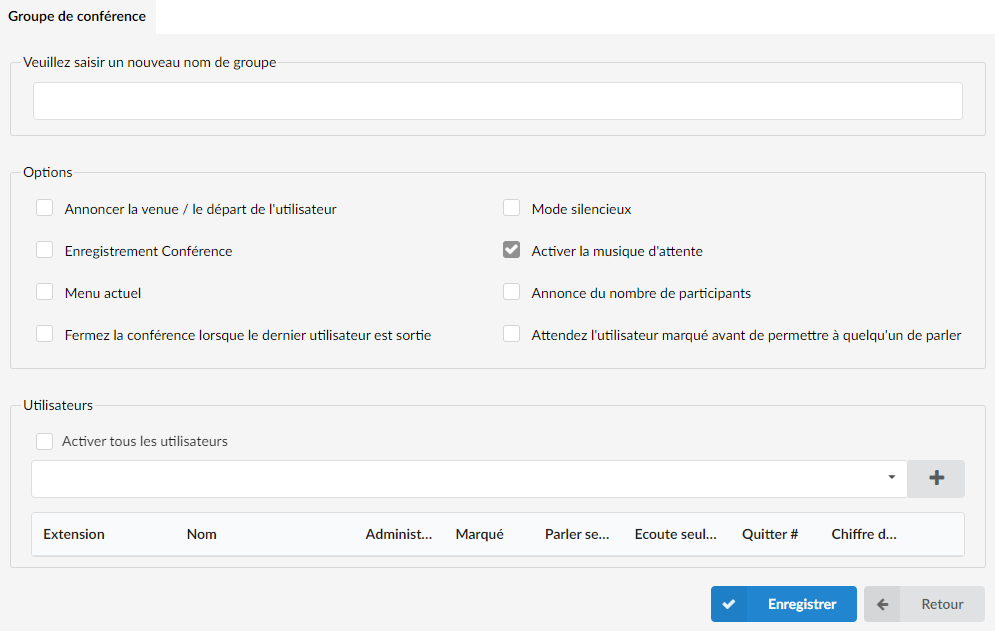
Options
Announce the user's arrival/departure
If this option is checked/enabled, all new conference members will be prompted to say their name and press the “#” key before entering the conference. After a user presses the “#” key, the following menu will be presented:
- Press 1 to accept your name and enter the conference
- Press 2 to listen to your name
- Press 3 to re-record your name
This name will be recorded and broadcast to the other members of the conference when a caller joins/leaves the conference.
(For example, John dials the sales conference 1001 and is asked to say his name and press the “#” key. Of course, he says “John” and presses the “#” key. After that, he is presented with a menu where he chooses to accept his name and enter the conference. At the same time, all conference members will hear “John has entered the conference”. When John leaves, all conference members will hear the message “John has left the conference”).
Silent mode
If this option is checked/enabled, conference members will not hear the entry and exit sounds.
(For example, check this option if you do not want to hear the join/leave sound).
Conference recording
This option will record the conference so that you can download the recorded file.
Users
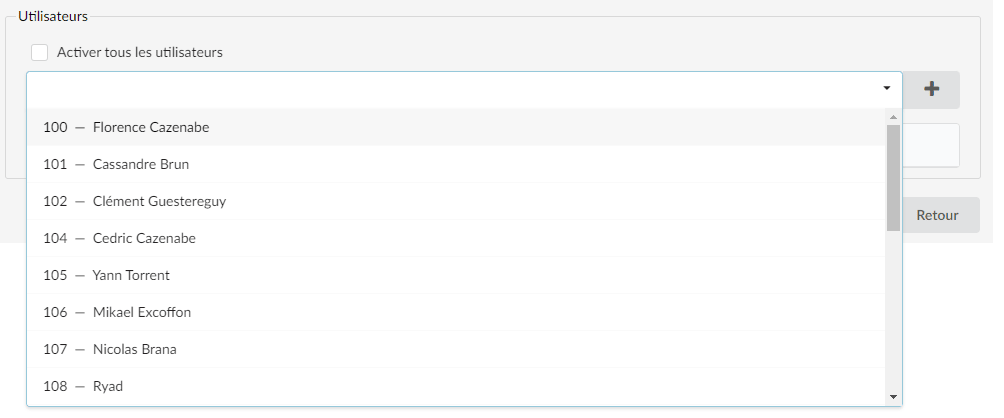
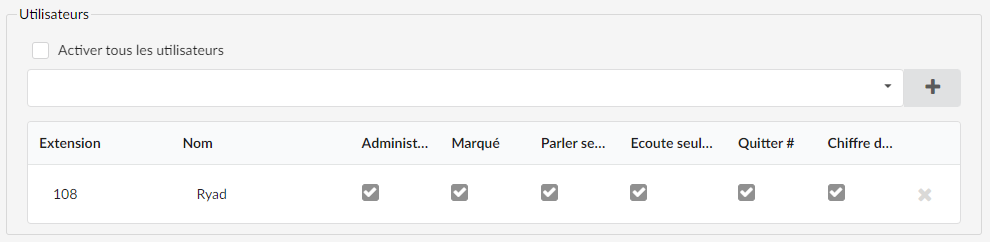
There are two options to allow users to join a specific conference room. You can either enable all users by checking the "Enable all users" box. The other option is to click the drop-down menu and select the desired extension. After selecting, click the "+" sign and the extension/user will be added and you will receive new options for that particular extension.
Extensions
The extension number of the user you added to the group.
Name
The name of the user you added to the group.
Administrator
Sets the administrator conference mode. If this option is enabled, conference calls from the extension will be handled with administrator privileges.
Marked
Sets the marked conference mode. If this option is enabled, conference calls from the extension will have fewer privileges than the administrator, but more than regular conference participants.
Talk only
Sets the “Talk only” conference mode. If this option is enabled, conference calls from this extension will be allowed to talk only (no voice will be heard on the UAD/phone).
Listen only
Sets the listen-only conference mode. If this option is enabled, conference calls from the extension will be allowed to listen only (no voice will be sent from the UAD/Phone).
Leave #
If this option is enabled, users will be allowed to leave the conference by dialing the “#” key.
Exit digit
If this option is enabled, users will be allowed to leave the conference by dialing any number.
CDRs
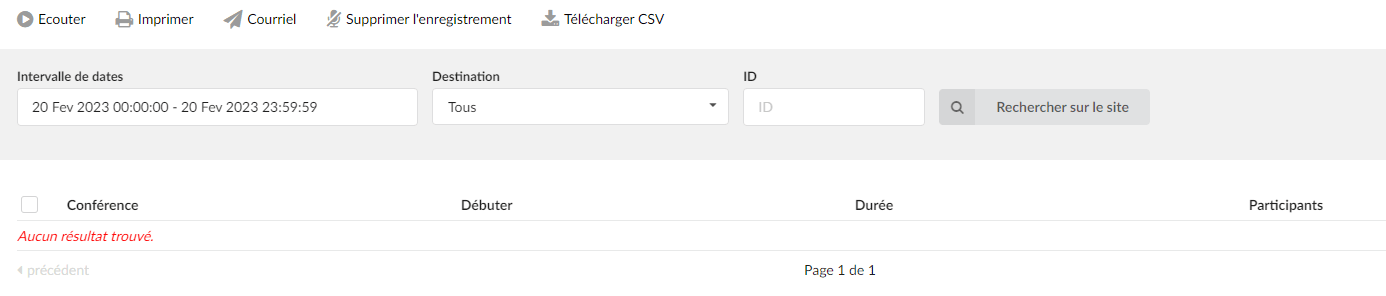
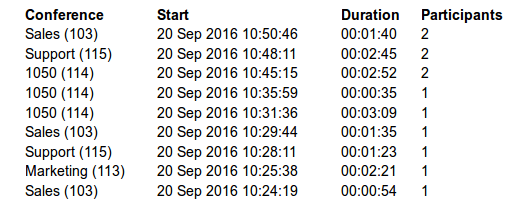
CDR displays the detailed records of all PBXware calls in conferences with the following details.
Conference
Conference name.
Start
Date and time of the start of the conference.
Duration
Conference duration in hh:mm:ss format
Participants
Number of users in the conference.
Search/Filter
Calendar
Start date
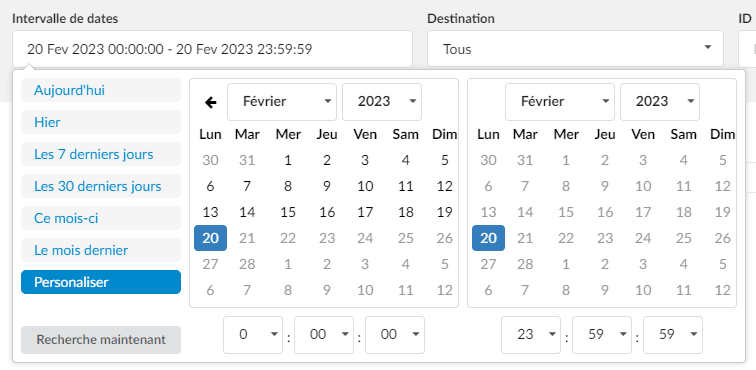
Select a search/filter start date. Click the small “Calendar” icon next to a field and select the desired date.
End date
Select a search/filter end date. Click the small “Calendar” icon next to a field and select the desired date.
Start time
When searching for CDRs, this is the start time in the start date.
ID
CDR ID. When the user selects a CDR, the ID field displays the ID of that CDR. If there is an issue on the system, the customer can give the support team the ID of the problematic CDR, which makes it possible to locate it.
Destination
Search for conferences based on the conference number typed in this field.
Click the “Print” button to open a new pop-up window with the print interface.
Click the “Email” button to send all the reports listed on the page.
Delete the record
Deletes recorded conferences.
Download CSV
Download the data in a .csv file.
