



14. Meetings
Meetings is an application that enables users to manage and connect geographically dispersed teams, increase productivity, and ensure high-quality performance. Its implementation in PBXware facilitates communication by allowing users to organize and conduct meetings while accounting for their location, time zone, or personal schedule.

Create a meeting
 Click this button to create a meeting.
Recurrence
The recurrence options are used to create meetings that repeat at specific time intervals:

Daily
If the “Daily Recurrence” option is selected, the meetings can be repeated every 1 to 90 days.
(For example, if you select "1", the meeting will be repeated every day, or if you select "4", the meeting will be repeated every four days, and so on).
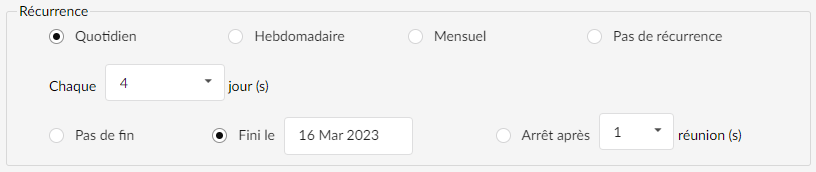
Users can select the end type of the recurrence as follows:
- No end: A meeting takes place every day with no other time limit.
(For example, the time limitation will not affect the recurrence of the meeting).
(Radio button) - Finished on: A meeting will stop being recurring on a specific date.
(For example, on August 31, the meeting will stop recurring, so there will be no meeting in September).
(Radio button) - Stop after: A meeting will stop being recurring after a specified number of meetings.
(For example, if "8" is selected, the meeting will stop being recurring after eight meetings).
(Radio button)
Weekly
If the “Weekly Recurrence” option is selected, the meetings can be repeated every 1 to 12 weeks.
(For example, if you select "1" and the days from Monday to Friday, the meeting will be repeated every week on the specified days).
Users can also identify specific days of the week, from Monday to Sunday.
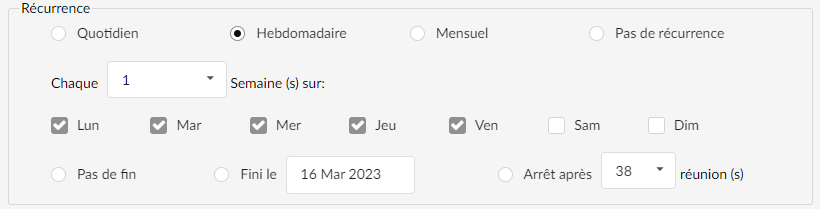
Users can select the end type of the recurrence as follows:
- No end : A meeting takes place every week without any other time limit.
(For example, the time limitation will not affect the recurrence of the meeting). - Finished on : A meeting will stop being recurring on a specific date.
(For example, on August 31, the meeting will stop recurring, so there will be no meeting in September). - Stop after : A meeting will stop being recurring after a specified number of meetings.
(For example, if "38" is selected, the meeting will stop being recurring after thirty-eight meetings).
Participants

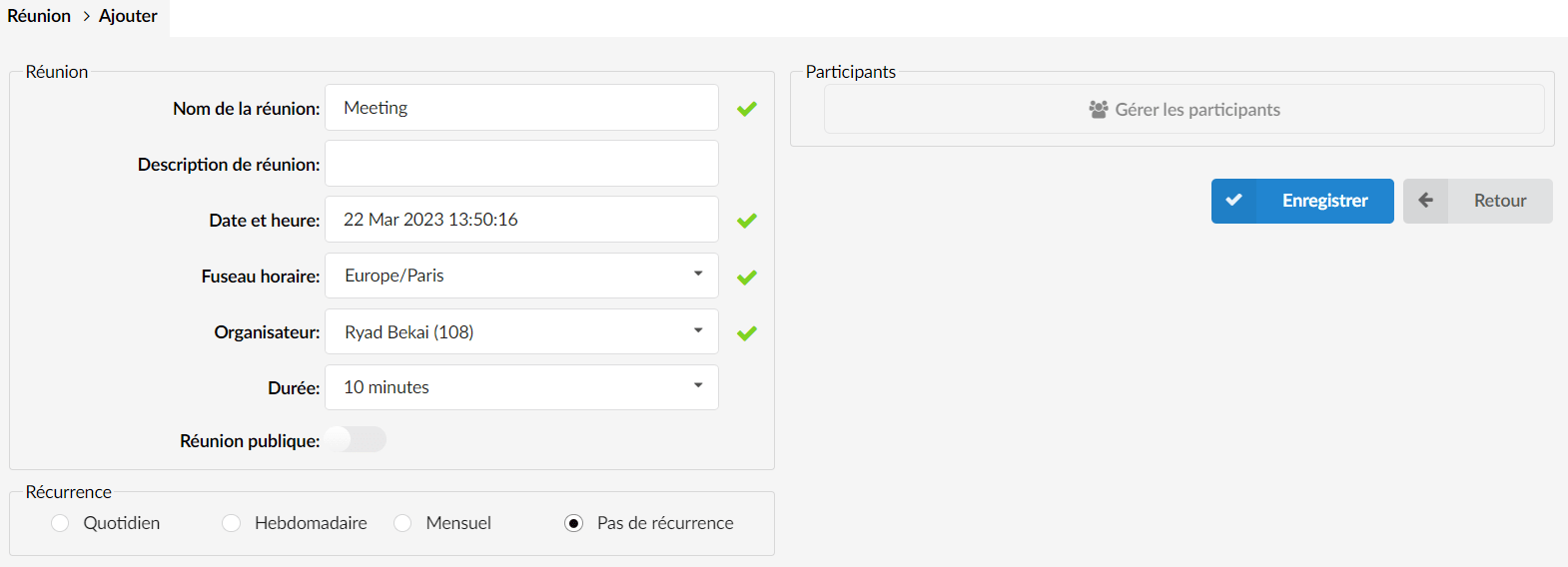
When creating a meeting, users can add many participants. If the meeting is created for the first time, the "Manage participants" field is grayed out, as shown in the screenshot. To make the field clickable, it is necessary that all mandatory fields be filled in as well as additional information regarding the “recurrence”.
Once this is done, press the "Save" button and the "Manage participants" button becomes clickable as shown in the screenshot.

Add participants
By clicking on the “Manage participants” button, users will be prompted to go to the “Add participants” page. From this page, they can view, add, or delete extensions.
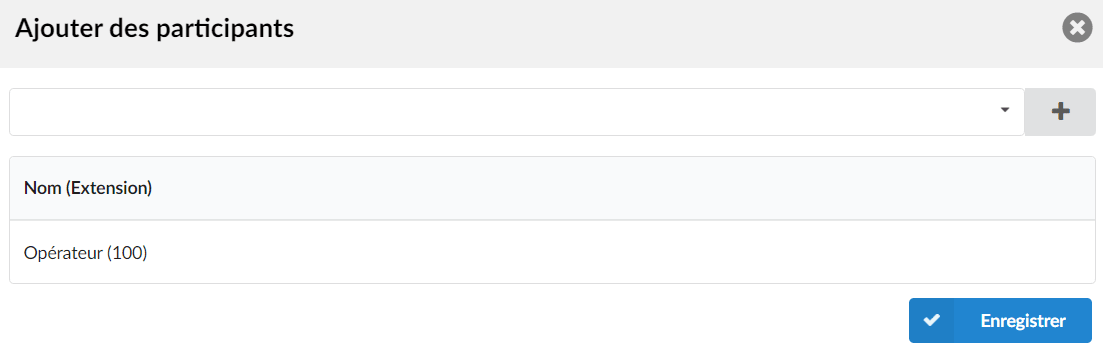
Once the organizer has chosen the desired extensions from the drop-down list at the top of the page, they must press the plus sign, as shown in the screenshot. The list will display all extensions for the meeting in question.
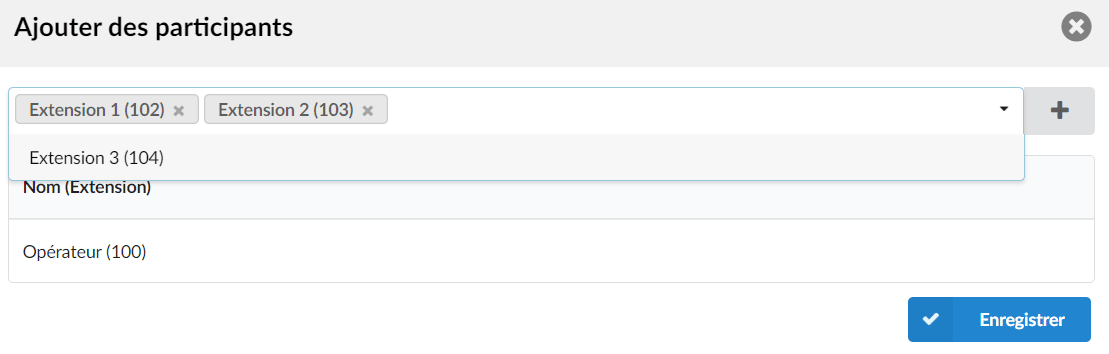
 Click this button to remove a participant from the list of participants.
Scheduled meetings
The list displays all scheduled meetings with the following details:
Click on Create a meeting to create a meeting.
 Click this button to display the “Meeting details” page.
 Click this button to update the meeting.
 Click this button to delete the meeting.
Recent meetings
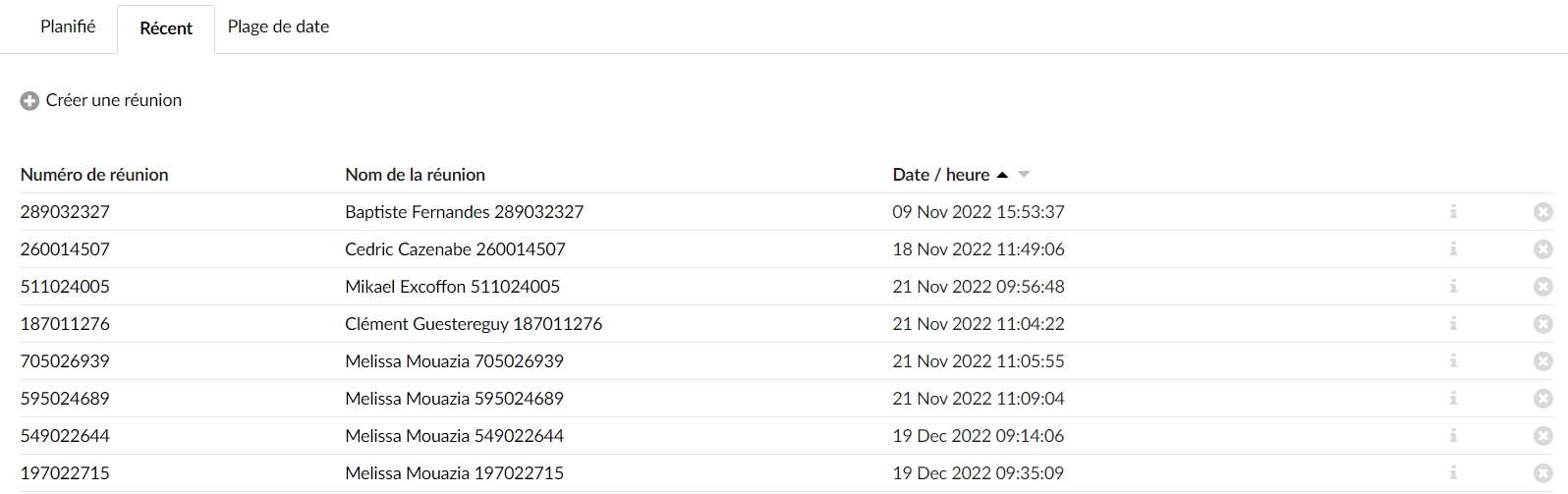
The list displays all recently completed meetings with the following details:
Click the button Create a meeting to create a meeting.
Click this button to display the “Meeting details” page.
Click this button to delete the meeting.
Date range
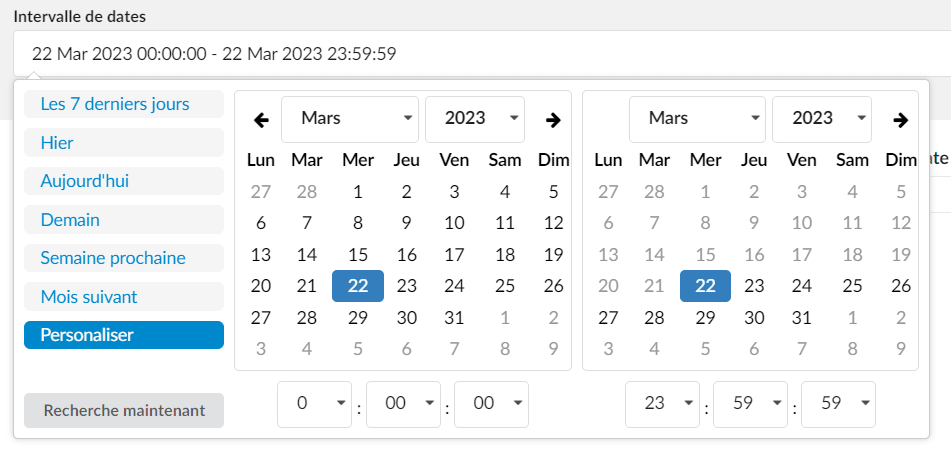
This list displays all meetings for the selected period, starting with the start date and ending with the end date.
Click the button Create a meeting to create a meeting.
Date/Time:
Date and time of the meeting.
Click this button to display the “Meeting details” page.
Click this button to update the meeting.
Click this button to delete the meeting.
Meeting details
To open the "Meeting Details" page, users can click on "Meeting Name", "Meeting Number", or the "Info" button. The "Meeting Details" page contains the following information:
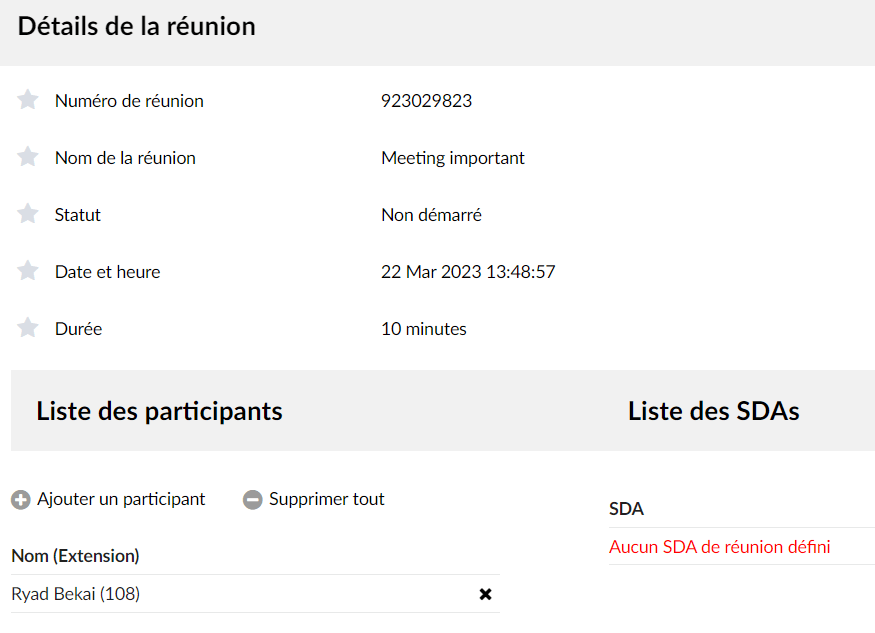
Meeting number:
Unique in the system, made up of 9 digits.
Meeting name:
Name given by the organizer when creating a meeting.
Meeting description
Additional information regarding the meeting.
Status:
Displays the meeting status.
The status can be one of the following- Not started: The meeting has not started yet.
- In progress: A meeting has already been started.
- Completed: A meeting has taken place.
Date/Time:
The date and time indicate whether the meeting will take place or whether it has been held.
Organizer:
Name of the meeting organizer and their extension number.
The “Meeting Details” page allows users to view the list of meeting participants as well as the list of DIDs.
List of participants:
Displays the name and extension of each meeting participant.
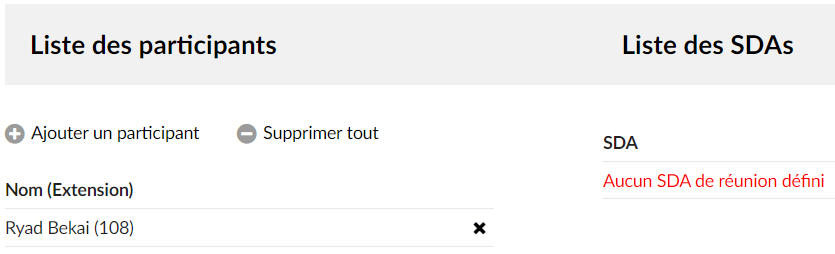
List of DIDs
Displays the list of DIDs found in the meeting.
 Click to add participants to the meeting.
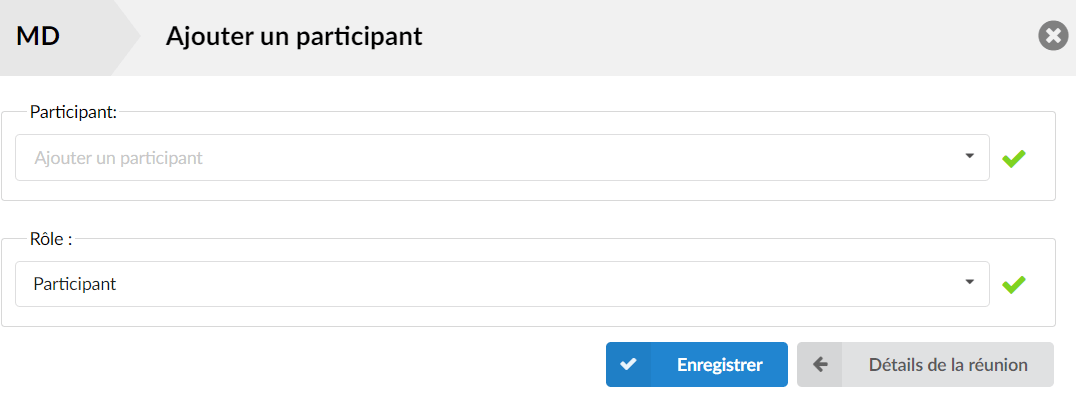
(For example, once clicked, the Add participant page opens. Please note that it is not possible to add the same participant twice. If it is added, the following warning message will appear: "The participant is already added.".
Participant
Select a participant and add them to the list.
Role
Assign a role to the selected extension/participant.
 Click to remove participants from the meeting.
(Once you have clicked this button, all participants, except the exception of the host, will be deleted. Since this is a delete action, a warning message is displayed: “Are you sure you want to delete all participants? After confirmation, the message “Participants deleted successfully” should appear. Otherwise, if an error occurred, the message “The participant(s) could not be deleted” should be displayed. For more information, please refer to the screenshots).
See the basic meeting
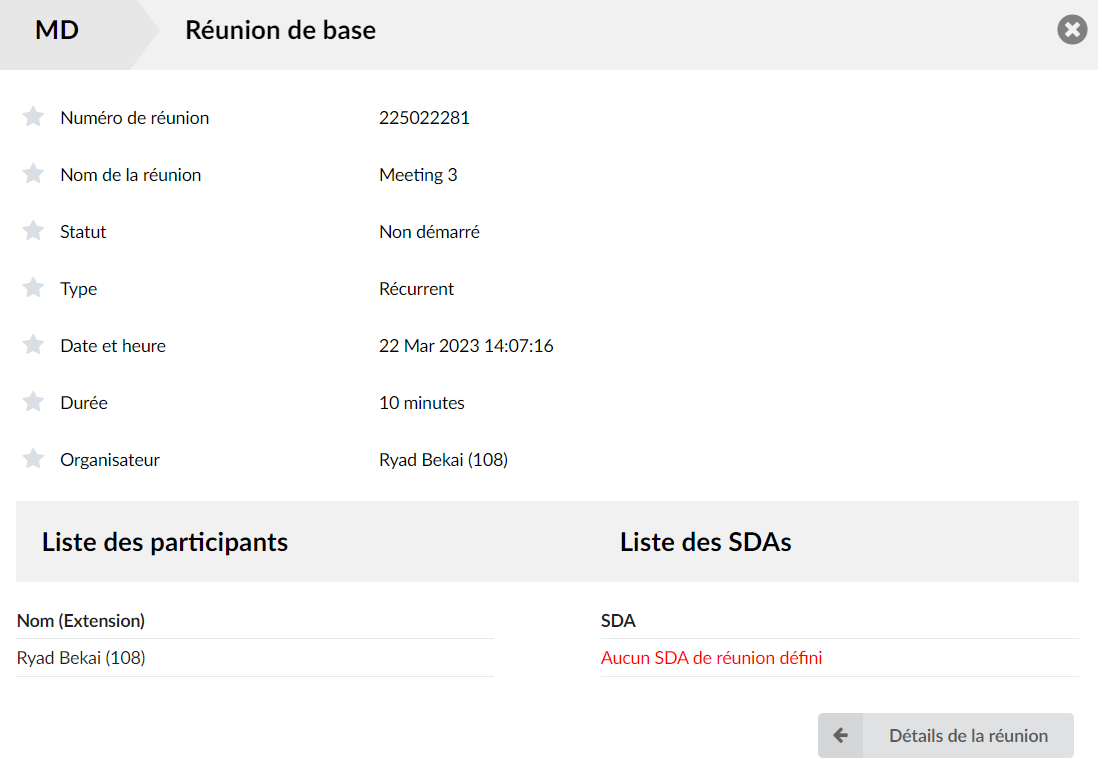
 Click “View basic meeting”.
(For example, once they have clicked, users are prompted to go to another page. This page contains the same information as the "Meeting Details" page, but the user does not cannot handle participants from this page).
 Click the button to return to the “Meeting details” page.
Settings
Daily reminder
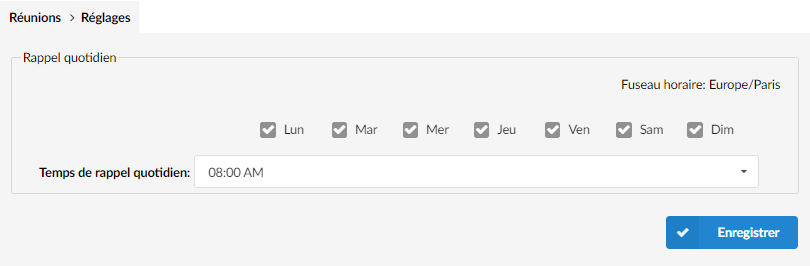
Daily reminder is used to set a reminder for receiving daily emails about meetings.
Time zone:
Displays the chosen time zoneDays of the week:
Specifies the days of the week on which the emails will be sent.Daily callback time:
Select the time to receive the daily emails.
