



25. Account settings
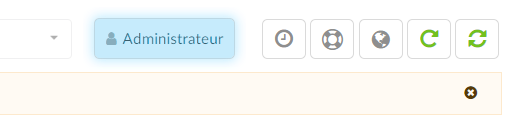
Click the button with your username to access more information regarding passwords and two-factor authentication (2FA).
Change your password
Once users have clicked the username button, they will be able to manage passwords. To change the password, users will need to enter the old password, the new password, and confirm the new password.
- Old password
Enter your old password
Allowed characters: [a-z][0-9][!% *_-]
- New password
Enter your new password
Allowed characters: [a-z][0-9][!% *_-]
- Confirm the new password
Confirm your new password
Allowed characters: [a-z][0-9][!% *_-]
Two-step verification
Each administrator/user account will be able to configure a two-step verification process. After setting up two-step verification at login, users will be prompted to enter a code that will be visible in a verification app of their choice. To learn more about configuring two-step verification and managing login data, please refer to the documentation below.
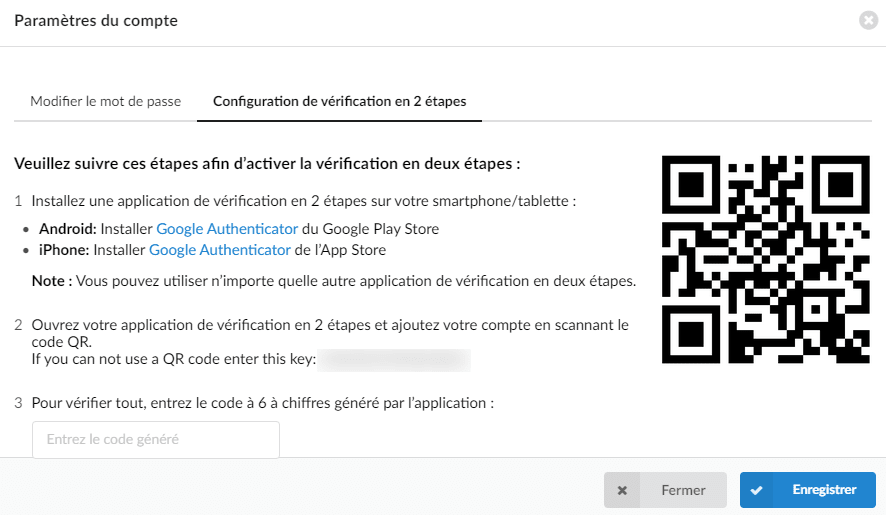
Configure two-step verification
To set up two-step verification, please follow the steps below:
1. Install a two-step verification app on the smartphone/tablet such as Google Authenticator or Microsoft Authenticator.
2. Open the two-step verification app and add the account by scanning the QR code provided in the two-factor authentication setup window. If they are unable to use a QR code scanner, users can manually enter the key, which is also shown in the window.
3. To verify everything, enter the 6-digit code that the app generates.
After finishing, click “Save” and a pop-up window should appear indicating that two-step verification has been set up successfully.
In addition, by clicking the "Reset" button, the two-step verification will be reset.
