



FR | EN
Wiki Bicom Systems EnglishWiki Bicom Systems English
  • Home
  • Documentation
    • PBXware
      • Installation
      • Getting started
      • Editions
        • PBXware Multi-Tenant
        • PBXware Business
        • PBXware Contact Center
        • PBXware Service Provider
      • Advanced services
      • Supported phones
      • Autoprovisioning
    • Communicator
      • Communicator Desktop
      • Communicator GO
      • Communicator Web
    • SERVERware
      • Standalone
      • Mirror
      • Cluster
    • sipPROT
    • Tutorials
  • Videos
    • Communicator Desktop
  • Operators
  • Downloads
  • FAQ
Support
leafleaf
Most popular:
  • PBXware
  • Communicator
  • SIP
  1. Home
  2. PBXware Business
  3. 20. LCR
Updated on March 3, 2023
PBXware Business
  • Folder icon closedFolder open icon1. Global view
  • Folder icon closedFolder open icon2. Dashboard
  • Folder icon closedFolder open icon3. Extensions
  • Folder icon closedFolder open icon4. Trunks
  • Folder icon closedFolder open icon5. SMS
  • Folder icon closedFolder open icon6. DID
  • Folder icon closedFolder open icon7. Conferences
  • Folder icon closedFolder open icon8. Extension groups
  • Folder icon closedFolder open icon9. IVR
  • Folder icon closedFolder open icon11. Voicemail
  • Folder icon closedFolder open icon12. Supervise
  • Folder icon closedFolder open icon13. Reports
  • Folder icon closedFolder open icon14. Meetings
  • Folder icon closedFolder open icon15. Statistics
  • Folder icon closedFolder open icon16. Fax
  • Folder icon closedFolder open icon17. CRM
  • Folder icon closedFolder open icon18. System
  • Folder icon closedFolder open icon19. Routes
  • Folder icon closedFolder open icon20. LCR
  • Folder icon closedFolder open icon21. Service plans
  • Folder icon closedFolder open icon22. Apps
  • Folder icon closedFolder open icon23. Settings
  • Folder icon closedFolder open icon24. Admin settings
  • Folder icon closedFolder open icon25. Account settings

20. LCR

Estimated reading: 1 minute

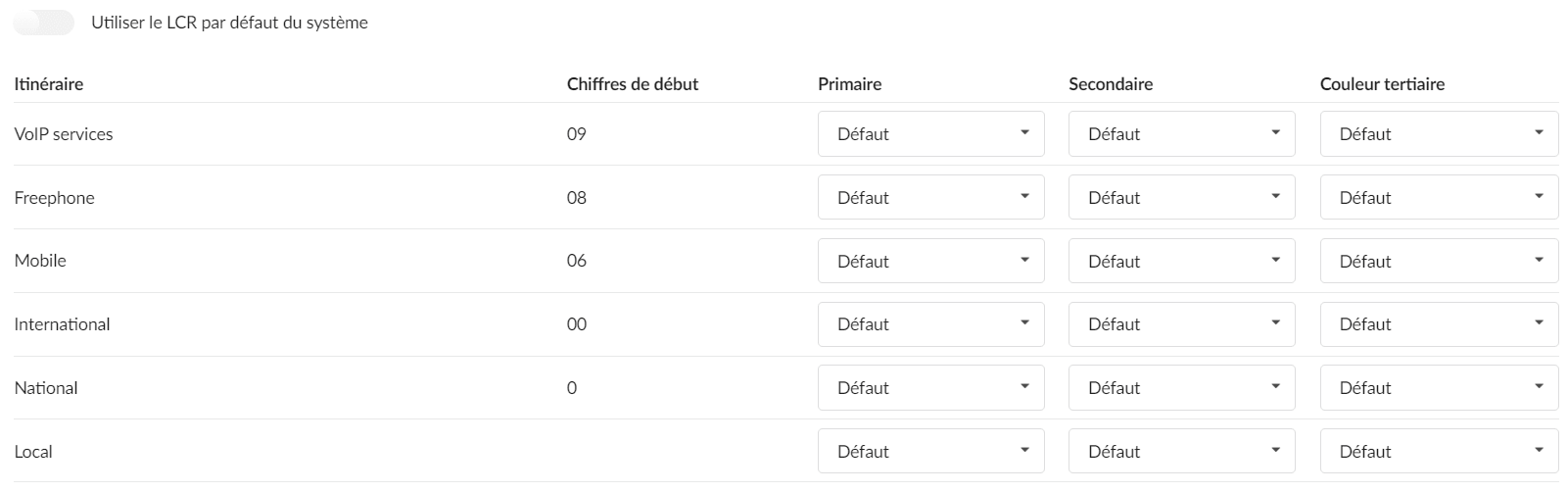
The LCR (Least Cost Routing) section allows fine-tuning of the system's line usage. By default, the system uses default trunks for each destination in order to present this feature as simply as possible.

This thus allows you to prioritize a trunk for a specific route.

  • Routes

Displays all available destination routes in alphabetical order.

  • Primary/Secondary/Tertiary Trunk

Select the trunks to use for the desired destination.
If the connection is not established through the primary trunk, the trunk will be used, and so on.

E164 routing

When E164 routing is configured on the system, the LCR section is presented differently.
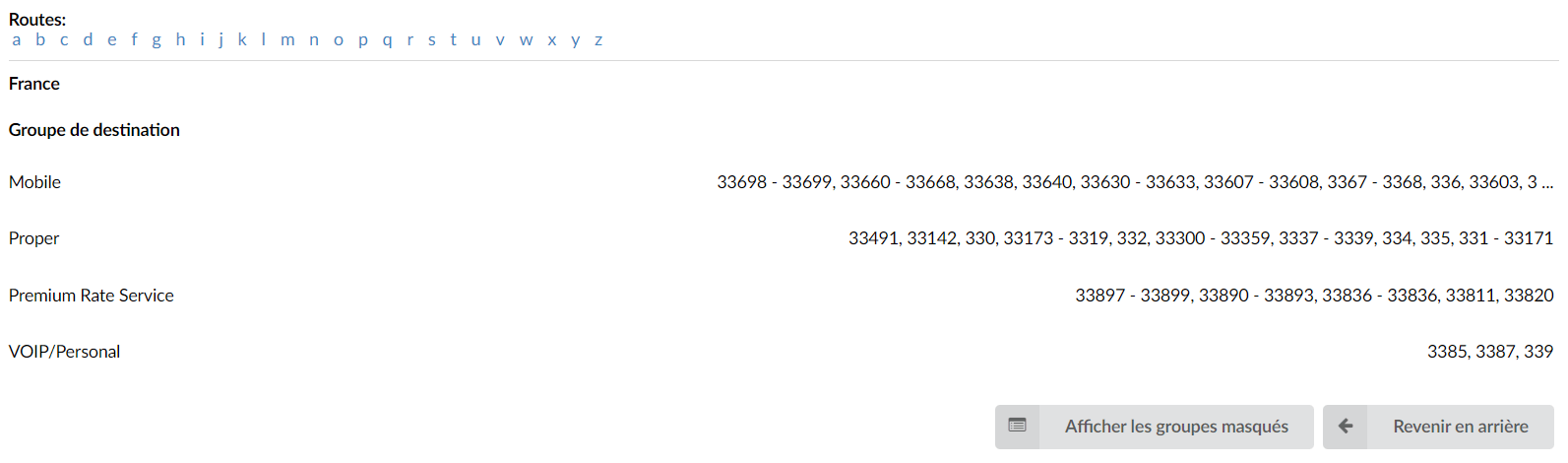
The routes are then the groups of destinations (for example, countries) sorted in alphabetical order.

Share

20. LCR

Or copy the link below

Clipboard Icon
CONTENT
Leaf Illustration

© Bicom Systems France

Last updated: 4 July 2026 Legal noticePrivacyCookiesTerms © 2026 Bicom Systems