



12. Supervise
The section Monitor allows the administrator to monitor all extensions, applications, trunks, conferences, and live calls in real time.
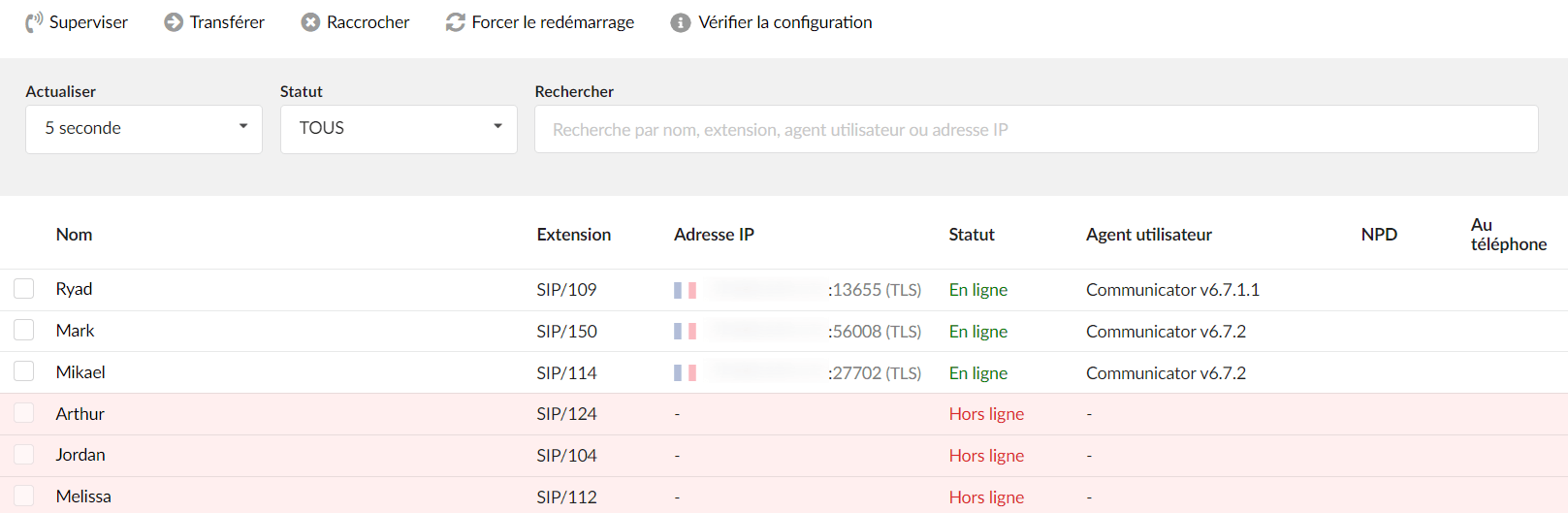
Monitored extensions are displayed in real time with the following details:
Name
Displays the extension name
Extension
Displays the protocol used by the extension and the extension number
IP address
Displays the port of the IP address to which a UAD/phone is registered and additionally indicates the transport used (TLS, UDP, TCP, WS or WSS).
Search

Refresh
Select the time interval in seconds at which the data should be refreshed.
Status
Sort extensions by their network status (ALL, Online, Offline)
(For example, select "Online"/"Offline" to see only the online or offline extensions. Select "ALL" to display all extensions).
Search the site
Type a specific extension name, extension number, user agent, or IP address and the data will be filtered accordingly.
(For example, to refresh every ten seconds, select "10 sec" from the dropdown list).
Actions

Monitor
Select one of the active conversations
(For example, users can listen to one of the active conversations by clicking the checkbox next to the extension, and providing the number of the extension that should listen to the active conversation).
Apps

The Apps page displays all currently registered applications. The behavior of the page is similar to that of Monitor > Extensions, with the exception that no line is displayed for extensions that do not have applications present. This option is useful because it provides an overview of the number of Communicator editions online.
Monitored applications are displayed in real time with the following details:
Name
Displays the extension name
Extension
Displays the protocol used by the application and the extension number.
IP address
Displays the IP address and port to which a UAD/phone is registered.
Application
Displays the name and version of the application.
Edition
Displays the application edition.
On the phone
Indicates whether the user is actively on a call.
Search

Refresh
Select the time interval in seconds at which the data should be refreshed.
Edition
Sort extensions by their edition
Search the site
Type a specific name, extension, or application and the data will be filtered accordingly.
Actions
- Monitor
Select one of the active conversations
(For example, users can listen to one of the active conversations by clicking the checkbox next to the extension, and providing the number of the extension that should listen to the active conversation).
Trunk
 The monitored SIP trunks are displayed in real time with the following details:
SIP account:
Displays the name of the Trunk
IP address :
Displays the provider's IP address
Status:
Displays the Trunk status (“Online”/”Offline”)
Search

Refresh
Select the time interval in seconds at which the data should be refreshed.
Protocol
Select a Trunk from the drop-down list based on the protocol.
Status
Sort Trunks by their network status (ALL, Online, Offline)
Conferences
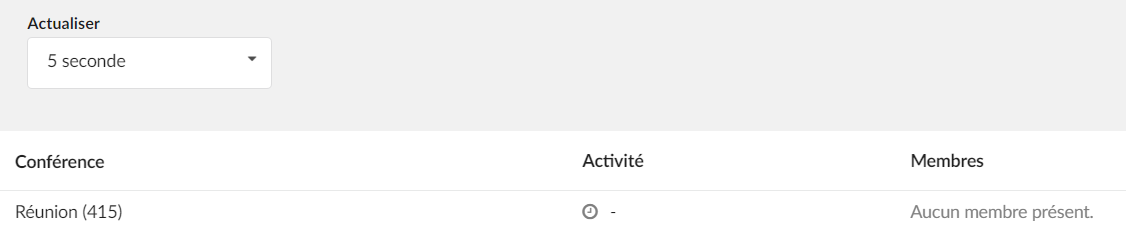
Supervised conferences are displayed in real time with the following details:
Conference
Displays the name and number of the conference
Activity
Displays the time during which the conference was active.
Members
Displays the list of participants in a conference
Live calls
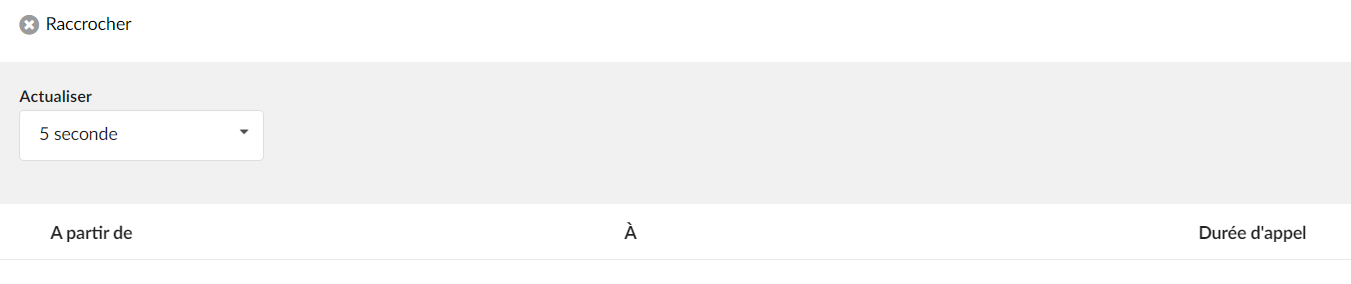
Supervised live calls are displayed in real time with the following details:
Starting from
Displays the caller's extension name (or CallerID) and their extension number.
To
Displays the call recipient's extension name (or CallerID) and the extension number.
Call duration
Displays the call duration
Settings
Here the user can modify the monitoring settings. The alert system monitors all SIP/IAX peers (Extensions and Trunks) on a PBXware system. If this peer is unreachable, an email notification is sent to the administrator(s).
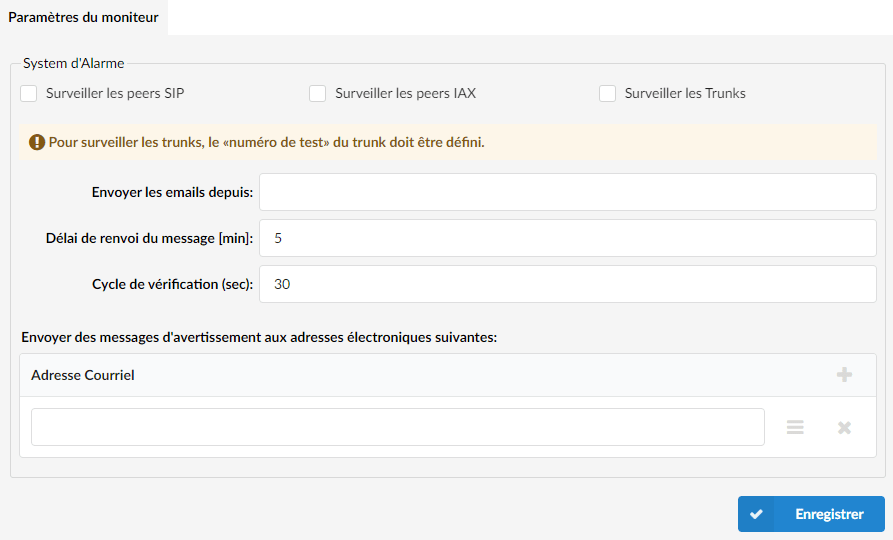
Monitor SIP peers
The PBXware alerting system needs to know which of its peers should be monitored, and when this option is checked, the system will monitor the SIP extensions.
(For example, click the checkbox to monitor SIP extensions).
Monitor IAX peers
If this option is checked, the system will supervise the IAX extensions.
(For example, click the checkbox to monitor IAX extensions).
Monitor Trunks
When this option is checked, the system will monitor the Trunks.
(For example, check the box to monitor Trunks).
