19. Routes
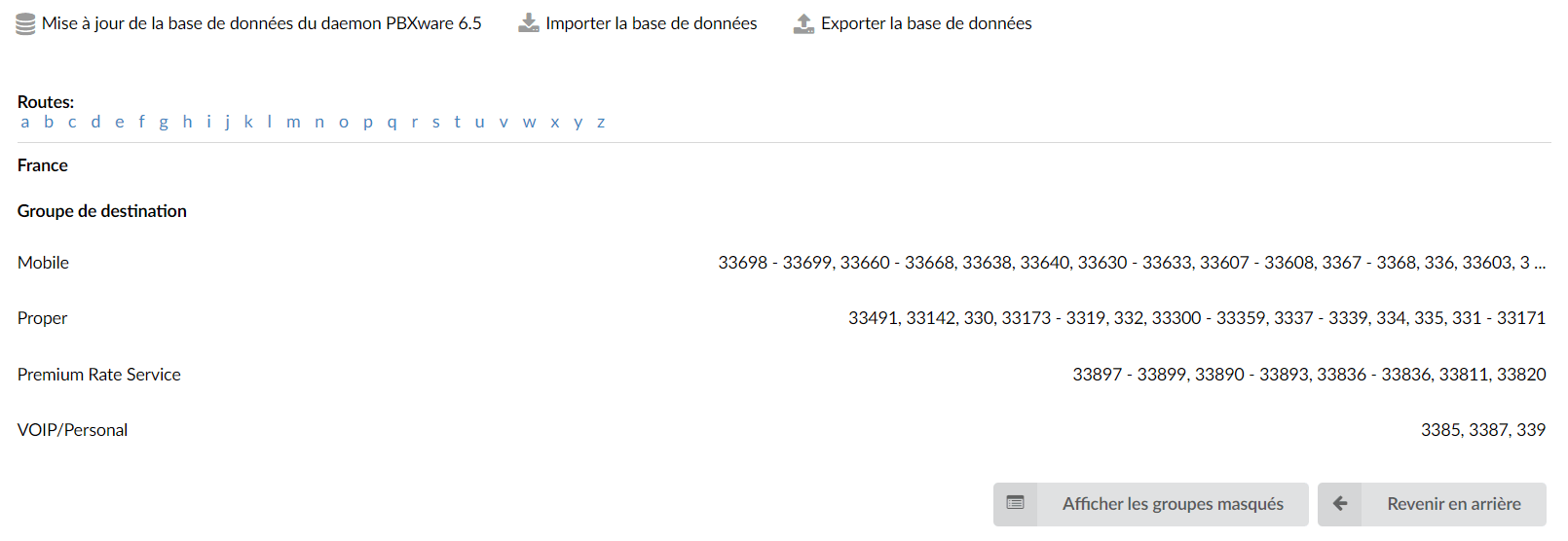
Routes identify each number dialed by users. The information is identified by the number dialed and the destination group to which it belongs.
This window identifies all destinations by dialed number. Destinations that do not exist in this database cannot be dialed by PBXware.
Depending on what is selected when you edit the routing mode on the main tenant in Settings > Servers > Edit > General settings > Routing mode, you will have two routing modes:
- Simple routing mode
- E.164 routing mode
Depending on these routing modes, the Routes section is different, so we will address them separately.
Simple routing
This routing mode does not require entering numbers in the E.164 form and allows greater flexibility when used correctly.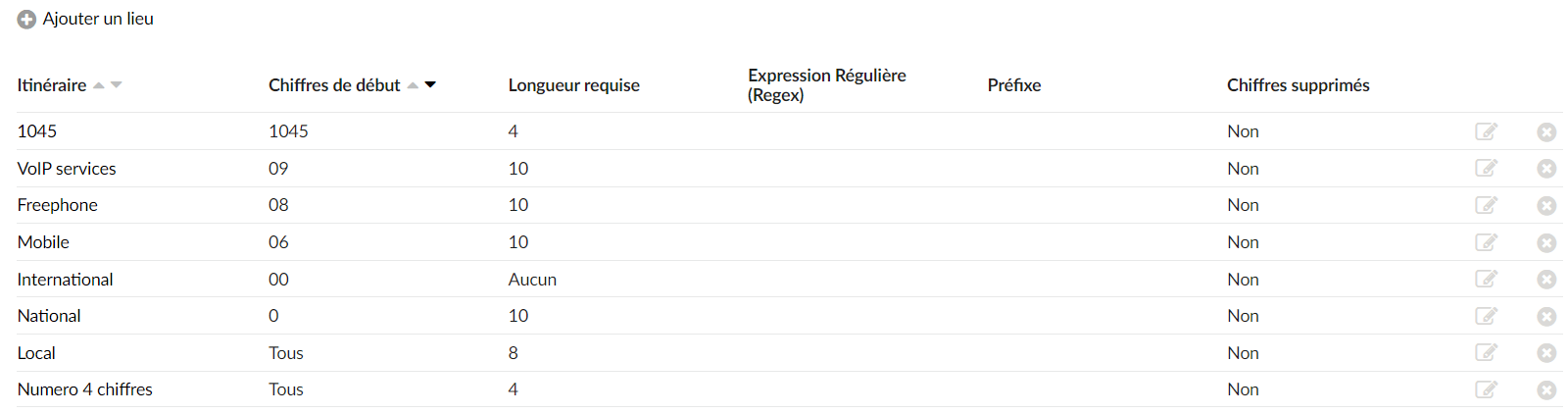
- Route
Route name
- Starting digits
First digits by which the system would recognize a call.
- Required length
Full length of the dialed number recognized.
- Regular expression
Regular expression that can be used to refine the originating numbers that fall under this route.
(For example: 06[123])
- Prefix
Prefix that must be added to the dialed numbers.
- Removed digits
Add a route
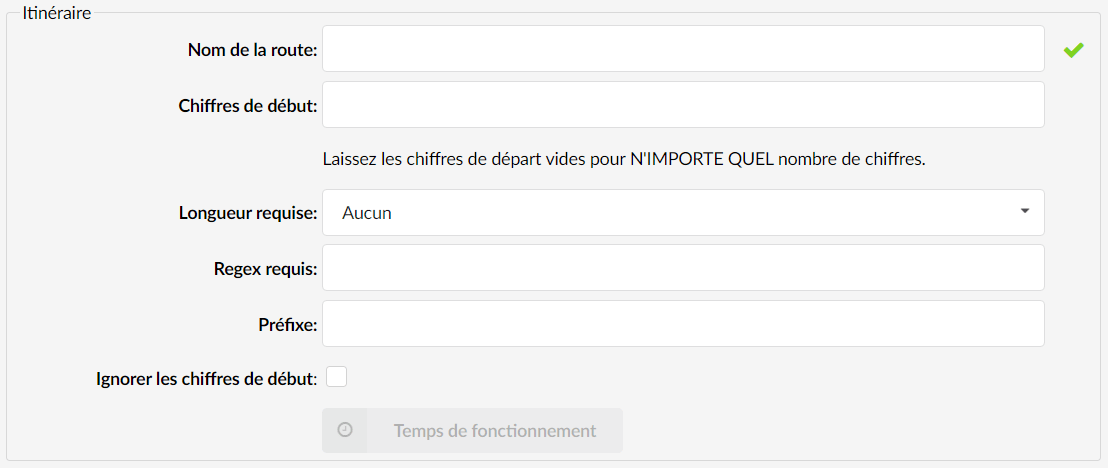
- Route name
Name of the route to add.
- Starting digits
Starting digits of the numbers that will be part of this route. If you leave this field empty, any number will be considered, but in that case you must select the number of digits these numbers will have.
- Required length
Length of dialed numbers that would be recognized as this route. If this field has no value, any number length will be recognized as part of this route, but the starting digits must be defined for this to work.
- Regex required
Allows you to add an optional regular expression that can be used to refine the numbers recognized by this route.
(For example, 06[1-5] – In this example, only numbers starting with 061, 062, 063, 064 or 065 will be recognized by this route. You can also use other regular expressions).
- Prefix
Prefix that must be added to the dialed numbers.
- Skip leading digits
Allows you to remove the leading digits from dialed numbers.
Uptime
Set the route's opening/closing hours. Depending on the time at which the call is received, the call can be redirected to different PBXware destinations.
See TUTORIAL: Uptime
E164 routing
When you use E.164 routing mode, all destinations are defined by the E.164 standard.
- PBXware daemon database update
Updates the Daemon database with the imported data. Click to update.
- Import the database
Imports the current data from the destination central database. Click the button and enter the import URL.
- Export the database
Export the daemon database with the newly added details. Click to export.
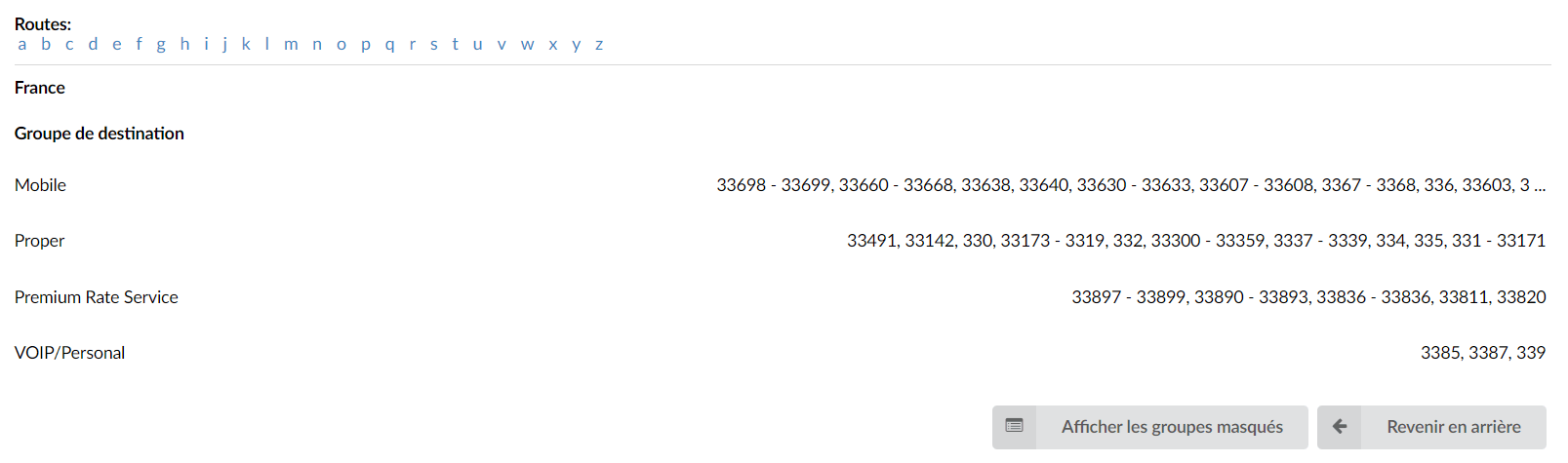
- Routes
Displays all available destination routes in alphabetical order. Click a letter and all destinations whose first letter is selected will appear.
- Destination group
More detailed description of the selected route. Displays destinations by own, mobile, etc.
- Show hidden groups
Displays the hidden route groups. Click the button to show all available groups.
In order to display the destination numbers for the United Kingdom, for example click the letter “u” under the “Routes” navigation. All destination groups for the United Kingdom are displayed. Click one of them (for example Proper) to display all destination numbers assigned to it.
Special routes
The Special Routes feature allows the PBXware administrator to add special service numbers that will be distinguished from extension numbers (even if they have the same number of digits) and dialed through the specified trunk, in the same way that emergency service numbers are dialed through the emergency trunk.

- Name
Unique name of the special route.
- Type
Type of special route (emergency, information services or other).
- Number
Special route number.
Add a special route
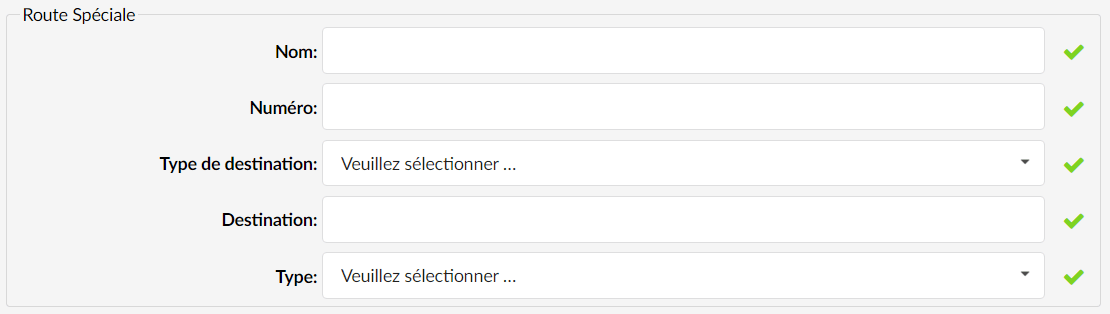
- Name
Add a name to the special route
- Number
Enter a number for the special route
- Destination type
Select the type of the special route
- Destination
Select the special route destination
- Type
Select the type of special route
Destination groups
Each country can be assigned many destination groups/service providers. You can add one by clicking the A buttonadd a destination group from this location. Any groups to which no number has been assigned will not be displayed when route information is required.
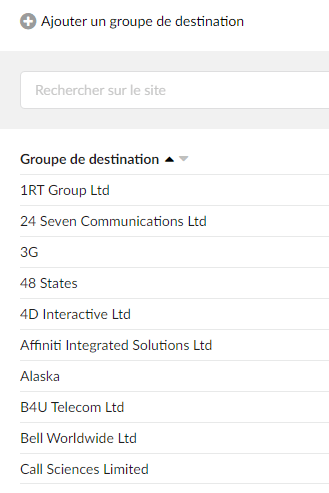
The destination group the user has created can then be used as a destination type when adding a destination in Routes > Add a route
Add a destination group

Disabled routes
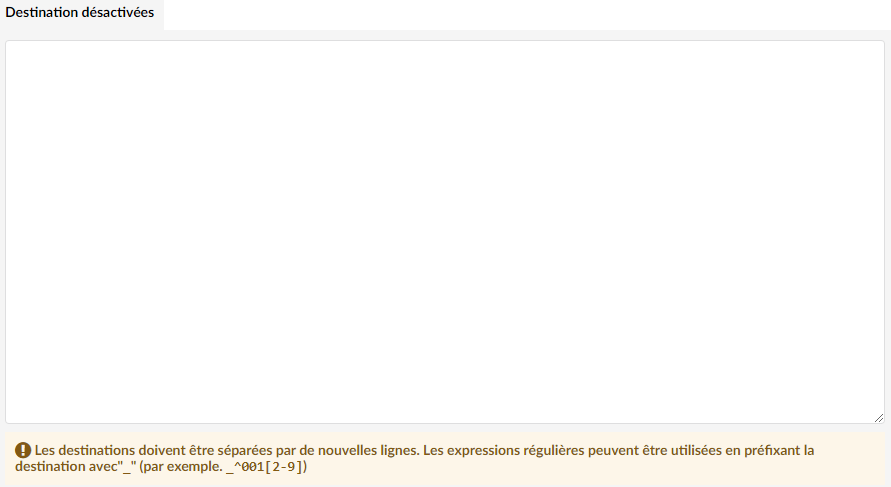
If you want certain destinations to be disabled, you can add them to the Disabled Routes.