4. Trunks

Trunks are transmission lines between two systems. This transmission is done using a wide range of PSTN and VoIP technologies.
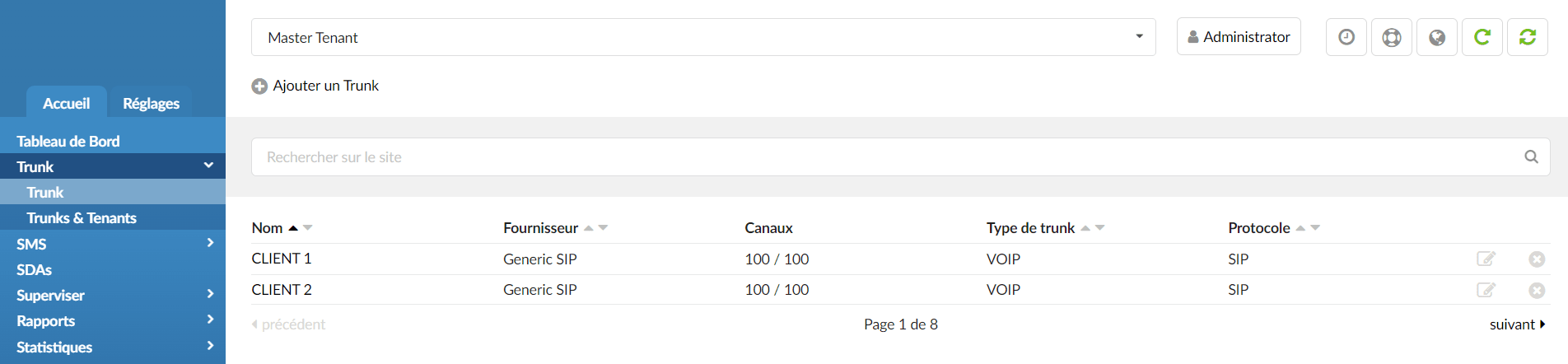
The trunks can be found in: Master Tenant > Home > Trunks. This screen lists all the trunks of the system with the following details:
- Name
SIP Trunk name. It can be a name or an IP address.
- Provider
Provider template name.
- Slices
Number of incoming/outgoing slots available for the trunk.
- Trunk type
Trunk type.
- Protocol
Protocol used by the trunk.
Trunks
Add/Edit a Trunk
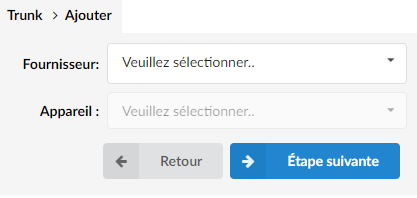
When adding a new trunk, the first step requires selecting "Provider" and "Device".
Search

The search bar filters trunks by name and provider.
Search
Provide information to search for here and press Enter to filter the records.
TIP:
Although a new trunk can be created without a provider template, it is recommended to first create a “provider template” in Settings > Operators.
Without a provider template, you can use the templates generated by default by PBXware (such as Generic SIP).
Edit a trunk
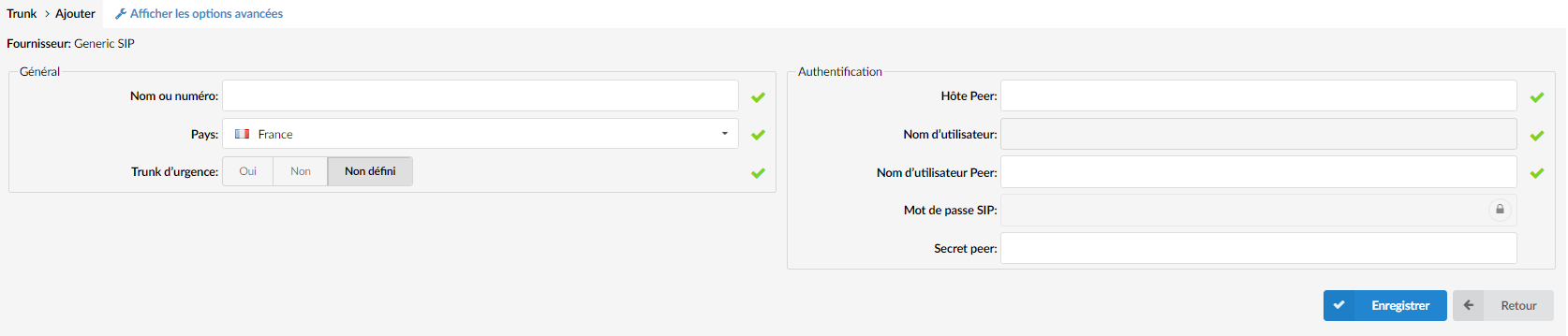
The second step of the trunk installation and modification command opens the following options:
General
Name or number
Some providers require this field to equal the DID number (for example, 55510205); but if you are connecting two systems, the IP address can also be used.
Country
Country where the service provider resides.
Emergency trunk
Indicates whether emergency services (police, ambulance, etc.) should be called via this trunk.
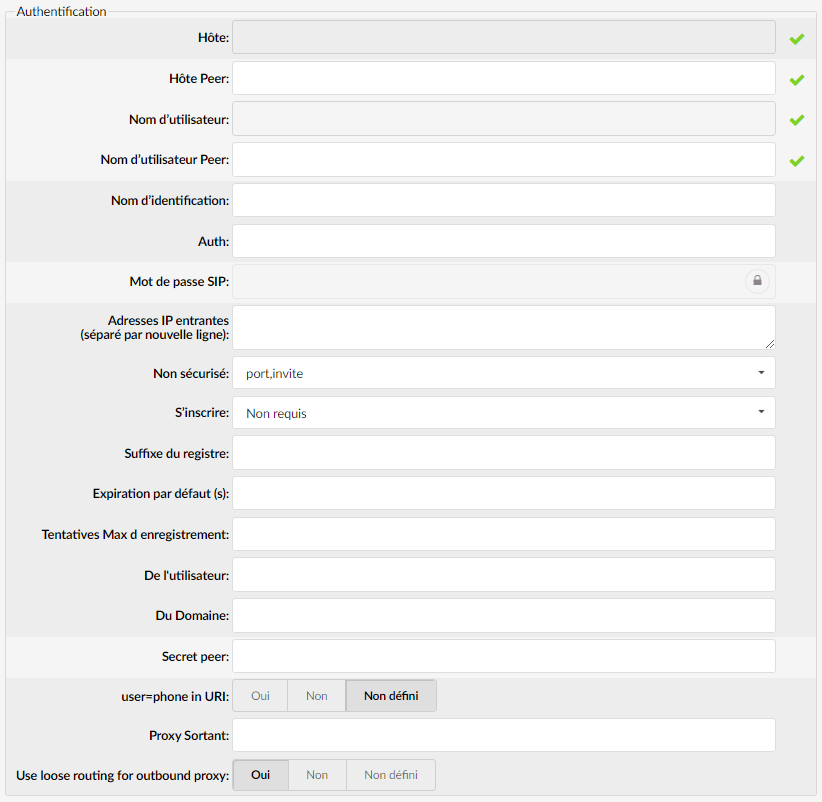
Authentication
Peer host
The IP address of a peer host system to which calls are sent.
Username
The username for authentication with the service provider.
Peer Username
The peer username for authentication with the service provider.
SIP password
The secret/password used to authenticate with the service provider.
Peer secret
The peer secret/password used to authenticate with the service provider.
Advanced options
General
These options are frequently used and are necessary for the normal operation of the trunk. Some of these fields are preconfigured with the default values. It is not recommended to change them.
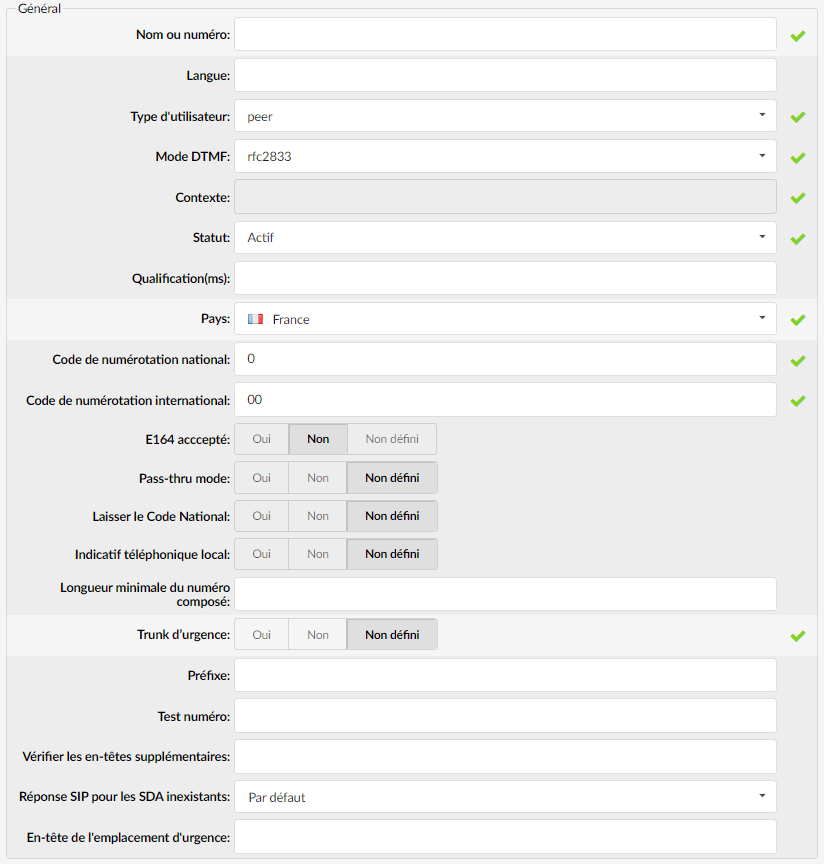
User type
User
The trunk only accepts incoming calls.
Peer
The trunk only makes outgoing calls.
Friend
The trunk makes incoming and outgoing calls.
DTMF (Dual Tone Multi-Frequency) mode
Trunk DTMF mode. A specific frequency (made up of two distinct tones) for each key so that it can be easily identified by a microprocessor. For example:
Inband : In-band audio (requires a 64 kbit codec – alaw, ulaw)
RFC2833: default DTMF mode.
Info: SIP INFO messages.
Auto : Asterisk will use rfc2833 by default for DTMF relay but will switch to in-band DTMF tones if the remote side does not indicate support for RFC2833.
Asterisk will use rfc2833 for DTMF relay by default but will switch to in-band DTMF tones if the remote side does not indicate support for rfc2833 in SDP.
Context
Contexts define a scope within PBXware. The trunk context cannot be modified and is the same as the trunk name or number.
Status
Set the trunk status on the system. (Active/Inactive/Suspended)
(For example, rather than deleting the trunk, you can disable it at the system level by selecting "inactive" here).
Qualification(ms)
Time interval in milliseconds at which a "ping" is sent to a host in order to know its status. In PBXware 5.1, 'Qualify' is set to 8000 by default.
(For example, you set this field to 2000, if more time than that is needed to reach the host, the host is considered offline).
National dialing code
National dialing code used at the trunk destination.
(For example, for the United States it is the number 1, for the United Kingdom or Germany it is the number 0).
E164 accepted
Indicates whether the trunk supports calls from destinations in E164 format.
(By enabling this option, each dialed number will be transformed into this form: COUNTRY_CODE + AREA_CODE + DIALED_NUMBER.
(For example, if you dial "5551020", the system will dial "12125551020".).
Pass-thru mode
Pass the dialed digits without any conversion (E164, National, Area code).

NOTE:
When active, "Exit National Code" and "Local Area Code" will be disabled.
NOTE:
If this option is disabled, PBXware will convert all dialed numbers to the E164 format (COUNTRY_CODE + AREA_CODE + DIALED_NUMBER) and then place a call to the converted number. If this option is enabled, PBXware will call the DIALED_NUMBER directly without performing any number conversion.
Leave National Code
In some countries, the national code is removed automatically. If it is set to "Yes", the national code will not be removed from the dialed number.
NOTE:
Before setting this option to “Yes”, go to “Settings > Servers)” and enable this option as well.
(For example, 035123456 will not be stripped of the leading 0).
Local phone code
Add the local area code to the dialed number, if required by the service provider. (By default, the local area code is removed when dialing).
(For example, the user dials 55510205, the area code is 212. If the call goes through this trunk, PBXware will dial 21210205).
Minimum length of the dialed number (6.6.1)
Set a minimum number of digits dialed for a call to leave the system.
NOTE:
The value must be greater than 0 for this to have an effect. The minimum dialed number length set on a trunk takes priority over the minimum dialed number length set on the system.
The length of the dialer number will be matched just before dialing through the trunk. The length will also include any required prefixes and codes that are added to the dialed string.
Example: If a user dials the number 70, the national and international codes will be added to the number and we get 00170. The length of the dialed number is then 5 and this number will be matched to the option value.
Prefix
Value added to all dialed numbers passing through the trunk.
(For example, prefix 5 + dialed number 123 = the system dials 5123).
Test number
This is the number that the trunk will attempt to call when trunk monitoring is enabled. If the response is not: ANSWER, BUSY, CANCEL, or NO ANSWER, this call is considered non-functional and the monitoring system will send a notification email.
Check additional headers
Some trunk providers may send incoming INVITEs with additional headers (X-Mnet-InLeg) containing custom strings. When a call enters PBXware and the call flow results in some kind of call forwarding to the provider, it may request the same custom header with the same value in order to know which call is involved.
For example:
System 1 > Trunk > Custom SIP Headers > X-Mnet-Inleg: 1alpha457908
System 2 > Trunk > Check additional headers > X-Mnet-Inleg
System 1 calls system 2. System 2 must detect the X-Mnet-Inleg header and keep it.
NOTE:
Please note that if a phone transfer is used, the headers CANNOT be preserved. The reason is that after the transfer is initiated, the call is treated as a completely new call and we cannot obtain the information about the preserved headers and their values. If # is used for the transfer, everything should be fine.
NOTE:
When you search for additional headers, make sure to avoid using all the default invite headers.
Here is the list of unsupported headers that must not be modified: “via”, “from”, “to”, “cseq”, “call-id”, “contact”, “allow”, “user-agent”, ” accept-language”, “supported”, “allow-events”, “max-forwards”, “content-type”, “content-length”, “p-asserted-identity”, “privacy” and “remote-party-identifier”.

For example: Trunk > Show advanced options > Check additional headers
SIP response for nonexistent DIDs
Select the SIP response that will be sent to a provider if a DID that was called does not exist on the system
The following options will be used to send to a provider if a DID that was called does not exist:
- By default
- 403 – Call rejected
- 404 – Not Found
- 408 – Request Timeout
- 410 – Gone
- 480 – Temporarily Unavailable
- 484 – Address Incomplete
- 486 – Busy Here
- 488 – Not Acceptable Here
- 500 – Internal Server Error
- 501 – Not Implemented
- 502 – Bad Gateway
- 503 – Not Implemented
NOTE:
Please note that if the “Default” option is chosen, PBXware will behave as if this option had never been set. In addition, the option set on “Trunk” overrides the option set on “Servers” if anything other than “Default” is chosen. If “Default” is set on “Trunk”, the option set on “Servers” is applied.
Emergency location header
Set an emergency location header.
NOTE:
This option is reserved only for users located in the United States to locate 911 calls (using the Ray Braum Act)
Authentication

Host
The IP address to which the host trunk connects.
NOTE:
Please note that only a single IP can be added as a host; you cannot add multiple IPs.
Authname
Value assigned to the Digest username = SIP header.
Auth
Authenticate for outbound calls to other domains.
Inbound IP addresses (separated by new line)
You can limit SIP traffic to and from this peer to a certain IP or a certain network.
If your trunk provider has several IP addresses from which it sends traffic, all these IP addresses must be listed here, separated by a new line.
Insecure
Generally used to allow incoming calls while having a “friend” type entry defined with a username and password
Example:
- Port – Ignores the port number from which the request originates.
- Invite – Does not require authentication of incoming INVITEs.
- Port-Invite – Does not require an initial INVITE to authenticate and ignores the port from which the request originates.
- Very – Ignore authentication (username/password).
Sign up
Registration method on the remote server.
(For example, providers may require a different form of registration on their server. You can choose between “registration not required”, “register with a phone number”, “register with a username”, “register with identification name”, “register with authname@host”, and “register with authname@trunk-name”).
Registry suffix
The service provider may require different registration methods for its services. Select the appropriate method as required by the provider.
Default expiry (s)
Registration timeout in seconds (the default value is 3600).
Max registration attempts
Maximum number of registration attempts (default value is 10).
From the user
What to display when calling this peer FROM asterisk.
Of the domain
Domain data is required by some providers.
(For example, if your provider needs this information, indicate the exact value here).
user=phone in URI
If this option is set to “Yes”, “user=phone” is added to the uri that contains a valid phone number.
Outbound Proxy
Send the outbound signaling to this proxy, not directly to the peer.
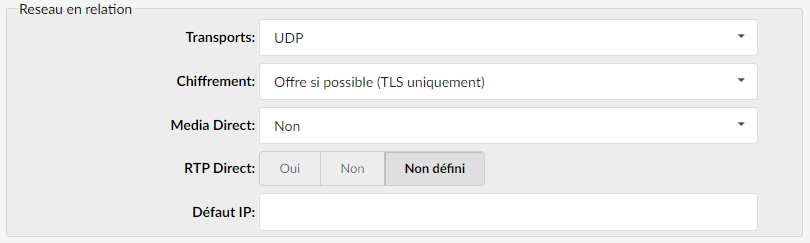
Related network

These options define important network-related values concerning NAT.
Transports
Type of transfer protocol that will be used on PBXware.
UDP
(User Datagram Protocol)
With UDP, computer applications can send messages, in this case called datagrams, to other hosts on an IP (Internet Protocol) network without prior communication to set up special transmission channels or data paths.
TCP
(Transmission Control Protocol)
Provides reliable, ordered and error-checked delivery of a byte stream between programs running on computers connected to an intranet or the public Internet.
TLS
(Transport Layer Security)
Cryptographic protocol that provides security for communications over the Internet.[1] They use asymmetric cryptography for key exchange authentication, symmetric encryption for confidentiality, and message authentication codes for message integrity.
NOTE:
Changing the transport to TLS will automatically set the encryption to Required. If you change the encryption to another value and save, it will be reset to Required in the background.
- Encryption
This option enables or disables encryption in the PBXware transport.
Available options:
- Offer if possible (TLS only)
Offer encryption only if possible and only with the TLS protocol.
- Required
Encryption always required.
- Offer (TLS only)
Always offer encryption with TLS.
Media Direct
If you allow RTP (Real-time Transport Protocol - RTP, is a network protocol for streaming audio and video over IP networks) voice traffic to bypass PBXware.
NOTE:
All enhanced services for the extension must be disabled.
NOTE:
Some devices do not support it, especially if one of them is behind a NAT.
Direct RTP
Here, you can enable or disable the new experimental direct RTP configuration. Setting this value to “Yes” configures the call directly with peer-2-peer media without re-invites. It will not work for video and cases where the called party sends RTP payloads and fmtp headers in the 200 OK that do not match the callers' INVITE. It will also fail if Media Direct is enabled while the device is actually behind NAT.
Default IP
The IP address that will be used until registration.
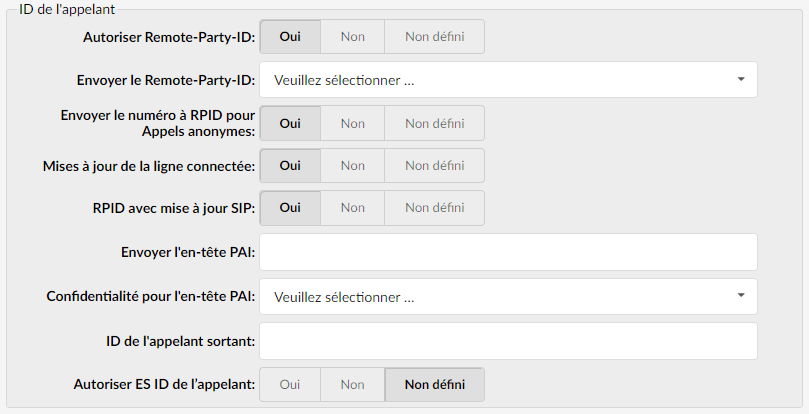
Caller ID

Allow Remote-Party-ID
Define whether PBXware allows the "Remote-Party-ID" header
Send the Remote-Party-ID
Select whether “Remote-Party-ID” should be added to the URI.
The options are as follows:
- Use Remote-Party-ID – Use the “Remote-Party-ID” header to send the identity of the remote party.
- Use P-Asserted-Identity – Use the “P-Asserted-Identity” header to send the identity of the remote party.
Send the number to RPID for Anonymous Calls
Select whether to send the original caller ID in RPID.
NOTE:
During anonymous calls, FROM and PAI are presented as anonymous, while PAI must also send the original caller ID. Some providers require this parameter and would not present an anonymous caller ID otherwise.
Connected line updates
Enable or prevent sending RPID updates once the call is established.
NOTE:
This option is particularly useful with certain providers. If Use PAI is enabled, calls may begin to be dropped shortly after the update is sent. Setting "Connected line updates" to "No" will prevent these call drops.
RPID with SIP update
In some cases, the only method by which a connected line change can be immediately transmitted is with a SIP UPDATE request. If they are communicating with another Asterisk server and users want to pass such UPDATE messages to it, they must enable this option. Otherwise, we will have to wait until we can send a re-invite to transmit the information.
Send the PAI header
The P-Asserted-Identity contains the caller ID information for the call on the SIP INVITE packet. This is the acceptable way to specify privacy information for calls. This field allows users to send the preferred PAI header using one of the following variables:
- %CALLERIDNUM%
- %EXT%
Privacy for the PAI header
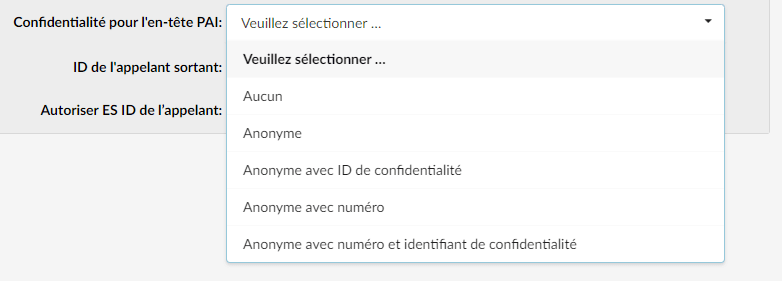
Set the privacy of a PAI header
Users can select one of the privacy options from the drop-down menu:
- None – The caller ID name and number are not anonymous when calling out of the trunk.
- Anonymous – The caller ID name and number are anonymous when calling out of the trunk.
- Anonymous with privacy ID – The caller ID name and number are anonymous when dialing out of the trunk, but the privacy ID is added to the SIP header.
- Anonymous with number – The caller ID name is set to anonymous, but the number is displayed.
- Anonymous with number and privacy ID – The caller ID name is set to anonymous, but the number is displayed and the privacy ID is added to the SIP header.
NOTE:
If nothing is set in this field, privacy will default to "None".
Outbound caller ID
If the caller ID is not set by the UAD, the value provided here will be used for all outgoing calls.
Allow ES caller ID
This option defines whether the ES (enhanced services) caller ID will be allowed on this trunk. Any extension can set a custom caller ID for each trunk on the system. When this option is set to "Yes", this caller ID will be used instead of the trunk's outbound caller ID.
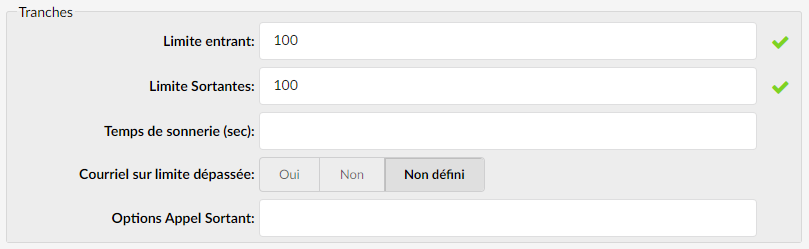
Slices

Inbound limit
Set the number of simultaneous inbound calls the Trunk can handle
(For example, setting this option to 4 means that 4 simultaneous incoming calls are possible. Any additional call will receive a busy tone.)
Outbound limit
Set the number of simultaneous outbound calls the Trunk can handle.
(For example, setting this option to 4 means that 4 simultaneous outgoing calls are possible. Any additional call attempting to use this trunk will be rejected or redirected to other trunks depending on what is defined in the system/Extensions.)
Ring time (sec)
Set the ring delay (in seconds) for outbound calls via the Trunk
Email on limit exceeded
Send an email when the outbound limit is reached
Outbound call options
Define advanced dialing options for all outbound calls
Codecs
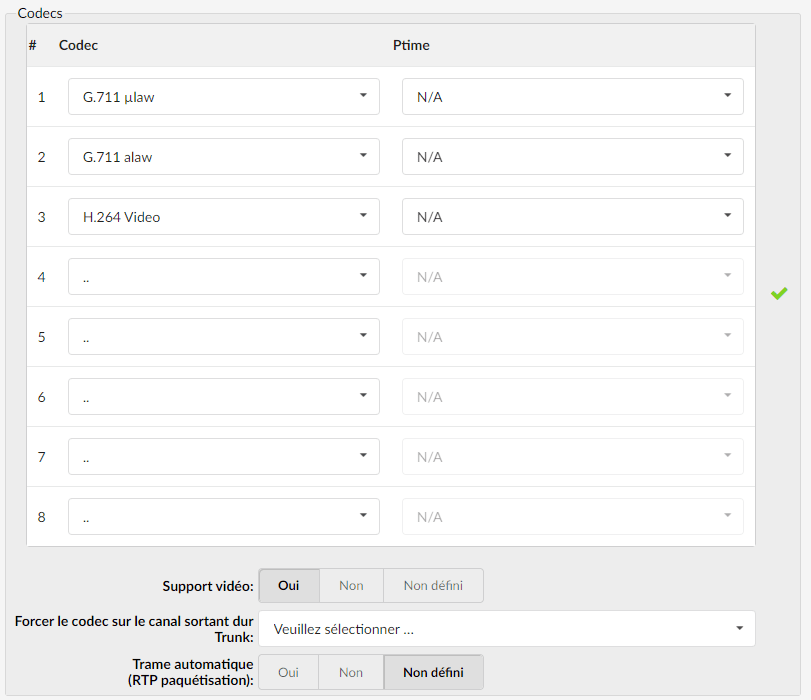
Codecs are used to convert voice signals from analog to digital and vice versa. These options define the preferred codecs used by the extension.
TIP:
If some of the desired codecs are disabled (cannot be selected), go to Settings > Servers > Edit > Default codecs and enable them in the Local & Remote group.
Codecs
- ITU G.711 ulaw – 64 Kbps, sample-based, used in the United States.
- ITU G.711 alaw – 64 Kbps, sample-based, used in Europe.
- ITU G.722 – 64 Kbps.
- Opus – 6-510 Kbps, 2.5 ms – 60 ms frame size.
- ITU G.723.1 – 5.3/6.3 Kbps, 30 ms frame size.
- ITU G.726 – 16/24/32/40 Kbit/s.
- ITU G.729 – 8 Kbit/s, 10 ms frame size.
- GSM – 13 Kbps (full rate), 20 ms frame size.
- iLBC – 15 Kbps, 20 ms frame size: 13.3 Kbps, 30 ms frame size.
- Speex – 2.15 to 44.2 Kbps.
- LPC10 – 2.5 Kbit/s.
- 261 Video – Used on ISDN lines with a resolution of 352×288.
- 263Video – Low-bit-rate encoding solution for videoconferencing.
- 263+ Video – Extension of H.263 that provides additional features that improve compression on packet-switched networks.
- 264Video – Offers an excellent balance between quality and size.
- Ptime
Time in ms – represents the amount of audio recorded in itself that each packet will have
- Video support
Set this option to Yes to enable SIP video support.
- Force the codec on the Trunk's outbound channel
With this option, you can force the use of the codec for outbound trunk calls.
- Automatic framing (RTP packetization)
If auto-framing is enabled, the system will choose the packetization level based on the preferences of the remote endpoints.
(For example, if the remote end requires the RTP packets to be 30 ms, your PBXware system will automatically send packets of this size if this option is enabled. The default value is set to 20 ms and also depends on the minimum frame size of codecs like G.729 which has 10 ms at minimum).
Additional configuration

This option is used to provide additional configuration parameters for the SIP, IAX, and MGCP configuration files. The values provided here will be written to these configuration files.
Custom SIP headers (separated by a new line)
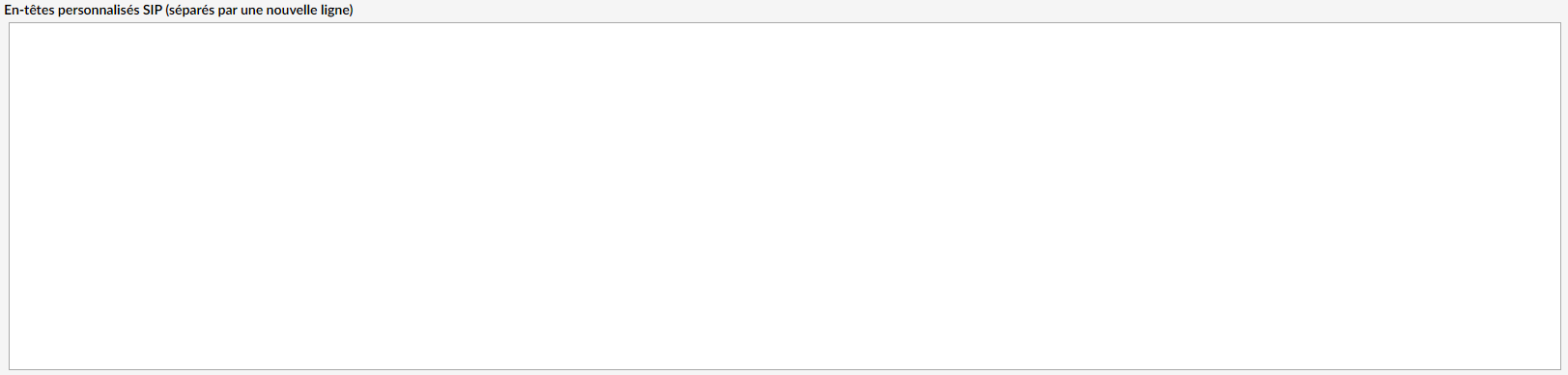
The SIP header is a function of SIP. These headers help convey message attributes to ensure that packets of information travel along the correct path when communicating between devices existing on separate networks.
In order to use custom SIP headers, here are the variables that can be used:
- %CALLERIDNUM%
- %EXT%
PSTN (Public Switched Telephone Network)
NOTE:
To see these options, the user must first create a PSTN trunk.
To do this, a PSTN card is required.
These options can be found when adding a trunk and selecting the device.
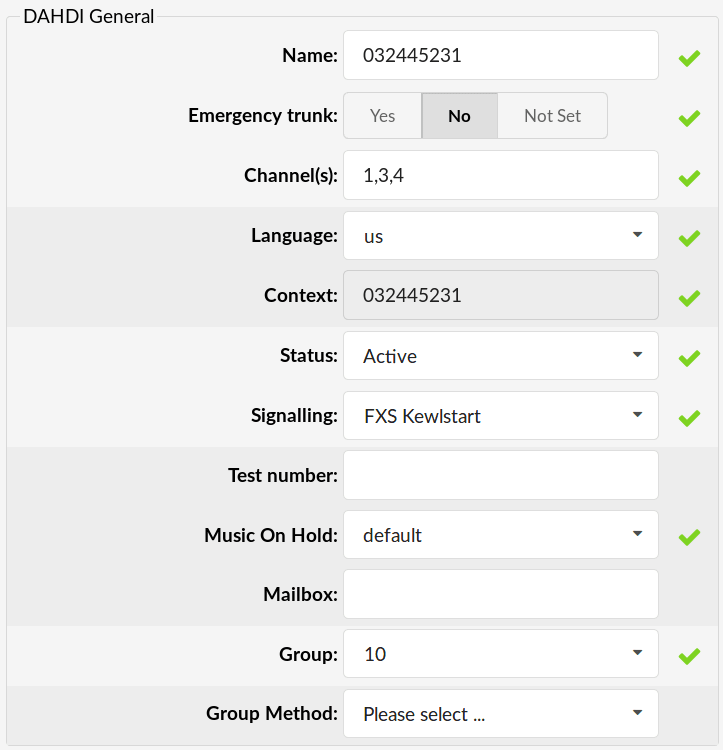
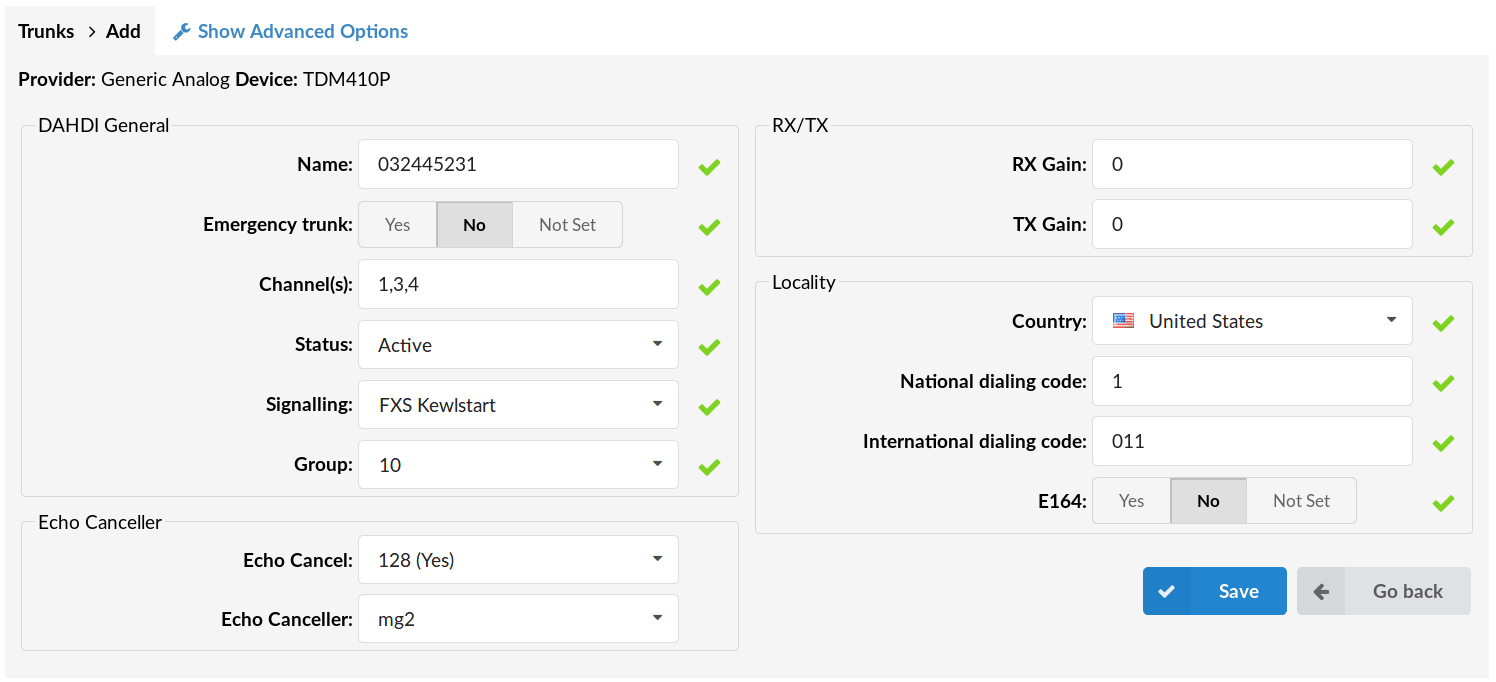
General DAHDI options
Name
Trunk name/number
Slice
Which card channels are used, separated by commas.
(For example, if channels 2 and 4 are used on your card, set "2, 4" here. If all four channels are used, set "1-4" here).
Status
Set the trunk status
Signaling
Signaling protocol for analog circuits that better detects remote disconnections.
Group
Each PSTN trunk must belong to a group. Selecting any group will enable the trunk.
NOTE:
with most cards, this option is automatically detected and set. If this is the case with your card, do not modify this field.
Echo canceller
Echo cancellation
Enable the echo canceller.
Echo canceller
Select the type of echo canceller.
RX/TX
RX Gain
Receive the signal's decibel.
(For example, if the incoming sound is weak and you do not hear the other party well, set this option to 2. This should increase the incoming sound by 2 decibels).
TX Gain
Decibel of the transmit signal.
(For example, if the outgoing sound is weak and the other party does not hear you well, set this option to 2. This should increase the outgoing sound by 2 decibels).
Locality
Country
Destination of the trunk connection.
(For example, if your system is located in the United States, select USA here)
National dialing code
National dialing code used at the trunk destination.
(For example, for the United States it is 1, for the United Kingdom and Germany it is 0.)
E.164
Indicates whether the trunk supports dialing destinations in E164 format. By enabling this option, each dialed number will be formatted as follows: COUNTRY_CODE+AREA_CODE+DIALED_NUMBER.
(For example, if you dial 5551020, the system will dial 12125551020).
Advanced options

DAHDI General
Language
Default language.
Context
Contexts define a scope within PBXware.
Status
Trunk status
- Active
- Inactive
Signaling
Signaling method
- E&M
- E&M Wink
- FXS Loopstart
- FXS Groundstart
- FXS Kewlstart
- FXO Loopstart
- FXO Groundstart
- FXO Kewlstart
- PRI CPE side
- PRI Network side
- BRI CPE side
- BRI Network side
- BRI CPE PTMP
- BRI Network PTMP
Test number
This is the number that the trunk will attempt to call when trunk monitoring is enabled. If the response is not: ANSWER, BUSY, CANCEL, or NO ANSWER, this call is considered non-functional and the monitoring system will send a notification email.
Music on hold
Select the music class to be used for music on hold. If not specified, the “Default” will be used.
Inbox
Define a voicemail context.
Group method
This option specifies how to choose a channel to use in the specified group.
The four possible options are:
- g : select the non-busy DAHDI channel with the lowest number (i.e. the ascending sequential hunt group).
- G: select the non-busy DAHDI channel with the highest number (i.e. the descending sequential hunt group).
- r: use a circular search, starting from the next highest channel than the last time (i.e. an ascending rotary hunt group).
- R: use a circular search, starting from the lowest channel following the last time (i.e. a descending rotary hunt group).
RX/TX
RX Wink
Set the synchronization parameters
- Pre-flash (50 ms)
- Pre-flash (50ms)
- Flash (150 ms)
- Receiver flash time (250 ms)
- Hook flash (300 ms)
- Anti-bounce timeout (600 ms)
RX Gain
Receive the signal's decibel.
(For example, if the outgoing sound is weak and the other party does not hear you well, set this option to 2. This should increase the outgoing sound by 2 decibels).
TX Gain
Decibel of the transmit signal.
(For example, if the outgoing sound is weak and the other party does not hear you well, set this option to 2. This should increase the outgoing sound by 2 decibels).
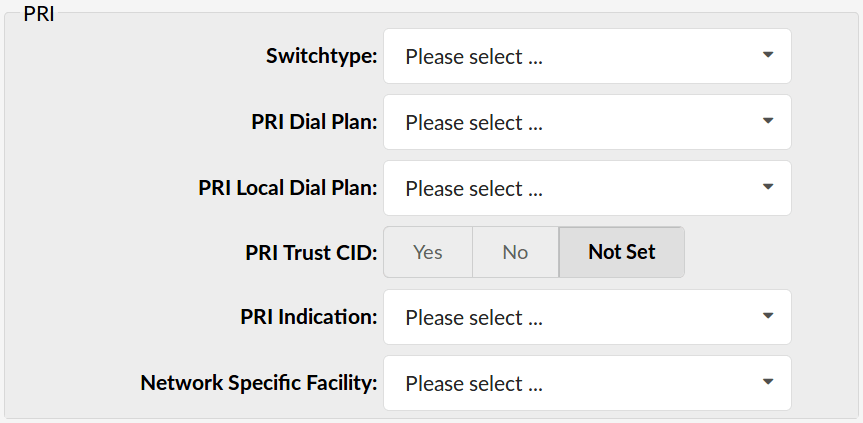
PRI

Switch type
Example:
- National ISDN 2
- Nortel DMS100
- AT&T 4ESS
- Lucent 5ESS
- EuroISDN
- Old national ISDN
PRI dial plan
Set the dial plan used by certain switches
Example:
- Unknown
- Private ISDN
- Local RNIS
- National ISDN
- International RNIS
PRI local dial plan
Set the dial plan for locally called destinations
Example:
- Unknown
- Private ISDN
- Local RNIS
- National ISDN
- International RNIS
PRI trust CID
Trust the caller ID information provided
PRI indication
How to signal "busy" and "congestion" on a PRI
Example:
- Out of band – Busy/congestion signal out of band with RELEASE/DISCONNECT
- In-band – Busy/congestion signal using in-band tones
Network-specific installation
If required by the switch, select the network-specific installation
Example:
- None
- sdn
- megacom
- accunet
Caller ID
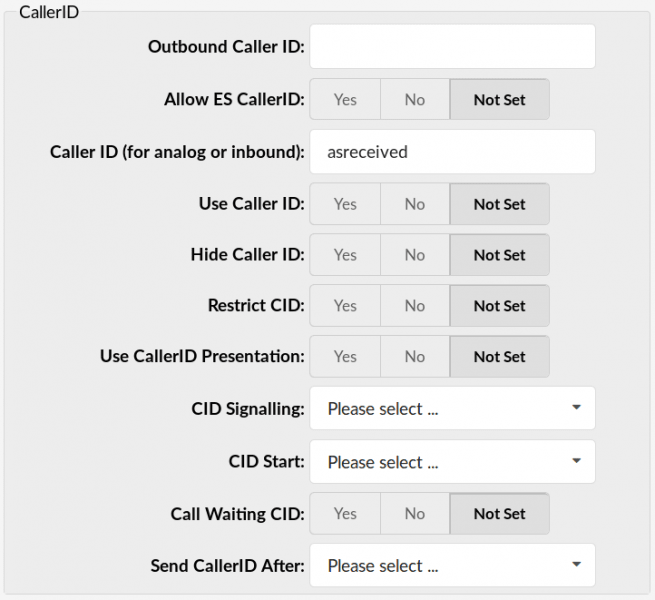
Outbound caller ID
Caller ID set for all outbound calls where the caller ID is not defined or not supported by a device.
Allow ES caller ID
This option defines whether the ES (Enhanced Services) caller ID will be allowed on this trunk. Any extension can set a custom caller ID for a trunk on the system. When this option is set to "yes", the caller ID will be used instead of the trunk's outbound caller ID.
Caller ID (for analog or inbound)
Caller ID can be set to "as received" or to a specific number if you want to override it.
NOTE:
Caller ID can only be transmitted to the public telephone network with supported hardware, such as a PRI. It is not possible to set external caller ID on analog lines.
(For example, “as received”, 555648788)
Use the caller ID
Whether or not to use the caller ID.
Hide caller ID
Whether or not to hide the outbound caller ID.
Restrict the caller ID
Whether or not to use caller ID presentation for the outbound call sent by the calling switch.
Use caller ID presentation
Whether or not to use caller ID presentation for the outbound call sent by the calling switch.
Caller ID start
Which signals the start of caller ID
Example:
- Ringing = a ring signals the departure.
- Polarity = polarity reversal signals the start.
Caller ID call waiting
Whether or not to enable call waiting on FXO lines.
Send the caller ID after
Some countries, such as the United Kingdom, have different ring patterns (ring-ring), which means that the caller ID must be set later, and not just after the first ring, as is the case by default.
Echo canceller
Echo cancellation
Echo cancellation level enabled.
Echo training
Briefly mute the channel, for 400 ms, at the start of the conversation, cancelling the echo. (Use this only if "Echo Cancellation" does not work as expected).
Echo cancellation when bridged
Enable echo cancellation when bridging. Generally not necessary, and in fact undesirable, to cancel echo when the circuit path is entirely TDM.
Call functions
Call waiting
Whether or not to enable call waiting on FXO lines.
Three-way call
Supports three-way calls. If enabled, the call can be put on hold and another call can be made.
Transfer
Supports call transfer and also allows call parking (replaces the “canpark” setting).
NOTE:
Requires the “Three-way calling” option set to “Yes”.
Can call forwarding
Supports call forwarding.
Callback
Whether or not to support the “*69” callback. Dials the extension number of the last caller.
Overlap dialing
Enables overlap dial mode (sends overlapping digits).
Pulse dialing
Use pulse dialing instead of DTMF. Used by FXO devices (FXS signaling).
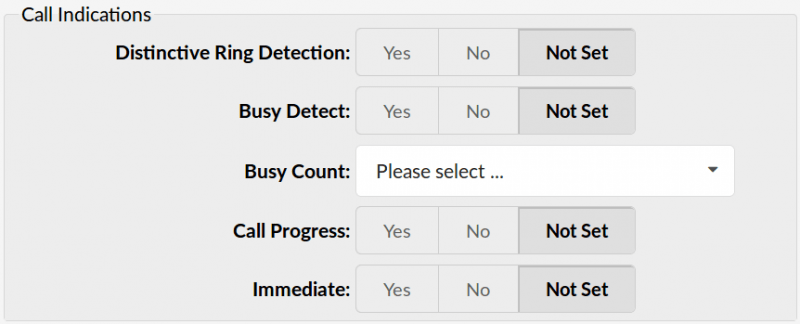
Call indications

- Distinctive ring detection
Whether or not to perform distinctive ring detection on FXO lines.
Busy detection
Enable monitoring of the busy beep pattern.
Account busy
How many busy tones to wait for before hanging up. Larger settings reduce the likelihood of random hang-ups. "Busy detection" must be enabled.
- 4
- 6
- 8
Call progress
Easily detect false hang-ups.
Immediate
If the channel is answered immediately or if the simple switch provides the tone, read the digits, etc.
Call groups

Call groups
Which group is allowed to pick up incoming calls by dialing *8. The default value is empty.
Group call pickup
Which groups are allowed to pick up calls by dialing *8. The default value is empty.
FXS channels
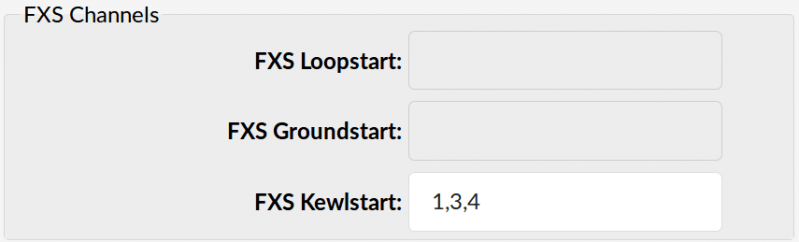
FXS Loopstart
Signals to the other end that it wants dial tone by short-circuiting the wires.
FXS Groundstart
Signals to the other end that it wants dial tone by grounding one of the wires.
FXS Kewlstart
Signaling protocol for analog circuits that better detects remote disconnections.
(For example, select the channels of the card to monitor with it. For example "1, 4" or "1-4". These numbers must match the "Slot(s)" field).
Locality
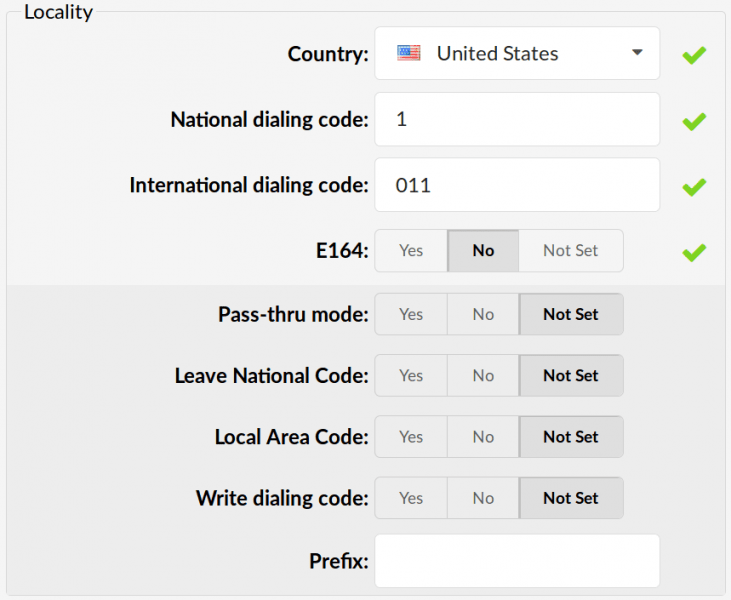
Country
Destination of the trunk connection.
(For example, if your system is located in the United States, select USA here)
National dialing code
National dialing code used at the trunk destination.
(For example, for the United States it is 1, for the United Kingdom and Germany it is 0.)
International dialing code
International dialing code at the trunk destination.
(For example, for the United States, the numbers are 011. For the United Kingdom and Germany, 00, etc.)
E.164 Accepted
Indicates whether the trunk supports dialing destinations in E164 format.
(For example, enabling this option will reformat any dialed number into the following form COUNTRY_CODE+AREA_CODE+DIALED_NUMBER. For example, if you dial 5551020, the system will dial 12125551020).
Pass-thru mode
If this option is enabled, the dialed number is passed through the trunk without modification.
Leave National Code
In some countries, the national code is removed automatically. If it is set to "Yes", the national code will not be removed from the dialed number.
NOTE:
Before setting this option to “Yes”, go to “Settings: Servers” and enable this option as well.
(For example, John dials 121255510205. If this option is enabled, the entire number will be displayed.)
Local phone code
Add the local area code to the dialed number, if required by the service provider. (By default, the area code is removed when dialing)
(For example, the user dials 55510205, the area code is 212. If the call goes through this trunk, PBXware will dial 21255510205).
Write the dial code
Should the national and international prefix be written in the configuration files.
(For example, enable this option if the provider requires it).
Prefix
Value added to all dialed numbers passing through the trunk.
(For example, if the prefix is 5, the dialed number is 123, the system will dial 5123).
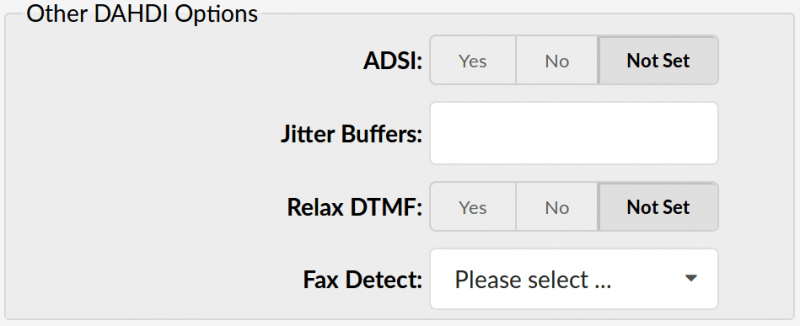
Other PSTN options

ADSI (Analog Display Services Interface)
Enable remote control of the screen phone with the soft keys. (Only if you have compatible ADSI CPE equipment).
Jitter Buffers
Configure the Jitter Buffers. Each one lasts 20 ms.
Relax DTMF
If you experience problems with DTMF detection, you can relax the DTMF detection settings.
Fax detection
Enable fax detection
Example:
- Both
- Inbound
- Outbound
- No
Scope
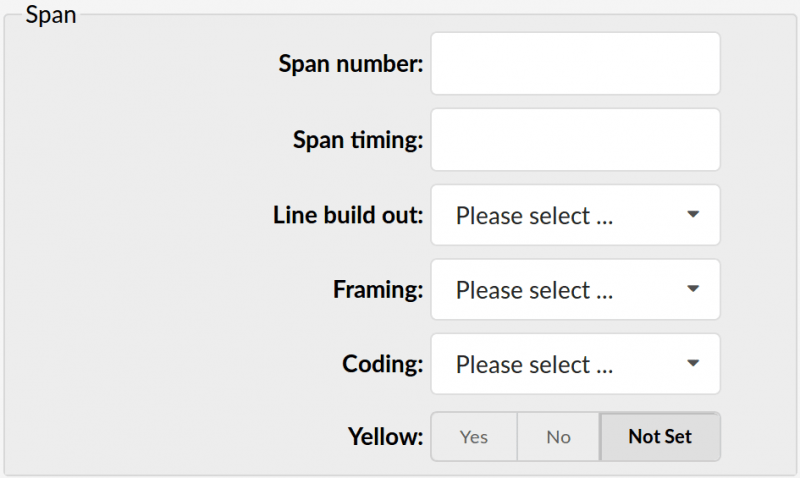
Scope number
Range number.
Scope duration
How to synchronize timing devices
Example:
- 0 – do not use this range as a synchronization source
- 1 – use as main synchronization source
- 2 – set as secondary, and so on
Line Build Out
Length of the last leg of the connection and is set to zero if the length is less than 133 feet
Example:
- 0 db (CSU) / 0-133 feet (DSX-1)
- 133-266 feet (DSX-1)
- 266-399 feet (DSX-1)
- 399-533 feet (DSX-1)
- 533-655 feet (DSX-1)
- -7.5db (CSU)
- -15db (CSU)
- -22.5db (CSU)
Management
How to communicate with the hardware at the other end of the line
Example:
- For T1: the framing is one of ami d4 or esf.
- For E1: the framing is one of ami cas or ccs.
Encoding
How to encode communication with the other hardware at the other end.
Example:
- For T1: the coding is one of ami or b8zs
- For E1: the encoding is one of ami or hdb3 (E1 may also need crc)
Yellow
Indicates whether the yellow alarm is transmitted when no channel is open.
Dynamic scope
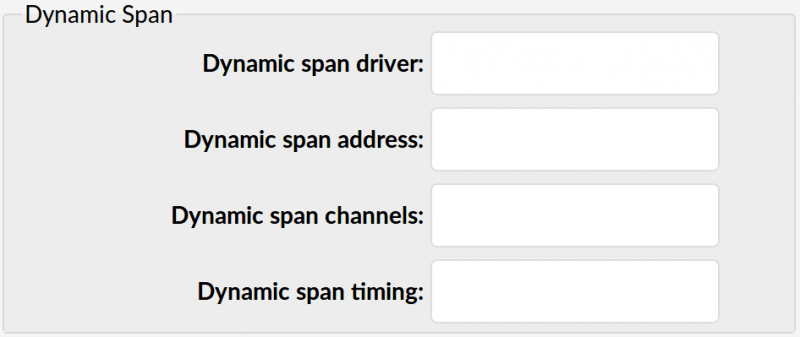
Dynamic range driver
The name of the driver.
(Example: eth)
Dynamic scope address
Driver-specific address (such as a MAC for eth).
Dynamic range channels
Number of channels.
Dynamic range synchronization
Sets the synchronization priority, as for a normal range. Use ‘0’ so it is not used as a synchronization source, or give them priority as primary, secondary, etc.
FXO channels
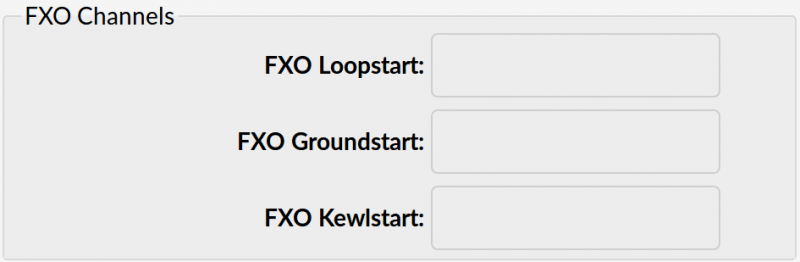
FXO Loopstart
Channels are signaled using the FXO Loopstart protocol.
FXO Groundstart
Channels are signaled using the FXO Groundstart protocol.
FXO Kewlstart
Channels are signaled using the FXO Kewlstart protocol.
PRI channels
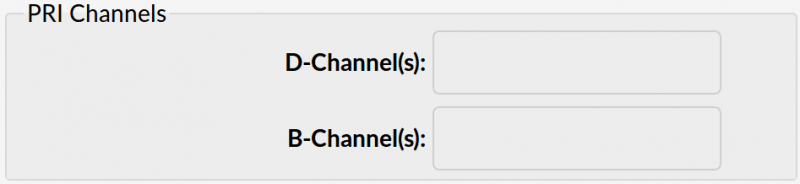
D channels
For example, each ISDN BRI card has 1 D- channel (control).
B channels
For example, each ISDN BRI card has 2 B- channels (data)
Custom trunks

The custom trunks are used in rare cases where the PBXware trunk configuration features do not offer enough flexibility for configuring certain providers. In such cases, users must create a custom trunk and then modify the dial plan in the trunks-in.conf file.
Search
Users can search for the existing custom trunks using the search bar.
Trunk
Displays the name of the custom trunk.
NOTE:
Hovering over a custom trunk's name and clicking on it will prompt users to the « custom trunk -> Edit » window.
Context
Displays the context of the specific custom trunk.
Click this button to edit the existing custom trunk.
NOTE:
By clicking on the “Edit” button, users will be prompted to access a “Custom trunk -> Edit” window in which they can modify the details concerning existing custom trunks.
Click this button to delete the existing custom trunk.
NOTE:
When deleting the existing custom trunk, the warning message is displayed: "Are you sure you want to delete XYZ?". If a user confirms their deletion action by clicking "OK", the specified custom trunk will be deleted.
Add a custom trunk

Once this button is clicked, users will be prompted to another window where they can create new custom trunks.
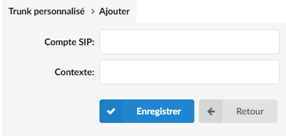
SIP account
Enter the name of a custom trunk that will be visible in the PBXware GUI.
NOTE:
Please note that spaces are not allowed when adding the name of a custom trunk. Please refer to the additional visual explanation.
Example names of custom trunks
- Without space (accepted) GlobalTrunk
- With space (not accepted) Global Trunk
Context
Enter the context by which the system sees this custom trunk. It will be used when editing the dialplan.
(For example, if a user defines the context as "gl_trunk", then, when sending calls to the trunk, it will use it to refer to the given trunk).
Trunks & Tenants
This page allows you to assign SIP trunks to tenants. Tenants will only be able to use the trunks assigned to them.
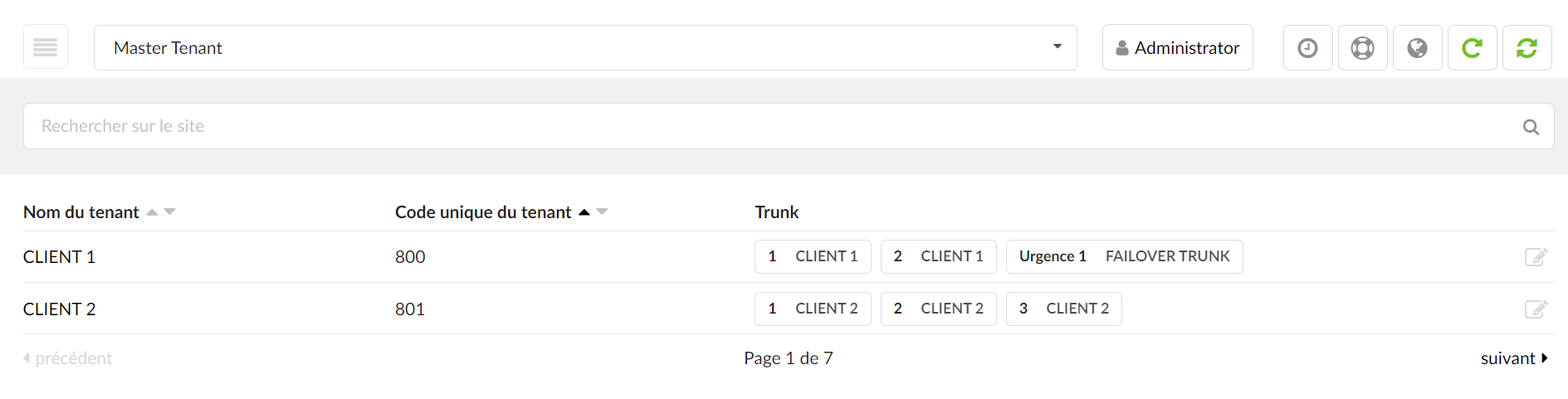
- Tenant name
Provides a list of all tenants that currently exist on the system. Clicking on a tenant's name will open a page where you can assign lines to that tenant.
- Unique tenant code
Provides a list of the tenant codes corresponding to the tenant name in the first column.
- Trunk
displays the SIP trunks which are defined as primary/secondary/tertiary and the emergency trunks which are defined as primary/secondary/tertiary.
Edit
Click the edit button if you want to modify the trunk configuration for a specific tenant.
By clicking on this button, it is possible to assign trunks/emergency trunks to your tenant or to remove them. In addition, it is possible to set the priorities of the trunks/emergency trunks and the Caller IDs for each trunk.
Allowed trunks

Choose the trunks among all the created trunks that will be used on this tenant for incoming/outgoing calls. Only the Trunks chosen here will be available in the fields below.
Default trunk
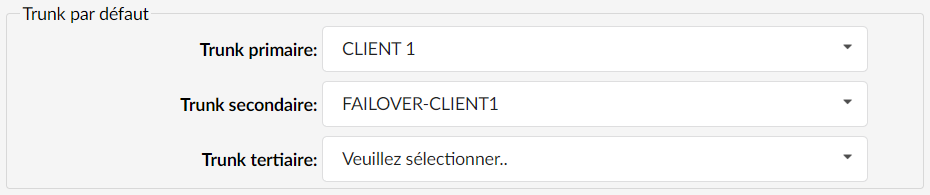
Select the primary, secondary, or tertiary trunk by default. Only the trunks defined in the Allowed trunks can be selected.
NOTE:
If the primary trunk is working correctly, the tenant will not be able to use the secondary or tertiary trunk, so make sure to set the desired trunk as primary.
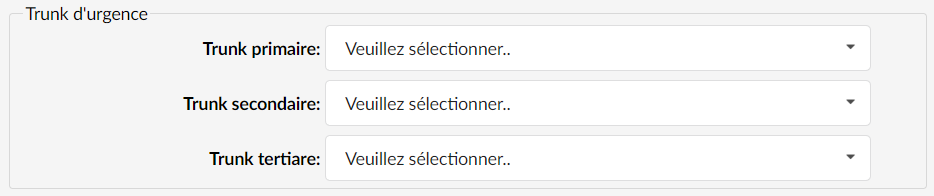
Emergency trunks
In this section, define which trunk will be set as the primary/secondary or tertiary emergency line.
Through this trunk, emergency service numbers are dialed. Only the trunks defined in the Allowed trunks field can be selected.
Caller identification
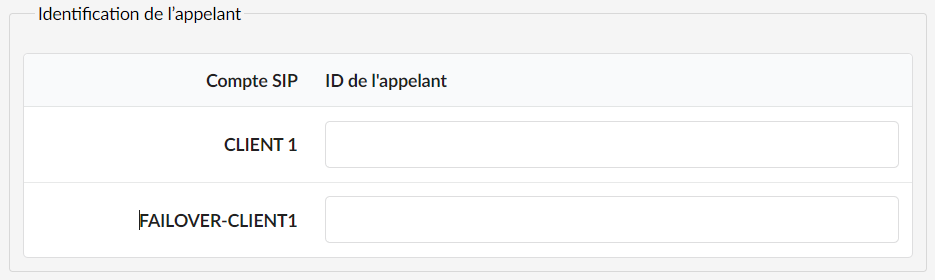
Here, you can define a custom CallerID for each trunk. Only the trunks defined in the Allowed Trunks field are visible in this section.
Adding a trunk to the list of allowed trunks will automatically add a caller ID entry in this section. Removing a trunk from the list of allowed trunks will also remove the caller ID entry for that trunk.