



User guide
The Online Supervisor (OSC, or Oinline Self Care) is the extension's administration interface used by the extension owner. This supervisor allows you to configure some of your settings, such as changing your password, your PIN code, your voicemail, etc…
But you can also view statistics about your calls, and enable, configure, or disable the enhanced services you have access to.
Note for the admin: See Enhanced services > Introduction to learn how to delegate access to enhanced services.
Online Supervisor login
The supervisor online is accessible from:
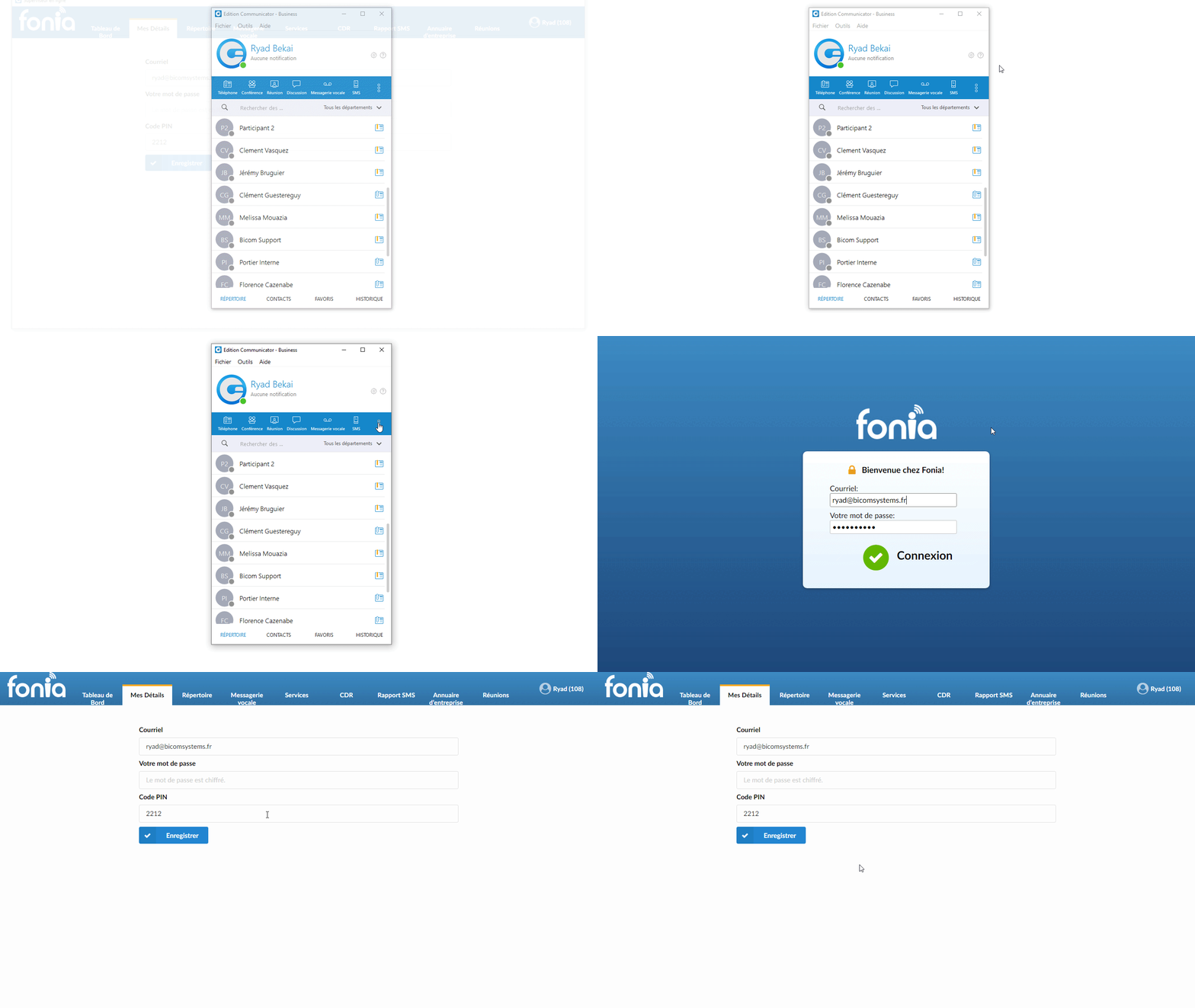
- The Communicator application
By clicking on the three buttons in the main banner and then on Supervisor online.
- Your browser
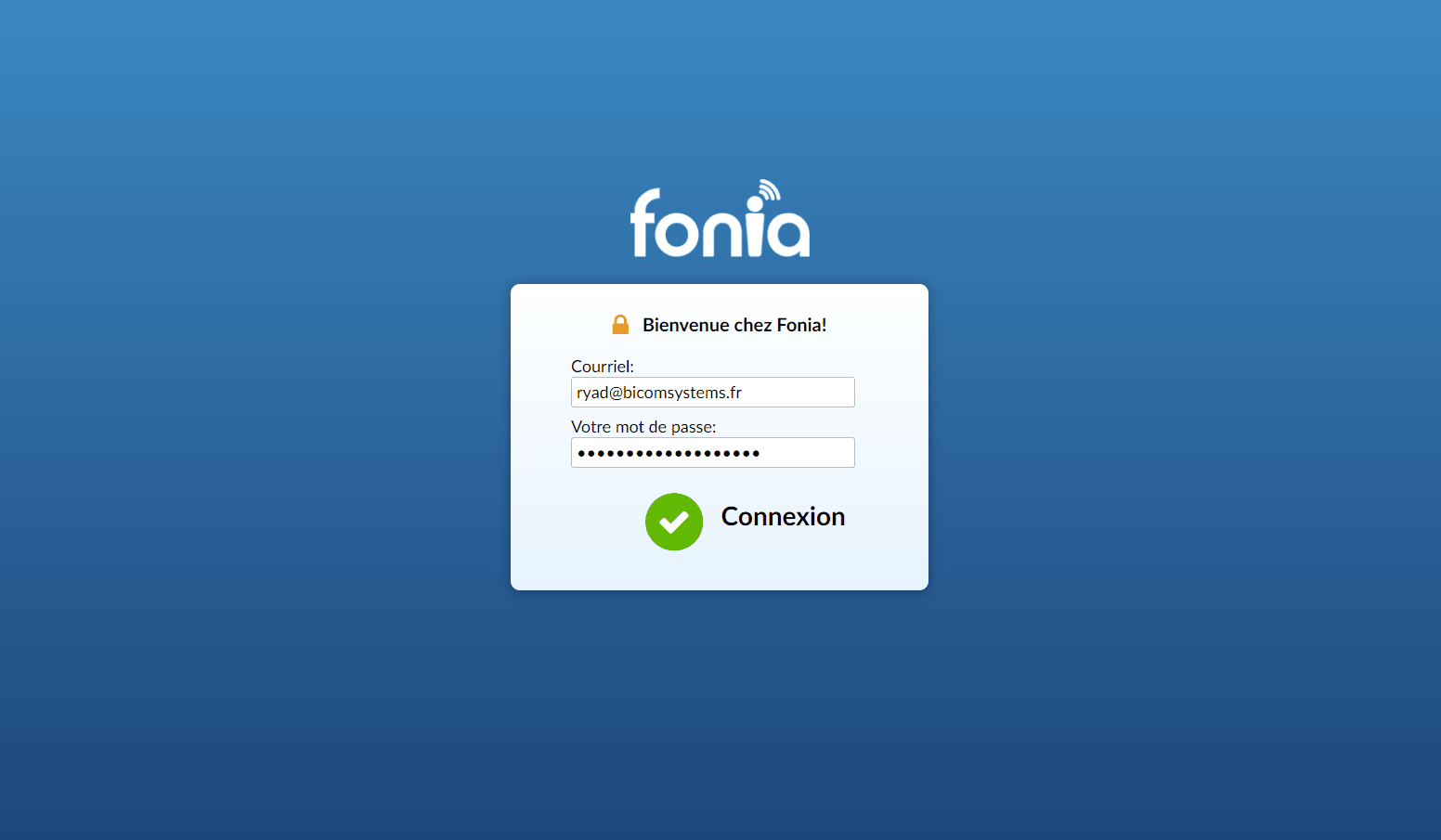
To connect to your Supervisor online via any browser, type the URL (https://monpbx.voip.fr for example) or the system's IP address (https://212.82.39.21 for example).
Then log in with the credentials (email and password) of your extension.
Dashboard
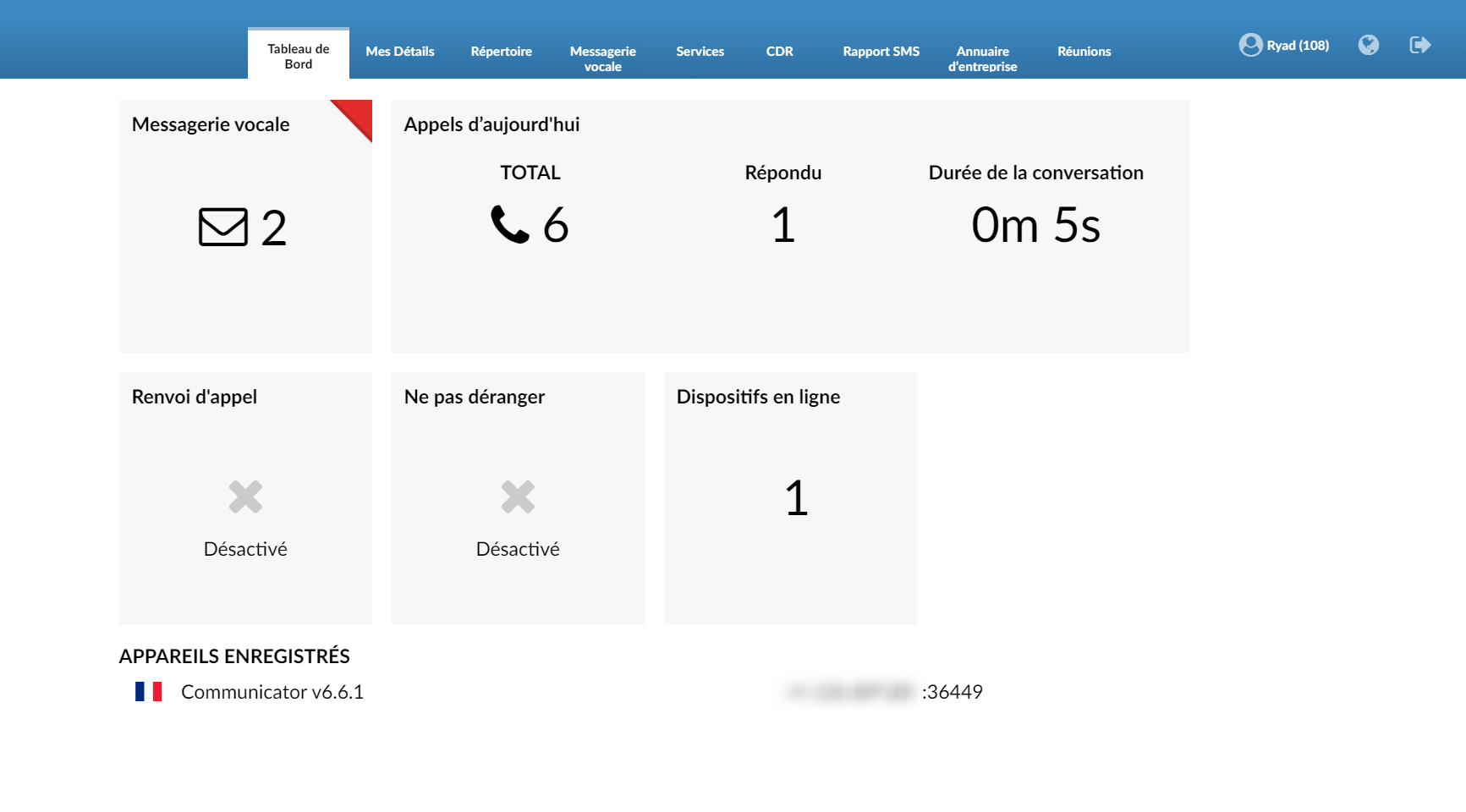
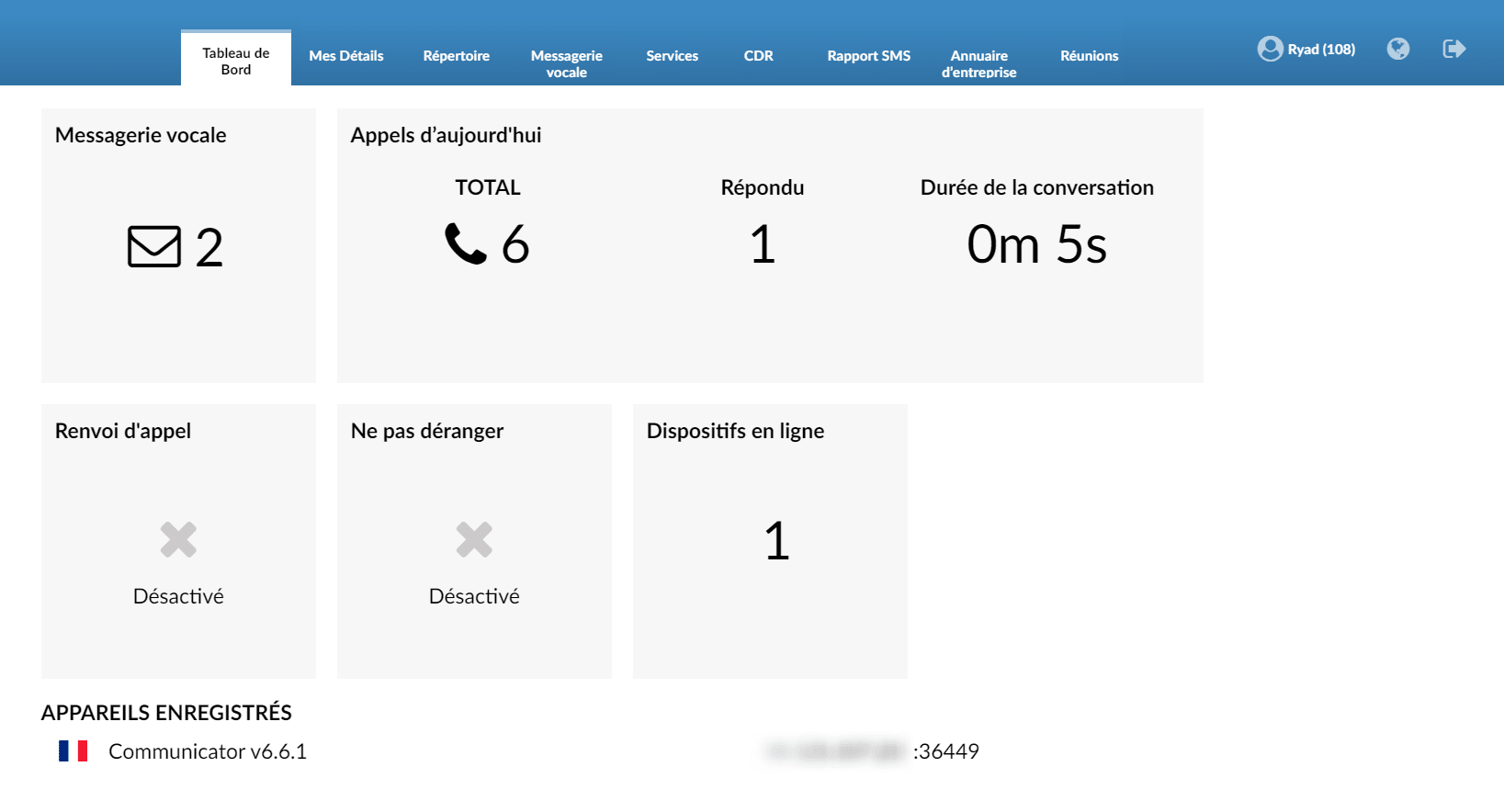
After logging in to the OSC, on the dashboard, you can see the following:
1.Voicemail – the number of your voicemail messages.
2. Today's calls:
- Total – Total number of calls for today
- Answered – Number of calls answered today
- Conversation duration – Total talk time today
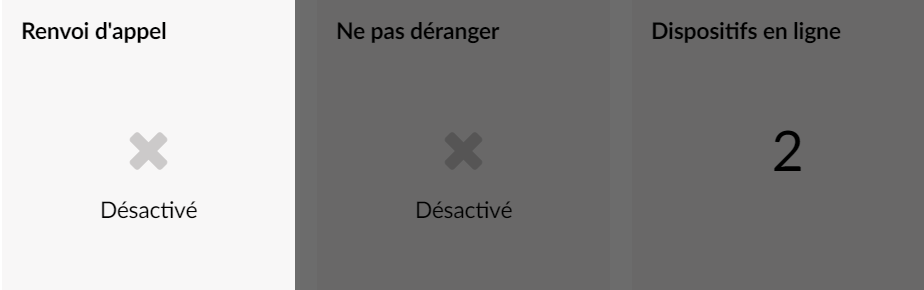
3. Call forwarding – If call forwarding is enabled on your extension, it will be displayed in this section.
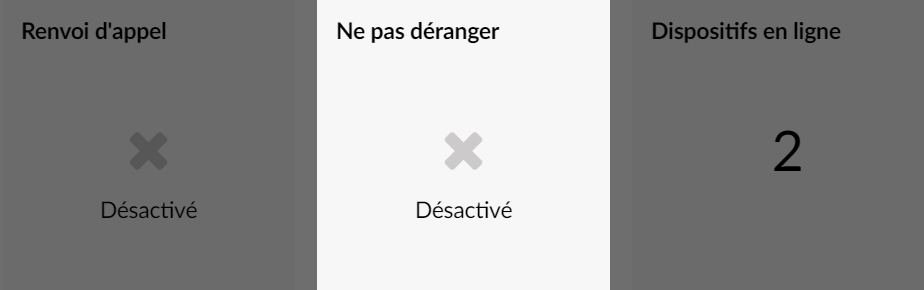
4. Do Not Disturb – If the “Do Not Disturb” is enabled in your extension's enhanced services, it will be displayed in this section.
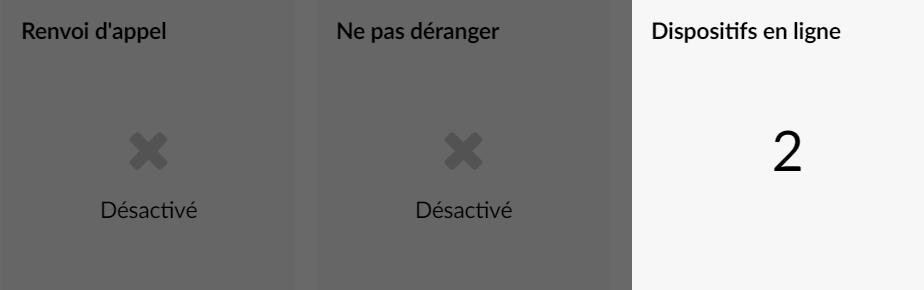
5. Online devices – Shows the number of devices your extension is registered on, and also which devices these are, as well as the IP address of the registered devices.

My details
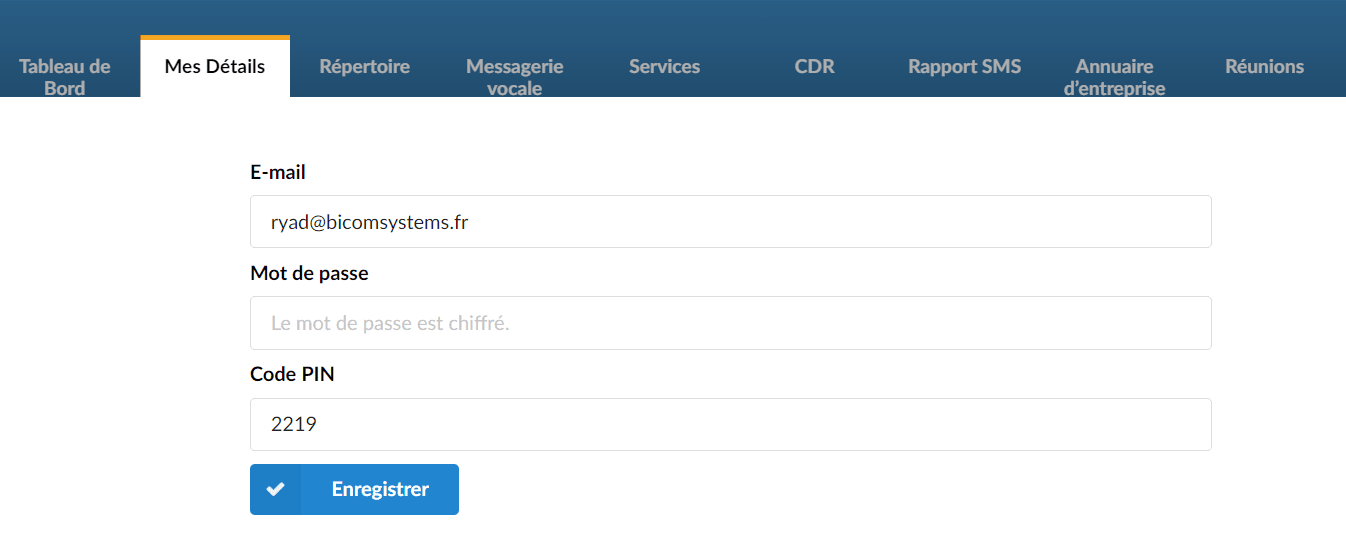
- Email:
- Password:
User password assigned to your extension
- PIN:
Four-digit password used to access your voicemail and other additional PBXware services.
Directory
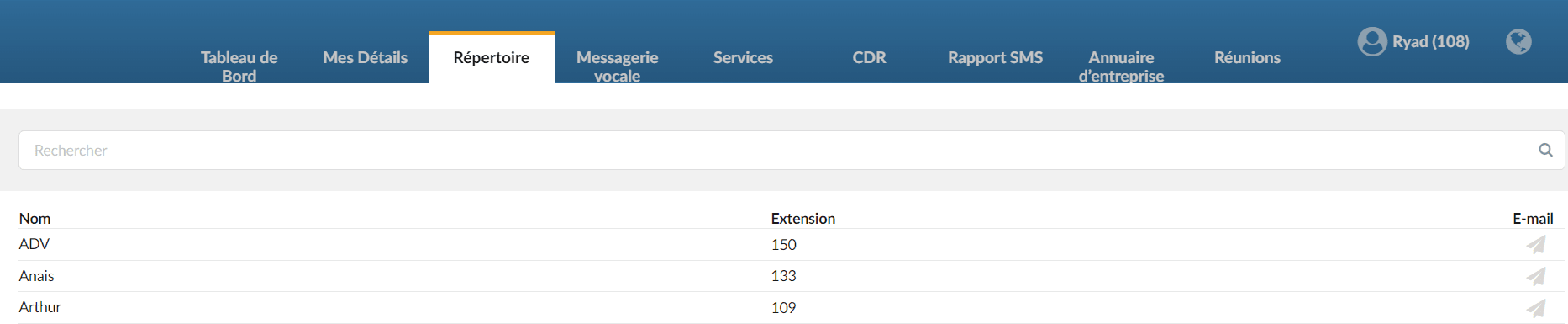
The Directory tab allows you to access and view all the extensions on the same system/tenant as you.
Voicemail
You can manage the voicemails left on your extension from this location.
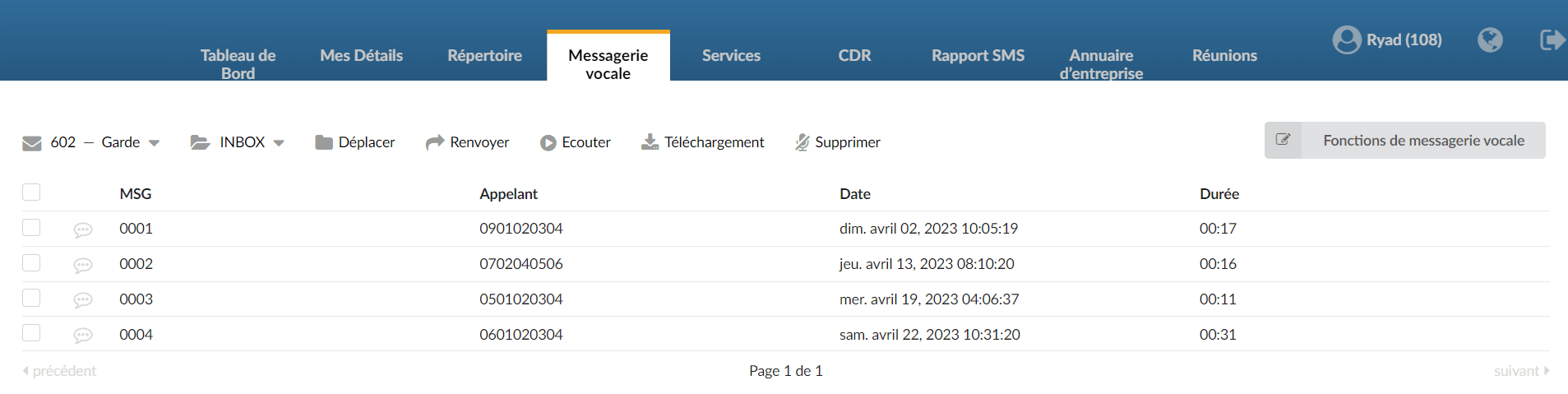
- MSG:
Message identification number
- Caller:
Identifies the user who left the message by their name and extension number.
- Date:
Time/Date at which a voice message was received in the inbox.
- Duration:
Voice message duration
Voicemail settings can be defined in the section “Voicemail functions“
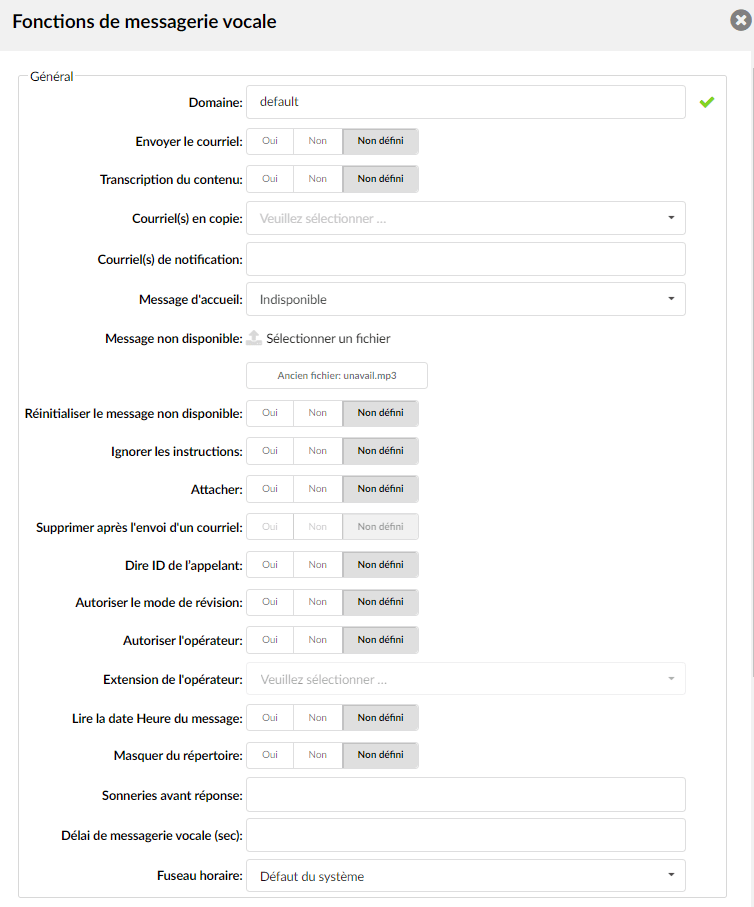
- Send the email
Whether or not to send an email to the address entered
- Email(s) in copy
Add additional email addresses to which you want the voicemail to be associated.
- Notification email(s)
Notification email address associated with the voicemail.
(For example, when A calls B and leaves a voice message, B will receive a pager notification message about a new voice message at this email address).
- Greeting message
Greeting message played to users when they enter the voicemail box.
- Message unavailable
Upload a sound file that will be played when you are unavailable/busy.
- Reset unavailable message:
If the greeting is set to busy, you have the option to reset the busy message.
- Skip the instructions:
Give the instructions on how to leave a voicemail.
- Attach
Send the voicemail as an attachment to the user's email.
- Delete after sending an email:
Delete the voicemail after sending it as an attachment to the user's email.
- Say Caller ID
Announce the extension number from which the voicemail was recorded.
- Allow review mode:
Allows you to review the voicemail message before sending it permanently to the voicemail box.
For example, 101 leaves a message on 105's voicemail box, but instead of hanging up, presses #.
Three options are then offered to 101:
- Press 1 to accept this recording
- Press 2 to listen to it
- Press 3 to re-record your message
- Allow operator:
Allow the user to reach an operator from the voicemail.
For example, B leaves a message on A's voicemail box, but instead of hanging up, B presses #.
This triggers playback of the message: "Press 0 to reach an operator" (Once the user has pressed 0, the following options are offered):
- Press 1 to accept this recording (if selected, 'Your message has been recorded. Please wait while I try to reach this extension' is played and the operator is dialed).
- Or continue waiting (if B waits a moment, the message “Message deleted. Please wait while we contact this extension” is played and the operator is automatically called).
- Operator extension
Local extension number that acts as operator.
(For example, if the option Allow operator of A’s voicemail is set to Yes, all users making up #0 in the voicemail will reach this operator extension).
- Play the message date & time:
Announces the date and time and the extension number from which the message was recorded.
- Hide from directory:
This option allows you to hide your extension in the directory/BLF list.
- Rings before answer:
Number of rings before the caller reaches voicemail.
- Voicemail delay (sec):
Duration of the pause in seconds before asking the user for their PIN/Password.
- Time zone:
Sets the correct time zone.
_________________________________________________
The following actions can be performed on the selected voice message:

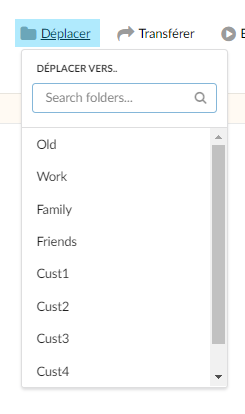
- Move
Moves the content to a different location/directory of the voicemail.
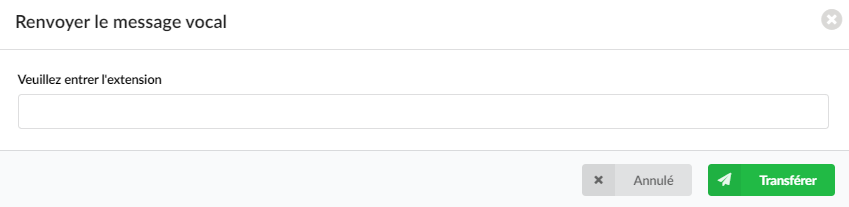
2. Transfer
Forward the voicemail to another extension’s inbox.
3. Listen
Voicemail download/playback
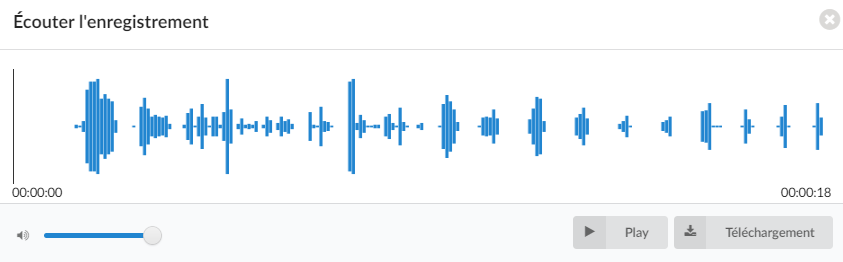
4. Download
Allows you to download the voicemail in mp3 format.
5. Delete
Deletes the voicemail from the inbox
Services
On the extension's enhanced services, an administrator can add access to all or some service(s) for the online supervisor by placing the star next to the service in question.
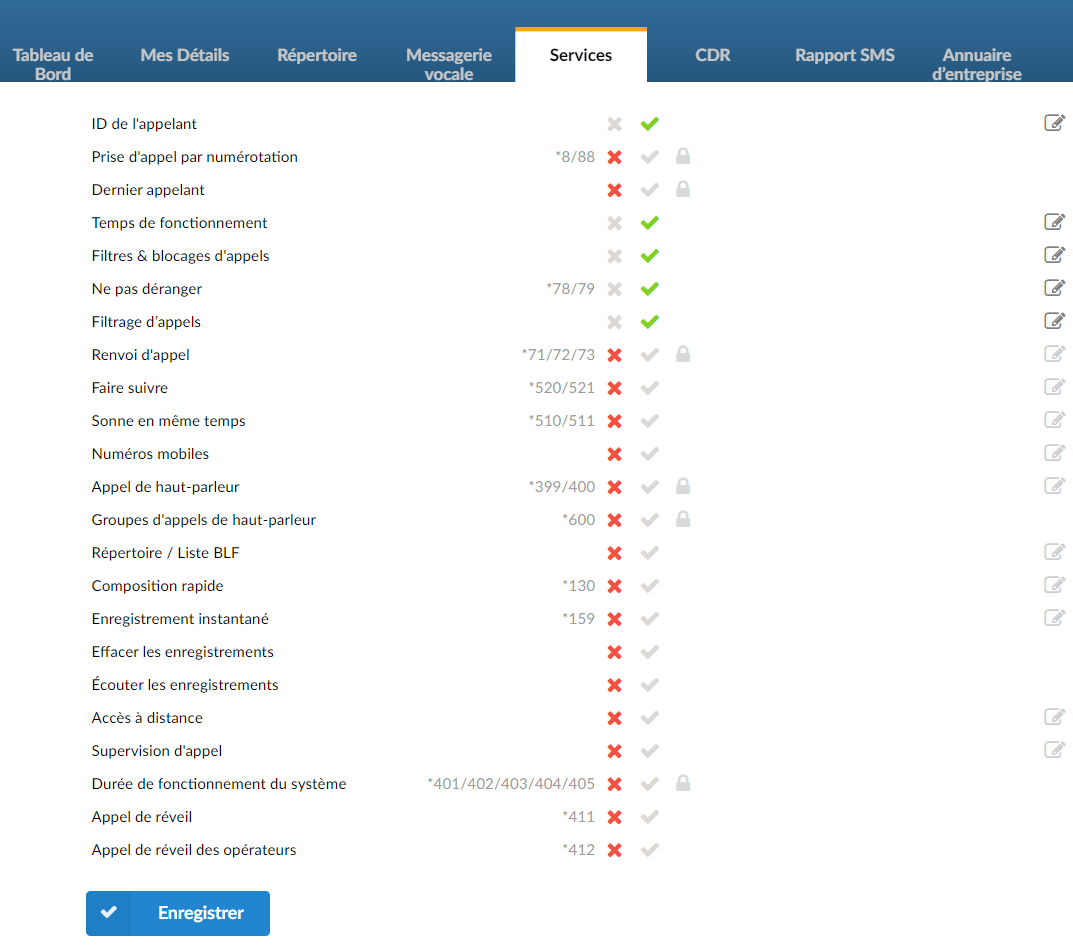
You will then have access to these services from your online supervisor.
Reminder: you will only have access to the services whose star has been checked by your administrator.
See: Advanced services
CDR
The CDR (Call Detail Records) tab allows you to view all calls placed or received on the system. In addition to normal operation, an authorized user is able to perform additional actions such as in-depth search, listening to recorded calls, calling any listed destination and accessing advanced features.
- Starting from:
Extension number from which the call was made
- To:
Extension/phone number to which the call was made
- Date / time:
Date and time at which the call was made
- Total duration:
Call duration in hh:mm:ss format
- Status:
Displays the call status
Depending on whether a call was answered or not, the value of this field may have the following content:
- Answered
- Unanswered
- Voicemail
- Busy
- Error
Company directory
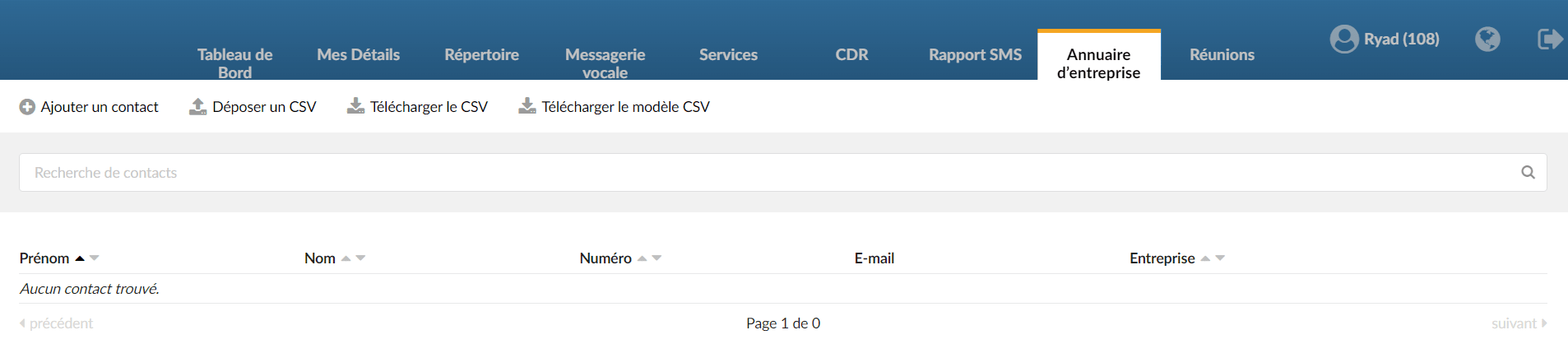
The enterprise directory, defined at the extension level, represents a directory personal.
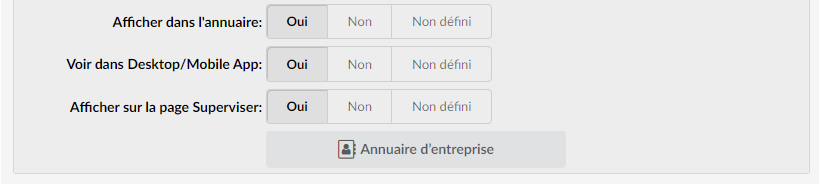
Note for the admin: Navigate to Extension > Advanced options > General > Company directory.
Contacts added in this central directory are only visible to the extension on which it is defined.
Meetings
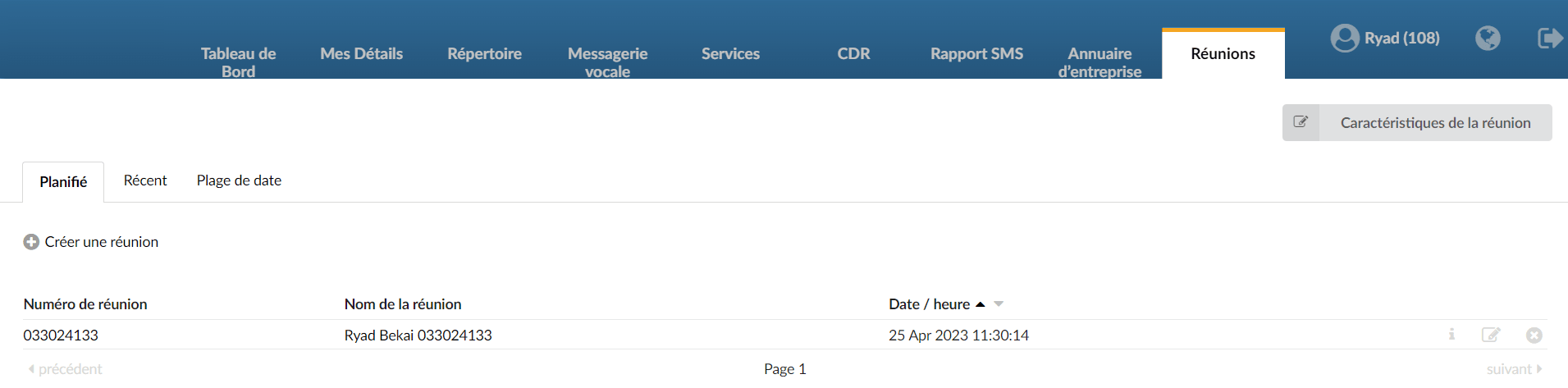
See: Meetings
