



FR | EN
Wiki Bicom Systems EnglishWiki Bicom Systems English
  • Home
  • Documentation
    • PBXware
      • Installation
      • Getting started
      • Editions
        • PBXware Multi-Tenant
        • PBXware Business
        • PBXware Contact Center
        • PBXware Service Provider
      • Advanced services
      • Supported phones
      • Autoprovisioning
    • Communicator
      • Communicator Desktop
      • Communicator GO
      • Communicator Web
    • SERVERware
      • Standalone
      • Mirror
      • Cluster
    • sipPROT
    • Tutorials
  • Videos
    • Communicator Desktop
  • Operators
  • Downloads
  • FAQ
Support
leafleaf
Most popular:
  • PBXware
  • Communicator
  • SIP
  1. Home
  2. SERVERware Mirror
  3. 4. Architecture
Updated on November 7, 2023
SERVERware Mirror
  • Folder icon closedFolder open icon1. Deployment guide
  • Folder icon closedFolder open icon2. Installation wizard
    • Add a backup host
  • Folder icon closedFolder open icon3. Configure the wizard steps
  • Folder icon closedFolder open icon4. Architecture
  • Folder icon closedFolder open icon5. Dashboard
  • Folder icon closedFolder open icon6. BSSUP
  • Folder icon closedFolder open icon7. Partitions
  • Folder icon closedFolder open icon8. Hosts
  • Folder icon closedFolder open icon9. Virtual private servers (VPS)
  • Folder icon closedFolder open icon10. Statistics
  • Folder icon closedFolder open icon11. Backup
  • Folder icon closedFolder open icon12. Geo-redundancy
    • Resource control
    • Configure geo-redundancy
    • Configure a replication cycle
    • Search and recovery
    • Site monitoring
  • Folder icon closedFolder open icon13. sipPROT
  • Folder icon closedFolder open icon14. Settings
  • Folder icon closedFolder open icon15. Archive
  • Folder icon closedFolder open icon16. Network
  • Folder icon closedFolder open icon17. Reports
  • Folder icon closedFolder open icon18. System settings
  • Folder icon closedFolder open icon19. Administrators
  • Folder icon closedFolder open icon20. Partition users
  • Folder icon closedFolder open icon21. Access control
  • Folder icon closedFolder open icon22. Role and permissions
  • Folder icon closedFolder open icon23. Service pools
  • Folder icon closedFolder open icon24. Alarms
  • Folder icon closedFolder open icon25. Instance templates
  • Folder icon closedFolder open icon26. Templates
  • Folder icon closedFolder open icon27. Notifications
  • Folder icon closedFolder open icon28. Updates
  • Folder icon closedFolder open icon29. SSL
  • Folder icon closedFolder open icon30. License

4. Architecture

Estimated reading: 4 minutes

A SERVERware environment is composed of the following elements:

  1. Redundant storage server : Contains virtual resources such as volumes and virtual server templates.
  2. Virtual private servers : Use Linux containers (LXC) as virtualization technology.
  3. Agents and tools : Run on the hosts and provide local management of virtual private servers.
  4. Controller : Centralized management platform for SERVERware. It provides a graphical user interface for viewing, provisioning, and managing resources. It runs on the storage server in a dedicated Linux container.
  5. Database : tracks the states and changes of the environment.
  6. Networking : connects the elements of the environment, including physical network links and logical subnets.

The SERVERware network topology is displayed in the following image:
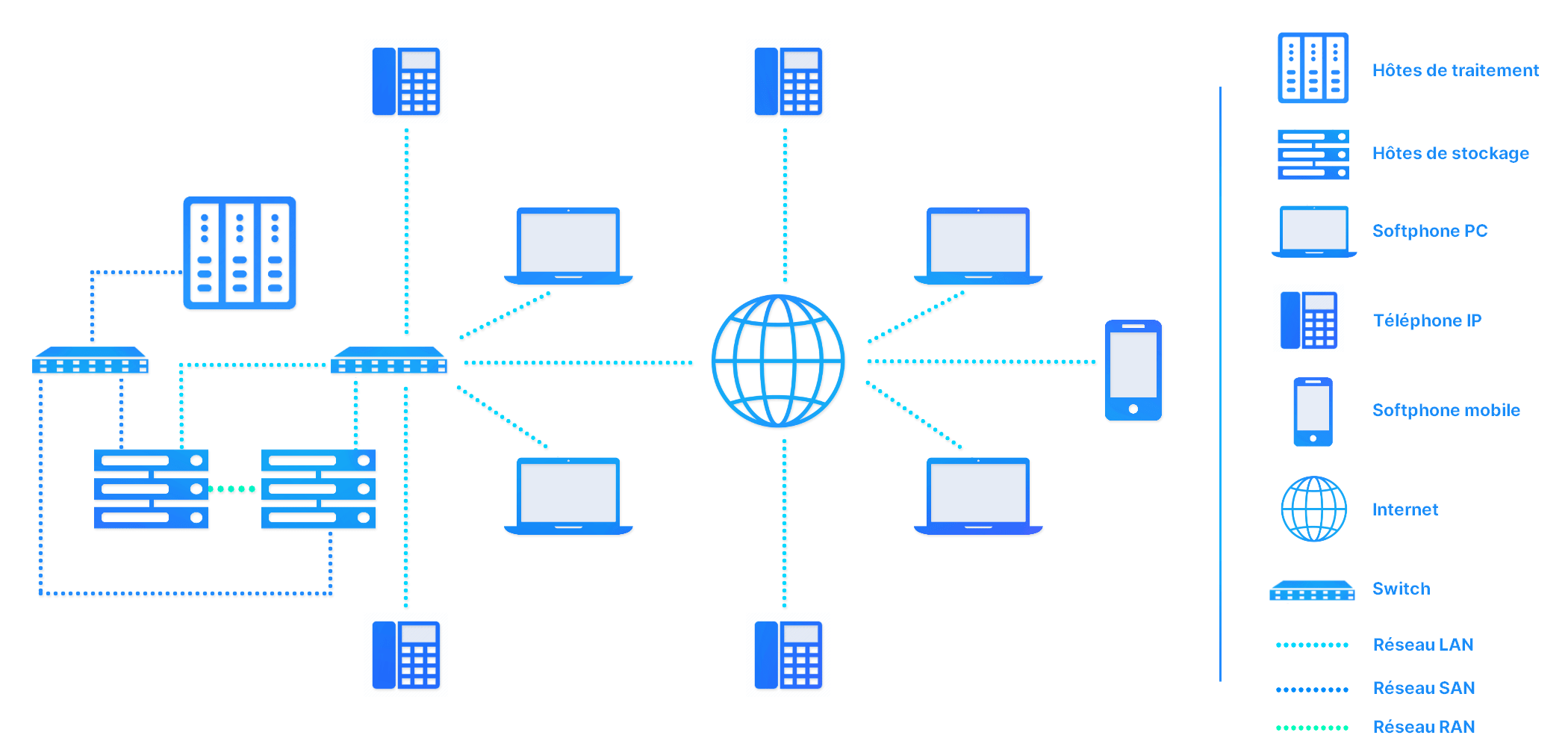
SERVERware resources

The components of the SERVERware environment fall into two categories: physical resources and logical resources.

  • Physical resources : Physical objects such as storage servers and host servers.
  • Logical resources : Non-physical groupings and processes, comprising domains, logical subnets, and virtual server templates.

The resources include:

  • Network : Top-level container for all physical and logical resources in a SERVERware environment.
  • Storage : Uses a centralized shared storage system for volumes and virtual server templates, implemented with ZFS and iSCSI.
  • Hosts : Physical servers that host virtual private servers.
  • Logical subnets : Used for traffic management, storage mirroring and traffic between the storage and processing hosts.
  • Domains : Logical groups of physical and virtual resources and users.
  • Virtual private servers : Equivalent to dedicated physical servers, configurable and easy to manage.
  • Virtual networks : Creation of virtual networks inside SERVERware with IPv4 or IPv6 protocols.
  • Templates : Virtual private servers preconfigured with specific software.
  • Backups : Feature for data protection and recovery.
  • Archiving : Secure storage of PBX calls and CDRs.
  • GRS (Global Replication System) : Replication of SERVERware virtual private servers to other SERVERware instances (remote geographic locations).
  • Users : Creation of user accounts with different roles and permission levels.
  • System Logs : Event logging for system management, analysis and debugging.
  • Alarms : Alerts triggered in the event of abnormal conditions, which can be received by groups of recipients via various notifications.
  • Statistics : Collection of resource usage data for hosts and virtual private servers.

Web access

Log in to the SERVERware web configuration panel directly from your web browser.

Enter the IP address of the SERVERware Web control panel in the web browser to access the login screen.
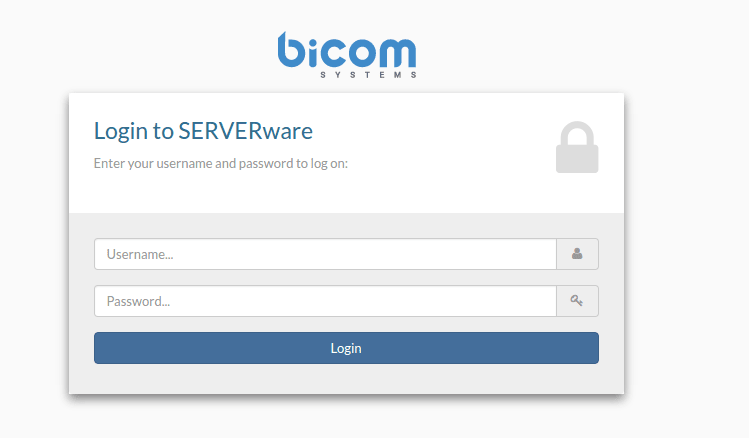
Enter your username and password.

Click on Login. The SERVERware dashboard appears.

2FA

Multi-factor authentication helps secure access to your SERVERware. In the title bar of the web control panel, click your username and then click Account settings to access the Account settings menu.
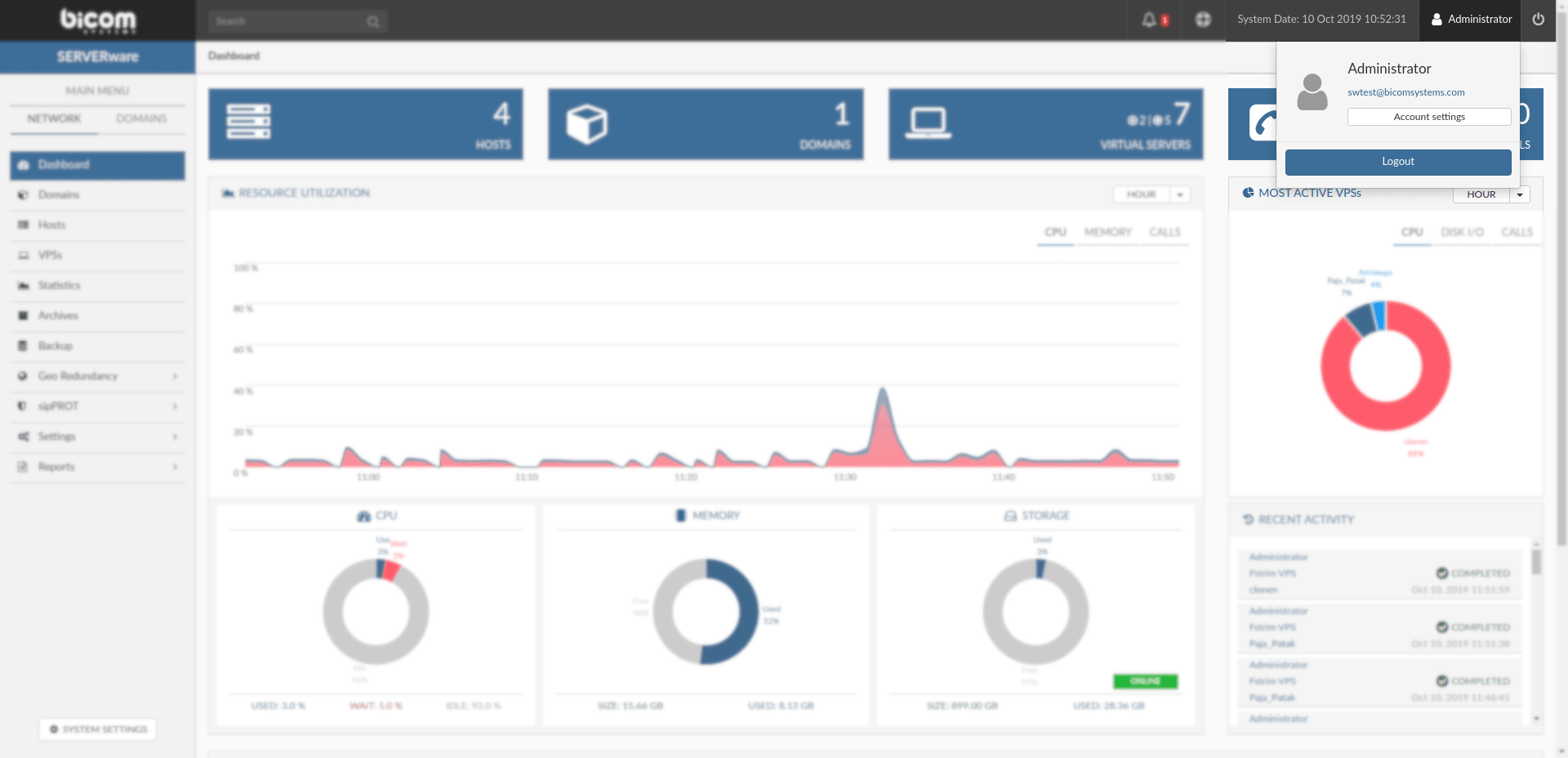
The account settings menu will appear. In the menu Account settings, select 2FA and click Enable2FA.
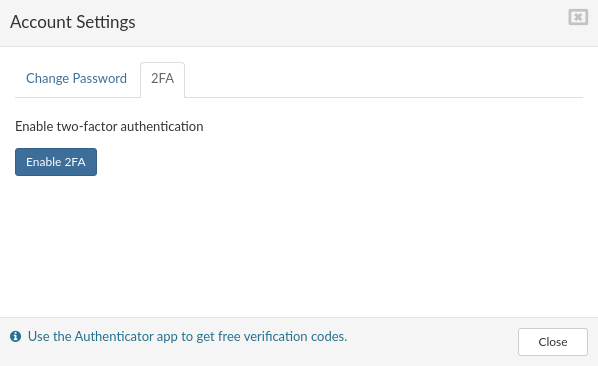
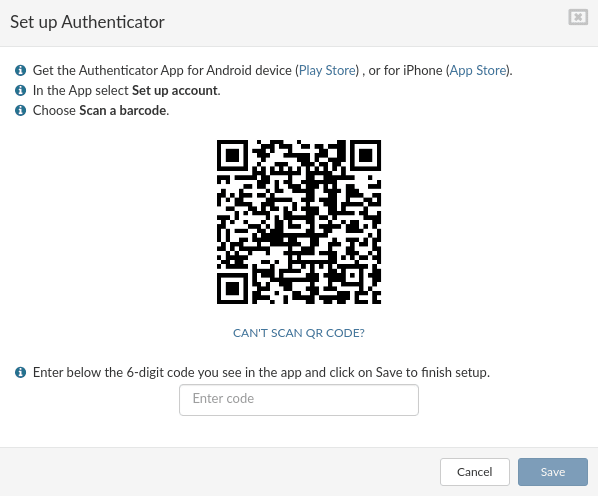
Follow the instructions in the window and click Save
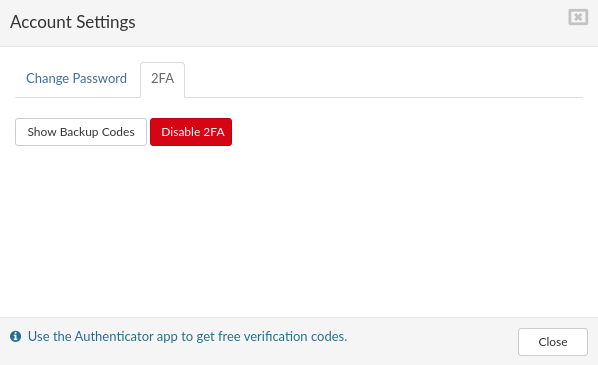
At this step, you can disable 2FA or display Backup codes; this window is also a confirmation that 2FA is enabled for a specific user. It is possible to change the password at this step for a specific user. 
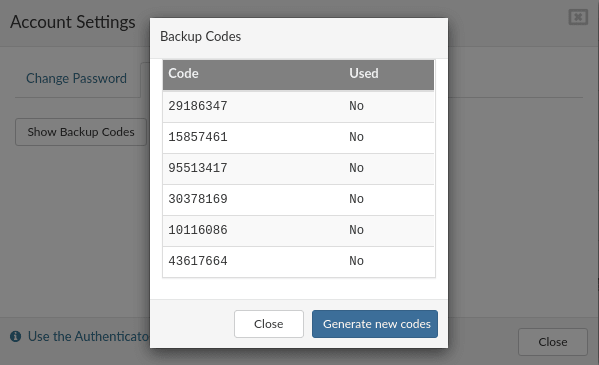
If your Authenticator app does not work or is not available for any reason, you can use 'backup codes'. Click Show backup codes to display the available codes. A new popup will appear with a list of codes and their status (used or not). A code can only be used once; if you have no available codes, you can generate new codes by clicking the button Generate new codes.
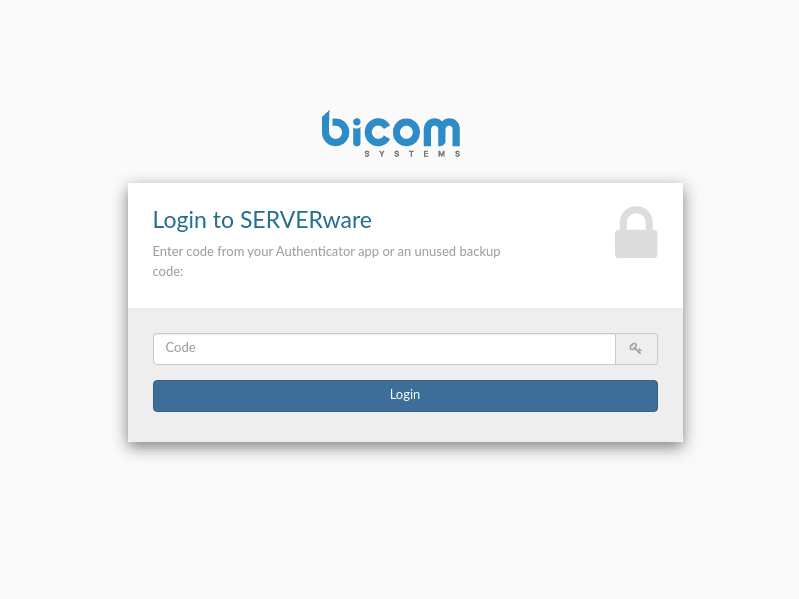
To start using 2FA, please log out of the SERVERware panel and the login screen will appear. Enter your username and password and click Login.

Enter the code from your Authenticator app or an unused backup code to complete the login procedure.
Share

4. Architecture

Or copy the link below

Clipboard Icon
CONTENT
Leaf Illustration

© Bicom Systems France

Last updated: 4 July 2026 Legal noticePrivacyCookiesTerms © 2026 Bicom Systems