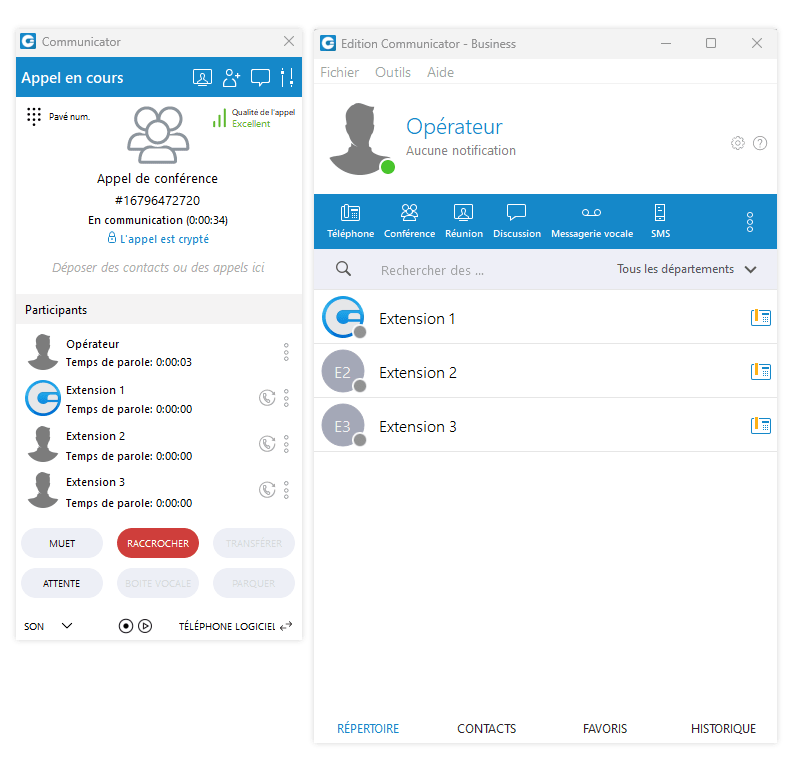
Voice conference
Estimated reading: 2 minutes
Voice conference
- The plus sign allows you to invite a contact using their landline or mobile phone number.
- Select a box to choose a conference room.
- The area of the Voice Conference module where the contact is displayed after a drag and drop.
- To remove a contact from a list, click the cross.
- Click the Start button to launch the voice conference.
- Click Close to close the voice conference.
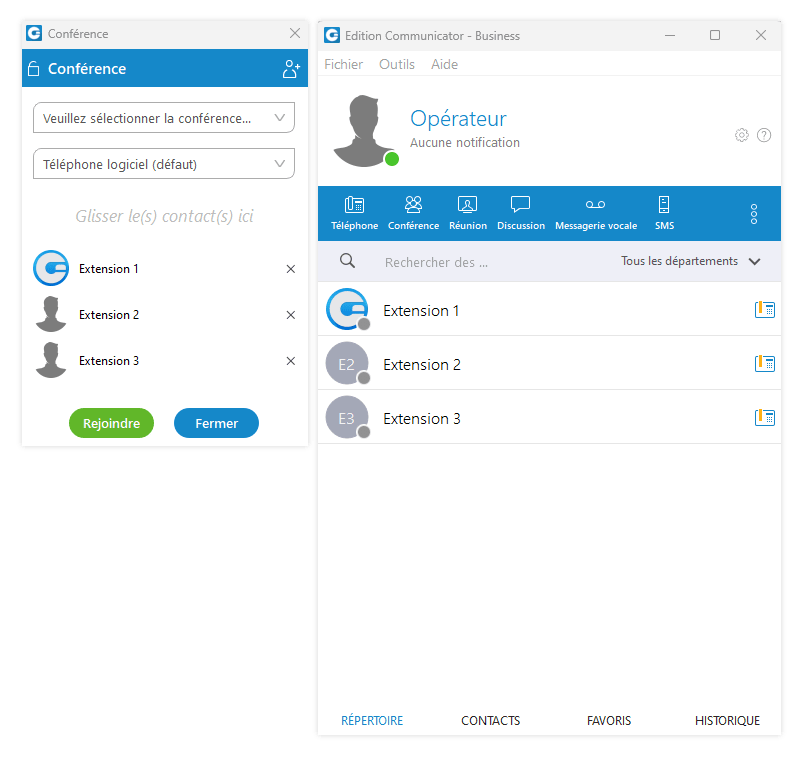
A conference can be created from the drop-down list and instant and predefined conferences can be selected.
- Instant conferences: the user can create a conference by adding one or more people to an ongoing call. With this option, you can add extensions or any number available in your contact list. If you missed the conference call, you can still join the conference from theCall History tab provided that a conference still exists.
There are two ways to proceed: double-click the conference number, or right-click the conference number and then choose call or call with. - Predefined conferences: users can join predefined conference rooms and add other participants.