Skype module

The Skype For Business module is used for integration between Skype For Business and Communicator. The idea behind this module is to provide integration between the Skype For Business client and the user’s phone system (PBXware).
The Skype module consists of four parts:
– Presence
– Click to dial
– Conference
– Control of ANY SIP desk phone/softphone/mobile device registered on the PBXware telephony platform from the PC.
Presence
Whenever a user is on a call with one of their devices, including a desk phone, a softphone or a mobile phone, Skype For Business automatically changes their presence and other Skype users see this presence as On call. Once the call is finished, the Skype presence will return to the previous state.
The squares marked in red indicate the status change in Skype for Business.
Click to dial
The Click-to-Dial plugin allows you to make regular calls or conferences from Skype For Business using the PBXware phone system. It allows the user to use any device to make the call through their phone system.
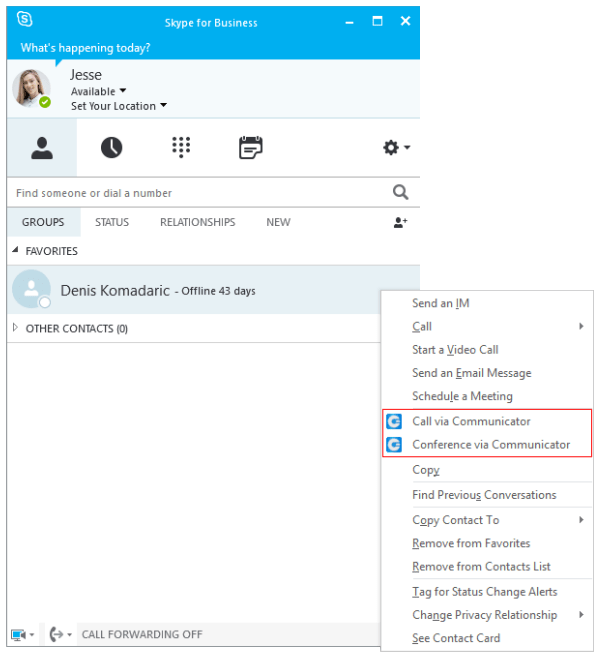
This includes: the desk phone, the softphone, and the mobile phone. The user can even make a call from Skype with a single click via the mobile network (GSM), and Skype will still display their status On call until the user hangs up on the GSM. When the Click to Dial plugin is enabled, two options appear in Skype For Business: Call via Communicator and Conference via Communicator.
When you click the option Call via Communicator, a dialog box appears, as shown in the following image. You must choose the contact number you want to call and the device from which you want to make a call. Only one Skype For Business contact can be selected if you want to use this option.
If the box below Show this window before making a callis checked, each time you make a call from Skype for Business, this window will appear (this can be changed in the preferences). Once you press Call, the call will be made, in this case using our desk phone.
Conference
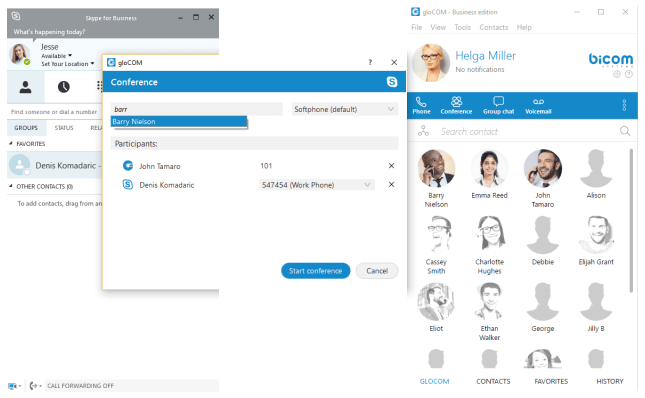
You can also invite Communicator contacts to this conference. You can add them by typing their name or number in the search field where you can also enter any other number of your choice, then press Entrée
The ❌ button is used to remove the contact/number from the list of users you want to invite to the conference.
Once you press Start the conference, an audio bridge will be automatically created on the PBX and all guests will join it automatically. You will join on your desk phone in this example. Although the call is ongoing on your desk phone, you can view and control this audio conference on the PC in the Communicator application.
Settings
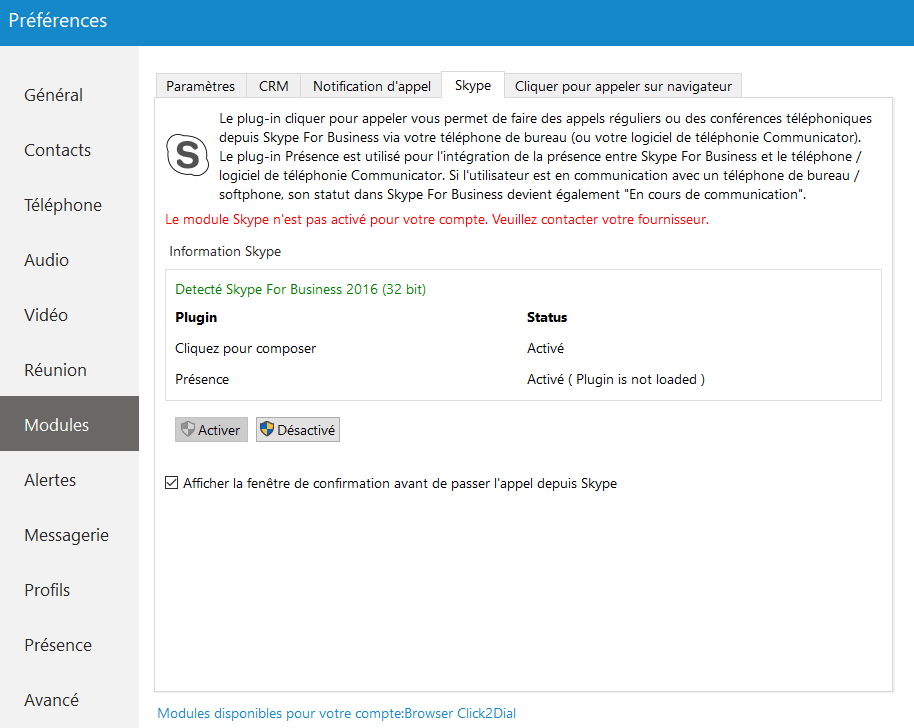
If you want to enable/disable the Skype For Business module plugins for all Communicator users on a computer, we need to access Preferences > Modules > Skype.
After enabling/disabling the Skype For Business module plugins, you need to restart the Skype For Business application in order to apply the changes made. Even if these plugins are enabled, you can only use them if you have the Skype For Business module enabled by the provider.