



FR | EN
Wiki Bicom Systems EnglishWiki Bicom Systems English
  • Home
  • Documentation
    • PBXware
      • Installation
      • Getting started
      • Editions
        • PBXware Multi-Tenant
        • PBXware Business
        • PBXware Contact Center
        • PBXware Service Provider
      • Advanced services
      • Supported phones
      • Autoprovisioning
    • Communicator
      • Communicator Desktop
      • Communicator GO
      • Communicator Web
    • SERVERware
      • Standalone
      • Mirror
      • Cluster
    • sipPROT
    • Tutorials
  • Videos
    • Communicator Desktop
  • Operators
  • Downloads
  • FAQ
Support
leafleaf
Most popular:
  • PBXware
  • Communicator
  • SIP
  1. Home
  2. SERVERware Standalone
  3. 24. Alarms
Updated on November 6, 2023
SERVERware Standalone
  • Folder icon closedFolder open icon1. Deployment guide
  • Folder icon closedFolder open icon2. Installation wizard
    • Add a backup host
  • Folder icon closedFolder open icon3. Configure the wizard steps
  • Folder icon closedFolder open icon4. Architecture
  • Folder icon closedFolder open icon5. Dashboard
  • Folder icon closedFolder open icon6. BSSUP
  • Folder icon closedFolder open icon7. Partitions
  • Folder icon closedFolder open icon8. Hosts
  • Folder icon closedFolder open icon9. Virtual private servers (VPS)
  • Folder icon closedFolder open icon10. Statistics
  • Folder icon closedFolder open icon11. Backup
  • Folder icon closedFolder open icon12. Geo-redundancy
    • Resource control
    • Configure geo-redundancy
    • Configure a replication cycle
    • Search and recovery
    • Site monitoring
  • Folder icon closedFolder open icon13. sipPROT
  • Folder icon closedFolder open icon14. Settings
  • Folder icon closedFolder open icon15. Archiving
  • Folder icon closedFolder open icon16. Network
  • Folder icon closedFolder open icon17. Reports
  • Folder icon closedFolder open icon18. System settings
  • Folder icon closedFolder open icon19. Administrators
  • Folder icon closedFolder open icon20. Partition users
  • Folder icon closedFolder open icon21. Access control
  • Folder icon closedFolder open icon22. Role and permissions
  • Folder icon closedFolder open icon23. Service pools
  • Folder icon closedFolder open icon24. Alarms
  • Folder icon closedFolder open icon25. Instance templates
  • Folder icon closedFolder open icon26. Templates
  • Folder icon closedFolder open icon27. Notifications
  • Folder icon closedFolder open icon28. Updates
  • Folder icon closedFolder open icon29. SSL
  • Folder icon closedFolder open icon30. License

24. Alarms

Estimated reading: 2 minutes

The menu Alarms is used to configure and manage various SERVERware alarms. Alarms can be configured to send notifications when specific conditions are met.
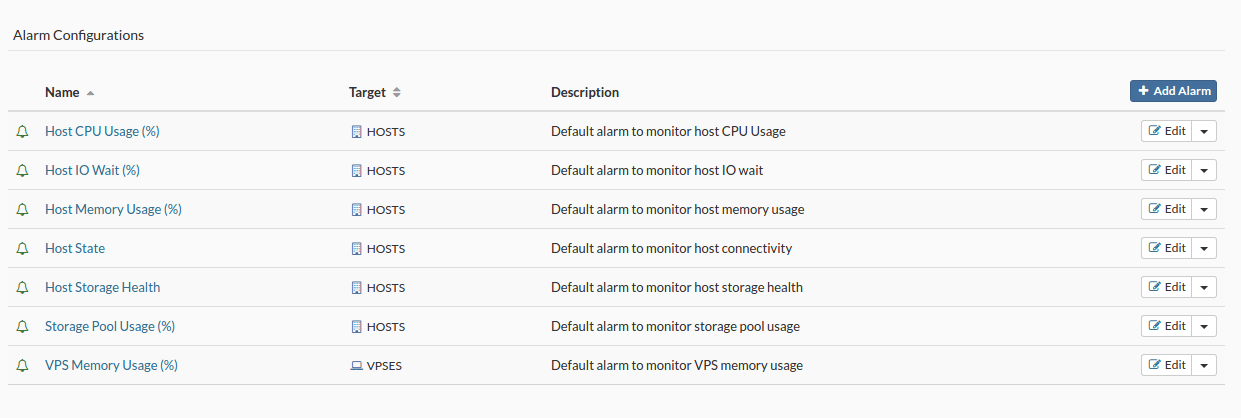
Add an alarm

To add an alarm, follow these steps:

  • In the menu Alarms, click on Add an alarm. The new alarm configuration dialog box will appear.
  • Select the alarm state, the monitoring target, enter a name and a description, then click Next.
  • In the Triggers tab, select the trigger, the operator, define the warning and critical conditions, then click Save Trigger before moving on to the next step.
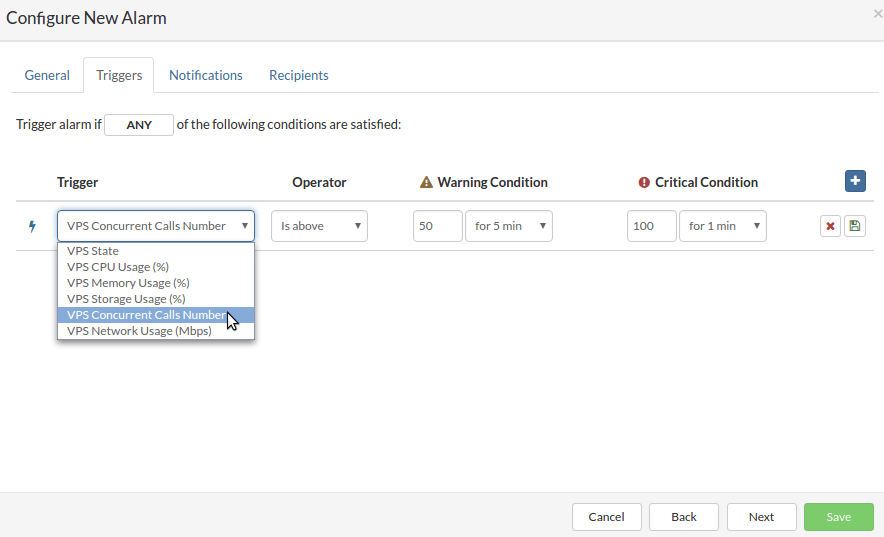
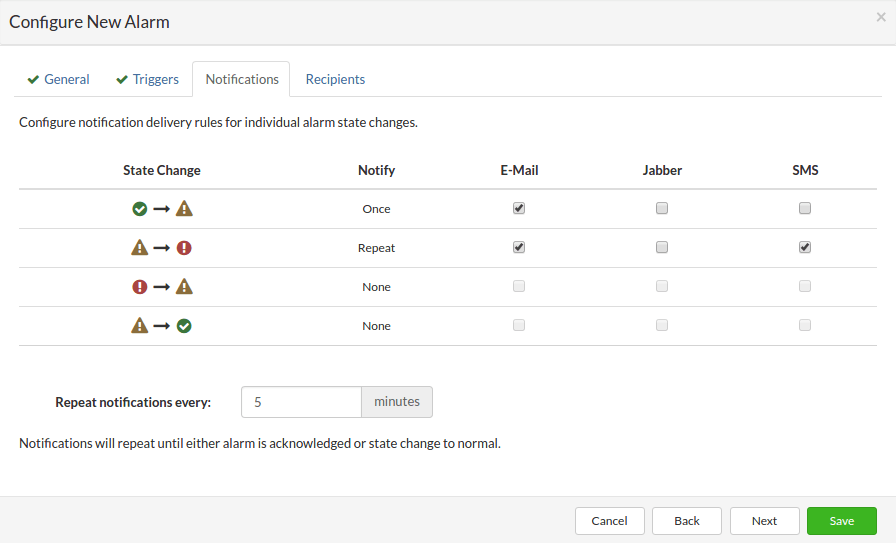
  • In the Notifications tab, configure the notifications for alarm status changes by selecting the recipients and checking the delivery modes. Once all the notifications are configured, click Next.
  • In the Recipients tab, select the groups that will receive the notifications, then click Save to add the new alarm.

Delete an alarm

Follow this procedure to delete an alarm:

  • In the Alarms, select Delete the alarm in the drop-down menu next to the alarm configuration you want to delete. A confirmation dialog box will be displayed.
  • Click on Yes. The alarm will be removed from the list.
Share

24. Alarms

Or copy the link below

Clipboard Icon
CONTENT
Leaf Illustration

© Bicom Systems France

Last updated: 4 July 2026 Legal noticePrivacyCookiesTerms © 2026 Bicom Systems