


FR | EN
Wiki Bicom Systems EnglishWiki Bicom Systems English
  • Home
  • Documentation
    • PBXware
      • Installation
      • Getting started
      • Editions
        • PBXware Multi-Tenant
        • PBXware Business
        • PBXware Contact Center
        • PBXware Service Provider
      • Advanced services
      • Supported phones
      • Autoprovisioning
    • Communicator
      • Communicator Desktop
      • Communicator GO
      • Communicator Web
    • SERVERware
      • Standalone
      • Mirror
      • Cluster
    • sipPROT
    • Tutorials
  • Videos
    • Communicator Desktop
  • Operators
  • Downloads
  • FAQ
Support
leafleaf
Most popular:
  • PBXware
  • Communicator
  • SIP
  1. Home
  2. SERVERware Standalone
  3. 22. Role and permissions
Updated on November 6, 2023
SERVERware Standalone
  • Folder icon closedFolder open icon1. Deployment guide
  • Folder icon closedFolder open icon2. Installation wizard
    • Add a backup host
  • Folder icon closedFolder open icon3. Configure the wizard steps
  • Folder icon closedFolder open icon4. Architecture
  • Folder icon closedFolder open icon5. Dashboard
  • Folder icon closedFolder open icon6. BSSUP
  • Folder icon closedFolder open icon7. Partitions
  • Folder icon closedFolder open icon8. Hosts
  • Folder icon closedFolder open icon9. Virtual private servers (VPS)
  • Folder icon closedFolder open icon10. Statistics
  • Folder icon closedFolder open icon11. Backup
  • Folder icon closedFolder open icon12. Geo-redundancy
    • Resource control
    • Configure geo-redundancy
    • Configure a replication cycle
    • Search and recovery
    • Site monitoring
  • Folder icon closedFolder open icon13. sipPROT
  • Folder icon closedFolder open icon14. Settings
  • Folder icon closedFolder open icon15. Archiving
  • Folder icon closedFolder open icon16. Network
  • Folder icon closedFolder open icon17. Reports
  • Folder icon closedFolder open icon18. System settings
  • Folder icon closedFolder open icon19. Administrators
  • Folder icon closedFolder open icon20. Partition users
  • Folder icon closedFolder open icon21. Access control
  • Folder icon closedFolder open icon22. Role and permissions
  • Folder icon closedFolder open icon23. Service pools
  • Folder icon closedFolder open icon24. Alarms
  • Folder icon closedFolder open icon25. Instance templates
  • Folder icon closedFolder open icon26. Templates
  • Folder icon closedFolder open icon27. Notifications
  • Folder icon closedFolder open icon28. Updates
  • Folder icon closedFolder open icon29. SSL
  • Folder icon closedFolder open icon30. License

22. Role and permissions

Estimated reading: 1 minute

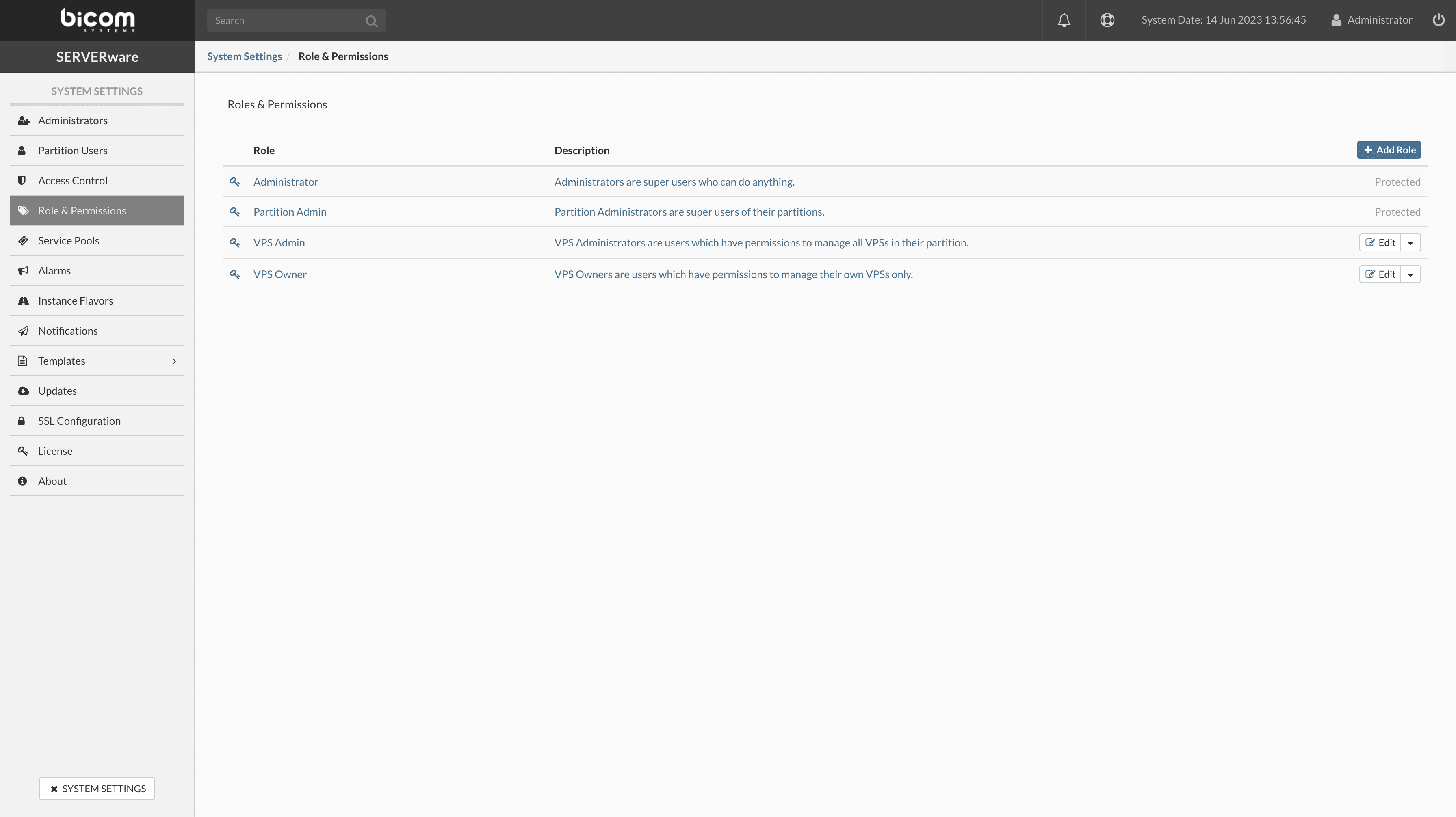
Use the view Roles and Permissions to add, modify, or delete roles and permissions that can be assigned to users of the SERVERware graphical interface.
Adding a role

To add a role, follow these steps:

  • In the Roles and Permissions, click on Add a Role.
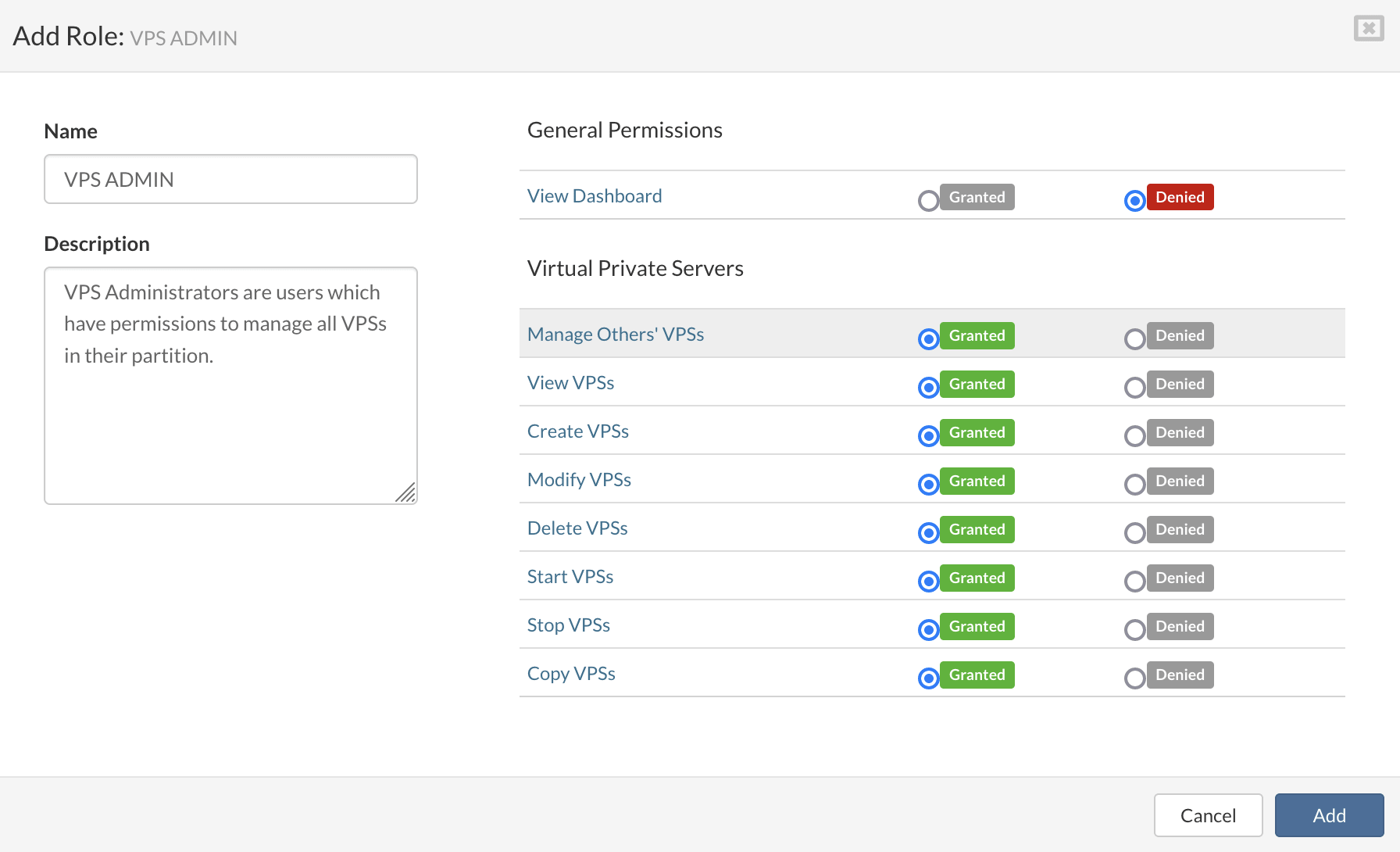
  • The dialog box Add a Role will appear. Enter the name, description and configure the permissions.
  • Click on Add to create a new role.

Click on Add to add a role.


Delete a role

To delete a role, proceed as follows:

  • Select the viewRoles and Permissions.
  • In the drop-down menu next to the role you want to delete, select Delete the Role. A confirmation dialog will be displayed.
  • Click on Yes. The role will be removed from the list.
Share

22. Role and permissions

Or copy the link below

Clipboard Icon
CONTENT
Leaf Illustration

© Bicom Systems France

Last updated: 4 July 2026 Legal noticePrivacyCookiesTerms © 2026 Bicom Systems