



29. SSL
SSL, or Secure Sockets Layer, works by ensuring the confidentiality of data transferred between users and websites, or between two systems. It uses encryption algorithms to encrypt data in transit, thereby preventing hackers from intercepting and reading it. This data may contain sensitive information such as names, addresses, credit card numbers or other financial details.
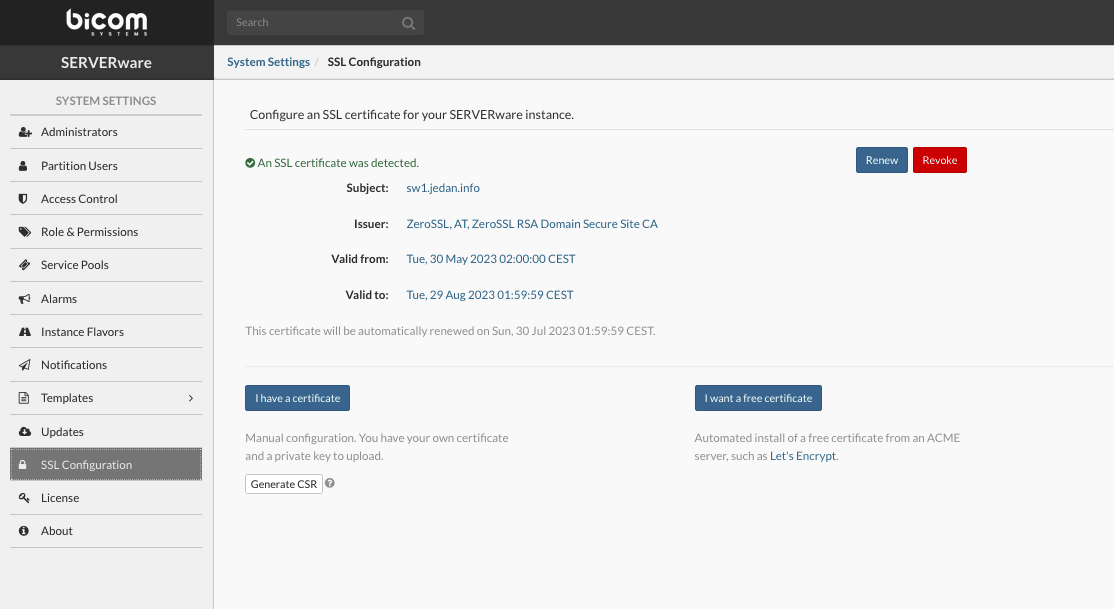
The SSL Configuration page displays information about the current SSL certificate, as well as options to manually upload a certificate, generate a certificate signing request (CSR), and automatically obtain a free Let’s Encrypt certificate. Let’s Encrypt is a free, automated, and open certificate authority (CA), operated for the public benefit by the Internet Security Research Group (ISRG).
Installing SSL on the SERVERware GUI can be done in two different ways: automatically, using a Let's Encrypt certificate, or manually.
Use Let's Encrypt
To automatically install a free Let's Encrypt SSL certificate on the SERVERware instance, go to the menu SSL configuration and click the button I want to use a free certificate.
A pop-up window will open, where you will need to provide an email address and a registered domain. Then click the button Install and wait for the installation process to finish.
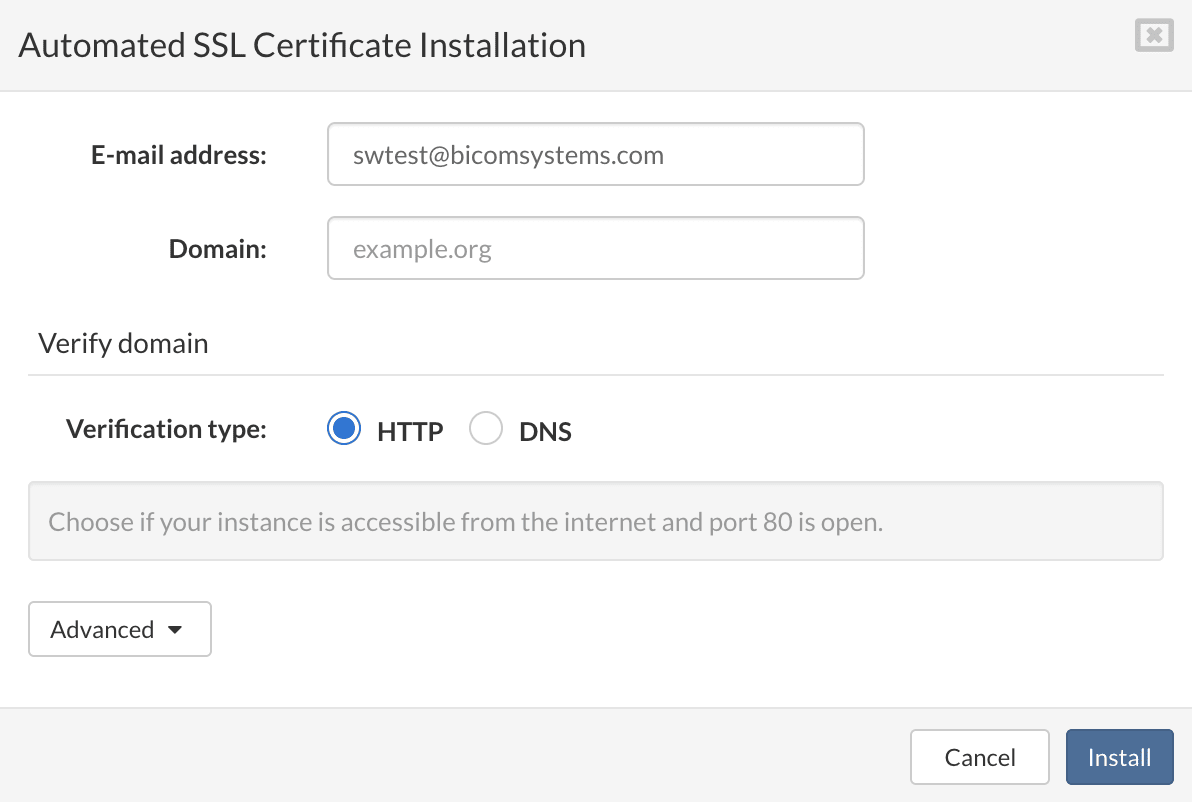
A pop-up window will open, where you will need to provide an email address and a registered domain. Then click the Install button and wait for the installation process to complete. The GUI will restart to apply the changes.
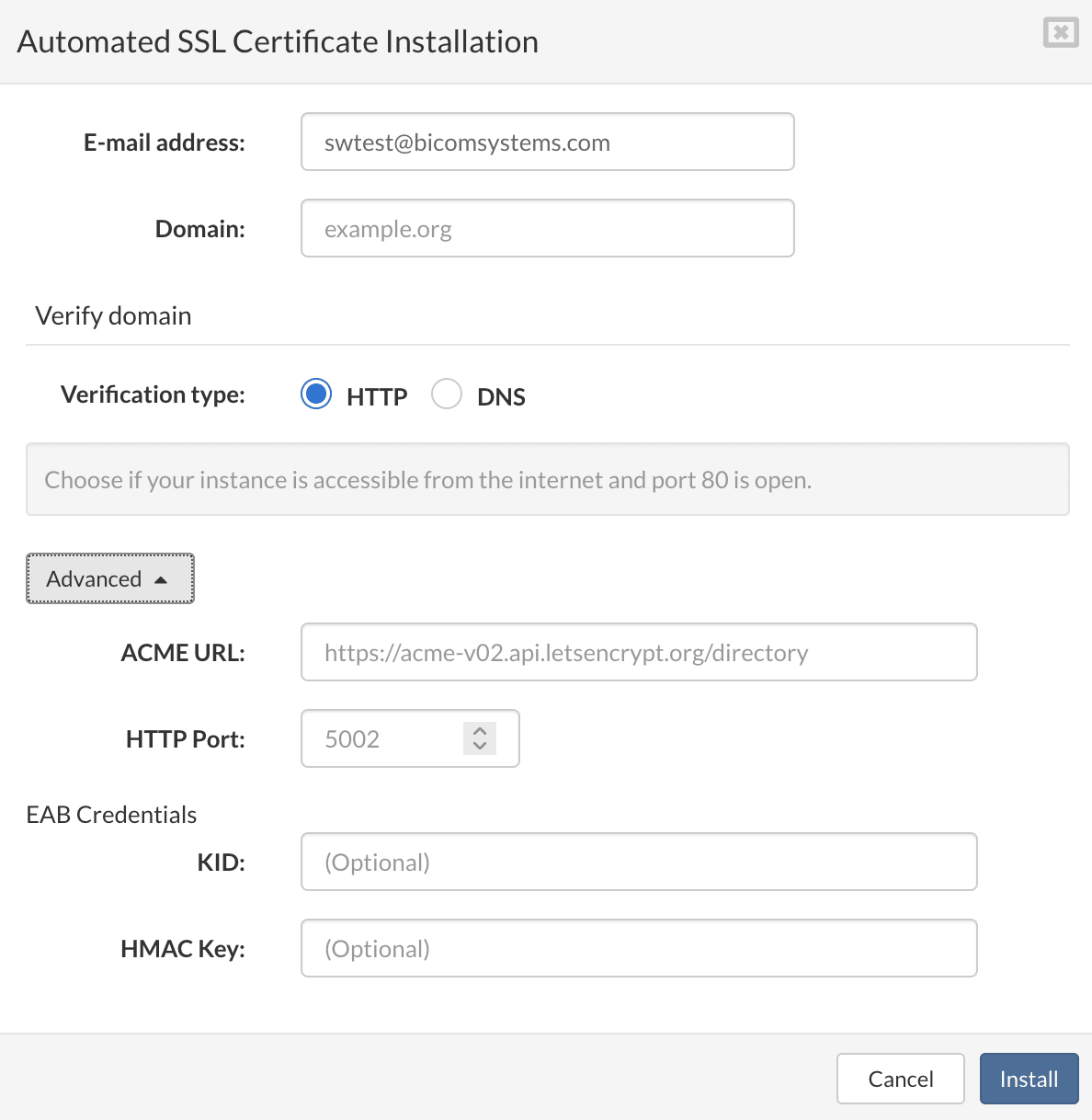
Support for ACME servers requiring External Account Binding Our automated SSL certificate installation also supports certificate authorities that require External Account Binding (EAB) for ACME account registration (ZeroSSL, Google Trust Services, etc.).
Obtaining a certificate via the domain validation process
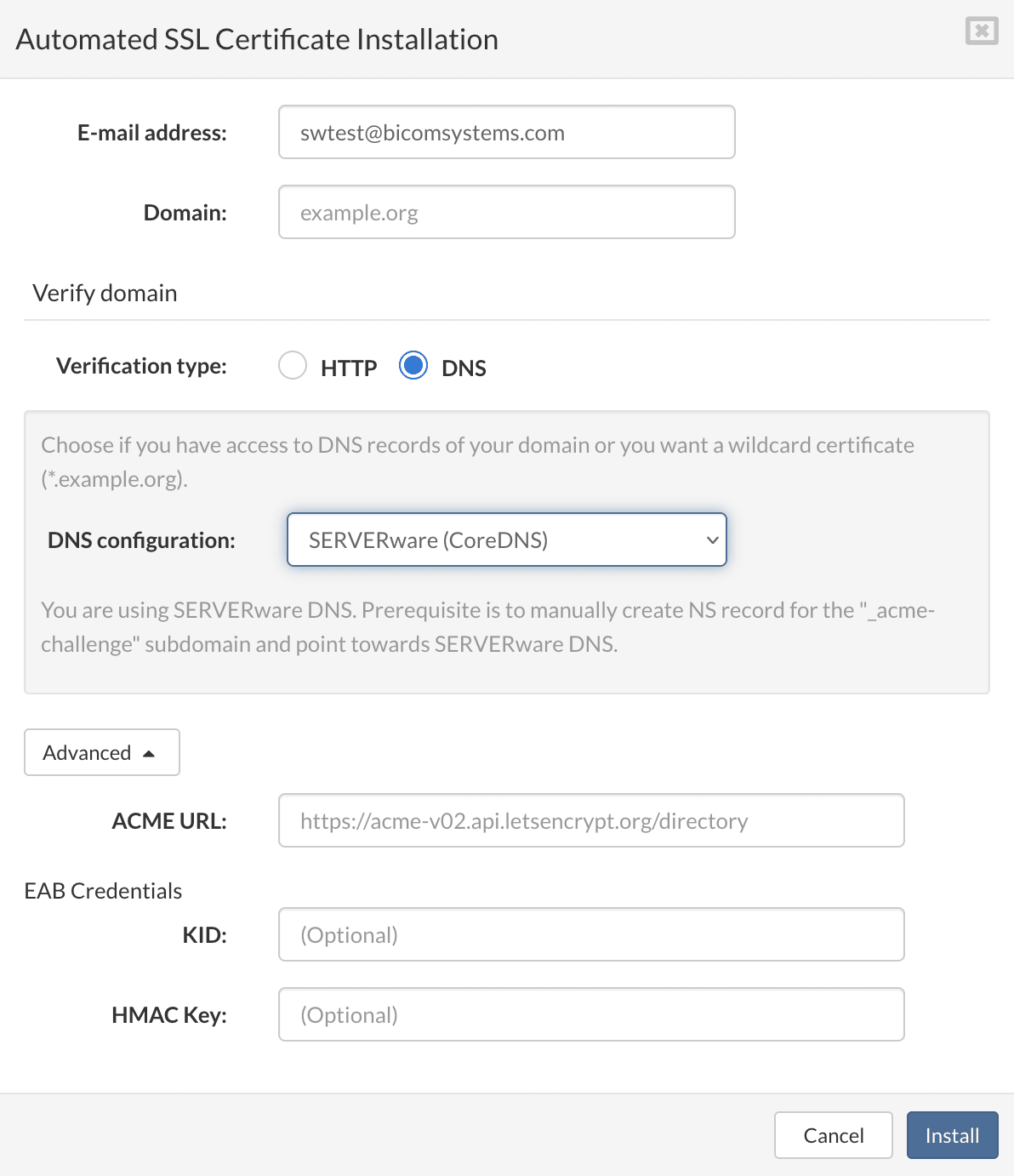
Obtaining a certificate via the domain validation process It is possible to automatically install a certificate using a DNS challenge when the SERVERware instance is not publicly accessible, or using a wildcard domain (e.g.: *.example.org).
This can be configured manually in the DNS settings or by using the SERVERware CoreDNS feature.
CSR Generation
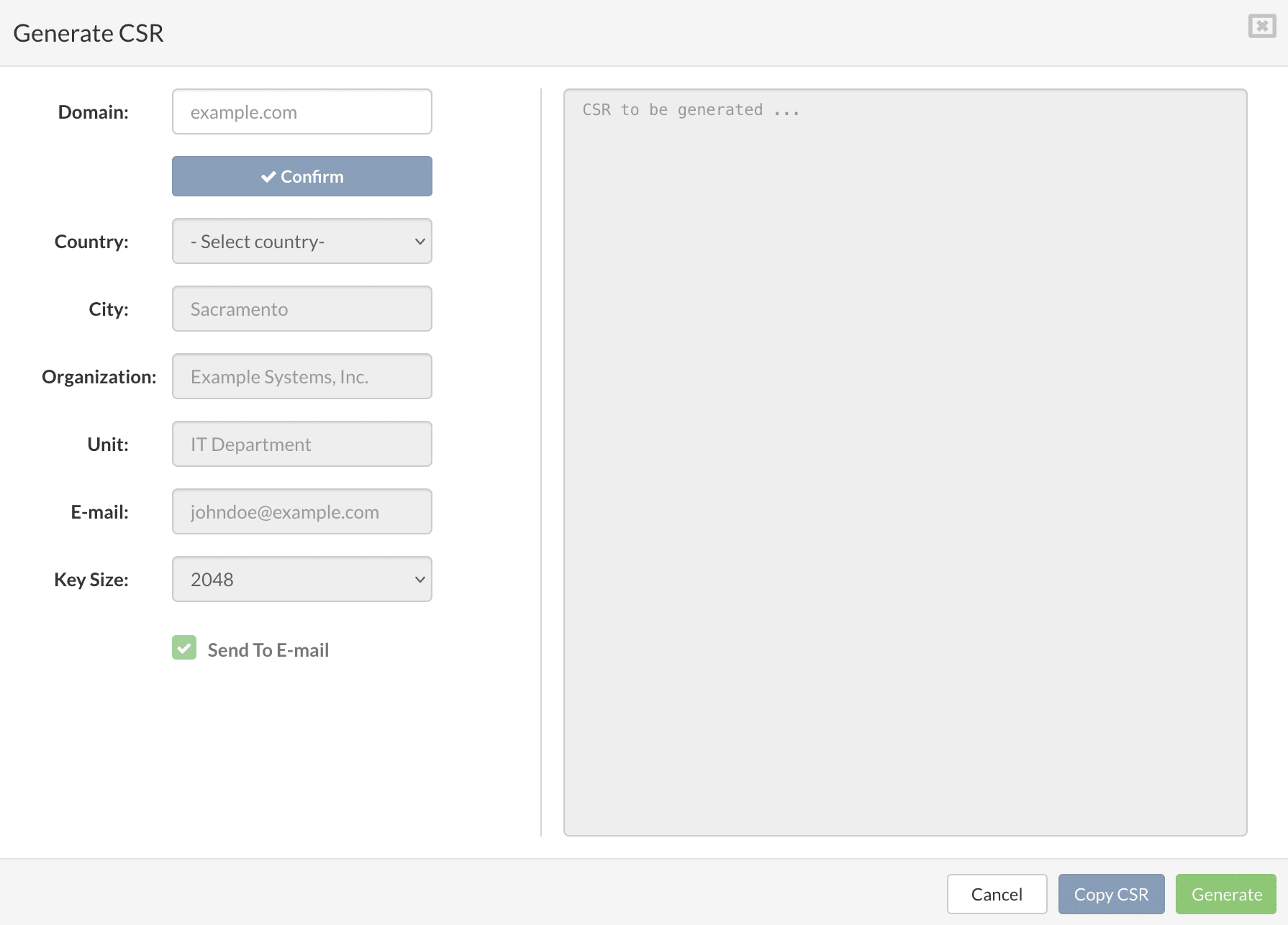
A CSR (Certificate Signing Request) is a standardized way to send your public key to the certificate authority (CA), associated with a secret private key on the server, and providing information about the requester.
The administrator can generate a CSR and a private key for a specific domain from the SERVERware GUI, then use them to purchase an SSL certificate.
Manual installation
It is possible to upload an SSL certificate (and a private key) to use instead of the default self-signed certificate. To do this, upload the .cert file provided by the provider, as well as, optionally, the private key. If no private key is selected, the existing one will be used.
Then press Download.
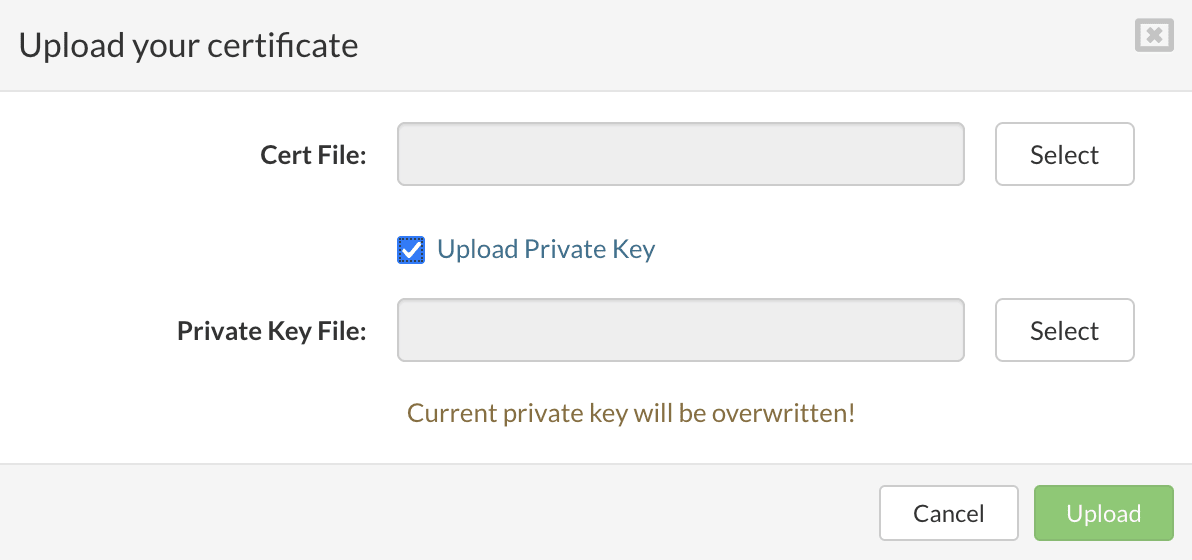
SERVERware will automatically switch to the manually added certificate.
Revoke a certificate
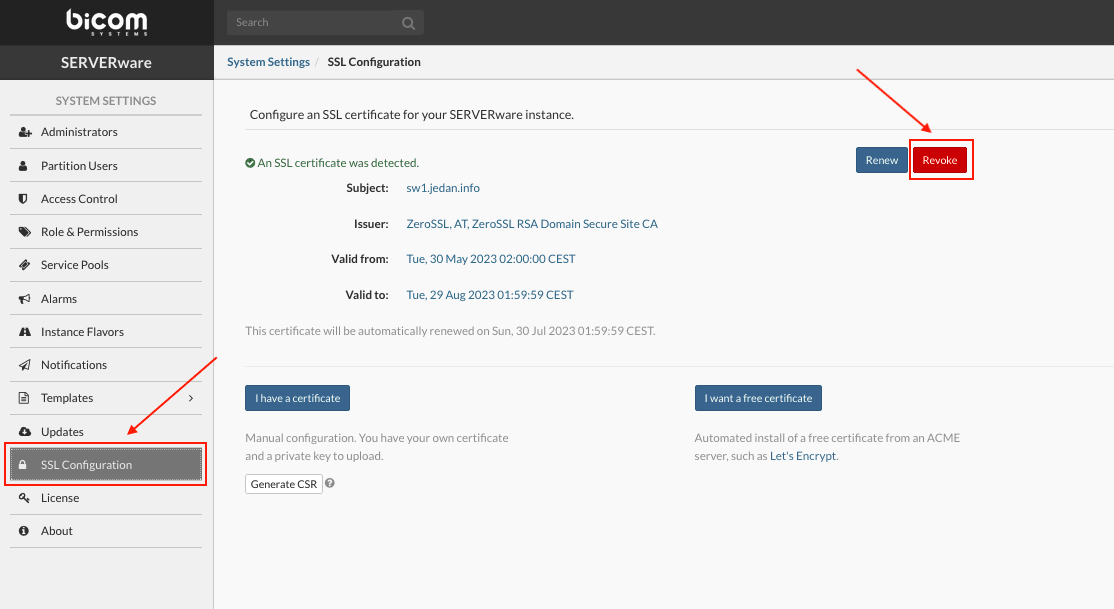
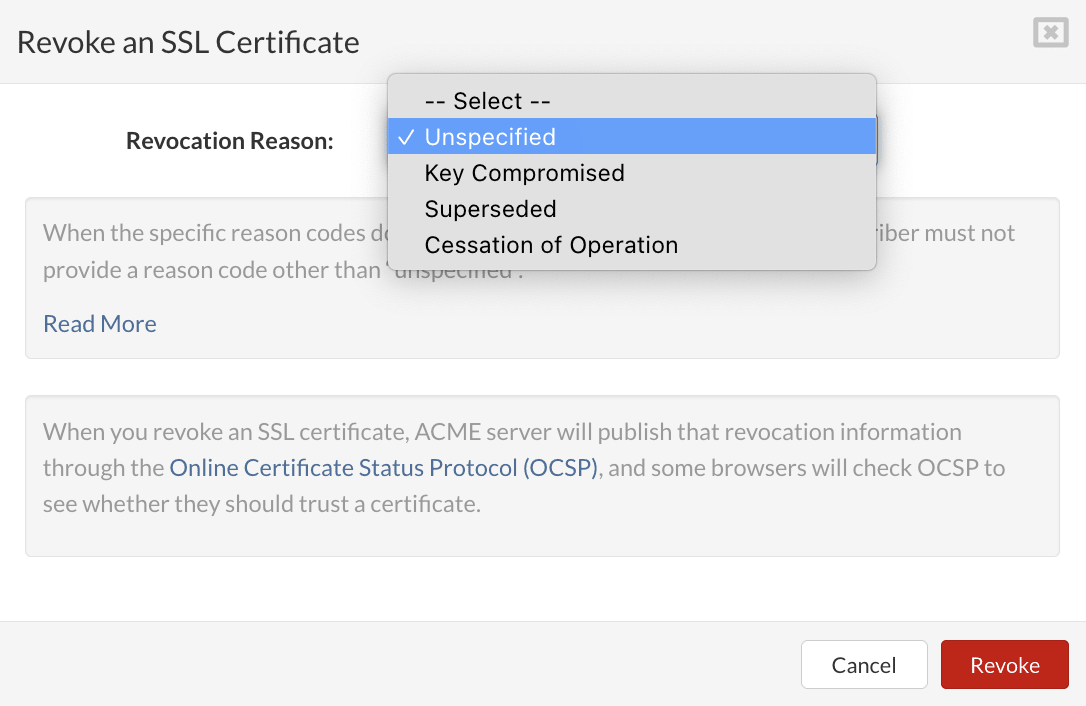
Revoking a certificate consists of invalidating a TLS/SSL certificate before its scheduled expiration date. This operation is necessary when the associated private key shows signs of compromise, or when the domain for which the certificate was issued is no longer operational. This option is available only for certificates generated from Let’s Encrypt, ZeroSSL, and other similar free providers via an automated activation method.
To revoke a certificate, go to the menu SSL configuration and click the button Revoke.
A pop-up window will appear, allowing you to select the reason for the revocation, then click Revoke.
Renewal
It is possible to manually initiate the certificate renewal process. This option is only available for certificates generated from Let's Encrypt, ZeroSSL, or other similar free providers, via an automated activation method.
To manually renew your certificate, go to the menu SSL configuration and click the button Renew. A pop-up window will open, where you must click the button Renew.
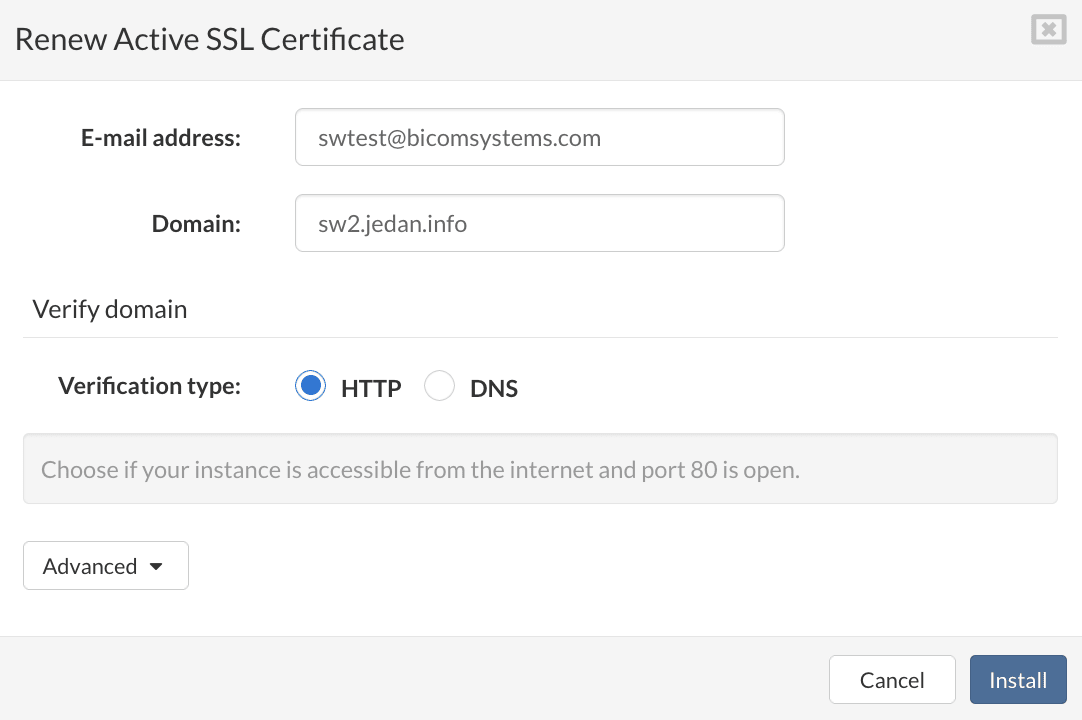
Wait until the renewal process is complete, then restart the GUI to apply the changes.
