



FR | EN
Wiki Bicom Systems EnglishWiki Bicom Systems English
  • Home
  • Documentation
    • PBXware
      • Installation
      • Getting started
      • Editions
        • PBXware Multi-Tenant
        • PBXware Business
        • PBXware Contact Center
        • PBXware Service Provider
      • Advanced services
      • Supported phones
      • Autoprovisioning
    • Communicator
      • Communicator Desktop
      • Communicator GO
      • Communicator Web
    • SERVERware
      • Standalone
      • Mirror
      • Cluster
    • sipPROT
    • Tutorials
  • Videos
    • Communicator Desktop
  • Operators
  • Downloads
  • FAQ
Support
leafleaf
Most popular:
  • PBXware
  • Communicator
  • SIP
  1. Home
  2. SERVERware Standalone
  3. 17. Reports
Updated on November 6, 2023
SERVERware Standalone
  • Folder icon closedFolder open icon1. Deployment guide
  • Folder icon closedFolder open icon2. Installation wizard
    • Add a backup host
  • Folder icon closedFolder open icon3. Configure the wizard steps
  • Folder icon closedFolder open icon4. Architecture
  • Folder icon closedFolder open icon5. Dashboard
  • Folder icon closedFolder open icon6. BSSUP
  • Folder icon closedFolder open icon7. Partitions
  • Folder icon closedFolder open icon8. Hosts
  • Folder icon closedFolder open icon9. Virtual private servers (VPS)
  • Folder icon closedFolder open icon10. Statistics
  • Folder icon closedFolder open icon11. Backup
  • Folder icon closedFolder open icon12. Geo-redundancy
    • Resource control
    • Configure geo-redundancy
    • Configure a replication cycle
    • Search and recovery
    • Site monitoring
  • Folder icon closedFolder open icon13. sipPROT
  • Folder icon closedFolder open icon14. Settings
  • Folder icon closedFolder open icon15. Archiving
  • Folder icon closedFolder open icon16. Network
  • Folder icon closedFolder open icon17. Reports
  • Folder icon closedFolder open icon18. System settings
  • Folder icon closedFolder open icon19. Administrators
  • Folder icon closedFolder open icon20. Partition users
  • Folder icon closedFolder open icon21. Access control
  • Folder icon closedFolder open icon22. Role and permissions
  • Folder icon closedFolder open icon23. Service pools
  • Folder icon closedFolder open icon24. Alarms
  • Folder icon closedFolder open icon25. Instance templates
  • Folder icon closedFolder open icon26. Templates
  • Folder icon closedFolder open icon27. Notifications
  • Folder icon closedFolder open icon28. Updates
  • Folder icon closedFolder open icon29. SSL
  • Folder icon closedFolder open icon30. License

17. Reports

Estimated reading: 2 minutes

The reports menu is organized around the following sections: System logs, Alarm logs, and User sessions.

System logs

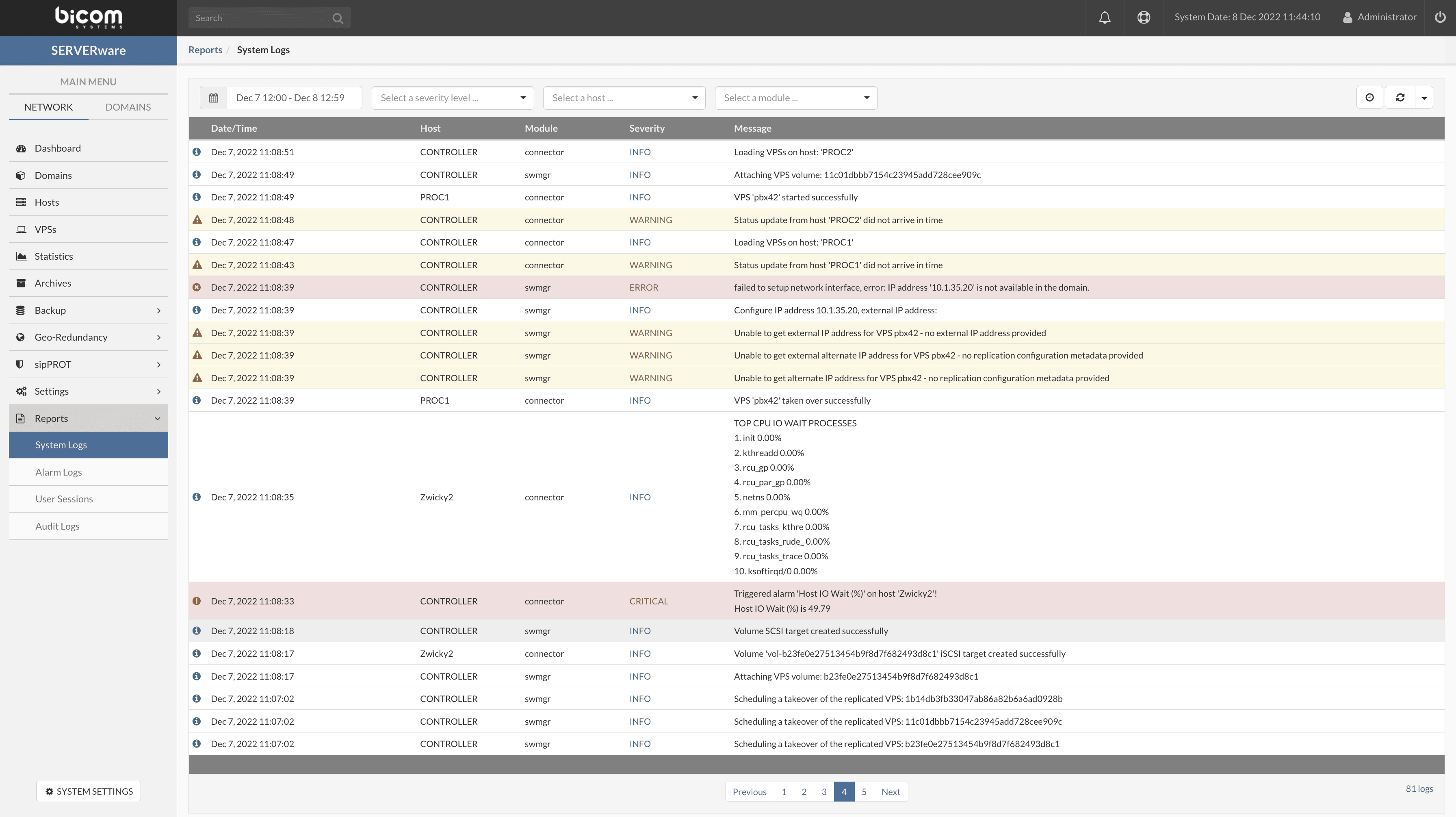
All events that occur in SERVERware are recorded in the System logs. In addition to the general management of information and the system, the System logs can also be used for debugging and analysis. A filter is also available for displaying logs.
Alarm logs

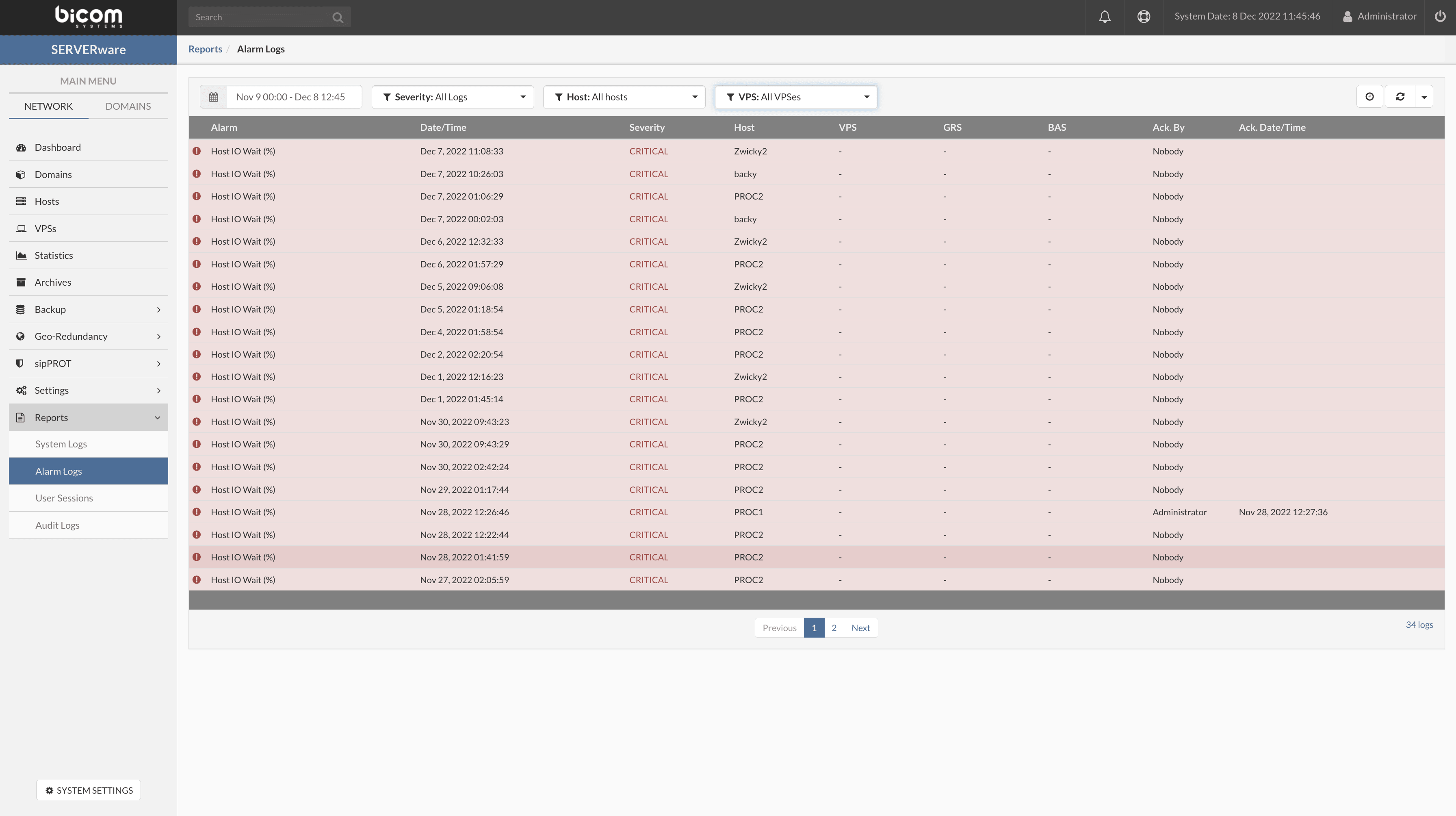
All triggered alarms are recorded in the alarm log and can also be used for debugging and analysis. A filter is also available for displaying the logs.
User sessions

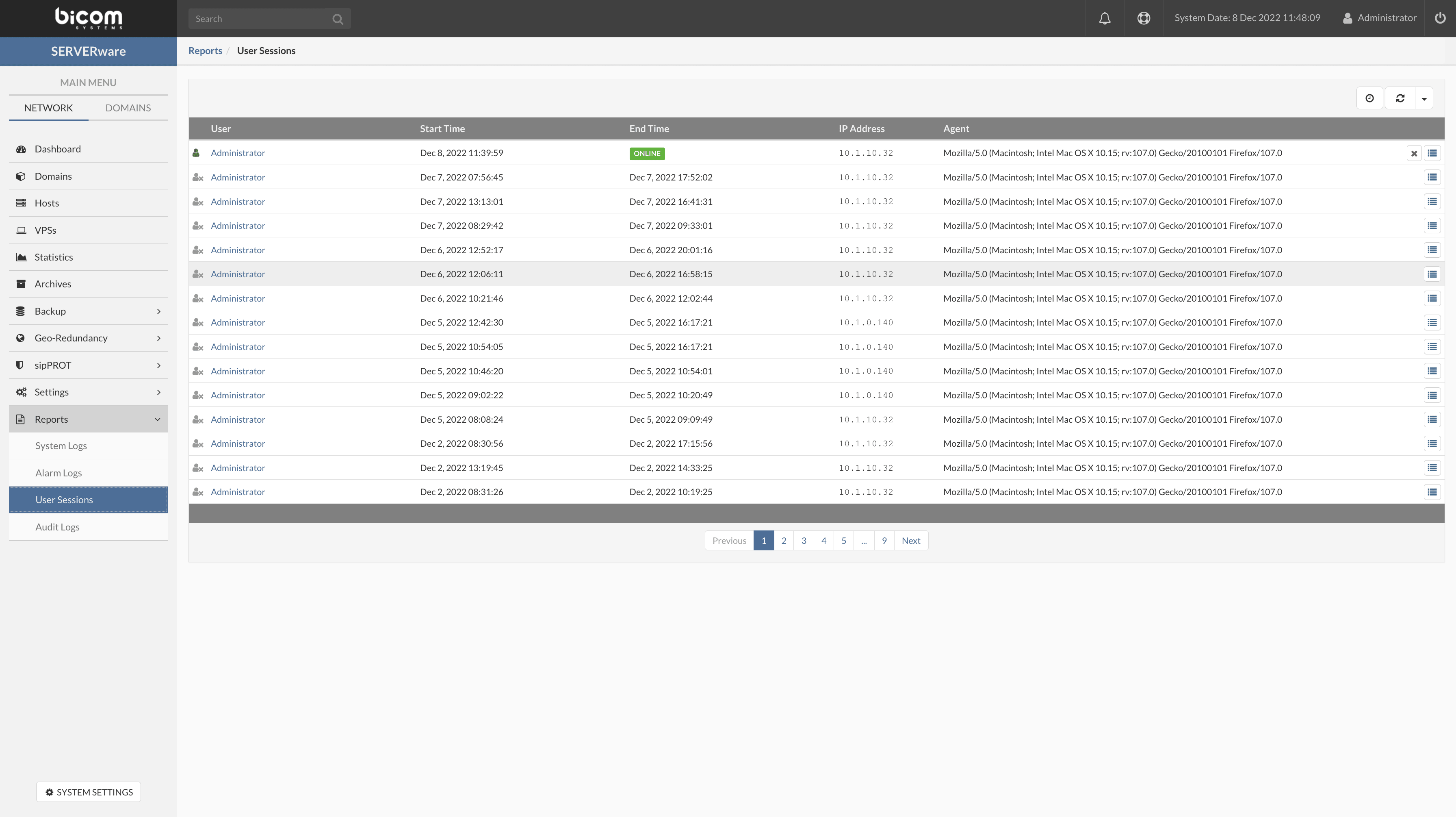
The page of the User sessions provides information about the current connections to the SERVERware GUI, as well as the connection history and activity. The following information is provided: user, connection start/end time, IP address and user agent.
Audit logs

Audit logs are a record of the actions that have been performed on a SERVERware server. These logs generally include information about who performed the action, when the action was performed, and the nature of the action. Audit logs can be used to track changes made to a SERVERware server, as well as to detect and investigate potential security incidents. In many cases, audit logs are considered an important tool for maintaining the security and integrity of a system, as they can provide valuable information to auditors and SERVERware administrators.
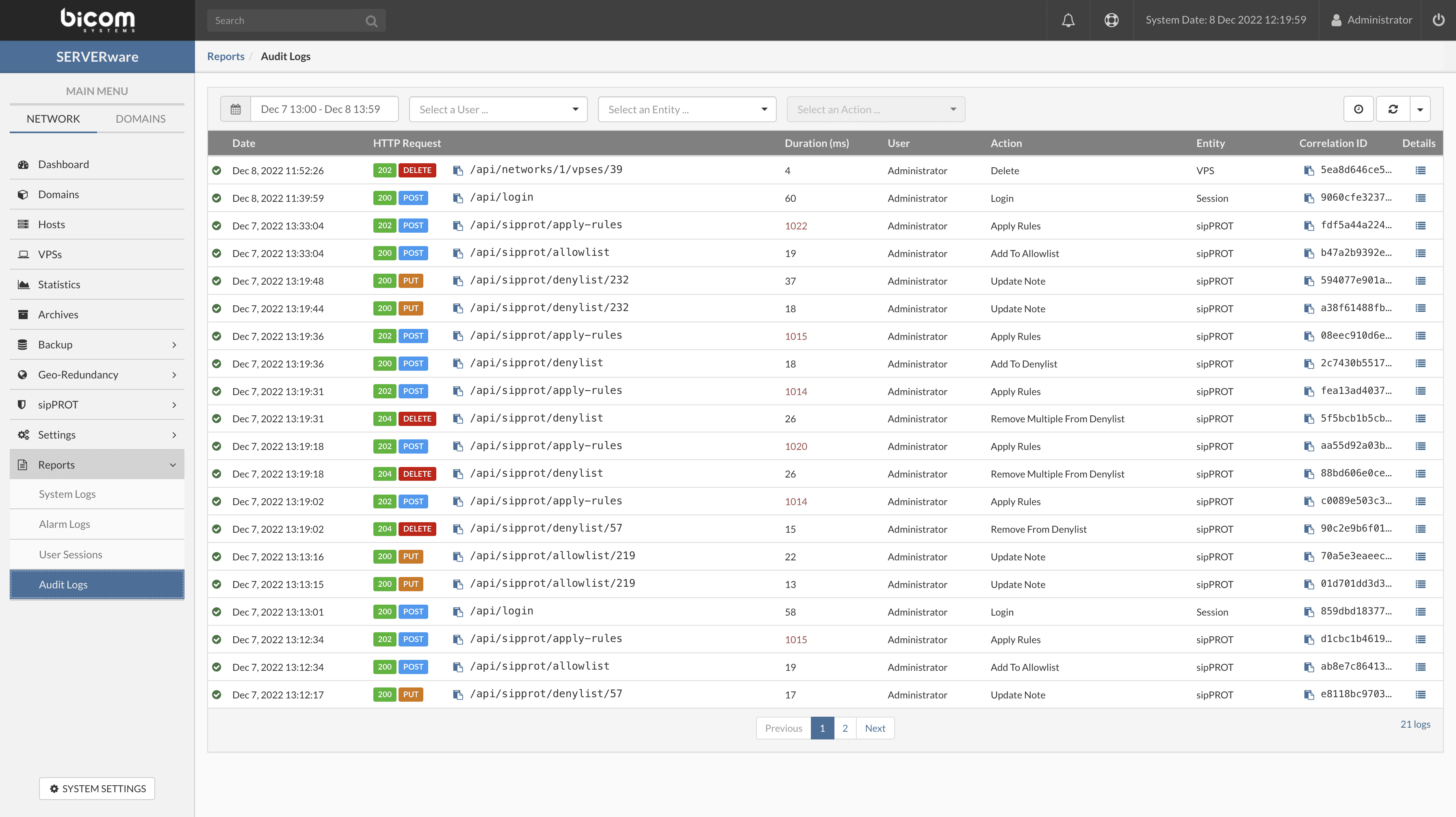
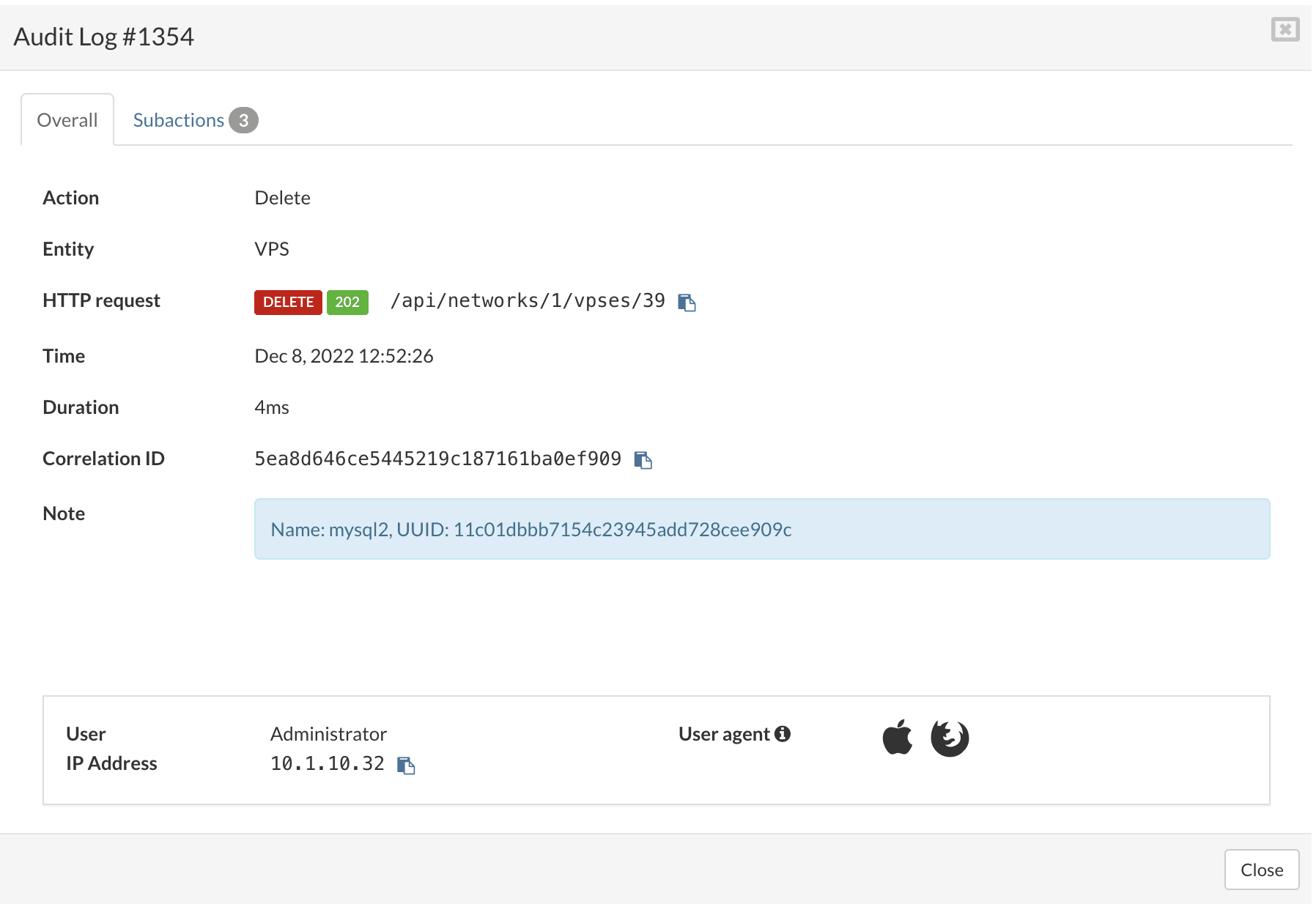
A filter is implemented to help SERVERware administrators more easily search and analyze audit logs. By clicking on Details, a pop-up window will appear with additional details about the action.
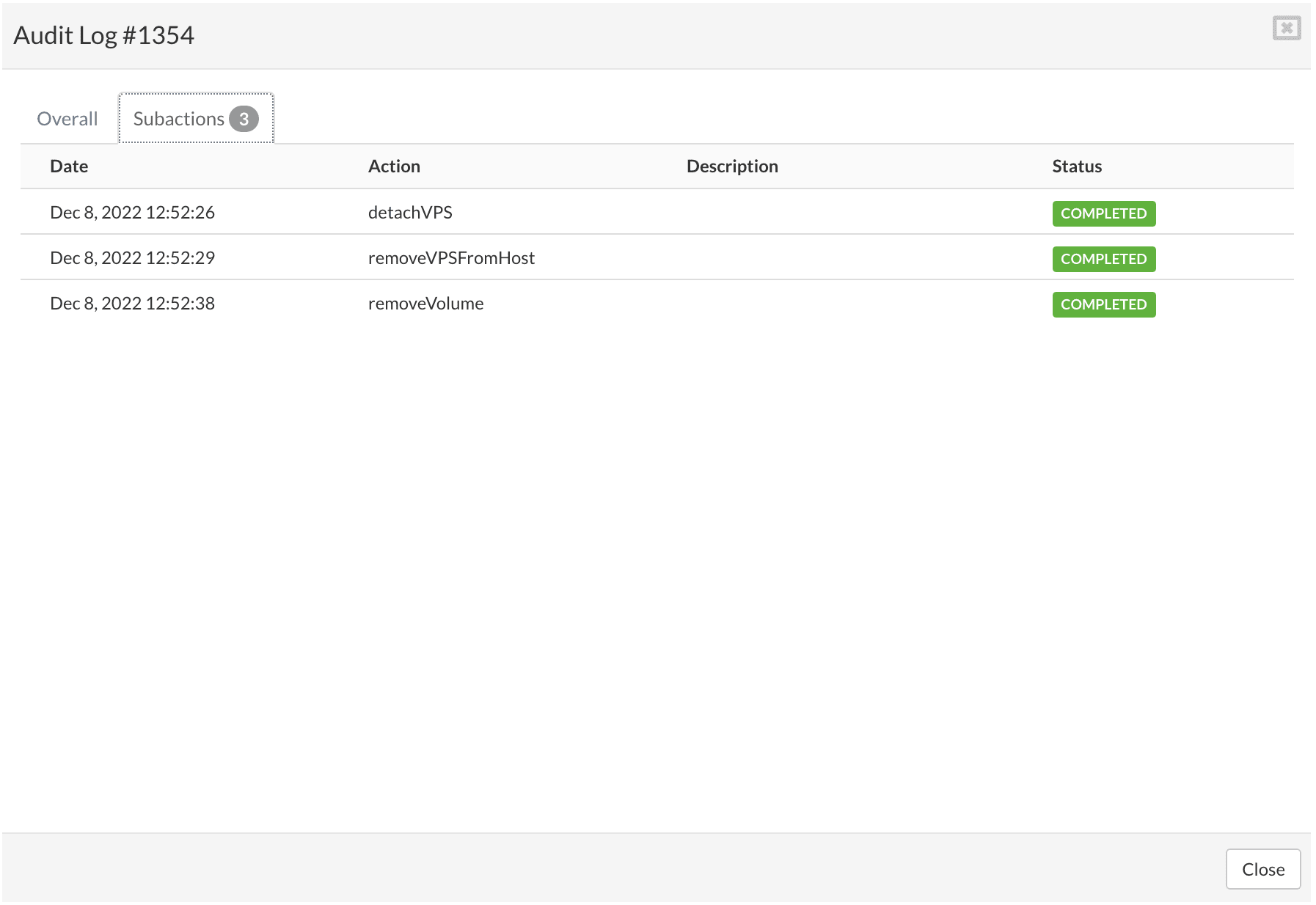
All sub-actions are previewed in the tab Sub-actions.
Share

17. Reports

Or copy the link below

Clipboard Icon
CONTENT
Leaf Illustration

© Bicom Systems France

Last updated: 4 July 2026 Legal noticePrivacyCookiesTerms © 2026 Bicom Systems