



Chat
Chat is one of the main features of Communicator GO. Chat conversations are synchronized across all Communicator applications.
Users can start a chat in two ways:
Via the chat item in the bottom menu and by tapping an icon +
(live or group chat)Via the user information display screen (direct chat with the user that
you are previewing)
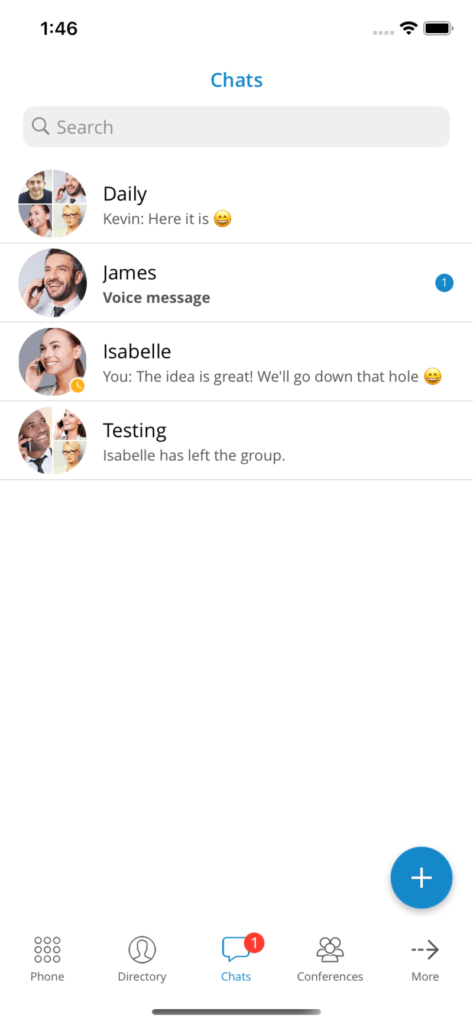
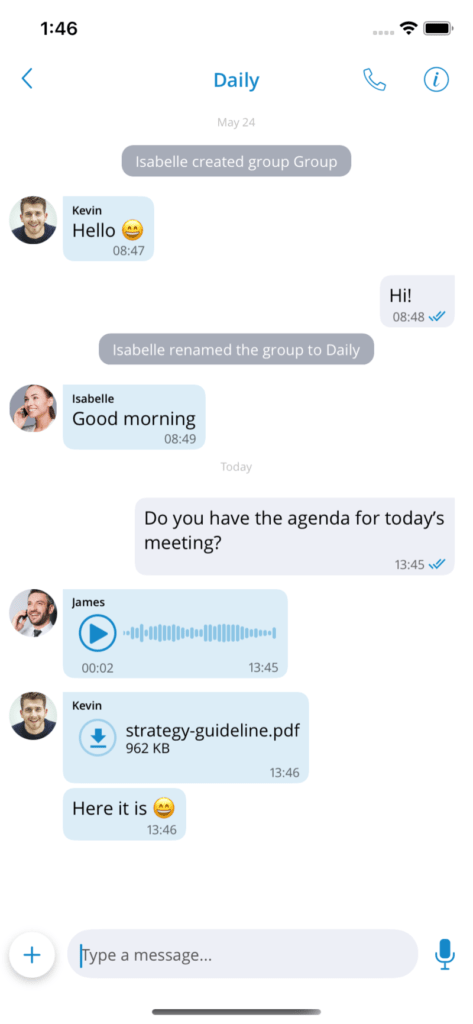
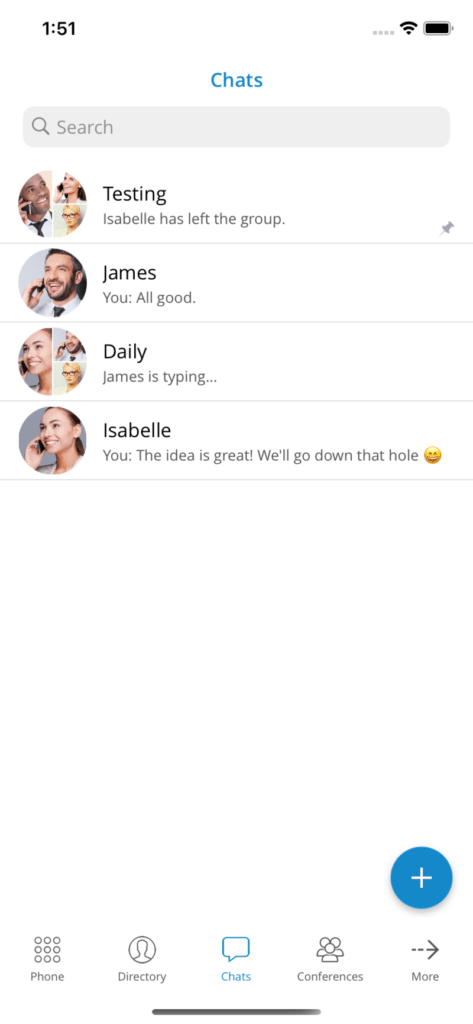
All chat sessions are accessible via the “Chats” icon located in the bottom menu, displaying the number of unread messages and the last message of each session. You also have the option to search for chats by tapping a search bar in the “Chats” function. Chats can be searched by group or by username. If you do not have a chat session with another user, that other user will be displayed when you search for them in the “Chats” tab of the application. When you tap a user indicating that there is no chat session, the chat session will be created and you can start chatting.
The total number of unread messages is always displayed on the icon at the bottom of the “Chats” section. This number decreases as you read the unseen messages.
When chat messages or sessions are synchronized from the server, the application will display a yellow indicator below the navigation bar. The application is fully synchronized with the server when the loading indicator disappears. If you log in with a mobile application for the first time, synchronizing recent chat sessions may take a few seconds.
If chat is not enabled for you on PBXware, the application will not display the “Chats” module.
Banner message to indicate that the chat server is down: A yellow banner will be displayed on the chat list and chat screens to indicate that the server is unavailable.
Direct chat
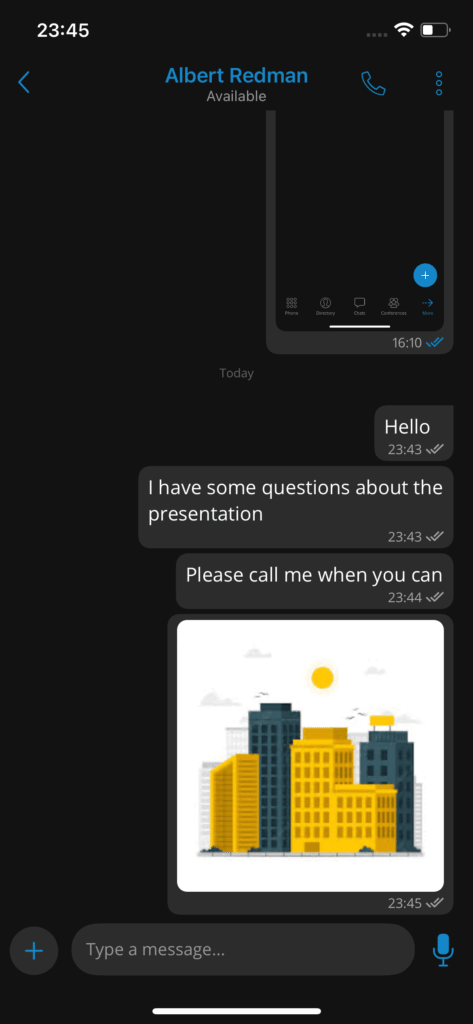
One-on-one chats represent exchanges between two participants using the same PBXware. When you access a chat from the bottom bar, you can compose messages, like in any messaging application. Communicator also offers the ability to send files, with a default size limit of 50 MB, adjustable in PBXware.
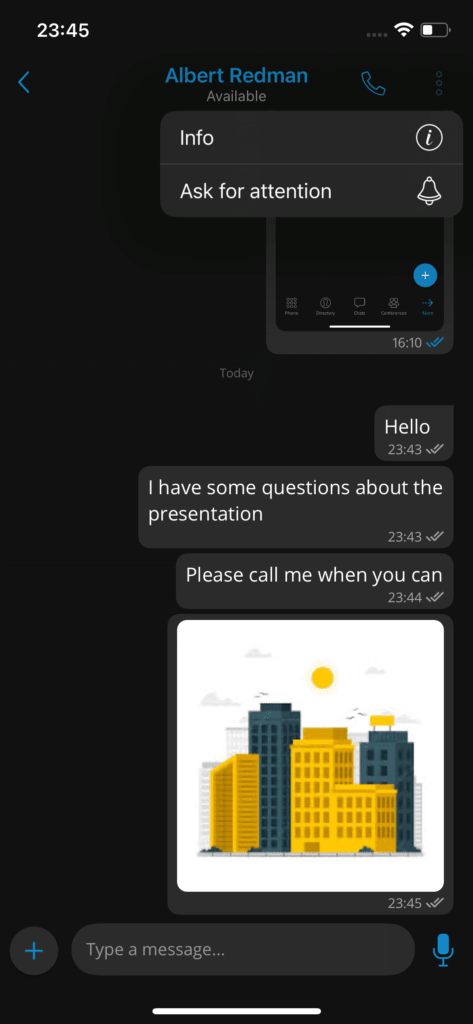
In the navigation bar, you can see the name of the person you are chatting with as well as their presence status. On the right, you will find the "Call" button that will allow you to start a call with the extension. The "Add participants" button opens a new screen where you can select other participants to add to the conversation, thus creating a new group chat with its own history. The "Additional options" button offers three choices:
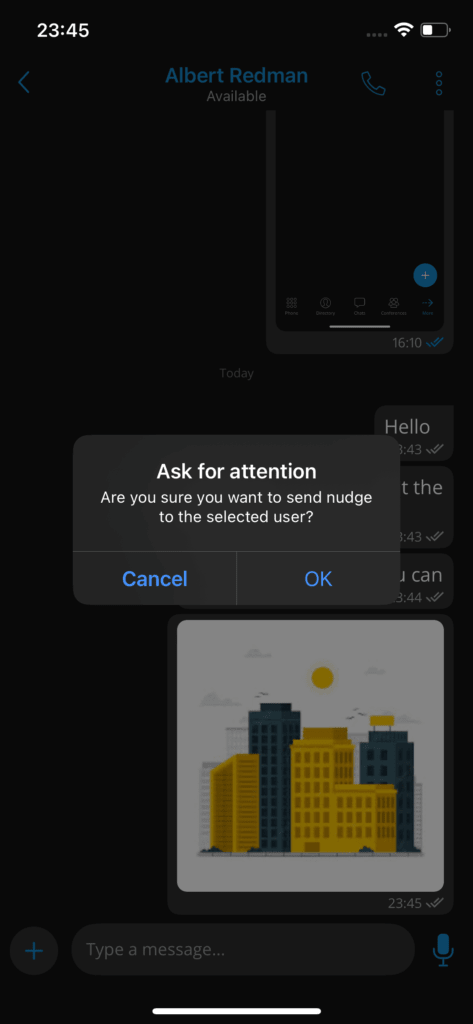
• "Request attention" (sends a nudge to the selected person)
• "Create an instant meeting"
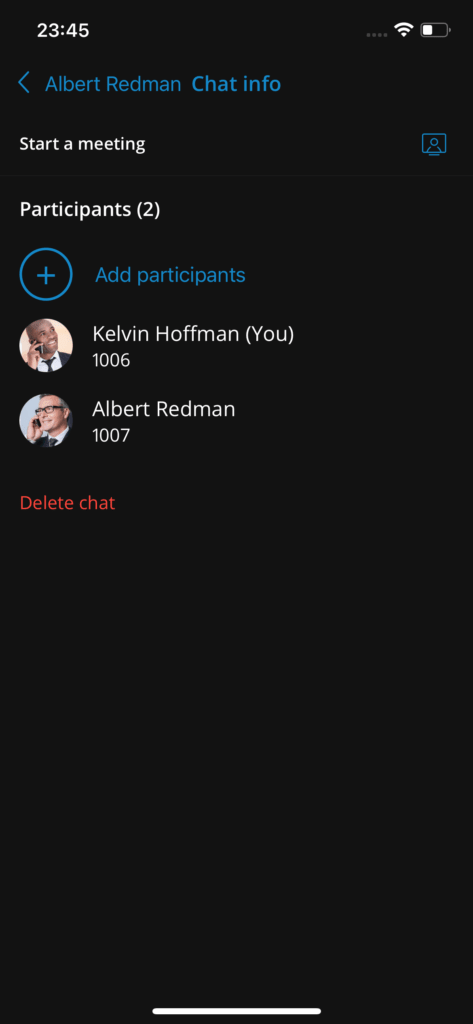
• "Info" (opens the screen containing the chat information and options)
On the chat information screen, an option allows adding additional participants, thus creating a new group chat with a blank history. There is also an option to start a meeting directly from this screen.
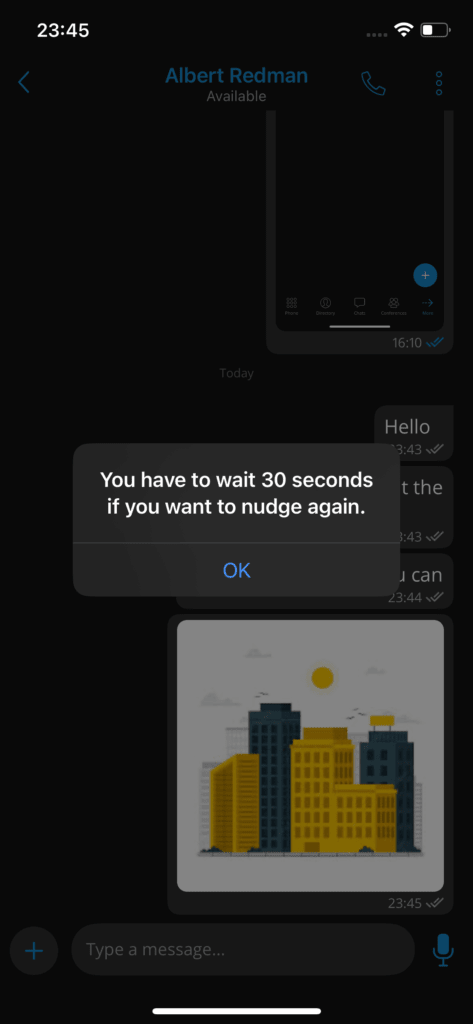
The "Request attention" button represents a simple yet effective way to attract someone's attention. When this button is activated, a confirmation dialog box appears, offering the "Yes" and "Cancel" options, where "Cancel" is the default option. The nudge can be sent every 30 seconds.
In addition, it is possible to delete the chat from the information screen, with this deletion being visible only to the person who performed it.
Group chats
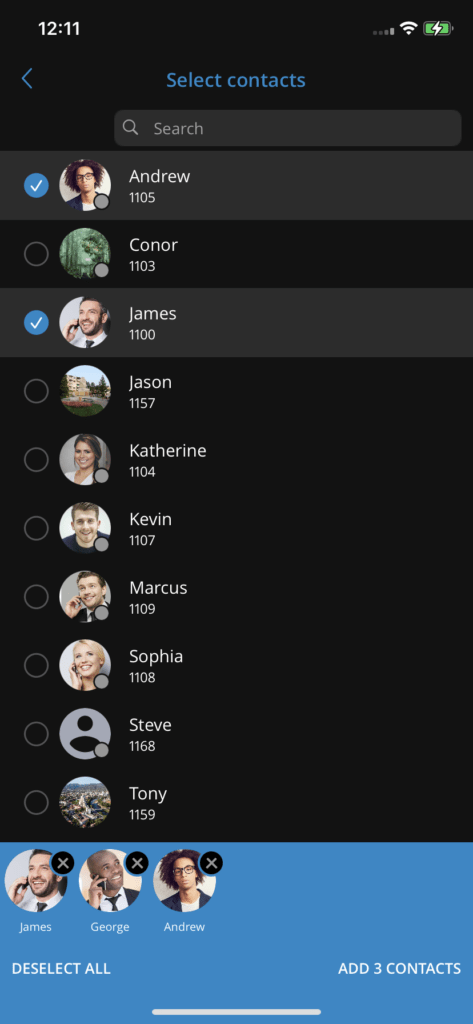
Participants can initiate a group chat by tapping the “+” icon on the “Chats” item in the bottom menu, or by creating a new group chat from a one-on-one chat on the chat information screen.
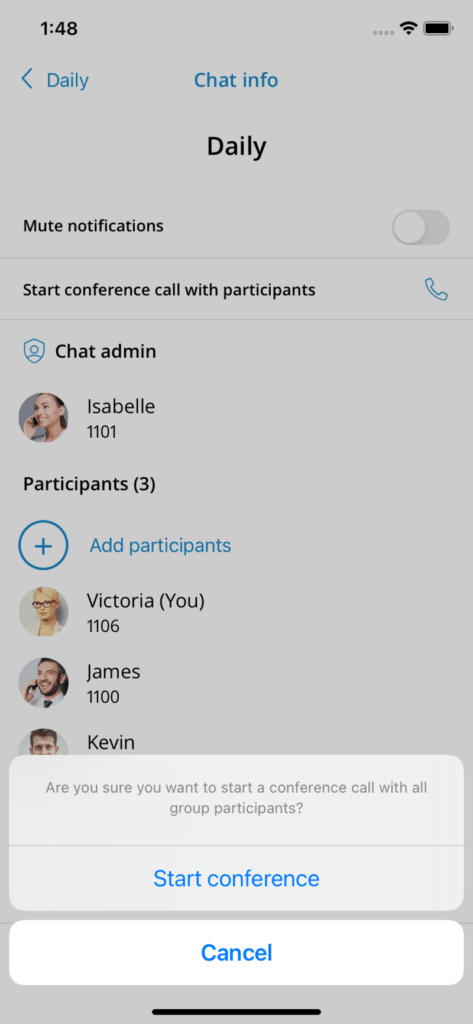
The user interface for group chat remains similar to that of one-on-one chat. However, the call button has a different function, and in group chat it triggers a dynamic conference with the group members. If the group has more than 20 members, calls will be disabled.
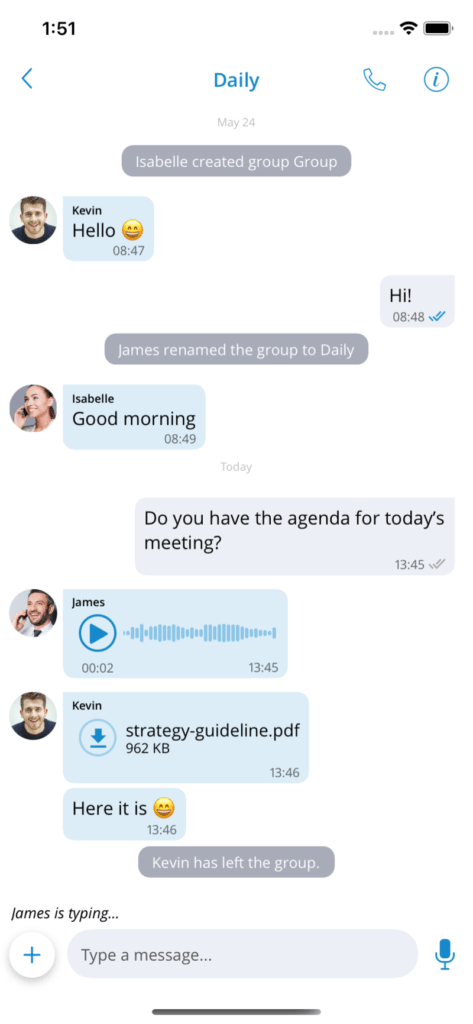
Group chats generate events to inform participants of changes such as renaming the chat, or certain users joining or leaving.
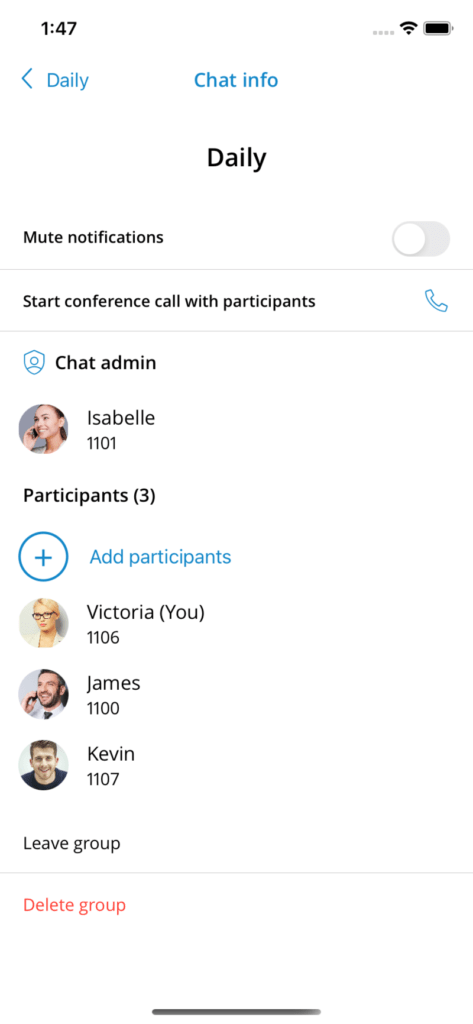
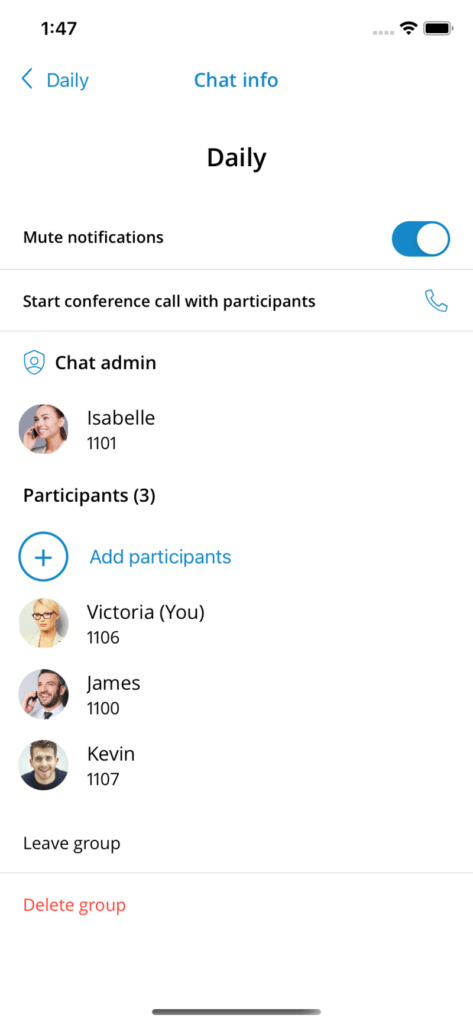
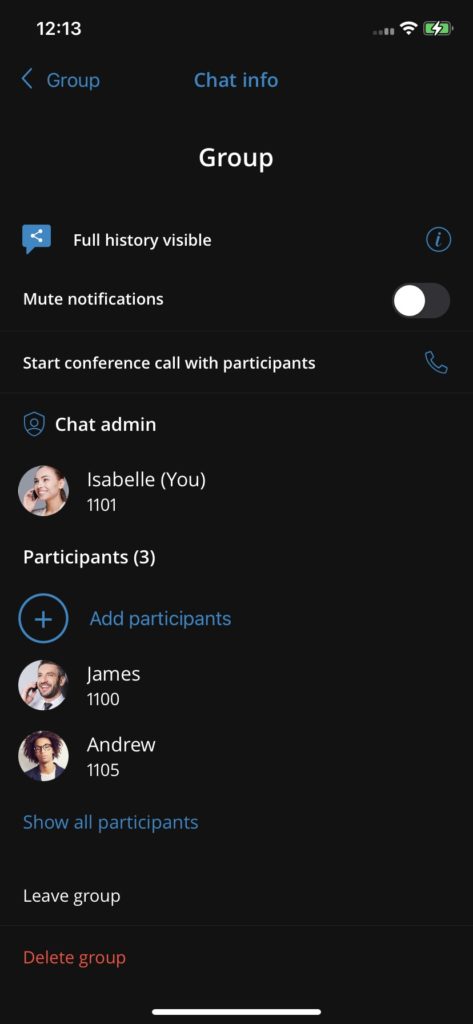
The information screen of a group chat differs from that of a one-on-one chat. In the information screen of a group, users can add other participants, view all group members, mute group notifications, and start a dynamic conference for that group. The group administrator also has the power to rename the chat.
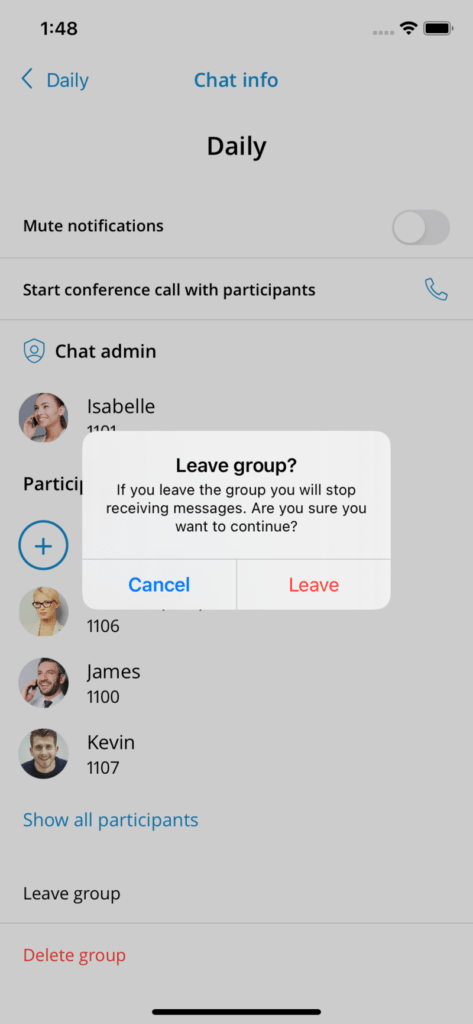
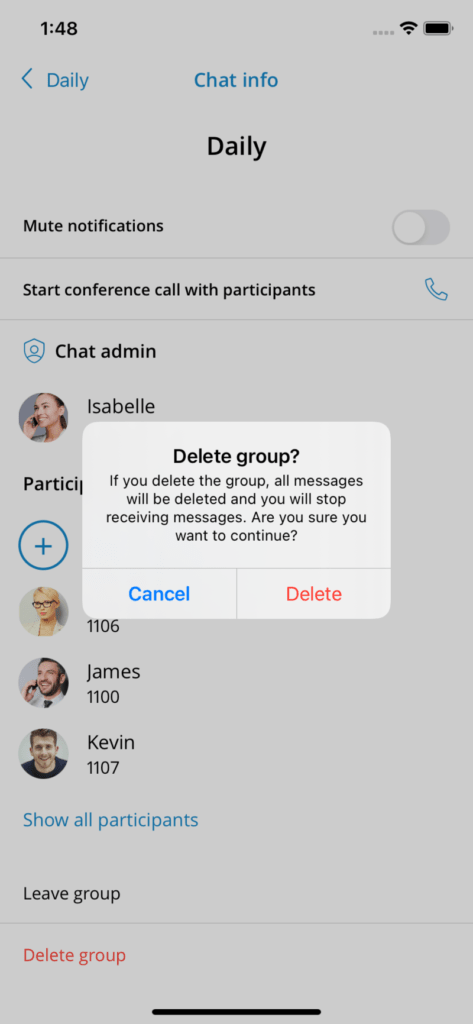
It is possible to leave the group, thereby synchronizing the message history up to that departure on the client applications. Another option is to delete the group, making the history inaccessible and removing the group chat for the user.
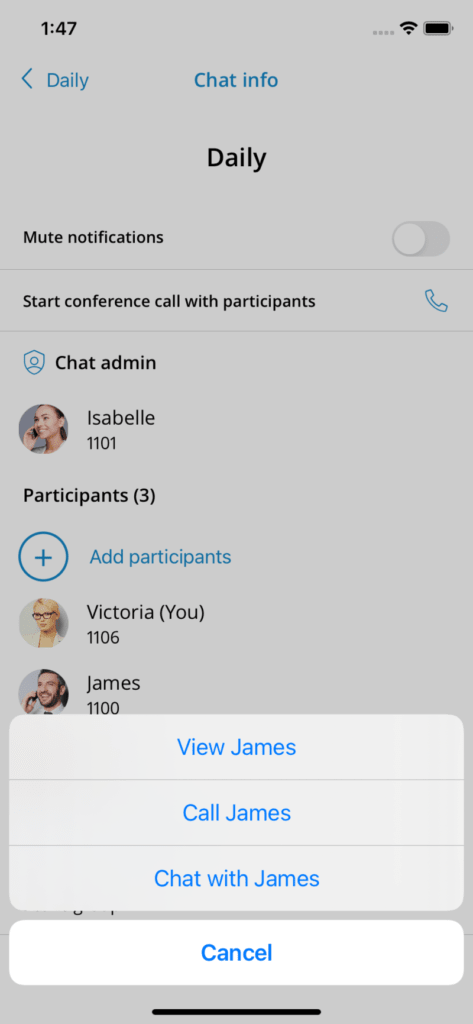
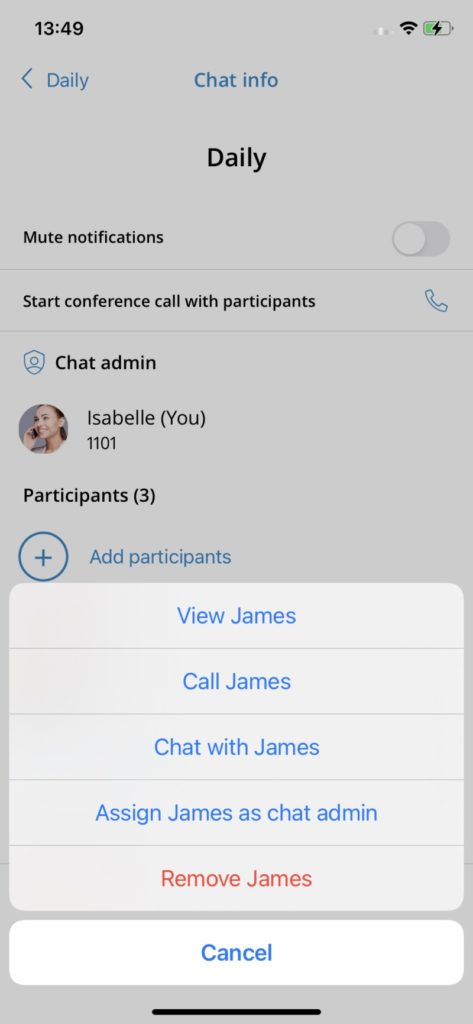
By pressing a participant in the chat information screen, users can view the profile, make a call, or start a one-on-one chat. Group administrators can name other participants as administrators or remove them from the group chat.
When the group chat session is muted, users will not receive notifications (push and in-app) for that session. The mute option is synchronized across the devices of all participants, and a muted session will be indicated by a mute icon in the chat list.
Shared groups
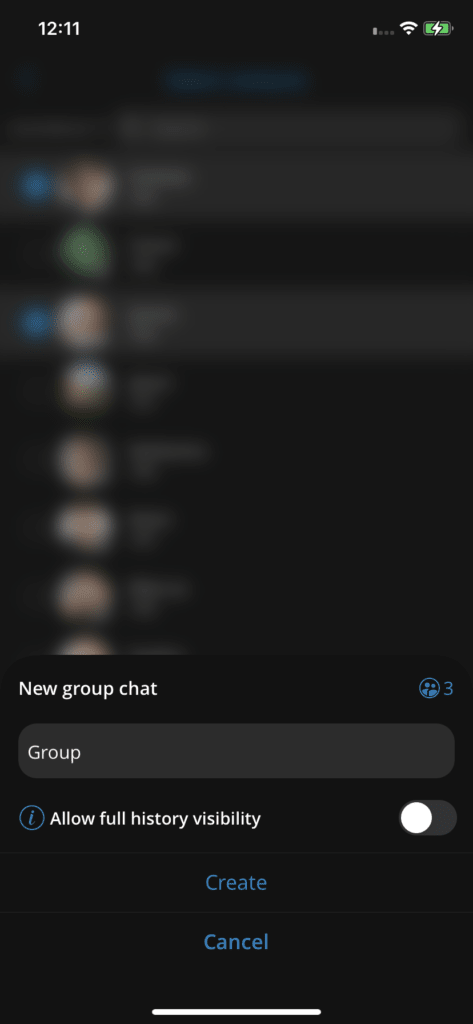
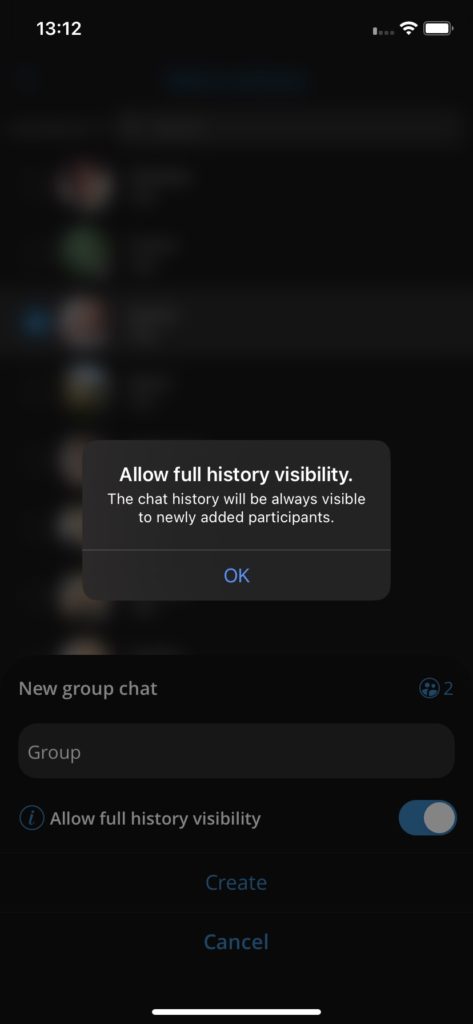
Participants can create a shared group where all the group history is visible to new participants. When creating a new group chat, the user can specify the group name and enable the “Allow full history visibility” option. Once this option is enabled, a pop-up will inform the user that the chat history will always remain visible to newly added participants.
Mention
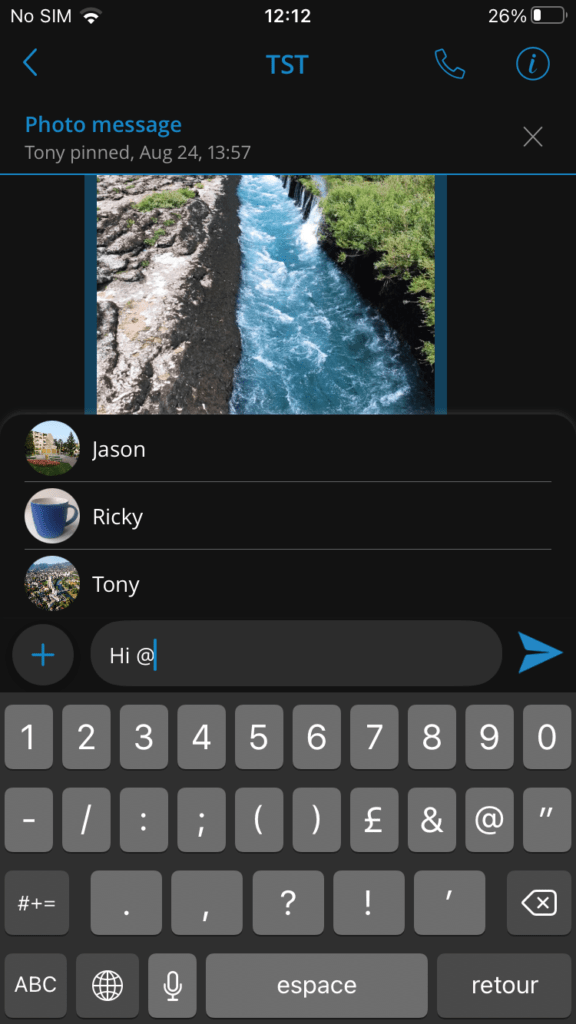
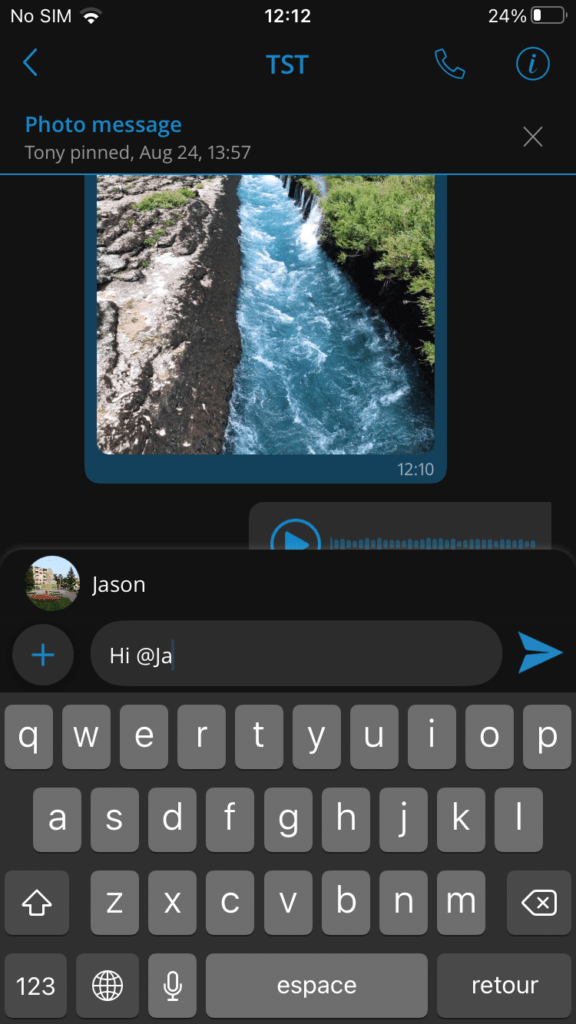
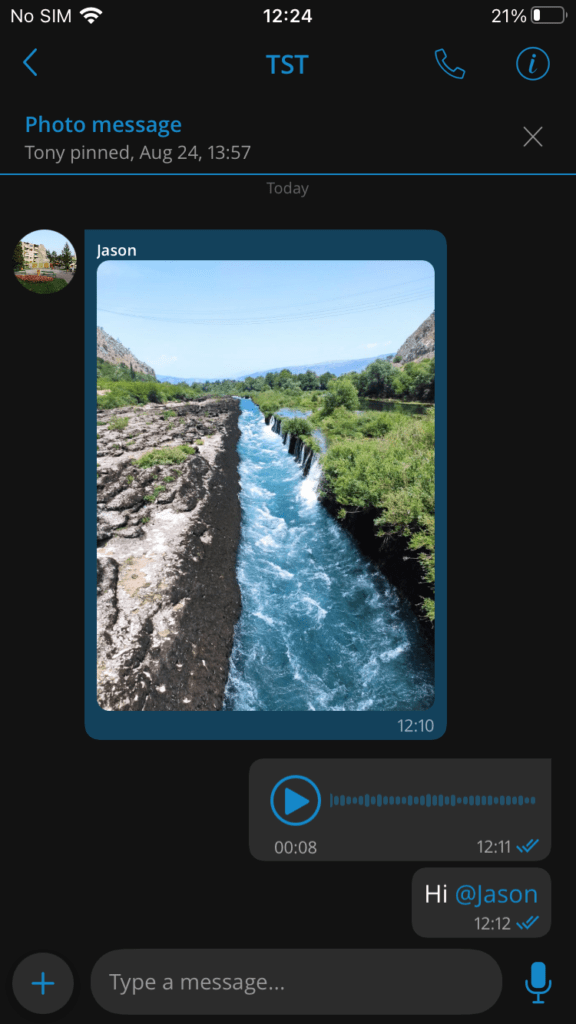
Mention is a great way to attract someone's attention in a group conversation. Only group participants can be mentioned in a message. When mentioned, the user will receive a push notification that will override any mute action set by the user for the group. Mentions start with the symbol @ followed by a name. When the symbol @ is typed in the input field, a drop-down menu will appear with a list of participants. The mention feature supports smart autocomplete based on the user's input.
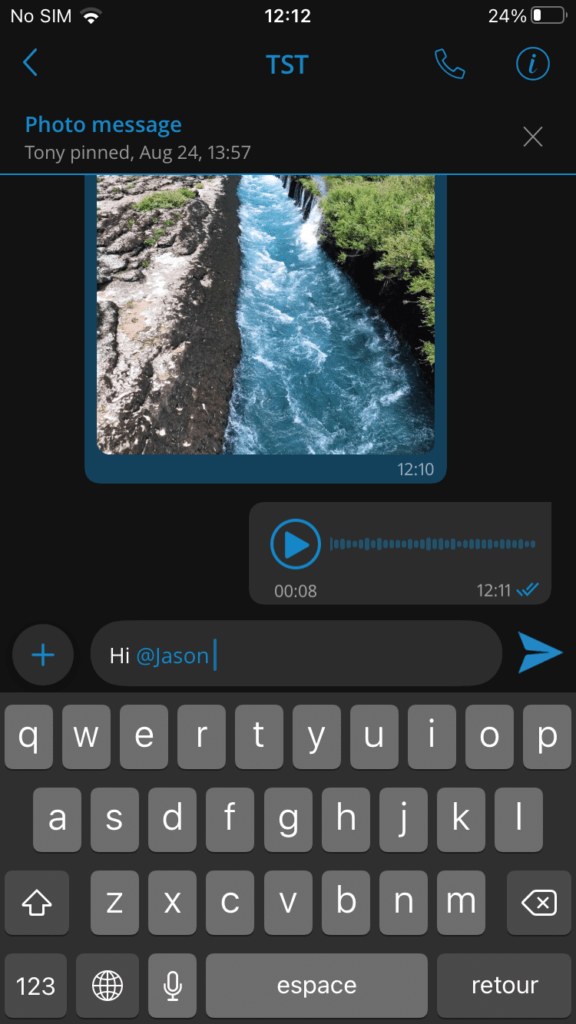
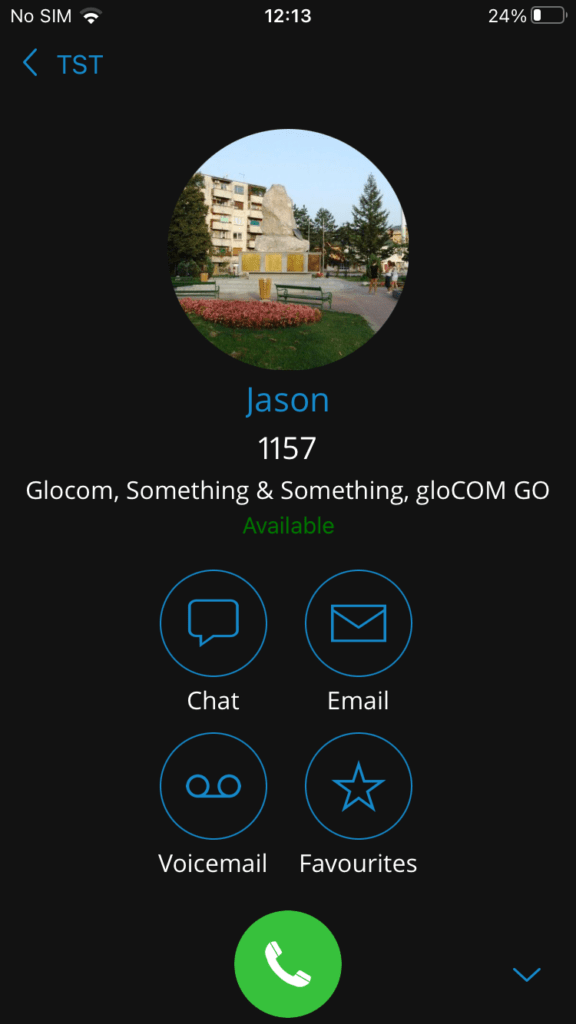
Clicking a mention link has the same functionality as clicking a user's avatar in a chat conversation.
Information about the status of chat messages
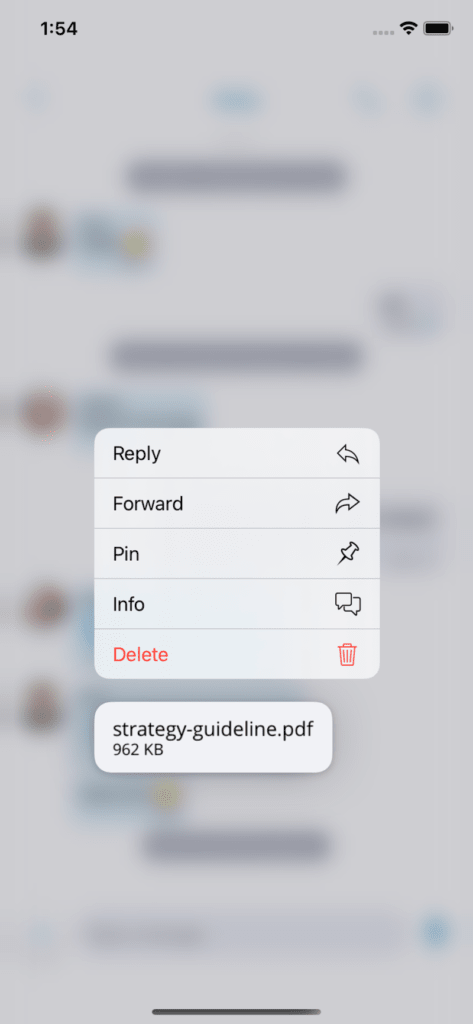
Message information allows users to see the delivery and read reports for messages. The message information window can be accessed by long-pressing a message, then selecting information from the context menu. The message information option is only available in group messages.
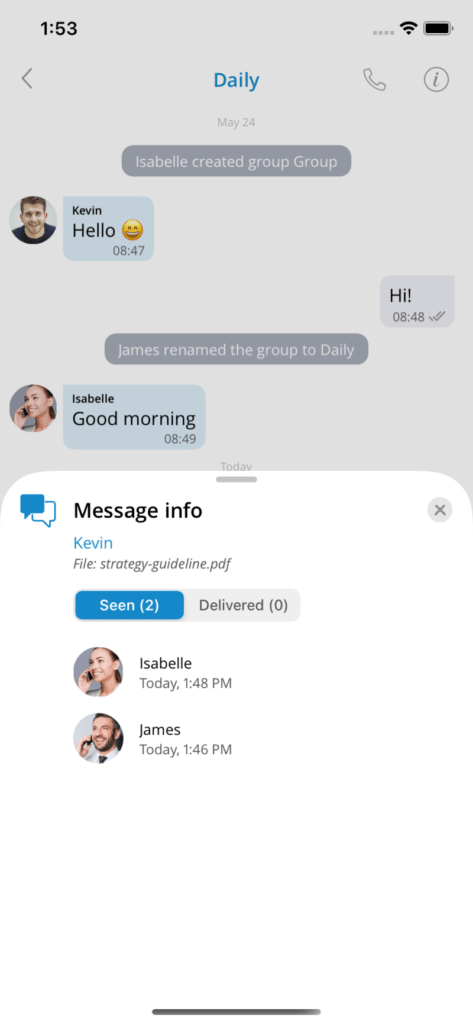
The message information window opens from the bottom of the screen and occupies a small part of the screen. It is possible to expand the message information window to full screen by dragging it upward, or to minimize it by dragging it downward. The window can be closed either by pressing outside the message information window or by pressing the close button in the upper-right corner of the message information window.
The message information screen is organized to display the name of the person who sent the message, the message content, and two tabs. The seen tab and the delivered tab. By selecting the Seen tab, you will see a list of users who sent the seen report. Users will see their name and the time at which they sent the report printed. Similarly, by selecting the delivered tab, you will see a similar list, but in this case, the users who sent the delivered report. If either tab is empty, an appropriate message will be displayed.
If the information window is opened on a device connected to an earlier version of the server, a message will appear in the message information window indicating that the action is not supported.
Administrator transfer
The administrator transfer feature allows the chat administrator to assign one of the participants in the group chat as the new administrator of the group conversation. By tapping an active participant in the group chat, a dialog box will appear offering the current administrator to assign the selected active participant to the group chat as the new administrator.
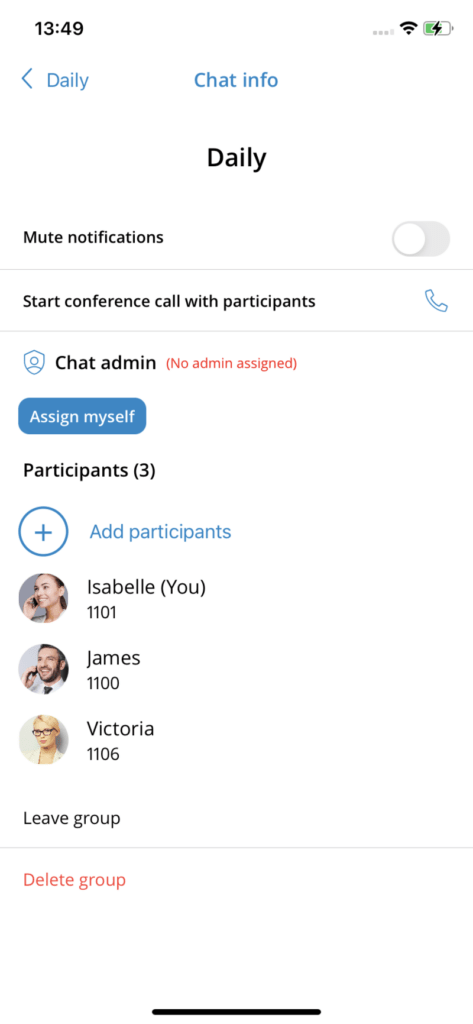
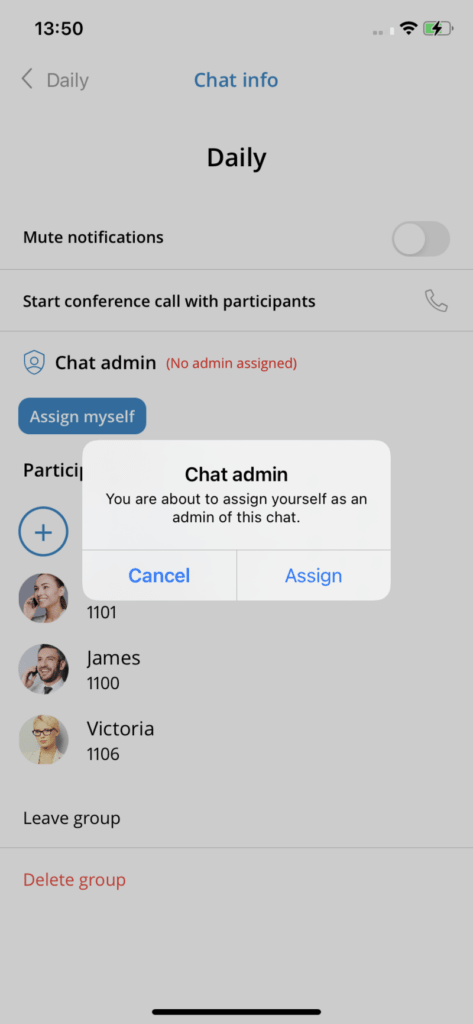
One of the group chat participants can also request to become the administrator of that chat conversation after the previous administrator leaves. Once the group chat administrator leaves the chat, the chat information will indicate that no administrator is assigned to the group chat. The remaining group chat participants can request to become administrator by pressing the Assign to me button in the chat information.
If this feature is not available on older servers, a notification message will appear, informing the user that this action is not yet supported and asking them to contact their system administrator for more information.
Drafts
Unsent messages will be saved in the application as drafts. Users can safely close the application, go to another screen, and the message they were composing will be saved.
Reply from the notification
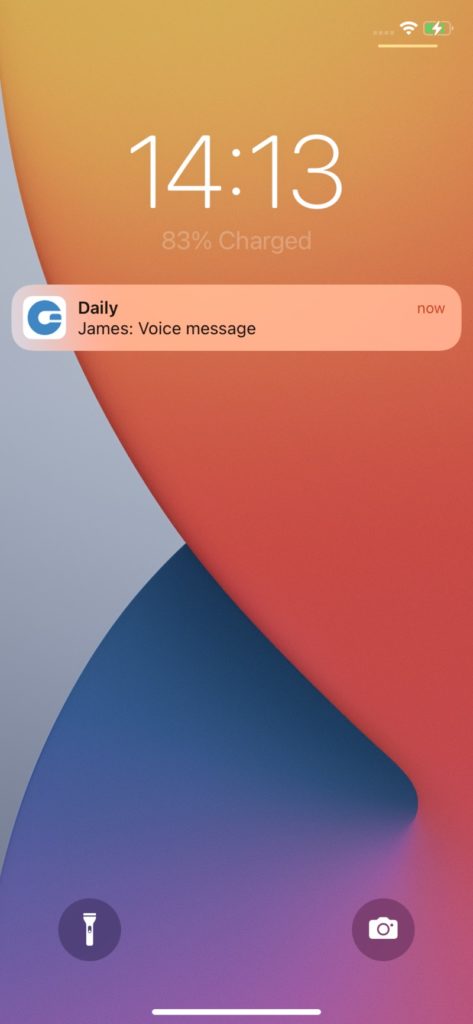
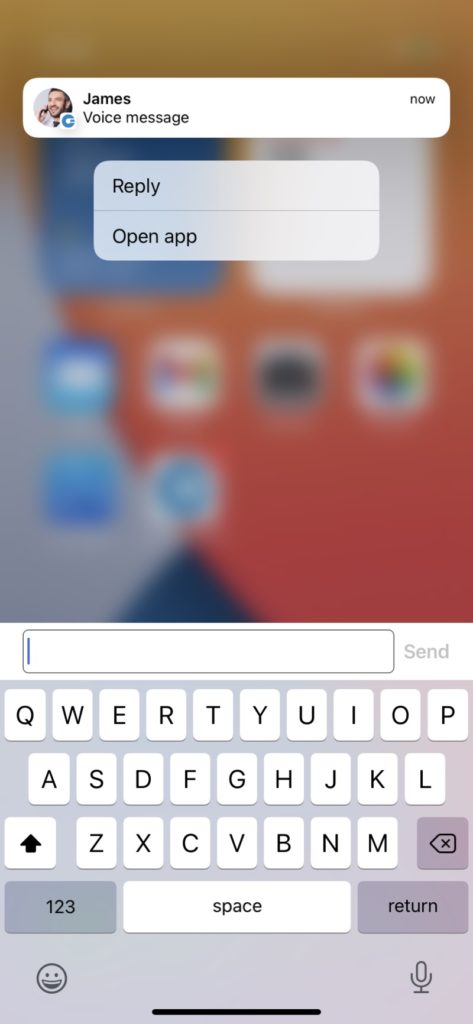
Users can reply directly to messages received via push notifications by long-pressing them and selecting “Reply”. A keyboard with a text field will be displayed where users can enter and send a message. This feature can also be used with notifications received on Apple Watch. Messages sent with the notification feature's reply are sent as reply messages.
Mark as read
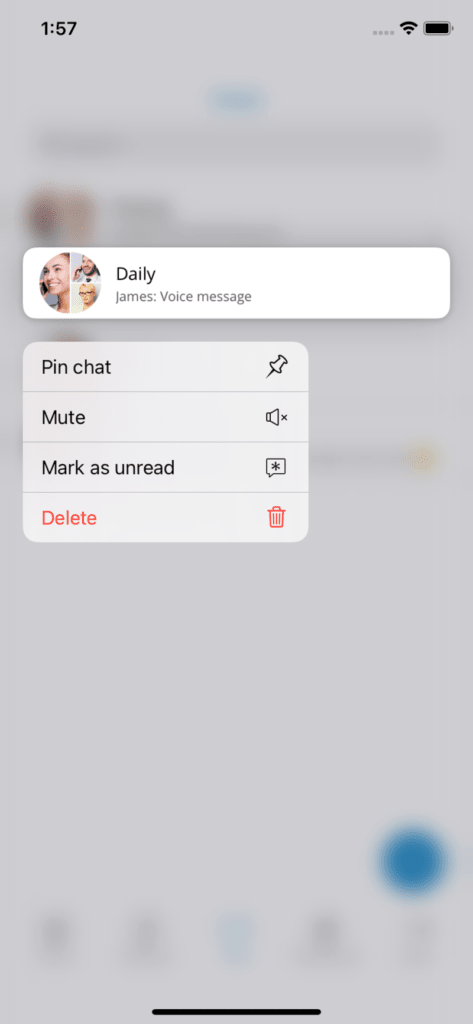
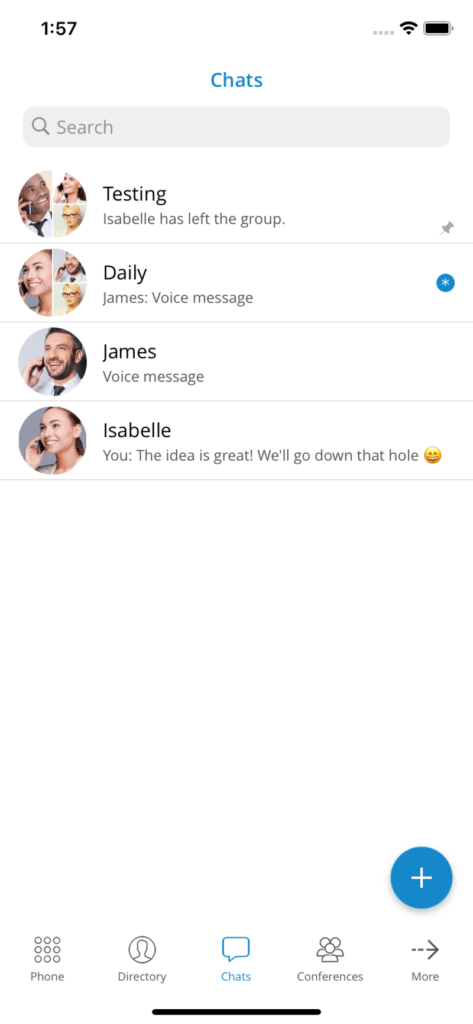
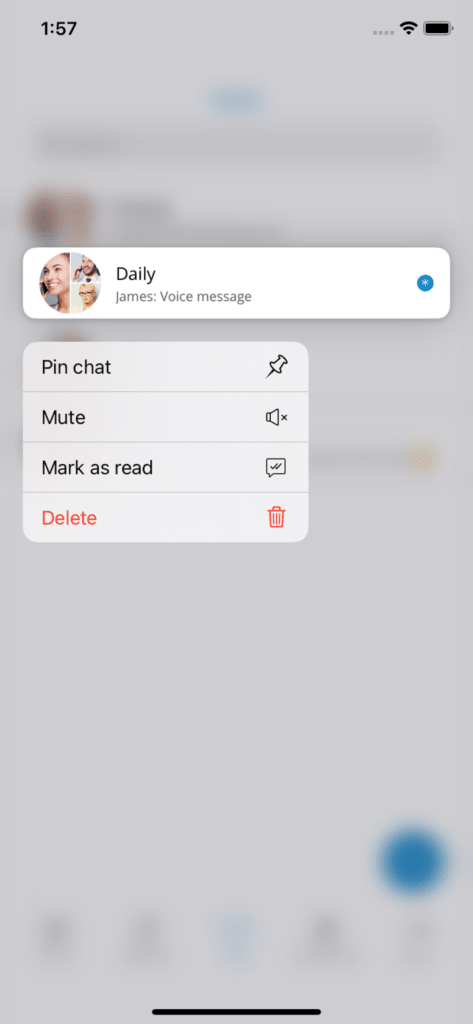
This feature provides the ability to mark any conversation as read/unread. When you choose the conversation as unread, the Unread indicator will be displayed for that conversation on the chat list screen.
For any action taken during this conversation, the Unread status will be removed. In addition, opening this conversation or marking it as read will remove the unread indicator.
Send me messages
Users can send themselves a message if they want to keep notes or transfer messages between the Communicator applications.
Typing indicators
The typing indicator at the bottom of the chat screen indicates that someone is typing during the chat session. In group chats, several participants may type simultaneously, so the notification will display a message: 3 participants dial (when 3 participants type simultaneously). Users can also see when someone is typing a message from the chat list screen.
Remove a user from a group
This feature allows the group administrator to remove a participant from the group chat. Once a participant is removed, all other participants receive a notification indicating that this person has been removed from the group, including the removed participant.
The removed participant can enter the group chat and view all messages up to the moment of removal, but will not be able to write, send files or see new messages from the other active participants.
Messages
There are three types of messages:
Text messages
Voice messages
Message files (photo, video, gif, pdf, zip, etc.)
Each message sent to the server has one of three states:
Sent (the message is sent to the server)
Delivered (the message is delivered to the recipient)
Read (the recipient has seen the message)
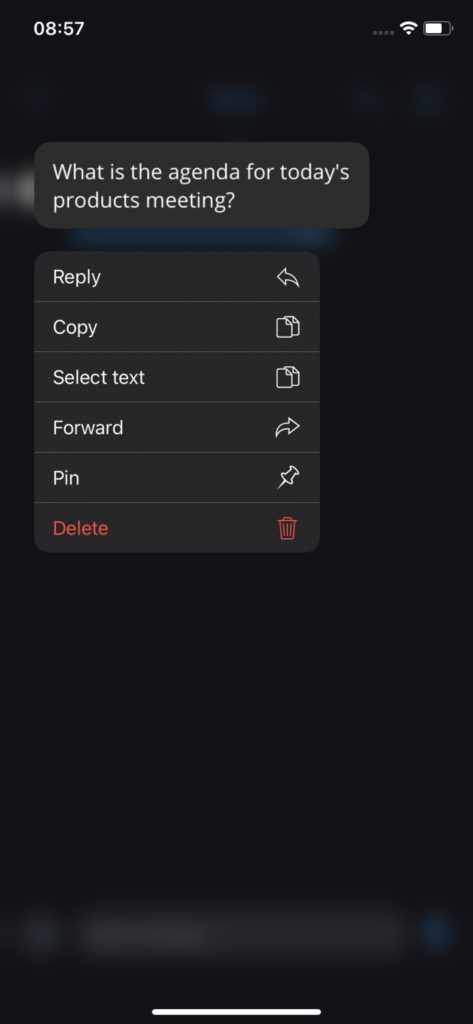
Messages can also be pending or failed, depending on network conditions. If the text message contains a URL, users can tap it to open it. All pending messages will attempt to be resent to the server the next time the application starts. Failed messages will not be automatically resent. By long-pressing a message, you can copy its content.
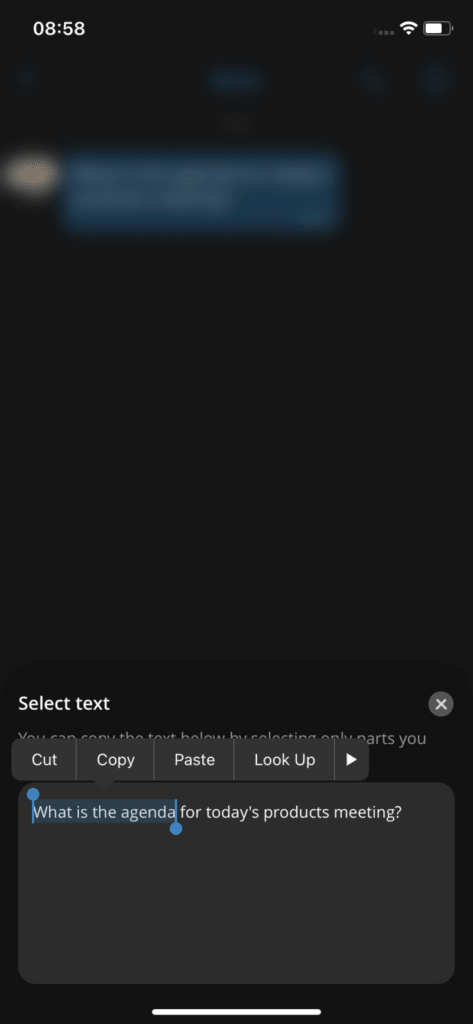
Select a text
Users can copy only the part of the text messages using the option Select the text which can be selected by long-pressing a text message and tapping it in the context menu.
File messages
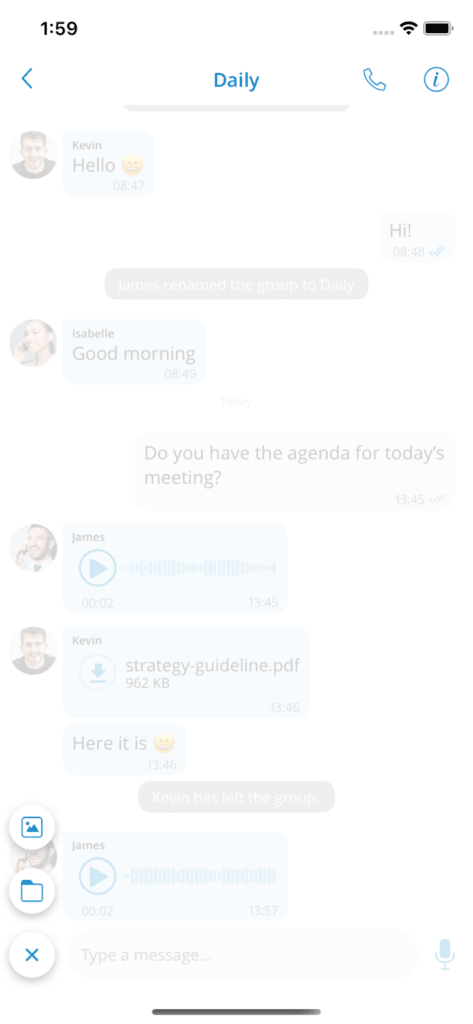
To send a photo or video from the Gallery app, users can press the button + then on the icon Gallery on the chat screen. Once the file is selected, it will be compressed (to save bandwidth) and sent to the chat server.
To send any document, press the button + then on the icon of the document, which will open the document browser.
The progress of uploads or downloads can be seen in the chat view. It is possible to cancel the transfer of the file message by pressing the key x.
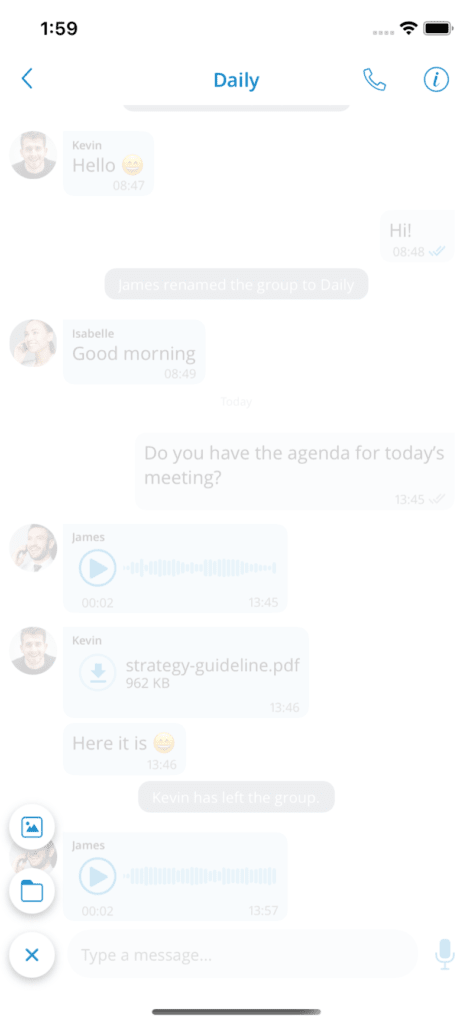
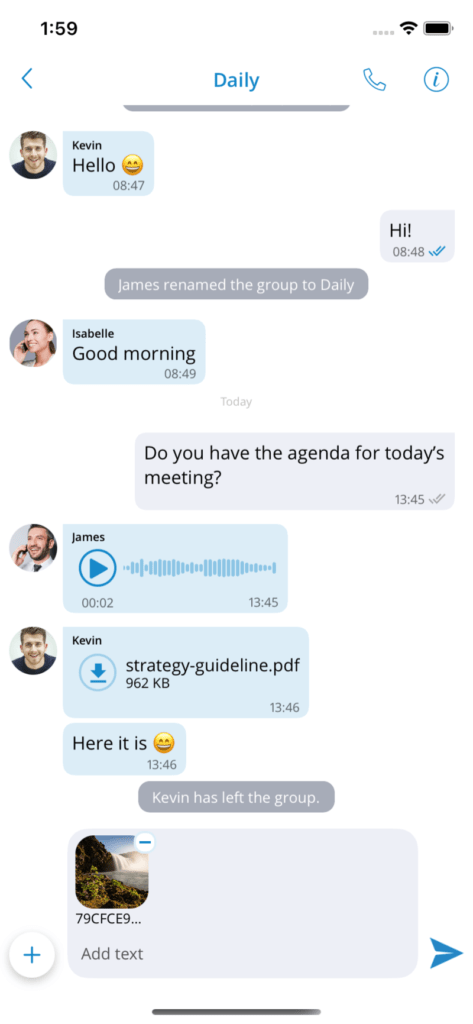
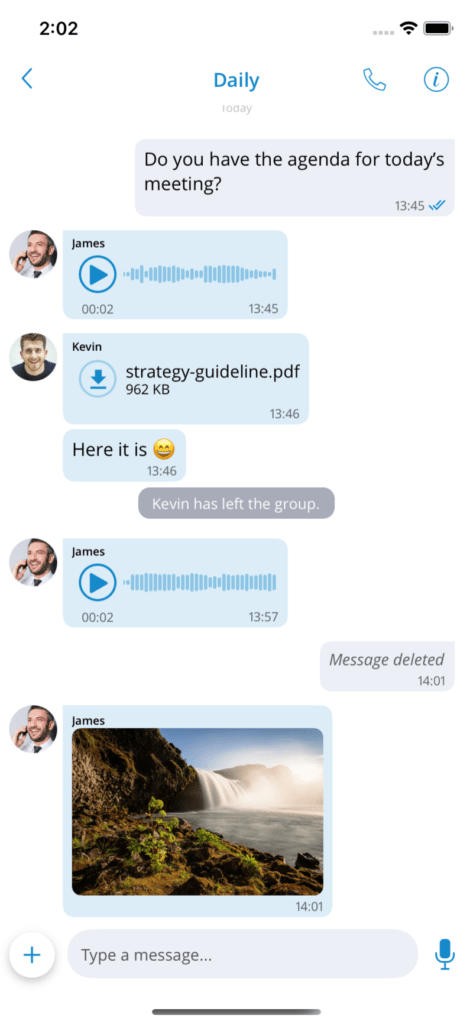
Photos, videos or documents downloaded will be saved to a local gallery or file system. Files smaller than 500 KB will be automatically downloaded if users are connected to WiFi and not to mobile data.
Multiple sending
When you press the gallery or file explorer button, a window will appear in which the user can select multiple images or files.
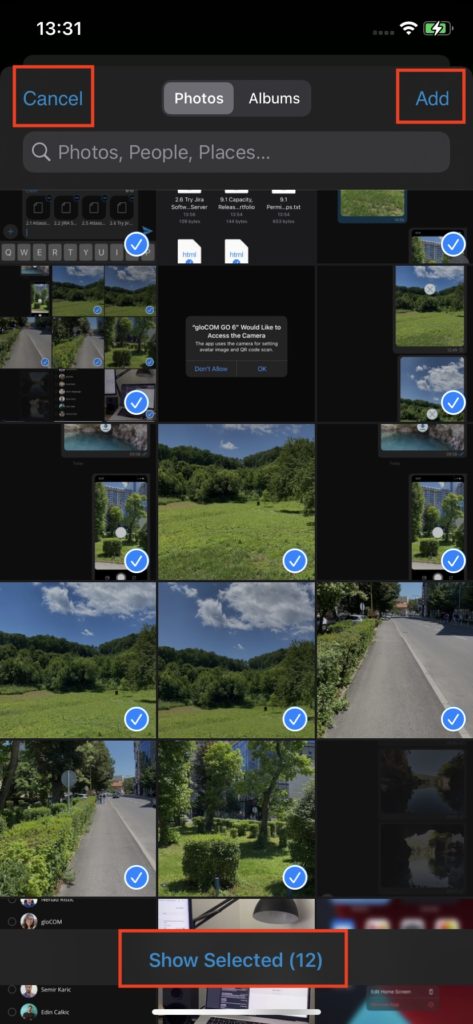
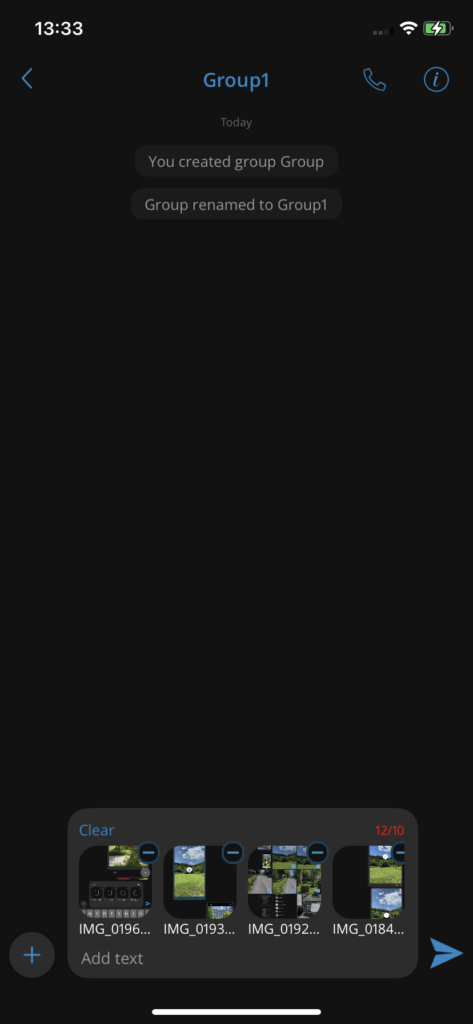
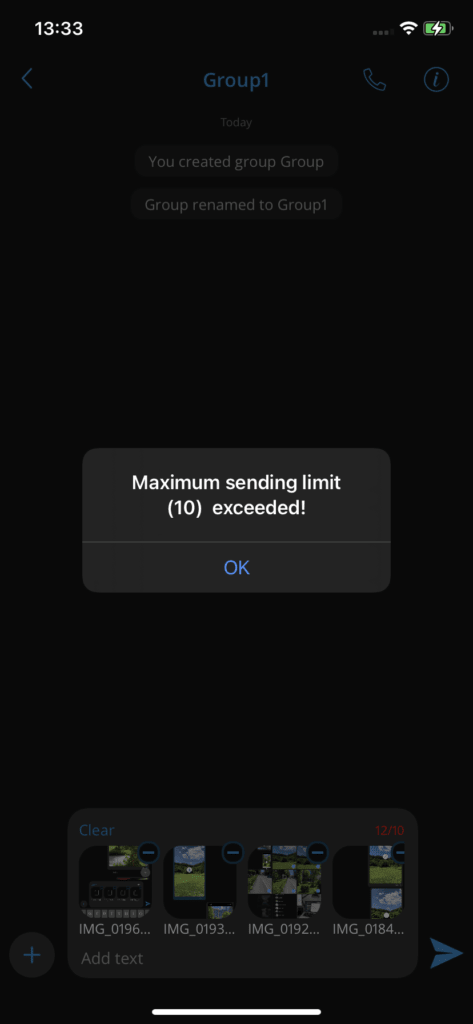
In the top right corner, a button will allow the user to confirm the current selection. There is also a counter that indicates how many files have been selected. After pressing the "Add" button, the user will return to the chat screen and there will be a file counter above the text field where the user can preview the selected images or files. The user can place multiple files in this preview, but there will be a label indicating the limit of the number of files that can be sent. If the user exceeds the limit and tries to send, the system will send them a message indicating that the limit has been exceeded. If at least three media files have been selected, the preview will have a clear button in the top left corner. Pressing the button will clear all the selected files in the preview.
Chat media preview screen with orientation support
The user has the ability to rotate the screen on the chat media preview screen. The chat media preview screen can be opened by pressing any downloaded file message.
Take photos and videos with the camera in a chat conversation
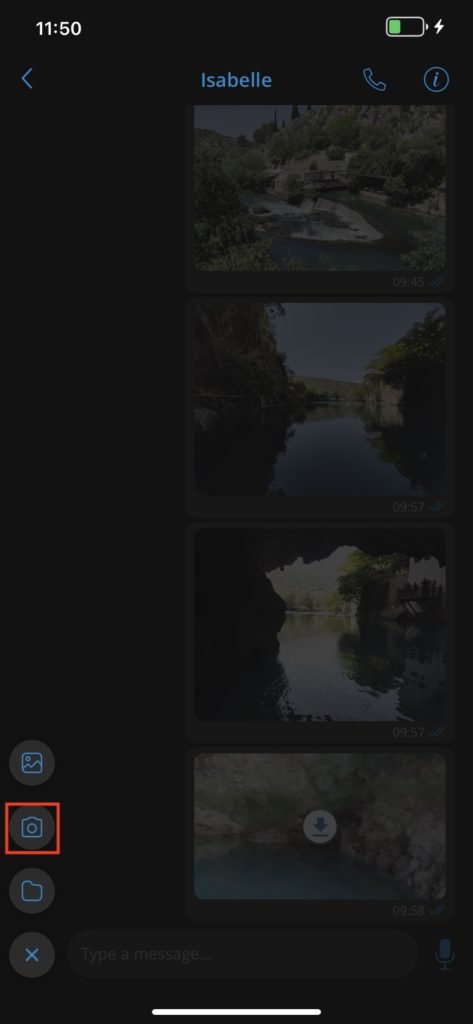
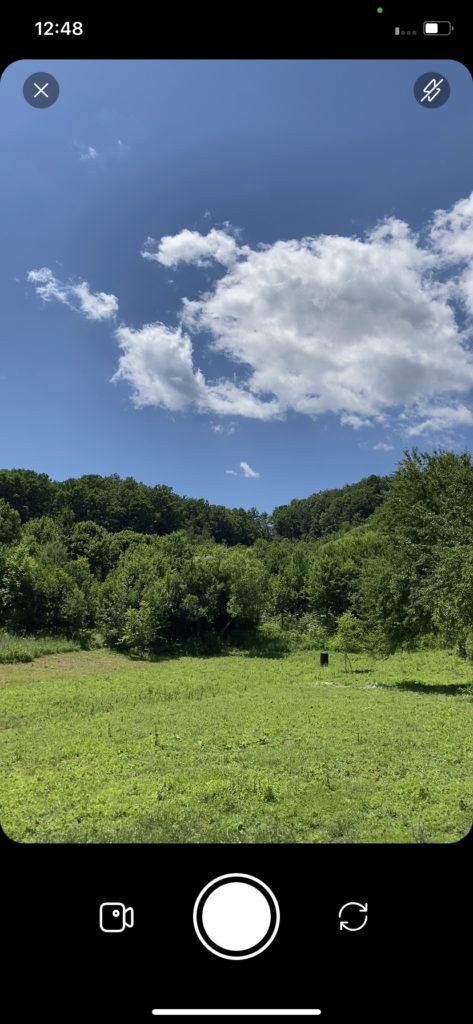
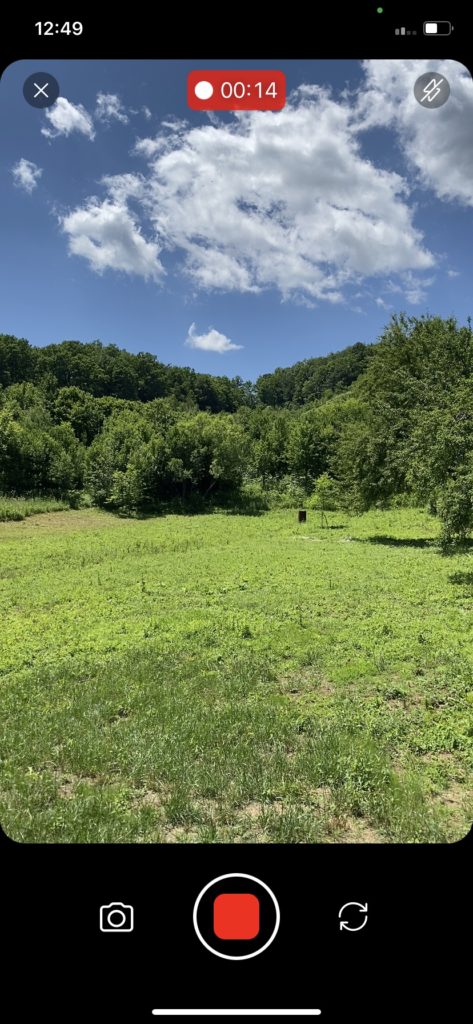
In addition to sending media files from the gallery, there is an option to take a photo or record a video in the chat conversation screen to provide users with a better chat experience. By pressing a + button, the user has the option to click the button of the camera which opens a camera screen to take a photo or record a video. After taking a photo or recording a video, the user can choose to save the file to the gallery, delete it, or send it in the chat.
Voice messages
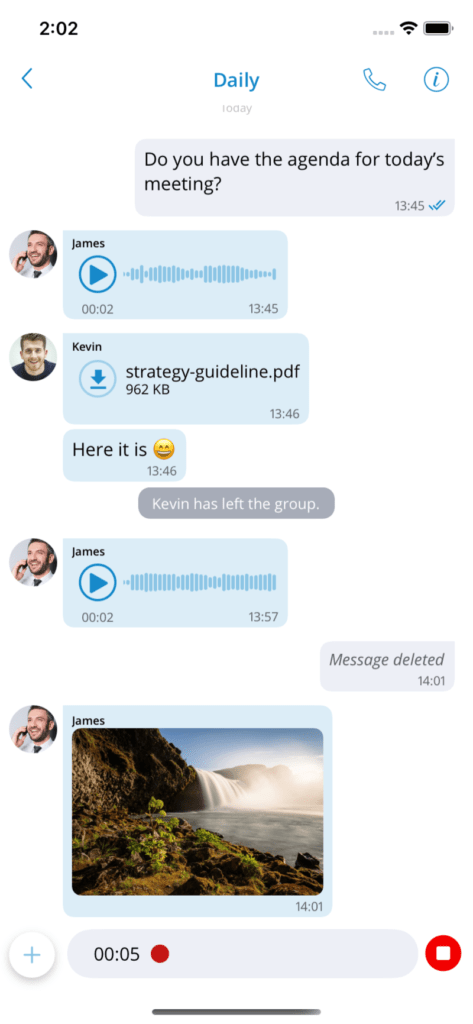
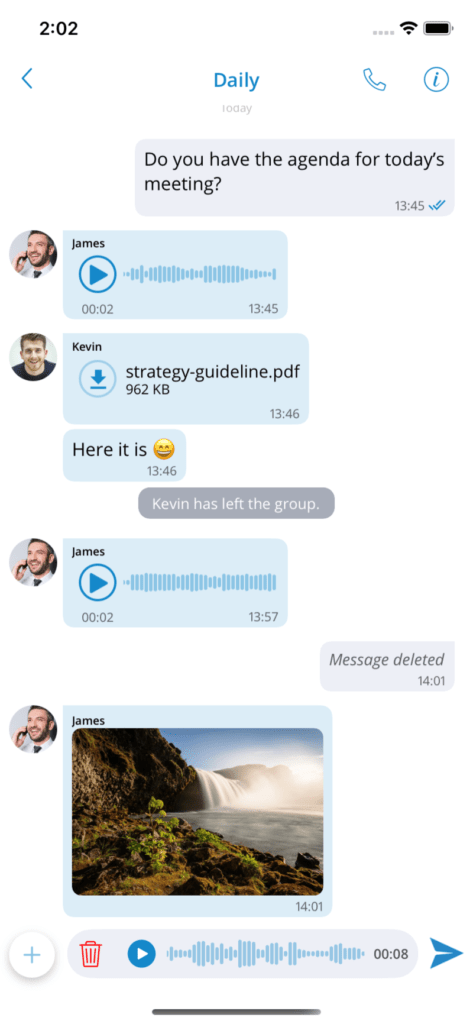
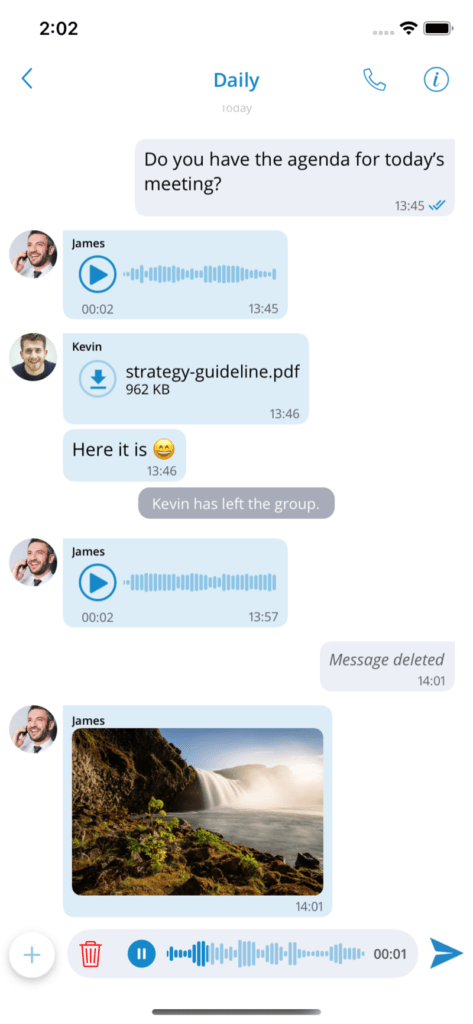
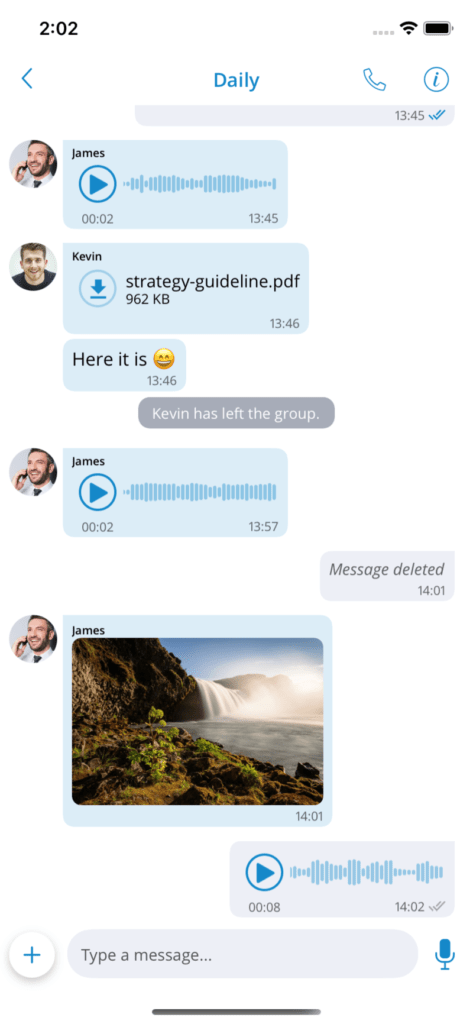
Communicator users can send voice messages when they cannot use the keyboard. The maximum recording duration for a voice message in chat is 2 minutes.
An automatic screen lock will be disabled during voice message recording. If, during recording, you intentionally press the back button, lock the screen, or switch to another application, the voice recording of the active chat will be canceled.
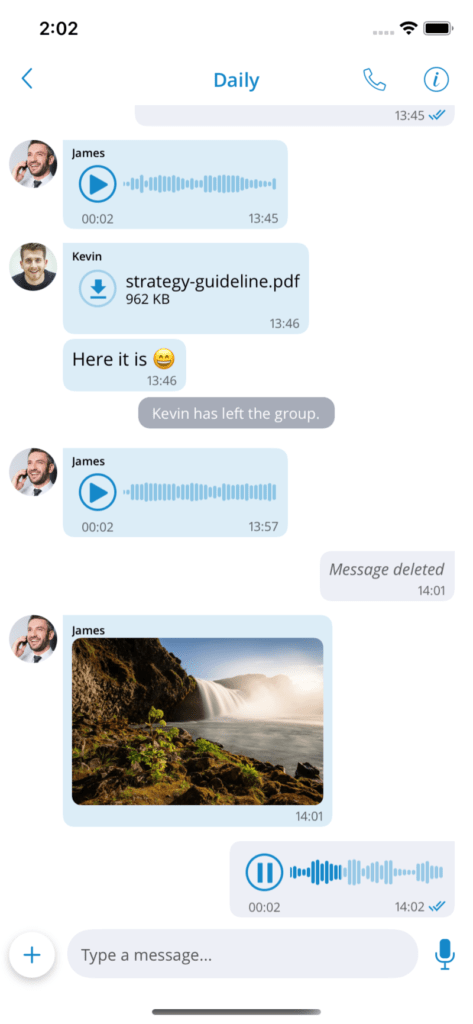
When listening to a recorded voicemail, if you return to the chat list, playback of the recording will be interrupted.
While playing a received voicemail, you will have visible control buttons in the notifications, even when switching to another application, thanks to the media player integration. This allows you to keep listening to the playback even if you switch to another application or the home screen.
Forward messages
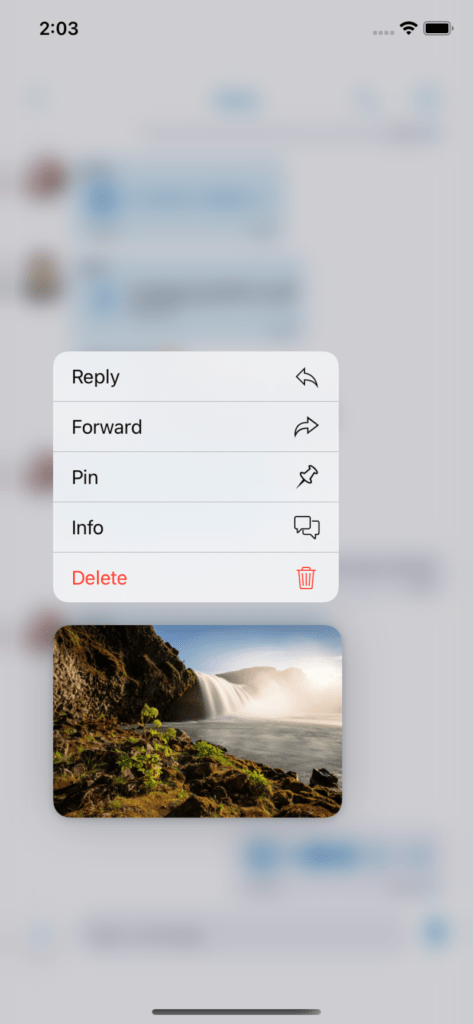
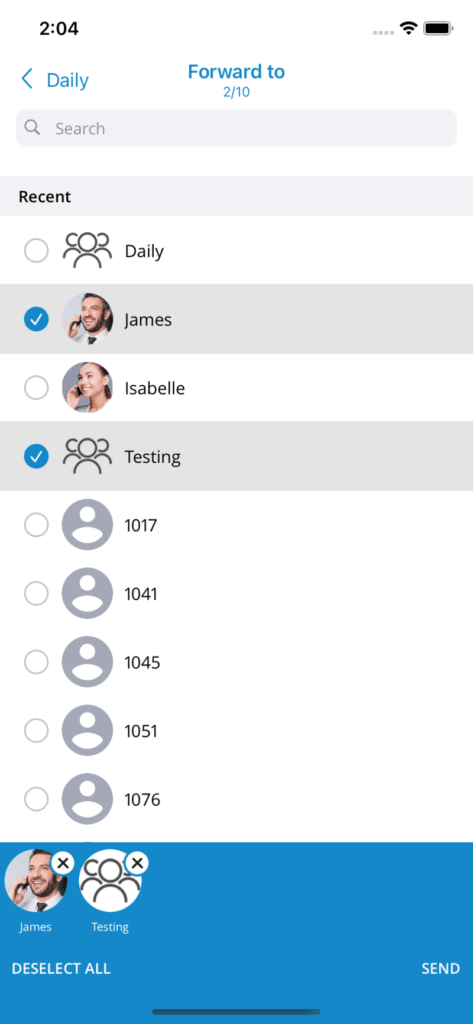
Users can transfer the message or save up to 10 conversations/contacts at the same time. By long-pressing the message, a menu will appear with an option to transfer the message. After tapping the transfer option, a chat selector will open and users will be able to choose the contacts to which they want to transfer the message.
Chat response mode
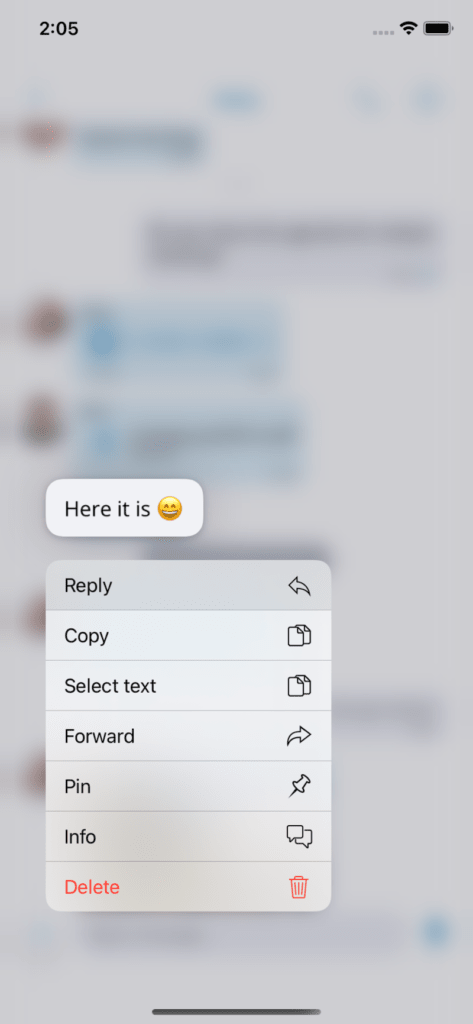
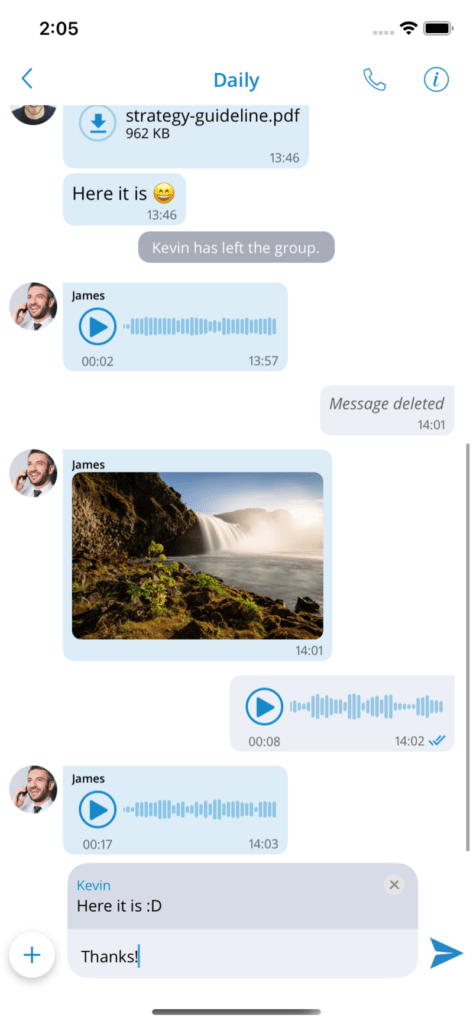
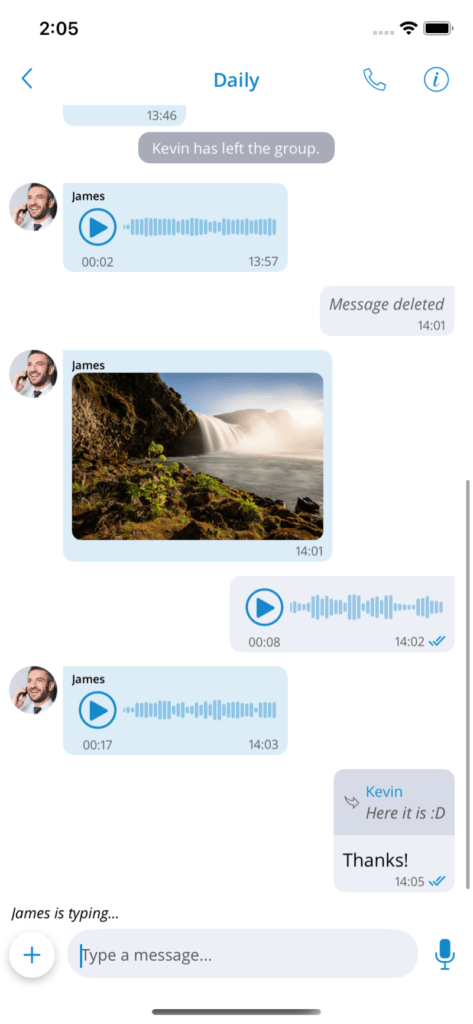
The reply option allows users to reply to a specific message. To reply to a message, users must long-press the message they wish to reply to and select the option response in the menu. As a result, the message the user wants to reply to will appear above the message input field. Another way to reply is to swipe your finger to the right on the message the user wants to reply to. By tapping the reply part of the message in the chat, the user will return to the original message.
Pin a message
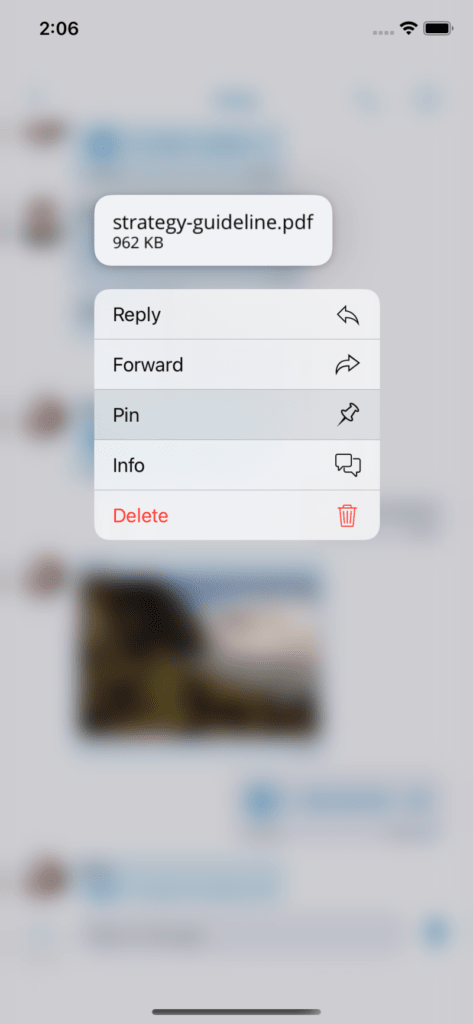
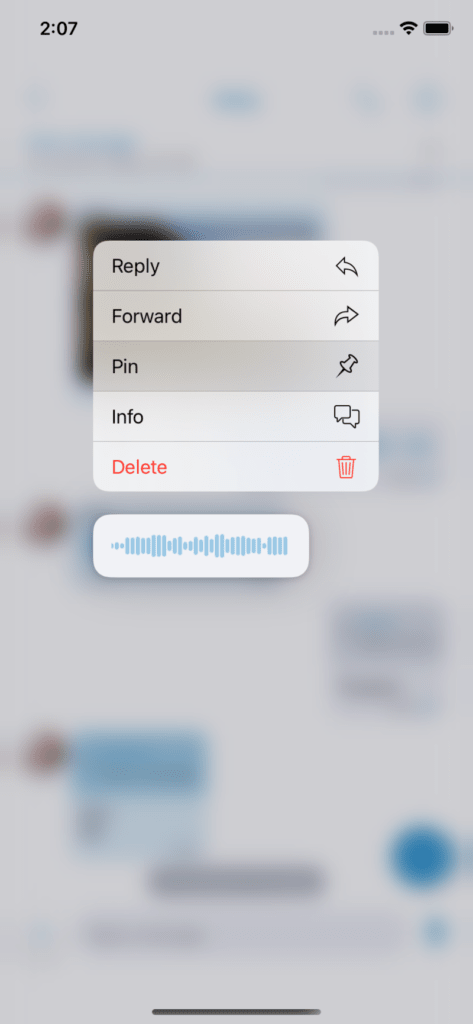
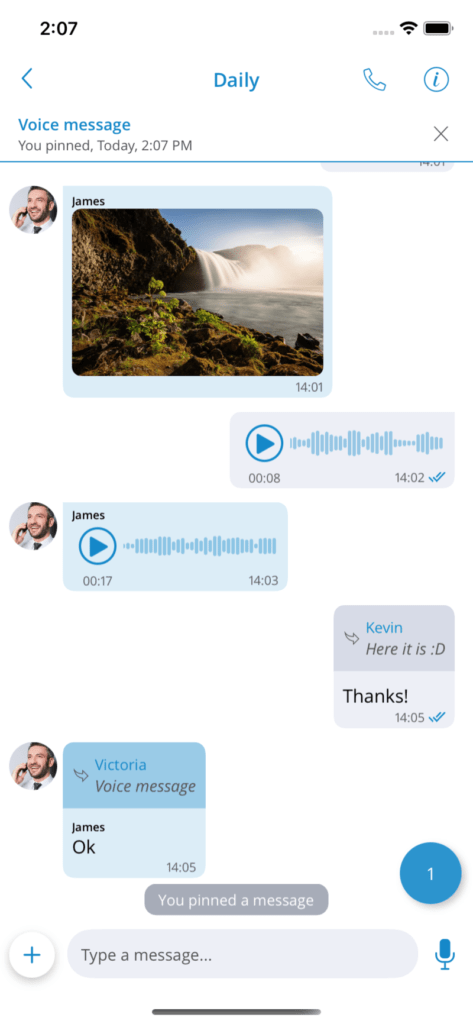
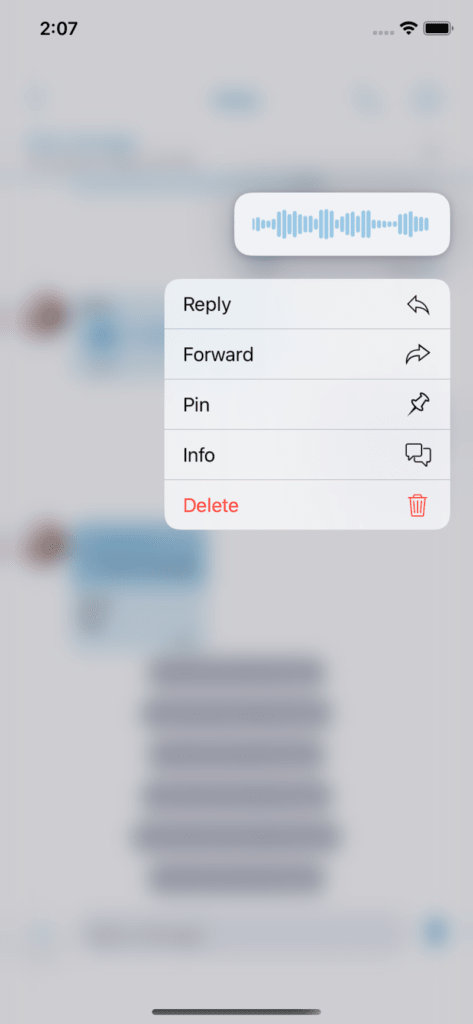
All messages in individual and group conversations can be pinned. Pinned messages are synchronized across all gloCOM applications. Users can long-press a message and select the option Pin in the menu to pin a message.
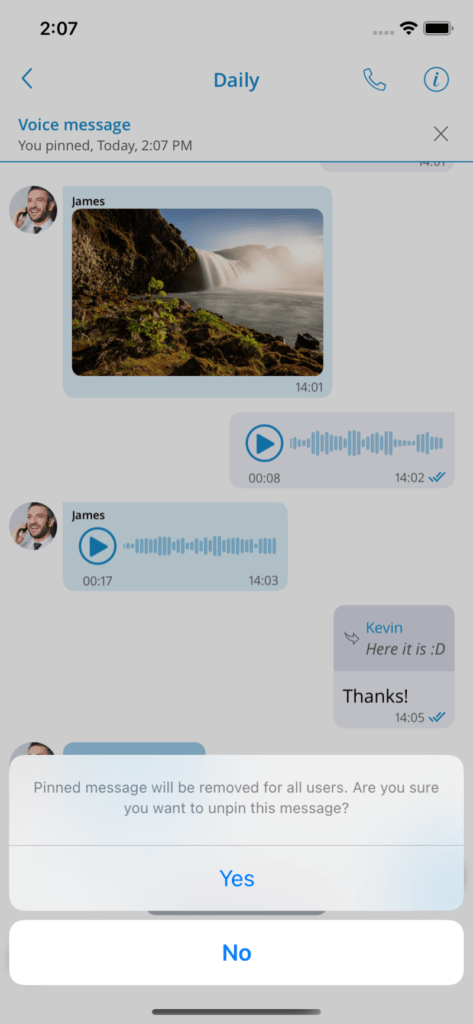
After pinning the message, the pinned message indicator will be displayed at the top of the screen and, by tapping this indicator, users can scroll to the pinned message. By tapping the button x of the pinned message indicator, this message will be unpinned.
Delete the chat messages
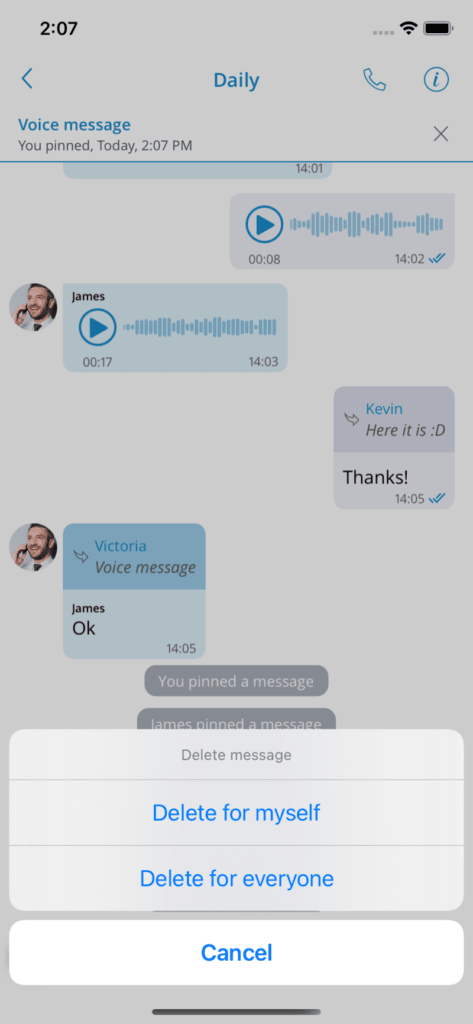
This option allows users to delete chat messages. To delete the desired message, long-press the message and select Delete in the menu. After pressing the delete action, the confirmation dialog box will appear with two options for outgoing messages:
Delete for me with the following sub-content: « This message will be deleted only for you. Other chat members will still be able to
see it. Are you sure you want to continue?"Delete for everyone will automatically delete the message for all participants without an additional confirmation dialog.
For incoming messages, there is only one option:
- Delete for myself with the following sub-content: “This message will be deleted only for you. Other chat members will still be able to see it. Are you sure you want to continue?”
After deleting the message, the message interface will display with the indicator of deleted message.
Share files and text
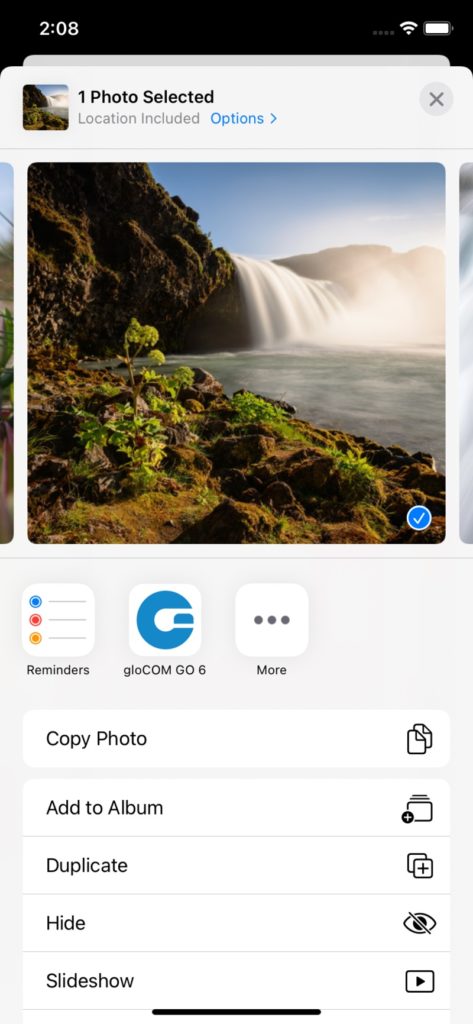
Share files and text from other applications on Communicator GO, simply by selecting Communicator GO in the system's share dialog.
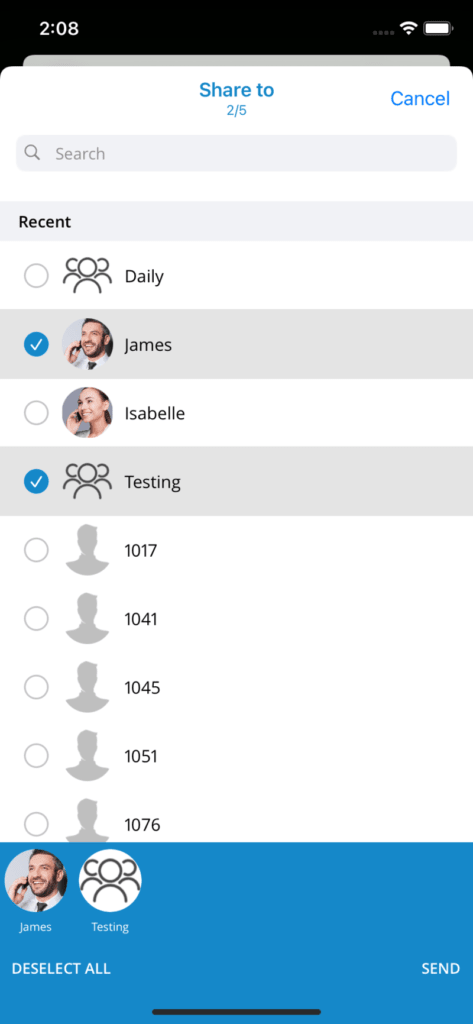
The application's chat selector will open with recent chats where users can select multiple chats that will receive the file or text.
Contact sharing
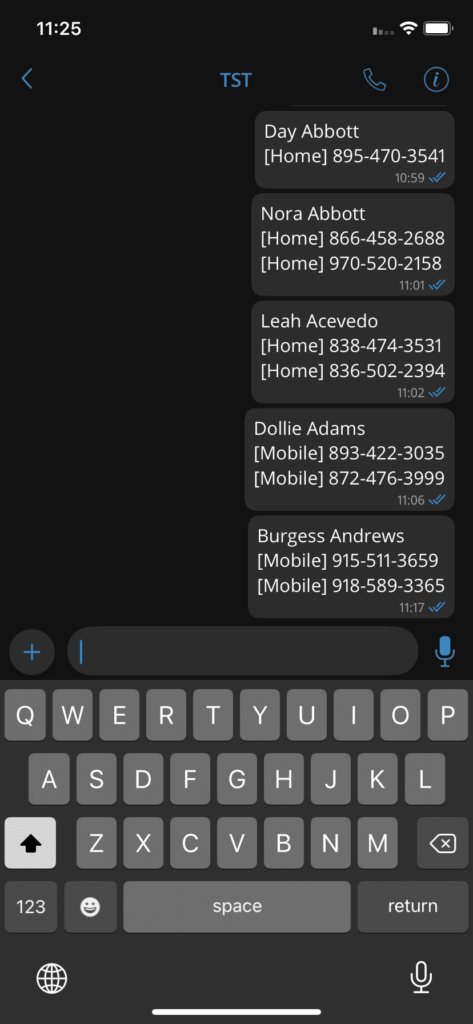
gloCOM GO users have the ability to share phone book contact details or those of any other application with gloCOM GO. Contact sharing displays the contact data as a chat message intended for the selected gloCOM GO user.
Quick actions
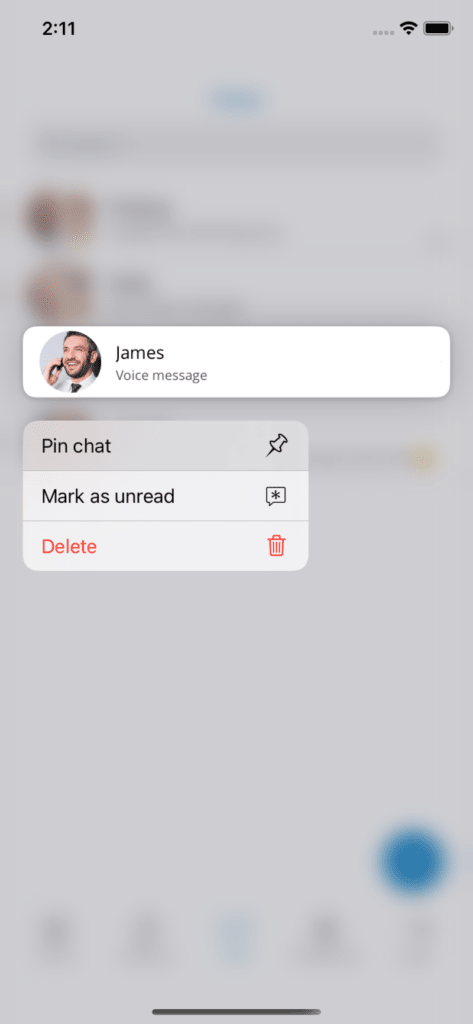
Users can perform several actions for chats by long-pressing the chat in the chat list screen:
Pin – Pins or unpins chat sessions
Reorder pinned discussions: opens a new screen that will allow users
to reorder the pinned chats.Mark chat conversation as read/unread
Mute – Mutes or unmutes the group chat session
Delete – Deletes the chat session
Pin chat sessions
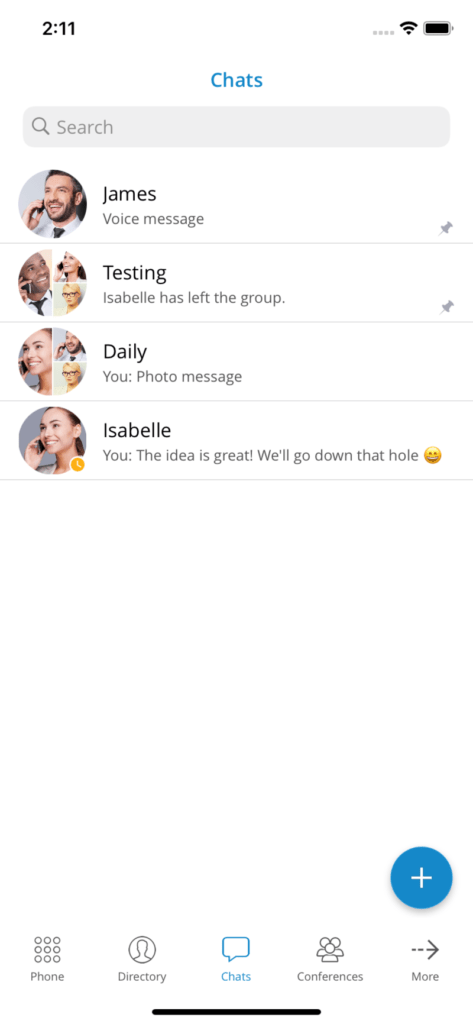
Communicator GO allows users to pin their most essential and most frequently used chat sessions at the top of the chat list screen.
This will help users quickly find the groups or contacts they chat with most often.
When users long-press the chat session they want to pin, a menu will open with the option to pin or to unpin the chat session.
Once the chat session is pinned, it will be moved to the top of the screen and will remain there even when users receive new messages from chats that are not pinned.
Reorder chats
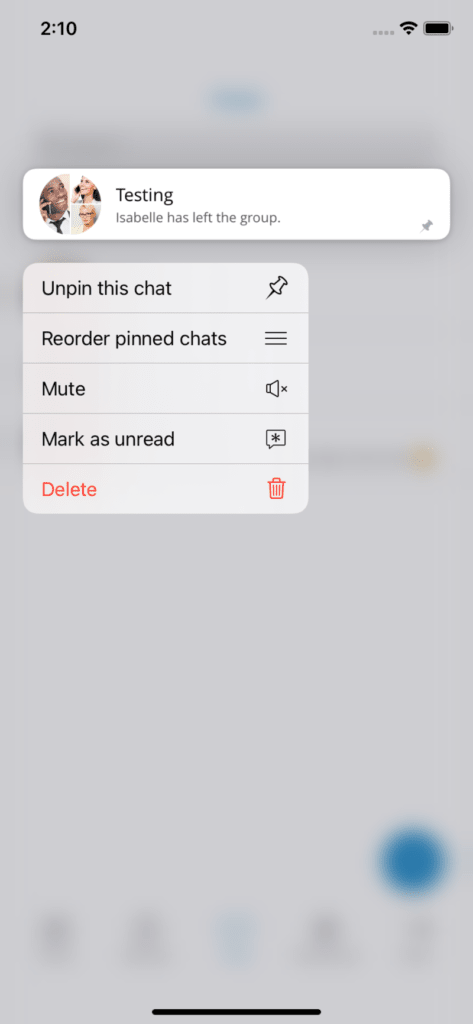
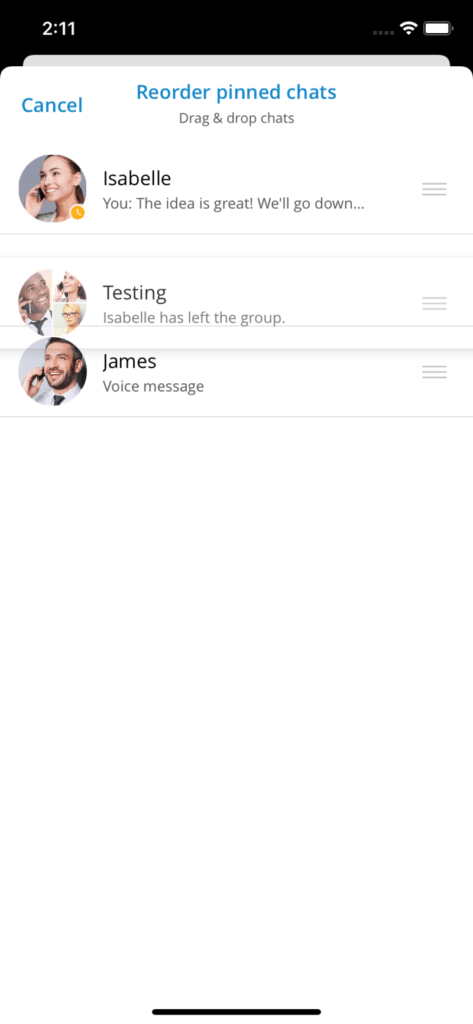
Users can reorder the pinned conversations by long-pressing an already pinned chat session and tapping the option Reorder pinned discussions. Users can move the pinned conversations by drag-and-drop. This allows users to prioritize the pinned conversations.
Mark a chat as read/unread
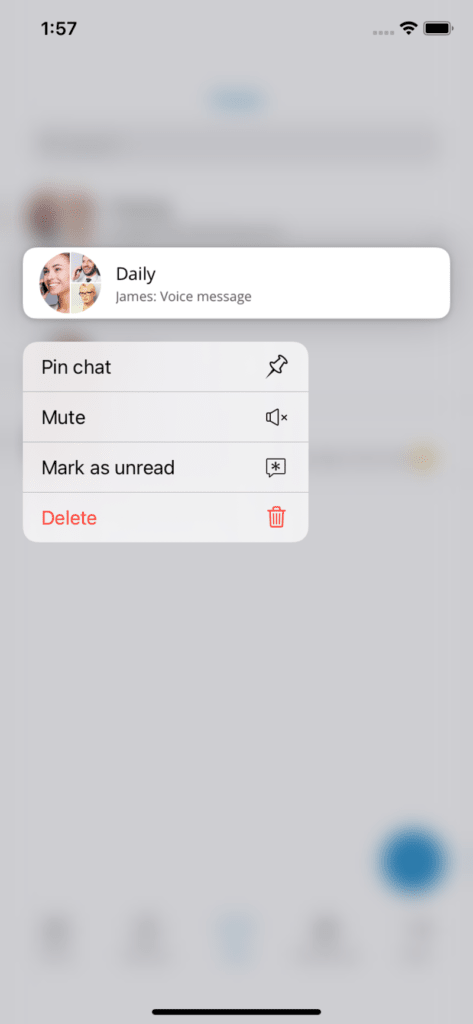
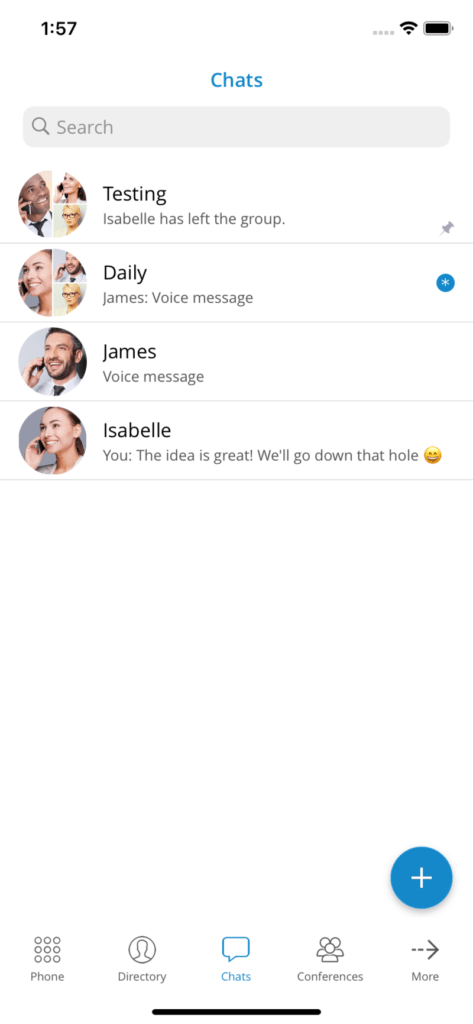
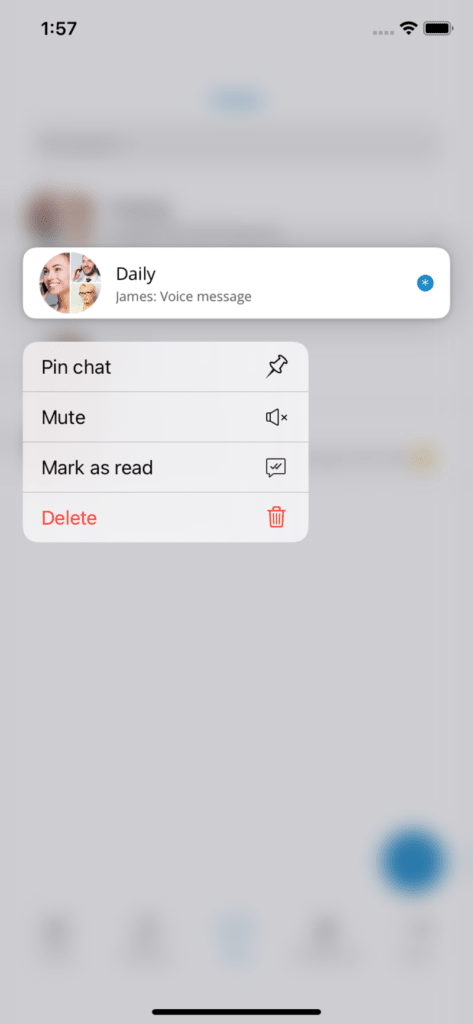
This feature provides the ability to mark any conversation as read/unread. When you choose the conversation as unread, the Unread indicator will be displayed for that conversation on the chat list screen.
For any action taken during this conversation, the Unread status will be removed. In addition, opening this conversation or marking it as read will remove the unread indicator.
Notifications
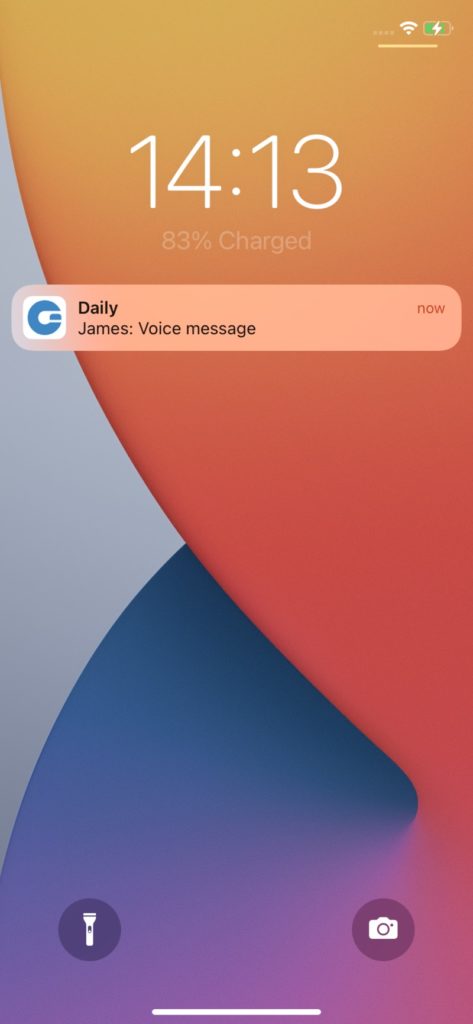
For new messages or group events, users will be notified by a notification. Tapping a notification will open a chat session associated with that notification.
The system user interface groups notifications for the same chat session. Chat notifications from single chats will display the avatars of the users who sent the messages.
Archived users and chat history
Deleted users will be marked as archived and users will not lose the chat sessions with those users. The user will not be able to start new chat sessions or start new calls with archived users. Deleted users will be labeled with a message (Deleted) at the end of their name.
