Phone
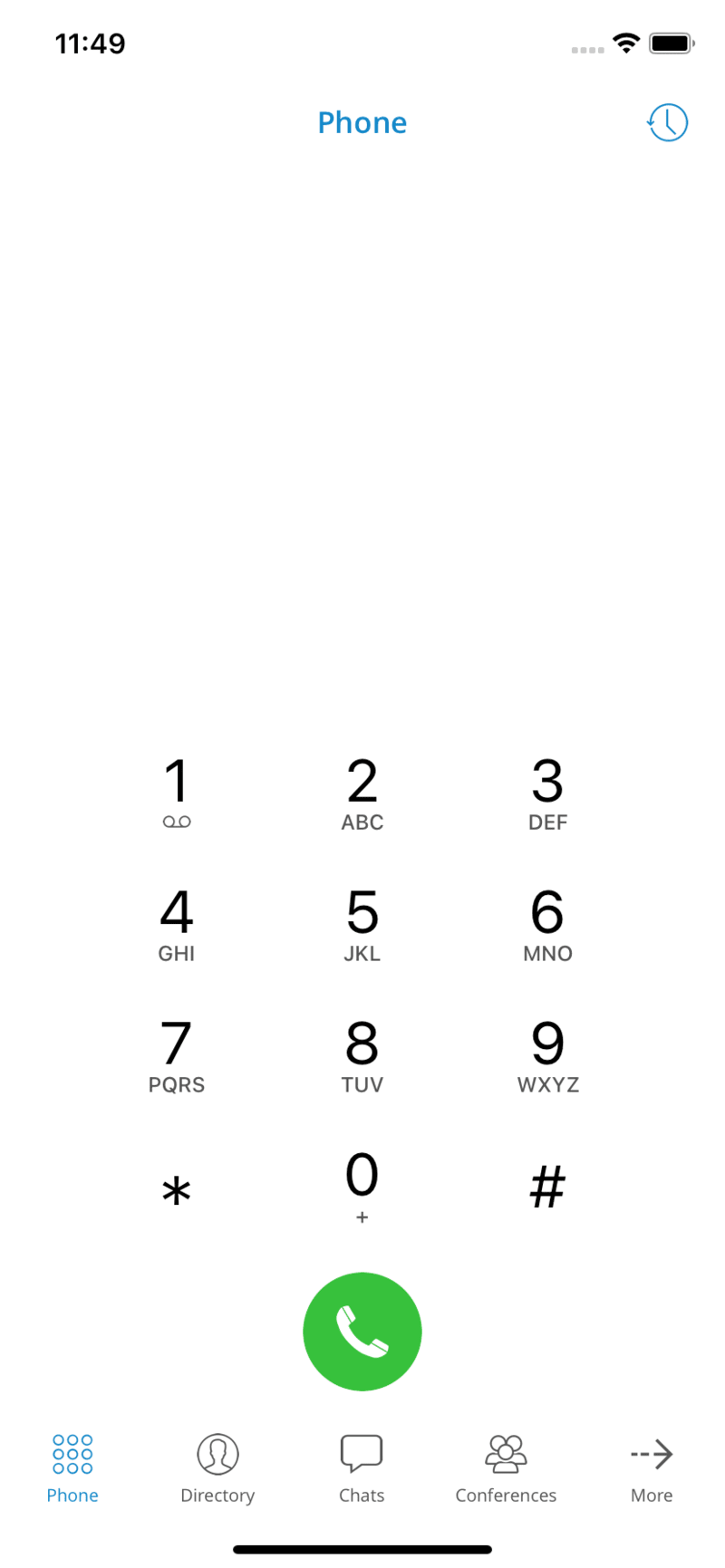
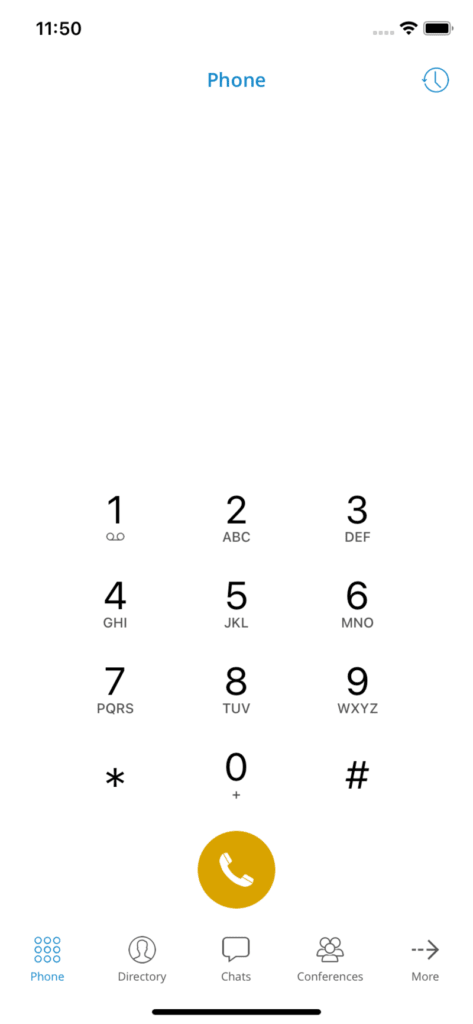
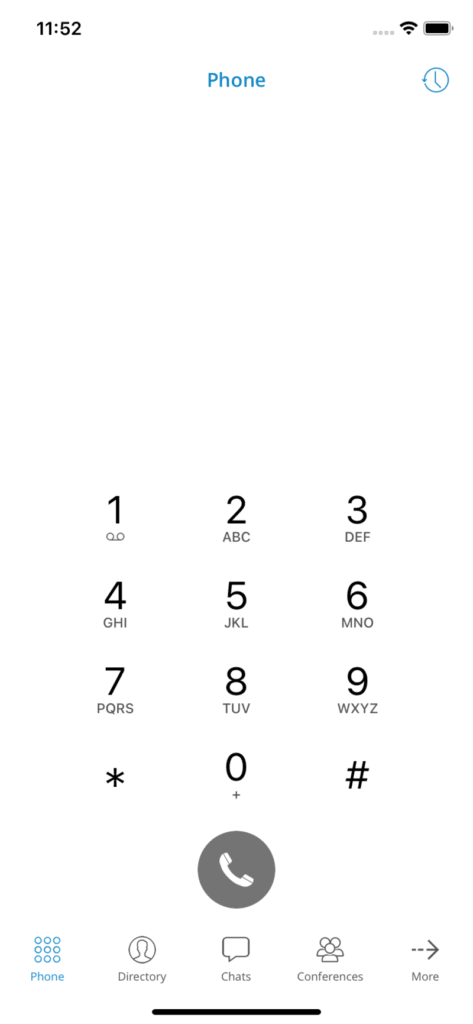
The default phone screen is displayed once Communicator GO is started. The call button on the dialer screen has three states depending on the softphone's registration status and connectivity status. If the softphone is not registered and the button is yellow, calls can still be made if the callback option is configured.
There are three states in which the Communicator GO dialer can be:
- Green – The call can be made via the SIP protocol (WiFi and mobile data networks)
- Yellow – A call can be made with the Callback module (Mobile data networks)
- Gray – The call cannot be made (no network connection)
A long press on a call button in the dialer will initiate a redial to the entered number. The long-press gesture also works with any call button in the application:
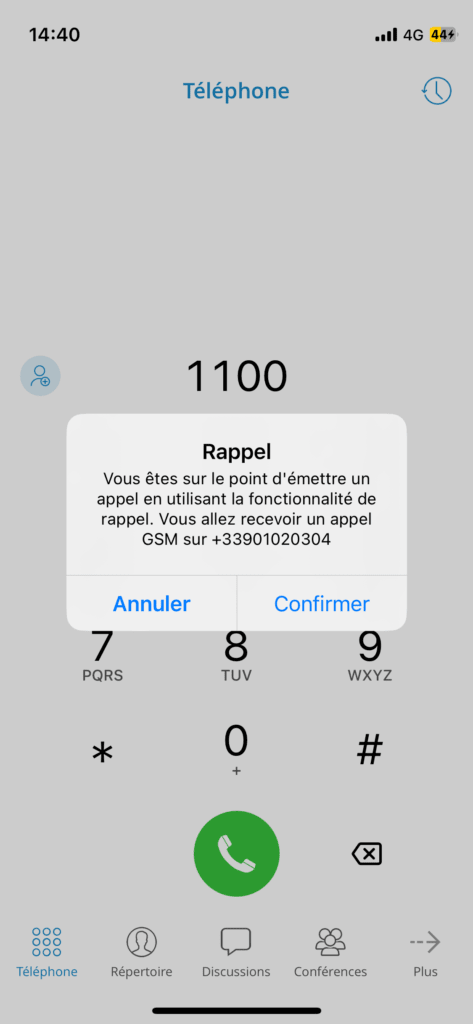
If the number to dial is empty, pressing the call button will result in the number to dial being filled in with the last dialed number.
Editable dialing number
The number entered in the Communicator dialer can be modified before making a call.
Predictive dialer
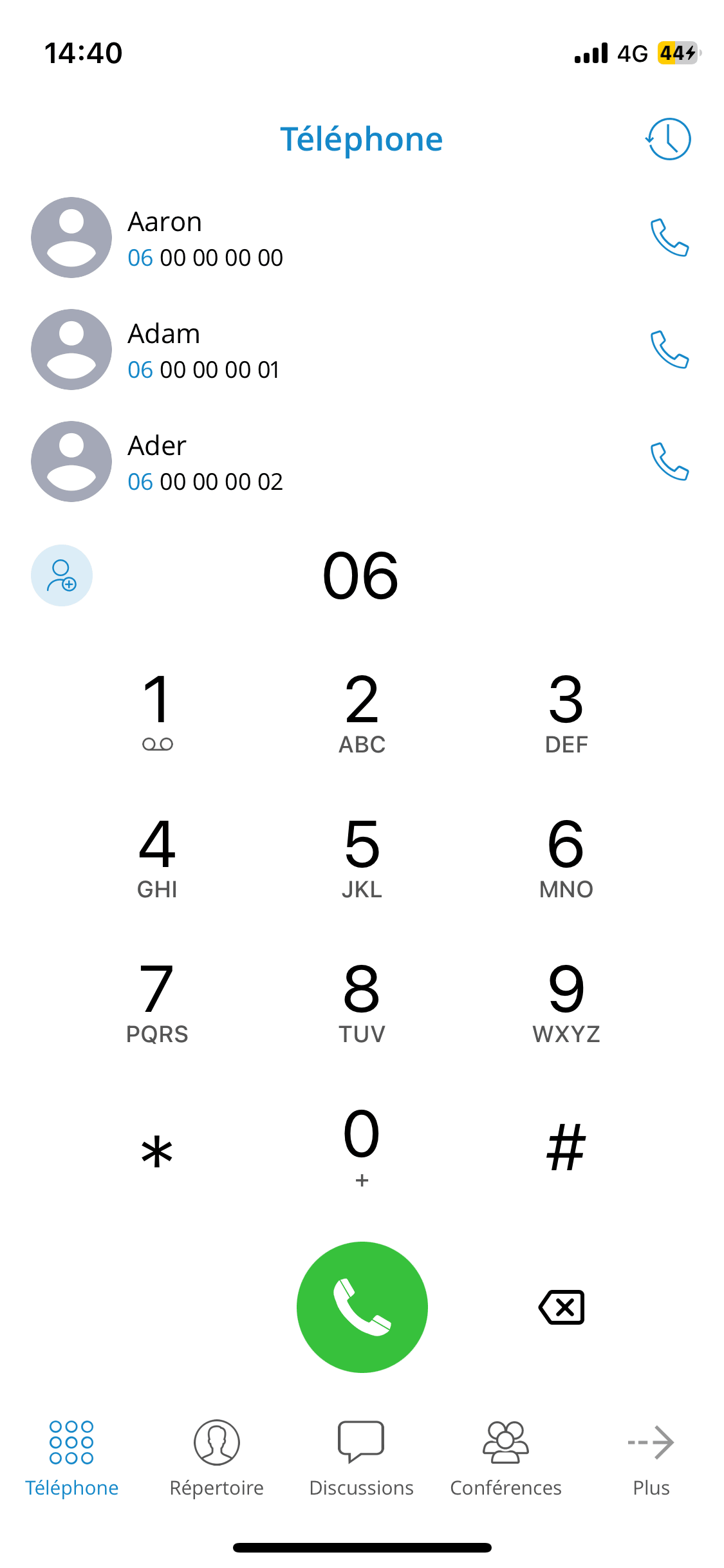
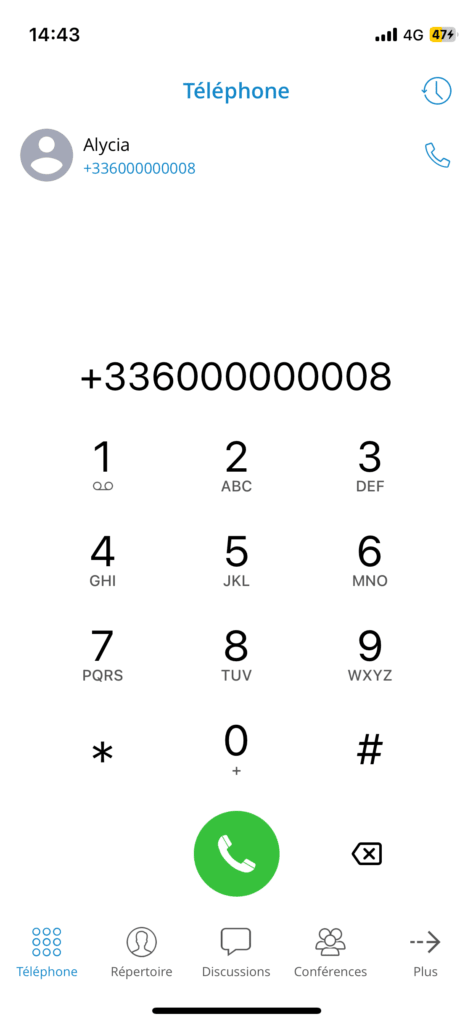
Predictive dialing (alphabetic and numeric mode) allows you to quickly find a contact or number and place a call.
On the phone screen, you can now search by phone words (mnemonic expressions represented as alphanumeric equivalents of a phone number). For example, if you enter “34”, you will be presented with contacts whose number contains 34, as well as contacts whose name contains a combination of letters [DEF] [GHI].
The contact search will include the contacts from the extension directory, the device/system phonebook, and the central phonebook in that order.
Once you have entered the phone digits on the keypad and all contacts matching the criteria are listed, you can hide the keypad by sliding your finger down. Once the keypad is hidden, you can see the contact list across the entire screen and scroll through the contact list.
Context menu
By long-pressing the contact in the predictive dialer's contact list, a context menu appears with 3 proposed options:
Send a message – Start a chat conversation with the selected contact.
Send an email – Redirects the user to the default email client with the email address pre-filled (if the email address is provided for the selected contact).
Show details – Display the details of the selected contact.
Copy – Copy the contact's number.
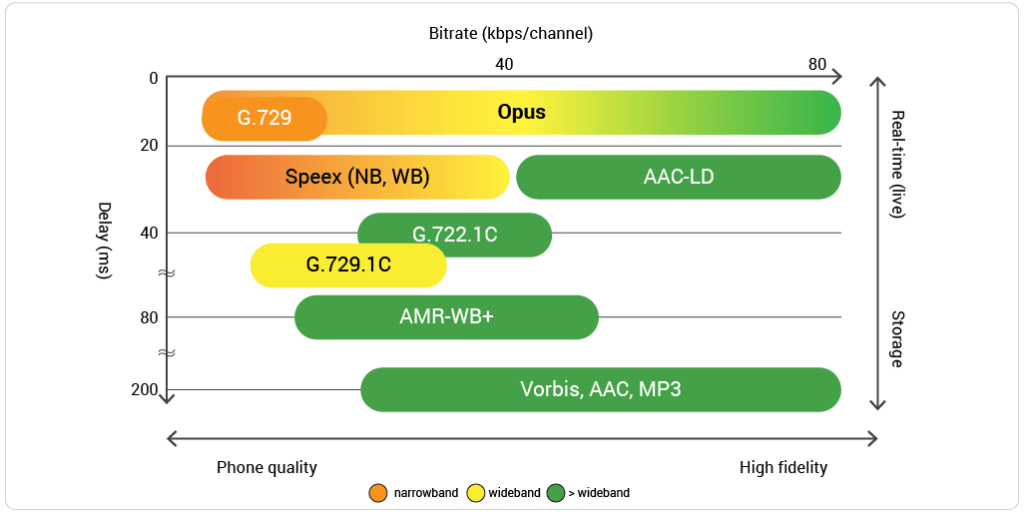
Opus
Opus is an excellent codec for lossy audio compression, which is why it has the highest priority for calls by default. You have the option to customize the codec priority order in the gloCOM GO settings.
Opus is an audio coding format specifically designed to provide efficient compression of speech and general audio in a single format, suited to a wide range of interactive audio applications. It stands out for its low latency and high audio quality, making it ideal for real-time interactive communication.
In order to guarantee the systematic use of Opus for all calls, please add Opus as the first codec in the extension settings on PBXware. This will ensure an optimal audio experience during your communications.