Presence
With the functionality Presence, the users' status is visible. Users can also see which users are online, busy, away or offline.
This feature also provides information about the last time other users were seen on the system. User presence is visible on the system in the Directory of the bottom menu.
By default, the directory sorts online users at the top, in alphabetical order. Next, on the Directory screen are the users who have recently gone away, then completely offline users. Presence can be seen in the Grid or List view on the directory.
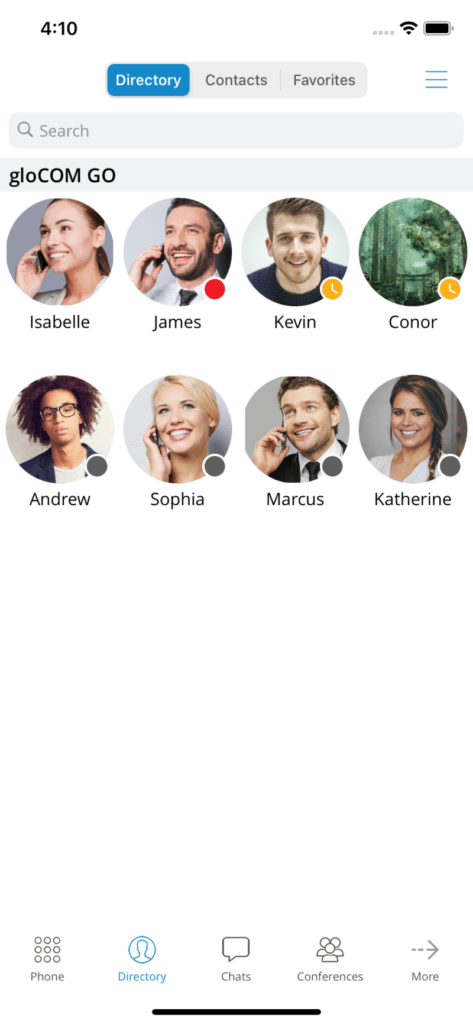
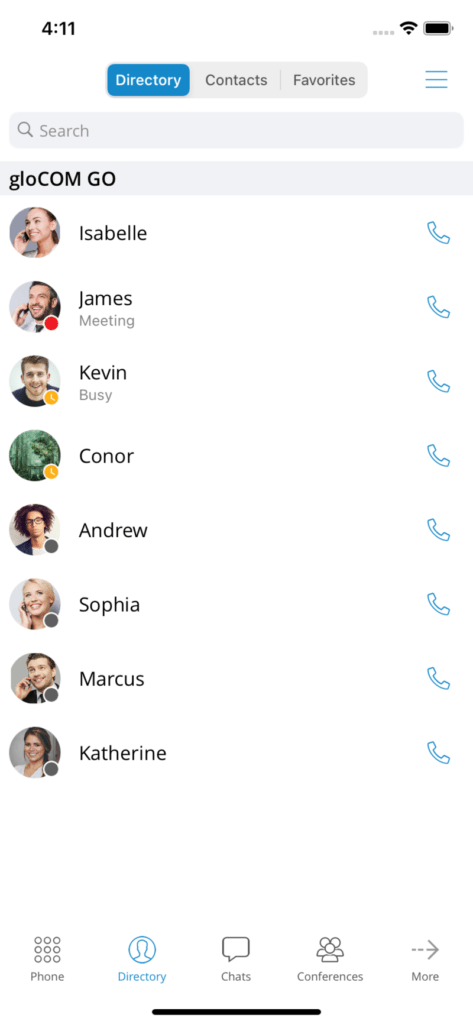
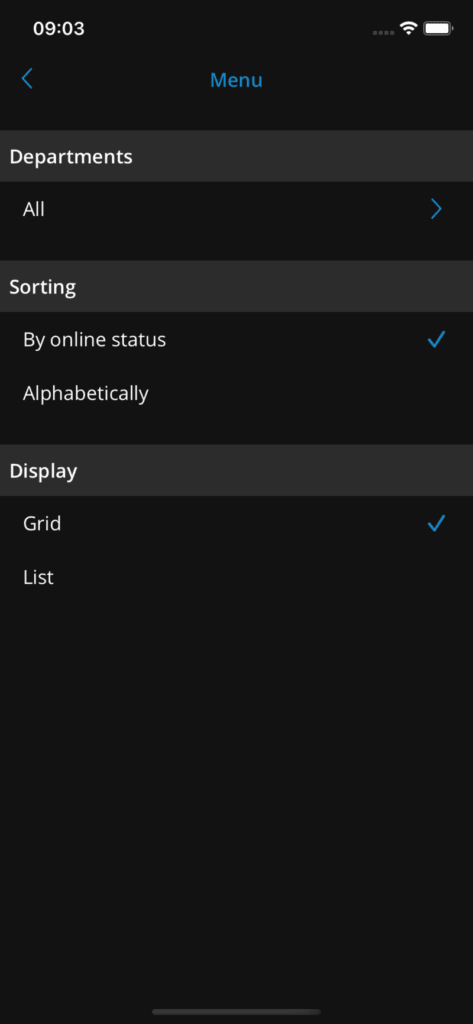
If users prefer alphabetical sorting instead of sorting by Presence, they can change this by pressing the three-line icon in the top right corner of the screen in Directory.
By pressing the user avatar on the directory and by opening the user's information screen, more presence information is available.
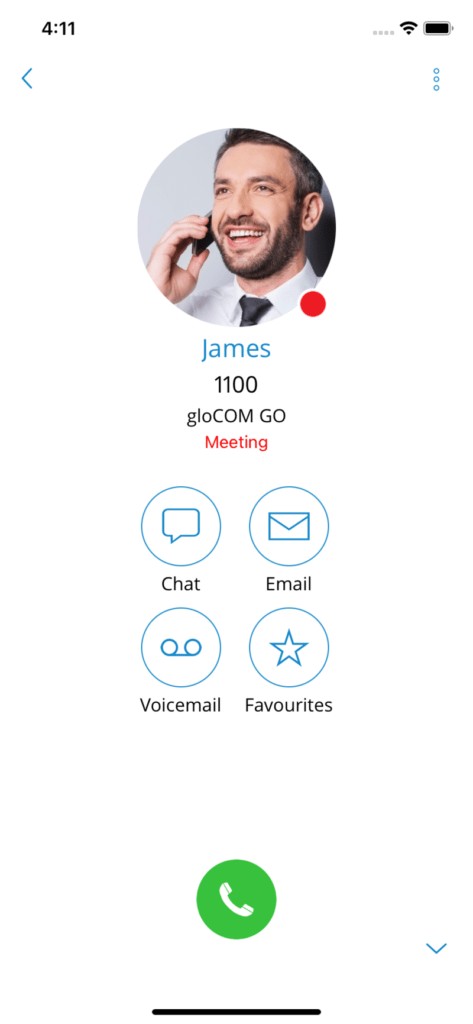
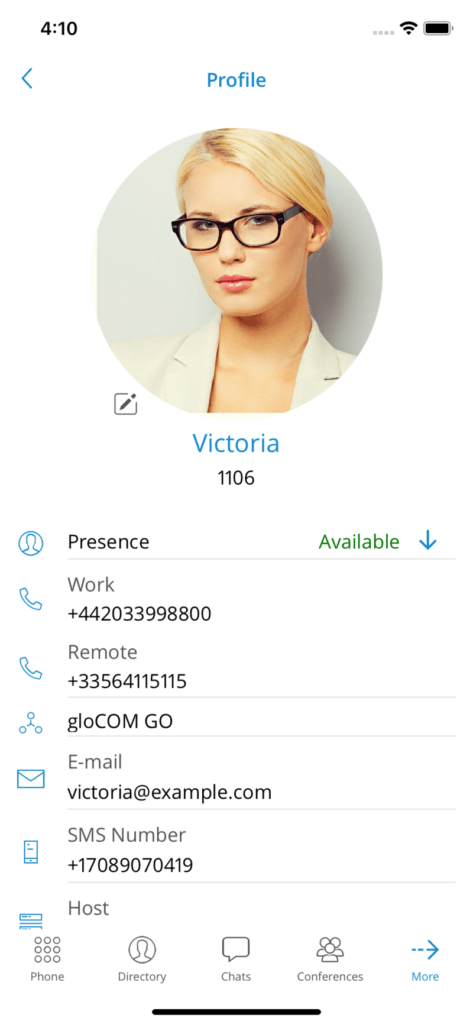
Changing or updating the presence can be done by accessing the item Profile in the bottom bar. If users cannot see the "Profile" item, they can click More and find it here.
Users can modify their personal presence status by tapping their current status or the icon of a down-pointing arrow. A dialog screen will open with three fields: Status, Message and the display status (for the duration of the chosen status).
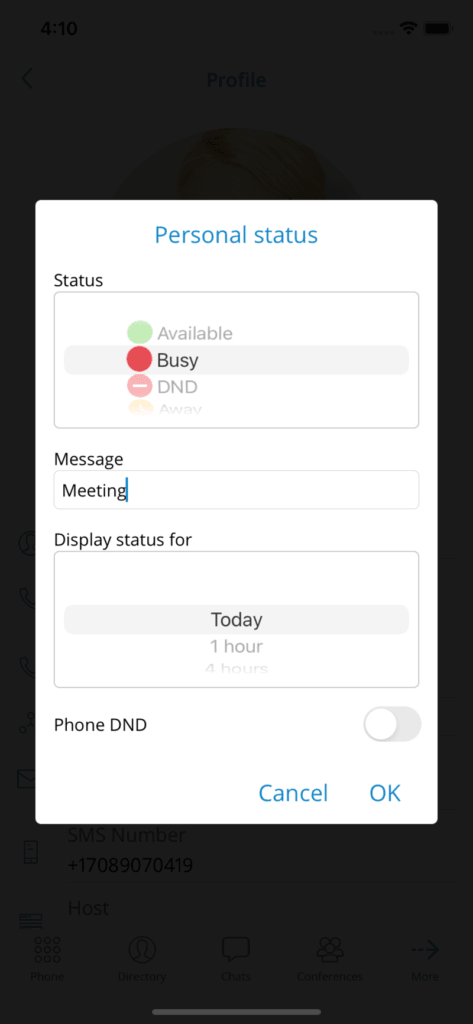
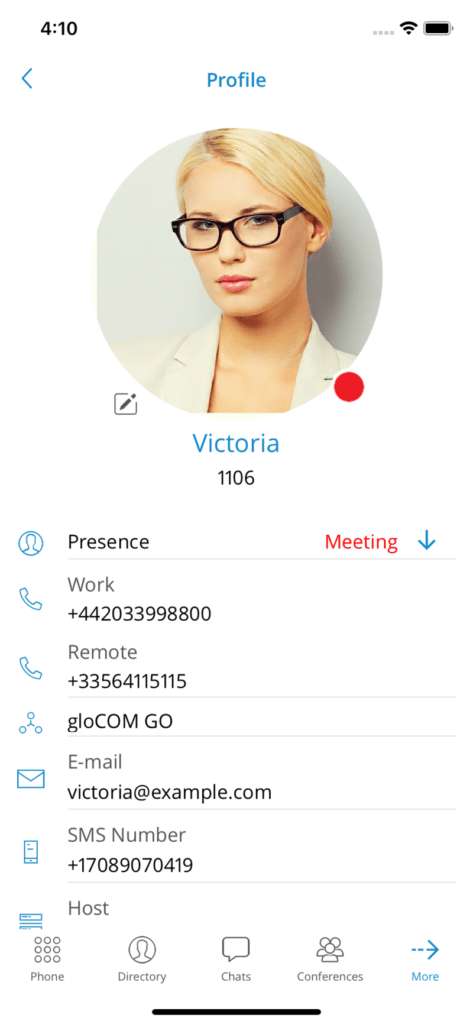
The default statuses are:
Available (green icon)
Busy (red icon)
NPD – Do not disturb (red icon with a rectangle)
Away (yellow icon with a clock)
Users can create predefined statuses by adding them to PBXware. For the default statuses, users cannot enter a custom message, but for the predefined statuses, they can associate a message that will be displayed to other users with the selected status. The last option in the Presence dialog box indicates the duration for which the new presence status will last.
The available values are:
Today
1 hour
4 hours
8 hours
12 hours
2 days
5 days
This week
Always
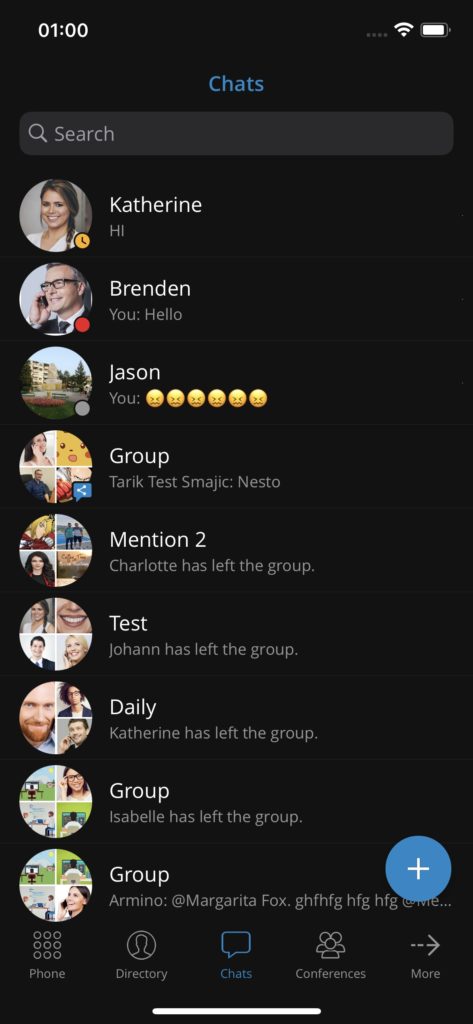
Presence status in the chat list
The presence status of the chat list provides information about the availability of other users. It is displayed with the corresponding icon in the bottom-right corner of the user's avatar.