Make calls
In Communicator GO, calls can be made via the SIP protocol, which is a main option, or by using callback calls.
Call scenarios can vary and will depend on the network connection (Wi-Fi, mobile data, no connection), the availability of the service and the value of the “SIP over mobile internet” option.
Wi-Fi |
| No connection | |||
Possible scenarios during a call in Communicator GO | SIP over mobile internet on | SIP over mobile internet off | |||
|
|
2. Callback call 3. Failure |
2. Callback call 3. Failure |
2. Failure | Failure |
Callback module unavailable | 1. SIP call 2. Failure | 1. SIP call 2. Failure | 1. Failure | ||
| Callback module available |
2. Failure |
2. Failure |
2. Failure | |
|
| ||||
The table above displays the order in which gloCOM GO will attempt to establish calls in different scenarios.
If we take, for example, the first scenario for WiFi where the order is:
SIP call
Callback
Unsuccessful
This means that in a scenario where the device is connected via WiFi, the app is connected to the SIP server, and the callback module is available on PBXware, Communicator GO will first try to make a SIP call; if that fails, it will then attempt to make a call using callback, and if that fails, it will display the message indicating that the call could not be established.
SIP calls
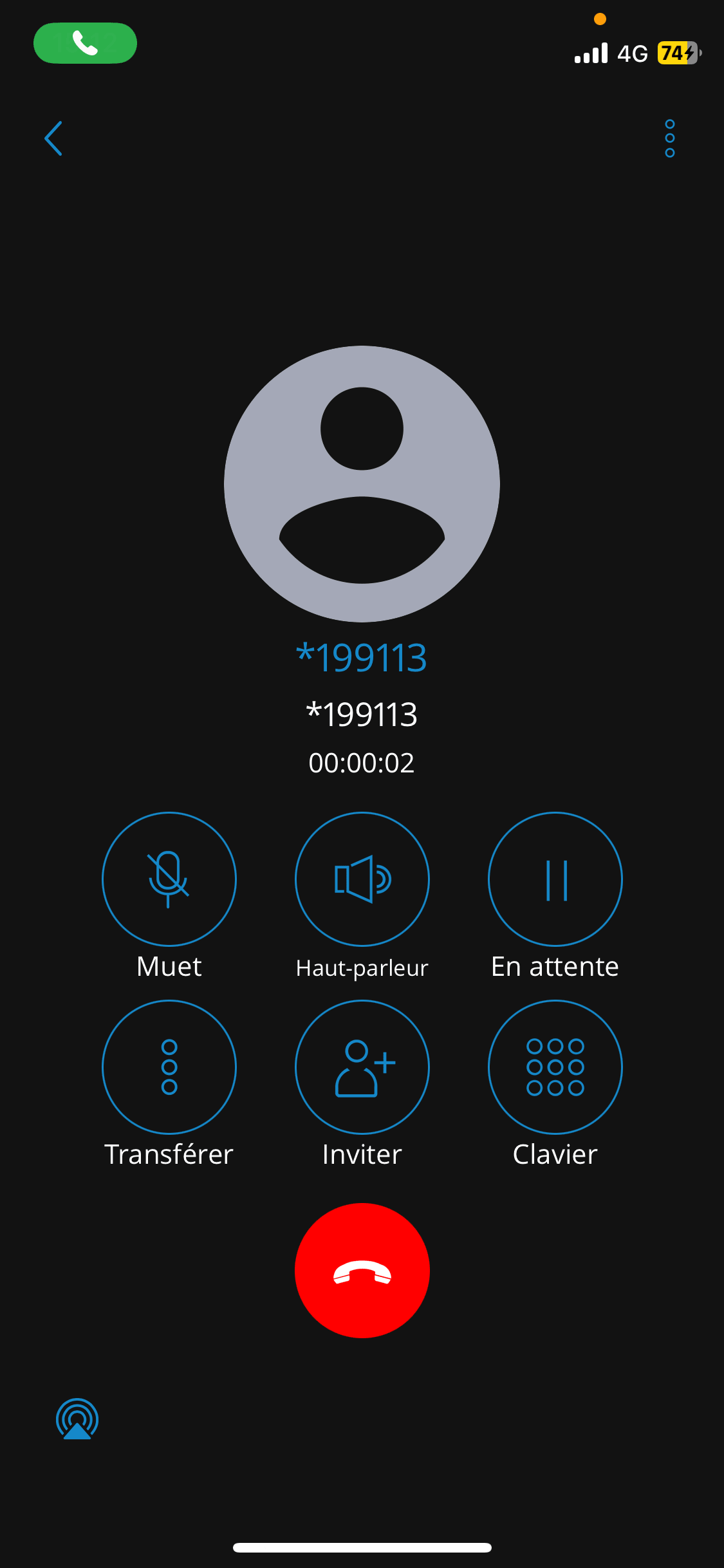
The SIP call screen appears when you initiate or receive a call via PBXware.
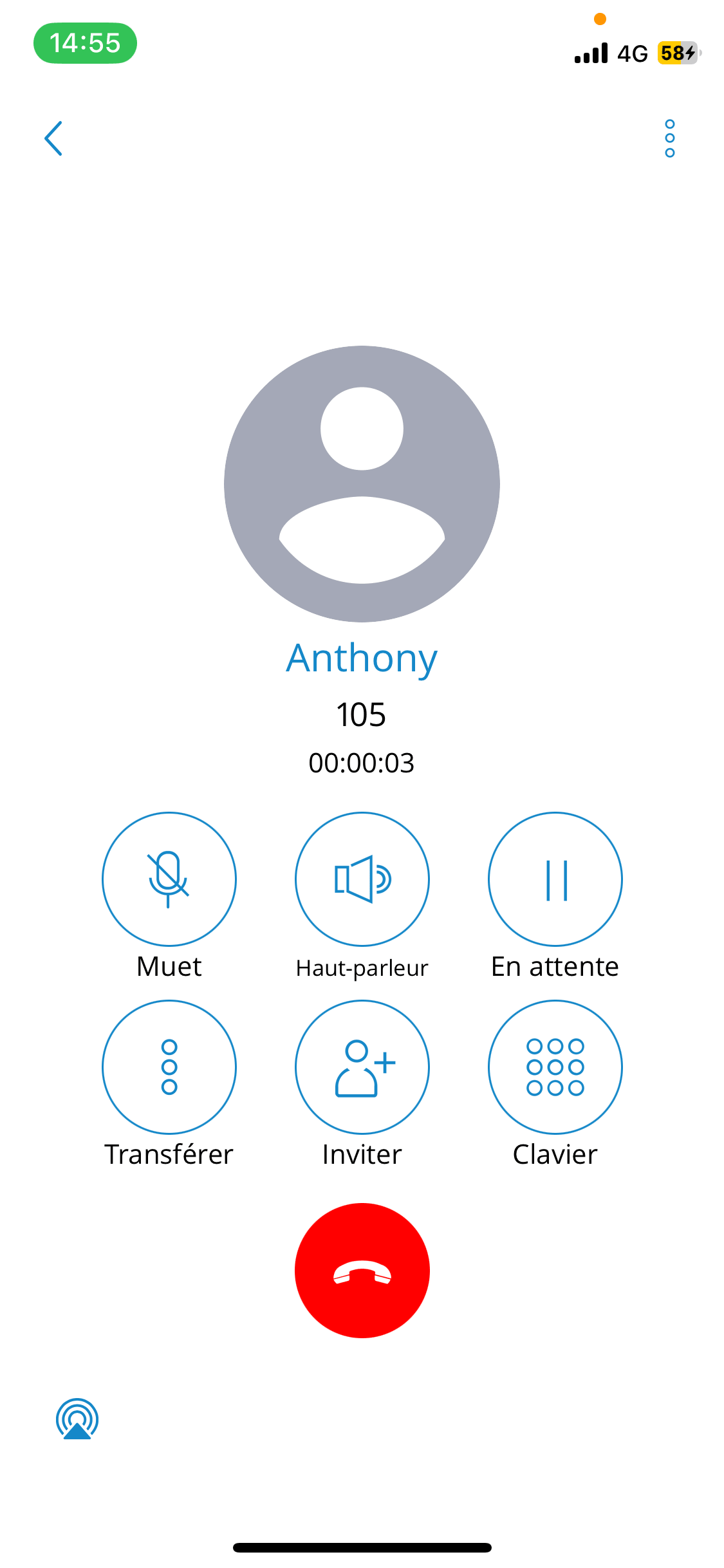
Once the call is connected, Communicator GO allows users to perform several actions:
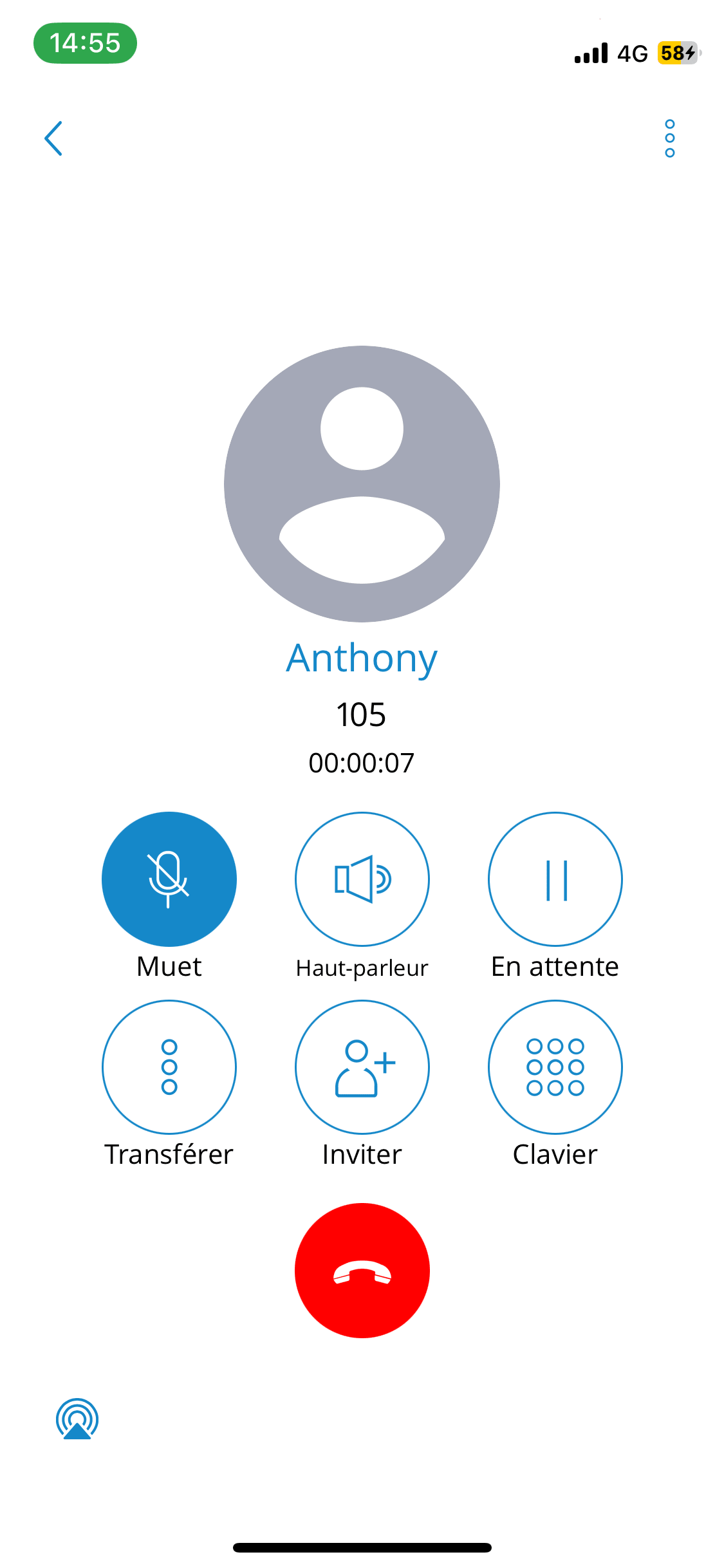
- Mute:
Mute allows users to disable the device microphone, thereby preventing any unwanted communication from the user's side being transmitted to the other side of the call.
- Speaker:
Press the Speaker button to put the device in speaker mode, allowing users to continue without holding the phone close to the ear or to allow others present in the room to join the conversation through a single device.
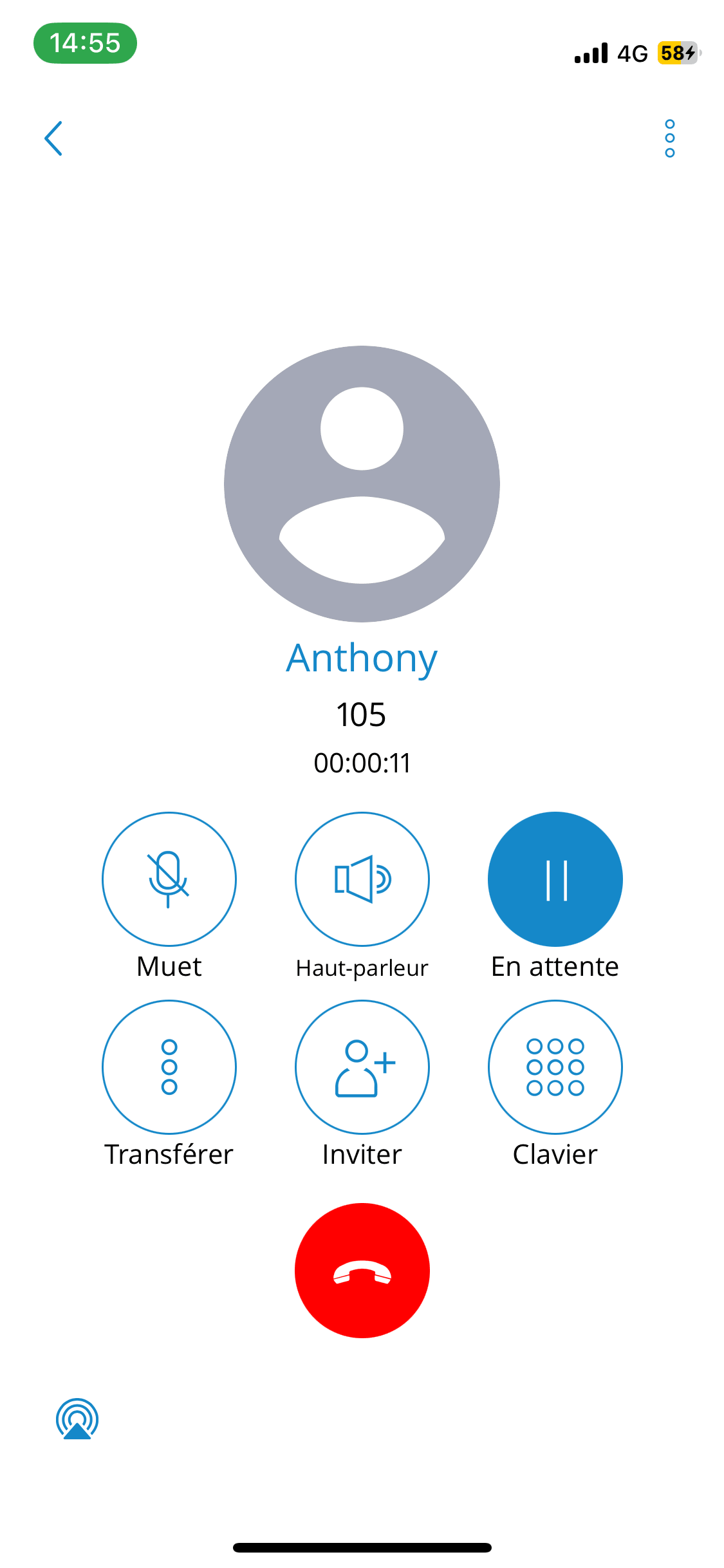
- On hold:
The Hold option will put a caller on hold and play hold music until the Hold button is pressed again or the call is transferred to another destination.
- Other options
By pressing the Options button (three small dots), users can perform several actions:
- Transfer the call
The transfer button allows users to initiate a direct or supervised transfer to a PBXware extension or an outgoing number.
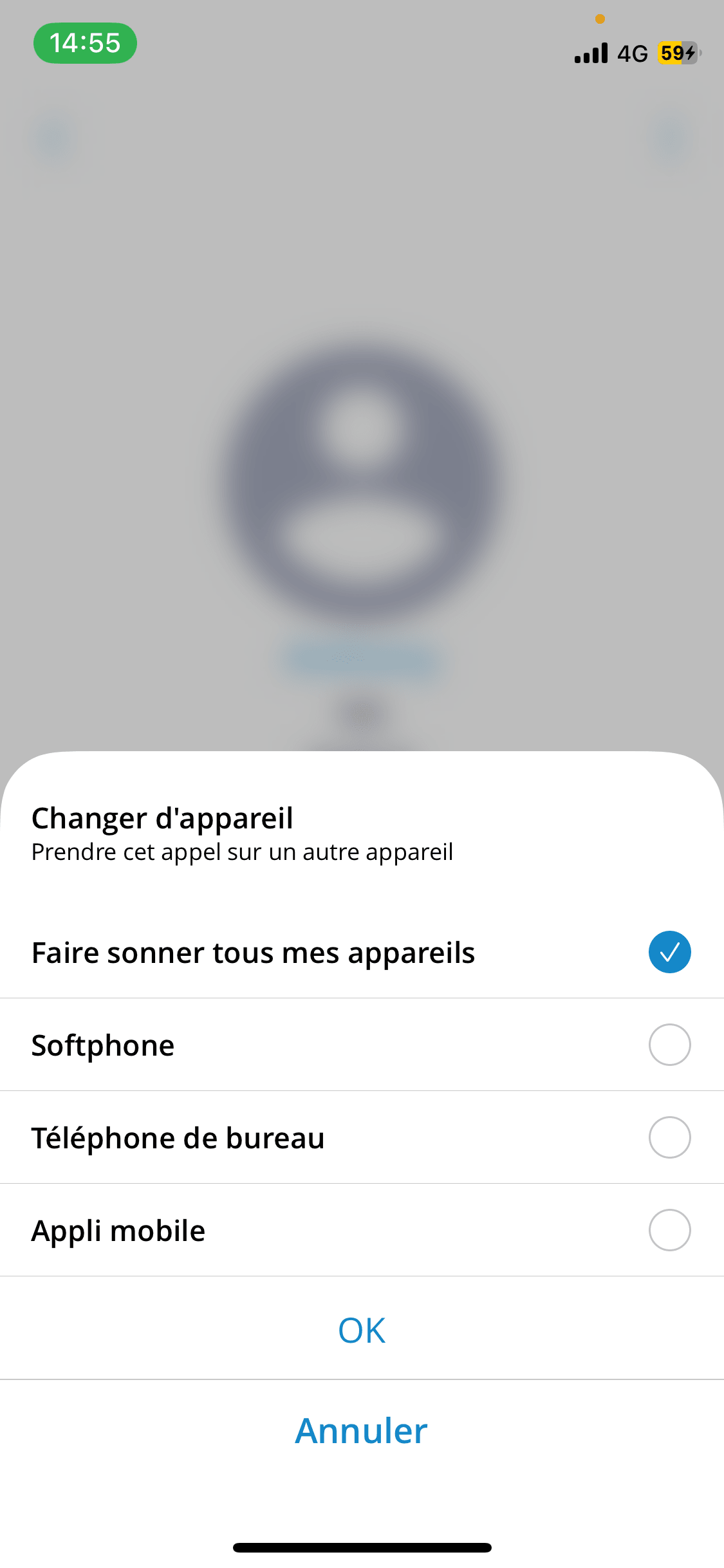
- Switch device
Switch device allows users to resume the call on other devices, such as a desk phone, a softphone, a mobile app or via a callback using
predefined phone numbers from the My Phone Numbers feature.
- Start call recording
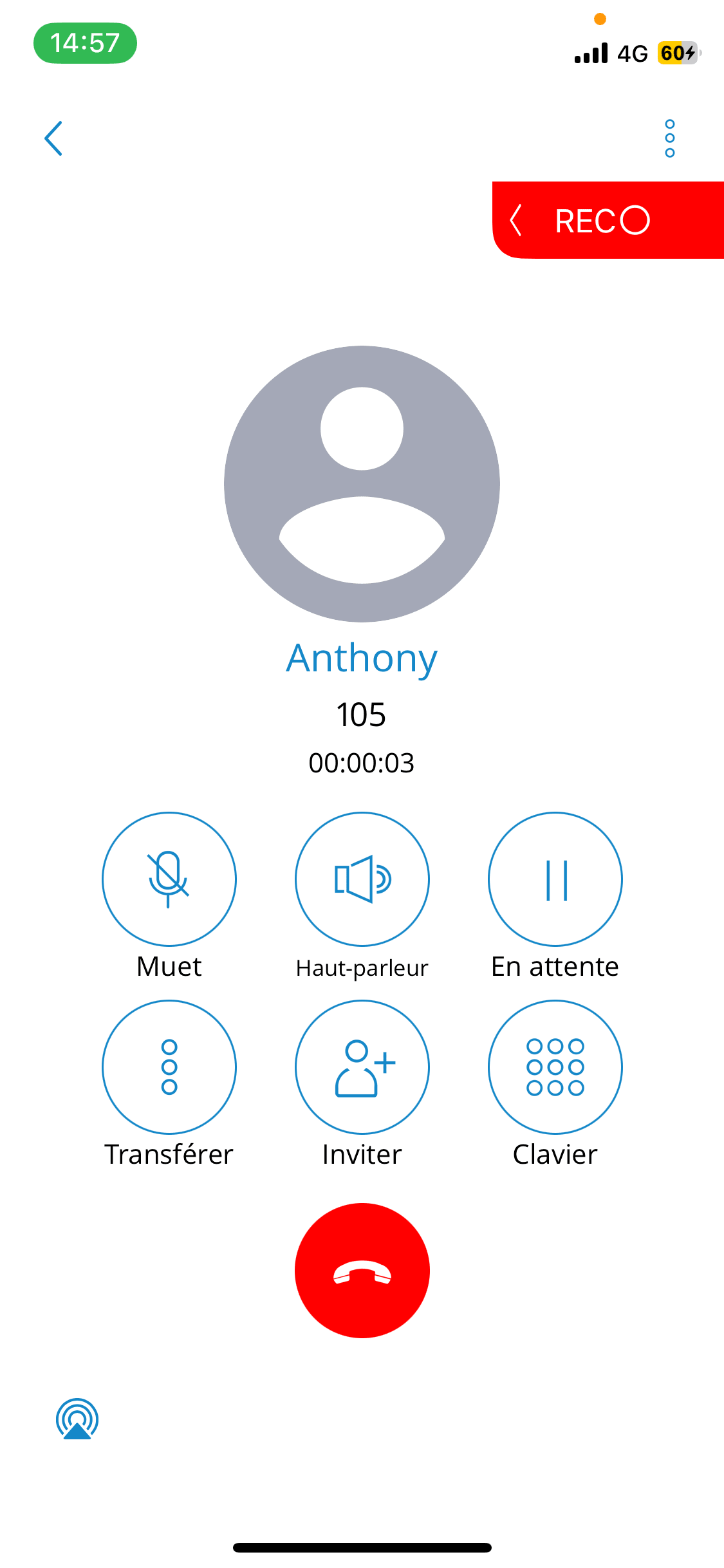
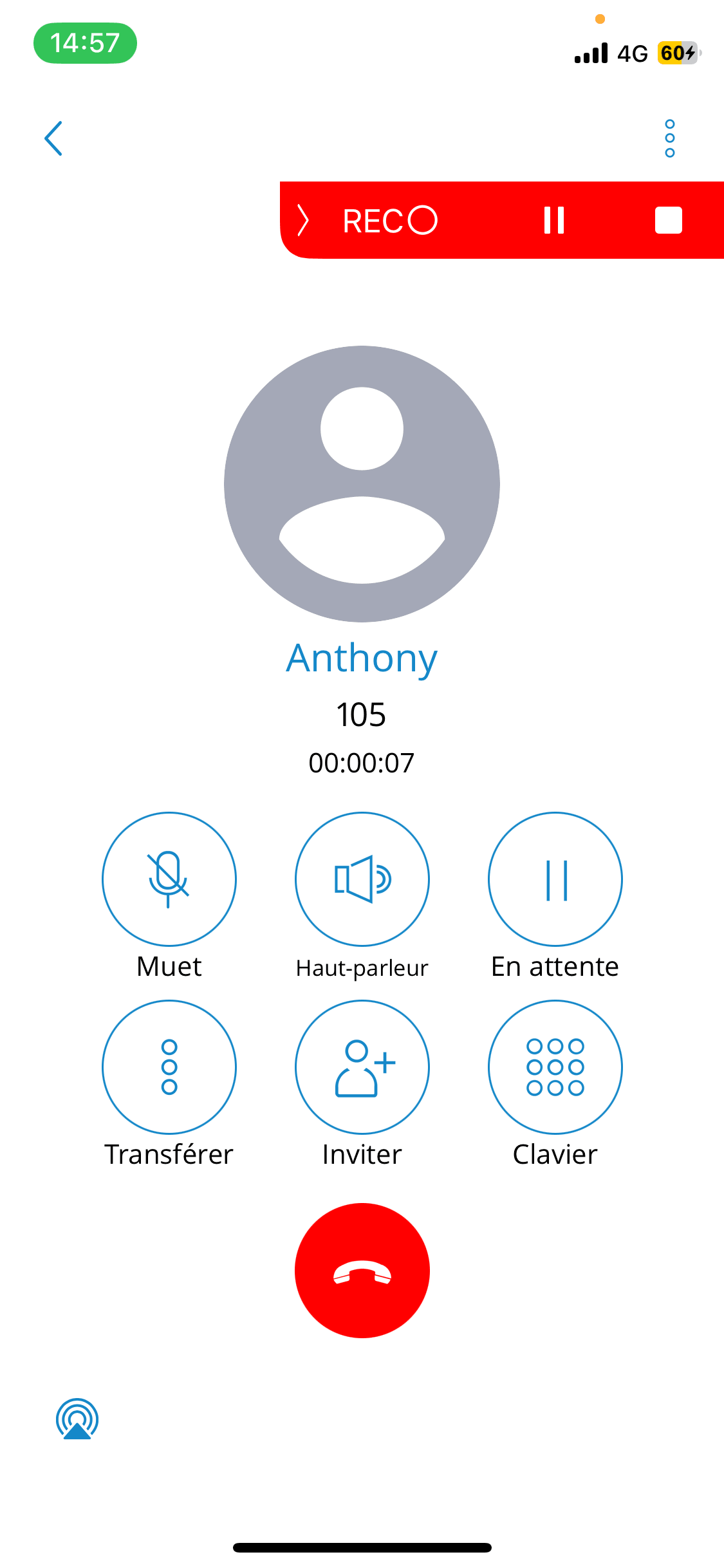
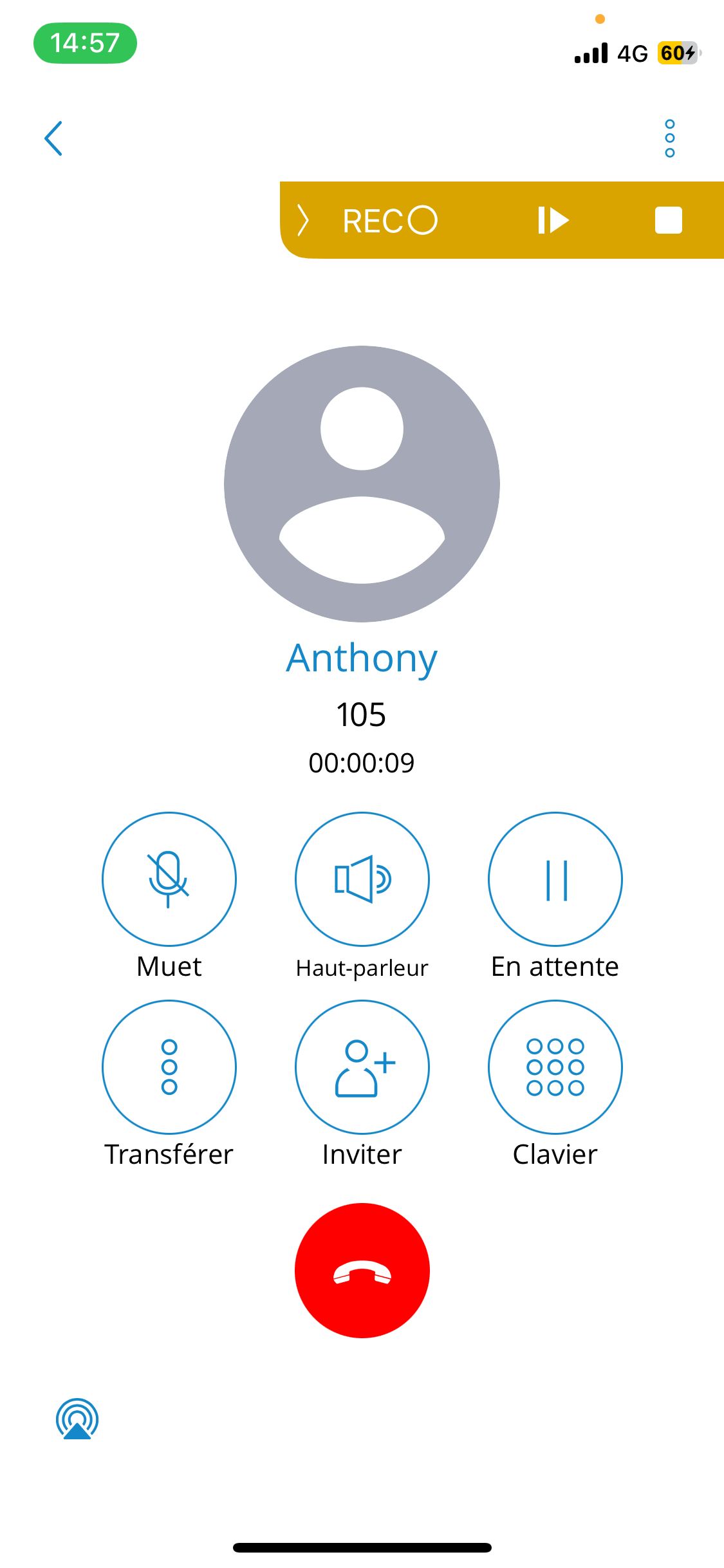
Start call recording is only available if it is enabled in the enhanced services for the user’s extension in PBXware. Once call recording is started for a call, the indicator on the ongoing call screen is visible, indicating that recording is active. Users can also pause/resume and stop the recording.
- Invite
The invitation option allows users to create an instant conference by adding one or more people to an ongoing call. With this option, users can add PBXware extensions or any number available in their contact list.
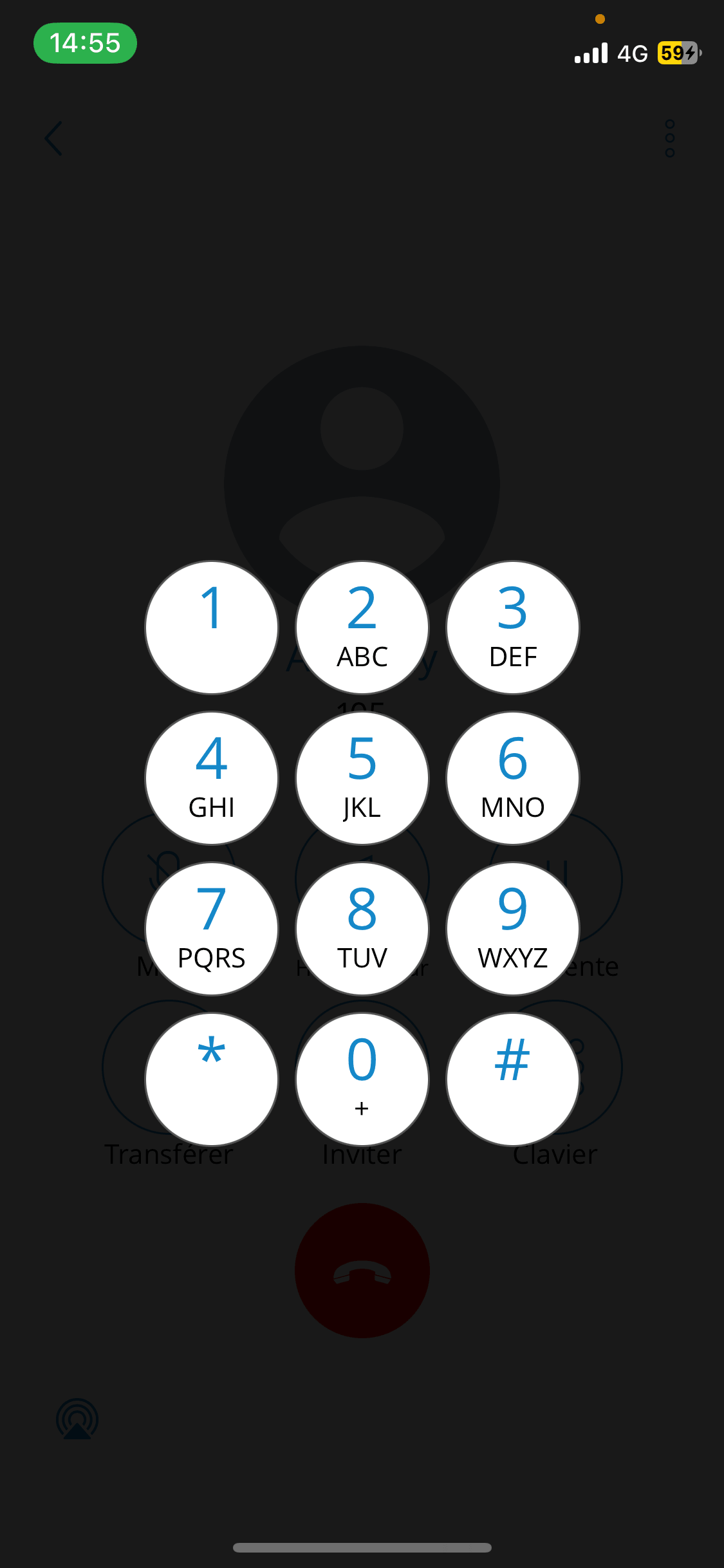
- Keypad
Use the Dialpad to generate DTMF signals to provide information to IVRs, voicemail management, etc.
Multiple SIP calls
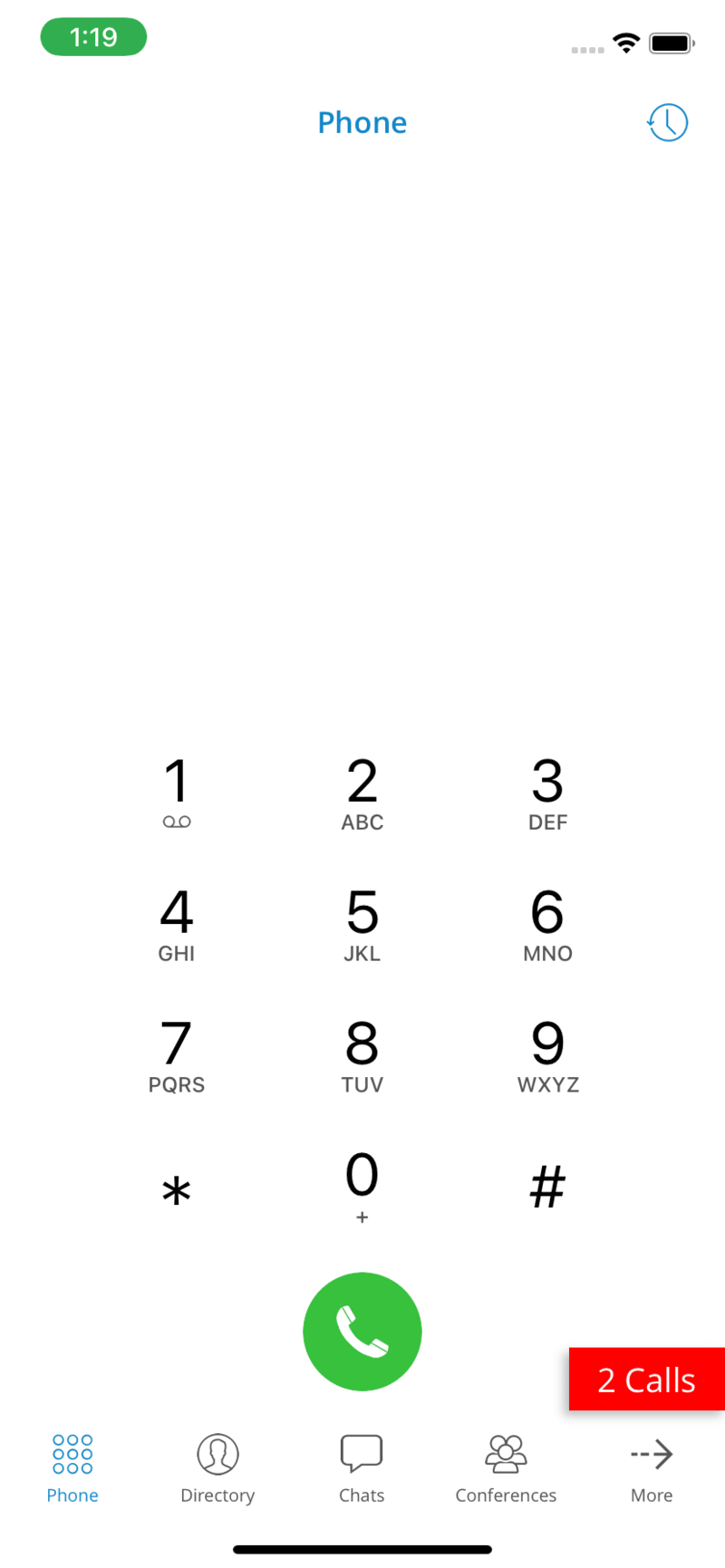
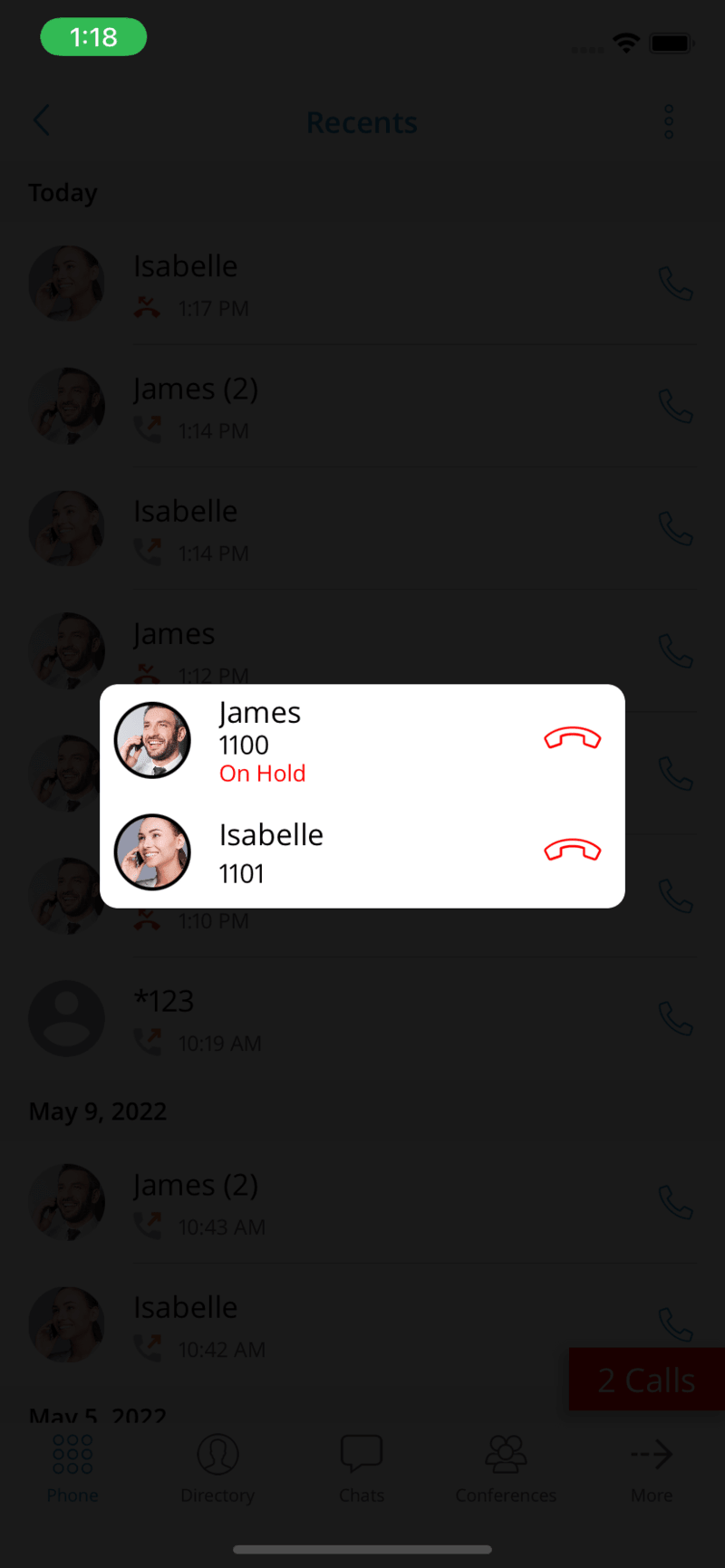
Communicator GO offers the ability to handle two calls at the same time. If a SIP call is in progress and users receive another call, it will be presented to the user on the SIP call screen. If answered, Communicator will put one call on hold. Communicator will exit the multiple SIP calls state if one of the calls is ended.
Microphone disabled
The application displays an indicator on the call screen if the microphone is muted, so that users know whether the other parties can hear them.
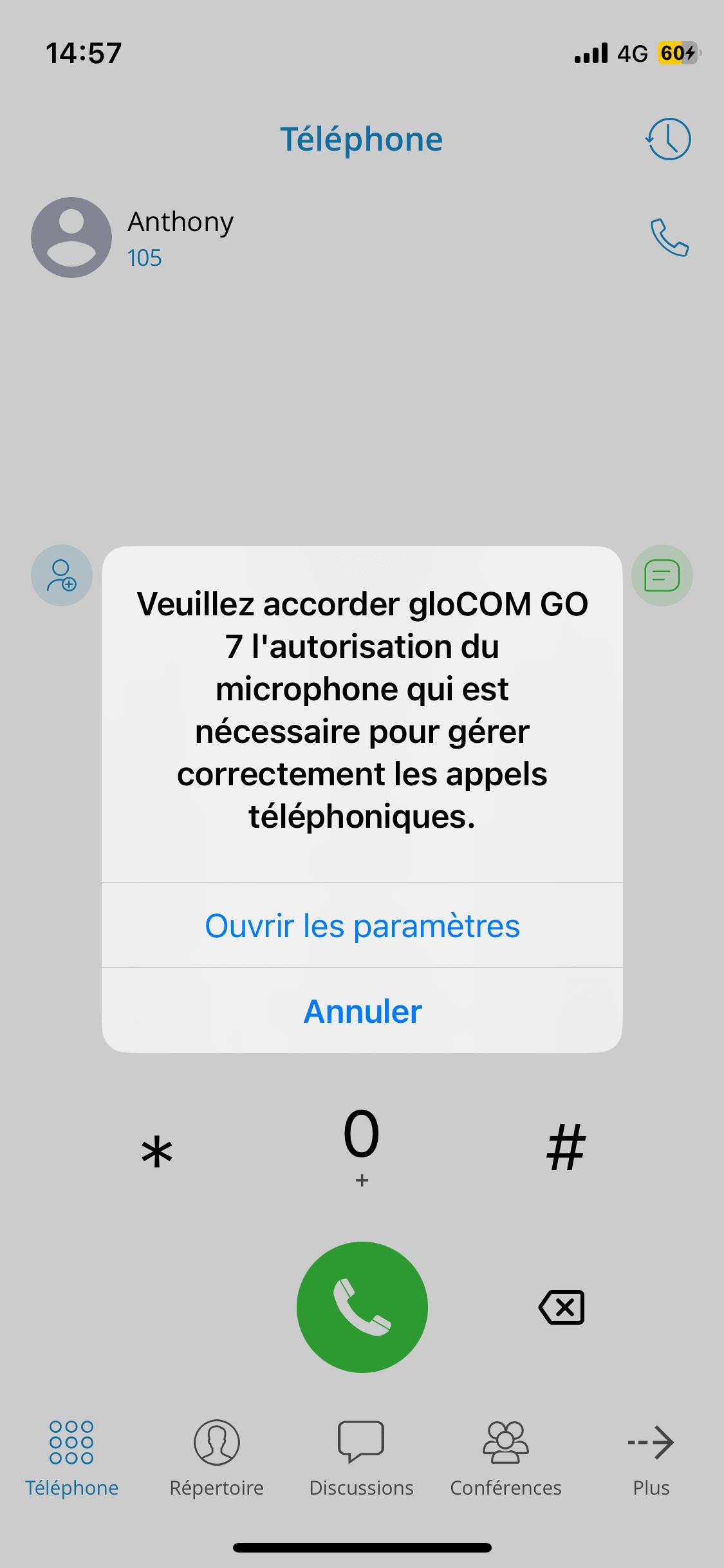
The microphone button on the call screen would be disabled if the user had not previously granted permission.
By pressing the message banner or the muted microphone button, users will be prompted to grant microphone permissions.
Microphone disabled
Once call recording is started for a call, the indicator on the ongoing call screen is visible, indicating that recording is active. Users can also pause/resume and stop the recording.
Call encryption
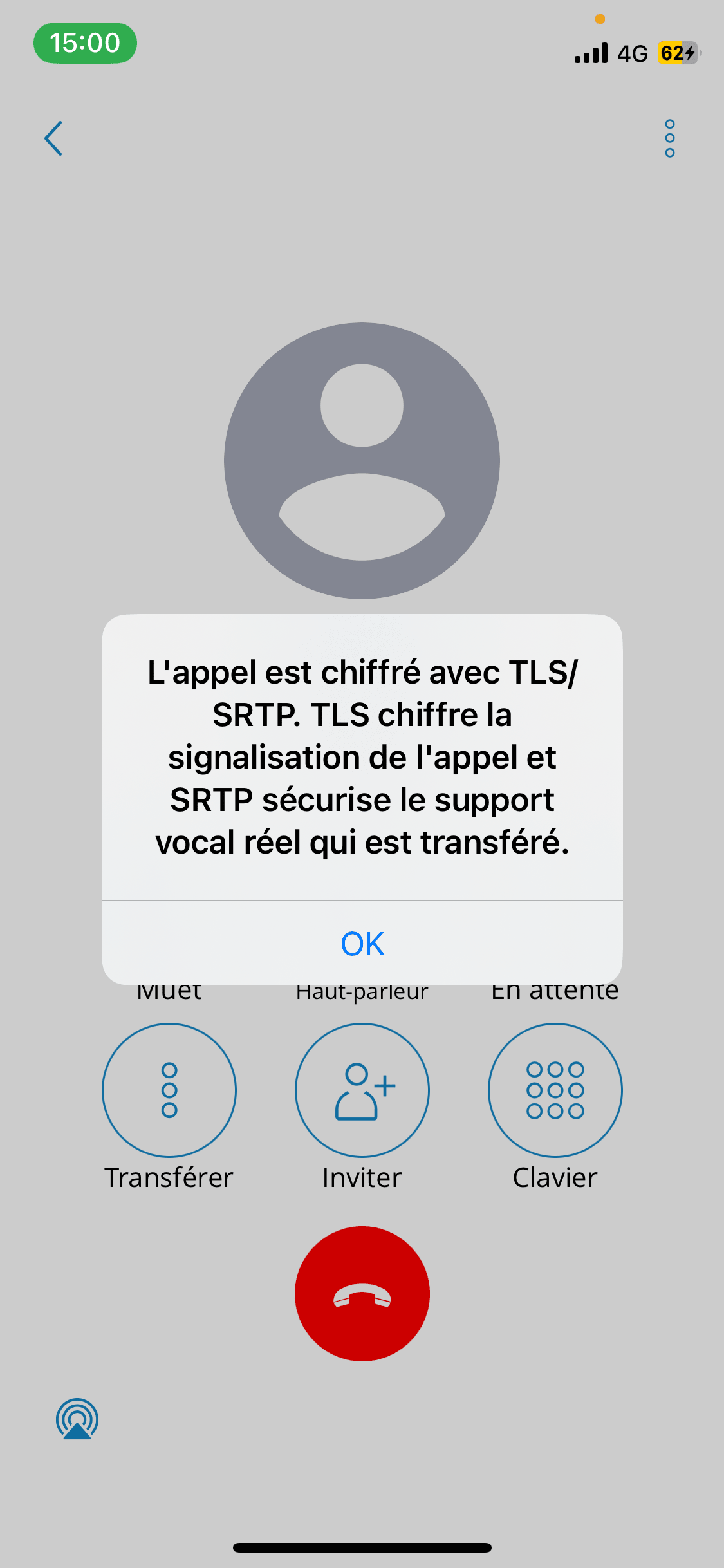
An indicator displays a call encryption message during an ongoing call if a call is encrypted. The indicator should only be present when TLS encryption is enabled. Pressing it will display a pop-up message explaining the encryption.
Call transfer
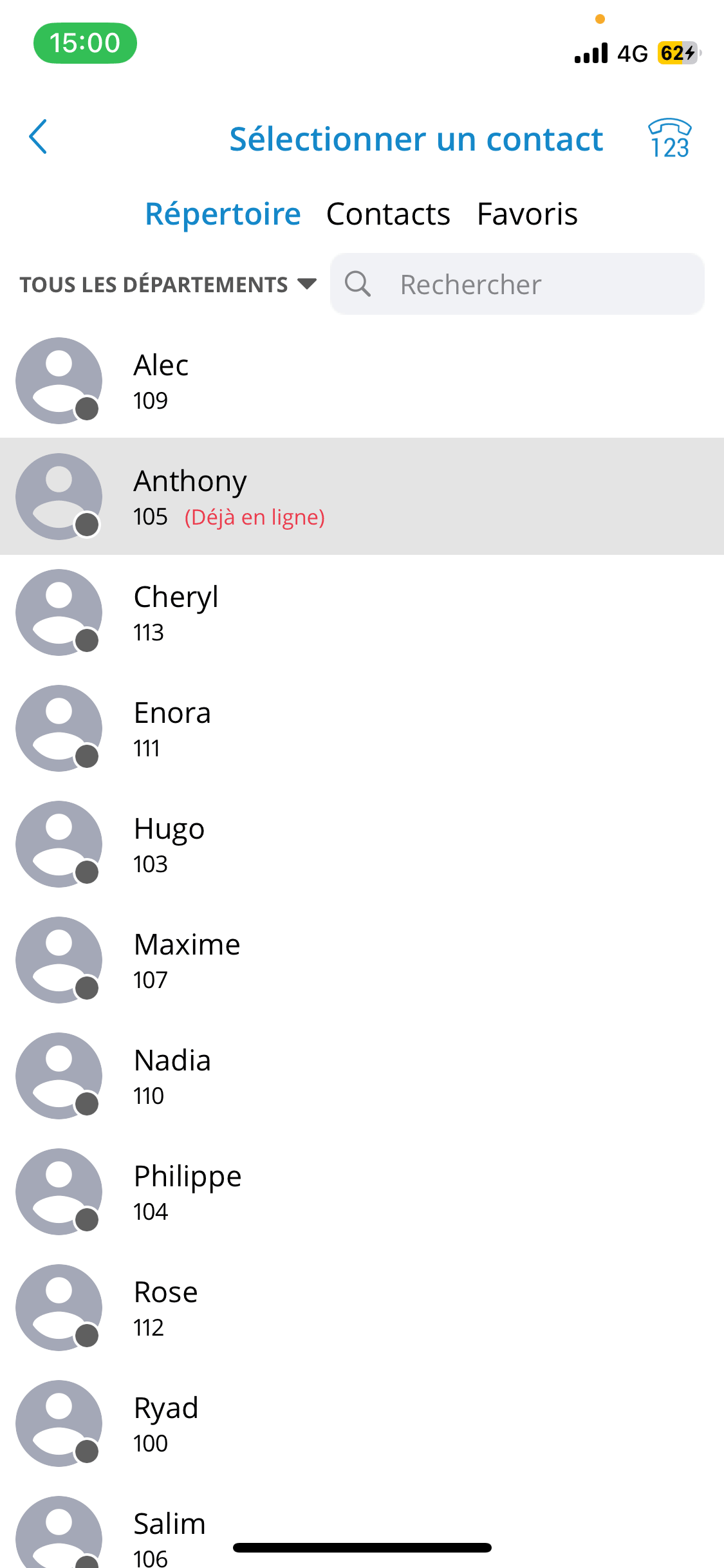
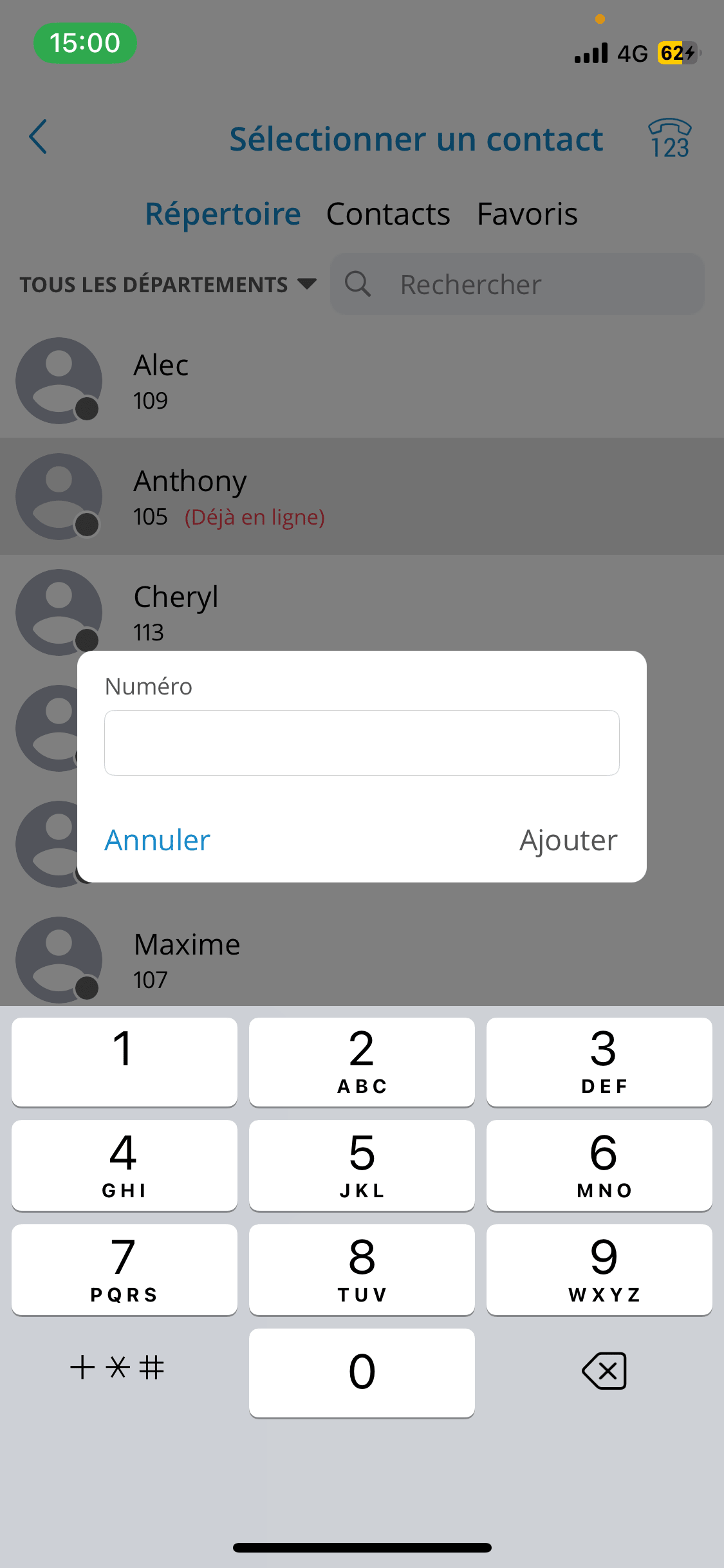
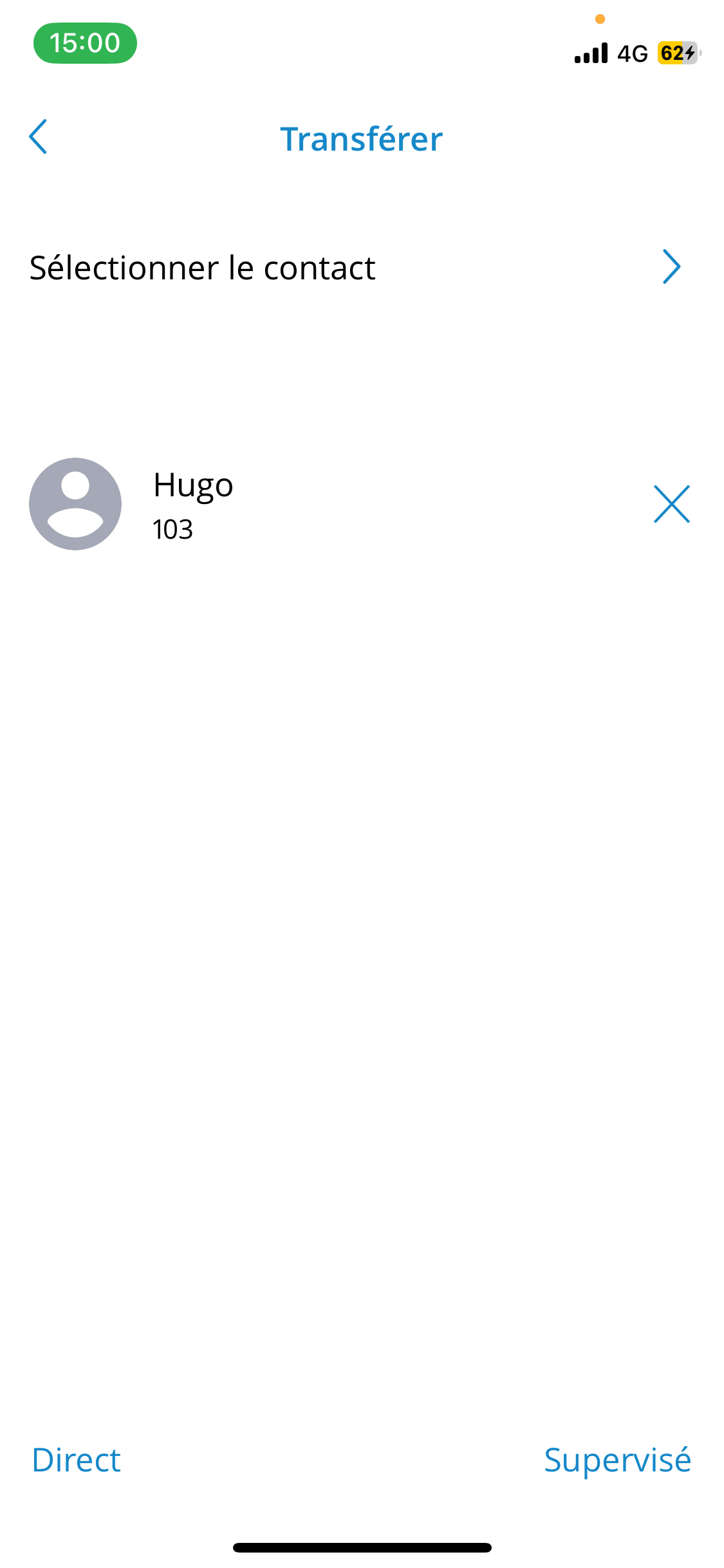
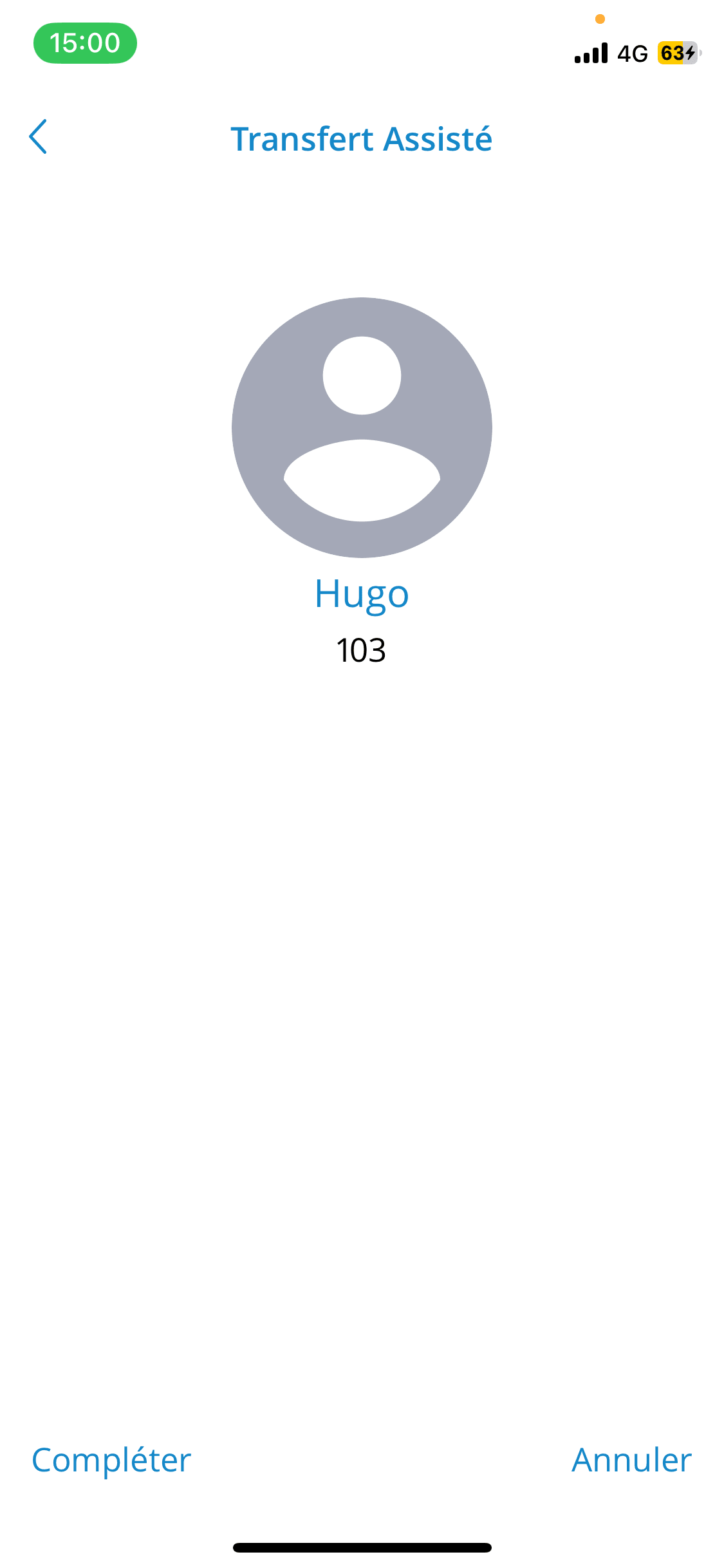
Users can transfer a call by tapping the transfer icon in the call options menu. The user will be able to transfer the call to two destinations:
- Select a contact
Press Select a contact brings up a screen with favorites, users and phone book contacts to choose the person to whom the call will be transferred.
- Enter a number
Users can enter the number directly without selecting from the contact list. After selecting the contact or entering a number, users must choose to perform a direct or attended transfer to initiate it.
Recent calls
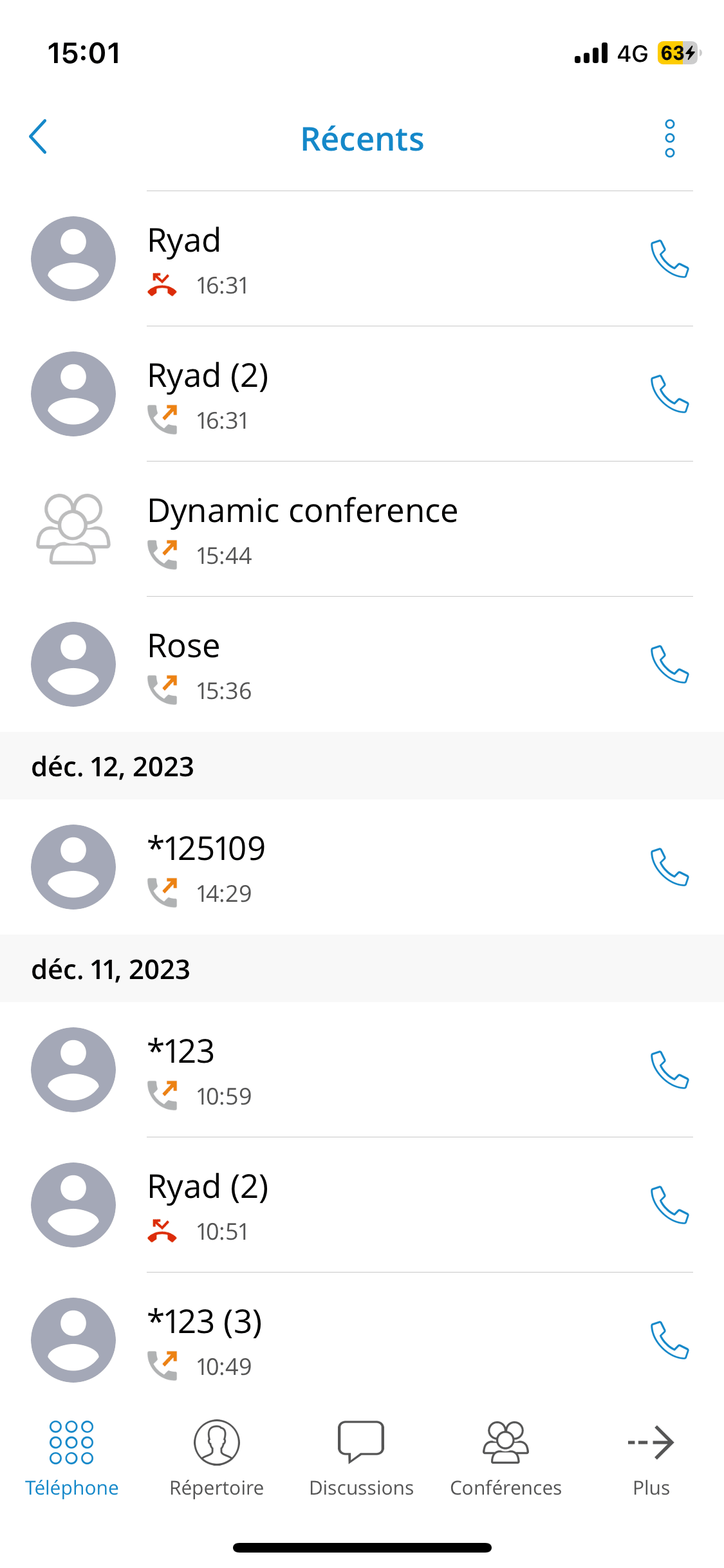
The Recent screen will be displayed when the user taps the Recent tab in the header bar on the phone screen, along with a list of recent calls.
By pressing the recent calls screen, there is a search icon in the top bar, which can be used to filter recent calls by number and name.
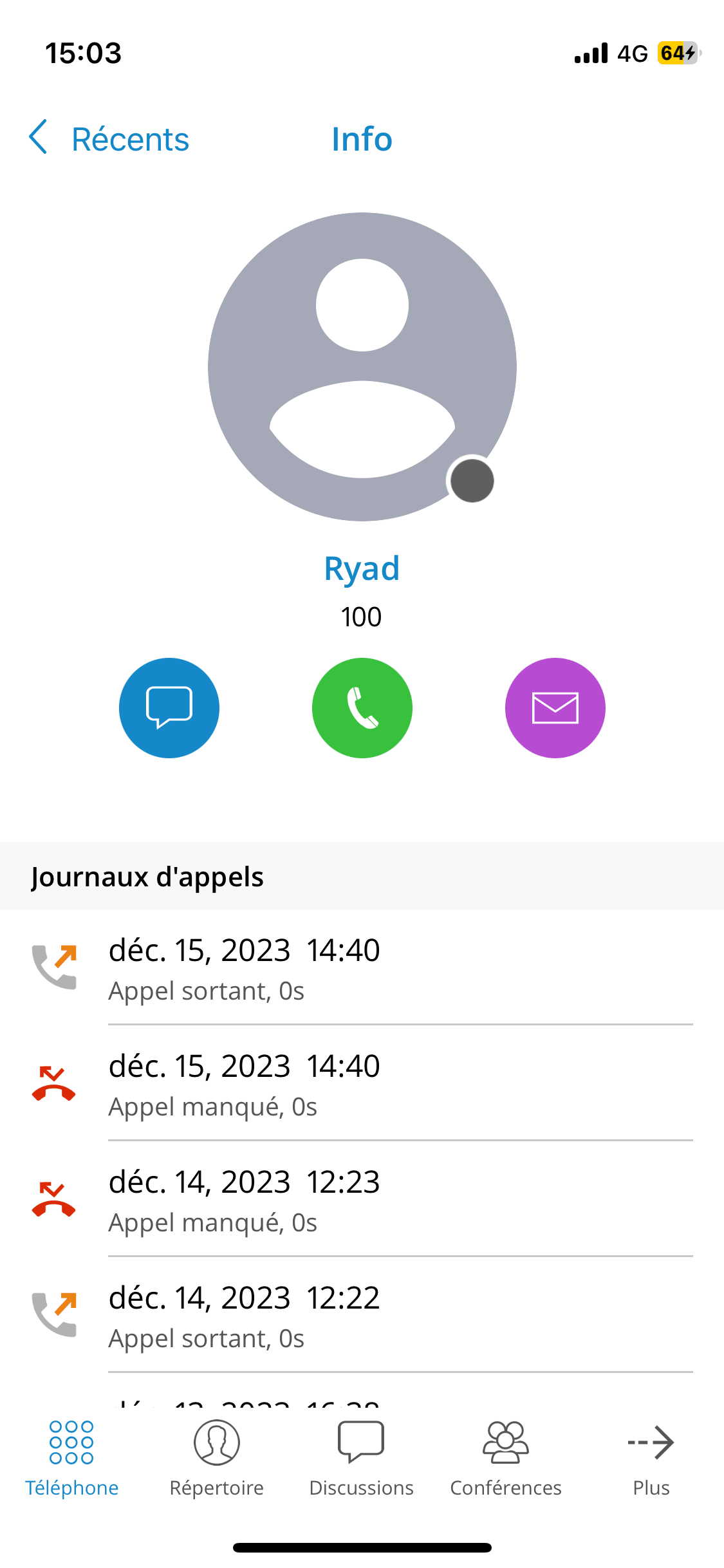
Tapping a contact's avatar during recent calls opens an information screen containing additional information about that contact.
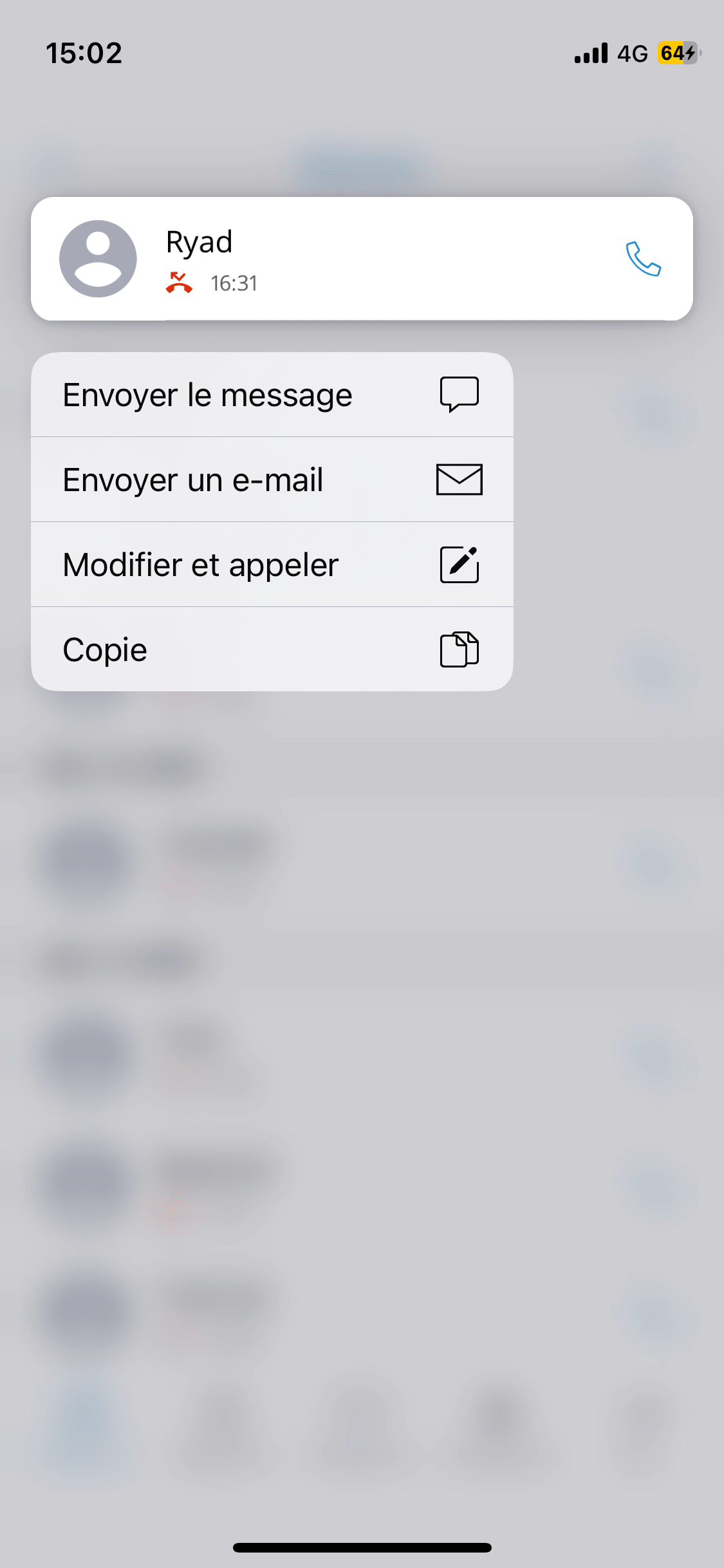
Additional options by long-pressing an item during recent calls, making it much easier to send a message or email or to copy/edit a number.
Call history synchronization
With the call history synchronization feature, users will be able to access their recent call history from all Communicator applications (desktop, mobile, and Web).
Every call that users make on the desktop will be reflected on mobile devices. If users mark a missed call as seen on their mobile device, it will now be marked as seen on their desktop computer and on other mobile devices. If users delete the call history on one device, it will be synchronized and deleted on all devices.
When connecting to the device, Communicator GO will synchronize up to hundreds of previous calls dating back less than a month.
Technical information about an ongoing call
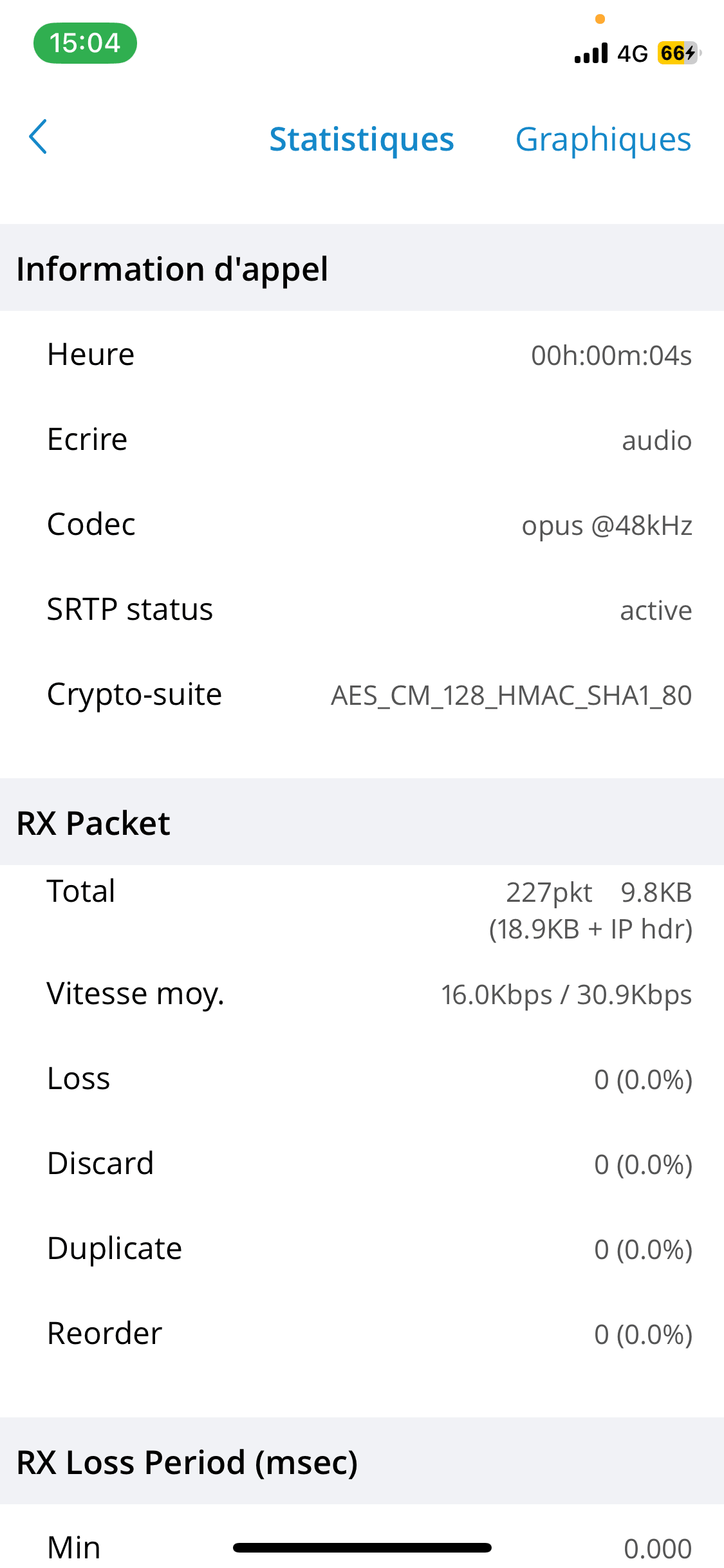
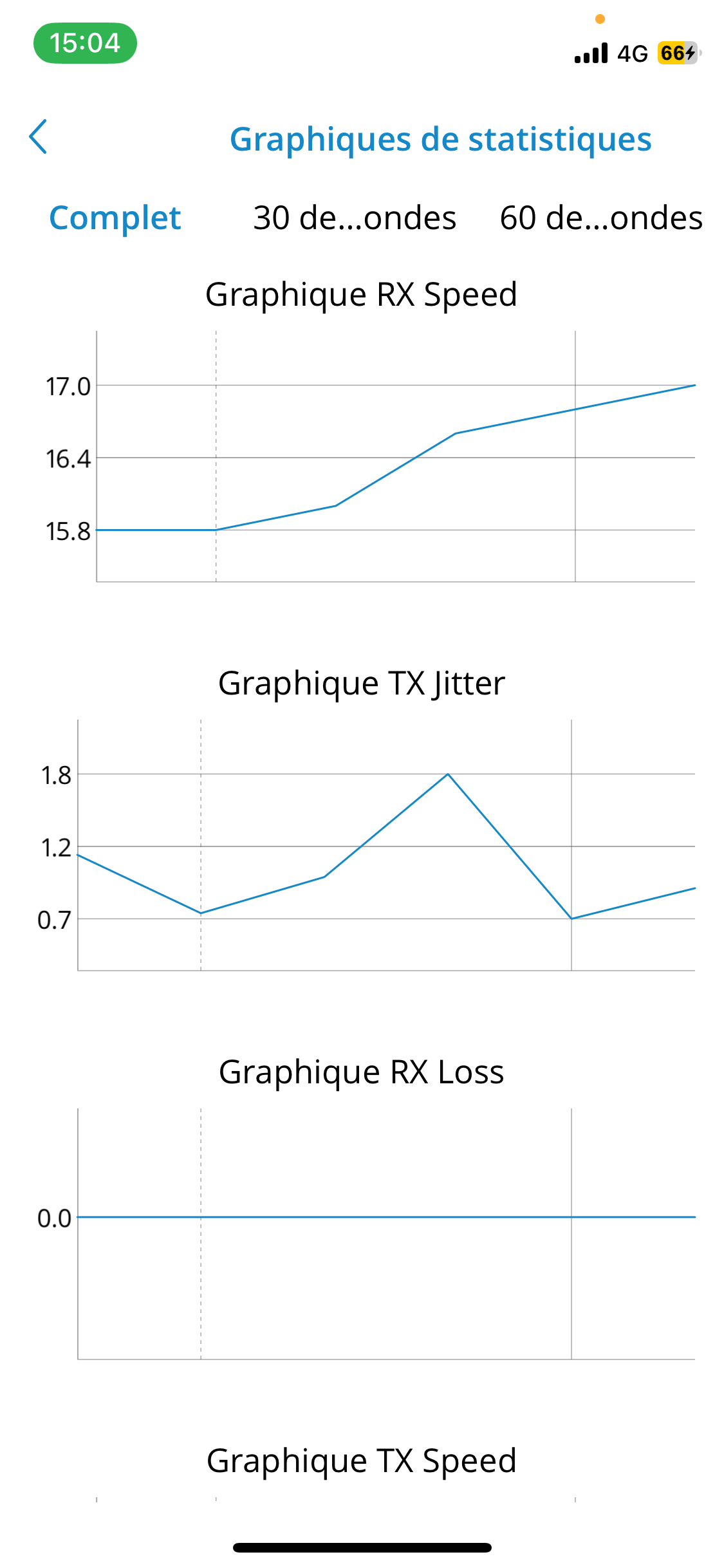
During a call, users can view technical information about it by pressing the information icon. This can be useful for diagnosing call quality issues.
High packet loss and high jitter, both in RX and TX, indicate that call quality is suffering due to network quality and usage.
RX stands for reception (incoming traffic) and TX for transmission (outgoing traffic).
Call supervision
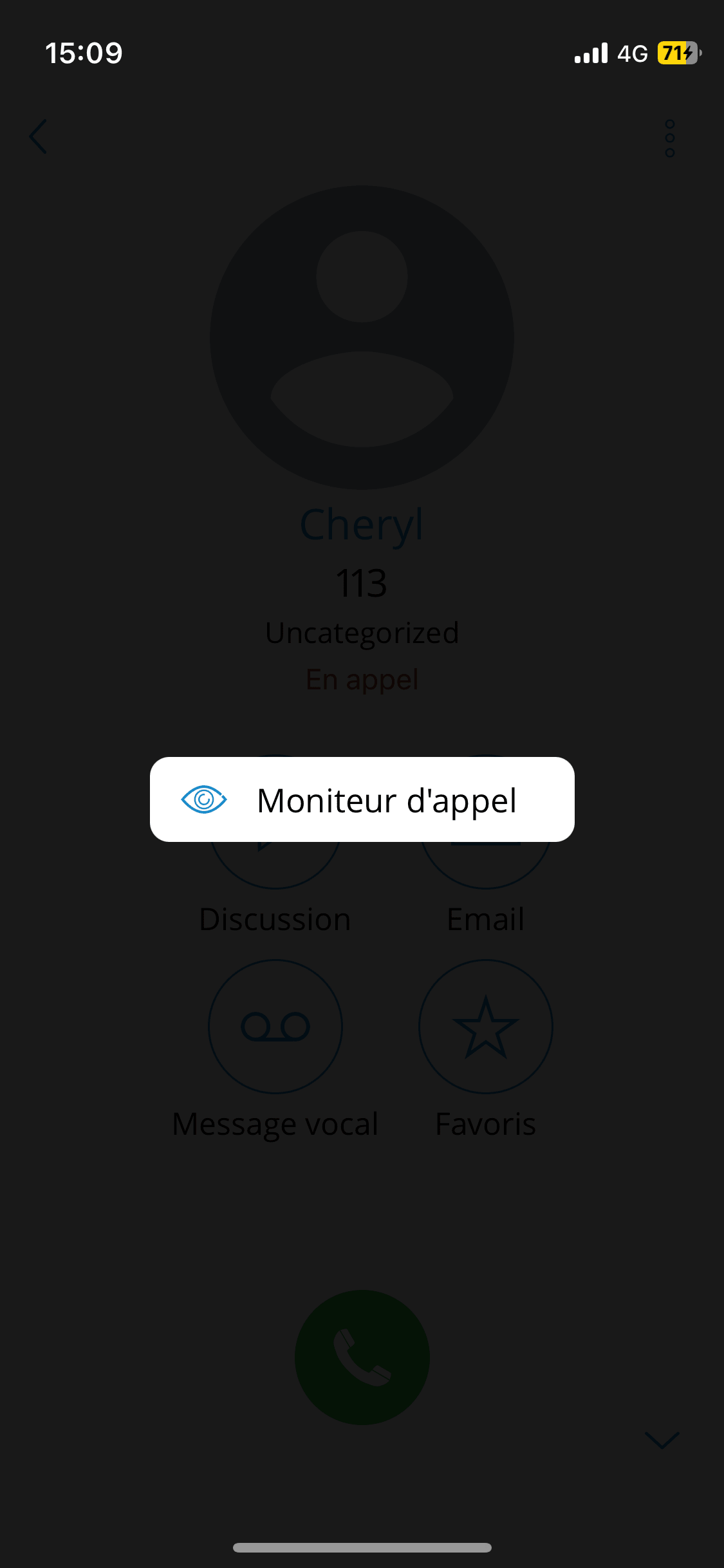
The call monitoring feature allows users to listen to or participate in calls for the extensions configured in the settings of the Call Monitoring enhanced service on PBXware.
When call monitoring is enabled in the enhanced services on the user's account, users will see a three-dot menu in the extension profile. When you press it, the call monitoring feature will be available. If users have not enabled call monitoring on the extension, they will not be able to see this option.
History
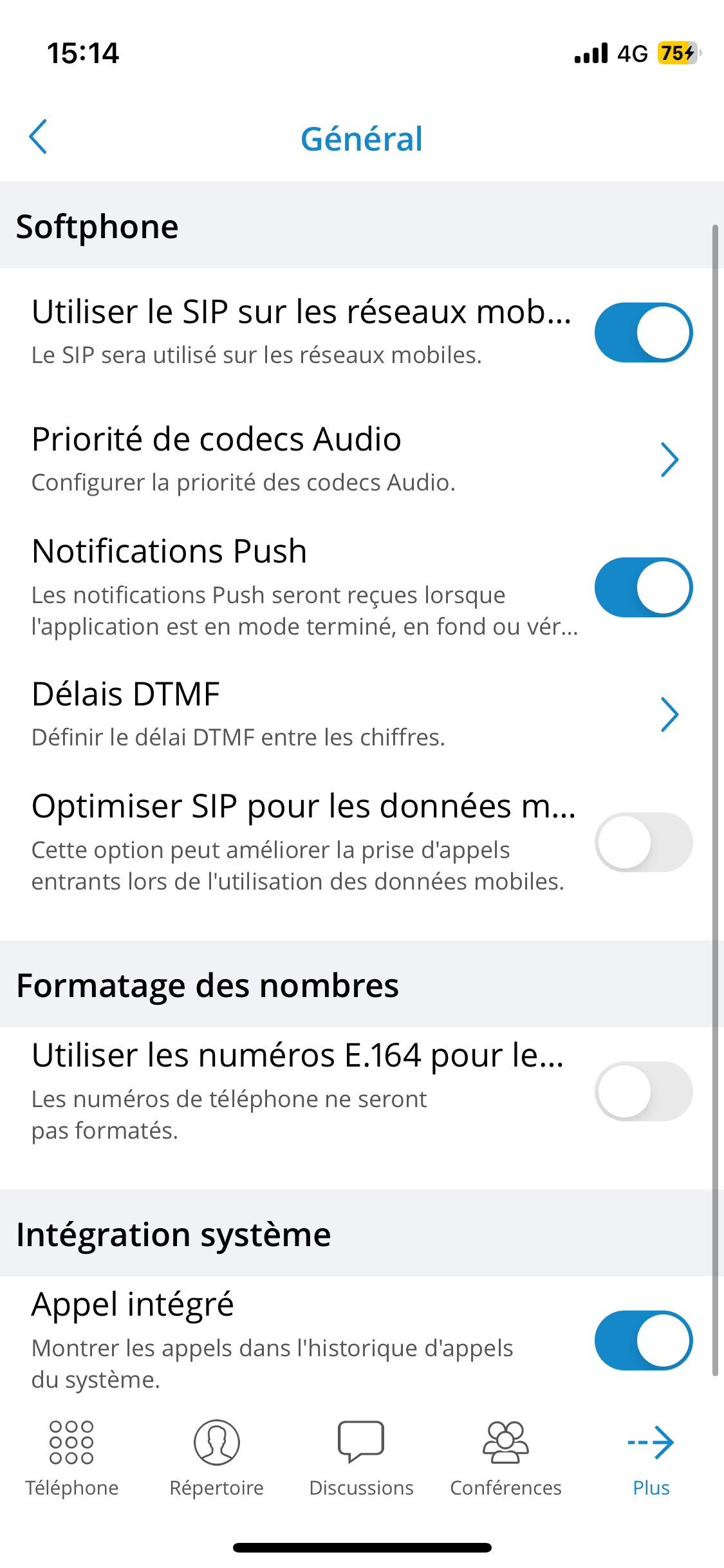
With the feature integrated call, users can enable or disable the recording of recent calls in the system's call history. When disabled, the history will only be available in gloCOM GO.