



Directory
The Directory tab contains users, device contacts, central directory contacts and system favorites. Users can be displayed in the grid (default) or in list order. Users can be sorted by their presence and their department. The default order of users is by their presence. Online users will be sorted alphabetically at the top of the list, followed by away users (recently online), then offline users.
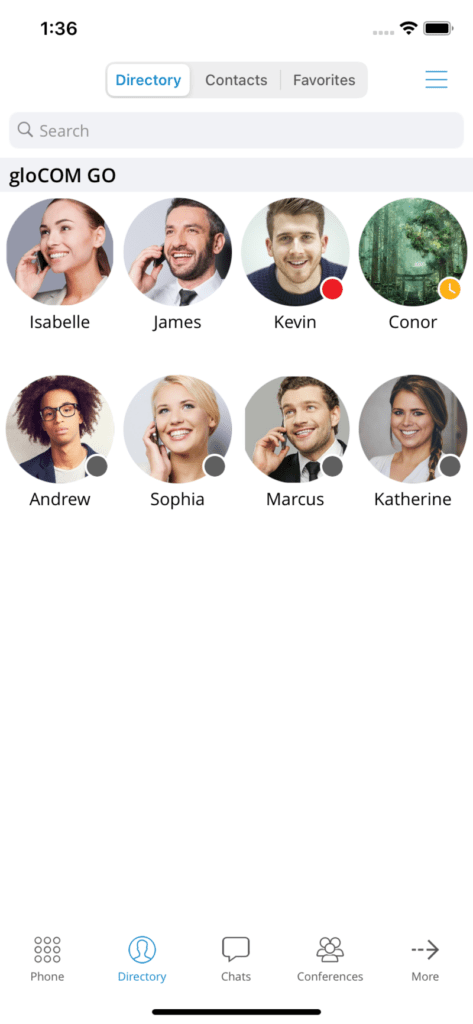
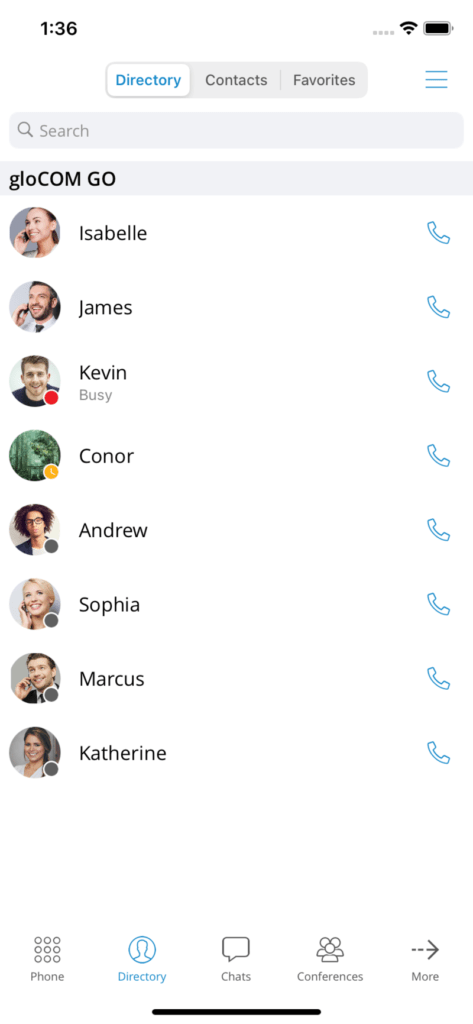
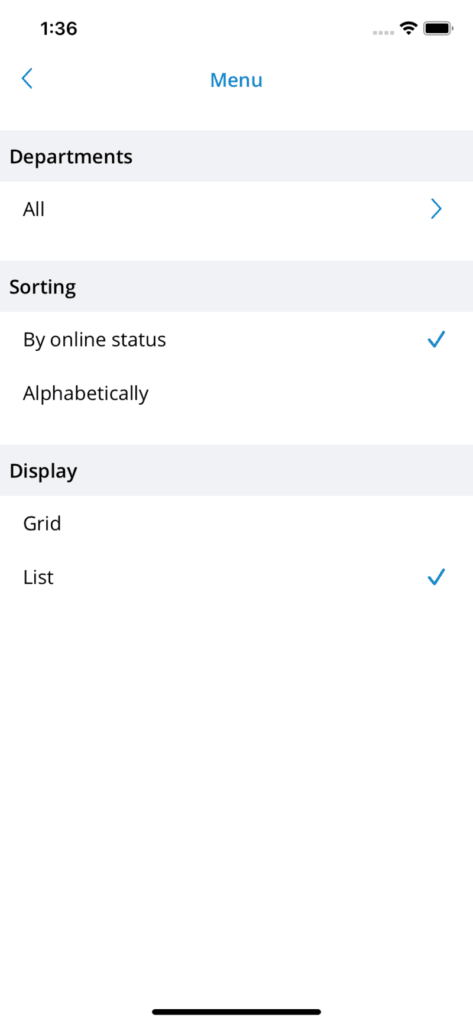
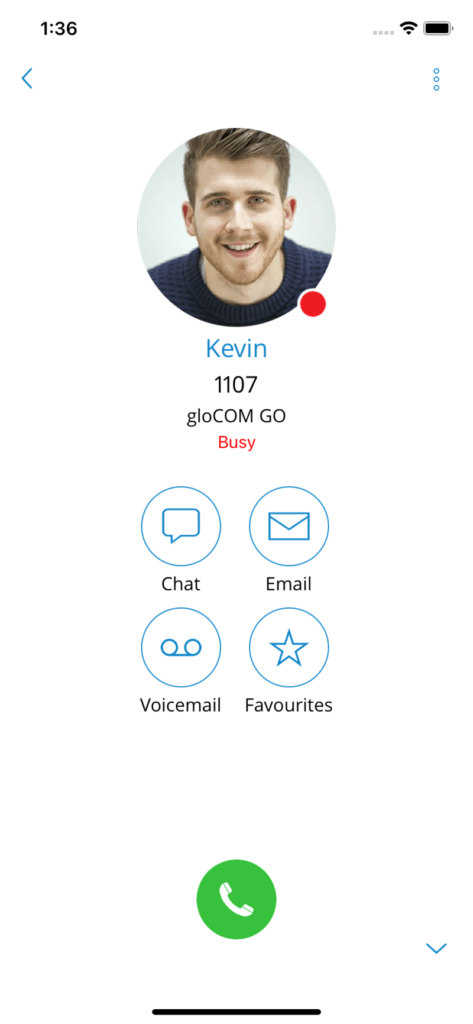
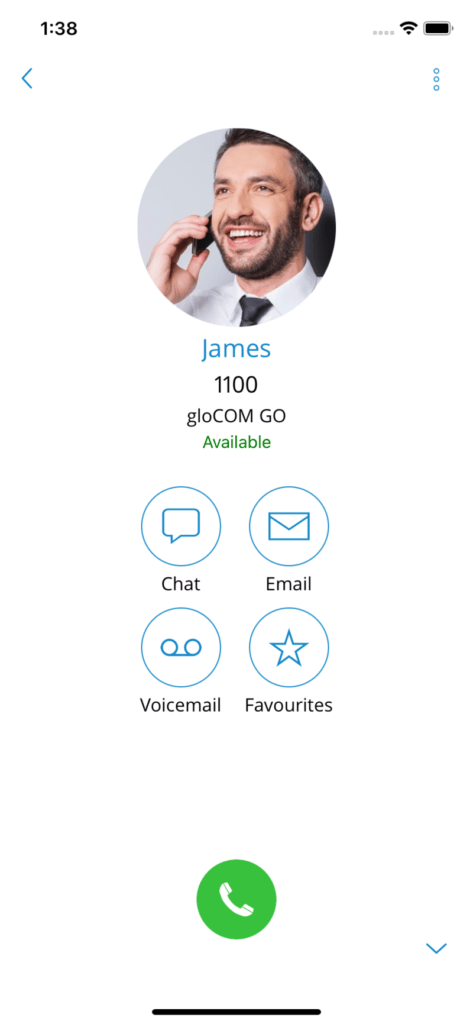
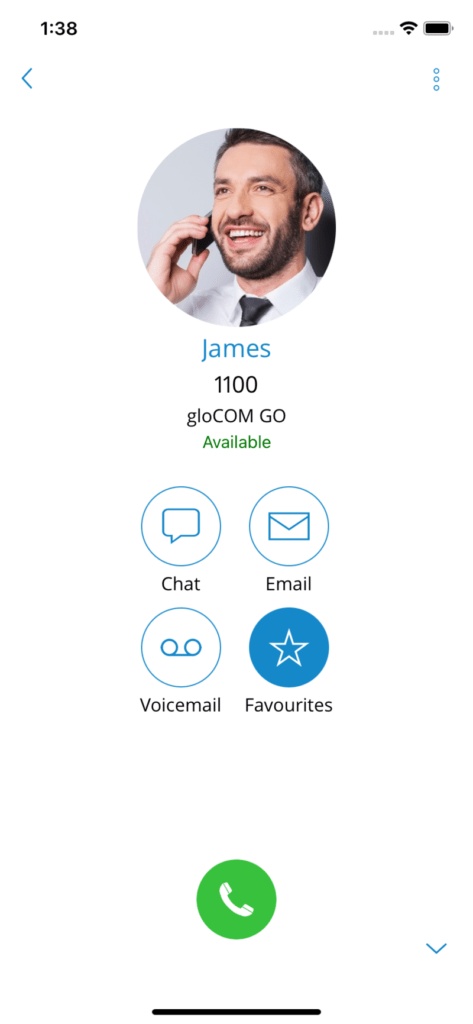
By pressing a user's name or avatar, you will open the user details screen which contains information such as email, presence status and message, and the user's numbers. Users can also call the selected user from this screen, start a chat, send a voice message, or add them to favorites. If the user has associated additional phone numbers with their account, these numbers will also be listed and they can be dialed simply by pressing the number.
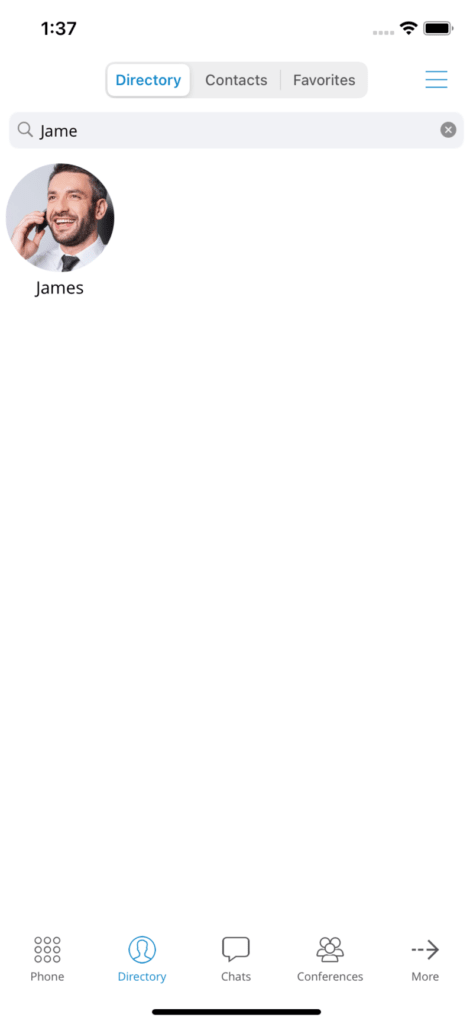
To search for contacts, users can tap the search icon in the top right corner. After tapping the search icon, the search field will appear. The search is performed by contact name or number.
Centralized directory
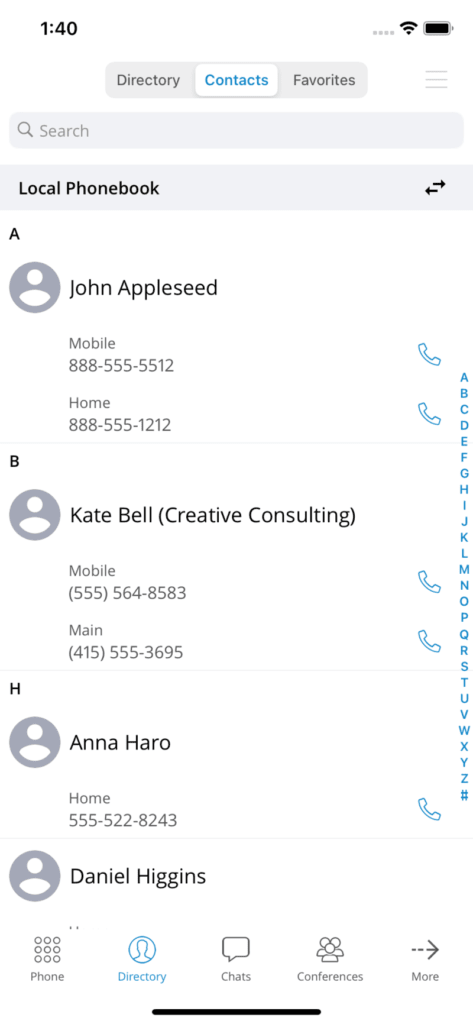
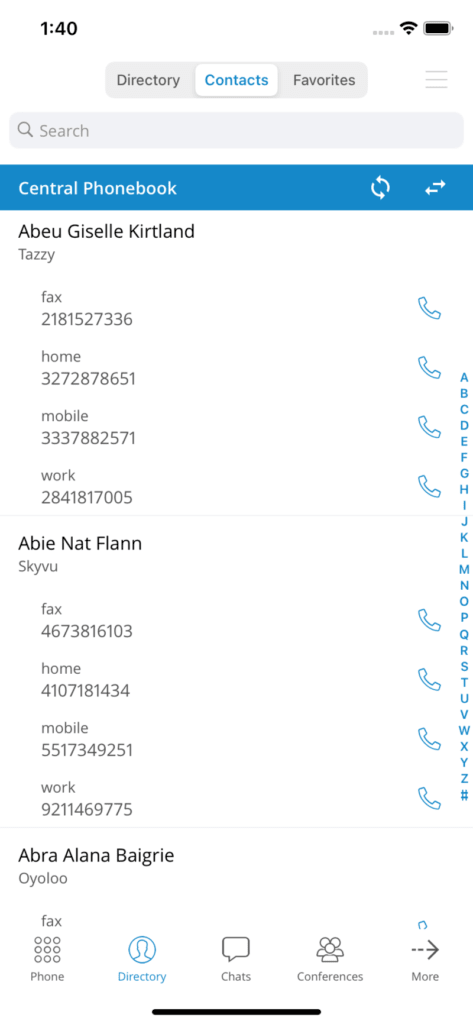
The central directory is a collection of contacts shared by all users on the same system. When users access the directory from the bottom bar, then the contacts screen from the three tabs at the top of the screen, they will see the Contacts screen. The local directory looks essentially like it did before, except for the top part, which has a banner with the directory name and a button to change the directory type.
In addition to having the button that changes the directory type, the blue banner of the central directory has a button to refresh the contacts. Each contact item in this directory has a name, the company name and a list of number labels and numbers.
Favorites
Users can add other users and directory contacts to favorites in order to have them in the same place and appear first when performing an action, for example transferring a call. Users can be added/removed from favorites by tapping Add to favorites or Remove from favorites on the user details screen, as shown in the images below.
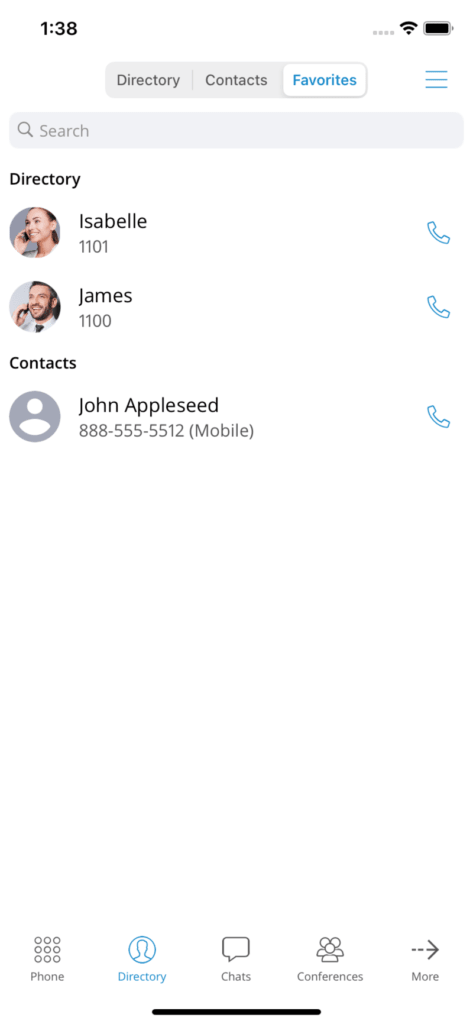
Phonebook contacts can also be added to or removed from Favorites by pressing their number and choosing Add to Favorites or Remove from Favorites . The favorites list is accessible from the Directory tab by choosing the section Favorites in the top bar.
