



SMS
The SMS feature allows users to send and receive SMS or MMS messages, thus offering a complete and versatile messaging solution.
The Communicator GO application gives users the ability to synchronize their conversations and messages across multiple devices, ensuring that they can access their messages from any device they use.
To be able to use it, SMS must be enabled in the PBXware license and the user using Communicator GO must have an SMS number associated with their account.
The Communicator GO application supports SMS v6 and v7 implementations depending on the server the application is connected to.
After updating Communicator GO 6 to Communicator GO 7, users will have the option to export their old locally stored SMS conversations created while using the Communicator GO application on the v6 system.
The old SMS history can be exported by tapping the three-dot menu in the top-right corner of the SMS list screen and selecting the "Export old SMS history" option.
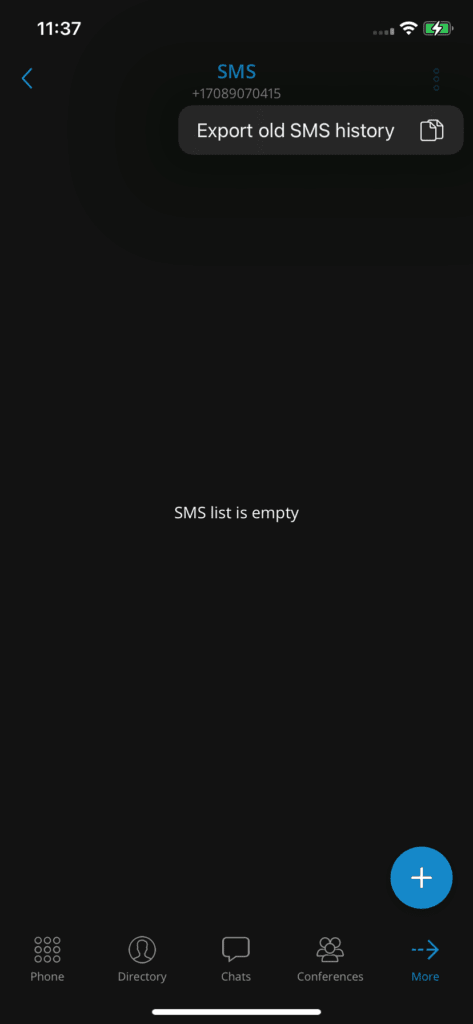
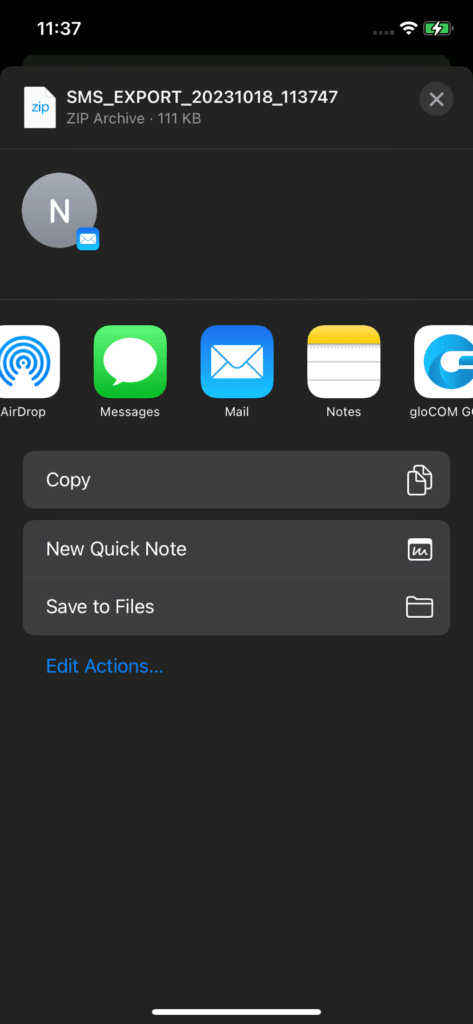
After selecting this option, users can download their SMS history to their phone or share it via other available applications (Bluetooth, email, etc.).
Create an SMS conversation
An SMS conversation can be initiated by:
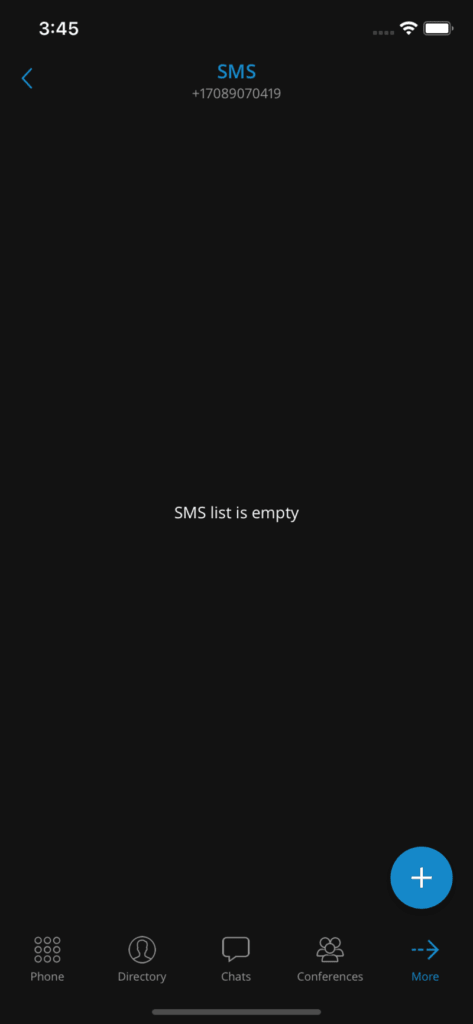
- By pressing the + button located in the lower right corner of the SMS screen.
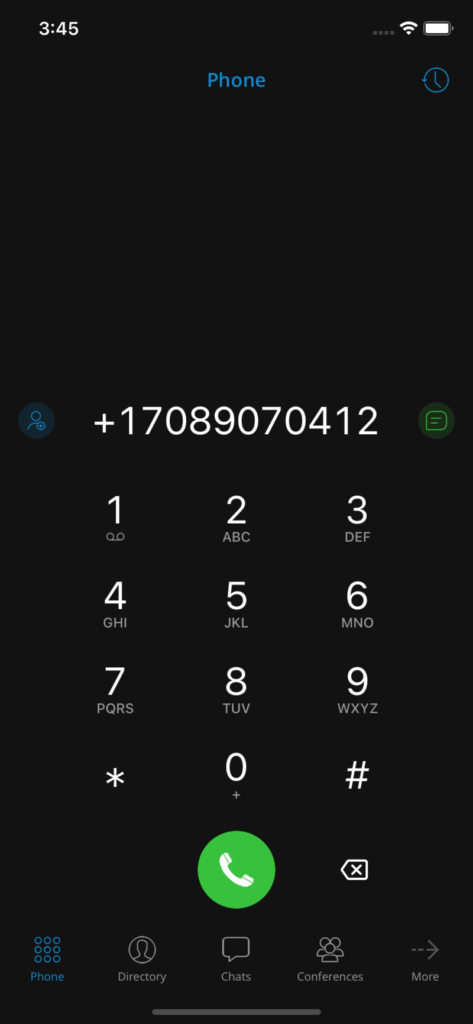
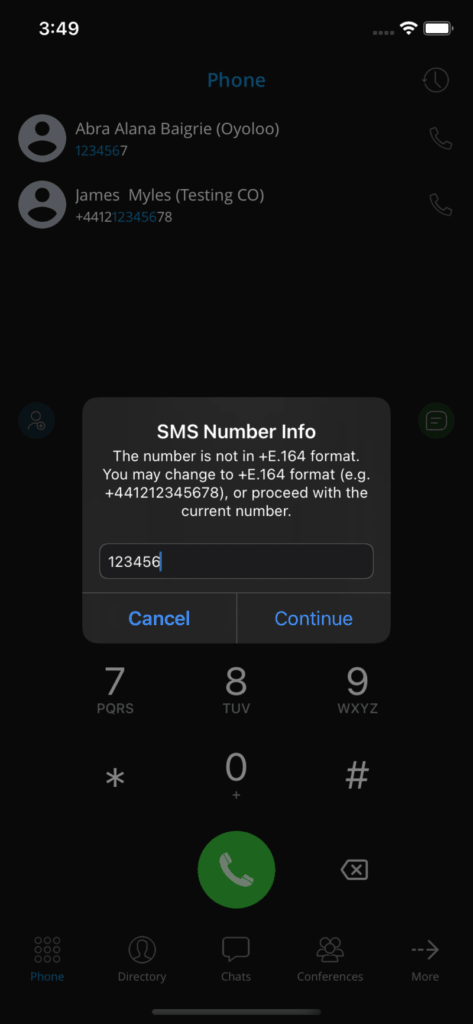
- Enter a phone number on the phone keypad and press the Send SMS icon
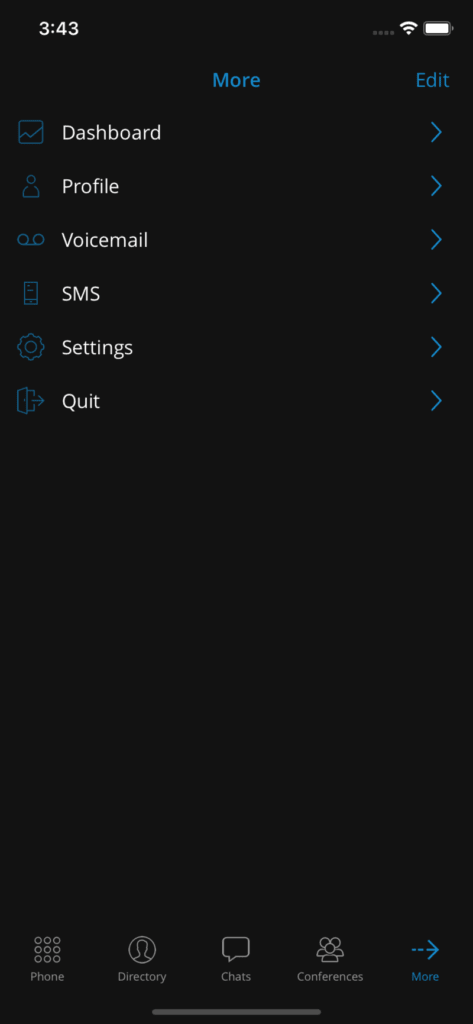
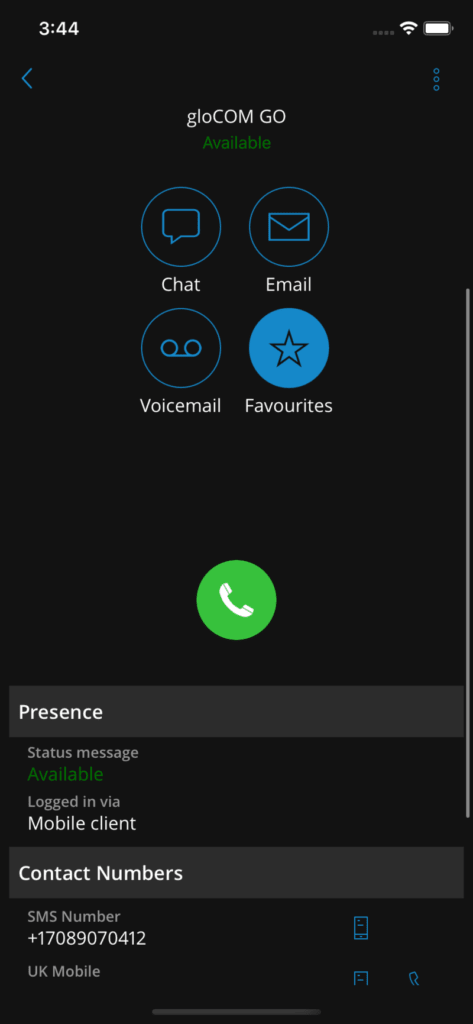
- Enter the User Information screen and press the Send SMS/MMS button next to the recipient's number
- Navigate to the dashboard and press the Send SMS/MMS button
Users can start SMS conversations on the SMS tab by tapping the button + located at the bottom right of the screen. Users can then select recipients from the directory, the device contacts, or manually enter a phone number for numbers not stored in the contacts.
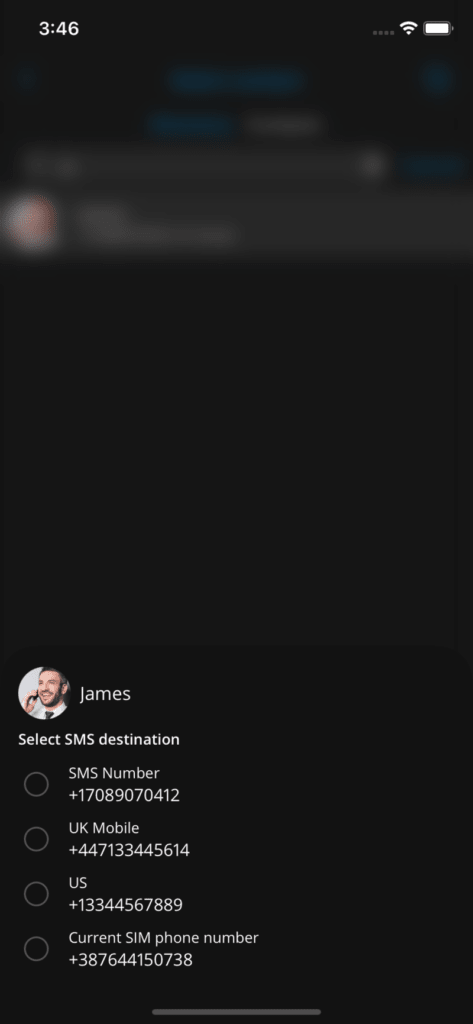
In cases where a user has more than one number entered in their number list, a pop-up window will appear, allowing users to choose which number to send the SMS to.
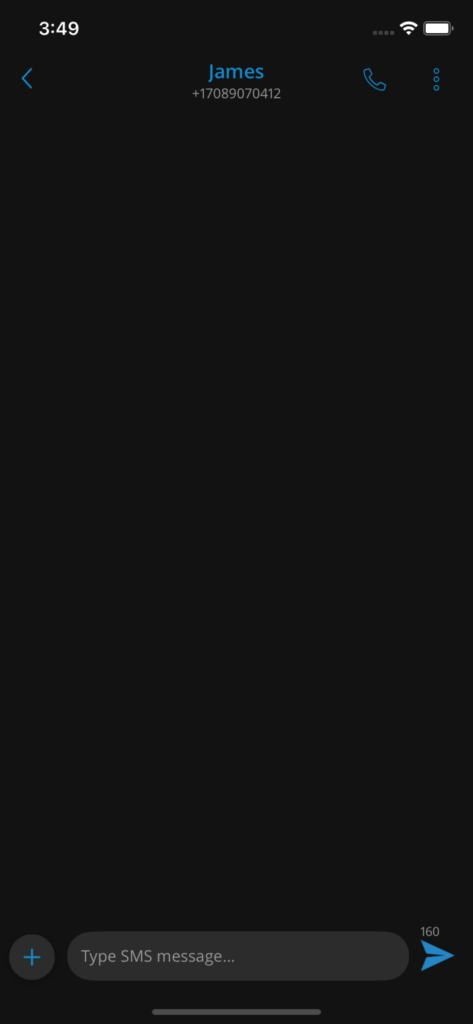
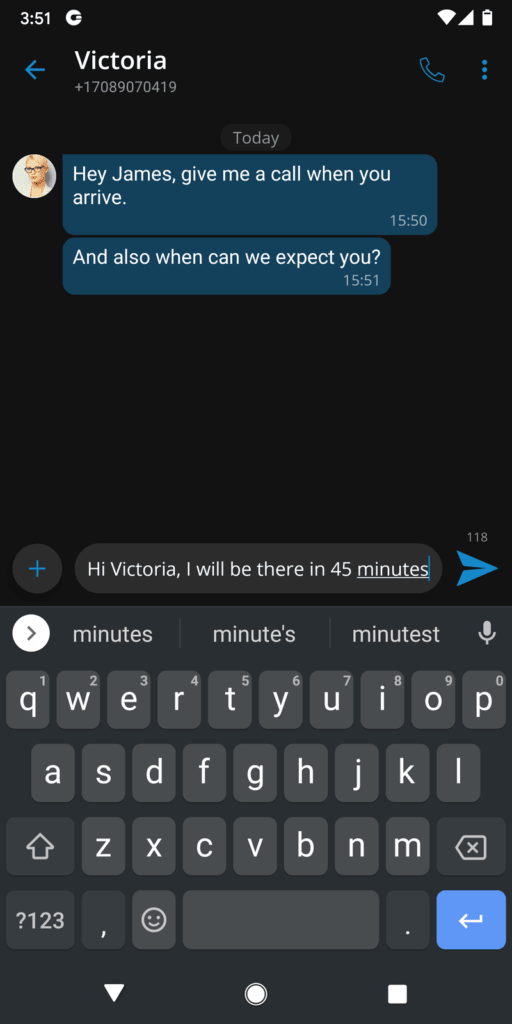
The maximum number of SMS sent at the same time is 4. The SMS counter is located next to the send button at the bottom of the screen.
Send an SMS
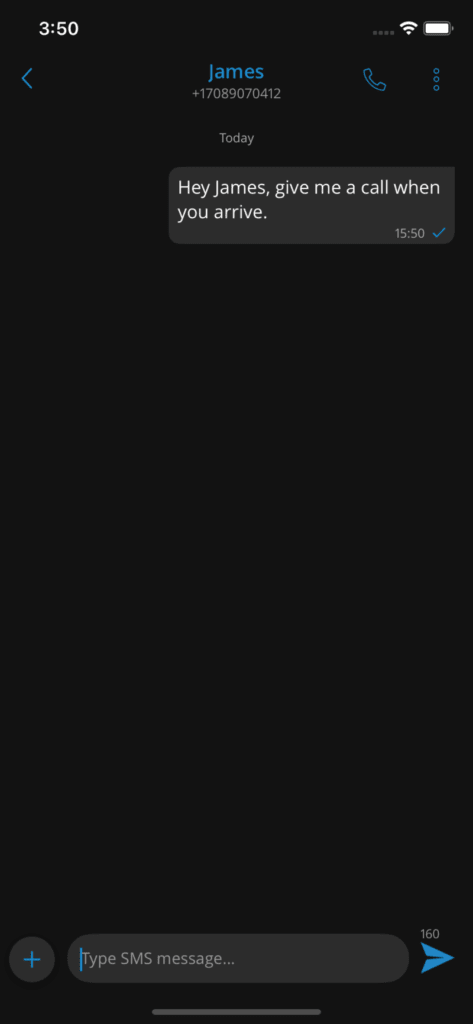
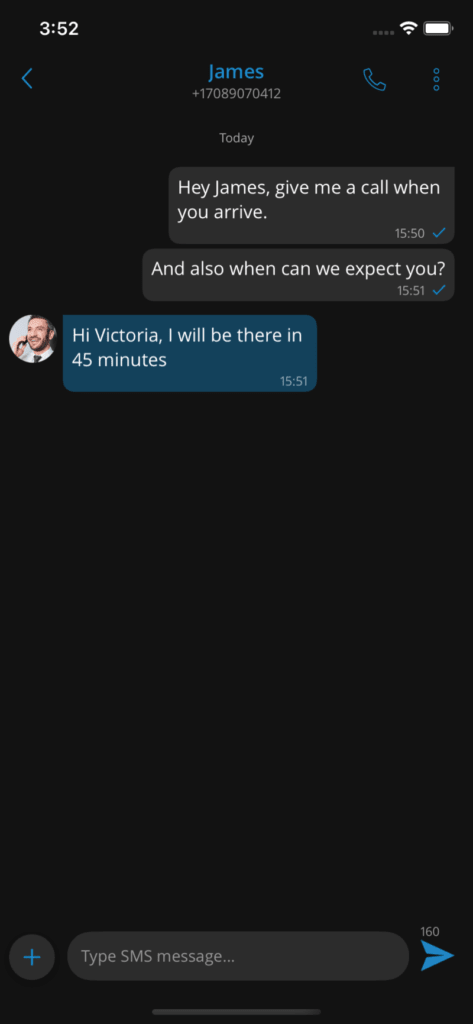
Communicator GO offers users a variety of options for sending SMS and MMS messages. Users can send messages by pressing the + button, using the phone keypad, accessing the User Information screen, or using the dashboard. Thanks to the various methods of sending messages, users can easily send messages to their contacts, which improves communication.
Once a message is sent, the user can easily track its status by checking the message status icon located in the lower right corner of the message bubble, allowing for better message management and ensuring rapid communication. SMS messages can vary depending on network conditions.
Users will be able to check the status of their messages on all active clients.
The message may be in a pending state, which means it has been composed and queued for
be sent, but has not yet been sent. If sending an SMS message fails, users have the option to resend it. This can happen if there are network or connectivity problems preventing the message from being sent, or if the SMS provider settings on the PBX are not configured correctly, in which case the message will fail.
The sent status is used to indicate that an SMS message has been sent successfully.
The maximum number of SMS sent at the same time is 4. The SMS counter is located next to the send button at the bottom of the screen.
SMS reception
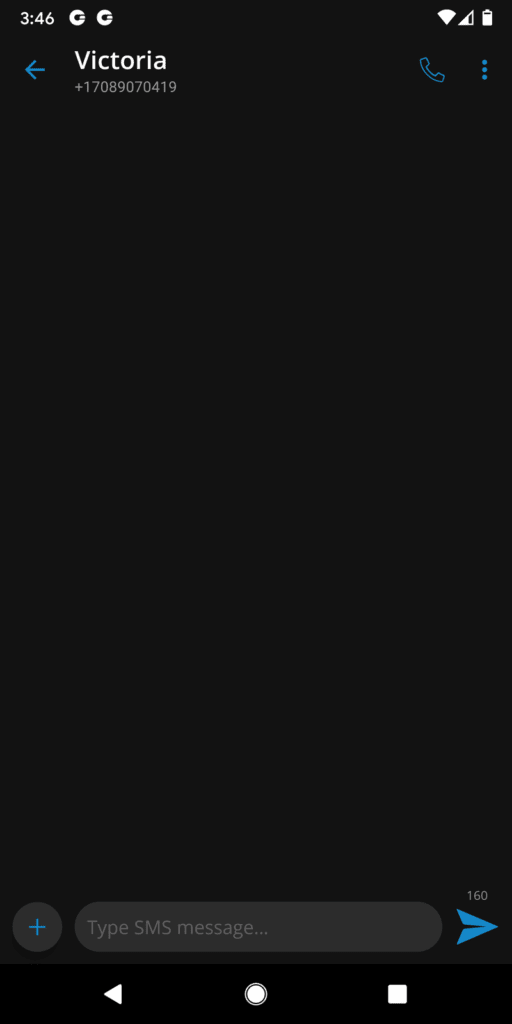
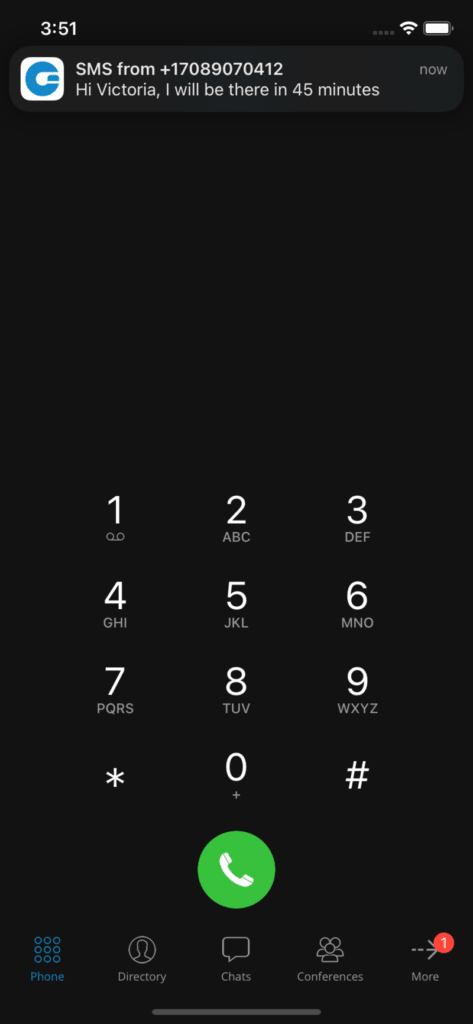
When users receive an SMS message, a pop-up notification will appear at the top of the screen. In case users are offline, the pop-up notifications will appear once synchronization is complete on the next login to the application. Currently, push notifications for SMS messages are not supported. The unread SMS count badge will be visible in the SMS icon of the main menu, displaying the number of unread messages.
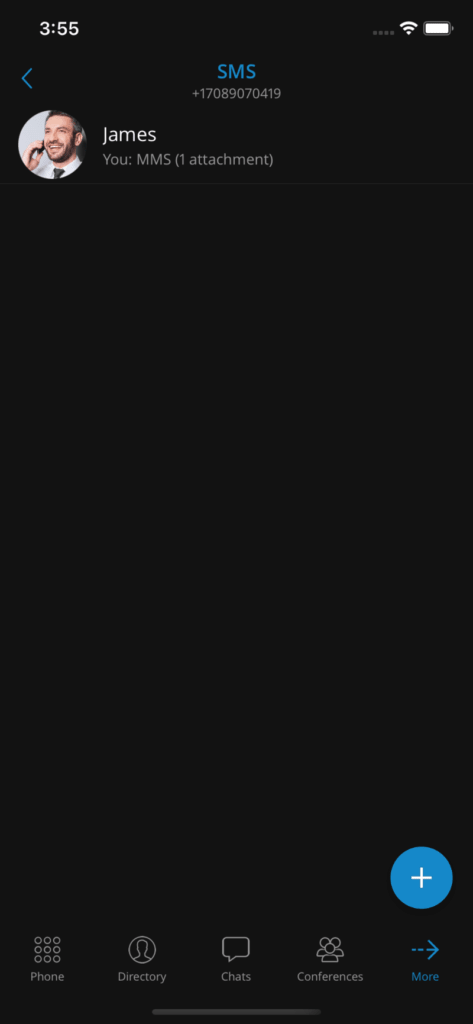
The search bar on the SMS conversation list screen allows users to search for messages by name or phone number.
Search for conversations
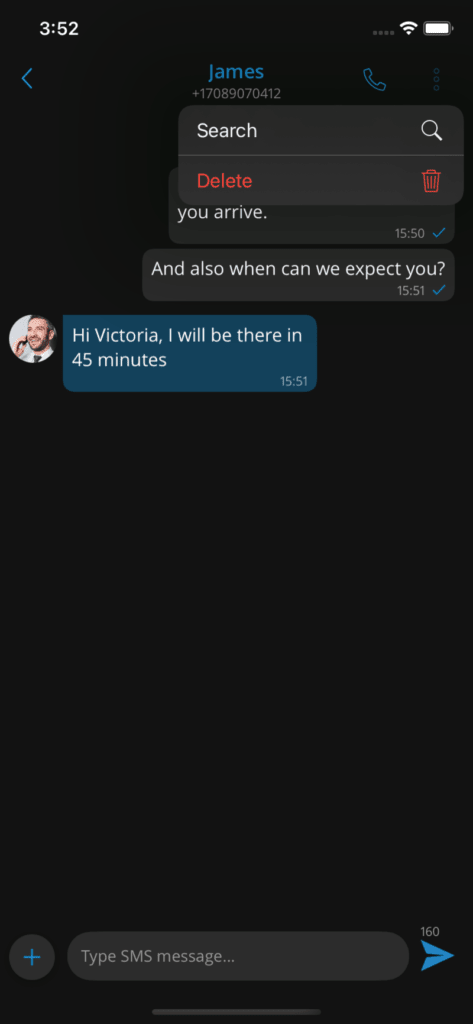
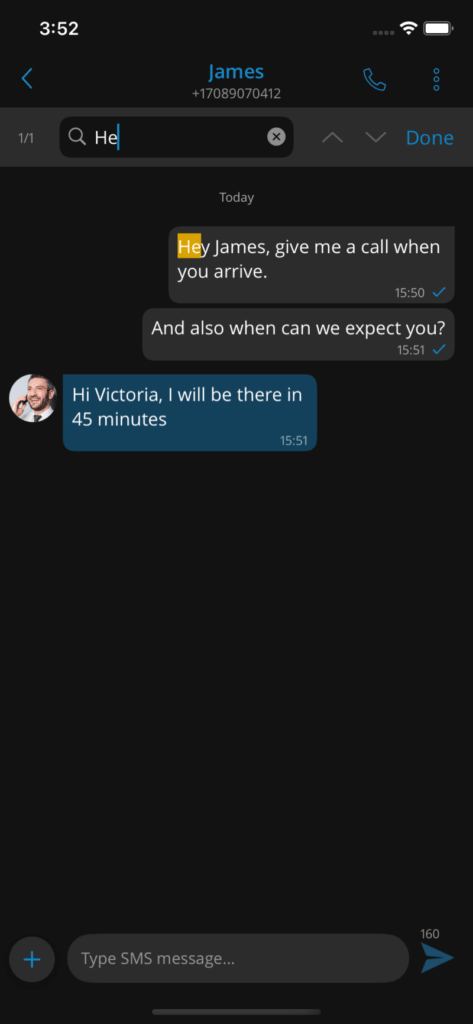
Full-text search can be performed by entering an existing SMS conversation and pressing the Search icon in the top right corner of the screen. After entering the search query, users can move up and down between the search results using the arrow buttons at the top of the screen.
Delete conversations
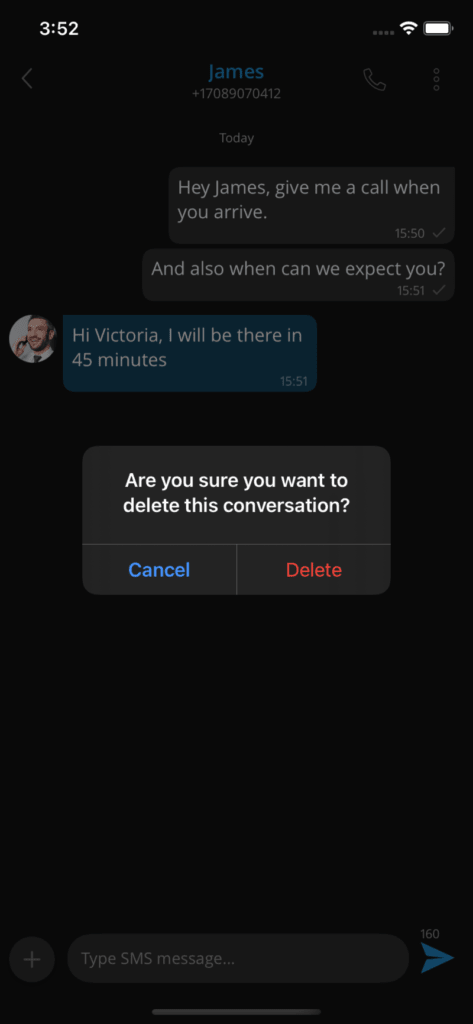
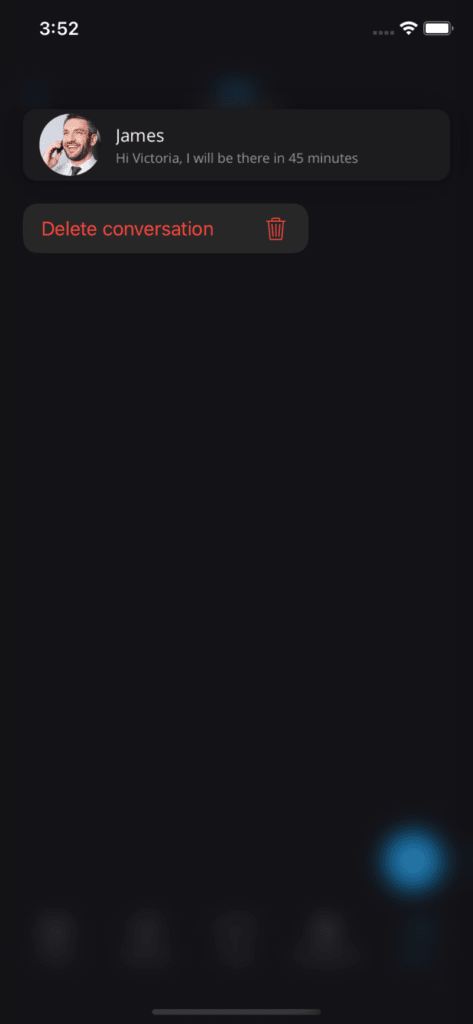
Users can delete already existing SMS conversations directly by long-pressing a conversation in the list of SMS conversations or by selecting the delete option in the top right corner when they are in the conversation.
MMS
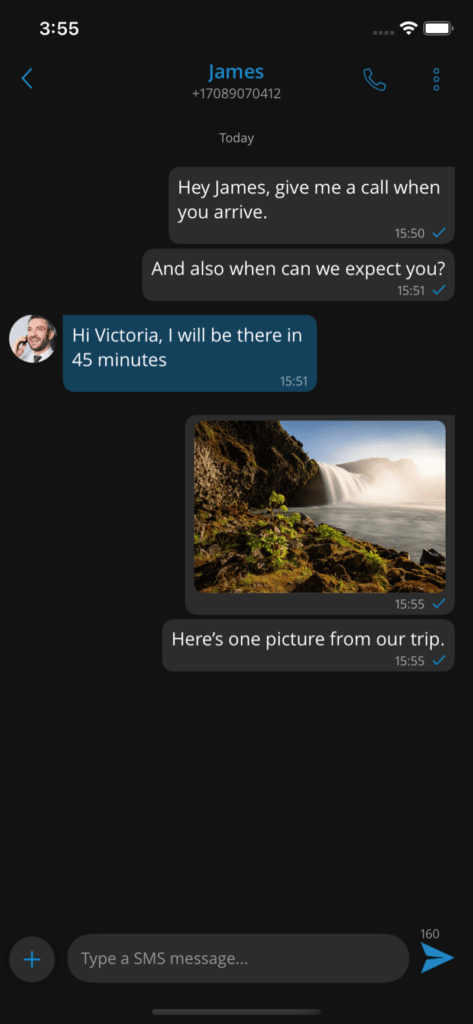
The MMS message is an enhancement of the standard SMS message. The main difference between SMS and MMS messages is that users can send multimedia files and others in their messages. It includes media such as videos, images, audio clips, GIFs and much more.
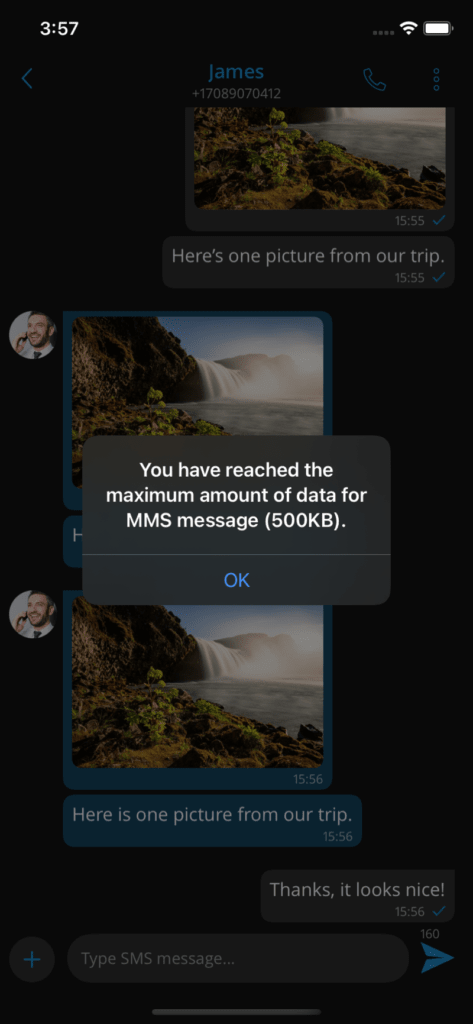
The maximum size of uploaded files is 500 KB or up to ten (10) files per message. In addition, MMS allows up to 1,000 characters of text in the message. MMS notifications have the same behavior as chat notifications: when the MMS message is received, a notification appears.
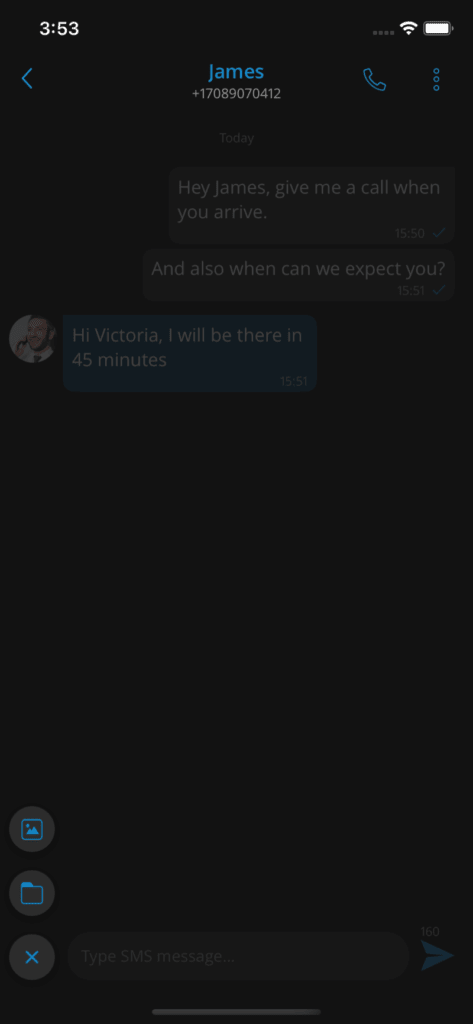
The button + is used to send files and is located at the bottom left of the SMS screen. Pressing the button opens a dialog box in which users can select the files to send to the currently selected conversation.
If users select data exceeding 500 KB or if more than ten (10) files are selected, a pop-up message will appear displaying: « Maximum size for attached files for MMS reached. » All files that exceed the previously mentioned limits will be deleted.
Please note that the supported MMS files are as follows:
Image files – jpeg, png, gif
Audio files – MP3, OGG, AMR
Text files – PDF, Vcard, txt
Video files – mp4
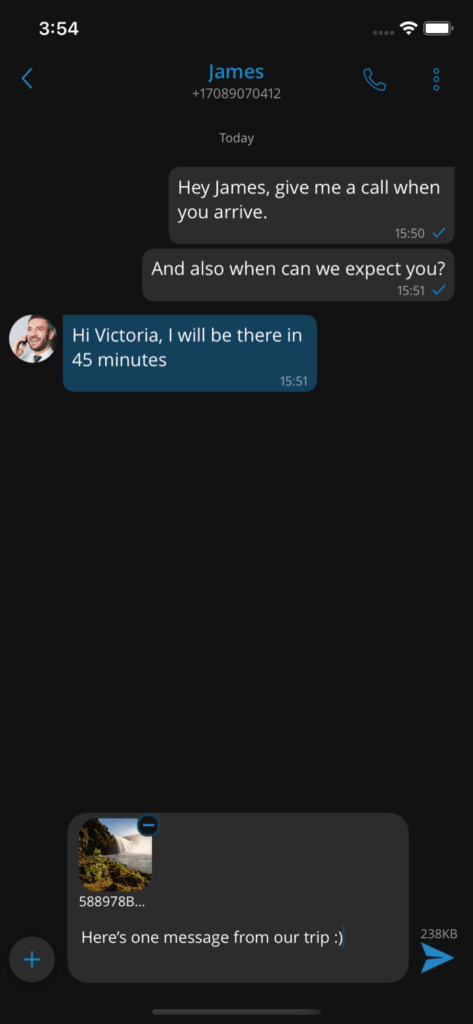
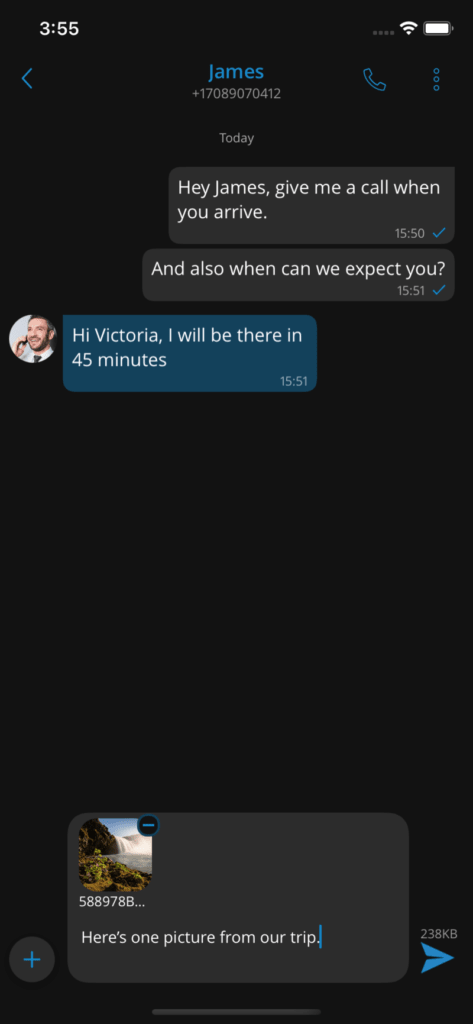
If a file is selected, an SMS message becomes an MMS message, which is visible on the right side of the button Send SMS/MMS as the counter of remaining kilobytes is displayed instead of the character counter.
After selecting the files, a thumbnail with the file name of each selected file will be displayed above the text area in the
input field. In addition, it is possible to remove the selected files from the MMS message by pressing the icon – in the top right corner of the file.
Communicator will automatically download all files smaller than 500 KB when connected to WiFi.
Shared number
The shared SMS number feature introduces the ability to share a single DID number between multiple extensions. With a shared DID number, all extensions associated with it can receive SMS messages centrally. This helps streamline communication, ensuring that all relevant team members can access and respond to messages efficiently.
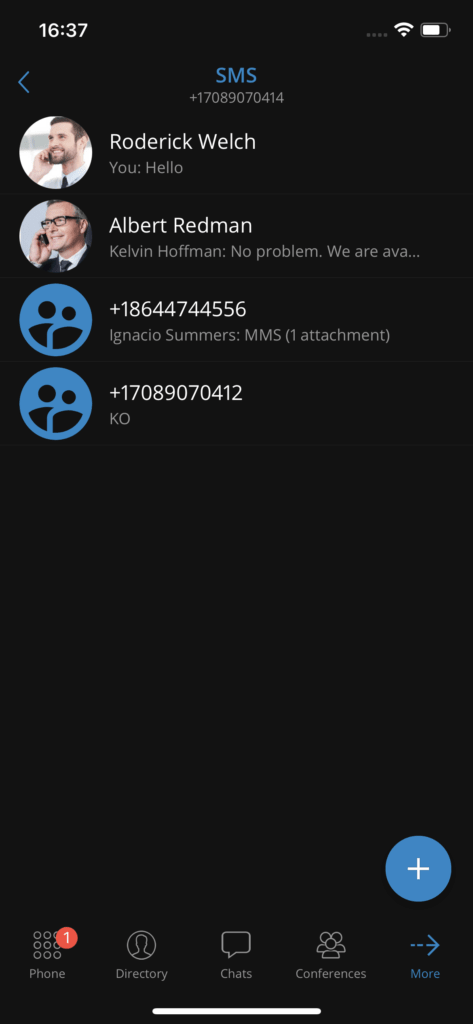
When an SMS is received from a shared number (on the same system), the conversation in the
the SMS conversation list will only show the shared number as a number, without any specific extension name. The blue avatar will also be visible to indicate that the conversation is with the shared number.
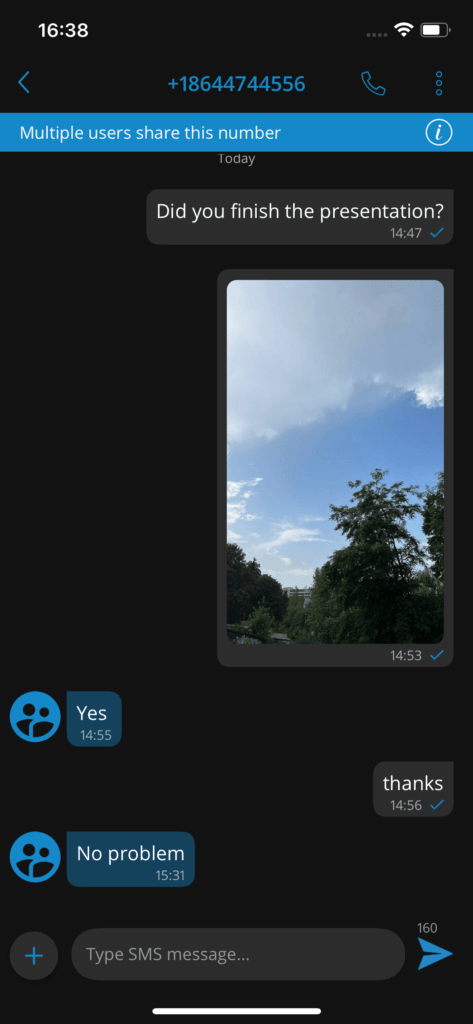
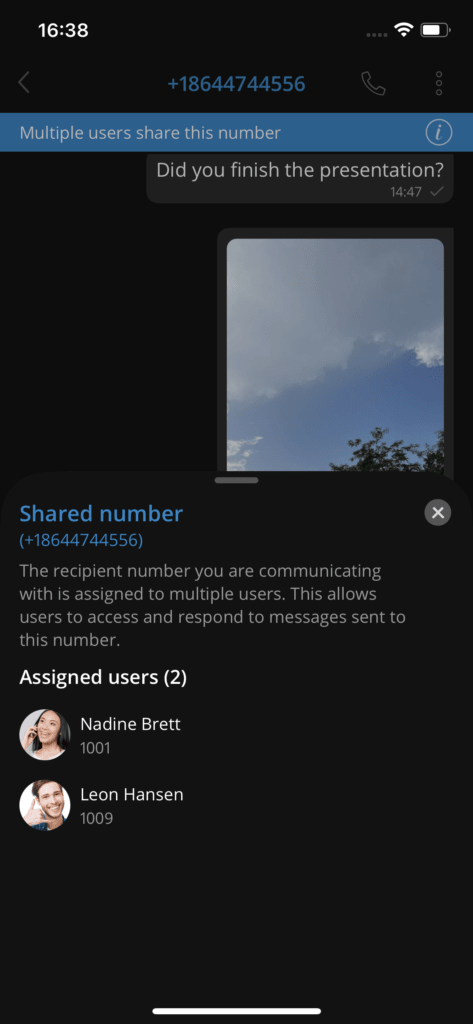
When users open an SMS conversation involving a shared DID, a blue banner will appear, informing the user that the recipient's number is a shared DID. Pressing a blue banner will display a list of the extensions sharing this number.
Sending an SMS from a shared number
When an SMS is sent from a shared number, all extensions associated with the same number will be able to see the message. Furthermore, each extension will be able to see the sender's identity, allowing clear visibility of who sent the message.
