



Communicator Mobile

Nowadays, as VoIP technology is developing more than ever to obtain the best possible quality of long-distance communication and reduce the costs of telecommunication services, it is necessary to create simpler and more user-friendly communication tools, especially on mobile
Communicator Web represents one of the solutions to these needs.
Introduction
Please download Communicator GO (latest version) available on:
Communicator GO requires an email address and a password for the connection. Additionally, a server address may be required if it cannot be resolved automatically through the email address.
Users who have incompatible versions of the mobile application and PBXware will not be able to connect to the system.
Please download Communicator GO (latest version) available on:


Server requirements
– PBXware must be in version 6.x or 7.0
– Communicator GO uses port 10009 for a secure TLS connection
– The SSL/TLS certificate must support SHA2
Login
Communicator GO requires an email address and a password to log in. Additionally, a server address may be required if it cannot be resolved through a DNS record based on the email address.
If you have incompatible versions of the mobile app and Communicator GO, you will not be able to connect to the system.
In the case where you have a DNS server, adding a DNS SRV record for the mail domain, mobile and desktop clients will make connecting to Communicator GO much easier for you, as you will only need to provide your email address and the user password associated with your PBXware, then click Login.
If you are unable to set DNS SRV or if DNS resolution fails, you will receive a DNS Resolution Failed notification and you will need to enter the PBXware Hostname or IP address in the Host field when connecting with your Communicator GO client.
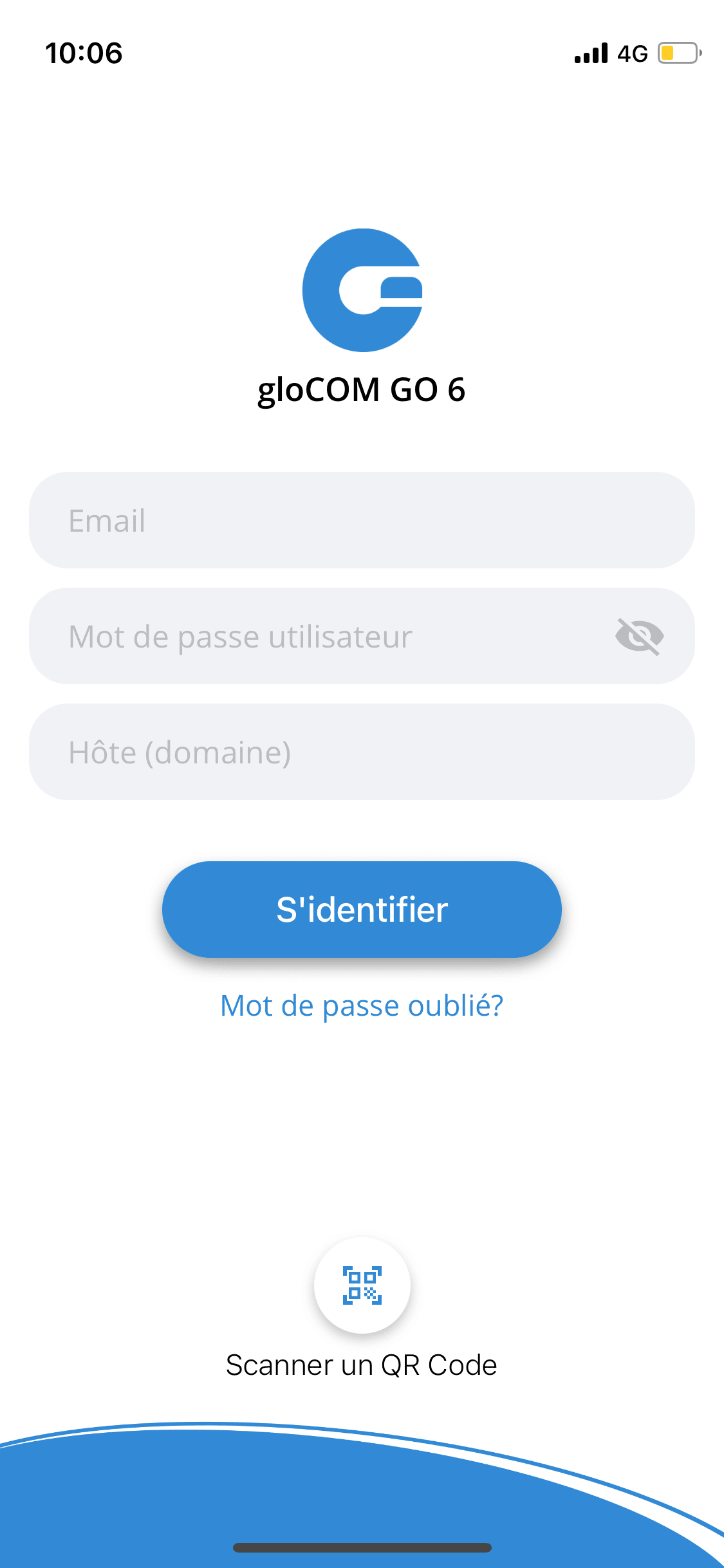
Enter the email address associated with your account. This is used as the username for logging into Communicator GO.
– Password
To authenticate Communicator GO 6 with the PBXware server, you will also need to enter your user password.
– Host (domain)
This field allows you to enter the PBXware address to which you want to register (example: mypbx.voip.fr)
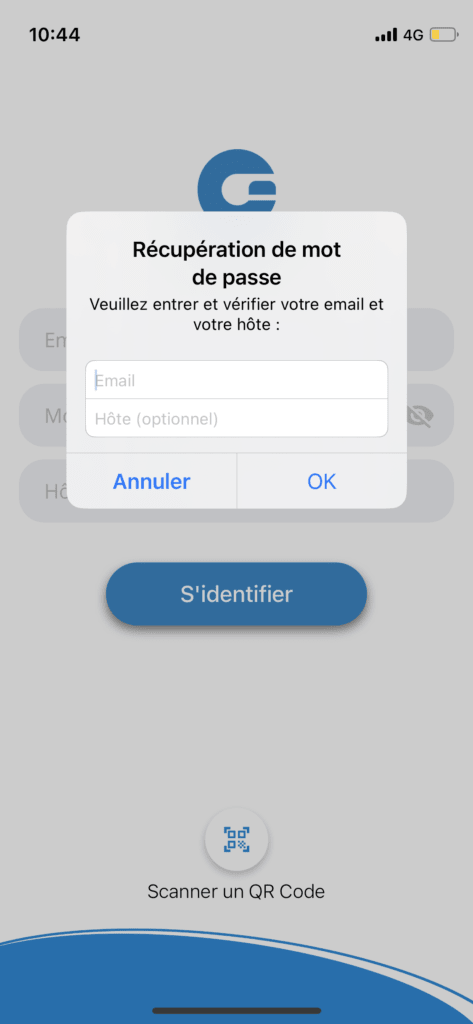
– Forgotten password
Opens a confirmation dialog box for resetting the password by clicking this button. The email address and, optionally, the server address fields must be filled in before attempting to reset the password.
– Scan a QR code
This button opens the camera in order to scan the QR code provided in the desktop application or received by email.
First connection
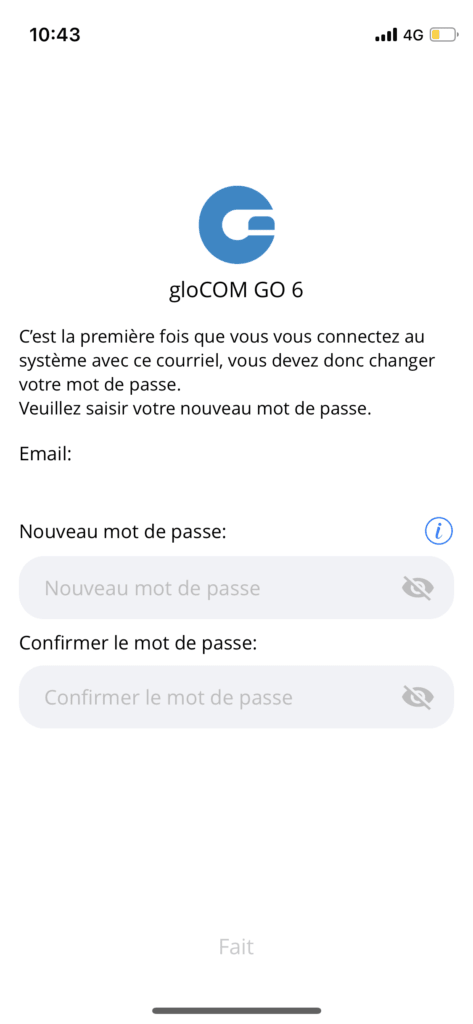
When you log in to Communicator GO for the first time, you are prompted to change your password. You will need to enter a new password and retype it to confirm. If you make a mistake, if the password entries do not match, or if the password is not strong enough, the “Next” button will remain disabled.
Once the password meets our strength criteria, you will be able to log in.
Change avatar
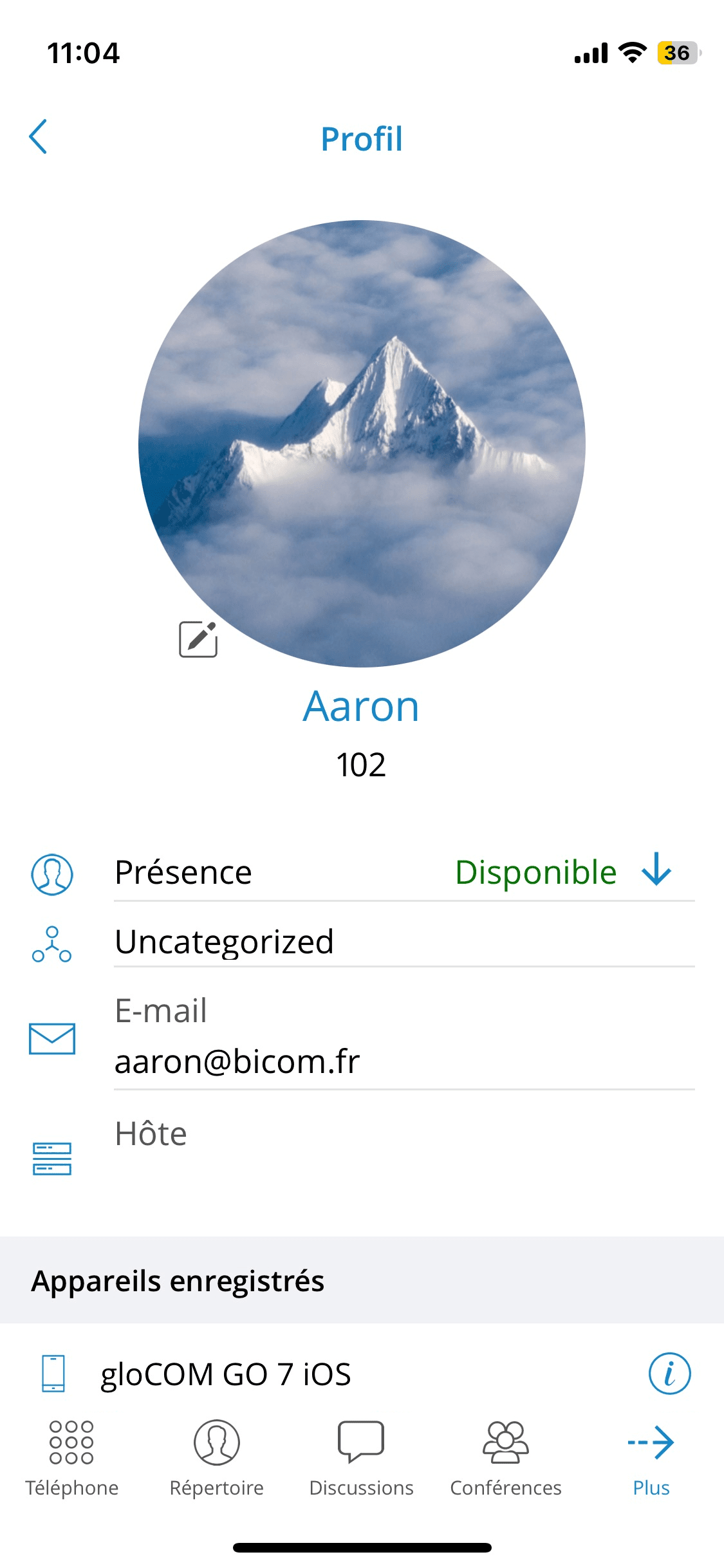
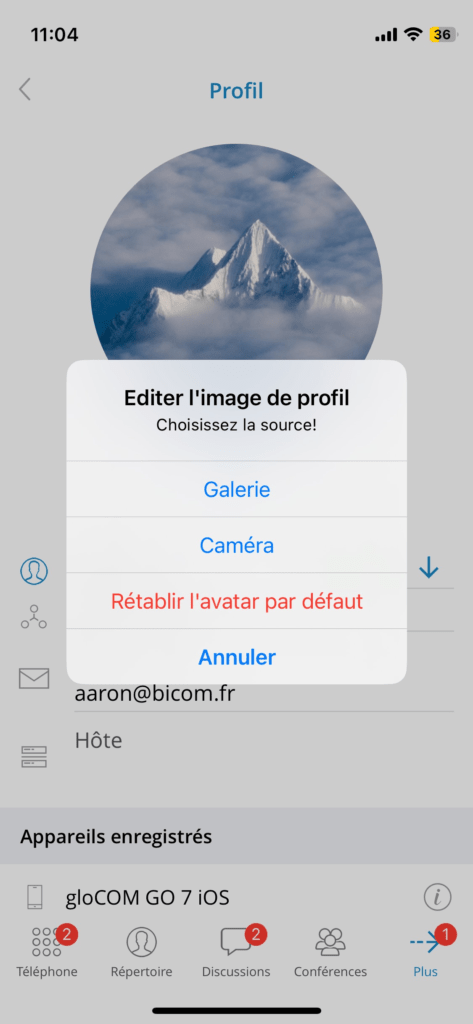
You can change your avatar by opening the screen Profile and by pressing the avatar icon above your name and your extension, as shown below.
By pressing the avatar icon, you get options to change the avatar image. After taking a photo with a camera or choosing one from the gallery, you will need to crop the image.
– Press and hold inside the circle to move it.
– Press and hold the blue edges to resize.
– The “Done” button finalizes the cropping and sets the avatar.
– The “Cancel” button cancels the cropping.
Make your first calls
The call screen appears when you initiate or receive a call via PBXware.
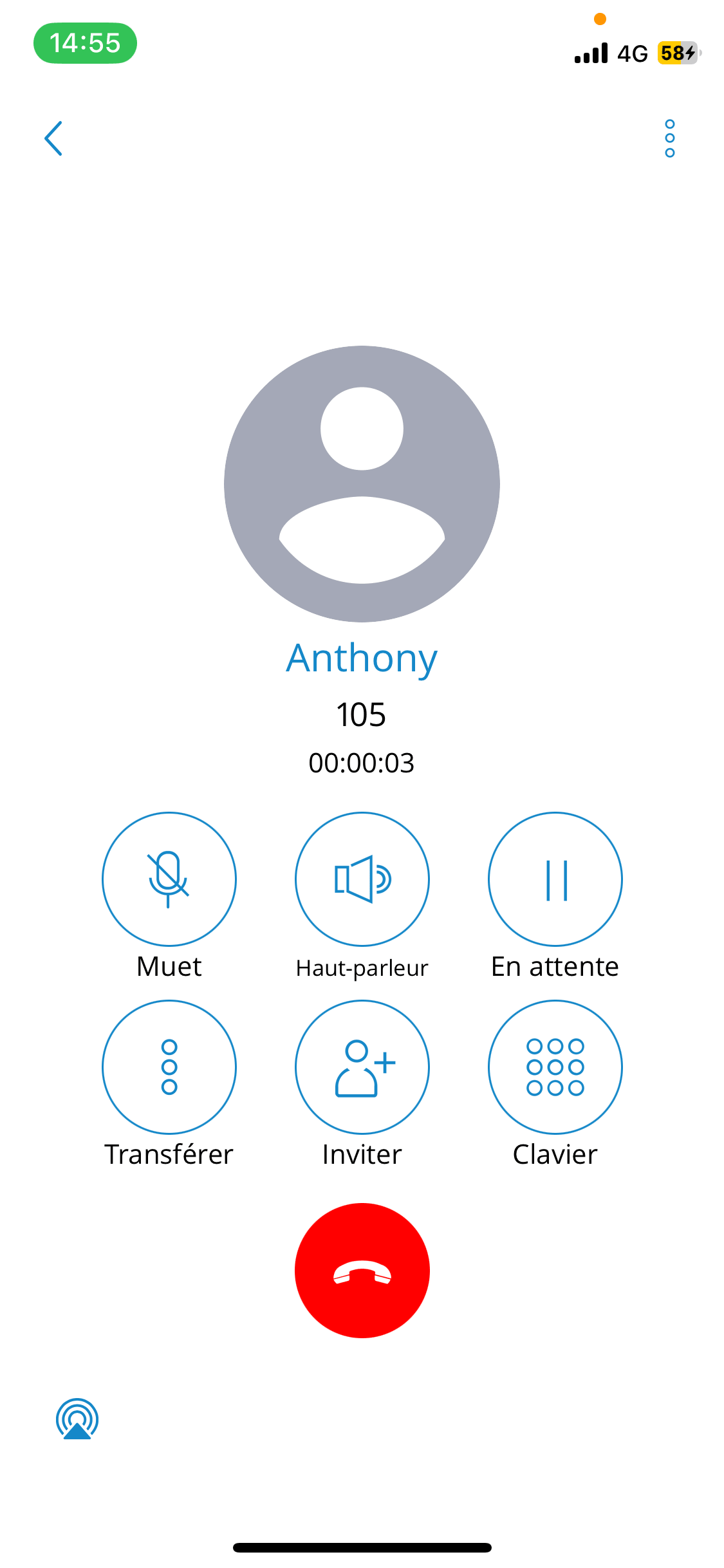
Once the call is connected, Communicator GO allows users to perform several actions:
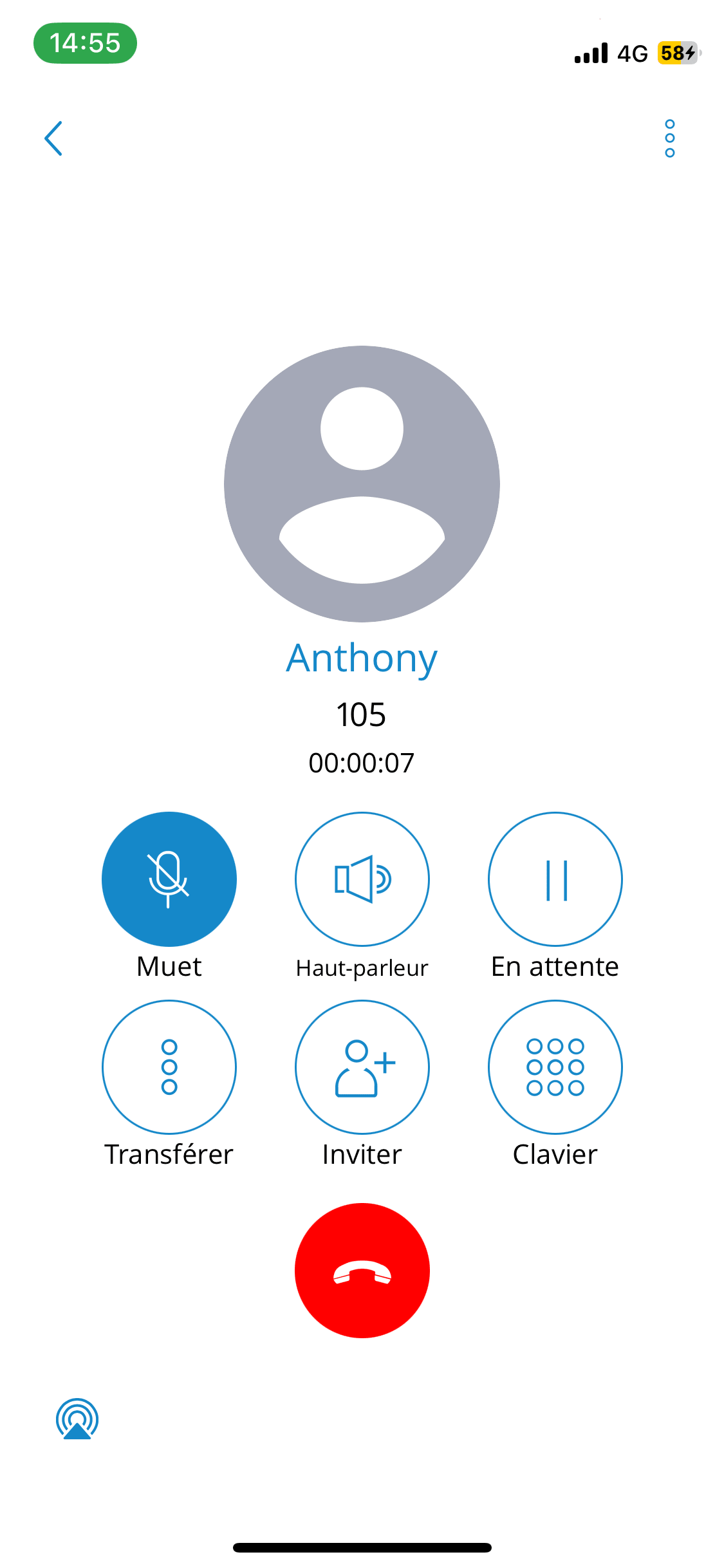
- Mute:
Mute allows users to disable the device microphone, thereby preventing any unwanted communication from the user's side being transmitted to the other side of the call.
- Speaker:
Press the Speaker button to put the device in speaker mode, allowing users to continue without holding the phone close to the ear or to allow others present in the room to join the conversation through a single device.
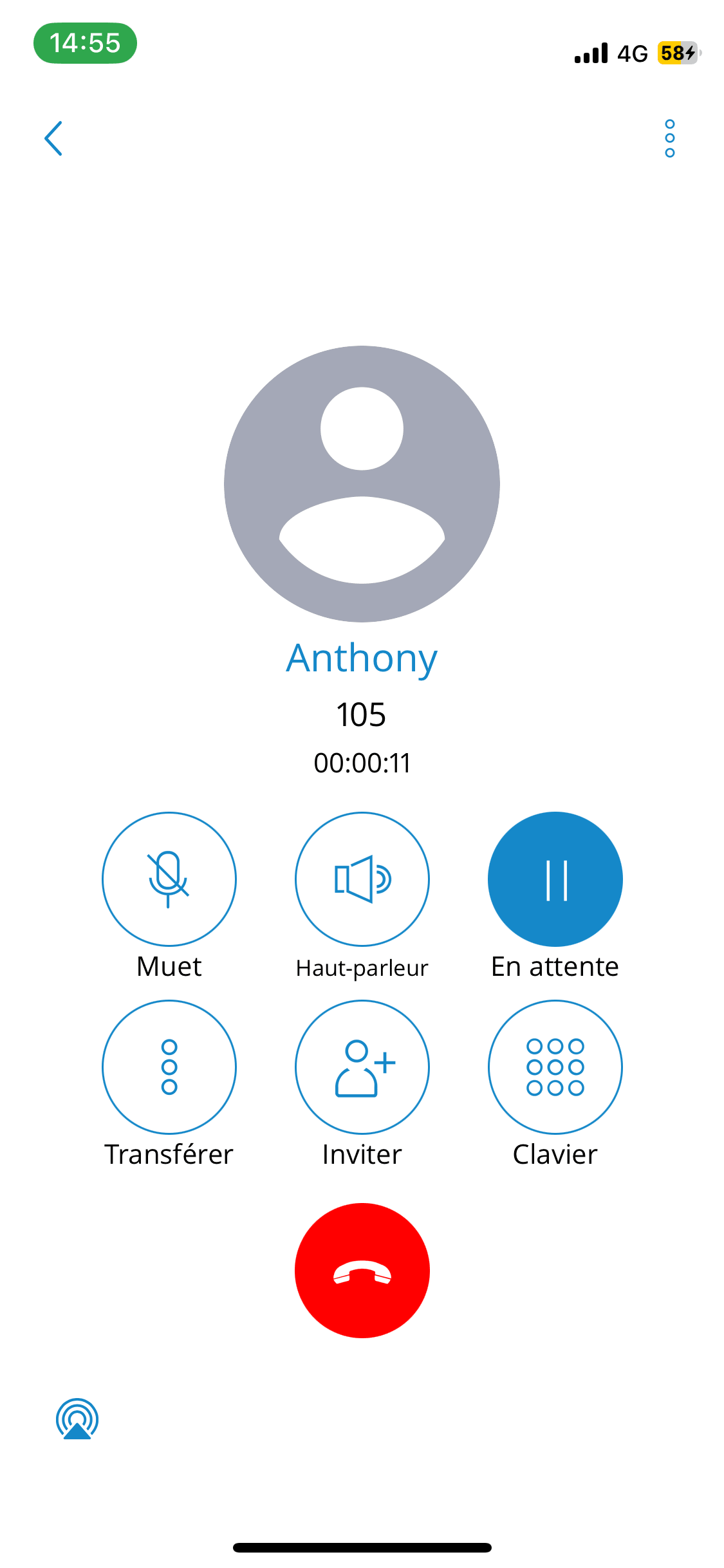
- On hold:
The Hold option will put a caller on hold and play hold music until the Hold button is pressed again or the call is transferred to another destination.
- Other options
By pressing the Options button (three small dots), users can perform several actions:
- Transfer the call
The transfer button allows users to initiate a direct or supervised transfer to a PBXware extension or an outgoing number.
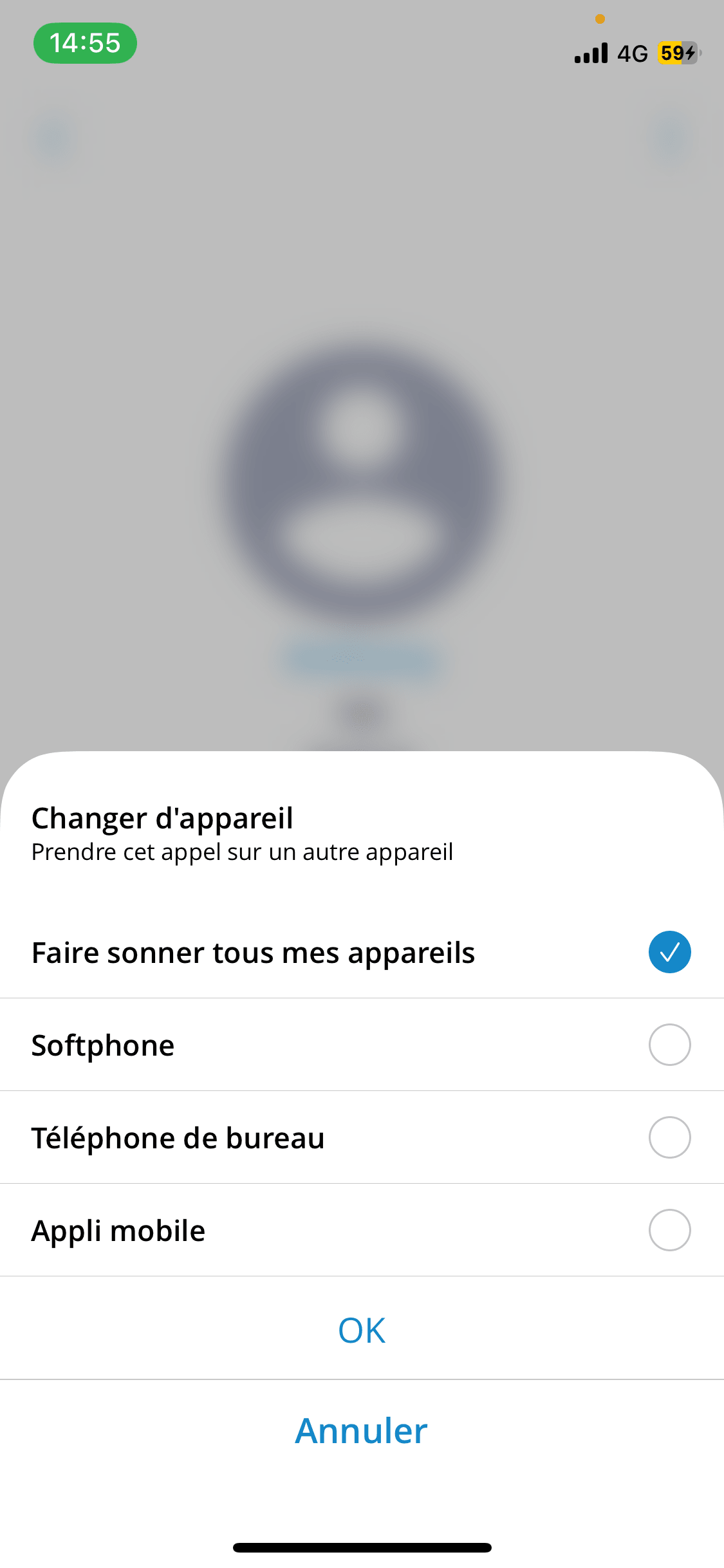
- Switch device
Switch device allows users to resume the call on other devices, such as a desk phone, a softphone, a mobile app or via a callback using
predefined phone numbers from the My Phone Numbers feature.
- Start call recording
Start call recording is only available if it is enabled in the enhanced services for the user’s extension in PBXware. Once call recording is started for a call, the indicator on the ongoing call screen is visible, indicating that recording is active. Users can also pause/resume and stop the recording.
- Invite
The invitation option allows users to create an instant conference by adding one or more people to an ongoing call. With this option, users can add PBXware extensions or any number available in their contact list.
- Keypad
Use the Dialpad to generate DTMF signals to provide information to IVRs, voicemail management, etc.
