



Communicator Web

Nowadays, as VoIP technology is developing more than ever to obtain the best possible quality of long-distance communication and reduce the costs of telecommunication services, it is necessary to create simpler and more user-friendly communication tools.
Communicator Web represents one of the solutions to these needs.
Working with Communicator Web
Before you begin working with Communicator Web, you must point your browser to the appropriate IP address (for example, http://192.168.1.1/webapp).
The browser will be automatically redirected to the Communicator Web login screen, which will ask you to provide your account details.
Make sure you have received your account details from your system administrator or your account manager.
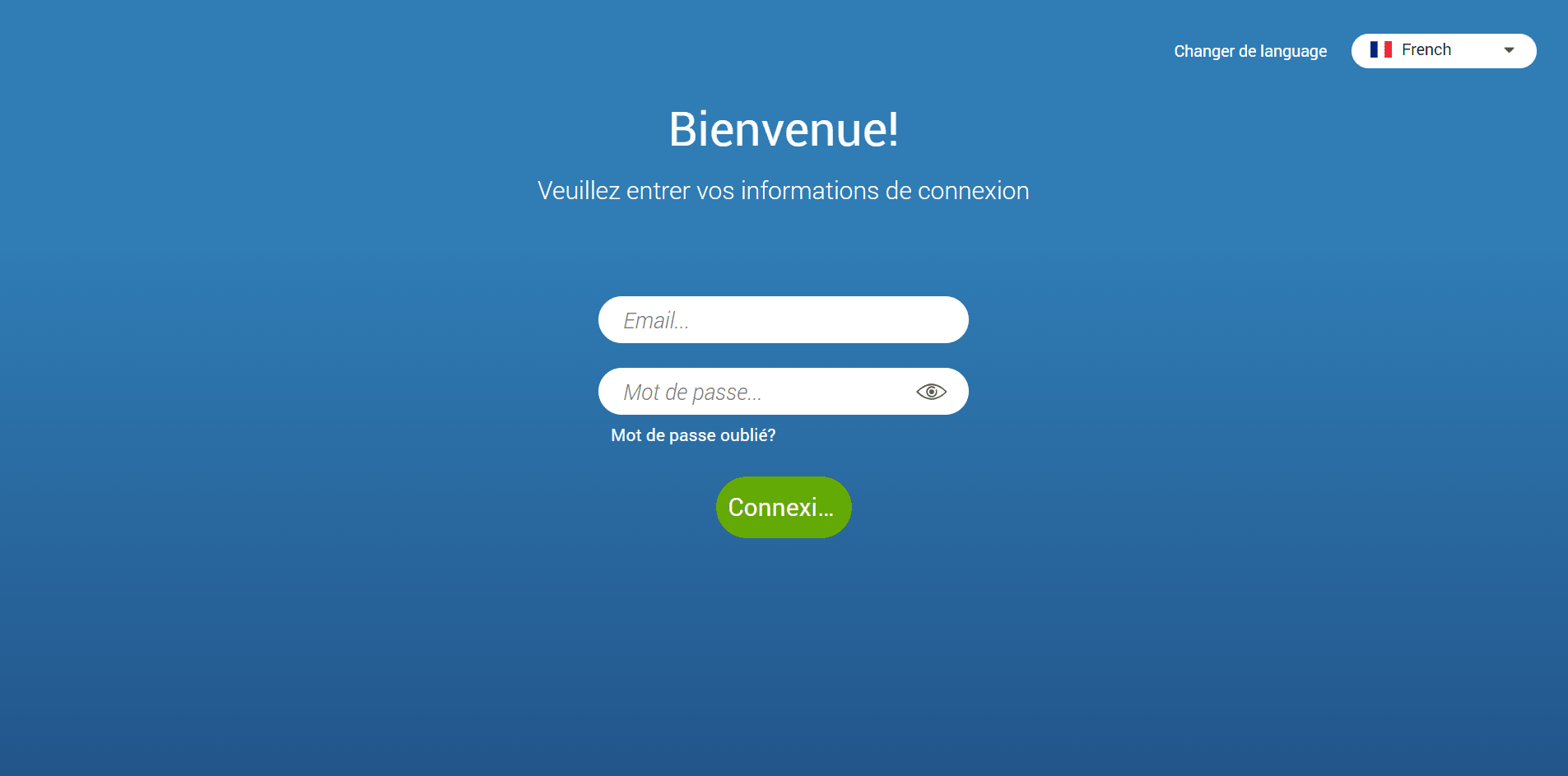
If your account details are incorrect, an orange warning will appear:
Connection failed: the username or password is incorrect.
Otherwise, the browser will be redirected to the first login screen, prompting you to change your password since you are using your Communicator account for the first time.
The password must contain at least eight characters. Users must change their password upon login, and once changed, it will be encrypted and will be invisible to administrators.
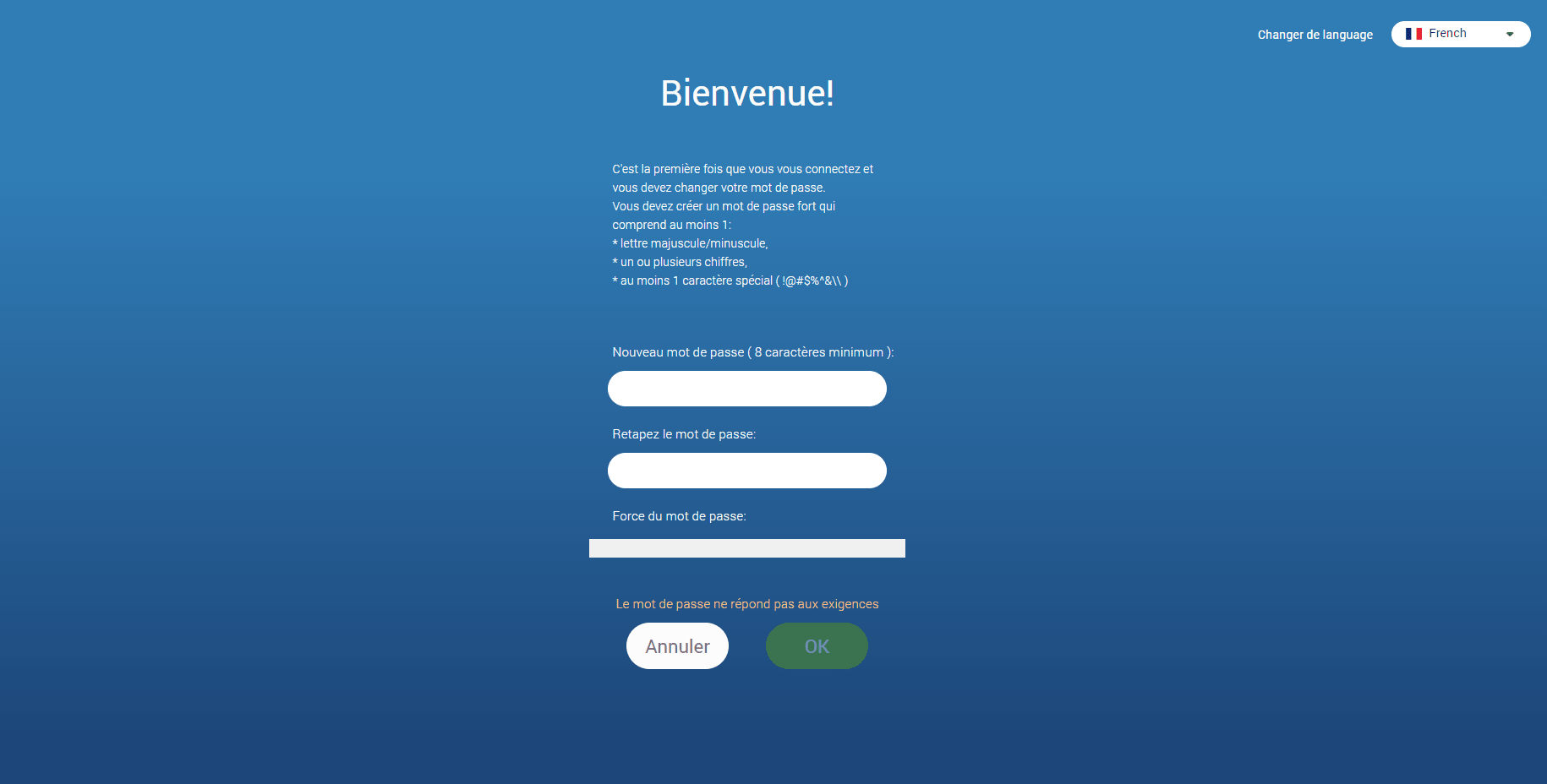
The list of allowed special characters that can be used when creating a password is !@#$%^&.
If you are already using one of the Communicator products, clicking the Login button will redirect the browser to the Communicator Web home screen.
Multiple Communicator accounts can have the same email address.
First connection
To start using Communicator Web, you must provide your account details.
Account details:
- Email : Indicate the email address assigned to your extension.
- Password: Enter the password created during the first login to Communicator Web.
Additional options:
- Forgotten password: If you forget your password, you can recover it by clicking the Forgot Password link. You will receive a password recovery link by email. In addition, if you have several Communicator accounts associated with your email, you will be asked to specify the desired extension number during the password recovery process.
- Change the language: allows you to change the language used in the application.
Make your first calls
When you make a call from Communicator Web without having configured PBXware for this purpose, an error pop-up displaying “Incompatible SDP!” or the following error “Unsupported codec, media format or other network related issue”
Thus, certain prerequisites must be met:
- Enable WebRTC on the extension
- Enable the Opus codec on the extension
- Enable TLS in the protocols
Enable WebRTC
The extension must have enabled the WebRTC and the codec Opus on their system or on themselves.
To do this, navigate to the relevant extension Extension > Show advanced options > Enable WebRTC > Yes
Enable the Opus codec
The Opus codec must also be enabled on the extension that wishes to make calls(if it does not appear, check that it is present in Settings > Servers > Default codecs > Remote > Opus.
On a Multi-Tenant system, select the Tenant in question in Settings > Tenants > Default codecs > Remote > Opus).
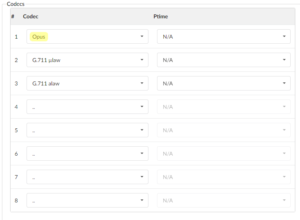
Then in the extension, Extension > Show advanced options > Codecs and place Opus in the list.
Enable TLS
Similarly, the settings TLS must be enabled on the system. To do this, simply go to Settings > Protocols > SIP > TLS settings > Enable TLS > Yes > Restart the PBXware service using the button in the top right corner.
