



FR | EN
Wiki Bicom Systems EnglishWiki Bicom Systems English
  • Home
  • Documentation
    • PBXware
      • Installation
      • Getting started
      • Editions
        • PBXware Multi-Tenant
        • PBXware Business
        • PBXware Contact Center
        • PBXware Service Provider
      • Advanced services
      • Supported phones
      • Autoprovisioning
    • Communicator
      • Communicator Desktop
      • Communicator GO
      • Communicator Web
    • SERVERware
      • Standalone
      • Mirror
      • Cluster
    • sipPROT
    • Tutorials
  • Videos
    • Communicator Desktop
  • Operators
  • Downloads
  • FAQ
Support
leafleaf
Most popular:
  • PBXware
  • Communicator
  • SIP
  1. Home
  2. PBXware: Getting Started
  3. Add extensions
Updated on March 17, 2025
PBXware: Getting Started
  • Folder icon closedFolder open iconInstallation wizard
  • Folder icon closedFolder open iconGlobal view
  • Folder icon closedFolder open iconDashboard
  • Folder icon closedFolder open iconFirst settings
  • Folder icon closedFolder open iconInstall an SSL certificate
  • Folder icon closedFolder open iconAdd a pack
  • Folder icon closedFolder open iconAdd a tenant
  • Folder icon closedFolder open iconAdd a trunk
  • Folder icon closedFolder open iconDIDs
  • Folder icon closedFolder open iconOrder licenses
  • Folder icon closedFolder open iconAdd extensions
  • Folder icon closedFolder open iconSoftphone applications
    • Communicator Desktop
    • Communicator Web
    • Communicator Mobile
  • Folder icon closedFolder open iconPhones/UADs
  • Folder icon closedFolder open iconConnect a phone
  • Folder icon closedFolder open iconCreate an extension group
  • Folder icon closedFolder open iconCreate an enhanced extension group
  • Folder icon closedFolder open iconSMTP configuration
  • Folder icon closedFolder open iconsipPROT
  • Folder icon closedFolder open iconSwitch the voices to French

Add extensions

Estimated reading: 2 minutes

Within the PBXware telephony system, an extension represents an essential component that facilitates communication within the company. 

Concretely, this is an internal phone number, often associated with a user or a device, that plays a central role in establishing telephone connections. These extensions allow members of the organization to communicate efficiently with each other, as well as with external contacts, by providing them with advanced telephone features such as inbound and outbound calls, voicemail, and much more. 

This concept of the extension is therefore fundamental in the world of IP telephony within PBXware, ensuring smooth connectivity and efficient management of communications.

To create your first extension, click the tab Home >Extensions.
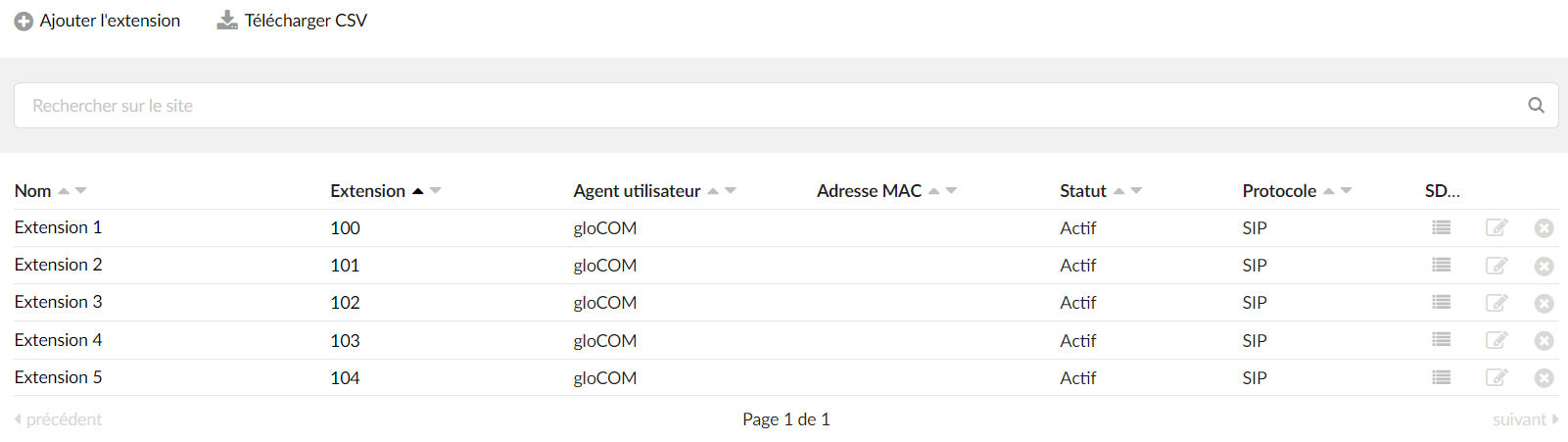
Then click Add an extension.
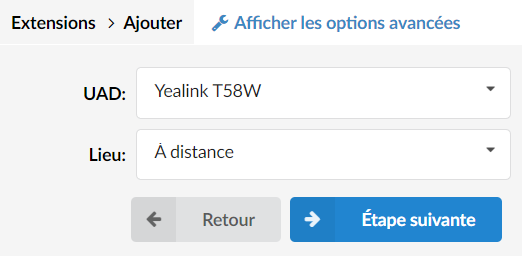
Then choose the UAD you previously activated. The field Location allows you to define whether the phone is on the same network as PBXware or on a remote network. 

Click on Next step.

Your extension is thus created with predefined settings:
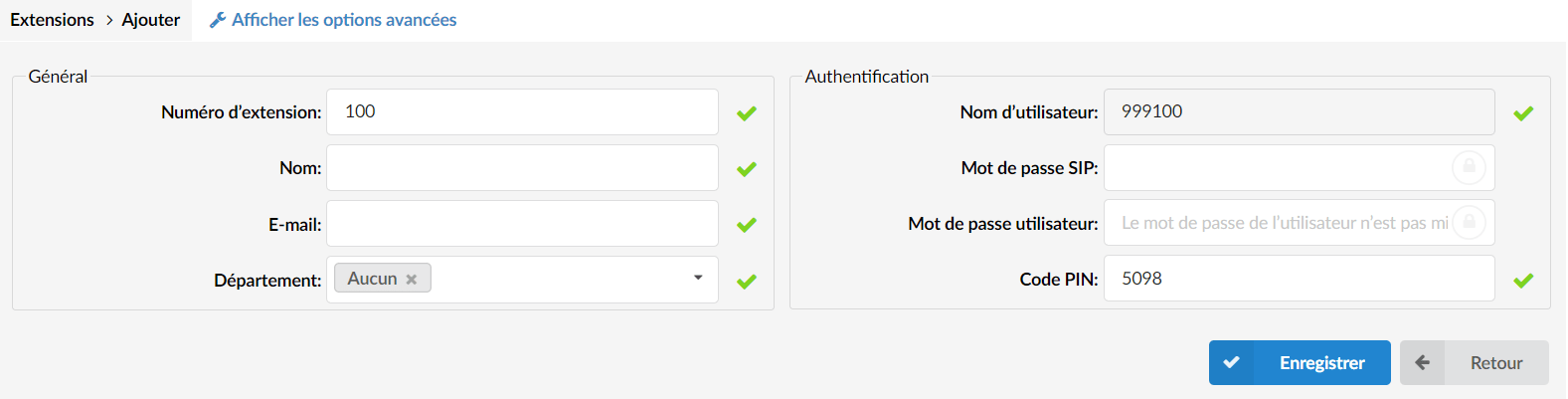
You will be able to change the following settings at your convenience:

  • Extension number : internal number of the extension 
  • Name
  • Email: used to connect to the softphone application
  • Department
  • SIP password (automatically generated): provisioning password for the phones
  • User password (automatically generated): login password for the softphone application
  • PIN code : code used to check the extension's voicemail
TIP:

The provisioning of a phone refers to the process of initial configuration of a phone or communication device so that it can connect to a network and function correctly. This generally involves configuring network settings, installing necessary software or applications, and customizing the device according to the user's needs or the company's requirements.

Click on Save in order to create your new extension.

You will find on this link all the advanced options extensions.

Go to the previous step

 |

Go to the next step
Share

Add extensions

Or copy the link below

Clipboard Icon
CONTENT
Leaf Illustration

© Bicom Systems France

Last updated: 4 July 2026 Legal noticePrivacyCookiesTerms © 2026 Bicom Systems