


FR | EN
Wiki Bicom Systems EnglishWiki Bicom Systems English
  • Home
  • Documentation
    • PBXware
      • Installation
      • Getting started
      • Editions
        • PBXware Multi-Tenant
        • PBXware Business
        • PBXware Contact Center
        • PBXware Service Provider
      • Advanced services
      • Supported phones
      • Autoprovisioning
    • Communicator
      • Communicator Desktop
      • Communicator GO
      • Communicator Web
    • SERVERware
      • Standalone
      • Mirror
      • Cluster
    • sipPROT
    • Tutorials
  • Videos
    • Communicator Desktop
  • Operators
  • Downloads
  • FAQ
Support
leafleaf
Most popular:
  • PBXware
  • Communicator
  • SIP
  1. Home
  2. PBXware: Getting Started
  3. Order licenses
Updated on March 17, 2025
PBXware: Getting Started
  • Folder icon closedFolder open iconInstallation wizard
  • Folder icon closedFolder open iconGlobal view
  • Folder icon closedFolder open iconDashboard
  • Folder icon closedFolder open iconFirst settings
  • Folder icon closedFolder open iconInstall an SSL certificate
  • Folder icon closedFolder open iconAdd a pack
  • Folder icon closedFolder open iconAdd a tenant
  • Folder icon closedFolder open iconAdd a trunk
  • Folder icon closedFolder open iconDIDs
  • Folder icon closedFolder open iconOrder licenses
  • Folder icon closedFolder open iconAdd extensions
  • Folder icon closedFolder open iconSoftphone applications
    • Communicator Desktop
    • Communicator Web
    • Communicator Mobile
  • Folder icon closedFolder open iconPhones/UADs
  • Folder icon closedFolder open iconConnect a phone
  • Folder icon closedFolder open iconCreate an extension group
  • Folder icon closedFolder open iconCreate an enhanced extension group
  • Folder icon closedFolder open iconSMTP configuration
  • Folder icon closedFolder open iconsipPROT
  • Folder icon closedFolder open iconSwitch the voices to French

Order licenses

Estimated reading: 3 minutes

To add extensions (users) to your PBXware instance, it is necessary to purchase licenses. The pricing of a PBXware license is based on the total number of extensions on your license.

PREREQUISITES

To obtain a Bicom Systems account, sign up from the following link: https://login.bicomsystems.com/register

This article will guide you through the process of adding/purchasing extensions to your PBXware Business, Multi-Tenant, or Contact Center license.

Extensions allow you to create users on PBXware. A short video summarizes the process of purchasing extensions:

Add extensions

Begin by logging into your Bicom Systems account by clicking on accessing login.bicomsystems.com

Once logged in, you will find yourself on the main dashboard of your account.
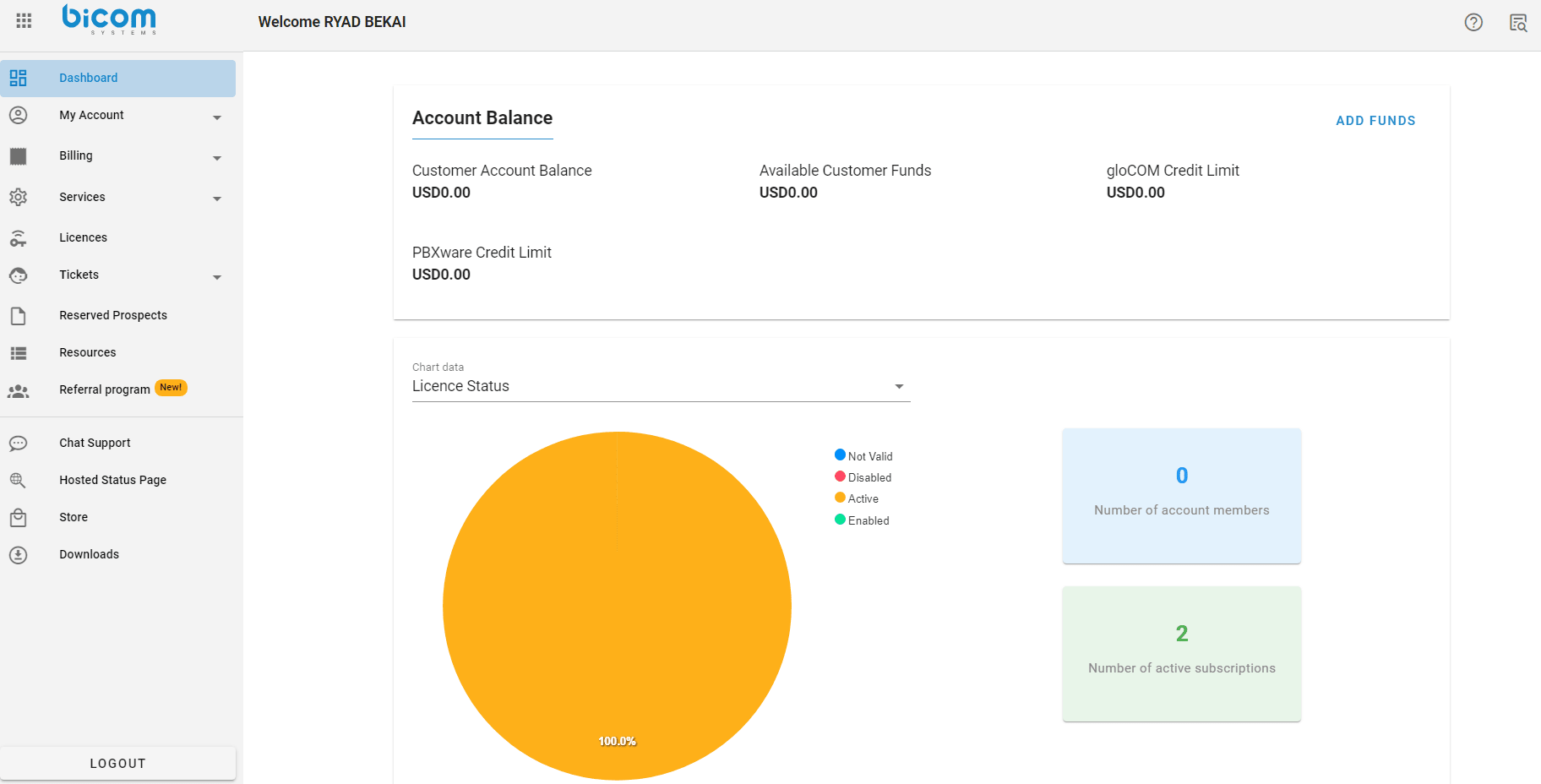
Your account dashboard allows you to access several parts of your reseller services, such as invoices, applications, members of your organization, etc.

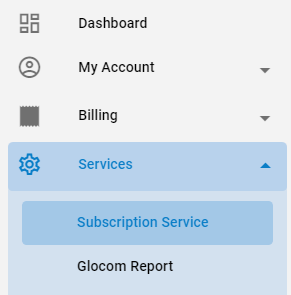
On the left side panel of the site, you will find several options, including Services.

Click the tab Services to expand the underlying options.

Click the service Subscription Service to reach the management of your quantities for each license.

Once on the Subscription Services page, you will find a list of your active licenses along with the associated Subscription ID in the first column. 
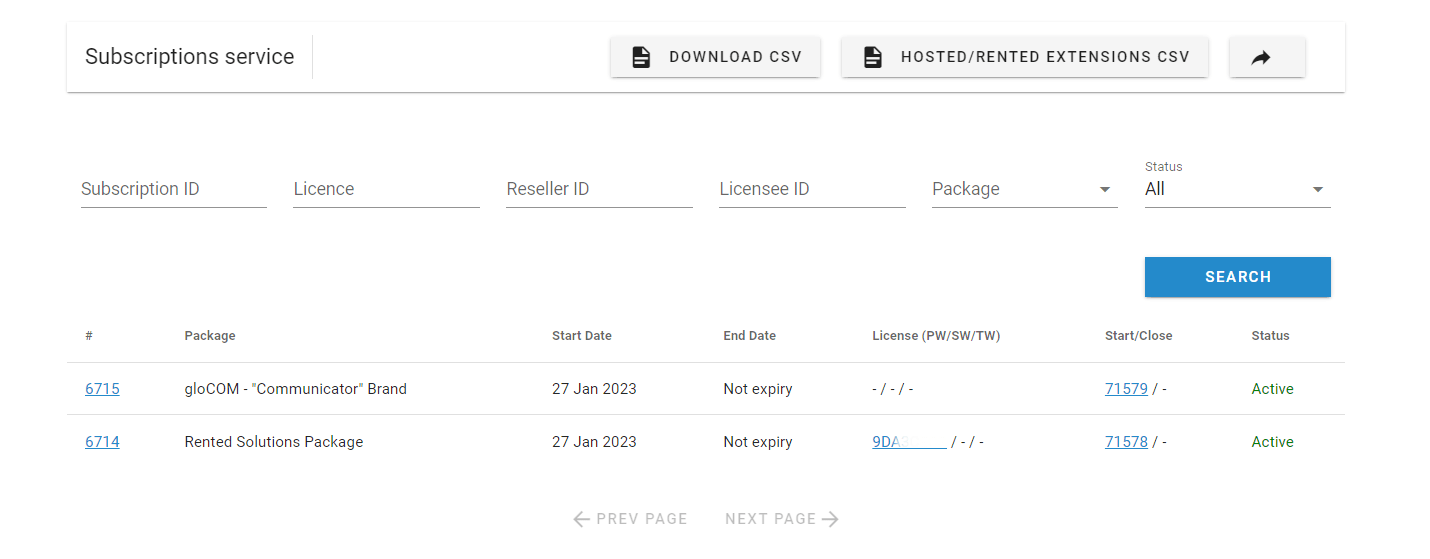
Once your license is identified (there is a field to search for the license), click the Subscription ID (#) corresponding to your license (e.g. 6715). 
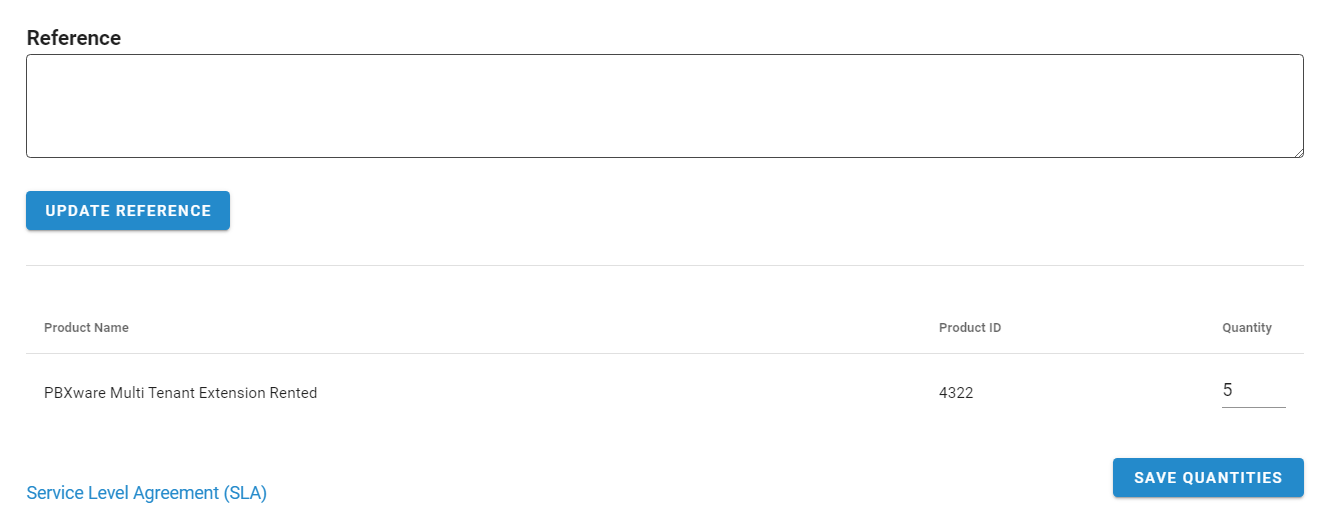
By clicking on the subscription ID of your license, you will find a page that lets you modify the quantities present on your license. 

Note that there are several possible products such as: 

– Archiving Storage
– Mirrored Redundancy of Two Servers
– PBXware Branding
– PBXware Business Extension Rented
– PBXware Call Center Extension Rented
– PBXware MT Support Monthly Contract
– PBXware Multi Tenant Extension Rented
– …

Thus, if you wish to add extensions on a Multi-Tenant license, you will need to modify the quantity of the product “PBXware Multi Tenant Extension Rented“. 

If you want to add call center extensions, you will need to modify the quantity of the product "PBXware Call Center Extension Rented“, etc…

Once the quantities are modified, click the button Save quantities.

A confirmation dialog box will appear, click Confirm
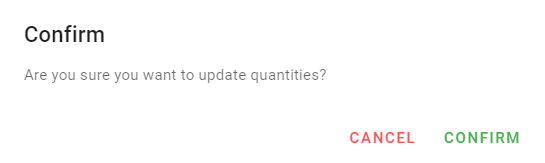
A confirmation message will then appear at the bottom of the page, indicating that the quantities have been successfully modified.

Reload the license

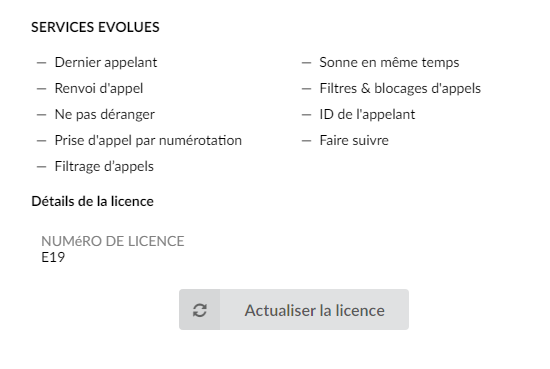
The last step is to reload the license so that PBXware can take note of the changes by contacting the Bicom license server.

To do this, go to your PBX, click on the tab Settings > About.

Here, click on the button Refresh license.
NOTE:

On a Multi-Tenant system, you must position yourself on the Master-Tenant in order to be able to reload the license.

Go to the previous step

 |

Go to the next step
Share

Order licenses

Or copy the link below

Clipboard Icon
CONTENT
Leaf Illustration

© Bicom Systems France

Last updated: 4 July 2026 Legal noticePrivacyCookiesTerms © 2026 Bicom Systems