



FR | EN
Wiki Bicom Systems EnglishWiki Bicom Systems English
  • Home
  • Documentation
    • PBXware
      • Installation
      • Getting started
      • Editions
        • PBXware Multi-Tenant
        • PBXware Business
        • PBXware Contact Center
        • PBXware Service Provider
      • Advanced services
      • Supported phones
      • Autoprovisioning
    • Communicator
      • Communicator Desktop
      • Communicator GO
      • Communicator Web
    • SERVERware
      • Standalone
      • Mirror
      • Cluster
    • sipPROT
    • Tutorials
  • Videos
    • Communicator Desktop
  • Operators
  • Downloads
  • FAQ
Support
leafleaf
Most popular:
  • PBXware
  • Communicator
  • SIP
  1. Home
  2. PBXware: Getting Started
  3. Add a pack
Updated on March 17, 2025
PBXware: Getting Started
  • Folder icon closedFolder open iconInstallation wizard
  • Folder icon closedFolder open iconGlobal view
  • Folder icon closedFolder open iconDashboard
  • Folder icon closedFolder open iconFirst settings
  • Folder icon closedFolder open iconInstall an SSL certificate
  • Folder icon closedFolder open iconAdd a pack
  • Folder icon closedFolder open iconAdd a tenant
  • Folder icon closedFolder open iconAdd a trunk
  • Folder icon closedFolder open iconDIDs
  • Folder icon closedFolder open iconOrder licenses
  • Folder icon closedFolder open iconAdd extensions
  • Folder icon closedFolder open iconSoftphone applications
    • Communicator Desktop
    • Communicator Web
    • Communicator Mobile
  • Folder icon closedFolder open iconPhones/UADs
  • Folder icon closedFolder open iconConnect a phone
  • Folder icon closedFolder open iconCreate an extension group
  • Folder icon closedFolder open iconCreate an enhanced extension group
  • Folder icon closedFolder open iconSMTP configuration
  • Folder icon closedFolder open iconsipPROT
  • Folder icon closedFolder open iconSwitch the voices to French

Add a pack

Estimated reading: 3 minutes
NOTE:

This page concerns the Multi-Tenant version of PBXware.

Before you can create your first tenant, you must first assign user quantities to this tenant. Packs have been specially designed for this purpose, so that you can size your offering.

Introduction

Packs are bundles used to determine the quantities you want allocated to your tenants among the following: extensions, voicemails, queues, IVRs, conferences and ring groups.
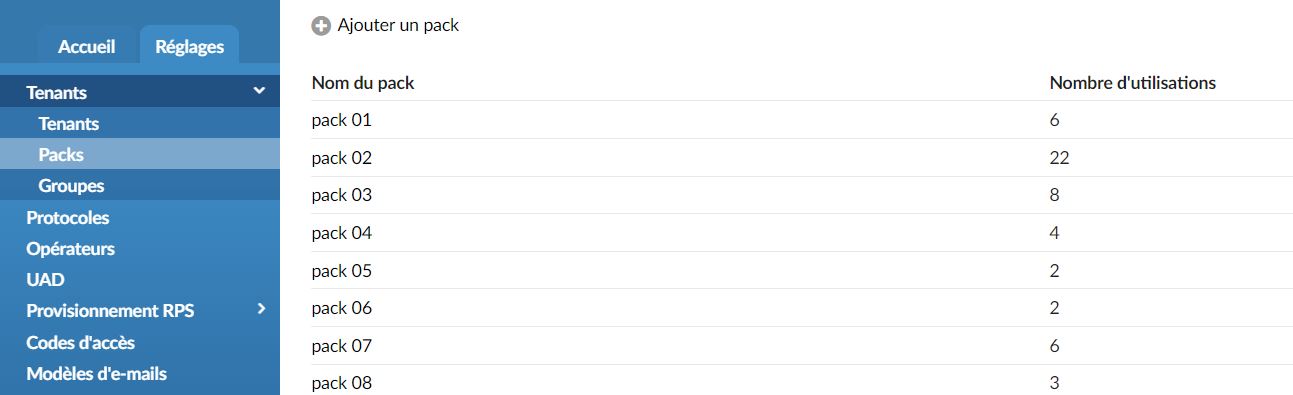
Go to the Master-Tenant then to Settings > Tenants > Packs

  • Pack name

Give your pack a name.

  • Number of uses

Number of tenants using a plan.

Add/Edit a pack

General

  • Name

Name of your pack

  • Extensions

Number of extensions that can be created on a tenant using this pack.

  • Voice messages

Number of voicemails that can be created on a tenant using this pack.

  • Queues

Number of queues that can be created on a tenant using this package.
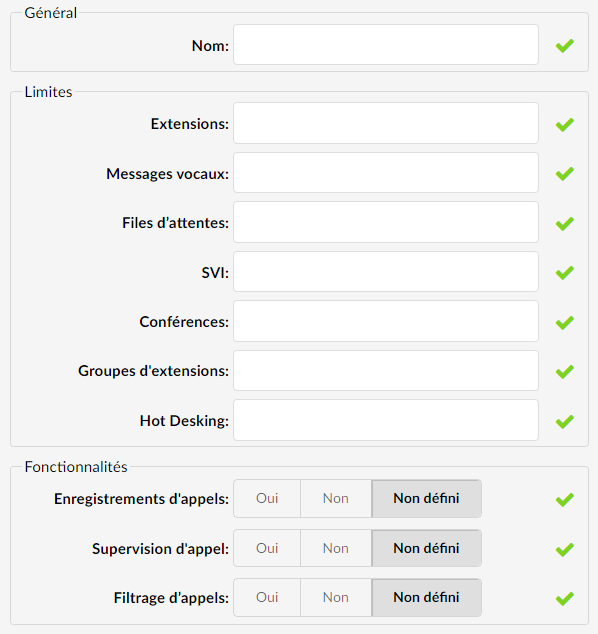
  • IVR (Interactive Voice Response)

Number of IVRs that can be created on a tenant using this package.

  • Conferences

Number of conferences that can be created on a tenant using this package.

  • Extension groups

Number of ring groups that can be created on a tenant using this package.

  • Hot-desking

Number of hot desking devices that can be created on a tenant using this package.

Features

  • Call recordings

Choose whether to enable or disable call recordings on the tenant using this package. If you disable it, you will not be able to record the call at the extension and DID level. Options such as instant recording, delete recording and listen to recordings in enhanced services will be disabled for all extensions, in case you have set call recordings to No.

  • Call supervision

Enabling or disabling this option will allow or prohibit the use of the call monitoring option in enhanced services for all extensions.

  • Call filtering

If you enable this option, the Call Screening option under Enhanced Services will be listed. The user will have the ability to enable or disable this option. Setting the Call Screening option to No will not display this option in the enhanced services.

Go to the previous step

 |

Go to the next step
Share

Add a pack

Or copy the link below

Clipboard Icon
CONTENT
Leaf Illustration

© Bicom Systems France

Last updated: 4 July 2026 Legal noticePrivacyCookiesTerms © 2026 Bicom Systems