



Add a processing host
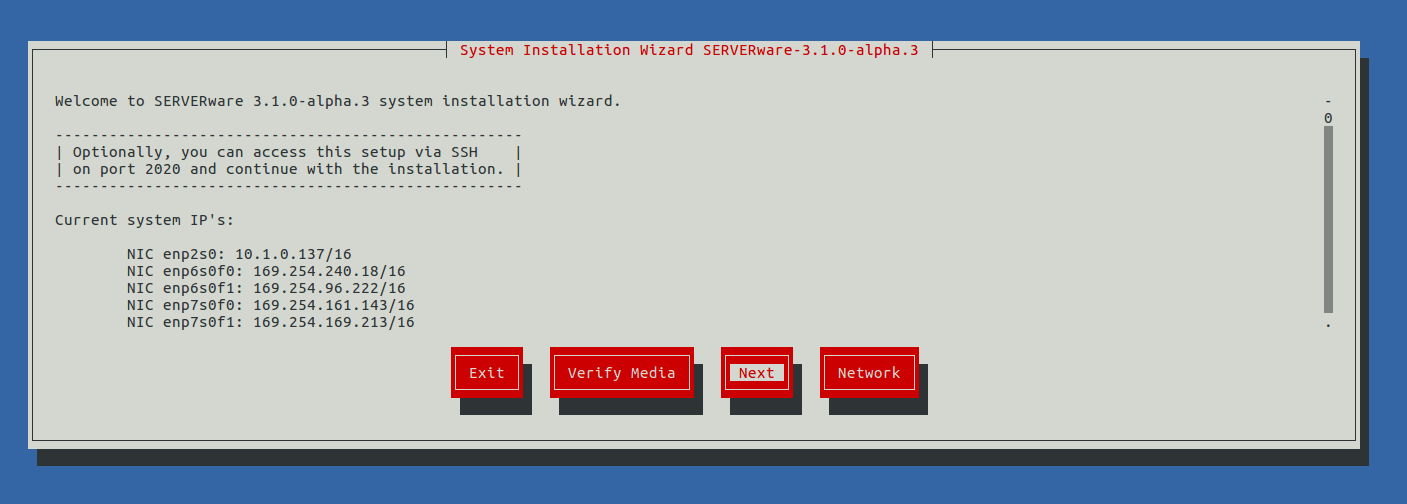
If the live system was able to retrieve the IP address from the DHCP server, it will display it on this screen. You can then access the system remotely via ssh on port 2020 with the username root and the password bicomsystems and continue the installation.
Several options are offered on the home screen:
Exit – Choose this option to exit the installation wizard. This option will open the command-line shell of the live system.
Verify media – This option will scan the files on the installation media, compare them to the previously stored checksum, and check for corruption.
Next – Move to the next step.
Network – Configure the IP address for remote access to the installation wizard.
Step 1: Select SERVERware Host as the installation type
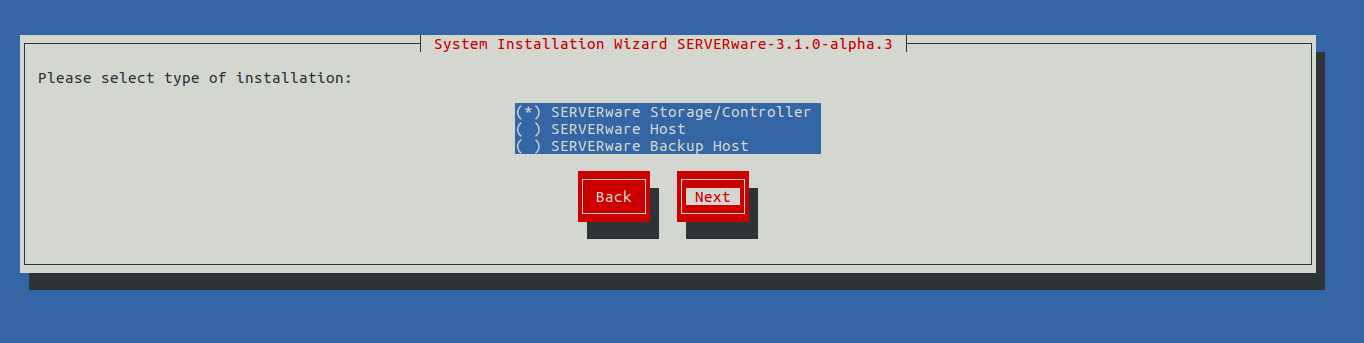
A processing host is a computing resource that will attach and run VPSs from storage via SAN (Storage Area Network).
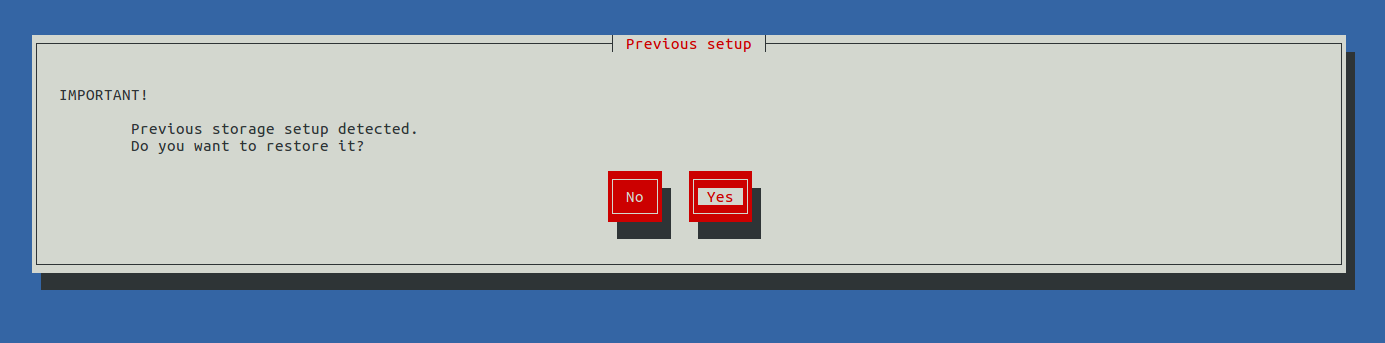
In cases where the user reinstalls the storage/controller server on which a previous configuration was performed. The installation wizard will detect the previous configuration and offer a restore option to the user.
If the user chooses to restore, the installation wizard will automatically exclude all disks used for network storage by the previous installation from the system disk selection list, in order to eliminate the possibility of overwriting the installation during installation & will restore the complete installation of the original storage and network configuration.
The reason for the installation and restoration would be when the system disk is lost/failed and replaced by a new one.
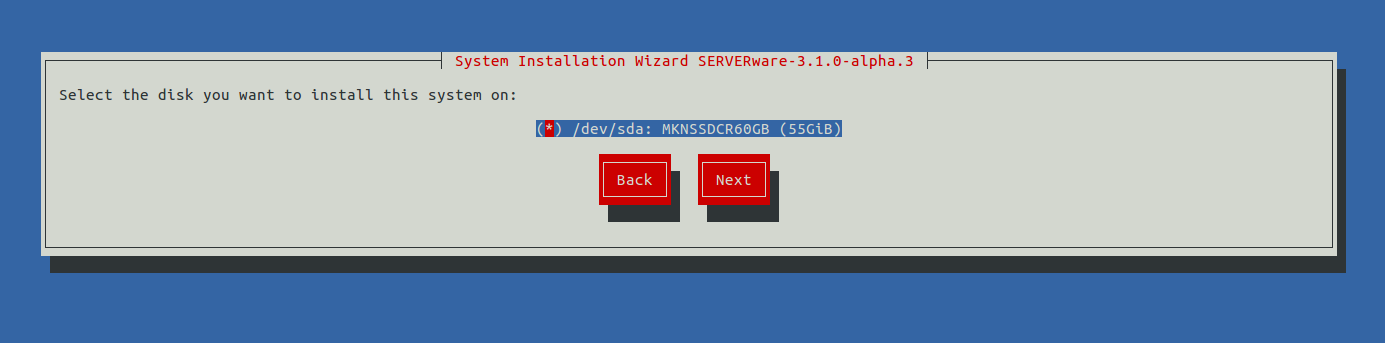
Step 2: Select the physical disk for the system installation
Step 3: The confirmation dialog box appears
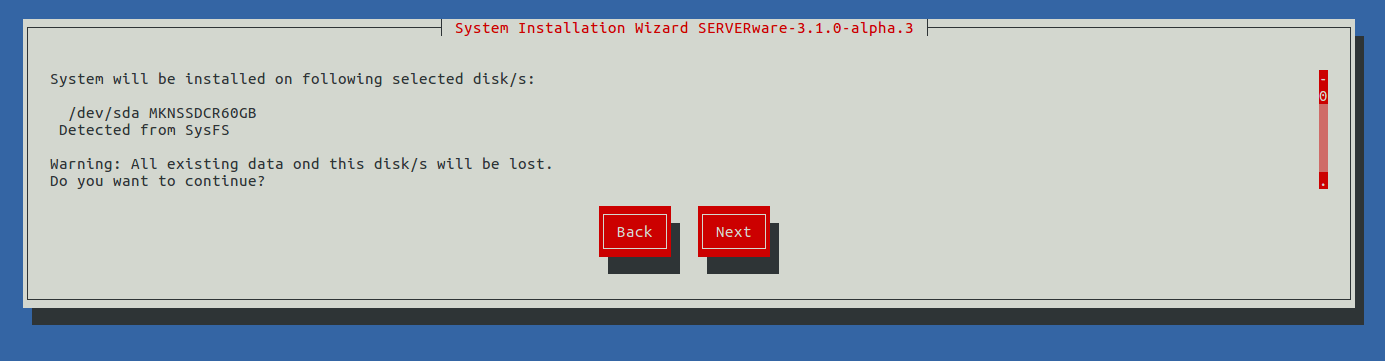
Step 4: The installation wizard will now proceed to install the SERVERware operating system


Step 5: Once the operating system is installed, the network configuration dialog box appears
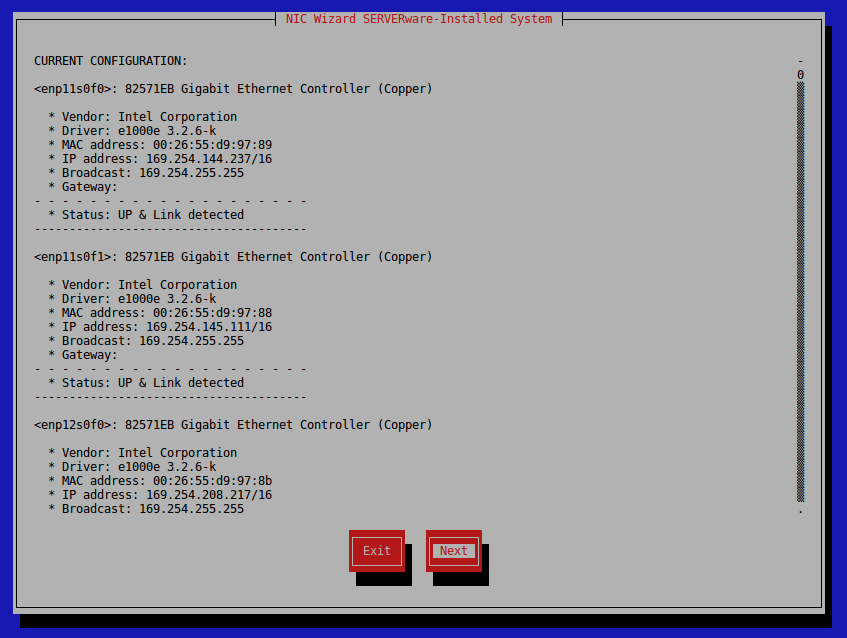
Click on Next to continue, then choose one of the options to configure the network interface.
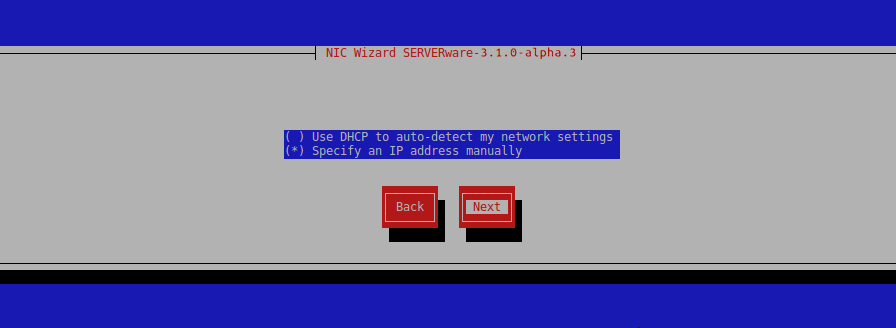
After completing the network configuration, click Next to complete the installation. The wizard will initiate a reboot.
