6. BSSUP
To access the BSSUP panel, click the button located next to the system date in the SERVERware menu at the top right. The main BSSUP panel should appear on the right side of the SERVERware web interface. To close it, simply click the BSSUP button again. The BSSUP interface appears as follows:
- Button “Open SSH access”: to open SSH access to your server.
- Button “Advanced options”: to change the SSH port or set the timeout.
- Button “Show logs”: to access the logs.
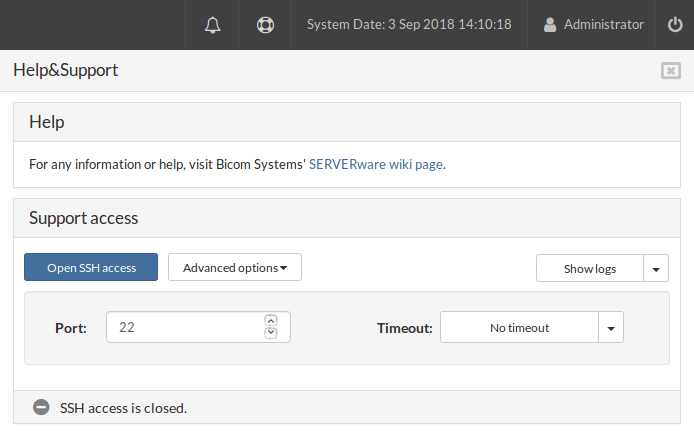
The status bar is located at the bottom of the panel, indicating whether SSH access is open or closed.
SSH access
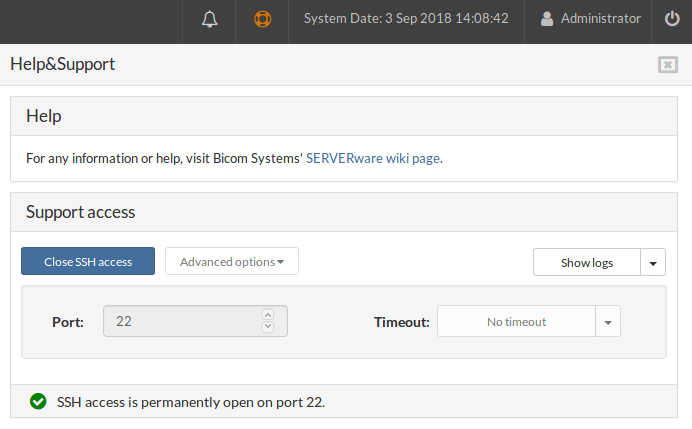
When SSH access is open, an icon in the status bar changes color to green with a checkmark inside, indicating that everything is operational on port 22.
Furthermore, the BSSUP panel button changes color to orange to indicate that SSH access is open.
You will also find information about when SSH access will be closed in the status bar. During this period, it is not possible to access the advanced options.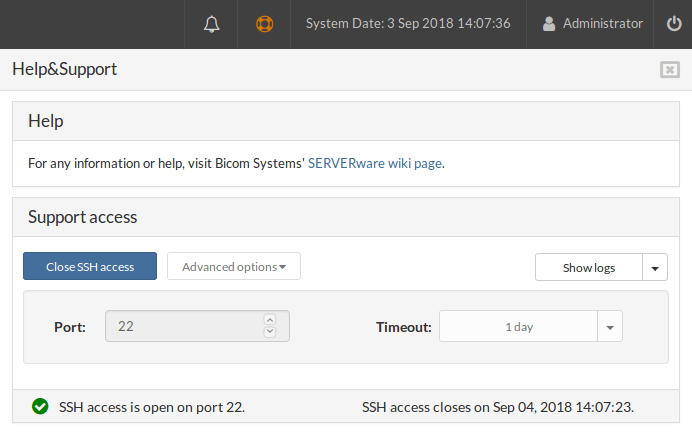
Advanced options
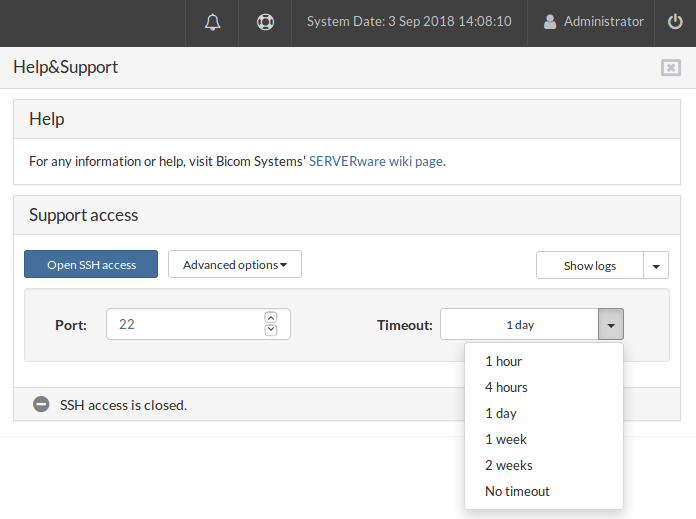
Port: This section allows you to define the port to use for SSH access. If you enter invalid text or a port value, the text field turns red and the button to open SSH access is disabled.
Timeout : The drop-down menu lets you choose how long SSH access will remain open. For example, if you enter 22 for the port and select No timeout, then open SSH access, everything will stay the same, except for the status bar. The message will indicate that the port is permanently open and that there will be no timeout.
Back in the BSSUP console, you should see these logs:
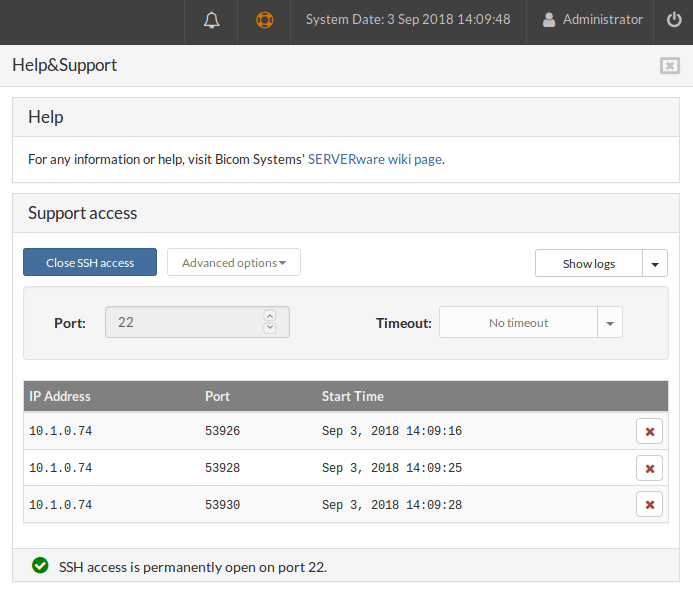
- In the "IP Address" column, you should see all the IP addresses of the computers from which you requested an SSH connection.
- The "Port" column displays all the ports used for your connections.
- The "Start time" column indicates when each connection started.
At the end of each connection status, there are buttons to close an individual SSH session. When you click on one of the buttons, that line disappears from the table, and on your terminal, you should get the result after closing the SSH access:
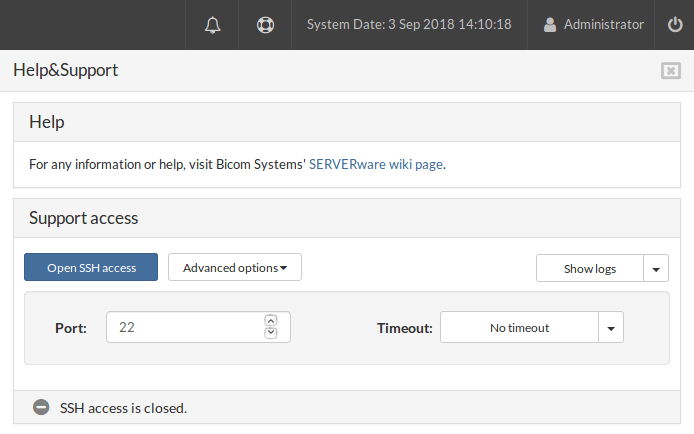
After clicking on “Close SSH access”:
- All sessions should end. Save your terminal if all connections are closed.
- The BSSUP panel button at the top should be gray.
- The "Advanced options” must be enabled again.
- The fields "Port” and “Expiration timeout” must be enabled again.
- The message in the status bar must indicate that SSH access is closed.
Logs
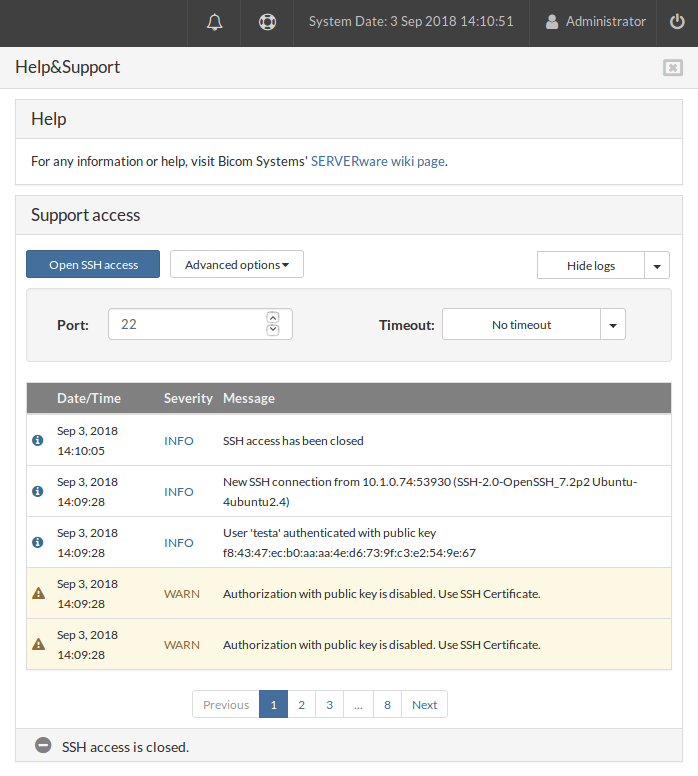
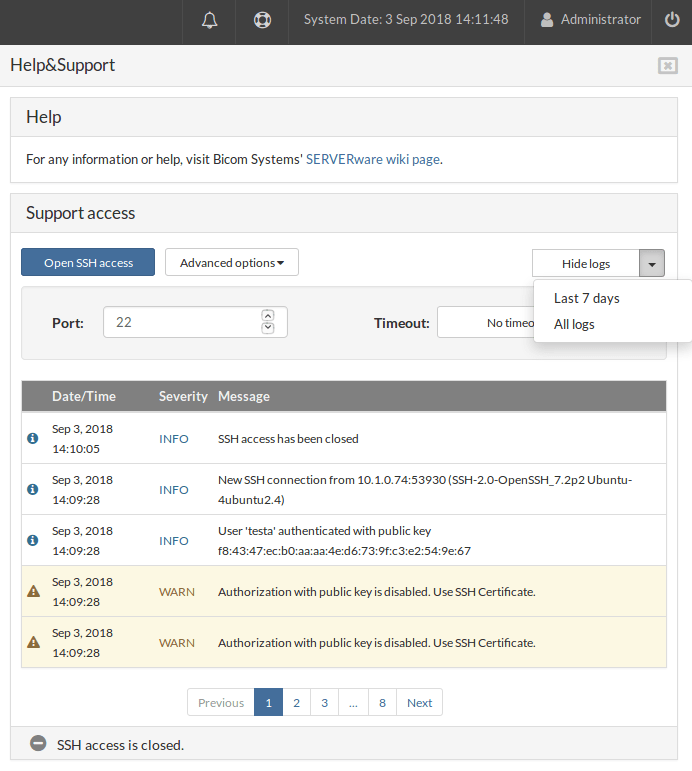
After clicking on “Show logs“, the BSSUP panel should expand with additional information regarding the SSH access history. There you will find the date and time, the severity and a detailed explanation of each SSH connection:
- The "Date/Time” indicates the exact date and time at which something occurred.
- The "Severity” indicates the status of the messages. Severity marked as “WARN” has a yellow background.
- The "Message” displays a detailed explanation regarding each log. At the bottom of the log list, you will find a page selector, as well as the “Previous” and “Next” buttons. Above the logs, there is a drop-down menu to choose the display period of the logs: “All logs” or “The last 7 days“.